
 ChatGPT
 Perplexity
 Claude
 Gemini
 Grok



A demo transcript gives your video team more than copy. It shows which product actions were explained, which questions came up, and where a speaker made a claim that needs proof.
That makes a Scribe v3 video brief a filtering job before it becomes a writing job. Start with an authorized recording, keep the transcript beside the audio, and select only moments that can support a short scene. The transcript is planning evidence, not the finished video.
What should a demo transcript contribute to the video?
It should contribute one clear product lesson, a useful proof moment, and wording your team will approve. A fictional Ledgerline demo may contain twelve minutes. The short video may need only this sequence:
-
The user opens renewal settings.
-
The presenter turns on the reminder.
-
The dashboard confirms the status.
The transcript helps you find the explanation. The recording shows whether the hand, cursor, or interface supports it. Keep both when selecting a scene. A convincing sentence can still point to the wrong button or skip the action that makes the claim credible.
Transcribe the authorized recording with Scribe v3
Use Scribe v3 for a recorded demo. ElevenLabs describes it as the recorded-audio model; Scribe v3 Live handles real-time audio. The Scribe v3 launch notes and Speech to Text docs list speaker labels, number formatting, keyterm prompting and transcript editing.
Before transcription, prepare a small term sheet. Include the product name, feature names, plan names, acronyms and any customer-facing spelling. If the recording contains more than one language, list the languages you expect. Scribe v3 can transcribe mixed-language audio with secondary language codes; it does not translate the speech into another language.
For Ledgerline, the term sheet might include Ledgerline, Renewal Guard, ARR, and 14-day notice. Ask for digits when the script displays numbers. Keep the original beside an edited version so a clean sentence does not lose the speaker's qualification.
Check product names, numbers, and speaker claims
Do the first review against the audio, then against the product source of truth. Mark each line as use, verify, or discard.
| Transcript line | Audio check | Product check | Scene decision |
|---|---|---|---|
| “Renewal Guard sends a reminder 14 days before renewal.” | Confirm the speaker and wording. | Check the current help article or approved claim sheet. | Use only if the timing is documented. |
| “Every workspace gets the feature.” | Confirm whether “every” was actually said. | Check plan, region and rollout conditions. | Rewrite or discard if the claim is too broad. |
| “Turn it on here.” | Find the exact screen moment. | Confirm the control still exists in the current build. | Use as the proof action. |
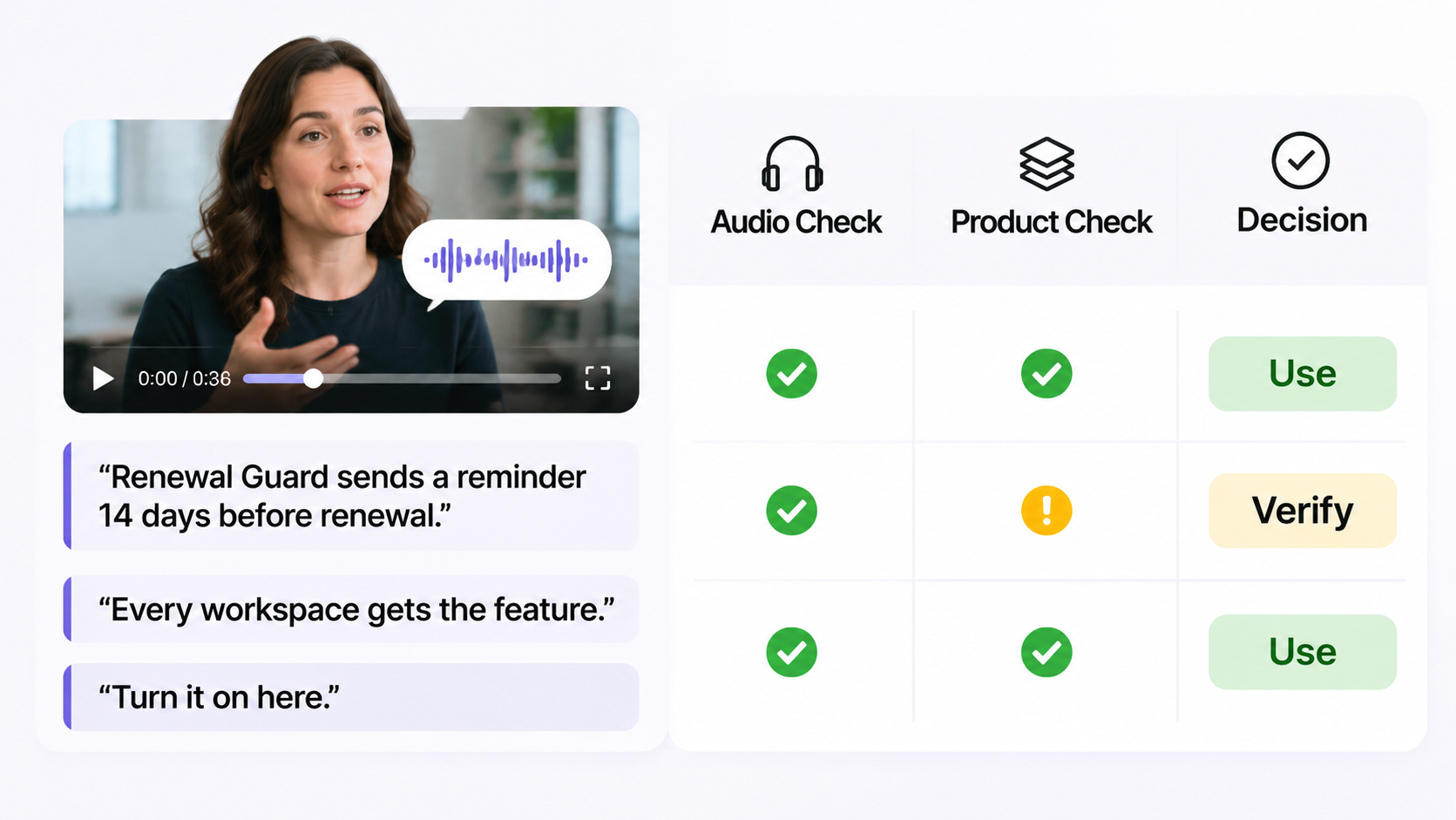
Speaker labels help separate a product manager's explanation from a customer's question, but they do not approve identity or meaning. Listen again when people overlap, a brand term sounds unusual, or a number changes the promise.
Select one proof moment and one customer question
Choose the proof moment first. It should show the action that earns trust. Then choose one question that gives the scene a reason to exist.
For Ledgerline, the proof moment is the reminder setting changing from Off to On. The customer question is: “Will the team know before the renewal date?” That pairing gives the editor a clean scene purpose: answer the question by showing the setting and the confirmation state.
Leave out the welcome, repeated feature list and unsupported roadmap language. A short product video needs the smallest set of words and images that can survive review.
Write a short scene brief from verified lines
Turn the approved lines into a handoff another producer can act on:
| Field | Ledgerline example |
|---|---|
| Scene job | Show how to enable Renewal Guard. |
| Spoken line | “Turn on Renewal Guard to receive the documented 14-day reminder.” |
| Visual proof | Current settings screen, toggle movement, confirmation state. |
| Source | Demo timestamp 04:18–04:36; approved claim sheet dated by the product team. |
| On-screen text | “Renewal Guard: On” and “14-day reminder,” if the claim is approved. |
| Stop condition | Remove the scene if the control or timing cannot be verified. |
Keep the spoken line close to the evidence. If the transcript says “usually,” do not turn it into “always” for a cleaner hook. If the visual cannot show the claimed result, change the scene goal or use a real screen capture later.
Where must the brief return to product evidence?
Return to evidence wherever the video makes a promise: spoken line, subtitle, interface label, number, customer quote or call to action. Add a source timestamp or approved document beside each claim. This gives the reviewer a route back to the recording and current product facts.
If the brief is approved, an AI video workflow such as Pexo's product video workflow can help develop the wider sequence, subject to its supported inputs and production requirements. Keep the approved transcript as an internal production reference alongside the visuals, script and delivery requirements. Confirm which inputs the selected Pexo workflow actually accepts. Pexo does not provide Scribe v3 transcription here.

Conclusion
Use Scribe v3 to locate moments worth directing, then make each one earn its place in the brief. Verify names, numbers, speakers and promises against the recording and product evidence. The video can be concise; approval should still be clear.