ChatGPT
 Perplexity
 Claude
 Gemini
 Grok
Grok



A desk caddy with three compartments cannot gain a fourth when the shot changes. Yet stills approved one by one can hide that mismatch until they become an ad. Which images carry the same product through the story?
This FLUX 3 Image Klein product video workflow uses a fictional Mesa desk caddy with three compartments. The example follows its stills through the video brief and final review.
Which FLUX 3 Image Klein Stills Belong in the Ad?
Give each image a distinct job. A hero view identifies Mesa. A top view lets buyers count its compartments. A use image shows keys being placed inside, if approved source material supports that action.
Black Forest Labs describes FLUX 3 Image Klein as an image generation and editing model with multiple image references. It produces stills. Motion, editing, sound, and the final ad require a later video step.

Compare each candidate with the current packshot: compartment count, material, color, and logo. Reject a beautiful frame that changes the divider shape. Keep approved wording and evidence separately; a generated still cannot prove a feature.
Build One Product Story from the Selected Images
The buyer should leave knowing where small desk items go. Move from identifying Mesa to seeing its three spaces in use. Put the claim where those spaces are visible.
Move from the product reveal to one use moment
This product ad storyboard keeps the use moment modest:
| Beat | Approved visual | What must remain true |
|---|---|---|
| Reveal | Front three-quarter still | The caddy shape and color match the packshot |
| Proof | Top view, held long enough to count | Exactly three compartments remain visible |
| Use | Source-backed hand placing keys in one space | The hand does not hide or invent a divider |
| Close | Product still and approved destination line | Name and next click match the live product page |
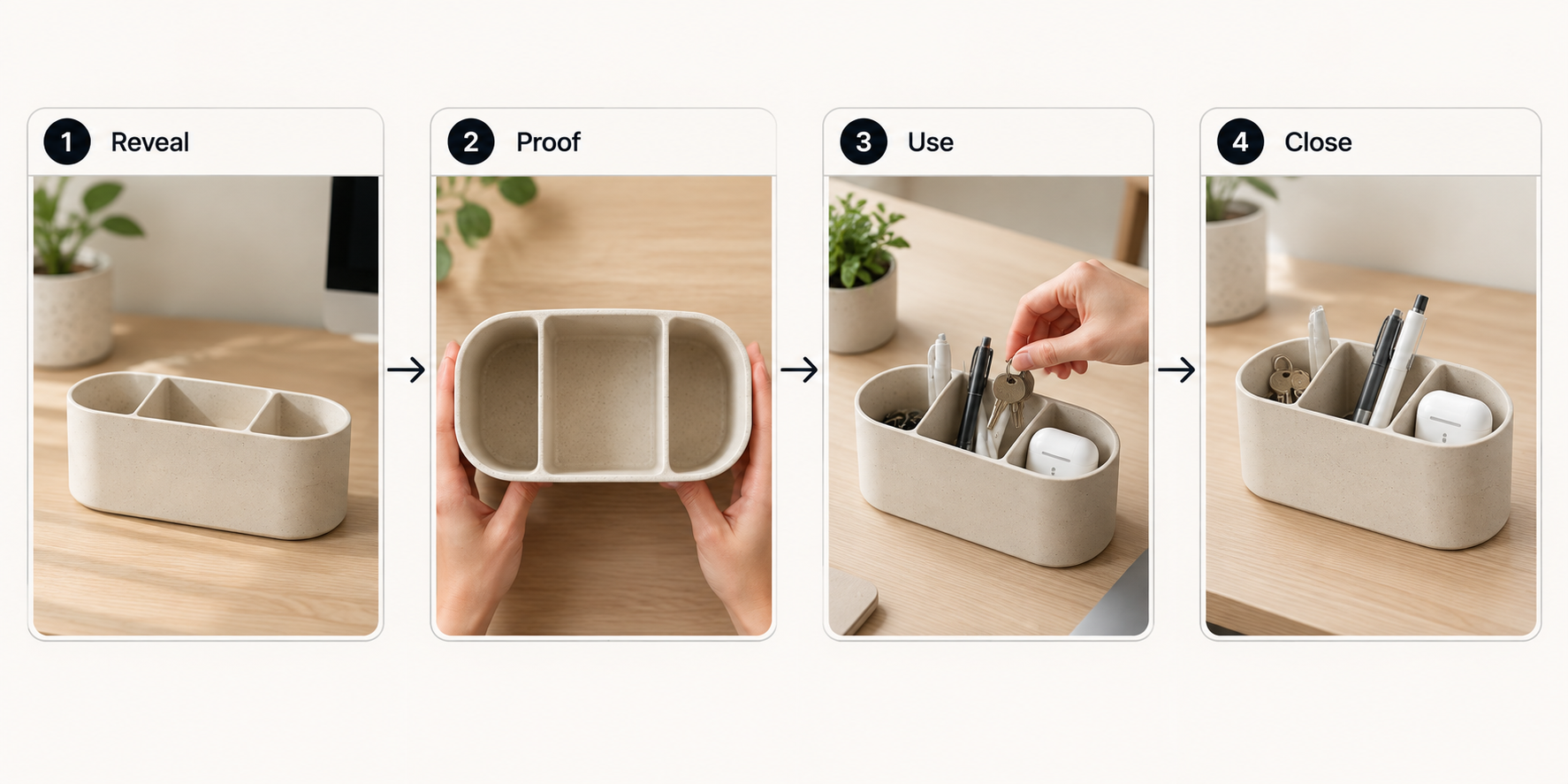
Without a credible hand-and-product source, hold the top view and skip the use action. Attractive motion cannot establish product behavior.
Keep packaging and claims consistent across shots
Read the frames as a sequence before requesting motion. If a divider moves between angles, repair or replace the still. Editing will not hide a mismatched product.
Use approved artwork for product lettering when possible. Compare generated text with the actual label before and after video production. Use the approved claim, not an improvised benefit.
Turn the Storyboard into a Video Brief
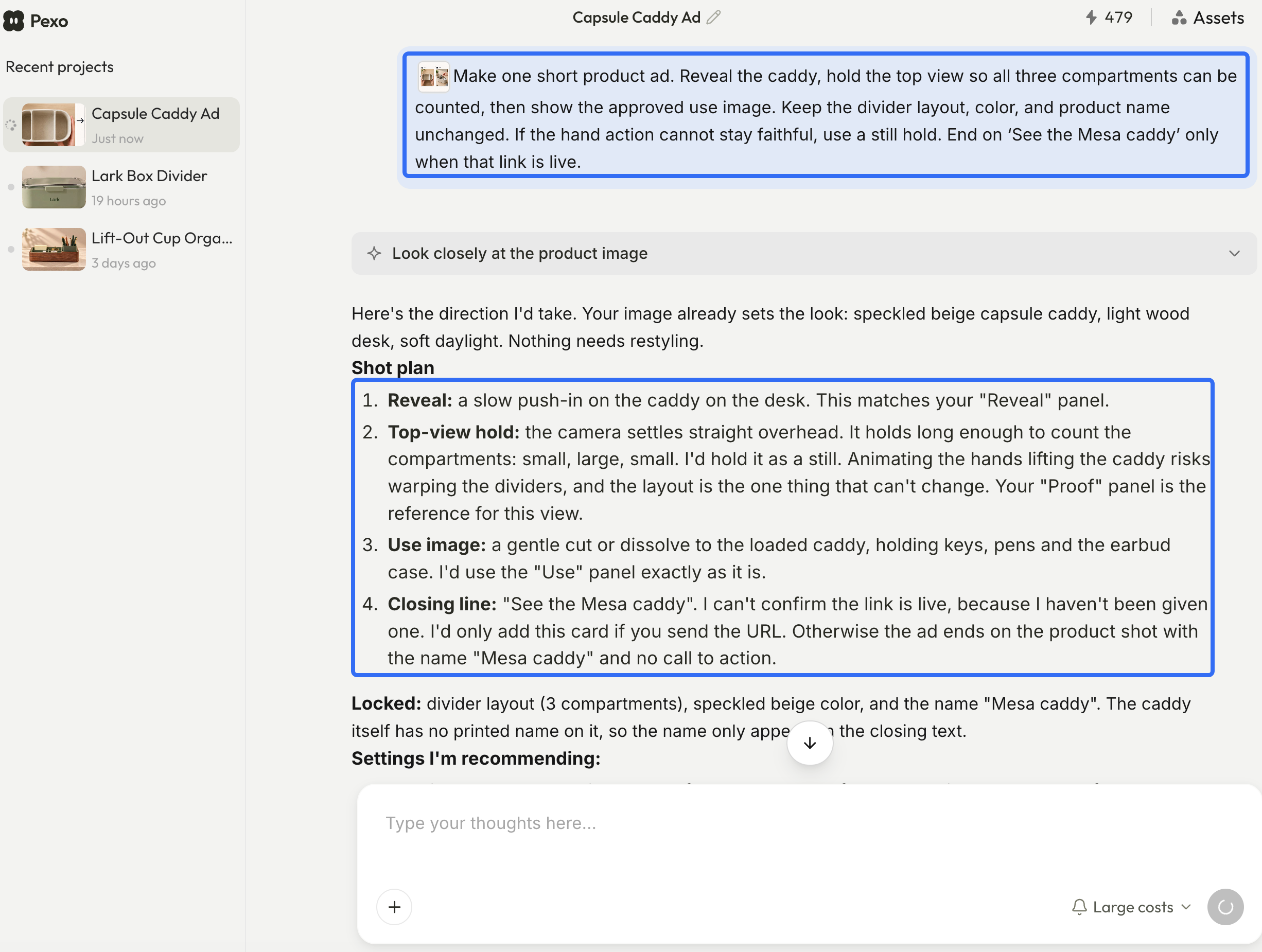
Send selected files with one instruction per beat. Identify visual references, approved copy, and what motion must preserve.
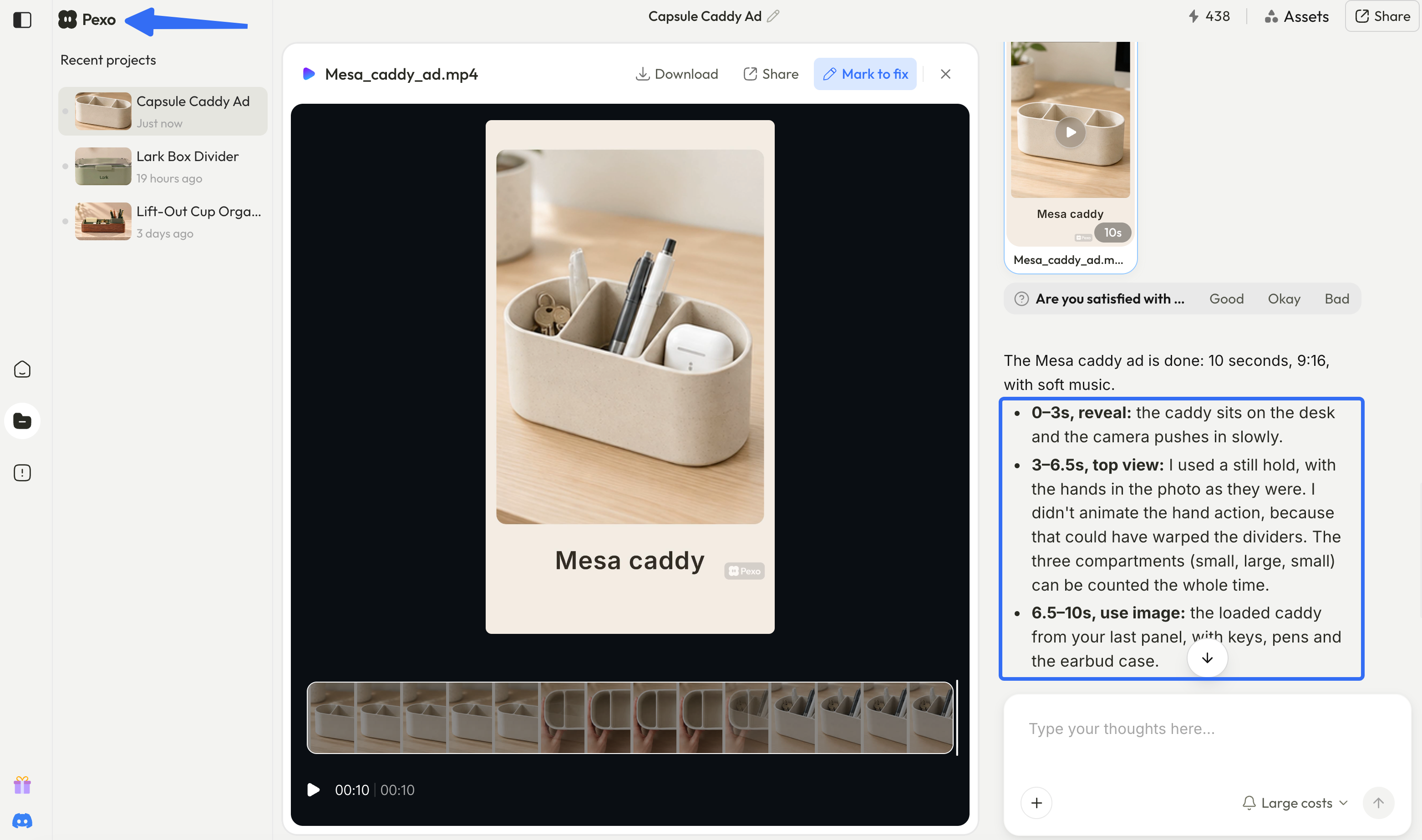
For Mesa, the brief could read: “Make one short product ad. Reveal the caddy, hold the top view so all three compartments can be counted, then show the approved use image. Keep the divider layout, color, and product name unchanged. If the hand action cannot stay faithful, use a still hold. End on ‘See the Mesa caddy’ only when that link is live.” Add the intended placement and format before production begins.
Pexo publishes this guide. Its start guide says teams can supply images and other assets, then review a script and storyboard before video creation. Its revision guide describes conversational feedback and marking a specific frame for a fix. These are options for directing the subsequent video work.
Review the Finished Cut Against the Product Images
Watch once for the story. Then stop on each product view and compare it with the approved still and current item. Does the ad make sense, and is it true?
| Check | Pass condition | If it fails |
|---|---|---|
| Product geometry | Three compartments and dividers stay consistent | Replace the shot or return to the approved still |
| Use action | Keys enter a real compartment without shape changes | Remove the action; use a source-backed view |
| Copy and label | Product name and claim match approved text | Correct the frame and every affected export |
| Whole cut | Reveal, proof, and next click form one clear sequence | Reorder or trim before polishing transitions |
Pause on transitions: a divider may warp midway through a move. Check the export's crop and overlays in its intended placement. Approved stills do not approve every frame between them.
Next Step: Approve a Single Product Ad
Approve the still set, the three-compartment line, and the storyboard together. Then review the full cut against that same package. If the team needs a directed video from those assets, bring the images and one buyer question to Pexo and check the proposed sequence before production continues. The finished ad earns approval only when the product stays recognizable from first frame to last.