ChatGPT
 Perplexity
 Claude
 Gemini
 Grok
Grok



Use FLUX 3 Max to turn one approved product photo into a single moving ad shot. Upload the image, direct one camera move, then inspect the result against the original. Give the motion a clear purpose, such as bringing a textured surface closer to the viewer.
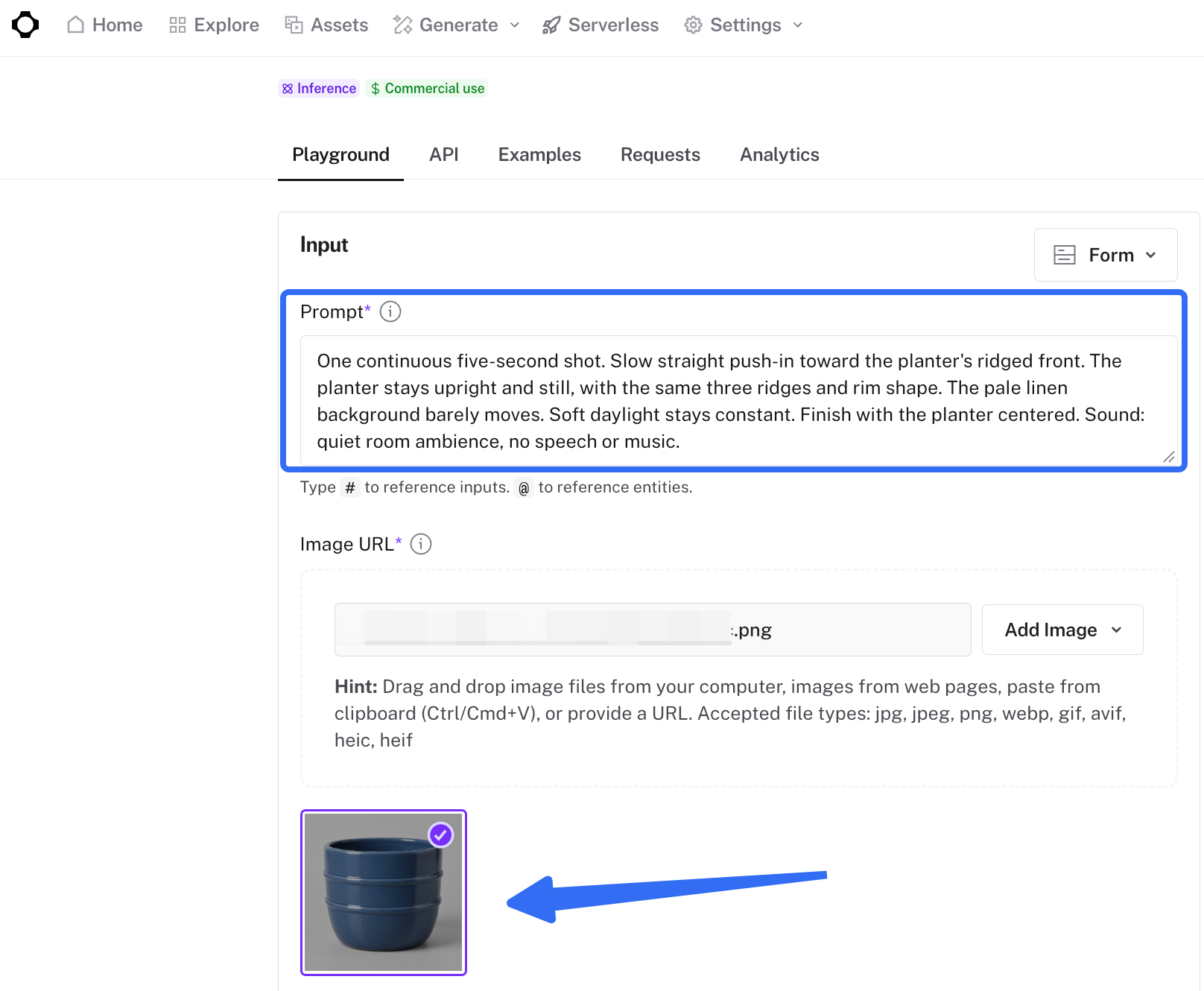
For illustration, imagine a blue ceramic planter with three horizontal ridges. Its shot brief asks the camera to approach while the planter stays still.
What Does FLUX 3 Max Do with a Product Photo?
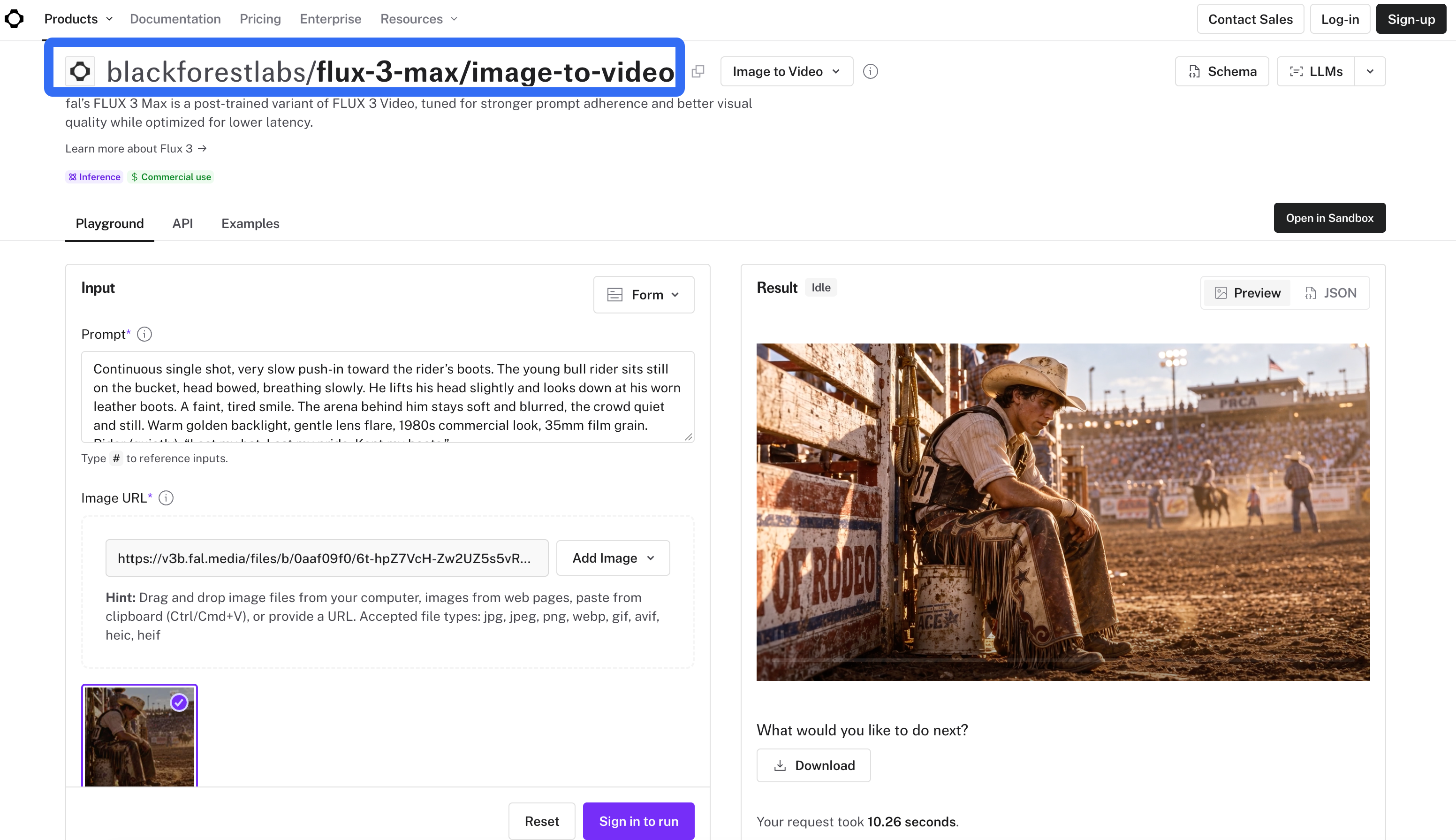
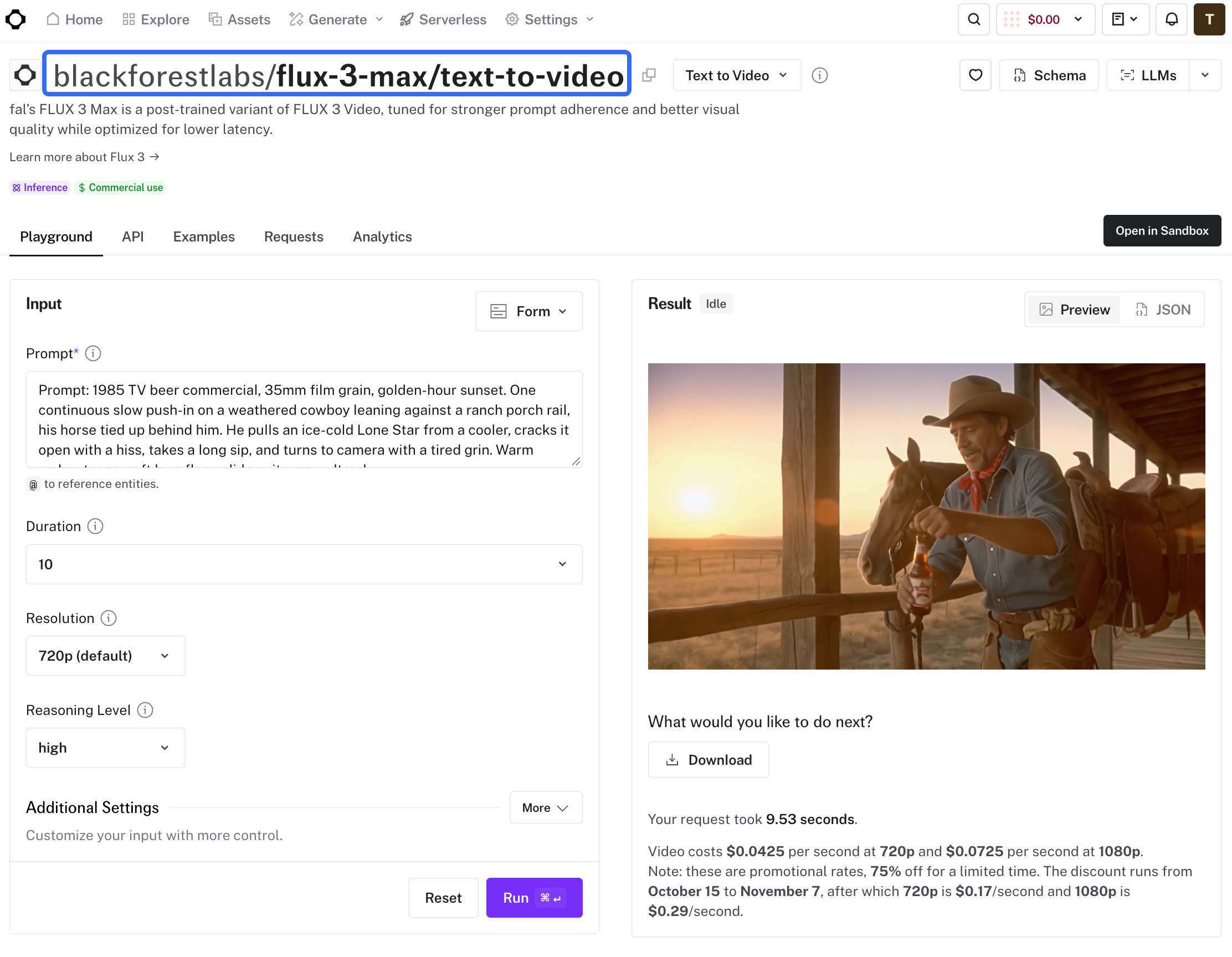
FLUX 3 Max uses a starting image and a prompt to generate video. It is fal's post-trained video model built with Black Forest Labs, distinct from the base FLUX 3 Video model and the FLUX 3 Image Klein image model.
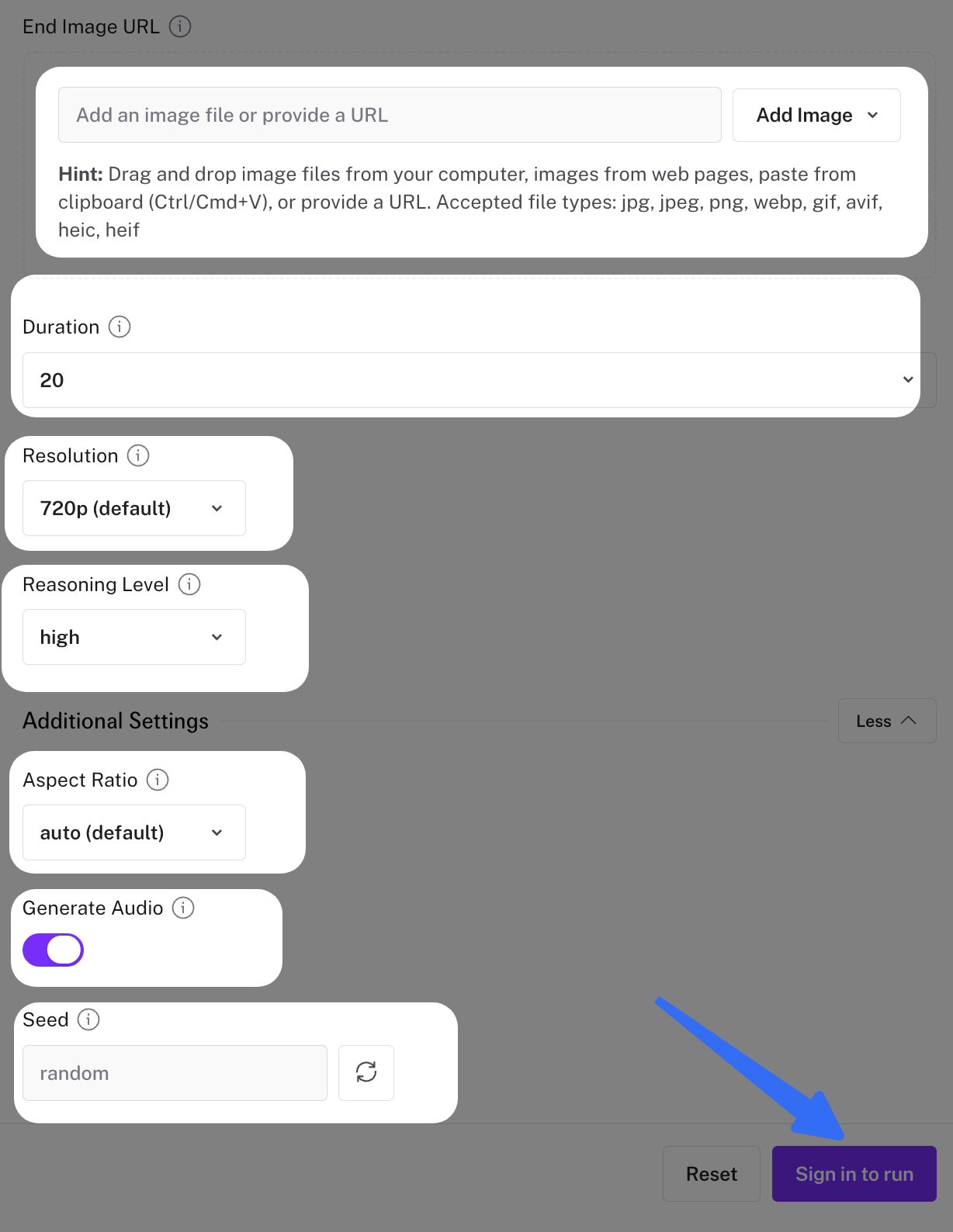
Checked October 20, 2026, fal's image-to-video endpoint accepts PNG, JPEG, or WebP images. You can request 5–20 seconds at 720p or 1080p. Available ratios include 16:9, 1:1, and 9:16; auto follows the starting image. Generated audio defaults to on.
When turning a product photo into video, the deliverable is one shot ready for human review. Product fidelity still needs inspection throughout the clip.
Choose One Approved Starting Image
Choose a current product photo with the correct color, shape, packaging, and visible lettering. Approval must cover uploading the image for AI processing, not just using it on a product page. Hold unreleased or confidential materials until retention and processing arrangements are acceptable.
For the planter, choose a front view that clearly shows all three ridges and the rim. Leave enough room around it for the intended crop. A gentle push-in can emphasize visible texture; a wide orbit would ask generation to invent the unseen back.
In fal's image-to-video playground, sign in and add the image file or its URL. Choose duration, resolution, and aspect ratio before submitting. For the example below, set Duration to five seconds and select your placement's ratio. Use PNG, JPEG, or WebP to match the documented inputs, and check any additional uploader limits shown.
Prompt One Ad Shot
Define the camera move and product action
An image-to-video motion prompt should describe what happens after the opening frame. Build it around camera movement, ordered action, environmental motion, lighting, and sound, following fal's prompting guide.
For this planter, I would start with a stationary product and one slow camera move. That gives the ridged surface attention without introducing a new product action.
Try this illustrative prompt with a matching approved image:
One continuous five-second shot. Slow straight push-in toward the planter's ridged front. The planter stays upright and still, with the same three ridges and rim shape. The pale linen background barely moves. Soft daylight stays constant. Finish with the planter centered. Sound: quiet room ambience, no speech or music.
Plan background motion and sound
Keep secondary movement quieter than the product detail. If the starting photo has a plain backdrop, leave it still; the linen instruction belongs only to the illustrated scene.
For a silent product ad clip, turn generated audio off with generate_audio: false. A “no music” instruction still allows other generated sounds. If you keep audio enabled, listen for unwanted speech, music, or effects before approval.
Review the Generated Shot
Check product details and ad claims
Watch once at normal speed, then pause on the opening, middle, and ending. Compare the planter's rim, ridge count, color, and proportions with the approved photo. Inspect any label character by character; do not accept invented lettering because the motion looks smooth.
The shot also needs a limit on what it claims. Moving closer can show surface detail. It cannot prove that the planter resists cracking or keeps roots healthier. Add only claims supported by the seller's evidence, and have a person review the intended placement's current advertising rules.
Decide whether to revise or hand off
Approve the shot when its useful motion and product details survive the whole take. If the camera hides the rim, reduce the move. If a ridge appears or disappears, reject that version and simplify the motion before another generation. Save the original image, prompt, settings, and rejection reason.
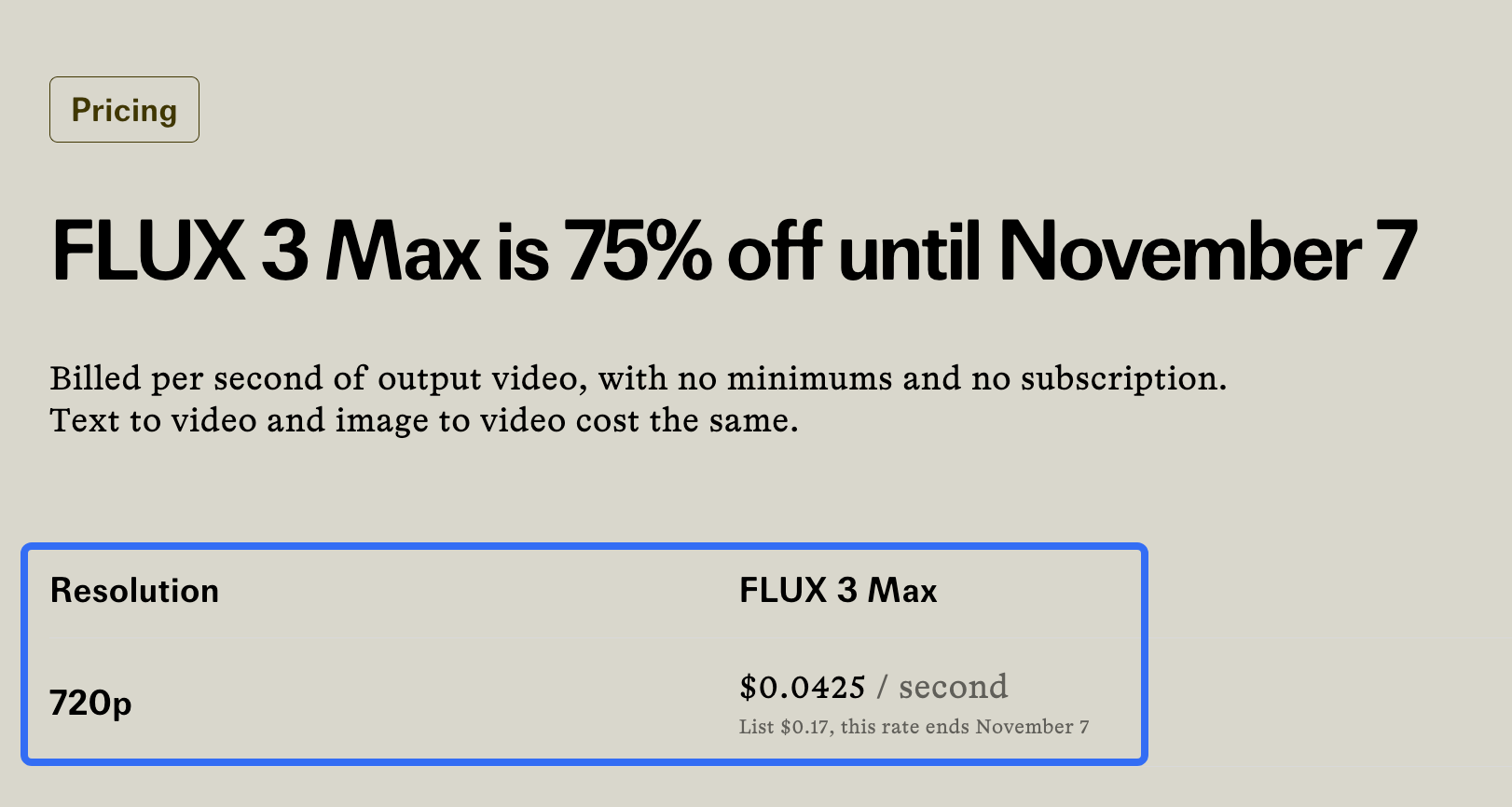
Budget for those attempts. On October 20, fal's playground lists $0.0425 per second at 720p and $0.0725 at 1080p. A five-second attempt therefore calculates to $0.2125 or $0.3625, respectively. The 720p promotional rate ends November 7. Confirm the displayed charge before running again.
Next Step: Put the Approved Shot into an Ad Brief
Download the approved shot and record its purpose, usable duration, product facts, and required crop. For the planter: “Bring attention to the three ridges; preserve the rim and blue glaze.”
Pexo publishes this guide and offers an optional next step. You can upload an approved video clip and request changes through conversation. Bring the approved shot into an ad brief and ask to review the plan first.