ChatGPT
 Perplexity
 Claude
 Gemini
 Grok
Grok



Give the video agent a clear order of priority: the current packshot controls the product, the hero still guides the opening, and the style reference guides the setting. Then describe the movement and shot order you want.
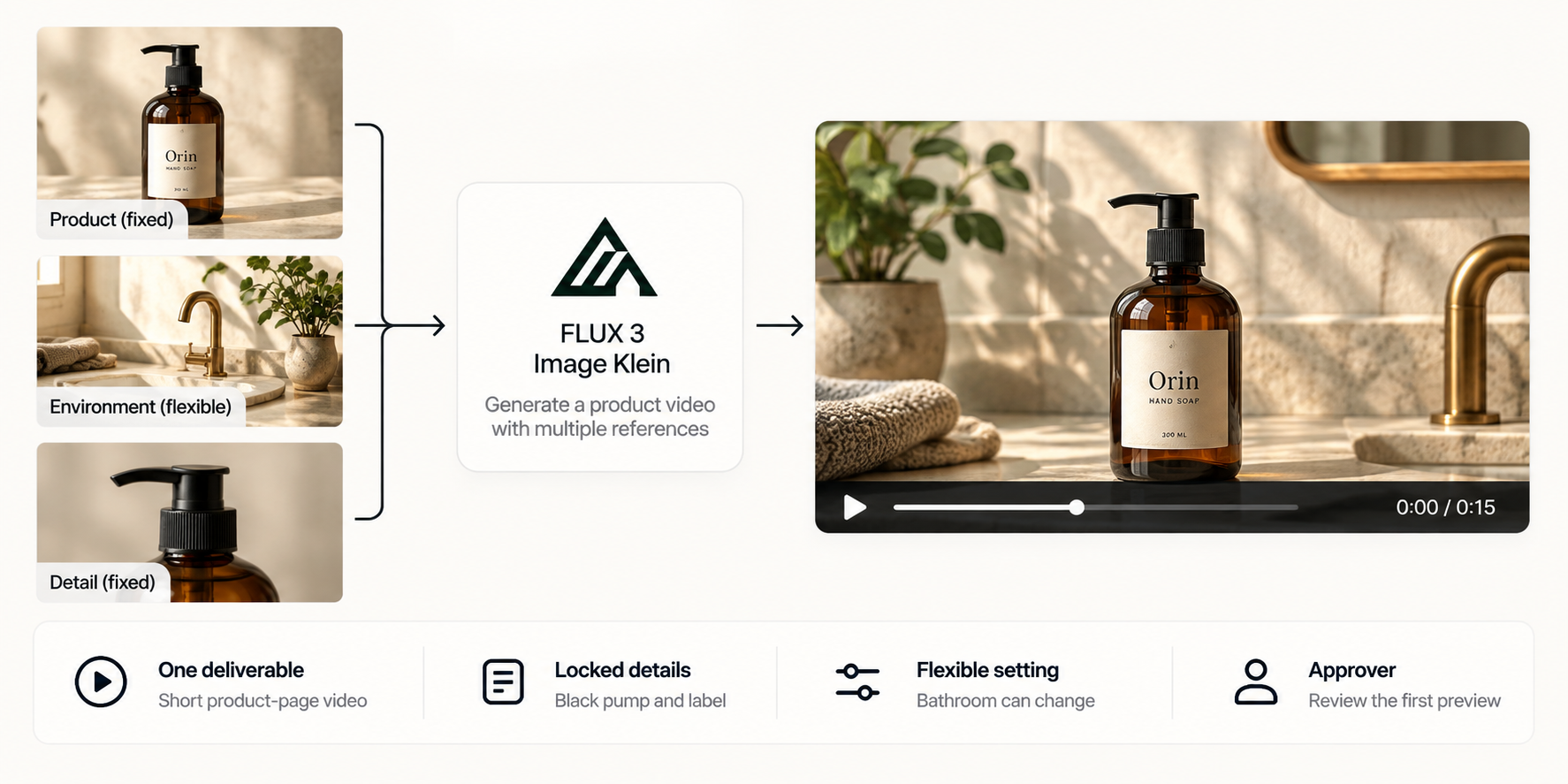
A FLUX 3 Image Klein video brief should explain how to use each exported image. Keep product accuracy separate from approval of the lighting or composition, so a preferred bathroom scene cannot override the correct bottle.
The example below uses a fictional Orin hand-soap bottle: amber glass, a black pump, and an approved label. It follows those details from the image folder through the brief and first preview.
What Should the Video Agent Know Before Production?
Tell the agent what the viewer needs to see, what can move, and who approves the result. For Orin's product-page video, the viewer should recognize the bottle, read the label, and know where to learn more.
FLUX 3 Image Klein generates and edits still images using multiple references. Those images establish visual direction; the video brief supplies the action. For this example, keep the bottle stationary while the camera moves closer, then hold on the label. A pump demonstration would need its own direction and review.
The product owner approves the bottle and label. The marketing editor approves the scene order, pacing, and final call to action. Settle any disagreement about packaging before asking the agent to animate it.
Sort FLUX 3 Image Klein Assets by Their Job
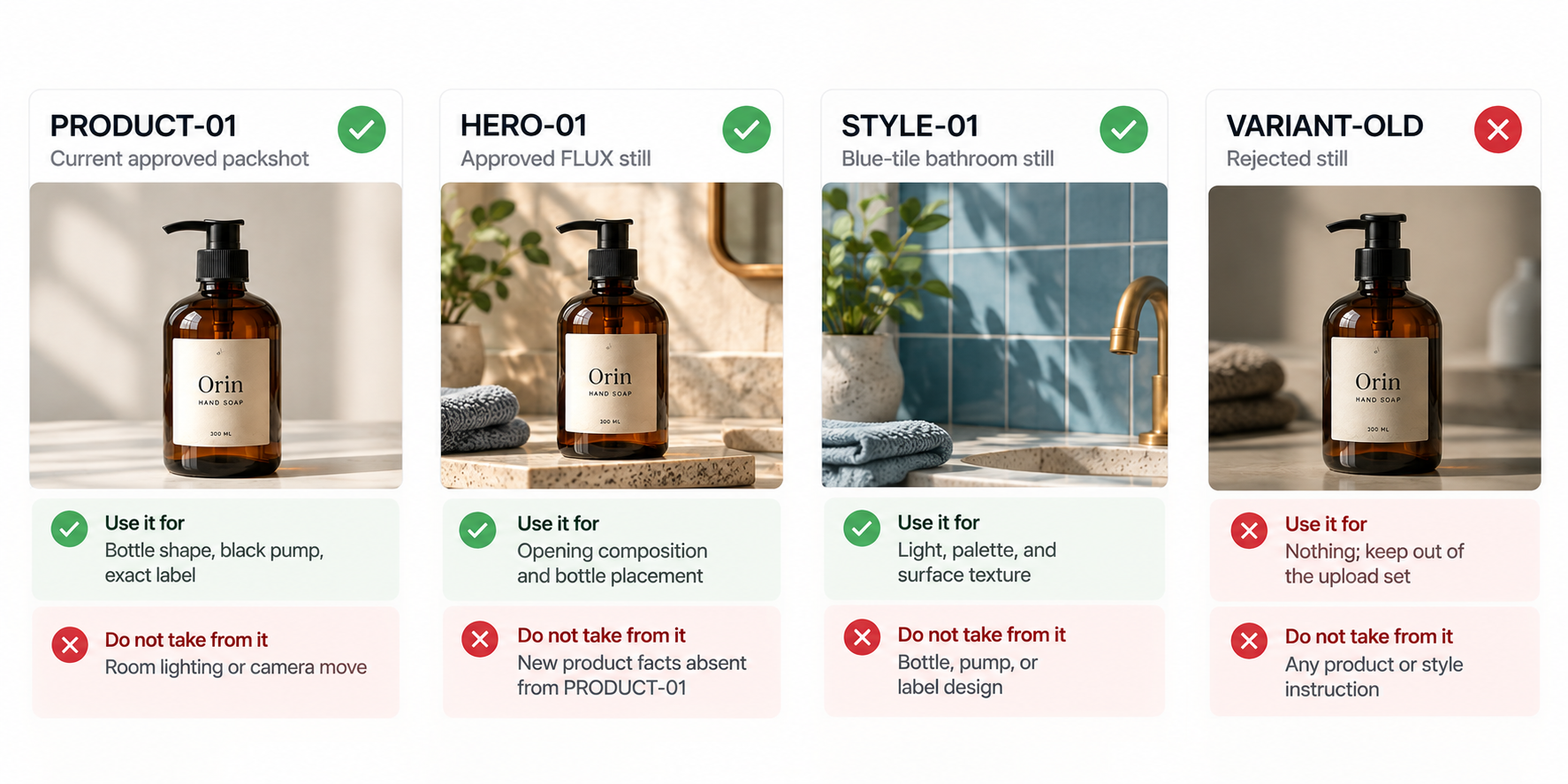
Give each selected file one clear role. Keep the approved packshot beside the generated stills during review, even when its plain background will never appear in the video.
| File in the fictional Orin pack | Use it for | Do not take from it |
|---|---|---|
PRODUCT-01 — current approved packshot | Bottle shape, black pump, exact label | Room lighting or camera move |
HERO-01 — approved FLUX still | Opening composition and bottle placement | New product facts absent from PRODUCT-01 |
STYLE-01 — blue-tile bathroom still | Light, palette, and surface texture | Bottle, pump, or label design |
VARIANT-OLD — rejected still | Nothing; keep out of the upload set | Any product or style instruction |
Choose the hero product reference
Compare the bottle in every FLUX still with PRODUCT-01. If the composition works but the pump stem is too short, the still needs correction before handoff. Otherwise, the agent receives conflicting instructions about the product.
Where your FLUX interface exposes bounding-box controls, you can use them to guide a pump correction. BFL's model card explains that boxes guide placement and scale rather than act as a hard pixel mask. Compare the whole corrected bottle with the packshot again, including the label and glass color. Replace the still if the product remains wrong.
Separate style references from product facts
Write the boundary beside the file: “Use STYLE-01 for cool light and blue tile only. Take the bottle, pump, and label from PRODUCT-01.” If another brand's bottle appears in the style image, choose a cleaner reference.
Leave discarded variants out of the upload set. Their presence adds another possible bottle or composition for the agent to interpret.
Write a Brief with One Deliverable and Clear Constraints
Use the filenames from the table in the brief. Replace Orin's fictional details and the bracketed campaign fields before sending it.
Deliverable: One product-page video for Orin hand soap. Duration: [campaign duration]. Aspect ratio: [target ratio]. Language: [campaign language].
Viewer question: What bottle will arrive, and where can I learn more?
Product details: Match the amber bottle, black pump, and label in
PRODUCT-01. Use supplied label artwork for readable text. Do not invent ingredients, scent, or performance claims.Visual direction: Use
HERO-01for the opening composition andSTYLE-01for light and tile color only. ExcludeVARIANT-OLD.Shot order and motion: Begin with the bottle in the bathroom setting. Keep it stationary as the camera moves closer. Show the complete pump and hold on the label long enough to read it. End with the approved words “View Orin.”
Destination: [approved URL and where the clickable link will appear beside or over the video].
Sound and disclosure: [music or narration direction, plus any required disclosure].
First review: Show the proposed shot order and storyboard before production. Flag any product detail you cannot preserve. [Product approver] approves packaging; [marketing approver] approves pacing and the final call to action.
The destination field keeps the end card and the next click connected. Decide where the link will live in the product page or player rather than assuming the words inside the video will be clickable.
If you are using Pexo, upload the selected assets and request a script and storyboard before production. For Orin, check whether the planned camera move keeps the pump visible and gives the label a readable hold. Correct the plan before approving the video direction.

Give Feedback on the First Video Preview
Watch once for the product, then again for the sequence. A smooth transition is worth keeping only if the next shot still shows the right bottle.
Name the shot, the mismatch, the reference, and what should stay: “In shot two, the pump turns white. Match the black pump in PRODUCT-01; keep the opening composition and pacing.”
For a local correction in Pexo, pause on the affected frame and mark the area that needs changing. Use conversational feedback for a broader change, such as moving the label shot earlier. Review the revised shot in motion afterward; the marked frame is only one point in the sequence.
| Preview check | Accept when | Feedback if it fails |
|---|---|---|
| Product identity | Amber bottle, black pump, and label match PRODUCT-01 | Name the shot and exact mismatch |
| Reference roles | Blue tile affects the setting only | Remove borrowed product details from STYLE-01 |
| Sequence | Viewer sees the bottle, then a readable label, then the call to action | Specify the shot to move or the label hold to extend |
| Revision scope | Correct shots remain correct | State what to keep while changing the failed shot |
If label letters blur, request a hold on the approved still or have an editor place the exact label artwork. If a focused revision keeps changing the pump, simplify that shot rather than approving incorrect packaging. Check the replacement against PRODUCT-01 before accepting it.
If a focused revision still breaks a locked detail, use a still hold or an editor who can place the exact artwork.
Next Step: Send the Brief and Approve the Preview
Send the selected images with their roles and the completed brief. To start the video with Pexo, bring the packshot, opening reference, and proposed shot order into the conversation.
Approve the preview when the bottle matches, the label can be read, and the ending leads to the intended next step. If the pump keeps changing, use the approved still for that shot and preserve the rest of the sequence that already works.