

 ChatGPT
 Perplexity
 Claude
 Gemini
 Grok
Grok
Hailuo AI turns a sentence or a single photo into a short, high-resolution video clip, and you can make your first one in about six steps. I signed up, ran a handful of prompts, and wrote down exactly what each step does, what it costs in credits, and where I got tripped up. This guide is that walkthrough, no theory and no filler.
What Is Hailuo AI?
Hailuo AI is a video generation platform from MiniMax, the Beijing AI company that listed on the Hong Kong exchange in January 2026. You give it a text prompt or an image, it gives you back a clip of roughly six to ten seconds at up to 1080p. In my tests, a single clip rendered in about 30 to 90 seconds, which is genuinely fast for this quality tier.
There are two things worth knowing before you start. First, Hailuo runs more than one model: Hailuo 2.3 is the current flagship, tuned for realistic motion and physics, and Hailuo 02 leans more cinematic. Second, it has a feature most budget generators don't, which is plain-language camera control. You can type commands like [Pan left] or [Zoom in on subject] directly into your prompt and the virtual camera actually follows them. More on that in Step 3.
What You Need Before You Start
You need very little to get going.
- A free Hailuo account, which takes an email and about a minute to set up.
- A clear idea of the scene you want. Even one good sentence is enough.
- For image-to-video: one source image in JPG, PNG, or WEBP, somewhere between 512x512 and 2048x2048 pixels. A clean, well-lit photo animates far better than a blurry one.
- Patience for the credit system. The free tier gives you a daily allowance, so you will be rationing renders at first.
That is the whole list. There is no install and no desktop software; everything runs in the browser or the mobile app.
How to Use Hailuo AI: Step by Step
Step 1: Sign Up and Claim Your Free Credits
Go to hailuoai.video and create an account with your email. The moment I signed in, a "Sign Up & Get Rewards" panel offered a batch of starter credits, around 1,000, which covers your first several clips. After that, the free tier refreshes a small daily allowance, roughly enough for two to three standard clips a day. Credits are the currency for everything here, and each render shows its cost up front. Check that number before you commit, and treat your early renders as practice rather than final output.
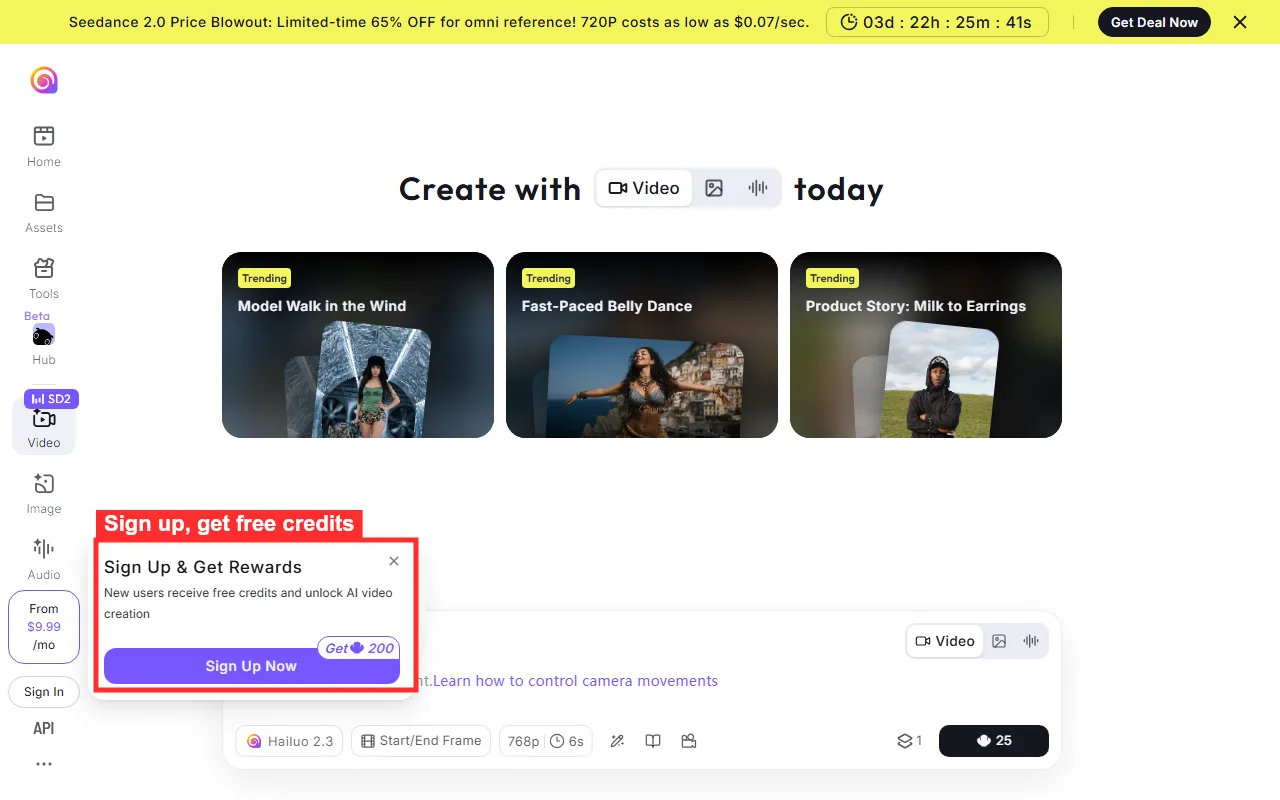 The sign-up panel hands you starter credits the moment you log in. Note the credit cost shown on the Create button before you generate.
Step 2: Choose Text to Video or Image to Video
From the create screen, pick your input mode. Text-to-video builds a scene from a written description and is the right choice for something that does not exist yet, like a concept ad or a fantasy fly-over. Image-to-video takes a still you upload and animates it, which is what you want when you already have a product photo or a portrait. I started with text-to-video because it needs nothing but a prompt, then switched to image-to-video once I had a photo I wanted to bring to life. Both modes live in the same panel, so switching is one click.
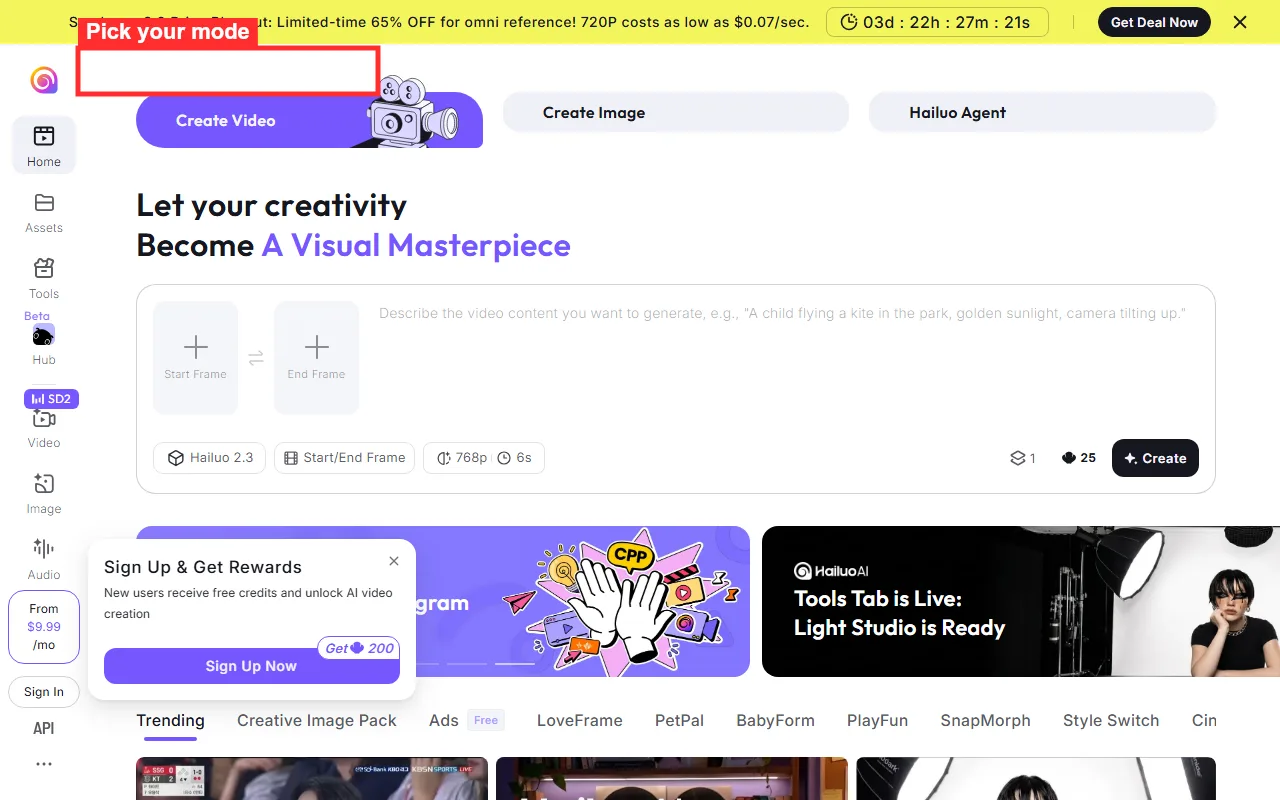 The two input modes sit side by side at the top of the create panel. Image-to-video reveals an upload box; text-to-video just gives you the prompt field.
Step 3: Write Your Prompt (and Direct the Camera)
Type your scene into the prompt box. You get up to 512 characters, so be specific but not rambling. The structure that worked best for me was subject, then setting, then mood, then camera move. For example: "A red vintage car drives down a coastal road at sunset, warm cinematic light, [Dolly forward]." Those bracketed camera commands are the standout feature. I tested [Pan left], [Zoom in on subject], and [Dolly forward], and the camera honored all three cleanly. Skip them and Hailuo invents its own movement, which is fine for drafts but unpredictable for anything you need to look deliberate.
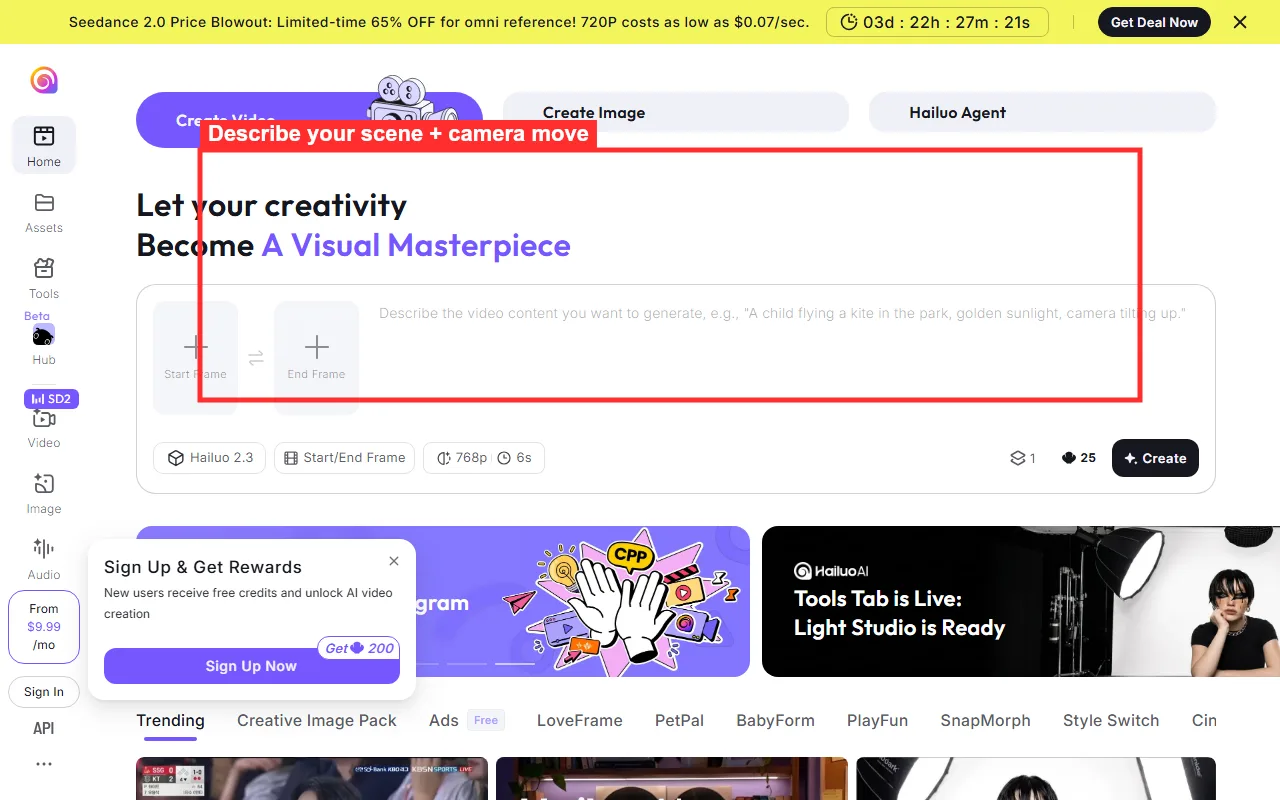 The prompt field accepts up to 512 characters. Bracketed commands like Dolly forward are read as camera directions, not scene description.
Step 4: Set the Model, Duration, and Resolution
Below the prompt you choose the engine and the output settings. Pick Hailuo 2.3 for realistic, physics-heavy motion or Hailuo 02 for a more cinematic look, then set duration to 6 seconds or bump it to 10, and choose your resolution. On my setup, a 6-second clip at 768p on Hailuo 2.3 cost 25 credits, and the bar reprices live as you change settings. Here is the trade-off I learned the slow way: higher resolution and the 10-second length both cost noticeably more credits. For testing a prompt, I kept it at the shorter length and a standard resolution, then re-ran the winner at full quality once I knew the prompt worked.
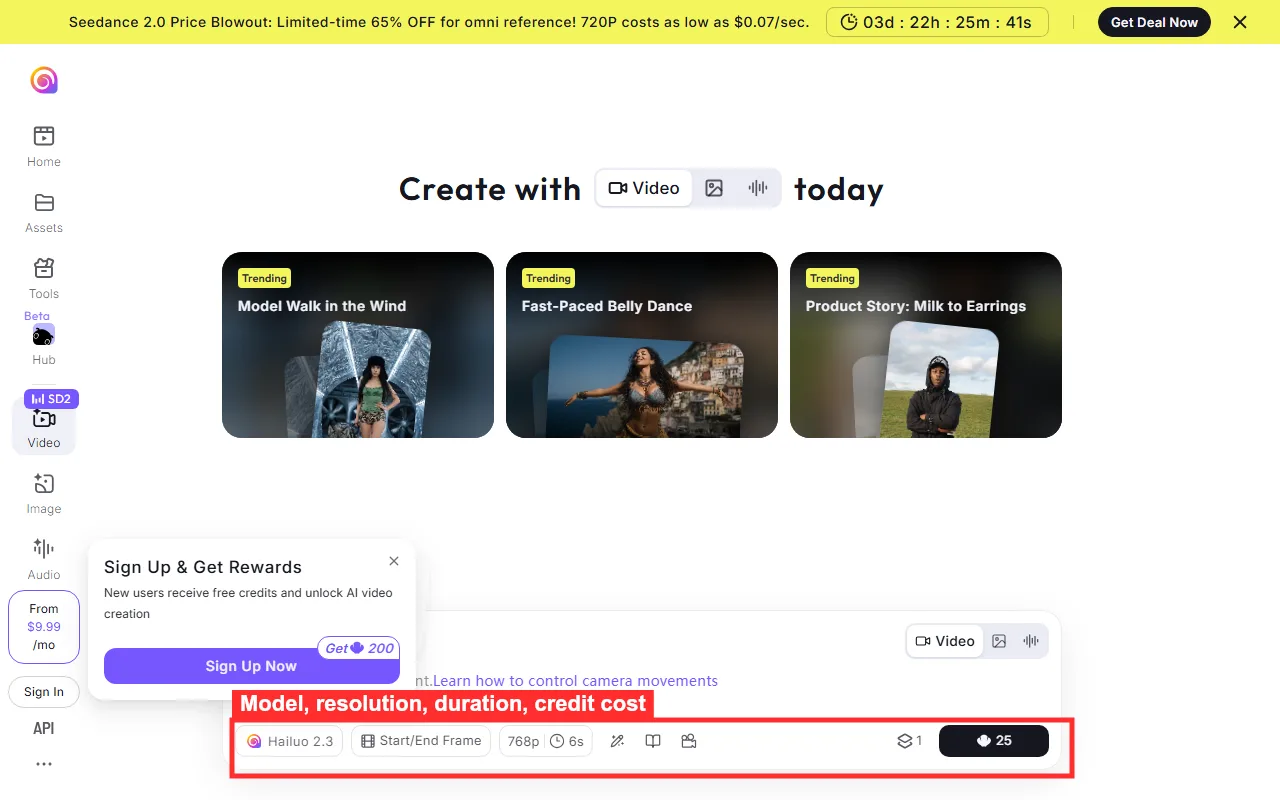 The settings bar shows the model, frame option, resolution, duration, and the live credit cost. Every change updates the price before you hit Create.
Step 5: Generate and Review Your Clip
Click Create and wait. Most of my clips finished in well under two minutes, and the result appeared in the workspace ready to play. Watch it fully before doing anything else. Look for the usual generative tells: warped hands, flickering backgrounds, or motion that drifts off the prompt. If the clip is close but not right, tweak one thing in the prompt, a stronger adjective or a clearer camera move, and regenerate rather than rewriting the whole thing. Small edits land better than wholesale rewrites.
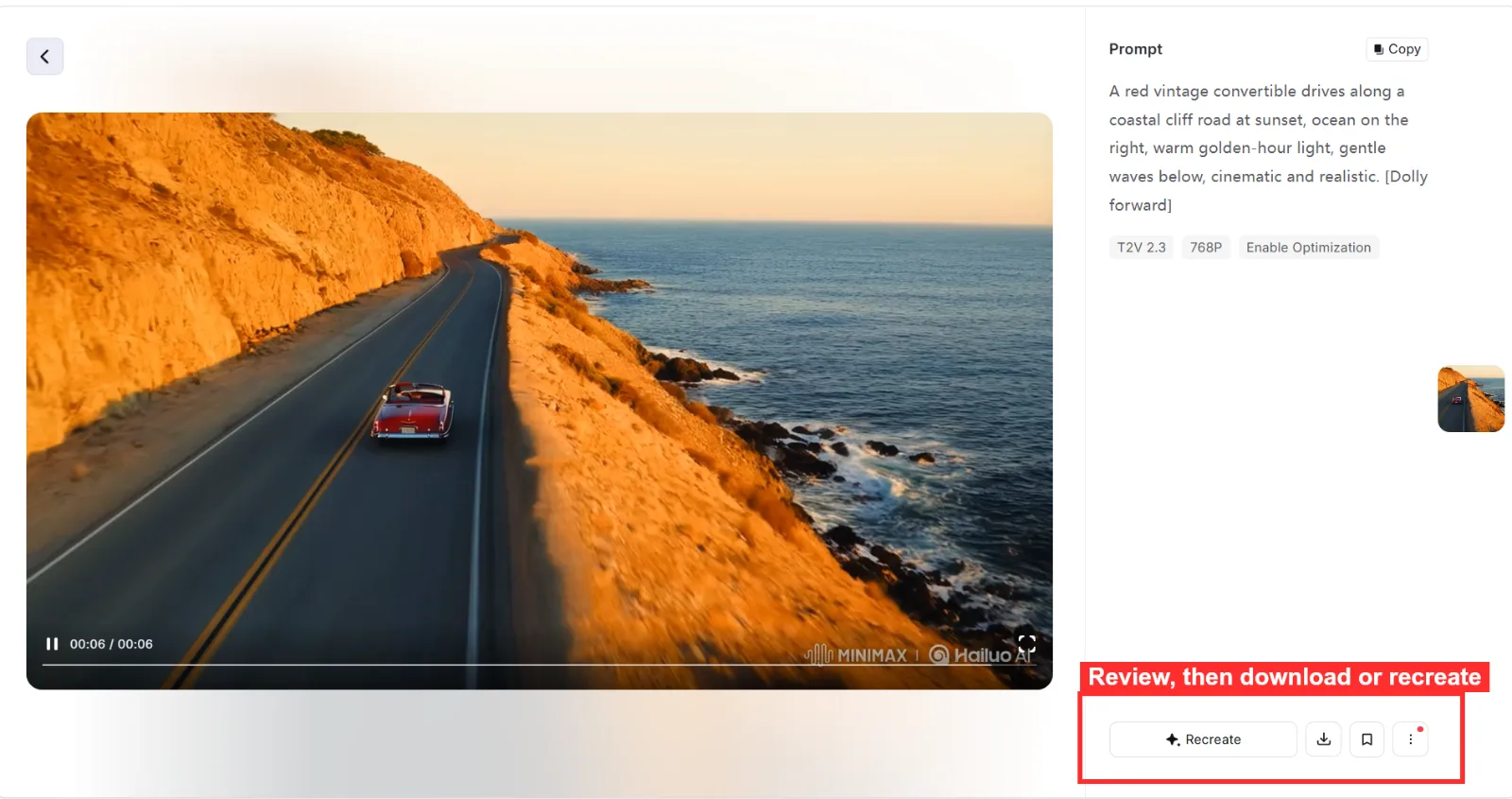 A finished clip lands in the workspace, ready to play. This one rendered in under two minutes from a text prompt.
Step 6: Download and Remove the Watermark
When you are happy, download the clip. On the free plan the export carries a Hailuo watermark, which is the platform's nudge toward a paid plan. Every paid tier, starting around $9.99 a month, removes the watermark and adds commercial usage rights, so if you plan to post the video for a brand or client, you will need at least the entry plan. For personal experiments, the watermarked free export is perfectly usable.
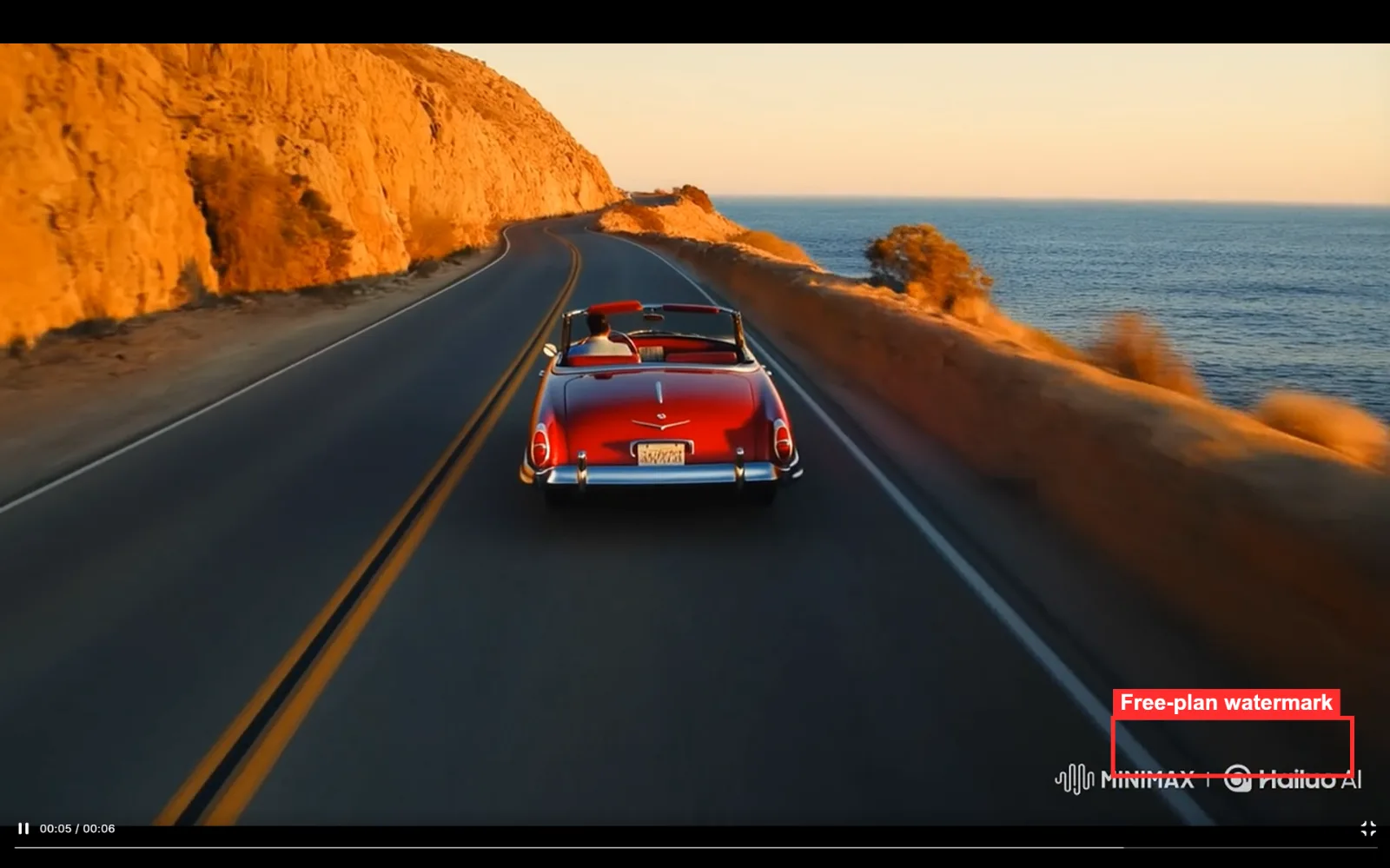 The download button on a finished clip. Free exports carry the Hailuo watermark; paid plans deliver a clean file.
Common Mistakes to Avoid
A few errors cost me credits before I caught them.
- Writing past the character limit. Anything beyond 512 characters gets cut, and a truncated prompt produces a confused clip. Tighten the sentence instead of padding it.
- Expecting long videos. Hailuo caps a single clip at 10 seconds. If you need a 30-second piece, plan to generate several clips and stitch them elsewhere; do not wait for one long render that will never come.
- Burning premium credits on drafts. I tested prompts on the flagship model at full resolution and watched my balance drop fast. Draft cheap, finalize expensive.
- Vague motion descriptions. "Make it move" gives you random movement. Name the camera move and the subject's action explicitly.
- Uploading a low-quality source image. For image-to-video, a soft or badly lit photo produces a soft, wobbly animation. Fix the still first.
Pro Tips for Better Hailuo Videos
These small habits raised my hit rate.
- Lean on the bracketed camera commands. They are the most reliable lever Hailuo gives you. Combine one camera move with one subject action per clip for clean, directed shots.
- Use strong, concrete adjectives. "Cinematic," "golden-hour," and "slow motion" steer the model far more than generic words like "nice" or "cool."
- Keep a consistent subject across clips. When you need the same character in several shots, reuse the same source image or subject reference so faces and outfits stay stable.
- Generate in batches. Queue a few prompt variations at once, then keep the best. It is faster than perfecting one prompt in isolation.
What Else Can You Use
Hailuo is a strong, fast generator, but it is not the only route to an AI video. A couple of neutral alternatives, depending on what you are after:
- Kling AI is another text and image to video generator known for longer, smooth motion. Worth a look if Hailuo's 10-second ceiling is your main blocker.
- Runway leans toward filmmakers and creative pros, with a deeper editing toolset around its generation. A better fit if you want fine creative control over a quick render.
- Pexo is an AI video partner that works through conversation rather than a prompt box. You describe what you want in plain language and it handles text, image, URL, and audio inputs, routing to models like Seedance, Kling, and more. A fit if prompt-writing is the part of Hailuo that slows you down.
Each tool fits a different working style, so the best pick depends on whether you value speed, length, control, or simply not having to write prompts at all.
Conclusion
That is the whole Hailuo AI workflow: sign up, pick text or image input, write a tight prompt with a camera command, set your model and length, generate, and download. The two things that made the biggest difference in my tests were respecting the 512-character limit and using the bracketed camera controls instead of hoping the model guessed right. Start on the free credits, draft cheap, and only spend premium credits once a prompt has proven itself. Your first watchable clip is genuinely a few minutes away.