
 ChatGPT
 Perplexity
 Claude
 Gemini
 Grok


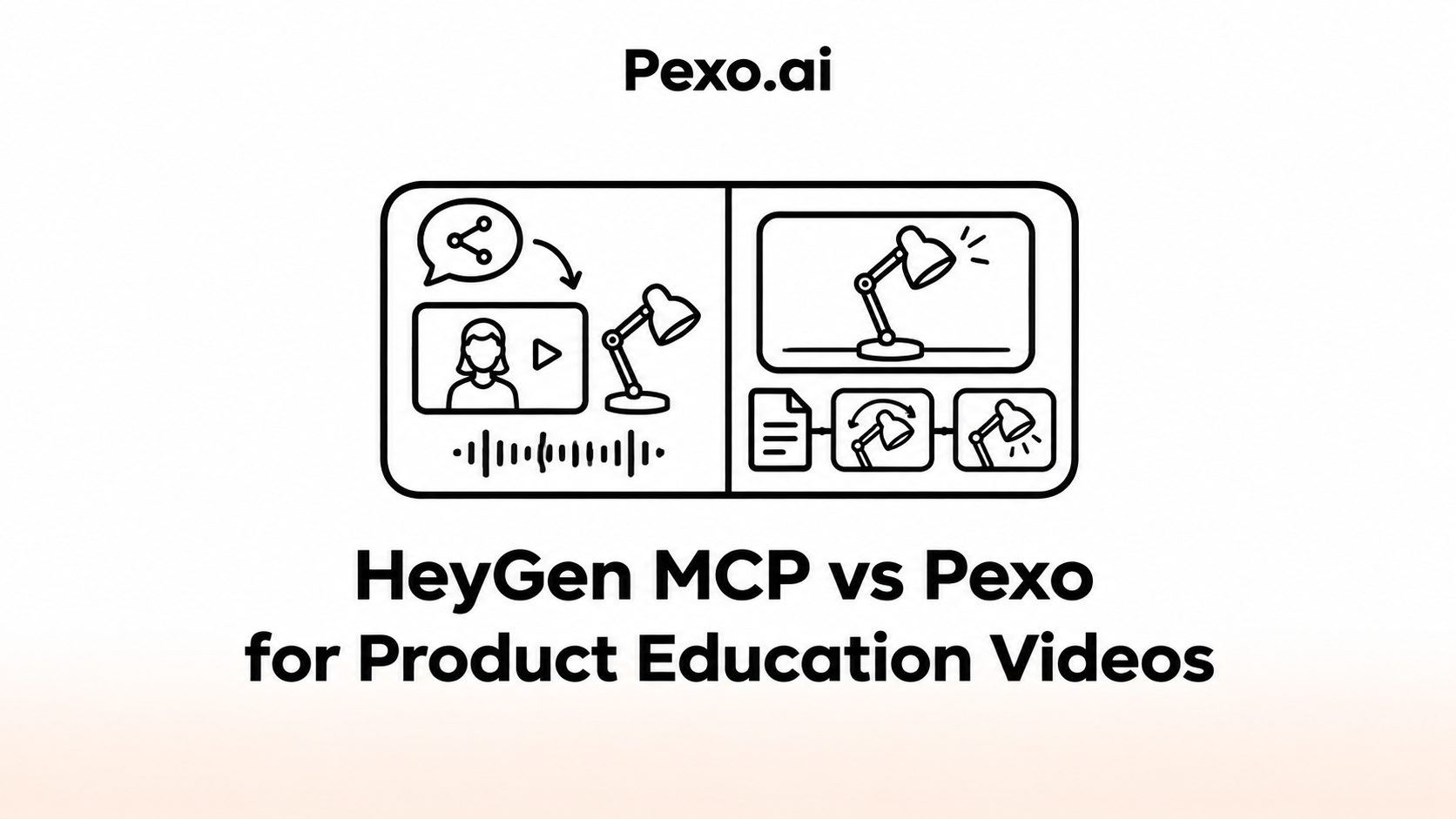

For a lesson built around a presenter, HeyGen MCP lets a team work from Claude. For an explanation organized around product steps and supporting scenes, Pexo offers a conversational production route.
Both can assemble complete videos. The HeyGen MCP vs Pexo choice should follow how you want to teach the lesson and how the team will approve its facts.
What Must One Product Lesson Teach?
It should teach one action, including any condition that determines who can perform it. Agree on that outcome before choosing a presenter or visual style.
Use Talo Queue, a fictional support application, for this illustrative lesson. Assume its product owner has approved this script:
Team Leads can reassign a ticket. Open Assignee, choose a teammate and select Save. Confirm that the ticket displays the chosen name. Viewers cannot reassign tickets.
The shared production pack would contain that script, matching UI reference images and a pronunciation note for the product name. The requested deliverable is a 60-second customer lesson.
Both routes receive the same material. Neither may simplify the permission rule into “anyone can reassign tickets.”
How Does the HeyGen MCP Route Start in Claude?
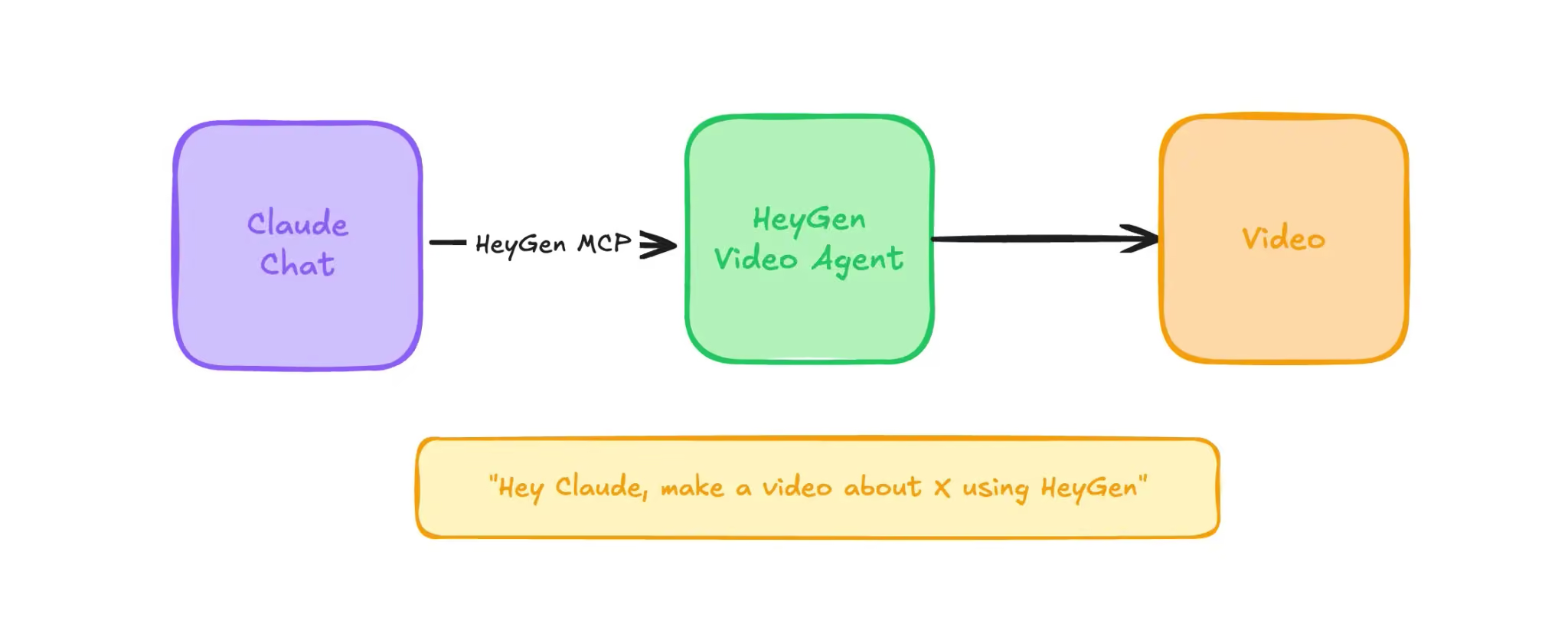
You connect a HeyGen account to Claude, then ask Claude to create the lesson through HeyGen's tools. The official MCP workflow uses OAuth and the account's existing credits.
Add HeyGen's remote endpoint through the applicable connector settings and authorize access. In a managed Claude organization, an authorized administrator may need to add the connector before members connect individually.
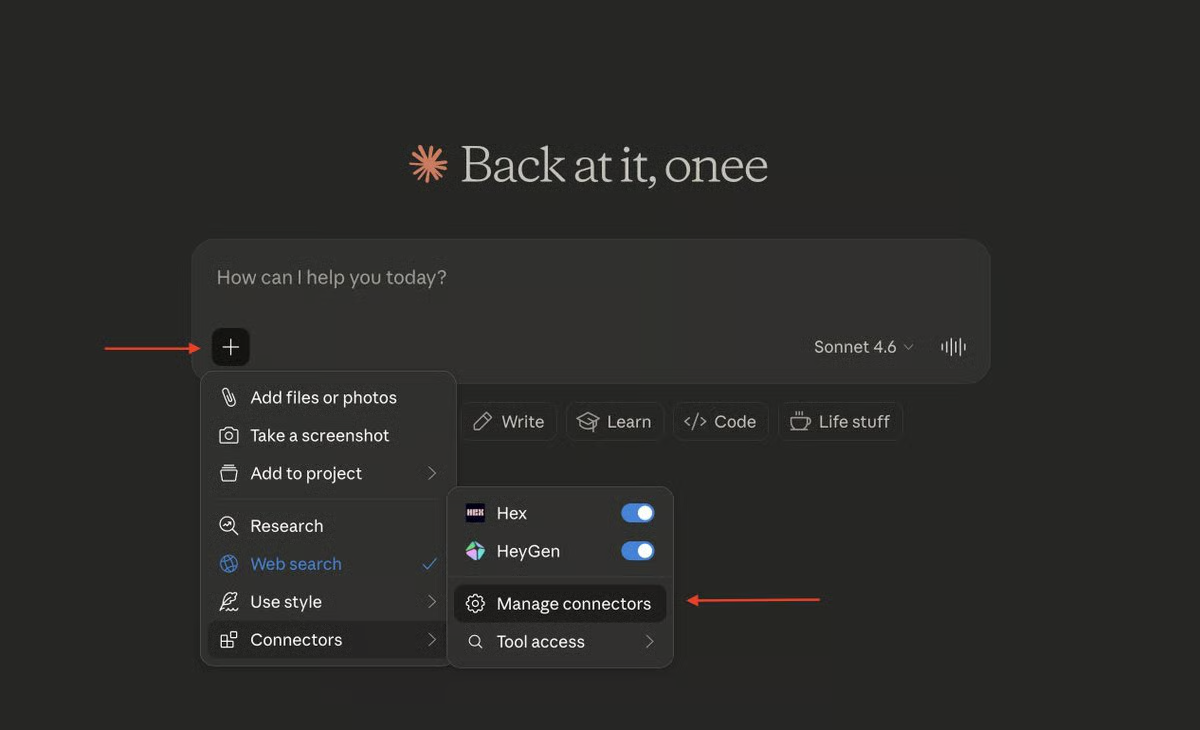
For Talo, ask Claude to present the approved script and scene plan before requesting a render. Specify the presenter and where each approved UI view belongs. Keep the Team Lead qualification in the spoken opening.
The MCP documentation, checked on November 9, 2026, also lists Video Agent, scene composition and follow-up revisions. A presenter is a creative choice for this lesson; the connector can support a broader production assignment.
How Does the Pexo Route Start from a Product Brief?
Give Pexo the approved lesson, source material and teaching goal, then review the direction and resulting video. It develops the script and scenes and accepts conversational revisions.
For a scene-led version, the direction could be:
Teach Team Leads to reassign one ticket in Talo Queue. Use the approved UI references. Introduce the permission rule, show Assignee and Save in order, then show the updated name. Keep the interface readable while each action is explained.
The product explainer workflow gives the team a place to develop that explanation. Ask to hold the Assignee view longer or bring the permission warning forward.
Pexo also documents changes to existing video, voiceover and captions. Review the next version against the references; a fluent explanation cannot establish that a depicted interface is accurate.
Compare Two Choices for the Same Lesson
Presenter Delivery Versus Scene-Led Explanation
A presenter can introduce the task, explain its context and guide attention. A scene-led treatment can give the interface more of the frame while narration explains each step.
For Talo, decide whether viewers need a recognizable instructor throughout or an unobstructed view of the changing Assignee field. Either treatment may combine a presenter with product visuals.
| Lesson moment | What reviewers should see or hear |
|---|---|
| Permission warning | “Team Leads” remains clear in narration and captions |
| Choosing a teammate | The correct Assignee control is visible when discussed |
| Confirming completion | The selected name appears after Save, matching the approved sequence |
Choose the treatment around those moments. A presenter should not obscure the control; an animated transition should not skip the confirmation.
Approving the Script and Product Facts
The product owner approves the procedure and restrictions. The producer checks that narration, captions and pictures preserve them in the finished lesson.
Ask for specific corrections: “Keep the opening, but restore ‘Team Leads’ in the caption and show Save before the assignee changes.” That request identifies both the factual issue and the affected picture.
If the product owner changes the permission rule, reopen the related script and scene approvals. Updating one spoken line may leave an outdated caption or example elsewhere.
Which Route Fits the Review Team?
The HeyGen route fits a team that wants to direct the lesson from Claude and manage the result in HeyGen. Pexo fits a team organizing the explanation through a product brief, visual direction and preview revisions.
Before commissioning, confirm who can access the generation account and who needs only an approved review copy. Tool access does not replace product sign-off. Compare the actual lesson and revision charges; public feature descriptions do not establish a cost or quality winner.
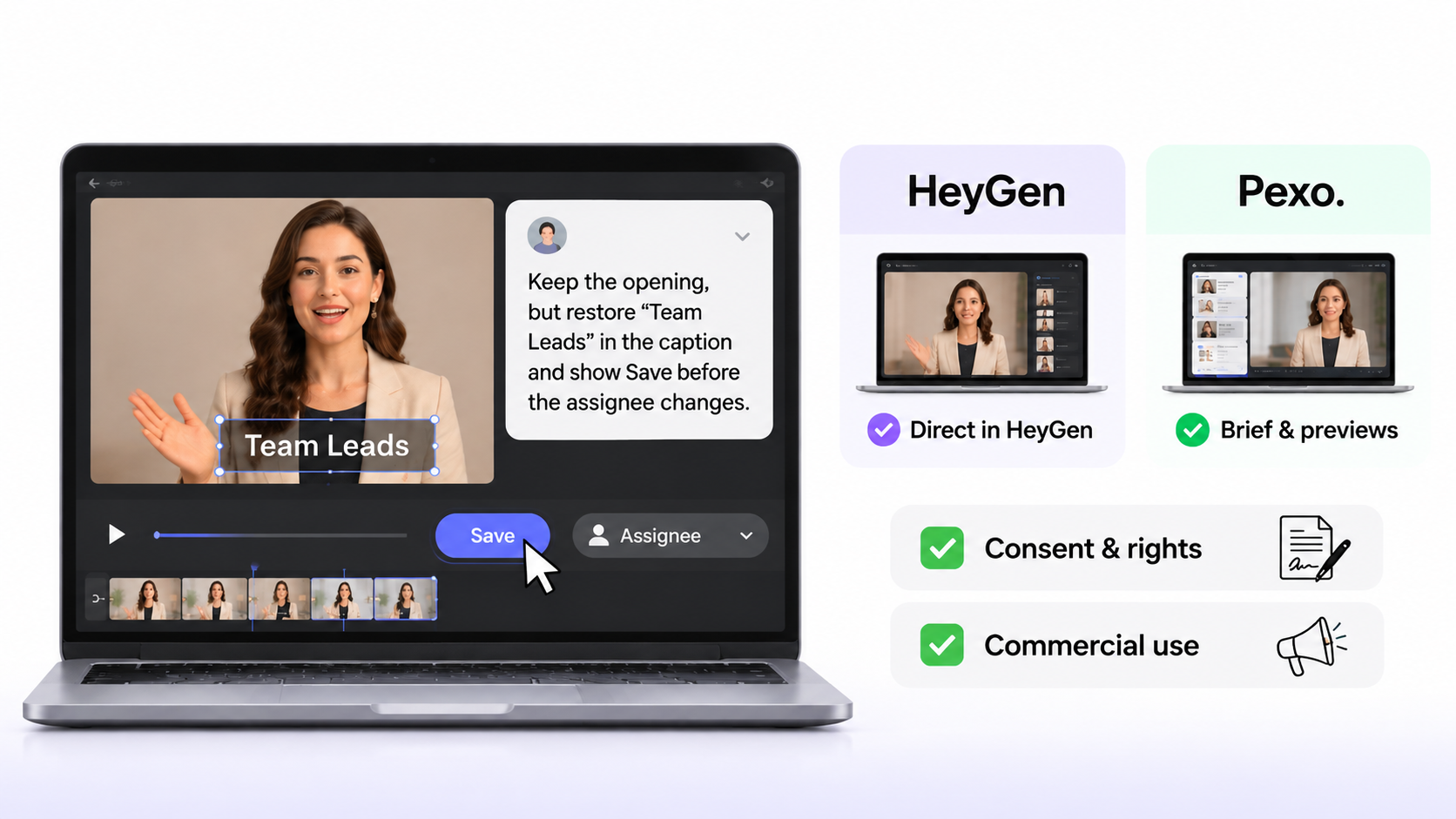
For presenter assets, distinguish availability from permission. Confirm the person's consent, rights in source recordings and the permitted commercial uses. HeyGen's current content terms restrict Free output to personal, non-commercial and internal evaluation uses. Connector access alone does not authorize a customer-facing commercial lesson.
For Pexo uploads, check the applicable processing and campaign-use terms, including any required written consent. Before public distribution, verify the destination's current rules for synthetic presenters and voices. This article does not provide legal advice.