
 ChatGPT
 Perplexity
 Claude
 Gemini
 Grok




One interface moment is easier to explain than a whole product tour. Choose the action that matters, animate only that action, and review the clip as an explanation rather than a finished walkthrough.
That is the useful boundary for a Lottie AI SaaS video. The example uses a fictional billing dashboard. Any screen shown is a simulation, not a live customer account or a tested product flow.
Lottie AI feature availability, generation estimates, credit rules and ownership terms were checked against official documentation on November 13, 2026.

Pick one interface moment to explain
Choose a moment with a clear before and after. For the fictional dashboard, the moment is “turn on invoice reminders.” The clip can show a toggle, a confirmation state and a small status change.
Write the viewer takeaway before the prompt:
Turn on invoice reminders, then check that the status changes to Active.
This gives the animation a beginning, action and result. It also tells the editor what the clip contributes to the larger walkthrough. One short animation should support one sentence, not carry the whole story.
Prepare accurate labels and brand assets
Use a real approved product screenshot only when your team has the right to use it. Otherwise create a clearly marked simulation with invented account data, placeholder records and a label such as “Demo interface.”
Prepare three inputs:
-
the approved button, menu and status wording;
-
a brand color palette and type treatment;
-
an SVG or simple artwork file if the animation should start from existing vector elements.
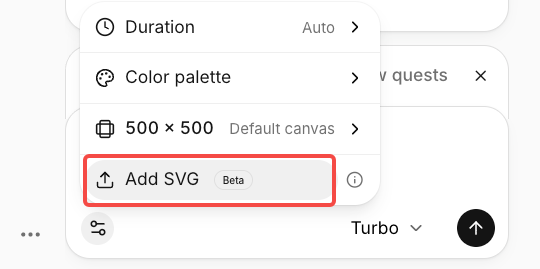
Lottie AI's current FAQ says you can bring in an SVG, animate text, shapes and icons, and adjust colors, text and sizes in Objects & Controls. Keep source artwork separate so reviewers can tell product wording from demo-only content.
Create a short Lottie AI animation
Describe the action, timing and visual limits in one prompt:
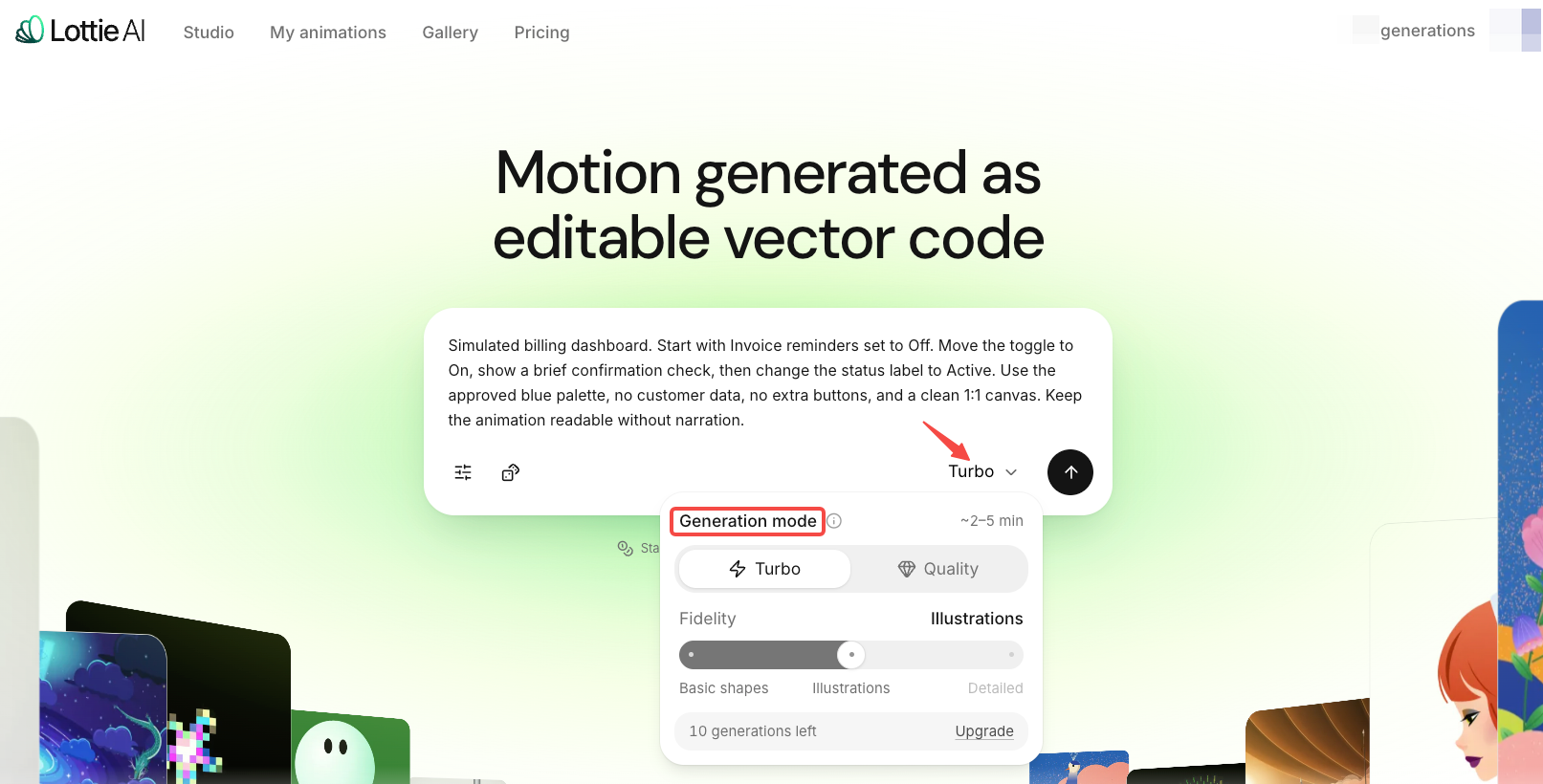
Simulated billing dashboard. Start with Invoice reminders set to Off. Move the toggle to On, show a brief confirmation check, then change the status label to Active. Use the approved blue palette, no customer data, no extra buttons, and a clean 1:1 canvas. Keep the animation readable without narration.
Lottie AI supports generated animations from 1 to 10 seconds. Request a short duration, but leave enough time to read the label. The settings page also lists custom canvas sizes.
Choose Turbo for a simple first pass or Quality when the action has several visual relationships. The current guide estimates about 1–2 minutes for basic Turbo shapes and 3–15 minutes for Quality before extra detail options. These are estimates, not a delivery promise.
Revise text and timing before export
Review the preview in viewing order:
-
Can the viewer identify the starting state?
-
Is the toggle movement easy to follow?
-
Does the confirmation appear after the action?
-
Is “Active” visible long enough to read?
-
Does the final frame make the next walkthrough step obvious?
Changes to colors, text and sizes through Objects & Controls are free when they do not regenerate. Prompt-based refinement uses credits. On credit-based plans, each successful generation or refinement uses 5 credits, regardless of mode. Starter includes 10 lifetime generations or refinements. LottieFiles says unsuccessful or cancelled attempts are restored. See the official allowance guide for the current plans.
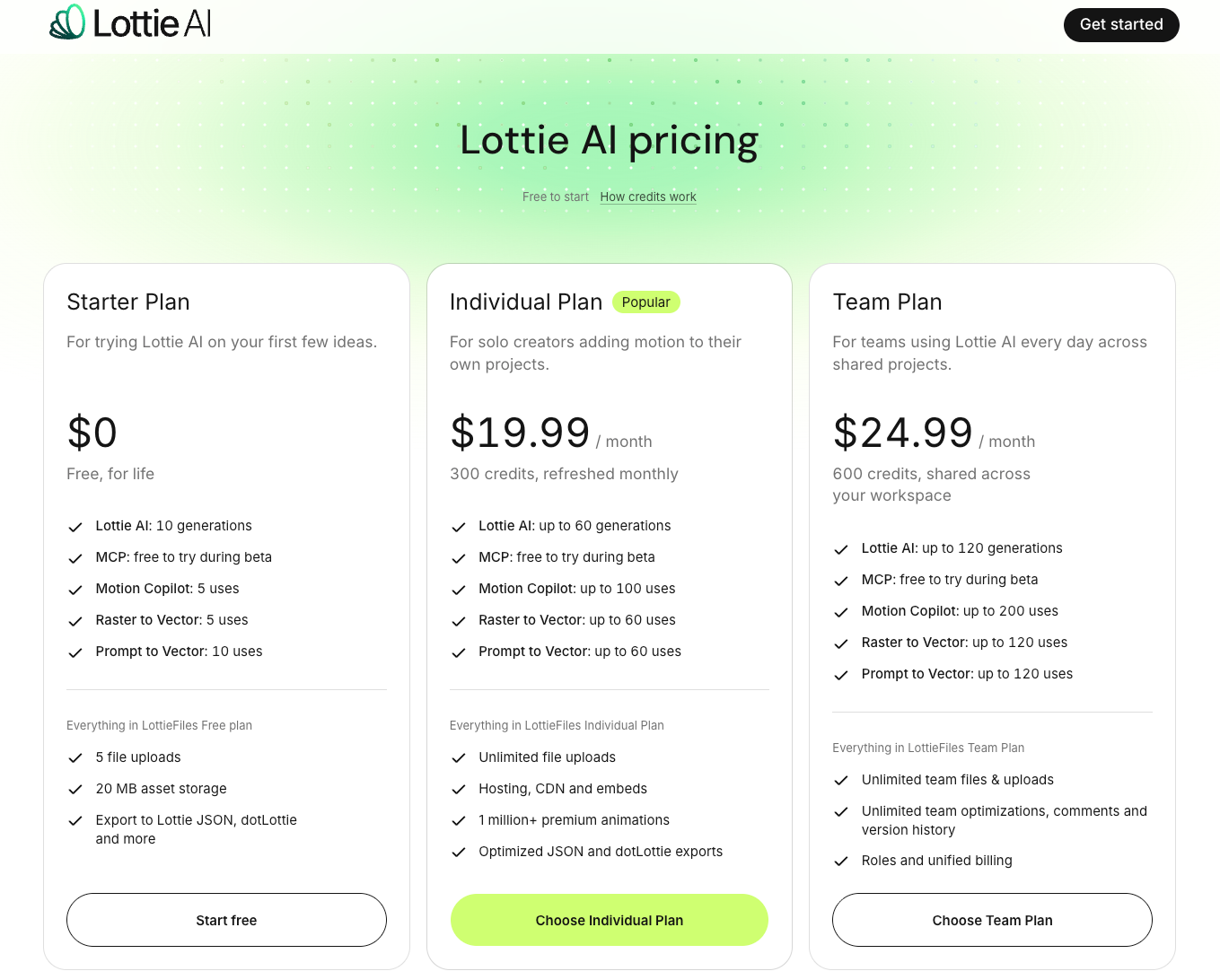
The screenshot illustrates the pricing screen. Use the current allowance guide above for plan names and credit limits.
Do not hide a wrong product label. Correct the source wording, regenerate or edit the approved text layer, then review the clip again.
Place the clip in a full SaaS walkthrough
Export according to the destination. Use dotLottie or Lottie JSON when a website or app has a Lottie player. Use MP4, WebM or MOV when the clip enters a video timeline. GIF, APNG and Animated WebP suit lightweight previews, but they may not preserve the same playback or transparency behavior.
Give the editor a scene note with:
-
clip filename and version;
-
simulated screen label;
-
exact interface wording;
-
start and end states;
-
intended duration and aspect ratio;
-
what narration or captions may say;
-
what the clip does not prove.
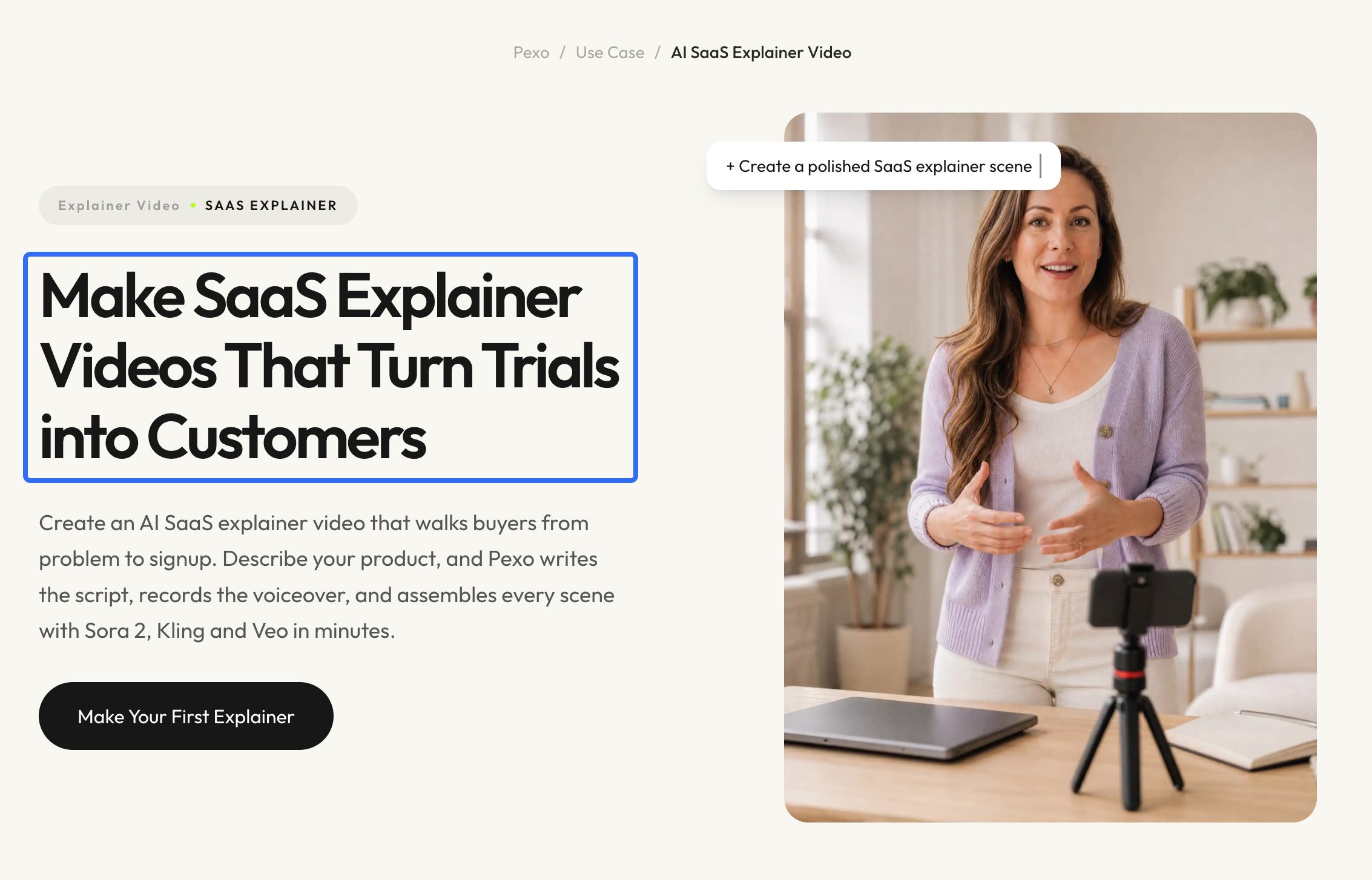
If the clip is going into a longer SaaS production, Pexo's SaaS explainer workflow can use an approved product brief or visual input to build a broader video direction. Pexo does not document native Lottie project integration here. Keep the exported animation and its scene note as separate handoff assets.
When does the video need real screen capture?
Use real screen capture when the viewer must trust a live workflow, current data, permissions or exact product performance. Use a simulated Lottie clip to explain a concept, reduce clutter or show a state that is difficult to capture cleanly.
The boundary matters. A simulated toggle can explain a sequence, but cannot prove that the current product has that control, that the action completes in a set time, or that every account sees the same result. Put the simulation label in the asset packet and, where appropriate, in the video.
Conclusion
Build one short interface moment, label simulations honestly and review every word before export. Lottie AI can supply a useful motion asset for a SaaS walkthrough; the full video still needs accurate product facts, a clear handoff and human approval.