ChatGPT
 Perplexity
 Claude
 Gemini
 Grok
Grok


“Approved” should tell the producer which picture to use, what the viewer should see happen, and which words can appear beside it. A row of attractive reference images leaves too much undecided.
A useful Canva storyboard puts those decisions where the team can review them together. Keep the product reference, planned action, and exact copy beside each scene. Before editing begins, someone should be able to follow the explanation without hearing your presentation.
What Must a Product Storyboard Decide Before Editing?
It must decide the buyer question, the scene order, and how each scene supports the answer. It should also identify the material needed and the details production must preserve. For a broader product explanation, a product explainer video brief can help connect the buyer question to the evidence and scenes needed to answer it.
Use Elin, a fictional clip-on reading light, for the example. The buyer asks: “How does the head adjust once the light is clipped to a book?” Assume the product owner has verified the tilting-head feature and the illustrated use. Replace those assumptions with your own product approvals.
The board needs to show the attachment, the head movement, and the resulting direction of the light. A beauty shot of the lamp cannot answer all three. Keep brightness, battery life, and compatibility with other books outside this brief unless separately supported.
Set Up a Canva Page for Scenes and Notes
In Canva, search for storyboard templates and choose a layout with six clear panels. Replace decorative headings with the product name, board version, intended placement, and buyer question. Keep the panels large enough to inspect the part that moves.
Use these labels consistently beneath each frame:
-
Scene ID: 01–06, retained through revisions.
-
Picture and source: the reference image or clip, with a readable filename.
-
Action: what changes within the shot.
-
Words: separate fields for voiceover and on-screen text.
-
Timing and review: planned duration, status, and the decision still needed.
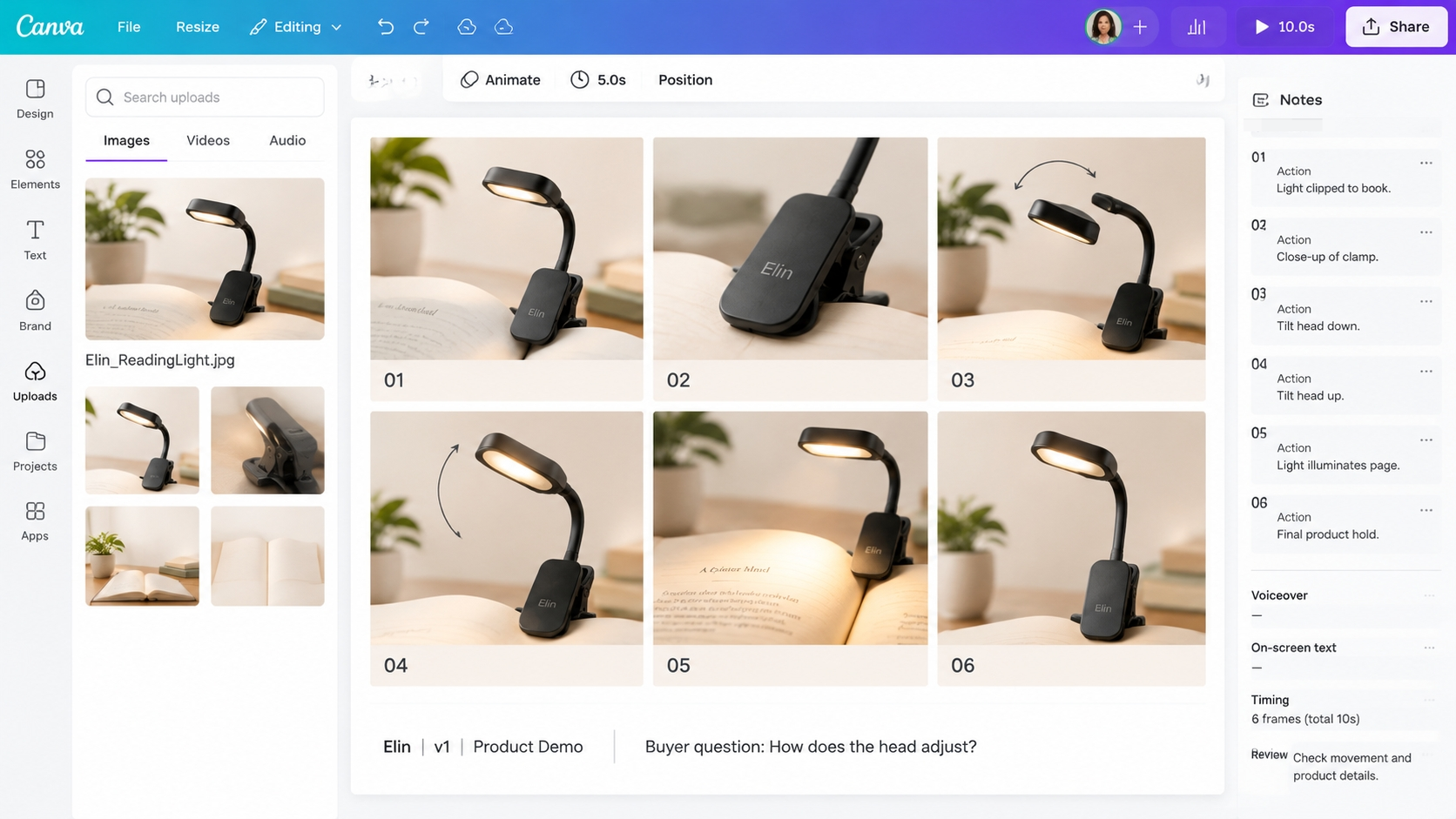
If the template makes those notes cramped, use fewer panels per page. Canva's page controls let you add or duplicate pages; keep the scene IDs in order across them. A six-scene plan does not have to fit onto one crowded sheet.
Put production instructions in visible text boxes. Comments can hold the discussion, but the approved action should remain readable in an exported review copy.
Place Approved Product References Beside Each Scene
Separate product evidence from visual inspiration. For Elin, use a current product photograph for the lamp's shape and color. Use an approved demonstration recording for how the clip attaches and the head tilts. A stock reading scene may suggest the setting, but it cannot establish how Elin works.
Check Canva's client-design license conditions before sharing Canva stock in a client review copy.
Give the source material short identifiers: P01 for the current packshot and D01 for the verified demonstration. Put the relevant identifier under every frame. Include a timecode when a panel depends on a particular moment in D01.
For a missing shot, add a rough sketch and label it “Capture needed.” Do not mark it approved merely because the proposed composition looks right. Keep a small product reference beside the sketch so the producer can distinguish the intended camera angle from the verified object.
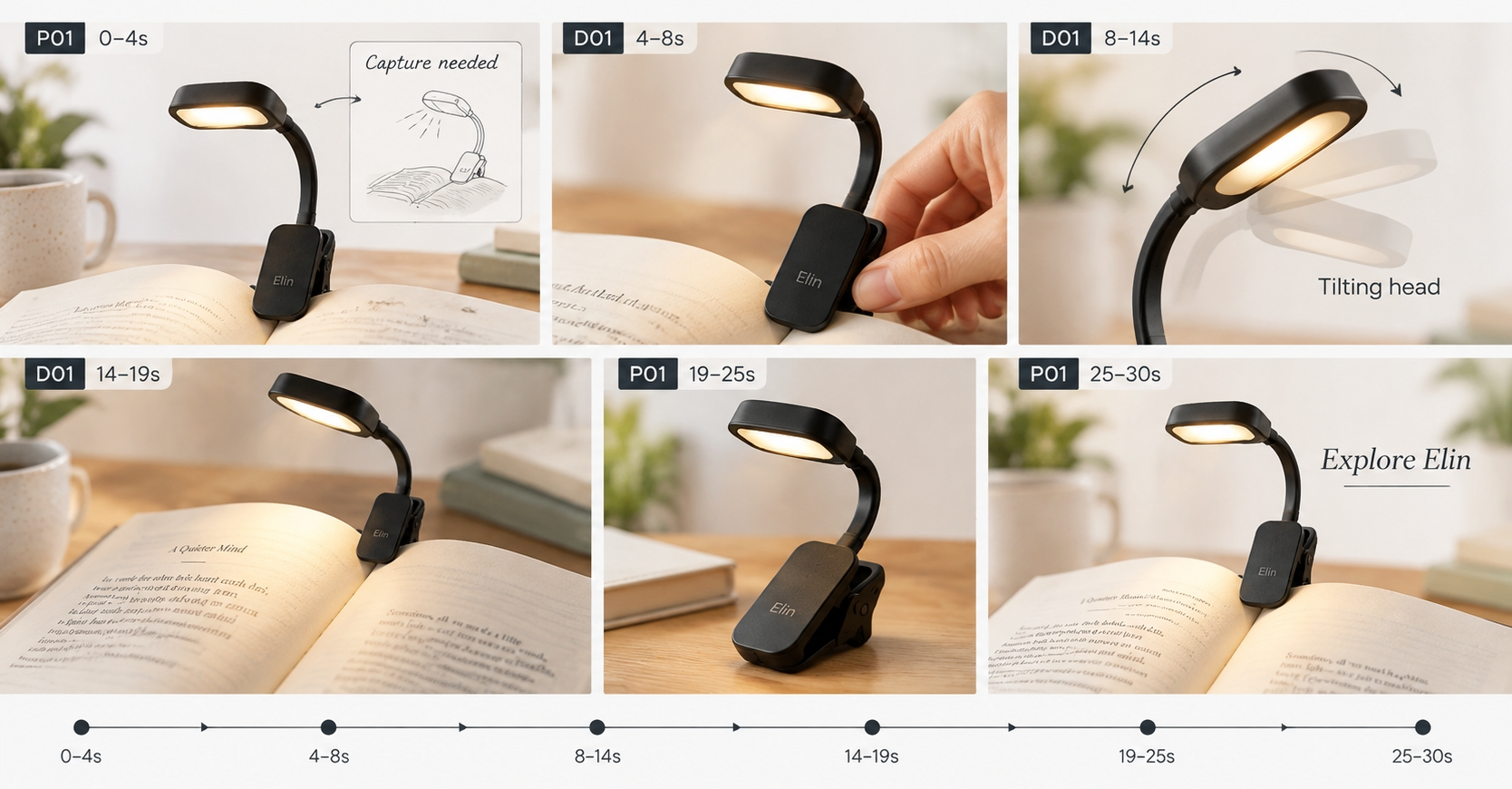
Your Canva shot list should make missing material visible. “Scene 03: close view of hinge; D01 reference; new capture needed” is more useful than another polished placeholder.
Map Voiceover, On-Screen Text, and Timing
Write the action first, then choose words that help the viewer follow it. Voiceover can explain the movement while the image shows the hinge. On-screen text should remain short enough to read without hiding that detail.
This sample Canva video storyboard budgets 30 seconds across six scenes. The timings are planning estimates to revise after a read-through and footage review.
| Scene / planned time | Picture reference and action | On-screen text | Voiceover |
|---|---|---|---|
| 01 / 0–4s | P01 beside a sketch of the book and reading position | None | “Start with the page you want to read.” |
| 02 / 4–8s | D01: show the clip attaching to the approved book | “Elin” | “Clip Elin onto the book shown here.” |
| 03 / 8–14s | D01: side view of the head tilting; keep the hinge visible | “Tilting head” | “Tilt the head to aim the light.” |
| 04 / 14–19s | D01: show the page as the beam direction changes | None | Pause so the viewer can inspect the action |
| 05 / 19–25s | P01 detail reference: show the head and clip together | None | “Take a closer look at the head and clip.” |
| 06 / 25–30s | P01 and the approved destination wording | “Explore Elin” | “Check Elin's dimensions and details.” |
Add a production note to Scene 04: keep camera exposure consistent so a lighting change does not suggest an unsupported brightness improvement. Scene 02 should show the same book used in the verified demonstration, without implying universal fit.
Read the voiceover while following the panels. Leave the Scene 04 pause intact if the action needs attention. If Scene 03 feels rushed, give the movement more time before adding another line of copy. The six-panel layout should not decide the pacing for you.
Review the Board With Product and Brand Owners
Ask the product owner to check the demonstrated behavior and the source material. Ask the brand reviewer to check the visual treatment and exact wording. Name the person responsible for confirming that the supplied materials are cleared for the intended use.
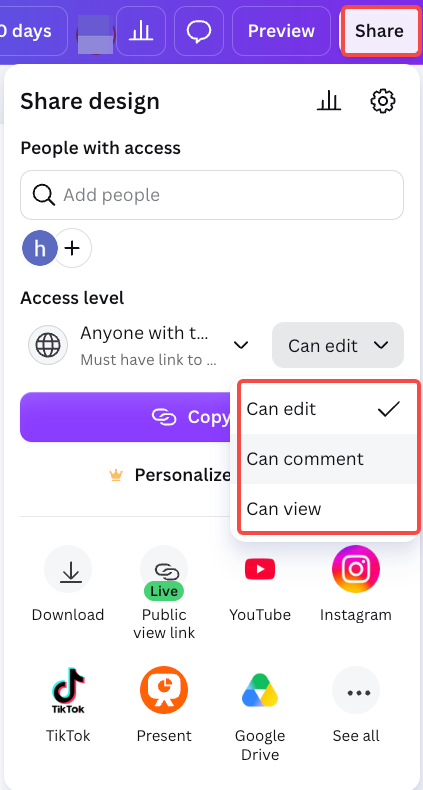
In Canva's Share panel, give reviewers comment access where available, reserving edit access for people changing the board. Test access with a reviewer before the deadline, especially when they work outside your organization. A link that opens for the designer may not open for everyone.
Request feedback by scene and consequence. For example: “Scene 03 needs a side view; the current front view hides the hinge.” That gives the designer a specific correction. “Make it more premium” leaves the product explanation unresolved.
After discussion, update the panel itself. Record which version the product and brand owners approved, and keep any open question visible. An approval of the color treatment does not approve an unverified feature claim.
Hand the Approved Board to Production
Send a dated review copy alongside the approved source images or footage and the exact script. Include the destination wording and any conditions that must accompany the demonstration. Copy settled decisions out of comment threads into a short handoff note.
For Elin, that note might say: “Keep the hinge visible in Scene 03. Use Scene 04 to show beam direction, with consistent exposure. Do not add battery-life or brightness claims.”
If you're developing the video in Pexo, this guide's publisher, share that scene plan and the approved product material. Ask for a preview that follows the attachment, tilt, and page-view sequence. Use the scene IDs when giving feedback so the next revision addresses the same planned moment.
Keep the Canva board available as the reference for review. Confirm the receiving workflow can read the files you send; do not assume it inherits Canva comments or approvals. Clear uploads and processing, and check any written consent required for promotional use under Pexo's current terms.
Before production starts, open the delivered review copy yourself. Scene numbers, source identifiers, exact text, and unresolved questions should all be visible. If the producer still needs your verbal explanation to distinguish a reference from a required shot, revise that panel first.