ChatGPT
 Perplexity
 Claude
 Gemini
 Grok
Grok


A striking clip can show a product beautifully and still leave the buyer unsure what it does. For a product explainer made from Kling 4.0 clips, give each approved shot a job in the answer.
Consider a fictional Halen desk lamp. Its approved product sheet says that tapping the top button switches between warm and cool light. The team has product photos and two usable clips, one showing the desk before the tap and one showing the button in action.
What Must the Product Explainer Answer?
It must answer one buyer question: How does Halen change the light at the desk? The button action and visible change are enough. Claims about sleep or eye strain would need separate evidence.
Write the answer in a line that can be checked against the product sheet: “Tap the top button to switch between warm and cool light.” If the footage shows another button layout, attractive lighting cannot prove the line.
Choose Clips for One Product Claim
Start with clips that carry the claim, then decide whether a missing moment needs new footage. For Halen, the useful clip shows a finger reaching the top button, the tap, and a visible change at the same desk.
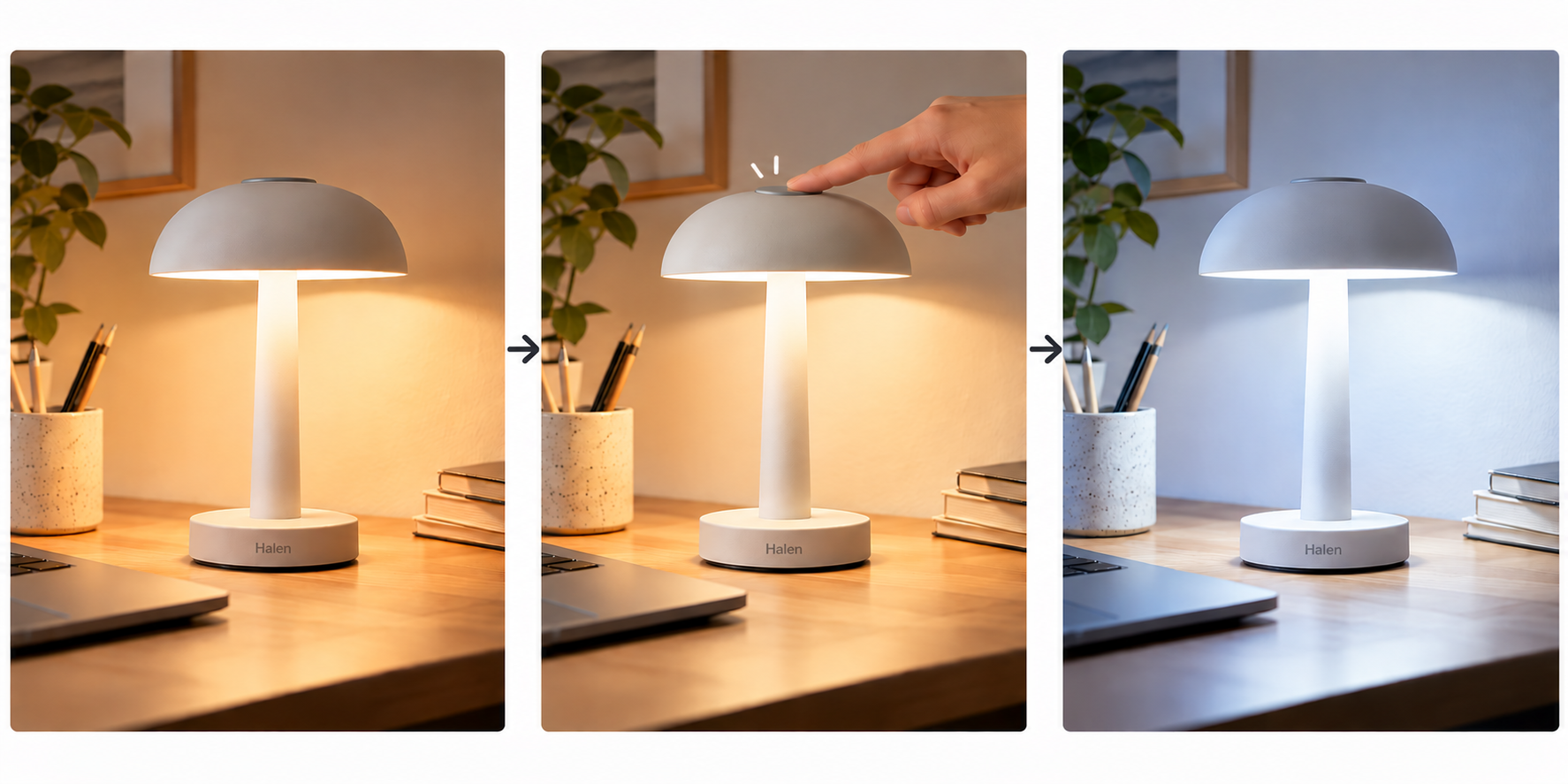
Check the candidate frames against approved photos: switch position, shade shape, base, logo, and the color of both modes. If a hand hides the button or the lamp changes shape, reject the take.
For visual references, browse the Pexo video gallery and compare framing and pacing. Keep Halen's own product sheet and photos as the authority for its appearance and controls.
Kling's 4.0 user guide describes reference images, keyframes, multi-shot generation, audio, and editing. A generation may contain several shots or a complete short sequence. Here, “clips” means Halen's chosen footage. Available controls depend on the account.
Arrange the Clips into a Short Explanation
Put the buyer's uncertainty, the product action, and the verified result in that order. The following illustrative storyboard gives each beat a pass condition:
| Beat | Picture and line | What the team must verify |
|---|---|---|
| Problem | The desk is lit in a way that does not suit the user's current task. Text: “Need a different light at your desk?” | The scene is ordinary context, not a claim that the lamp treats a health condition. |
| Product action | Close view of Halen's top button. A finger taps once. Line: “Tap to change the light.” | The button location and single tap match the approved product sheet. |
| Verified outcome | Keep the desk angle; show the mode change. Text: “Warm or cool, from the same lamp.” | Both light states are distinguishable, the lamp remains the same model, and wording matches approved copy. |
Give the tap enough time to read and hold the result long enough to connect cause and effect. If the footage cannot show that link, use an approved photo or film a clearer action.
Show the problem before the product action
Show only the context needed to understand the tap. A brief desk view gives the viewer a reason to look at the lamp. Move to the button before props take over.
“Need a different light?” is a fair opening. “Protect your eyes all day” needs evidence these assets lack.
Reserve the final beat for the verified outcome
End on the change the team can actually support. Return to the same desk angle if possible, so the warmer or cooler state has a clear before and after. Let the result appear before the logo card.
If the product sheet confirms the mode names but the clips make them hard to tell apart, revise the light shot or use approved on-screen labels. A narrated promise cannot rescue contradictory footage; the storyboard exposes a missing proof shot early.
Review the Explainer Before Publishing
Review the cut once for comprehension, then again for product truth. Ask someone unfamiliar with Halen what changes the light. If they describe a dial or remote, the cut teaches the wrong action. Then compare buttons, labels, captions, and narration with approved files.
The tap sound must align with the tap; narration should not name the new mode before it appears. Check captions muted and the button on a small screen.
Keep revision notes tied to a visible moment: “Keep the desk angle, show the tap clearly, and delay the mode label until the light changes.” For more examples of turning product assets into a brief, explore the Pexo blog.
Next Step: Approve the Explainer Plan
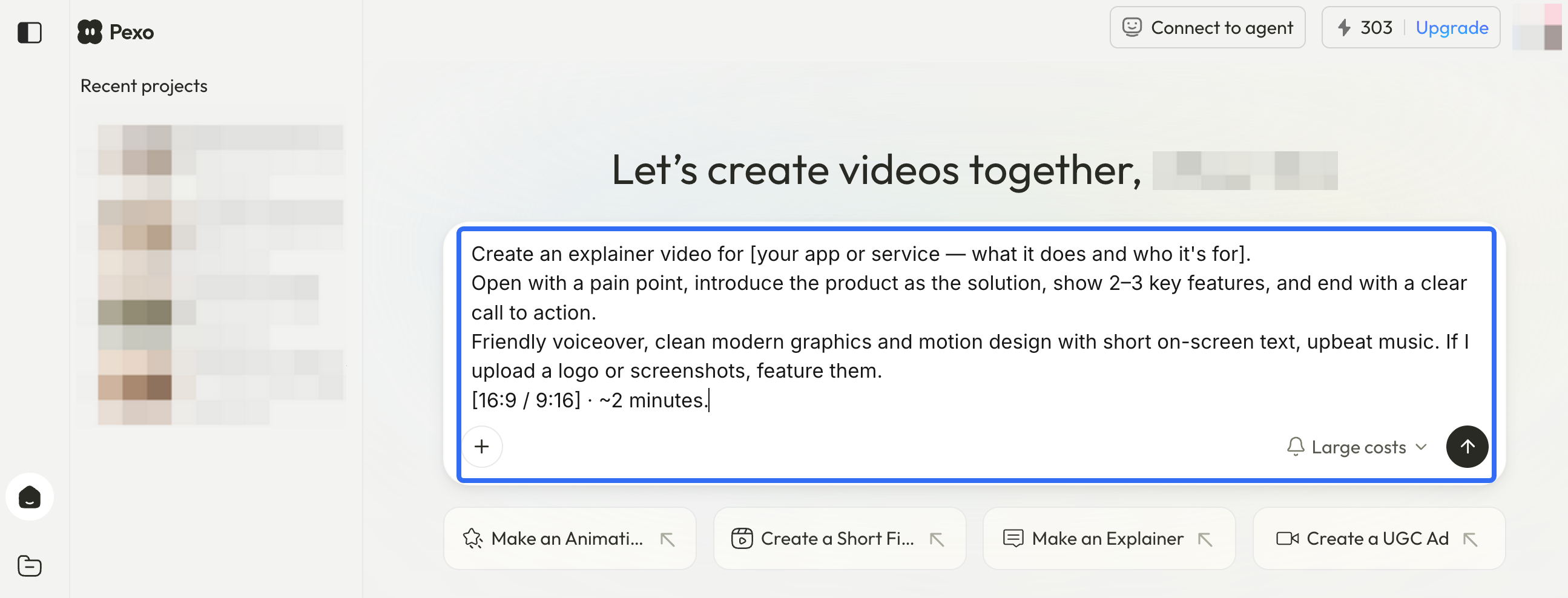
Approve the three beats before asking for a polished cut: the desk question, the true button action, and the visible mode change. If one beat has no trustworthy image, name the missing shot. If your team wants to organize the approved images and clips through an agent, give Pexo the claim and this storyboard and review its proposed sequence before production.