ChatGPT
 Perplexity
 Claude
 Gemini
 Grok
Grok


Give the producer a file list they can read before opening the images. It should explain which picture shows the actual product, which supplies the composition, and where to find the approved words.
Your MOSS-Image video agent assets should distinguish the real product from the creative concept, with a separate source for exact copy.
What Belongs in a MOSS-Image Asset Pack?
Include approved images, their source references, layout information, exact copy, and a note identifying the version to use. Keep enough information to trace a product detail back to its approval.
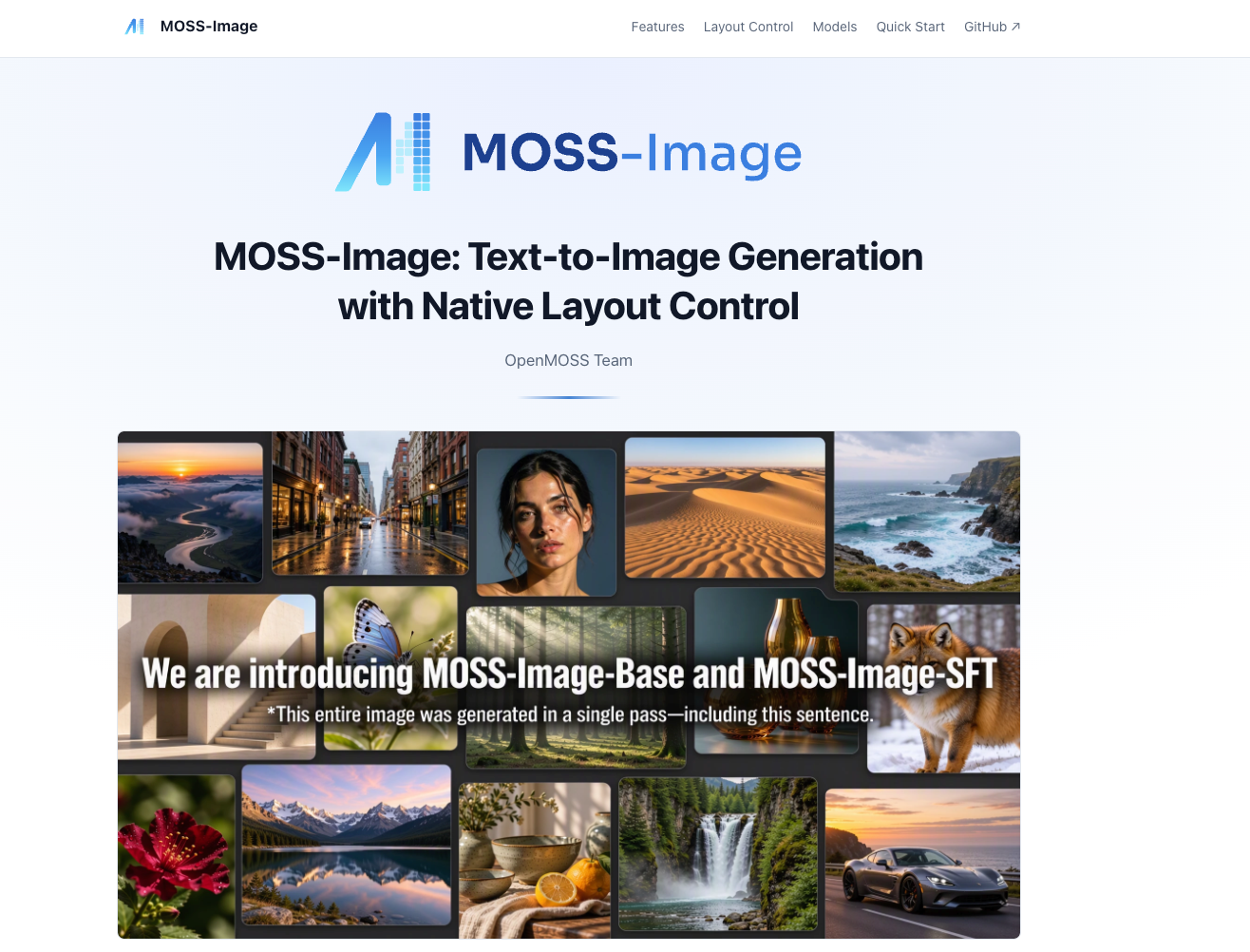
The sample pack below uses Vela, a fictional plum-colored travel mug.
Approved images and their source versions
Keep the full-size approved concept alongside the original product photograph used for comparison. Record the concept's generation settings and model version separately if available. Those records explain its origin; they don't make the generated mug authoritative.
For Vela, the current packshot settles the lid shape and label. The concept supplies the plum-and-cream composition. A pleasing concept that changes the lid needs correction before it joins the approved set.
Layout notes, exact copy, and product references
MOSS-Image supports JSON prompts describing objects, text, and spatial positions. Keep the original MOSS-Image Layout JSON with its matching image, canvas dimensions, and a readable layout preview.
Add a plain-language note: “Mug on the right; headline space on the left.” This helps a producer understand the arrangement without interpreting coordinates. Mark the preview as a diagram of the intended layout, since it cannot prove what the generated image contains.
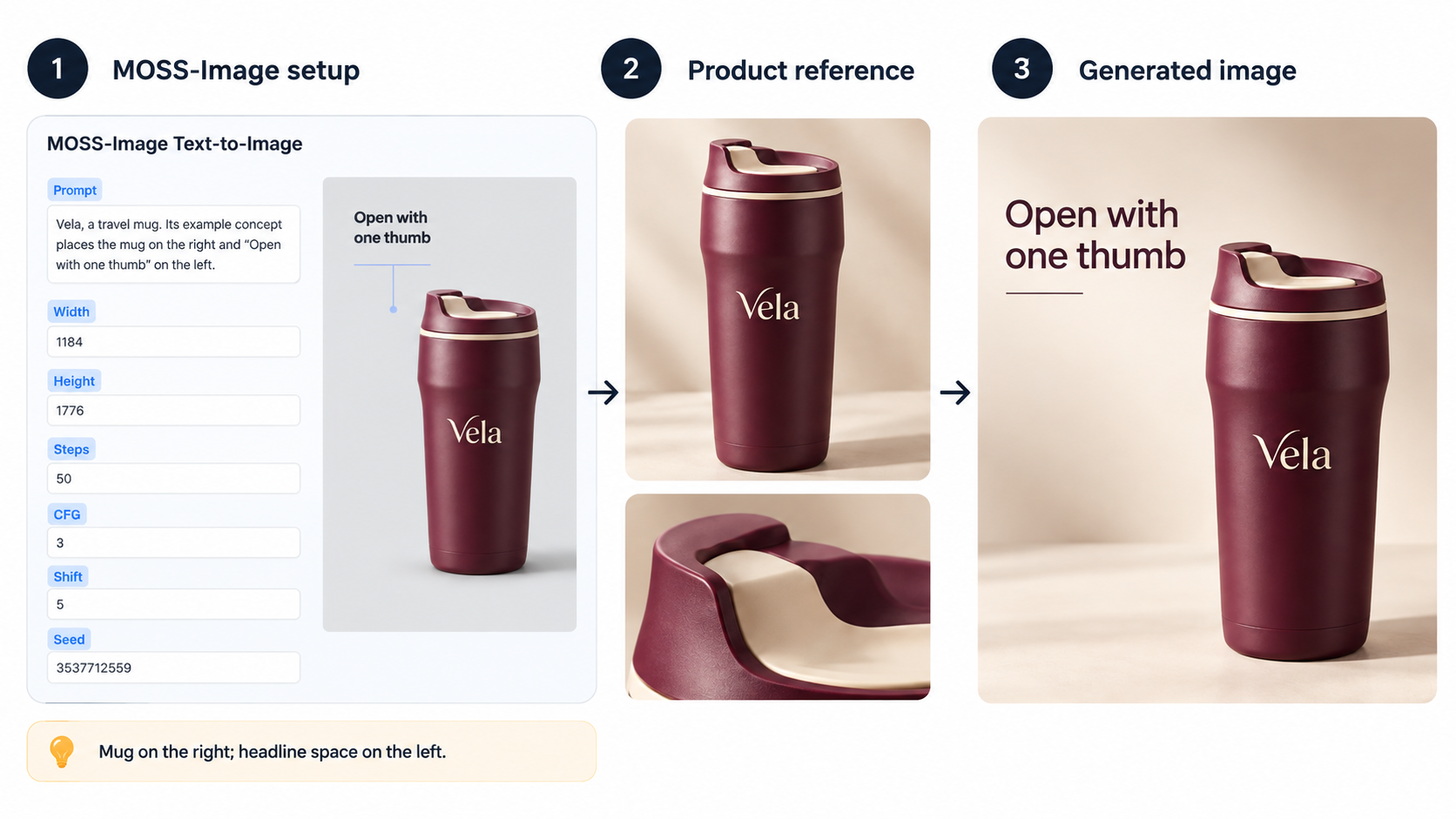
A separate text file keeps the approved wording readable, including punctuation and intended line breaks. Attach current label artwork and the product reference that supports the claim. A screenshot of lettering is a poor substitute for the words themselves.
Label Each File by Its Role and Approval Status
Use filenames that distinguish versions, then explain their authority in the file list. “Approved” should name what was approved: product appearance, composition, copy, or permitted use.
Here is a sample AI video agent reference pack. The statuses are illustrative; use your team's actual approvals.
| File | Role and source | Approval and details to preserve |
|---|---|---|
product_v03.png | Current brand packshot | Product reference: lid, plum finish, proportions |
concept_v07.png | MOSS-Image output checked against product_v03 | Approved composition; cannot establish new features |
layout_v04.json + layout_v04_preview.png | Original layout input and its annotated diagram | Composition reference; retain canvas dimensions and coordinate convention |
copy_v05.txt | Brand-approved wording tied to current product information | Exact words, punctuation, qualifications, and line breaks |
label_v02.svg | Current brand artwork | Label reference; no substituted lettering or logo |
sources_v02.txt | Source/version index and permission references | Records what each approval covers and any sharing restrictions |
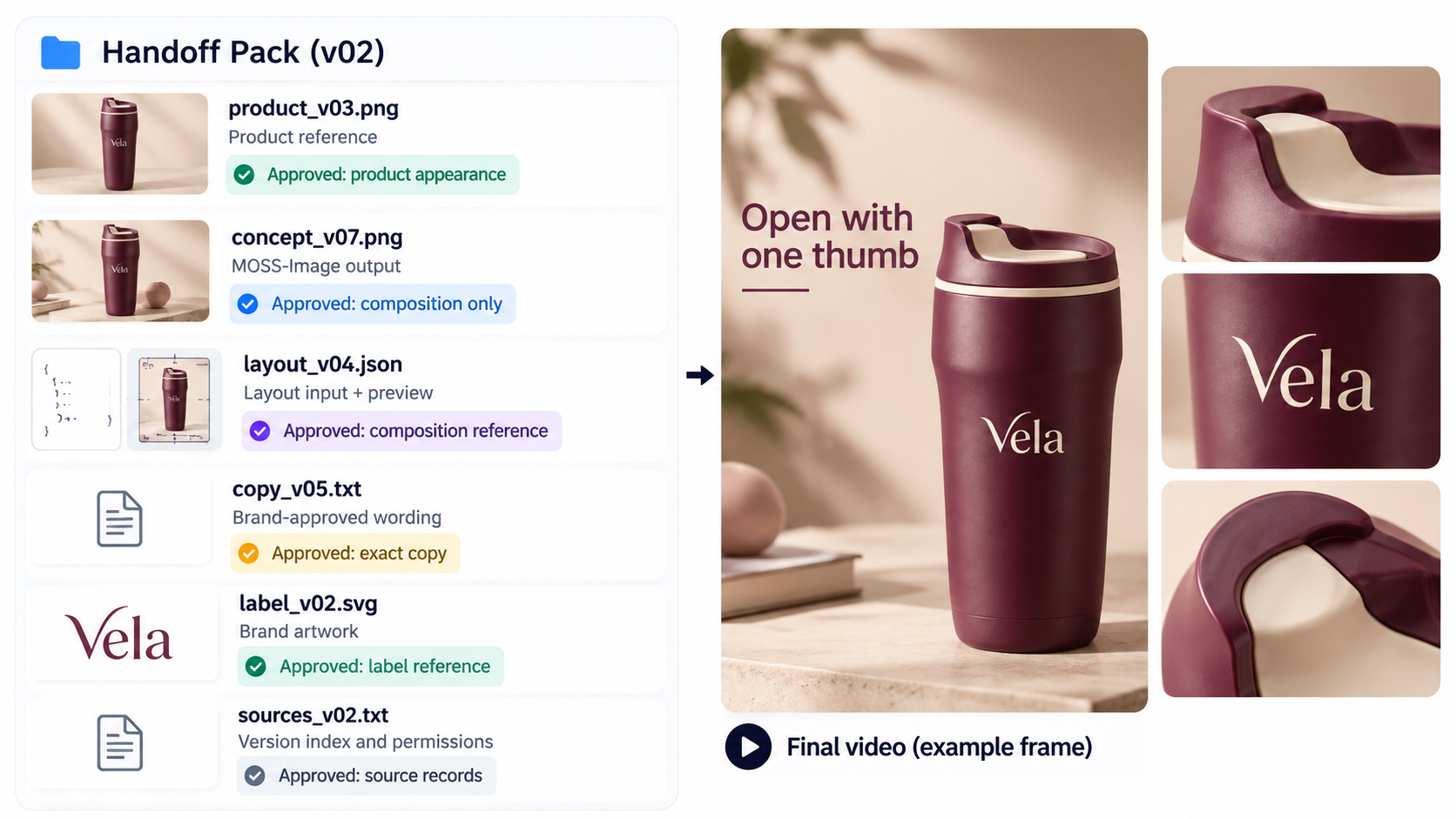
These extensions are examples, not a promise that every agent accepts them. Keep the originals and prepare compatible copies only after checking the receiving service.
Keep rejected concepts outside the send folder. A file called concept_final_new.png still leaves the producer guessing if another image has the newer label.
Write a Handoff Note for One Video Task
Name the deliverable and explain how to use the attached materials. This note accompanies the pack; it doesn't need to repeat the script.
For Vela, it could say:
Prepare one vertical product-page video using pack v02.
product_v03andlabel_v02govern product appearance.concept_v07guides composition only. Usecopy_v05verbatim. The layout diagram explains placement; confirm whether you can interpret the JSON. Flag conflicting references before production. Return the preview for product and copy approval.
Specify who can resolve a product mismatch and who can approve wording. If the recipient cannot open the label artwork, provide a checked compatible reference while retaining the original product image source files.
Choose the Pack Version the Team Will Send
Choose a named release, such as Vela_product-page_v02, and record its contents in the file list. Save that exact set with the handoff date and recipient. Keep your own archive rather than relying on a production service to preserve every source version.
A new copy approval can invalidate more than one file. If copy_v06 replaces wording already embedded in the concept, check both the image and JSON before issuing pack v03. Updating the text file alone leaves contradictory instructions.
Confirm upload and processing permissions before sending client-owned or confidential materials. For Pexo, this guide's publisher, check the sharing terms before creating a project link. As checked on October 26, 2026, those links can expose project materials and chat history. They allow access without signing in and cannot be revoked. Use an approved delivery method for the actual contents.
Send One Traceable Asset Pack
The recipient should be able to match each image to its source, find the exact copy, and name the details that must survive production.
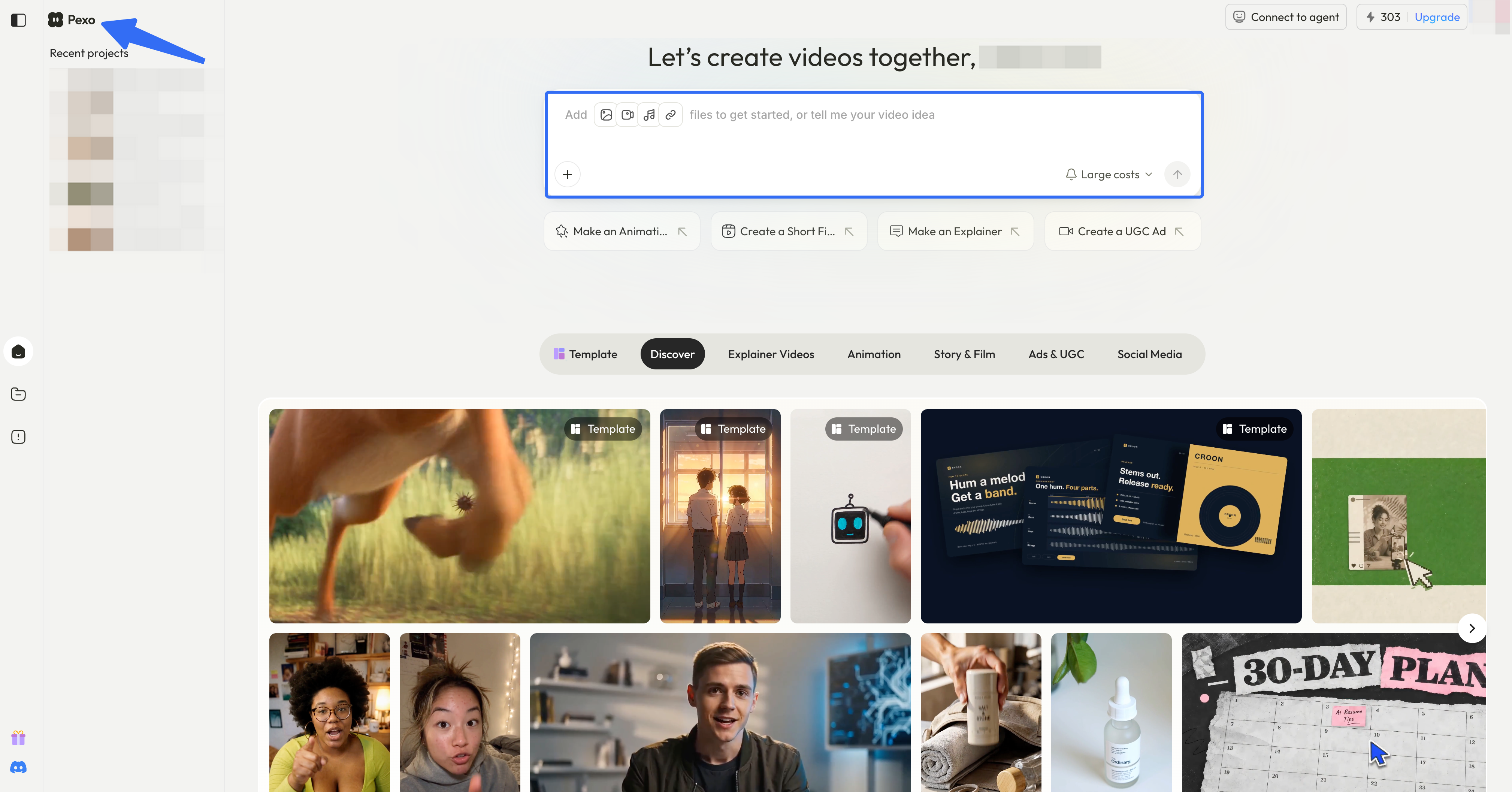
With the images and handoff note approved, you can develop the video with Pexo. Check your account’s accepted formats and image limits before uploading, and keep the original JSON and source files separately. If the preview changes a product detail or the approved wording, those originals give you a clear reference for the correction.