ChatGPT
 Perplexity
 Claude
 Gemini
 Grok
Grok


Cream or deep blue behind the tea tin? That background choice gives a small campaign two visual directions to explore with the same product photograph.
Prepare Fibo 2 campaign assets around that single change. Keep the tin, label, framing, and message consistent, then decide whether each background earns a place in the video. A more dramatic setting still needs to show the product a buyer will receive.
Start with an Approved Product Reference
Choose a current photograph that clearly shows the SKU, including the lid, label, and package proportions. Check the claim against the product sheet before using it in either direction.
Consider Tern, a fictional tea brand. For this planning example, assume its approved packshot shows an ivory tin, green label, and flat lid. The example claim is “100 g loose-leaf tea.” Your real product needs its own verified wording; neither the still nor a later animation establishes net weight.
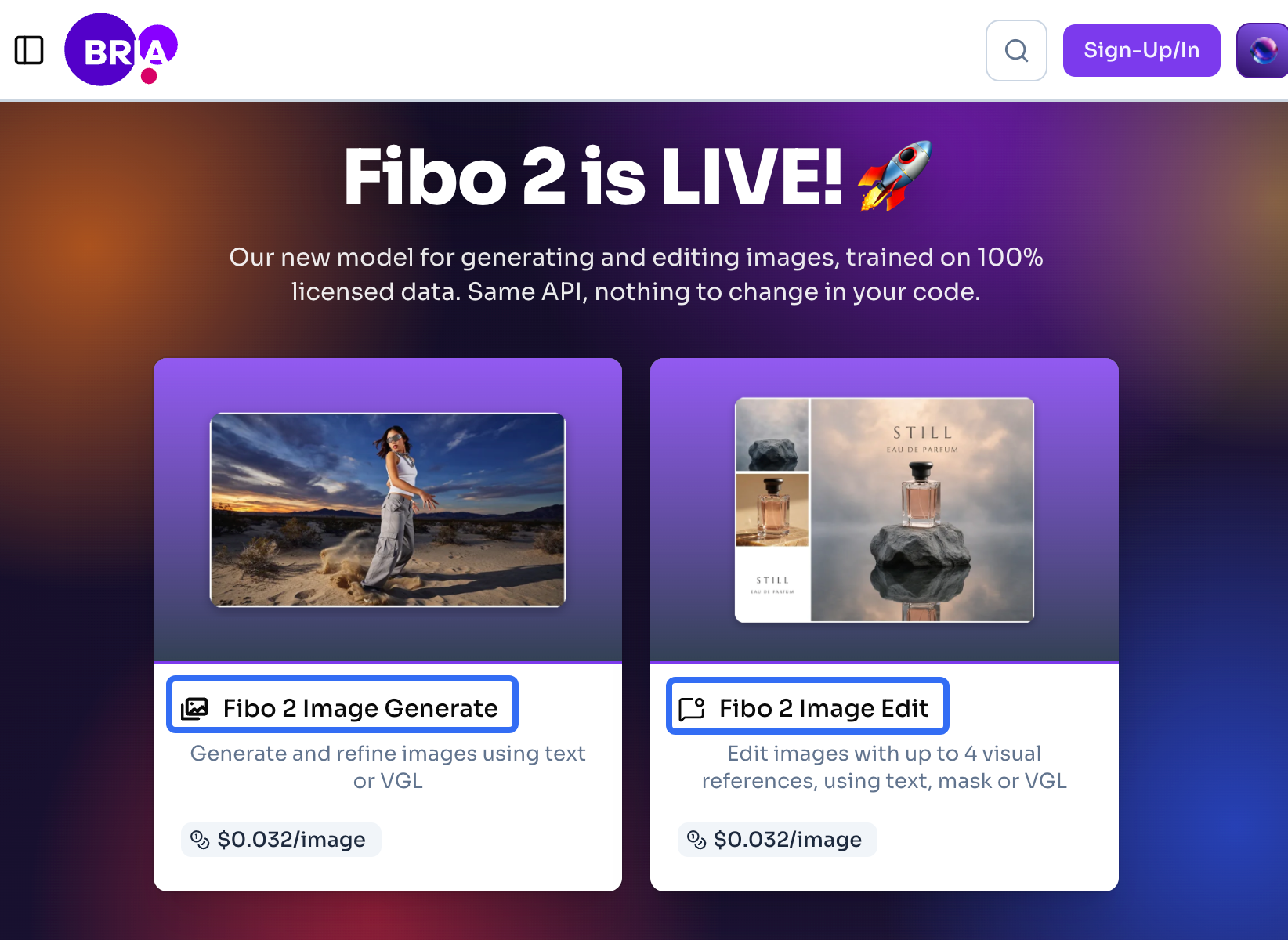
Fibo 2 generates and edits images. Motion and the finished ad belong to subsequent video production. Before supplying a photograph or scene reference, confirm permission for processing by the chosen service and for the intended advertising use.
Create Two Fibo 2 Campaign Stills
Make the intended difference easy to describe: only the backdrop color changes. Both versions use the same product position, lighting, crop, and approved copy.
Keep the approved product reference in both
Start each edit from the approved packshot. This gives the reviewer one source to compare against and avoids carrying an unnoticed mistake from the first variation into the second.
A direction for Still A could read:
Change the backdrop to warm cream. Keep the ivory tin, green label, flat lid, camera angle, product size, and lighting as shown. Add no props or new text.
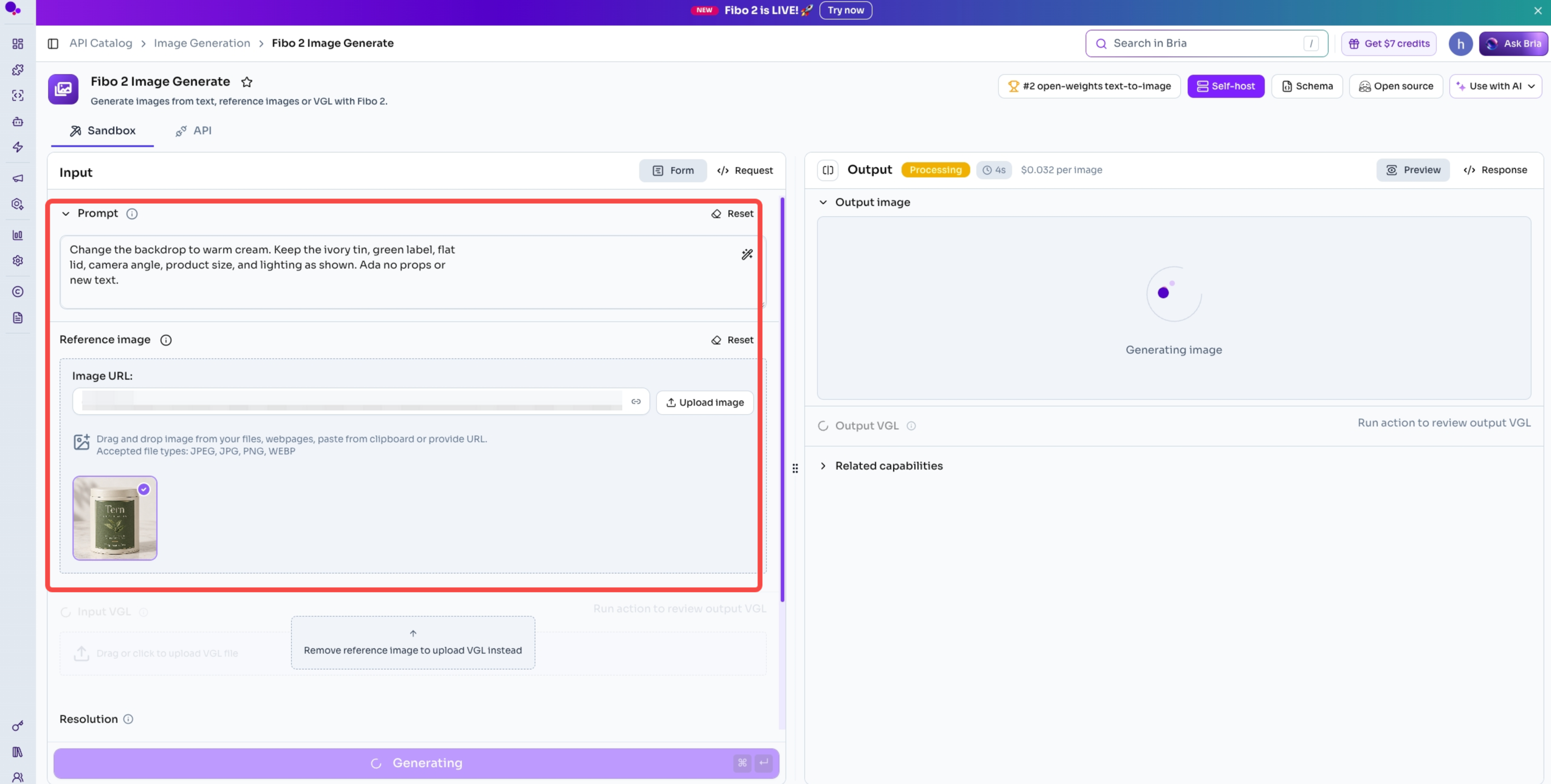
For Still B, replace “warm cream” with “deep blue.” Those instructions describe what must survive; inspect the result rather than treating preservation as guaranteed.
Change the scene with an optional second reference
If words leave the desired blue unclear, a permitted color or backdrop reference can help. As checked on October 23, 2026, Bria supports edits using up to four reference images. Identify the product source first and explain that the second image supplies background color only.
An atmospheric kitchen reference may also suggest different lighting or extra objects. For this pair, a plain color reference keeps the request narrower. Reject any borrowed props, lettering, or product details.
Check the Stills for Product and Brand Accuracy
Place both results beside the packshot. Compare the tin before judging the mood: lid shape, label placement, lettering, and the relationship between width and height.
The two backgrounds create different inspection problems:
| Check | Cream still | Deep-blue still |
|---|---|---|
| Tin outline | Ivory edges remain distinguishable from the pale backdrop | Edges remain clean, without a bright invented rim |
| Product color | Tin keeps its approved ivory color | Tin hasn't acquired an unapproved blue cast |
| Label and claim | Green label and exact copy remain readable | Contrast stays readable without changing label colors |
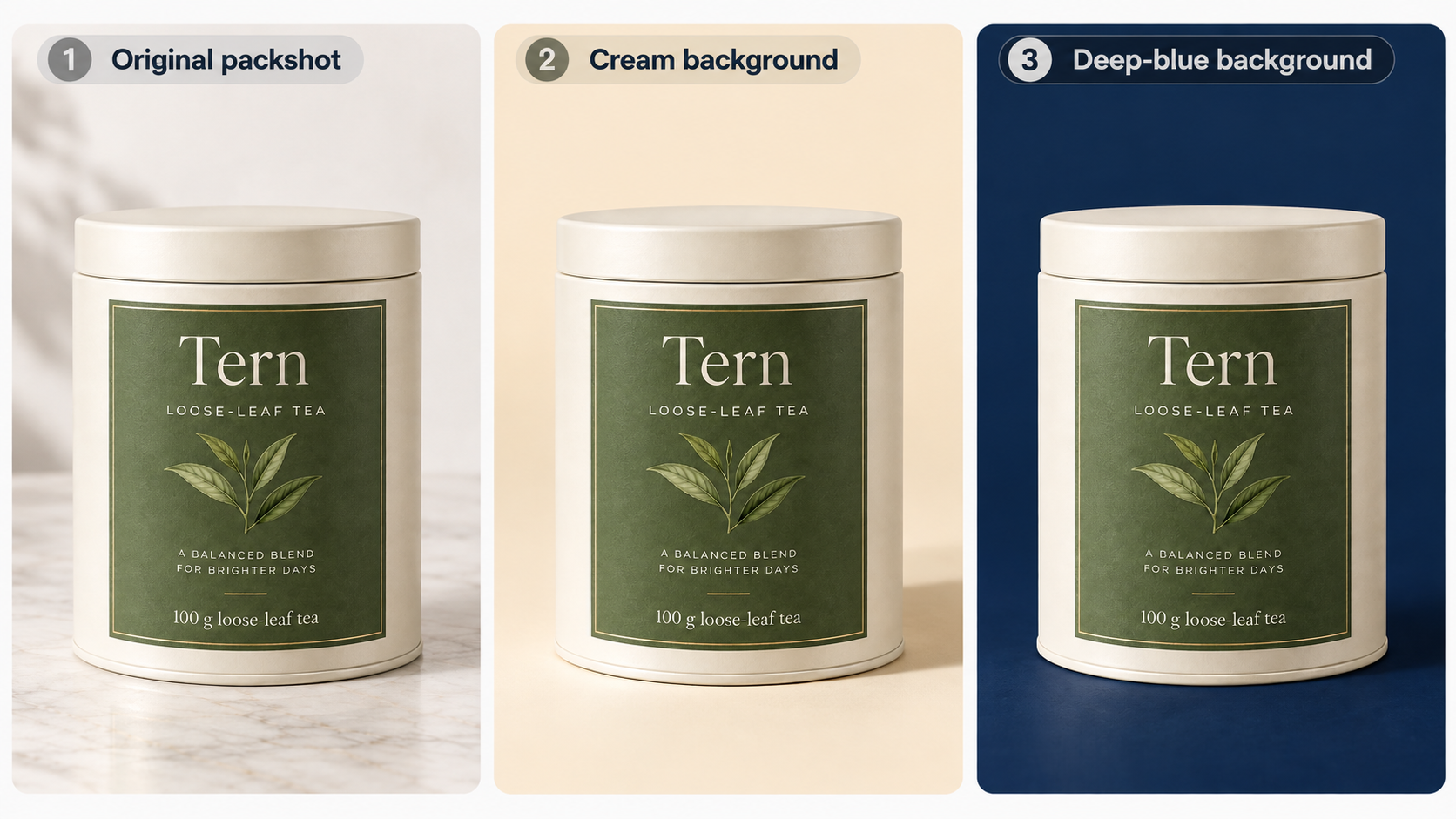
A beautiful result with a rounded lid fails this task. Correct or replace it before approval. Small lettering deserves a close check and another look at the intended viewing size; apparent sharpness can conceal the wrong letters.
Mark each still approved or return it with a specific correction. These proposed Fibo 2 product images become production references only after that review.
Pair Each Still with a Video Ad Direction
The cream version can introduce Tern softly; the blue version can give the same introduction a stronger graphic setting. Neither direction needs an invented pouring action or a taste claim.
Name the hook and motion for each variant
Keep the hook and camera movement identical while assessing the background choice. That makes the difference between these Fibo 2 ad creative variants clear.
| Still | Proposed hook | Proposed motion | Additional preview check |
|---|---|---|---|
| A: warm cream | “Meet your next cup.” | Gentle camera push toward the stationary tin, then hold the approved claim | Pale tin stays visible throughout the move |
| B: deep blue | “Meet your next cup.” | Same camera push and closing hold | Blue stays in the background; tin and label colors remain accurate |
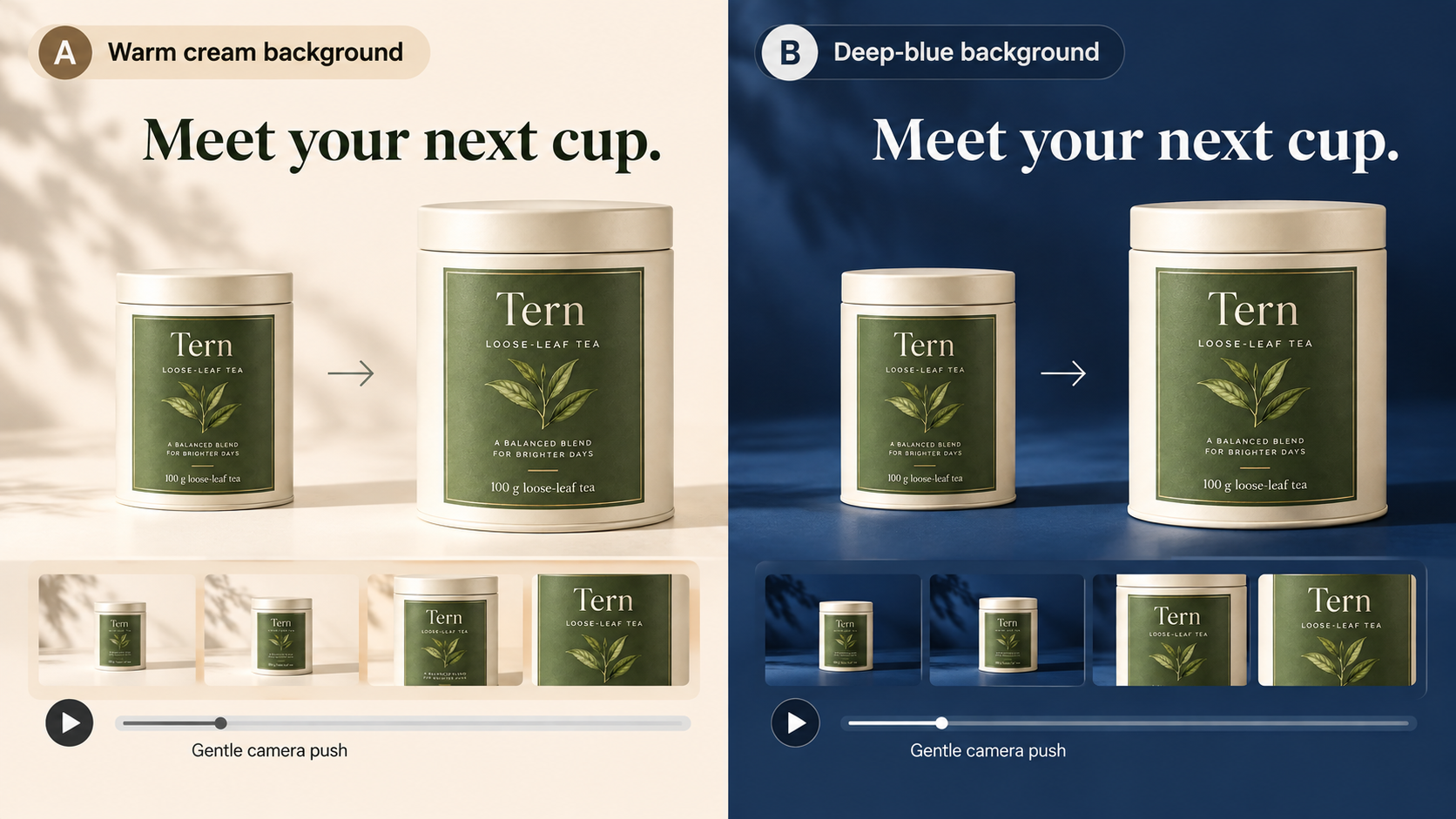
Both directions retain “100 g loose-leaf tea” as approved copy. Keep that text readable through the closing hold. Video production must check the label again: accepting a still doesn't guarantee that letters or package shape will survive motion.
Send the Approved Stills to Video Production
Each approved still now has a hook, a camera move, and a reason to inspect its preview differently. Keep those notes beside the image when production begins.

With Pexo, this article's publisher, you can provide a product image and direction, review the video, and request revisions through conversation. Begin with the still you can approve most confidently. Compare the returned tin and label with the packshot before developing the other background direction.