 ChatGPT
 Perplexity
 Claude
 Gemini
 Grok


The same product brief can lead to two very different first decisions. One team may want a complete short-form cut from a product idea and a few images. Another may want a presenter to explain the product while the team controls each scene.
That is the useful question in Revid AI vs HeyGen. This comparison follows one fictional brief through each documented workflow and focuses on the starting inputs, presenter requirements, scene assembly, revision path and export handoff. The conclusions stay conditional because no matched production result or performance study is available here.
Which Product Video Task Is Being Compared?
Assume a small SaaS team is launching Nera, a fictional expense approval tool. The brief asks for a 30-second vertical video for paid social:
-
Audience: operations managers at growing companies.
-
Message: approve a team expense from one review screen.
-
Product proof: show the receipt, approval action and status change.
-
CTA: “See the approval flow.”
-
Source assets: an approved product screenshot, logo, color palette and claim sheet.
The team has no approved spokesperson footage. It can authorize a synthetic presenter later. The brief still has to decide whether the story is carried by a presenter, product visuals or a mix.
How Does Each Tool Start From the Same Brief?
Revid can start from a written prompt, script, URL or product media. Its published workflow documentation includes an ad-generator route that accepts a prompt or provided product images. It also offers script-to-video and avatar-to-video workflows, with voice, captions, music and other media as configurable parts. The Revid workflow documentation describes these inputs and the project export path.
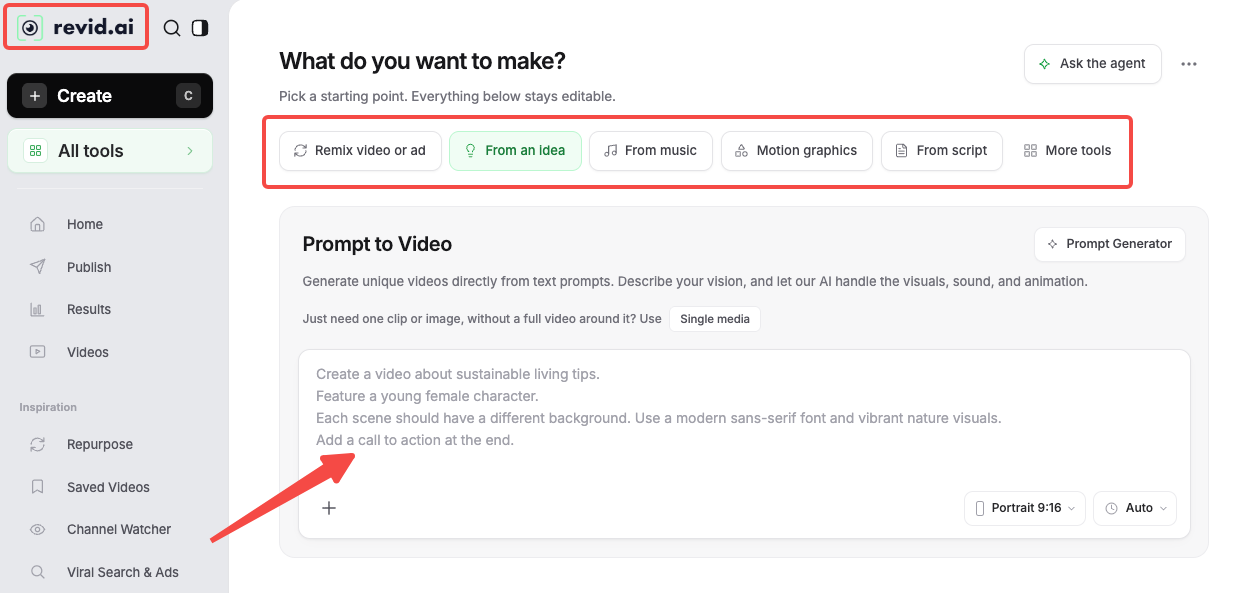
For Nera, a Revid brief could begin with the product claim and two approved screenshots. Ask for a vertical ad that opens on the review queue, shows one approval and ends with the CTA. Add an avatar when a presenter helps. Keep the interface in front when it carries the proof.
HeyGen can begin with a script divided into scenes. Its AI Studio documentation describes each scene as a section with its own script, avatar and visual elements. A team can assign an avatar and voice, add a product image or background, and preview the spoken script before rendering. The HeyGen AI Studio guide describes the current studio entry points and scene controls.
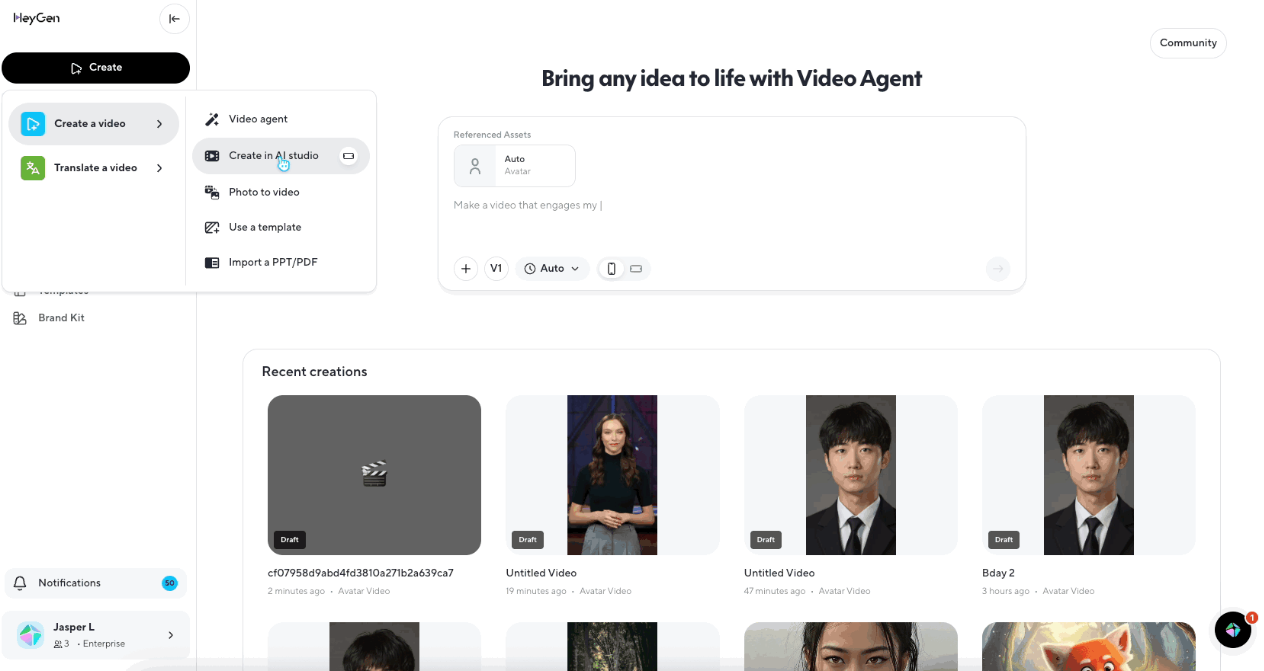
For Nera, the team could create three scenes. The presenter introduces the problem, a product visual shows the review screen and the presenter closes with the CTA. A scene can carry the product screen without an avatar.
Compare Presenter Needs and Scene Assembly
The presenter question is conditional in both tools. Revid's avatar workflow accepts a script and an avatar image or video. Its short-form workflow can assemble visuals, voice, captions, music and editing around a prompt or source.
HeyGen puts the presenter closer to the scene structure. A public avatar can carry a general lesson. A custom Photo Avatar can start from a photo, while a video-based Digital Twin requires footage and a consent video. The team can assign a voice across scenes and place the product screen beside or between presenter scenes.
For Nera, Revid suits a first draft where the team wants a proposed short-form sequence, voice, captions and supporting visuals. HeyGen suits a brief where the speaker's role and each scene's delivery are already clear.
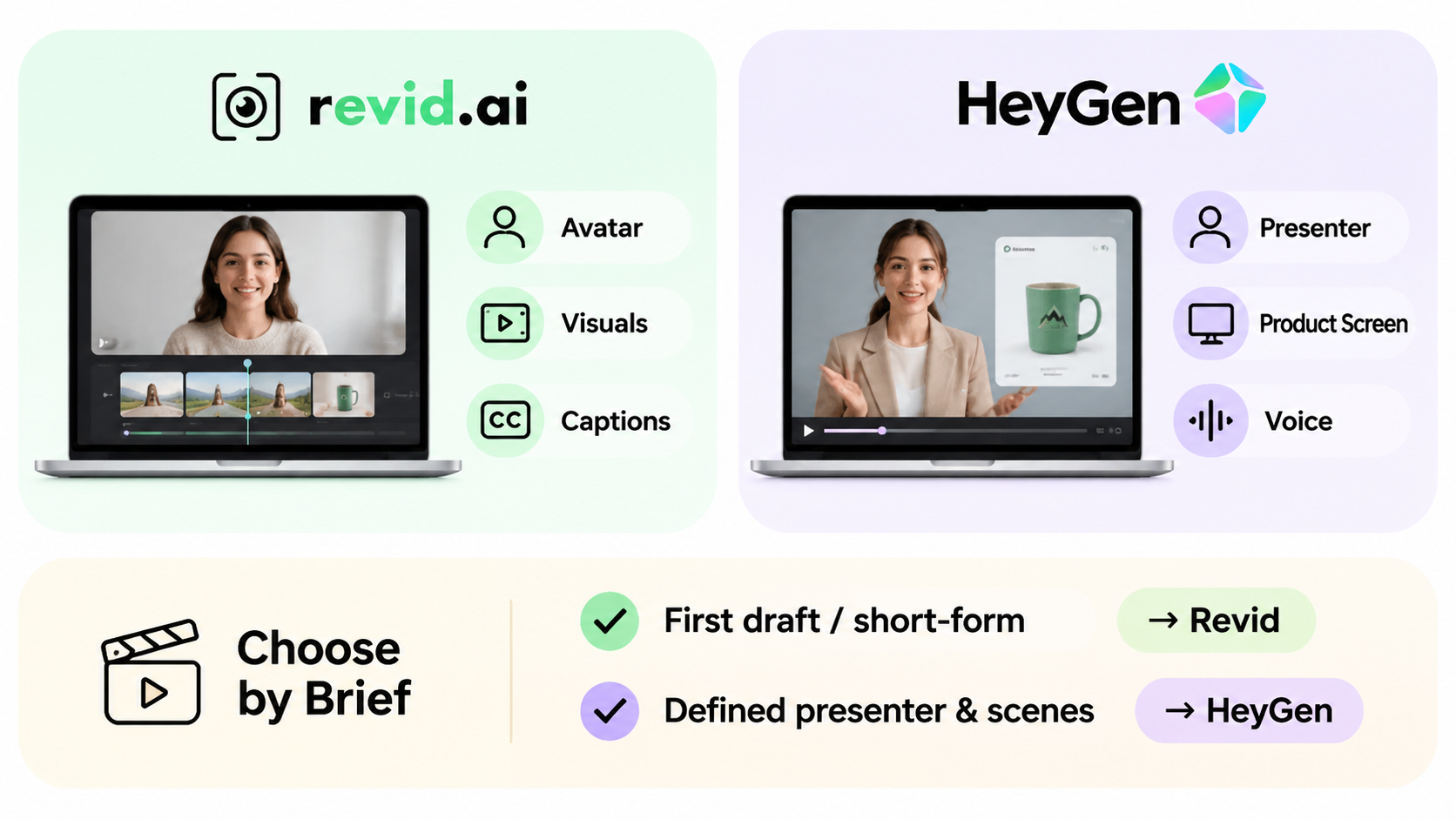
Neither route removes the directing decision. If “one review screen” is the proof, keep that screen visible long enough to read. If the presenter speaks over it, lower the visual complexity or move the explanation into a dedicated scene. A polished presenter cannot correct an unsupported product claim.
How Do Review, Revisions, and Exports Differ?
Review the two drafts against the same pass conditions:
-
The first scene names the approval problem.
-
The product screen shows the correct action.
-
The status change matches the claim sheet.
-
Captions use the approved product name.
-
The CTA gives the viewer one next step.
In Revid, the workflow can move from a generated project into a timeline editor. A revision might replace the second visual, change the voice, update captions or adjust the script. The team should record whether the change affects one scene or triggers a new render. Revid's public documentation lists project management and MP4 export endpoints, while its current FAQ lists MP4 or GIF export and 720p, 1080p and 4K beta options. Confirm the account's current plan before promising a specific resolution.
In HeyGen, the team can revise the script, avatar, voice, text, timing, visuals or layout in the studio. Changes to an avatar scene can require a new render because the spoken text and lip sync have changed. Visual or timing edits may follow a different credit path. Review the scene preview and the final rendered video, then check the neighboring scenes for pacing and claim continuity.
The handoff should include the approved script, source screenshots, presenter identity, voice decision, caption copy, aspect ratio, export resolution and final approver. Keep the source brief with the project so a later variant does not change the claim.
A Decision Matrix for a Small Marketing Team
| Requirement | Revid AI | HeyGen |
|---|---|---|
| Start from a prompt and product images | Fits documented ad-generator and media inputs. | Possible through studio assets or templates, with the account route checked. |
| Start from a scene-by-scene presenter script | Available through script and avatar workflows. | Central to AI Studio scene setup. |
| Use a custom presenter | Requires an avatar image or video and consent for the real person. | Requires the applicable custom-avatar or Digital Twin process and consent. |
| Let product visuals carry the explanation | Use the assembly with voice, captions or music. | Build scenes with product visuals and vary the avatar. |
| Revise one visual without rewriting the story | Use the editor or workflow options, then inspect the affected render. | Adjust scene visuals, text, timing or layout in AI Studio. |
| Scale through an API or agent | Public documentation lists API, MCP and CLI access on an active plan. | Check the current account, API and product route for the required workflow. |
Choose the row that matches the brief's first risk. Let the interface lead when the product action is the proof. Plan the avatar, voice and consent record first when presenter delivery carries the lesson.
When Is a Directed Full-Video Workflow Relevant?
A directed full-video workflow fits when the team needs the brief, scenes, voice, captions, product visuals and revisions connected through one production path. A human still approves product facts and revision progress.
Pexo can be considered when the team wants to give a production direction and review a broader video sequence from approved materials. See Pexo's product video workflow for that separate guided path. Revid and HeyGen remain the routes discussed above for their own presenter and short-form workflows.
For Nera, a presenter-led cut suits onboarding or a founder explanation. A product-led short suits an interface that carries the proof. A hybrid lets the presenter frame the question while the screen answers it.
Before upload, confirm the rights for the product screenshots, logo, music, voice, presenter footage and any custom avatar. Revid's current terms require clear consent for a real person's face, body, likeness or voice. HeyGen's current consent guidance also requires a consent video for video-based Digital Twins. Record the intended channels and the campaign's permitted use. This article does not provide legal advice.
Conclusion
Use the same product brief to decide where the story should begin. Revid fits a short-form assembly that can grow from a prompt, script or product media. HeyGen fits a scene-led explanation where presenter, voice and script decisions shape the cut. The team still owns the product facts, the approval record and the decision to commission another revision.