 ChatGPT
 Perplexity
 Claude
 Gemini
 Grok



A short camera move can help a viewer notice the spout of a measuring jug. It cannot establish whether the jug pours cleanly without evidence of that action.
For TBC Mischief 1 explainer video planning, give the draft one visible detail to explain. Prepare the image, describe the movement, and decide what would make the returned clip usable before generating it.

What Can One Product Image Explain?
It can establish visible shape, layout, and the relationship between parts. Animation can direct attention to those details, but a single photograph cannot establish a hidden mechanism or a performance result.
The example uses Vela, a fictional measuring jug. Its proposed shot draws attention to the spout while keeping the handle and printed scale visible. The product and its details are illustrative; use your own verified SKU references.
TBC launched Mischief 1 through fal and OpenRouter on October 30, 2026. The Vela example below draws on their published specifications to plan the camera move and the product details to check.
Prepare the Image and Shot Brief
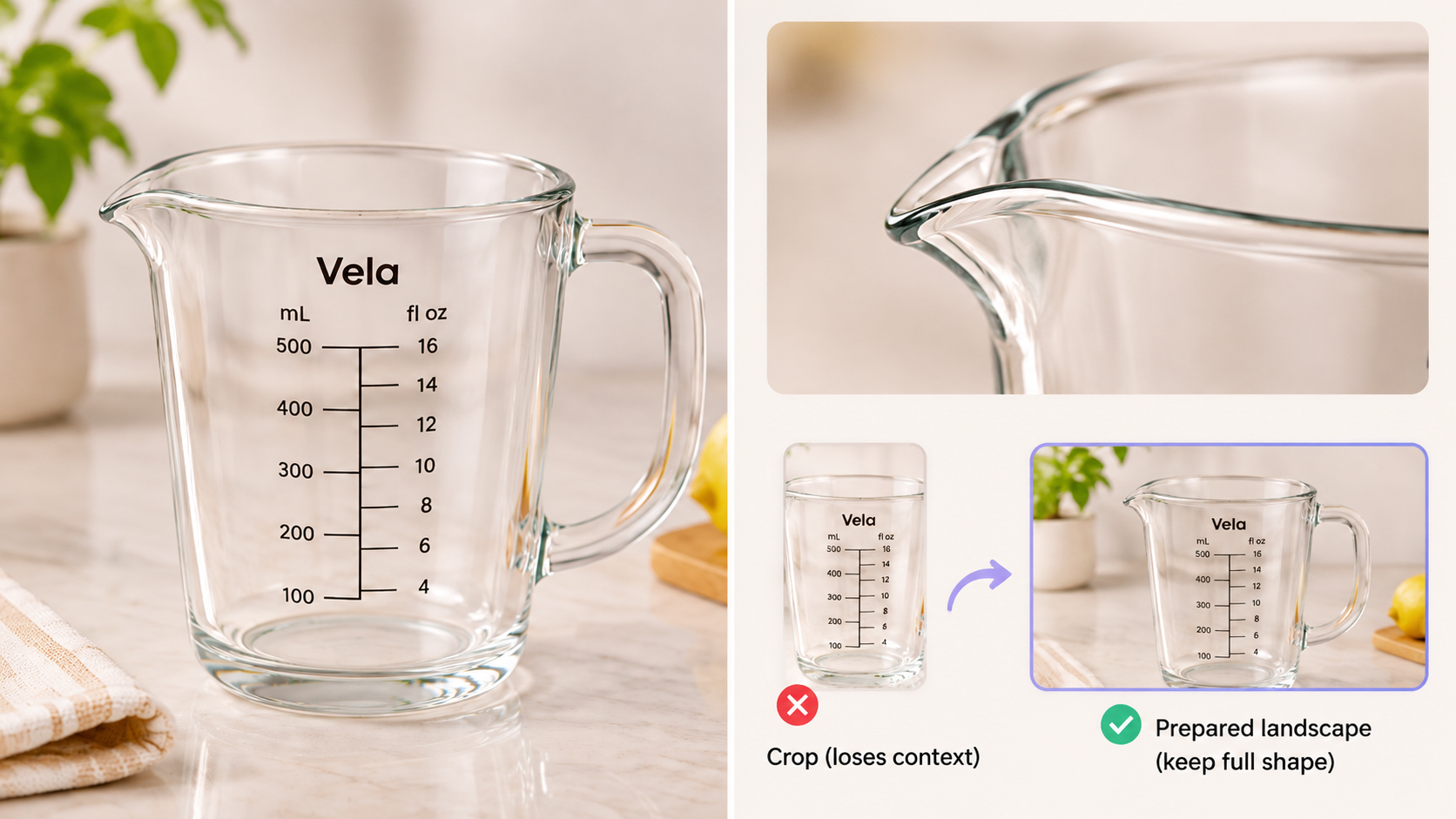
Choose an approved photograph showing the detail you want viewers to inspect. For Vela, the spout, rim, handle, and scale should already be visible and sharp. Request another photograph if the important edge is hidden.
The fal endpoint documentation requires an image and a motion prompt. Its landscape output needs careful preparation when the source is a portrait packshot. Preserve the product's proportions and leave space around the spout and handle.
The endpoint offers center cropping or resizing that stretches the image. Neither setting creates missing product information. Prepare a suitable canvas first, then check that the selected treatment keeps the entire required shape visible.
Use this explainer shot brief:
| Field | Vela planning example |
|---|---|
| Buyer question | Where is the pouring edge? |
| Approved source | Current SKU photograph showing spout, handle, and scale |
| Shot goal | Bring attention to the spout |
| Camera direction | Slow push toward the spout; handle remains visible |
| Product action | Jug stays stationary |
| Keep unchanged | Rim, handle, proportions, printed markings, surface |
| Acceptance | Detail is clear; no shape or text changes across frames |
A wider product explainer brief can hold the claims and surrounding story. Keep this generation request focused on its single shot.
Make a Motion Draft with Mischief 1
Use the named model through a currently available provider, then confirm its settings and charge before submission. The fal playground offers an image upload or URL field and requires sign-in to run.
As checked on November 3, 2026, published options include 3- or 5-second clips at 480p or 720p. The fal page listed US$0.005 per second at 480p and US$0.01 at 720p. Recheck the live quote; another attempt adds generation work without guaranteeing an accepted shot.
A proposed prompt is:
Keep the measuring jug stationary on the existing surface. Move the camera slowly toward the visible spout while keeping the complete handle in frame. Preserve the rim, printed scale, color, and proportions. End on a clear view of the spout. Add no hands or pouring action.
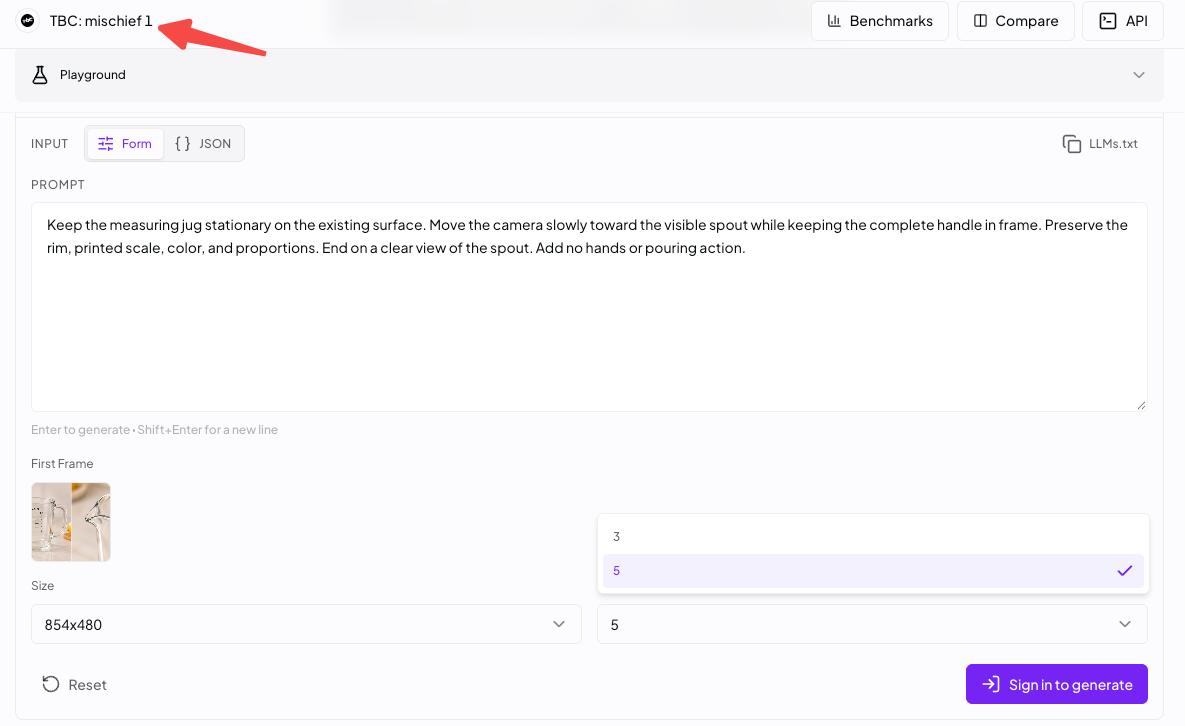
Save the source, typed prompt, resolution, duration, and returned seed. The endpoint also offers original or enhanced prompt processing. Record which was used; a fixed seed alone does not control a separate prompt rewrite.
Check Product Details and Movement
Compare the source with the opening, middle, and final frames, then watch the whole clip. Look for changes during movement, especially where the handle meets the jug and where markings cross reflections.
If a label, number, or logo changes between frames, remake the shot or discard it. A correct final frame cannot repair an incorrect marking earlier. Avoid adding a caption that repeats a scale value until the product record confirms it.
Check whether the camera move helps the explanation. If the push crops the handle or makes the spout ambiguous, reduce the movement or return to the still. Request a clearer source photograph when the missing detail cannot be resolved from the image.
Place the Shot in an Explainer Sequence
Use the accepted shot where its detail answers the viewer's question. Introduce Vela, show the spout view, then continue to the next supported product point or destination. Any demonstration of pouring needs its own reliable evidence.
With the approved clip, source image, and surrounding message, you can develop the explanation through Pexo's product-video workflow. Specify the clip's role and review the proposed sequence. Confirm file acceptance and processing permissions; this does not imply that Pexo includes Mischief 1.

Before paid use, review the model/provider conditions and fal's applicable terms. Check image, person, and sound permissions separately, plus the destination ad channel's current policies. For Pexo work, resolve promotional-use consent under its current terms. This article does not provide legal advice.