
Affirmation Video
Make an affirmation video with your own words, an optional voiceover, and time to pause. Review the pacing and readability with Pexo.
Make an AI wedding video from your ceremony clips, photos, and recorded messages. Put the moments in order, keep the words you want to hear again, and finish with a dedication.
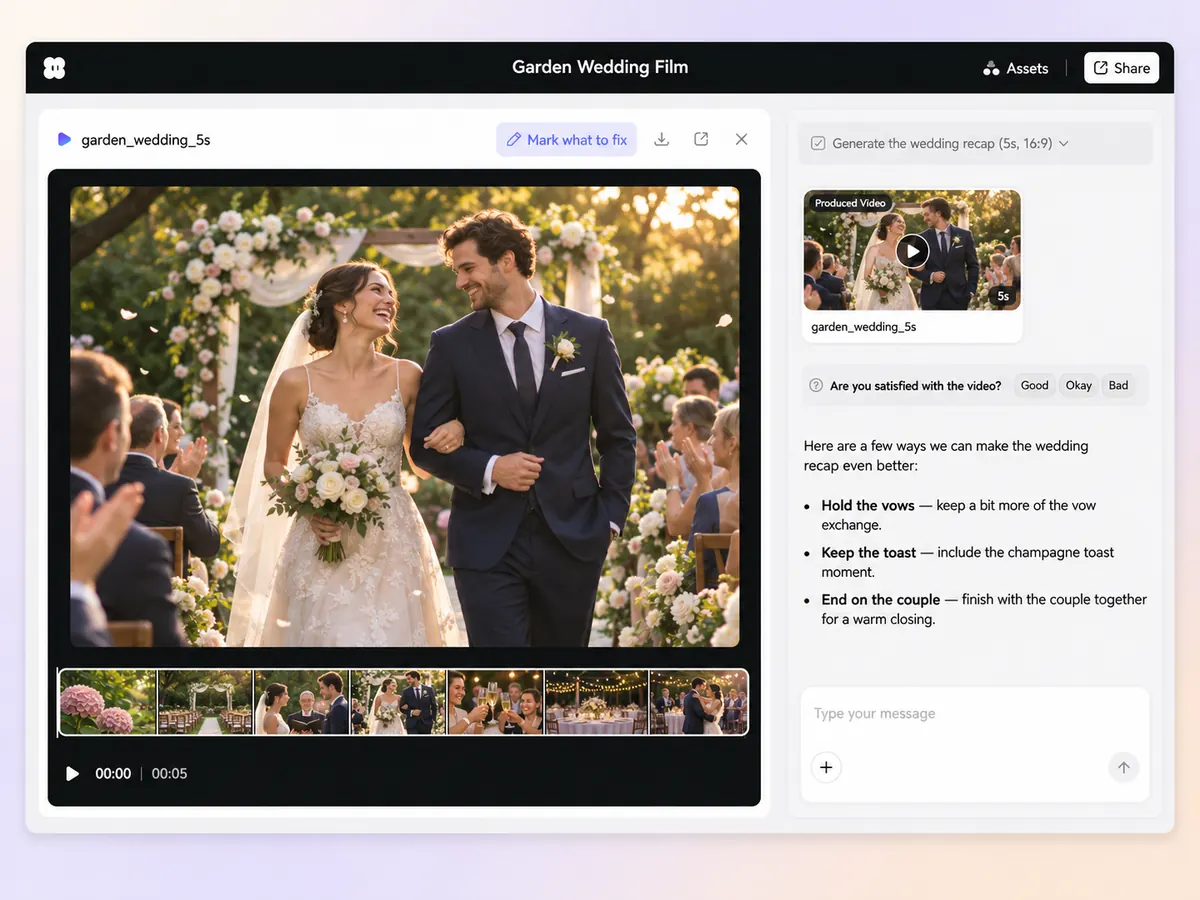
Start Pexo’s wedding video maker with the clips and photos you want to use. Label the moments they show, from the morning preparations to the last dance. Ask for a simple chapter order and review it in chat before deciding which shots get more time.
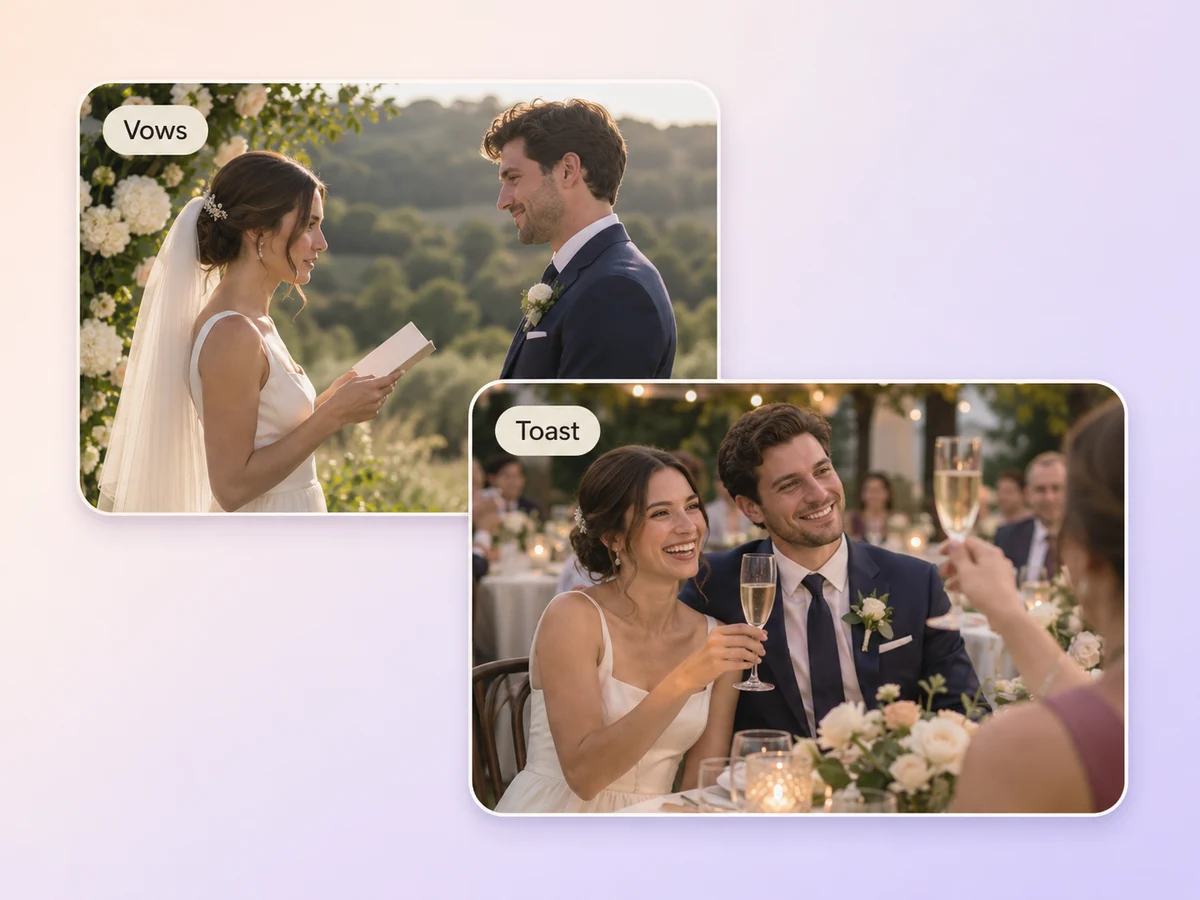
Identify the vows, speeches, or messages you want people to hear. Tell Pexo which part of each recording belongs in the video and where it should play. Preview the transitions so the words come through clearly over any music or crowd sound.
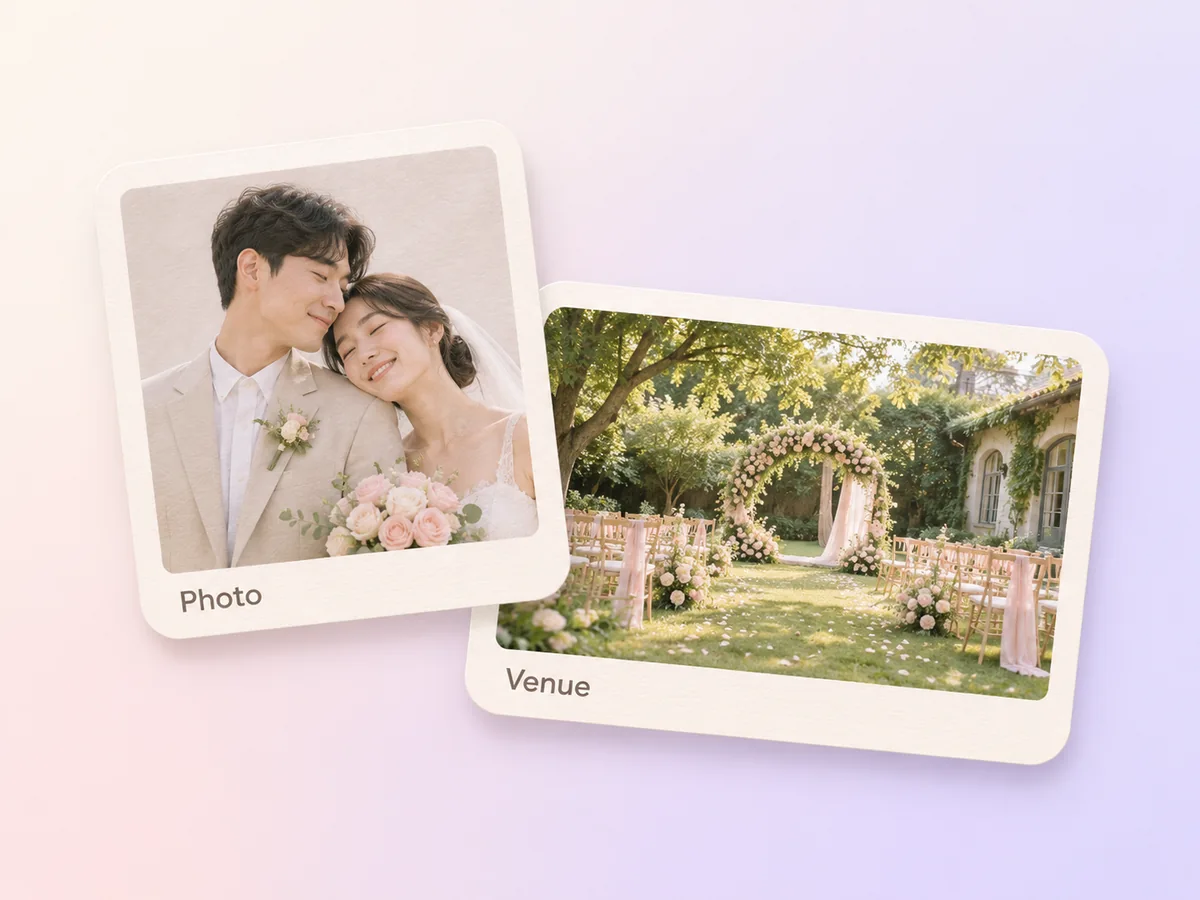
Use a favorite portrait or venue photo to connect parts of the day with limited footage. Keep the image on screen long enough to see it. For a more stylized transition, use image to video to animate a venue illustration with a gentle camera move.
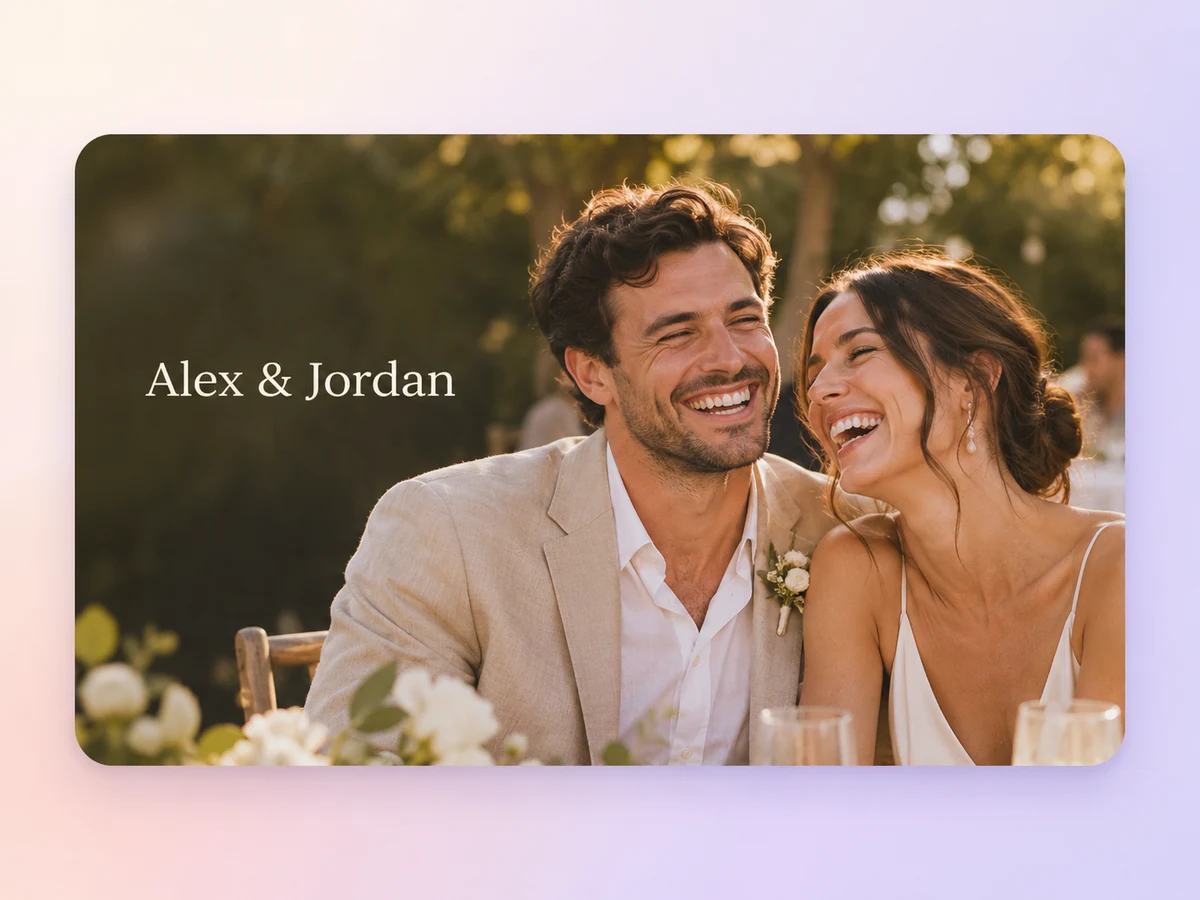
Give Pexo the spelling of the names and the exact date you want on the title card. Write a short message for the end or choose a final shot that says enough on its own. Preview the text and check it against the wording you supplied.
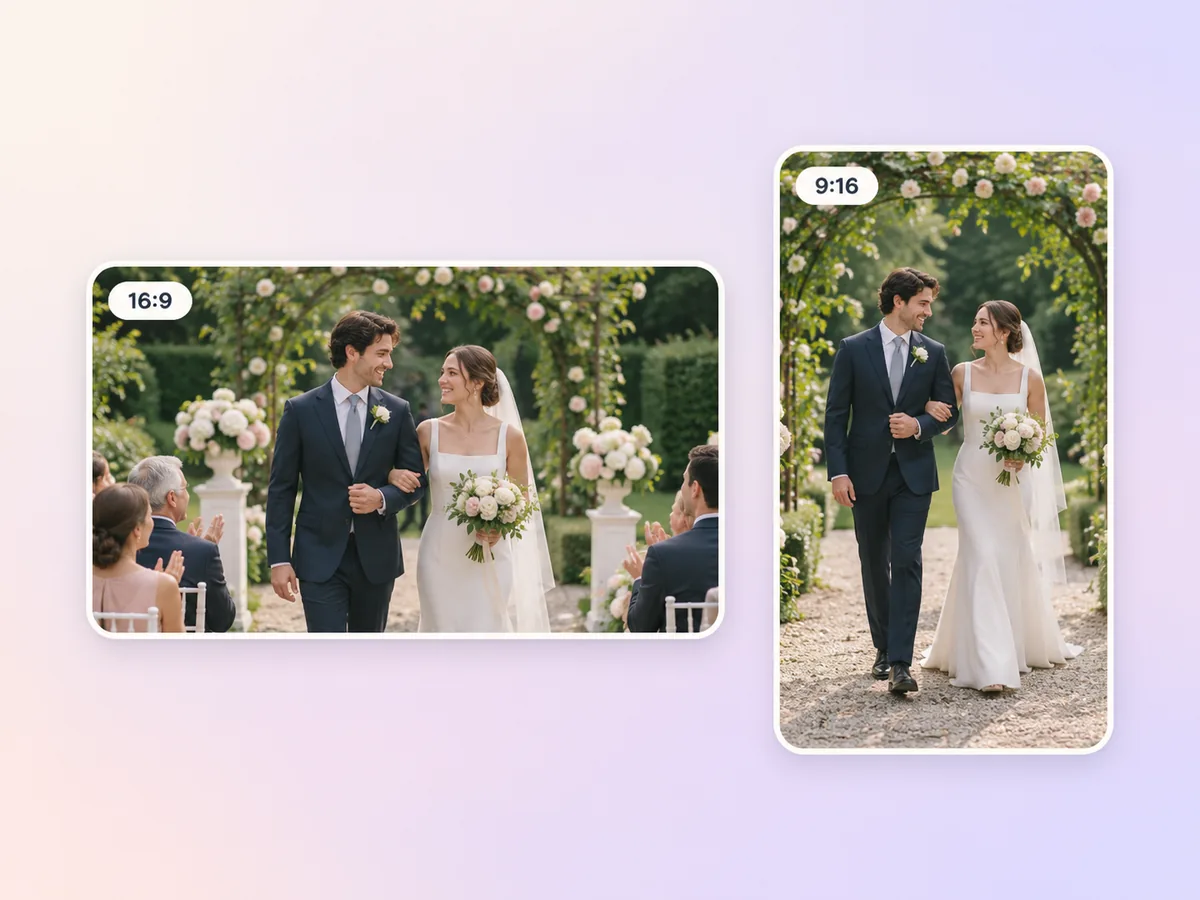
Ask for a 16:9 cut to watch with family or a 9:16 recap for a phone. Choose a few complete moments for the shorter version. Check wide group shots in the preview so the crop keeps the people you want to see.
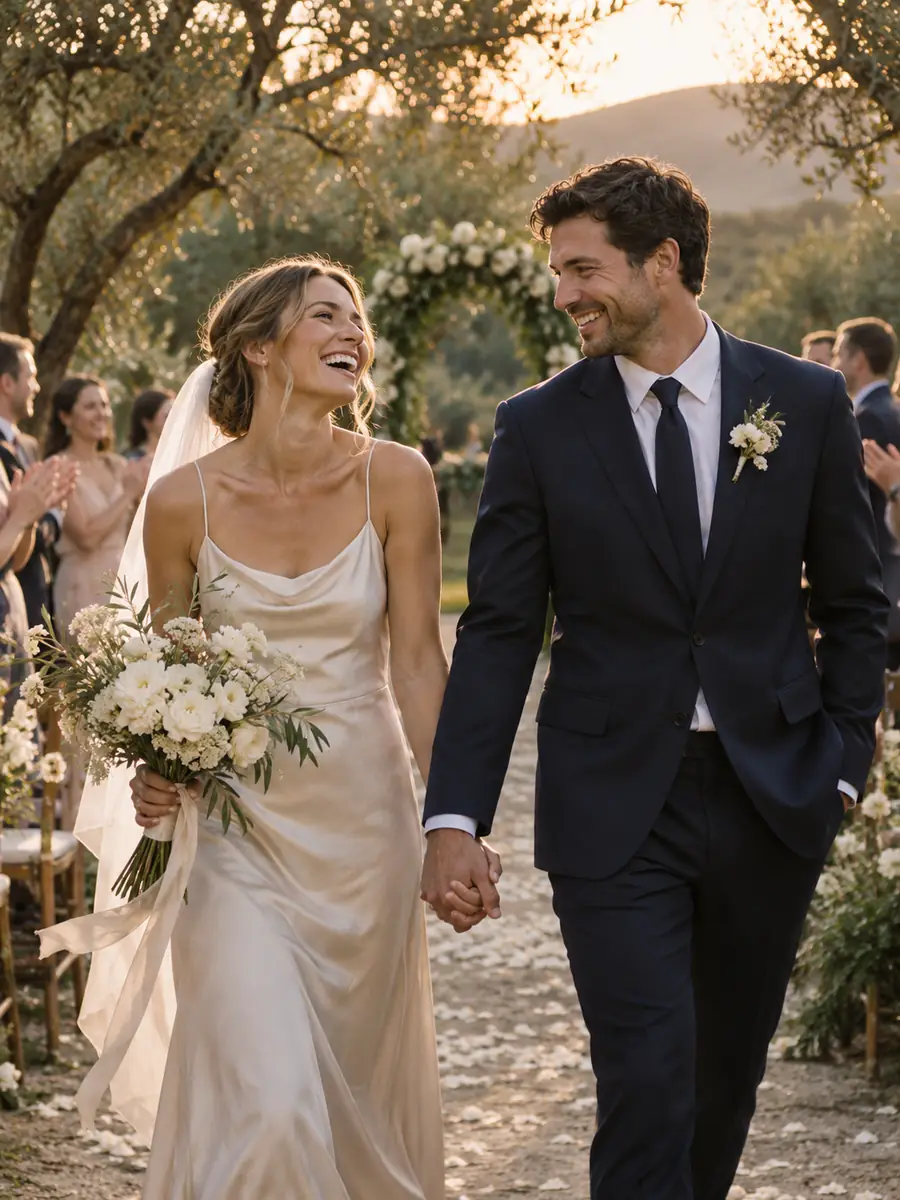
Follow the day from preparations to the ceremony and reception. Hold the vows and one family toast where they have time to land. End with a favorite shot of the two of you.

Start with a short ceremony moment and move into the reception. Keep a laugh, a dance, and one shot that shows the room. Close on the names and the date.

Arrange portraits, details, and group photos in the order they happened. Pair them with a message or a few short captions. Give the final photo and dedication a quiet hold.

A wedding video tells the story of a wedding through ceremony or reception footage, photos, and recorded audio. It can be a quick recap or a short film that preserves more of the day. Many wedding videos use vows, speeches, or personal messages to connect the key moments of the day.
Yes. Arrange your photos in the order you want to tell the story and share any clips or recorded messages you have. Use a short title card to introduce a new chapter. Hold group photos and portraits long enough for viewers to see the people and details.
Yes. Share the ceremony clip or a separate recording and say which lines matter to you. Ask for space around the speech in the cut and review it with sound on. Check that background music or applause leaves the words clear at the volume you plan to use.
Pexo lets you organize source clips, photos, and messages in chat and review them as a story. It can use a model such as Seedance 2.5 for an illustrative opener or transition. Keep the actual ceremony in your source footage and preview the keepsake in 16:9 before sharing.
A video slideshow presents a sequence of photos and can work for any occasion. A wedding video follows the couple and the day, with room for ceremony footage, original vows, or reception moments. A photo sequence can be one chapter of a wedding video.
Start with subject + action + camera movement + setting + style, then list the supplied clips in order. Try “Open with our venue photo in warm light. Use a gentle push-in, then show the aisle and keep the sound of the vows. End on the first dance and our names and date.”
Bring the photos, clips, and words that matter to you. Start with one moment you would like to see again.
Make an affirmation video with your own words, an optional voiceover, and time to pause. Review the pacing and readability with Pexo.
Make a graduation video from school photos, ceremony clips, and personal messages. Use Pexo to tell the story from the first day to the final walk.
Make a meditation video with a steady view, gentle movement, and quiet ambience or silence. Use Pexo to shape the scene and its pace.
Make an animated starting soon screen with Pexo. Add your channel colors, logo, and message, then preview a short video to loop before you go live.
Create duanju with Pexo. Turn ideas into short drama scenes, develop memorable characters, and add expressive voiceovers and twists that keep viewers watching.
Turn any dish into a recipe video with Pexo. The AI recipe video generator writes the steps, generates the shots, and adds captions with Sora 2, Kling and Veo, up to 4K.
Turn photos into a video slideshow in minutes with Pexo. The AI video slideshow generator arranges your slides, adds music and captions, and renders every scene with Sora 2, Kling and Veo, up to 4K.
Turn any song into a beat synced music video with Pexo. The AI music video generator times every scene to your track and renders with Sora 2, Kling and Veo in minutes.