

Wedding Video
Make a wedding video from ceremony clips, photos, and recorded messages. Use Pexo to tell the story of the day and keep the voices that matter.
Create an AI affirmation video people can read and repeat at their own pace. Give Pexo the exact words, choose a quiet backdrop, and add a voiceover or let the text carry the sequence.
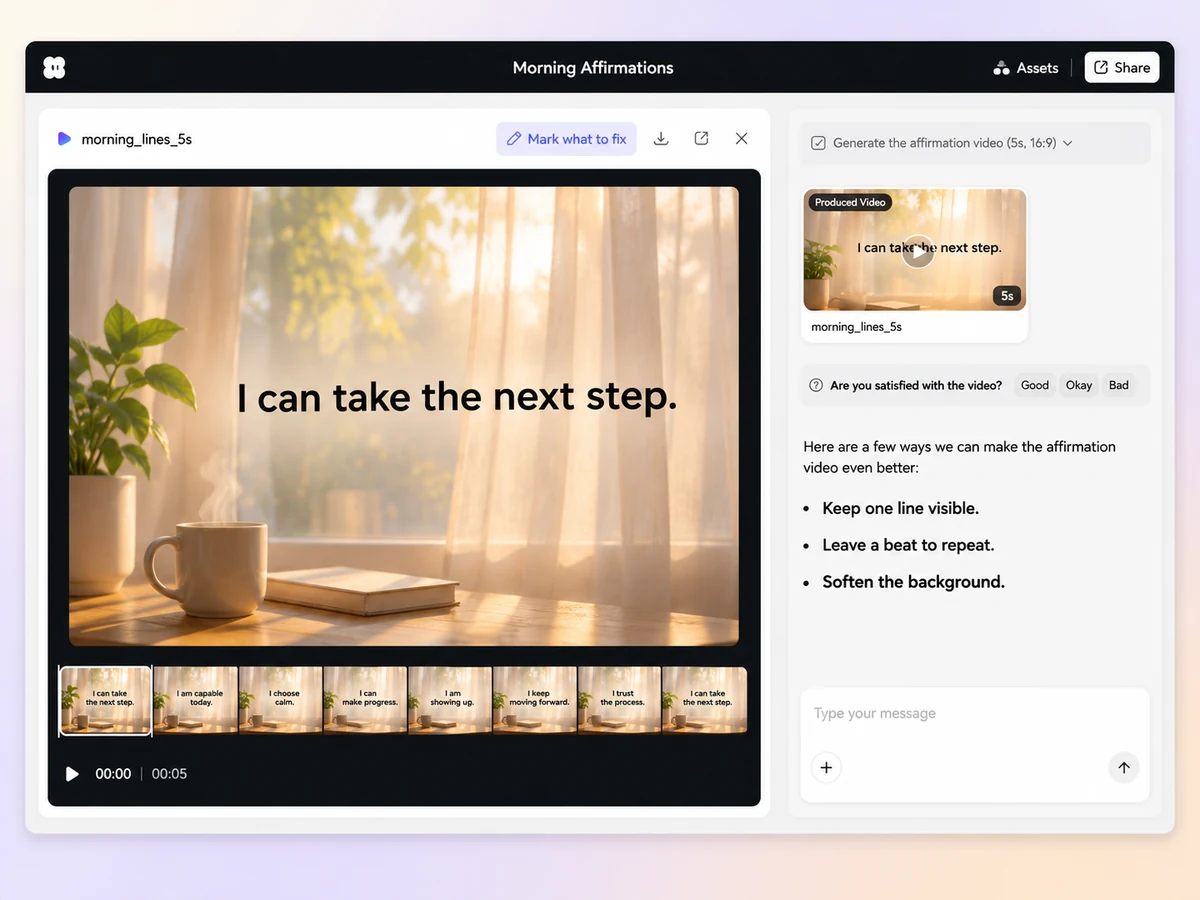
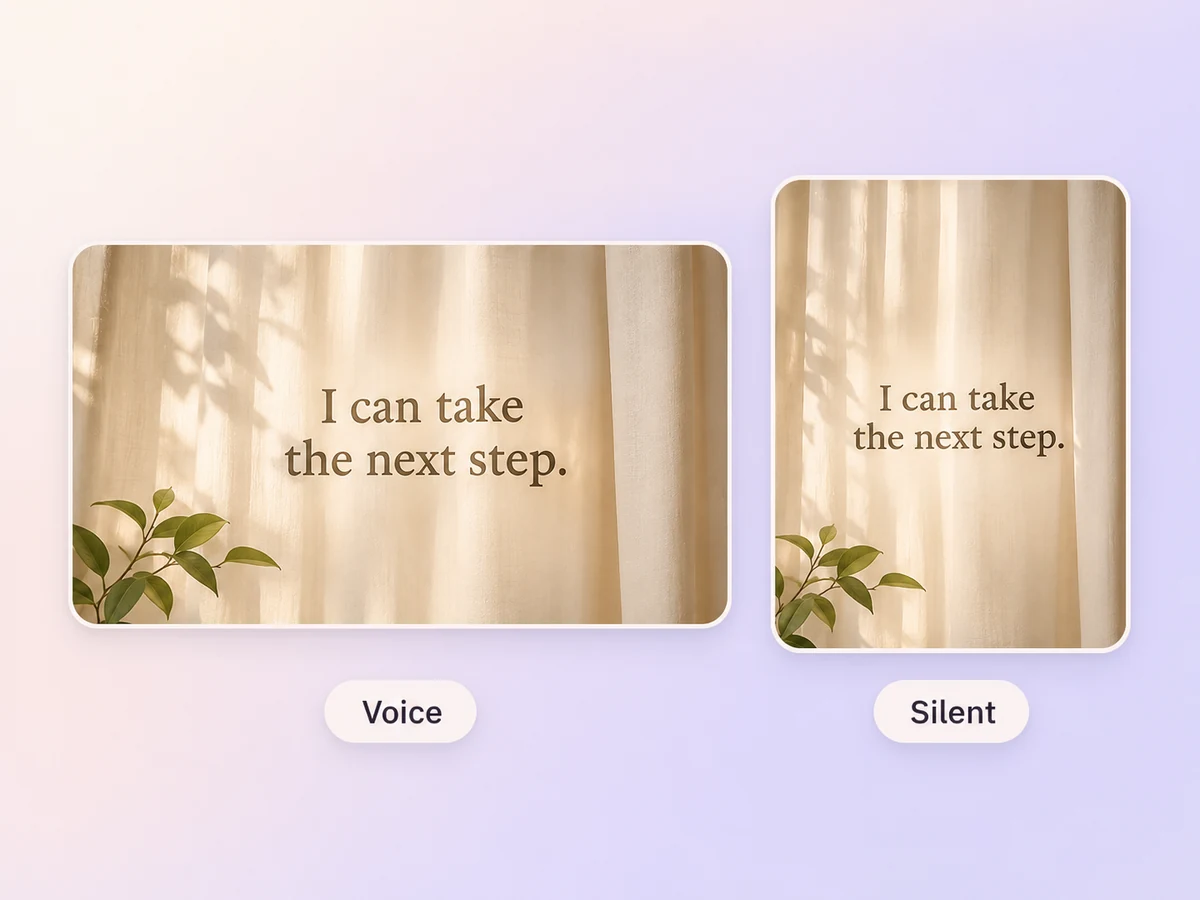
Give Pexo’s affirmation video maker a few first-person lines for one situation. Try “I can take the next step” or “I can slow down and speak clearly.” Share the exact wording or ask for a draft, then review the order in chat.
Keep each statement on screen long enough to read aloud. Use a large type size and give the words room around the edges. Start by checking the longest line on a phone. If it wraps awkwardly or changes too soon, ask for a shorter line or a longer hold.
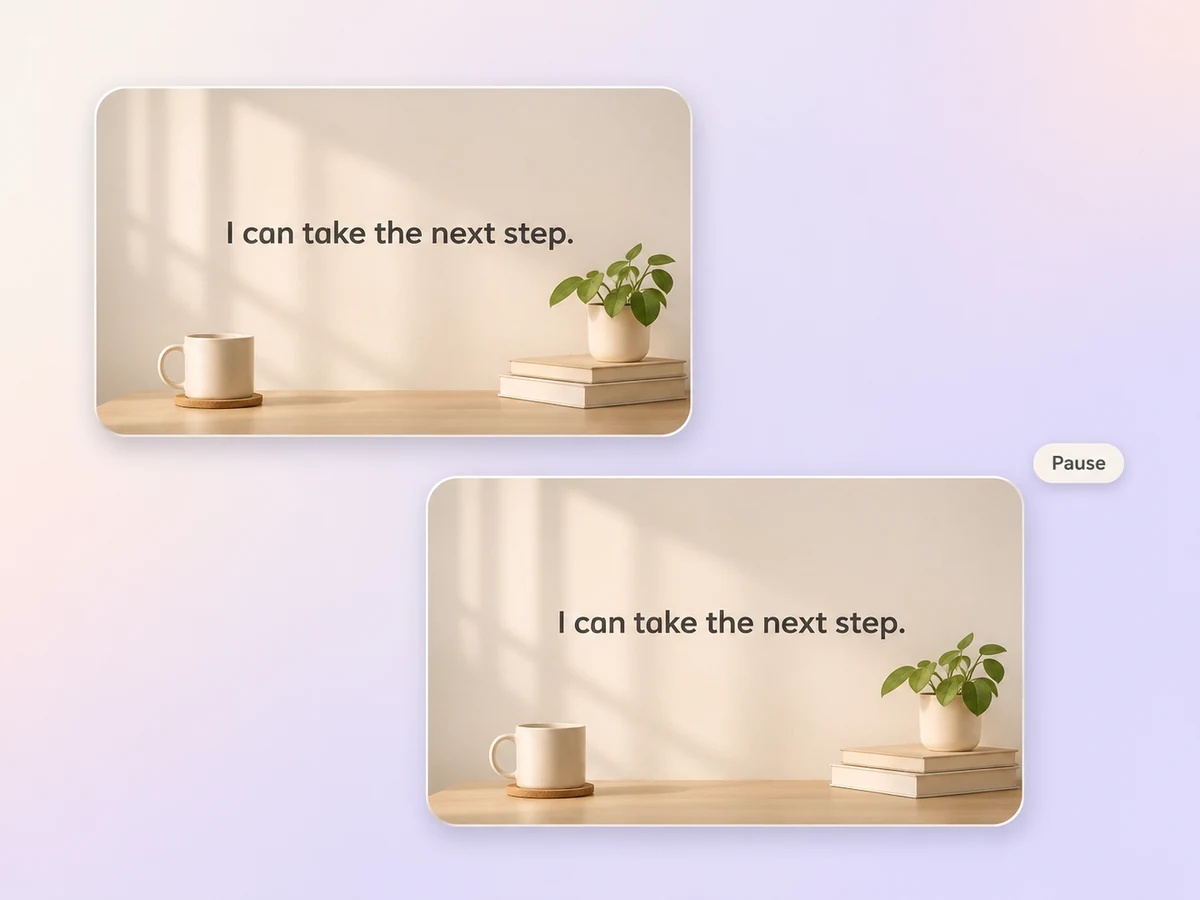
Tell Pexo how you want the words delivered. For narration, give it the script through script to video and ask for a brief pause after each line. For a text-led sequence, keep the card on screen through that pause so viewers have time to repeat it.
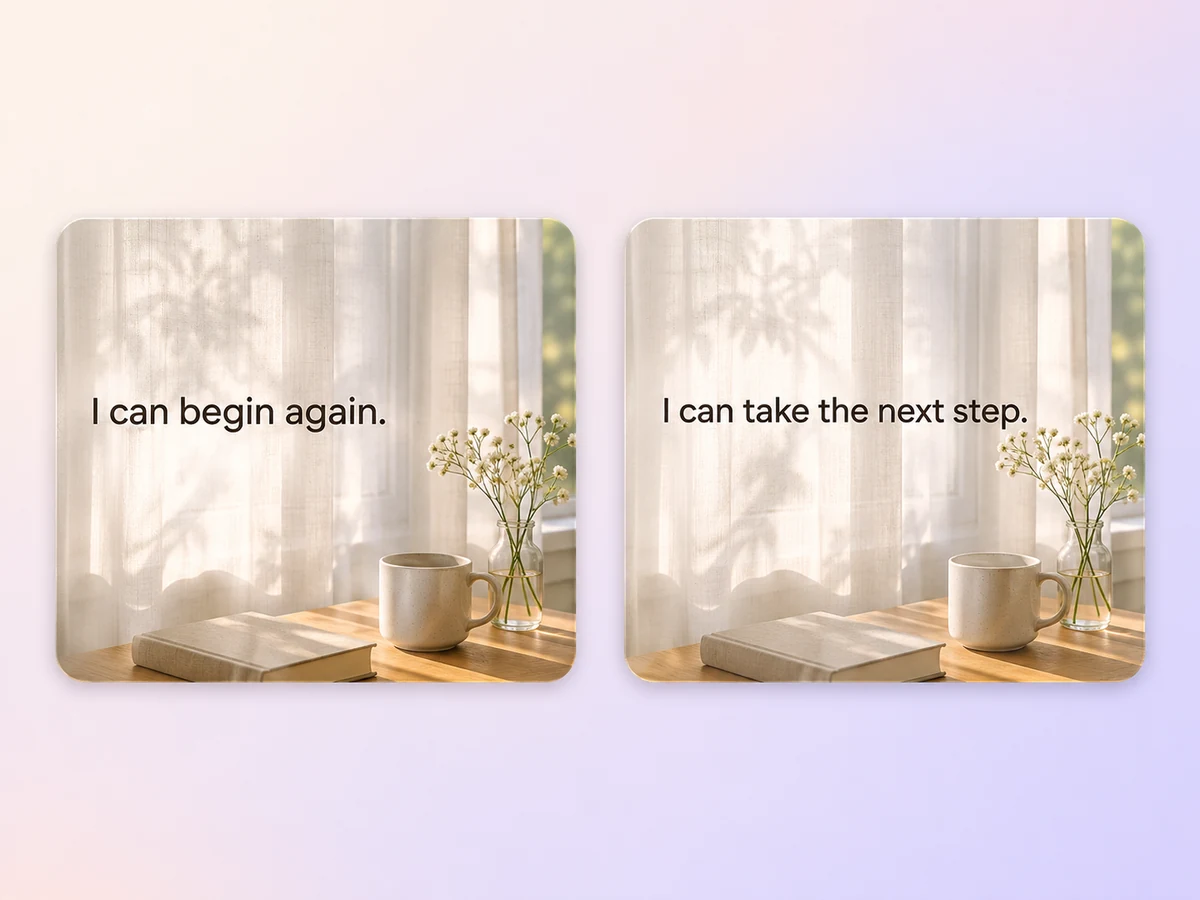
Choose a simple visual that gives the words space, such as a warm paper texture or daylight through a curtain. Ask Pexo to hold the background through the sequence. If you add motion, keep it slow and away from the text.
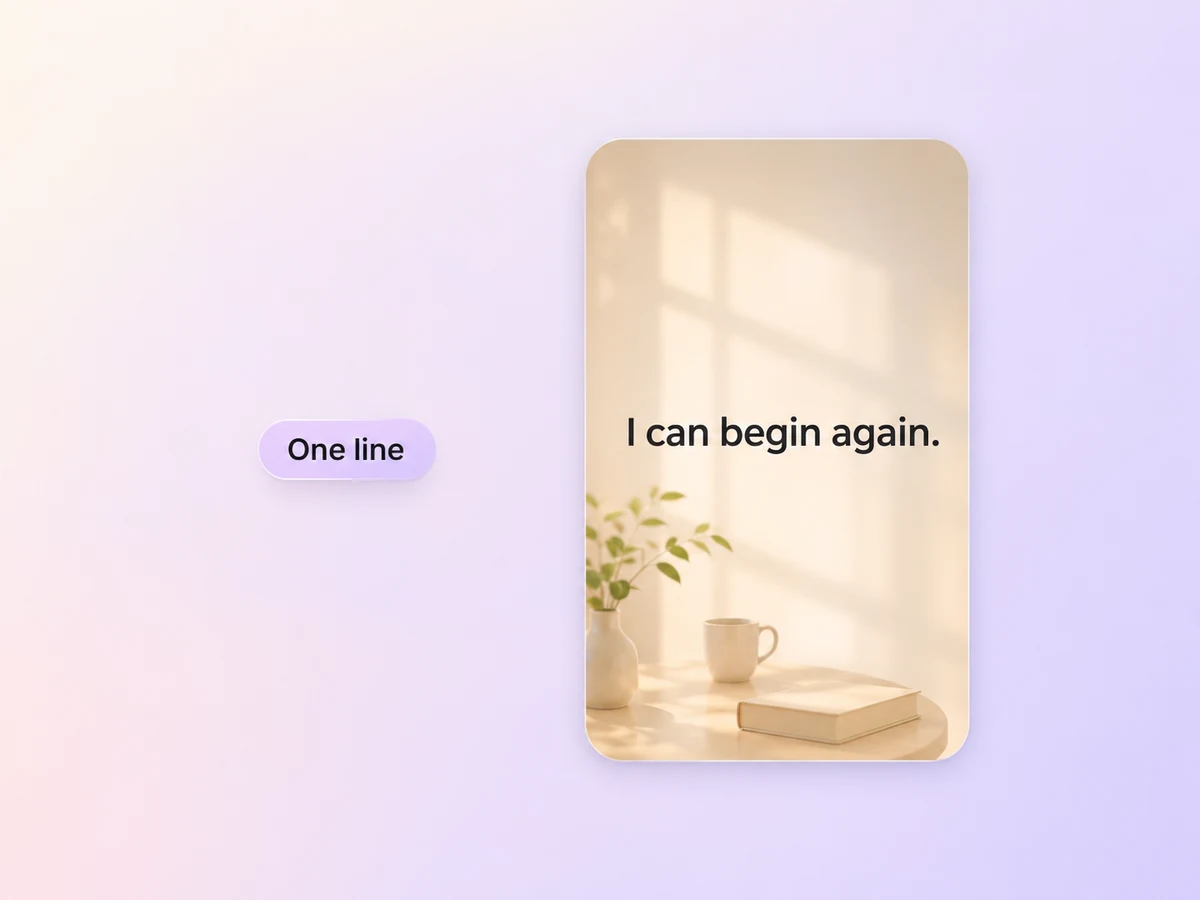
Ask for 9:16 if people will watch on their phones. Preview the video once with sound and once muted. Check that every line stays readable, the narration follows the words on screen, and the last statement has enough time to land.
Write a few lines about what you can do today. Start with a phrase that feels natural to say out loud. Give each line time to land.

Use phrases about slowing down, breathing, and saying one thing clearly. Choose a quiet voice or show the lines silently. Hold the final line a little longer.

Use a short sequence about returning to the next small task. Keep the background consistent so attention stays on the words. End with an action you can take now.

An affirmation video presents short statements that viewers can read, hear, or repeat. The lines often use the first person and focus on a specific moment, such as starting work or preparing to speak. A simple visual and a pause after each line give viewers time to follow along.
Yes. Paste the exact lines and ask Pexo to show them as text in the order you provide. For simple motion graphics, describe how each line appears and where you want a pause. Preview the longest line on a phone and check that it stays visible long enough to read at a comfortable pace.
Read the line out loud at the pace you want the viewer to use. Hold it for at least that long, then add a pause if you want time for repetition. Watch the full sequence once and adjust the timing of any line that feels rushed.
Pexo lets you plan the exact words, their timing, and the visuals in one chat. It can use a model such as MiniMax H3 for a short backdrop. Ask for a 9:16 version if viewers will watch on a phone, then review the text and pauses in the preview.
An affirmation video centers on short lines that viewers can read or say back. It can use on-screen text, a voice, or both. A talking head video centers on a presenter speaking to the viewer and suits a longer explanation, a personal message, or a guided introduction.
Start with subject + action + camera movement + setting + style. Add your exact lines and specify the pauses. Try “Show one line at a time on warm paper with a fixed camera and soft daylight. Start with ‘I can take the next step.’ Pause before the next line.”
Share the lines you want to use and the moment they are for. Set a pace that gives viewers time to read, hear, or repeat each line.
Make a wedding video from ceremony clips, photos, and recorded messages. Use Pexo to tell the story of the day and keep the voices that matter.
Make a graduation video from school photos, ceremony clips, and personal messages. Use Pexo to tell the story from the first day to the final walk.
Make a meditation video with a steady view, gentle movement, and quiet ambience or silence. Use Pexo to shape the scene and its pace.
Make an animated starting soon screen with Pexo. Add your channel colors, logo, and message, then preview a short video to loop before you go live.
Create duanju with Pexo. Turn ideas into short drama scenes, develop memorable characters, and add expressive voiceovers and twists that keep viewers watching.
Turn any dish into a recipe video with Pexo. The AI recipe video generator writes the steps, generates the shots, and adds captions with Sora 2, Kling and Veo, up to 4K.
Turn photos into a video slideshow in minutes with Pexo. The AI video slideshow generator arranges your slides, adds music and captions, and renders every scene with Sora 2, Kling and Veo, up to 4K.
Turn any song into a beat synced music video with Pexo. The AI music video generator times every scene to your track and renders with Sora 2, Kling and Veo in minutes.