
Wedding Video
Make a wedding video from ceremony clips, photos, and recorded messages. Use Pexo to tell the story of the day and keep the voices that matter.
Make an AI animated starting soon screen with your channel colors and message. Describe the look or share a reference, then preview and export a short clip to loop before you go live.
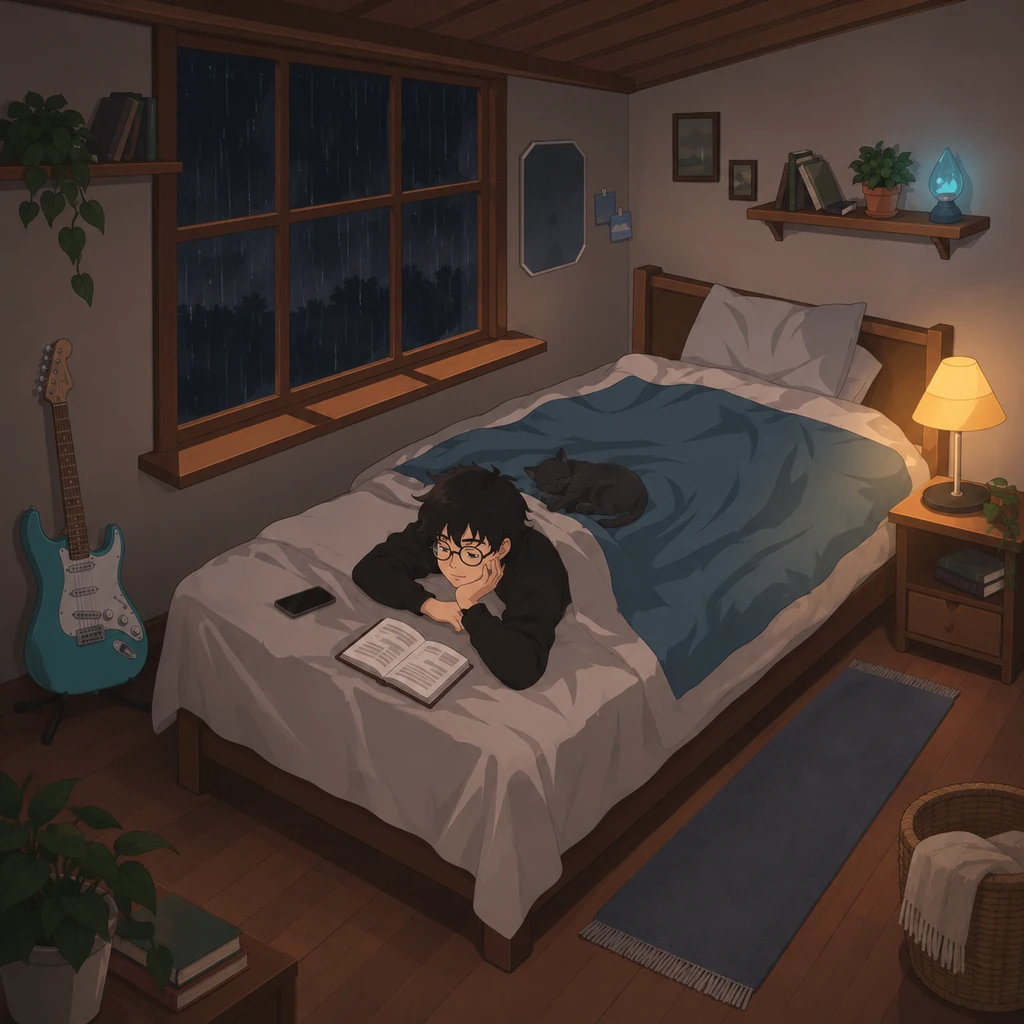
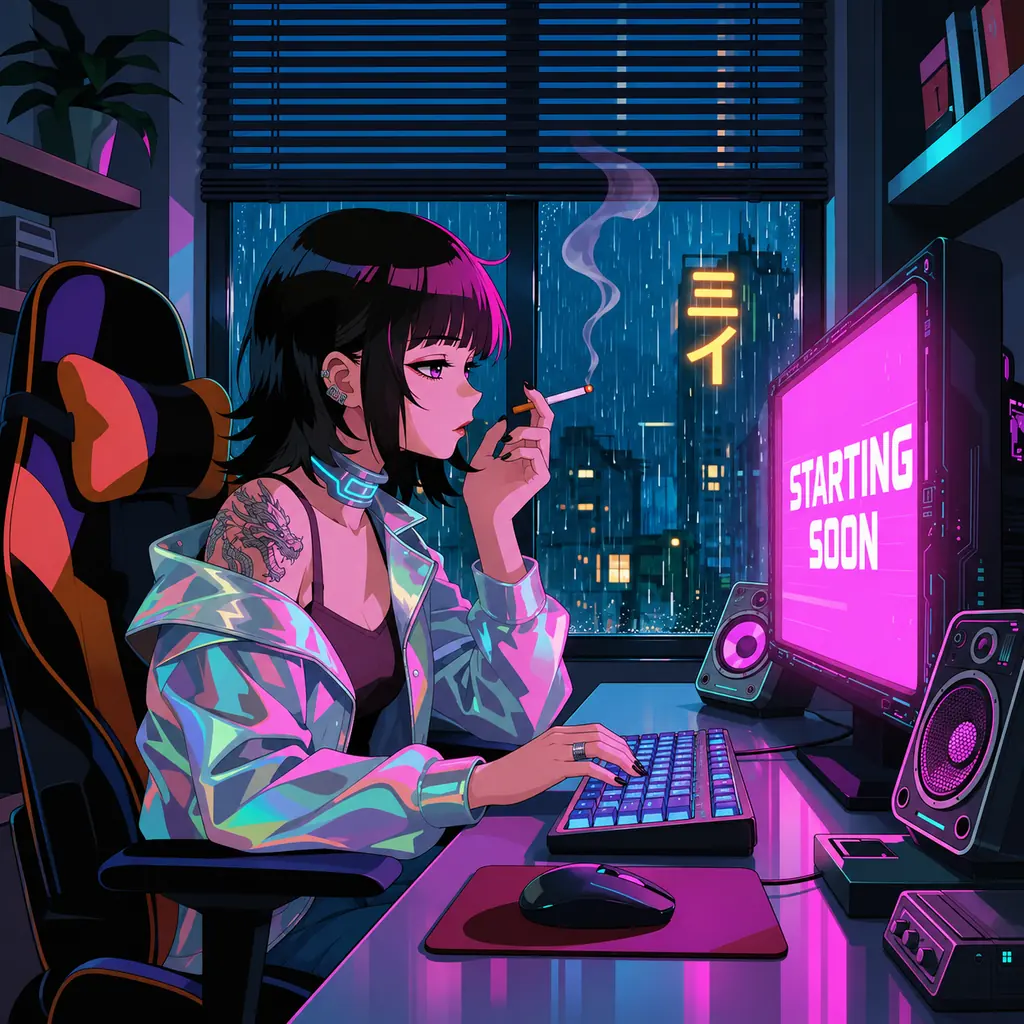
Find a look that fits your livestream, from a rain-soaked window to a neon streaming desk.
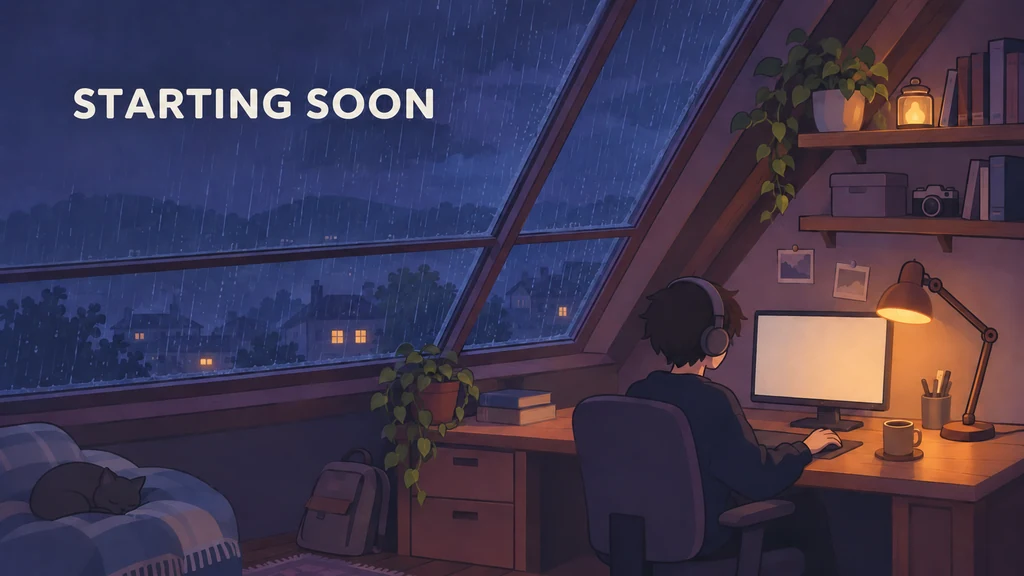
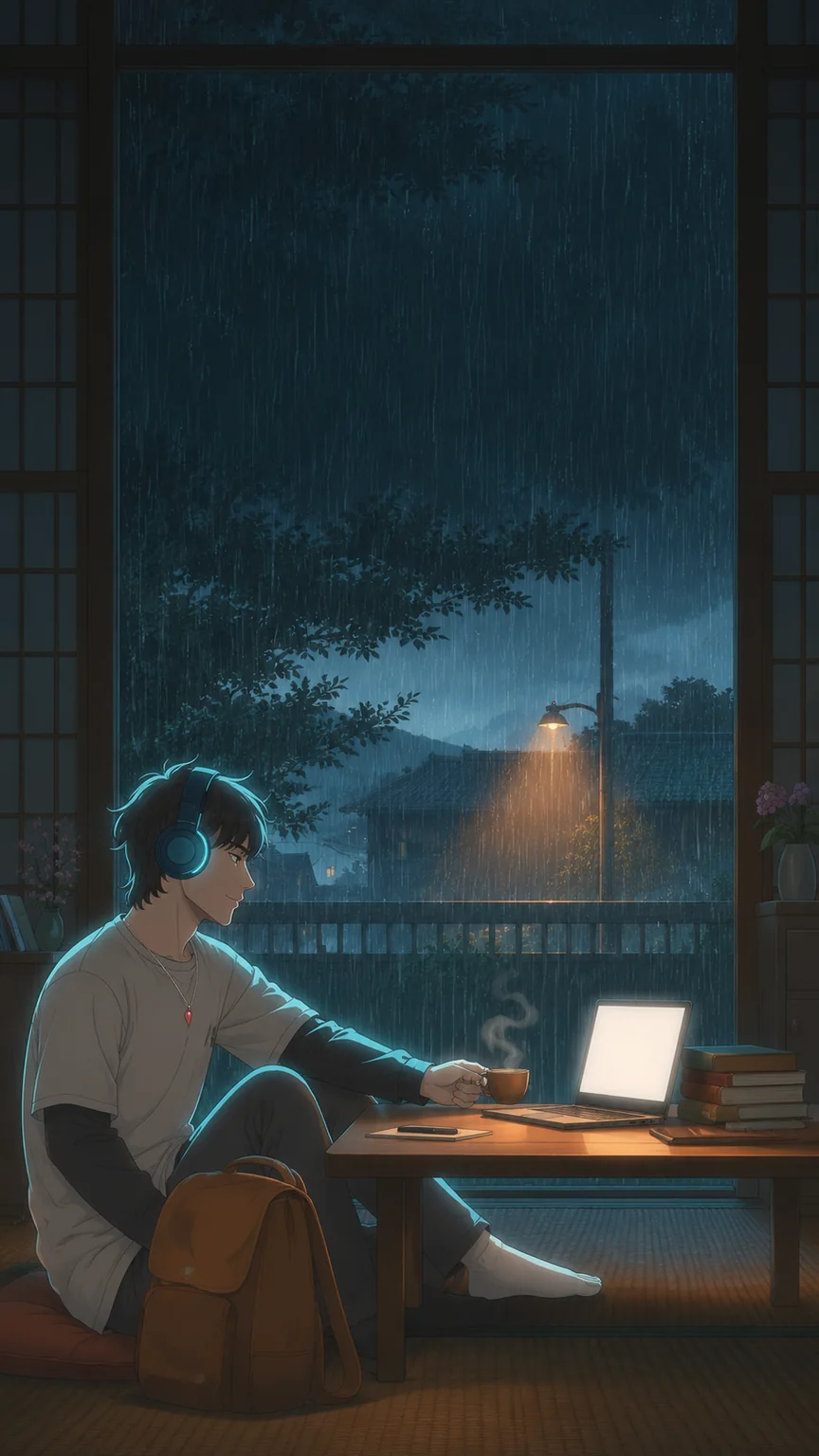
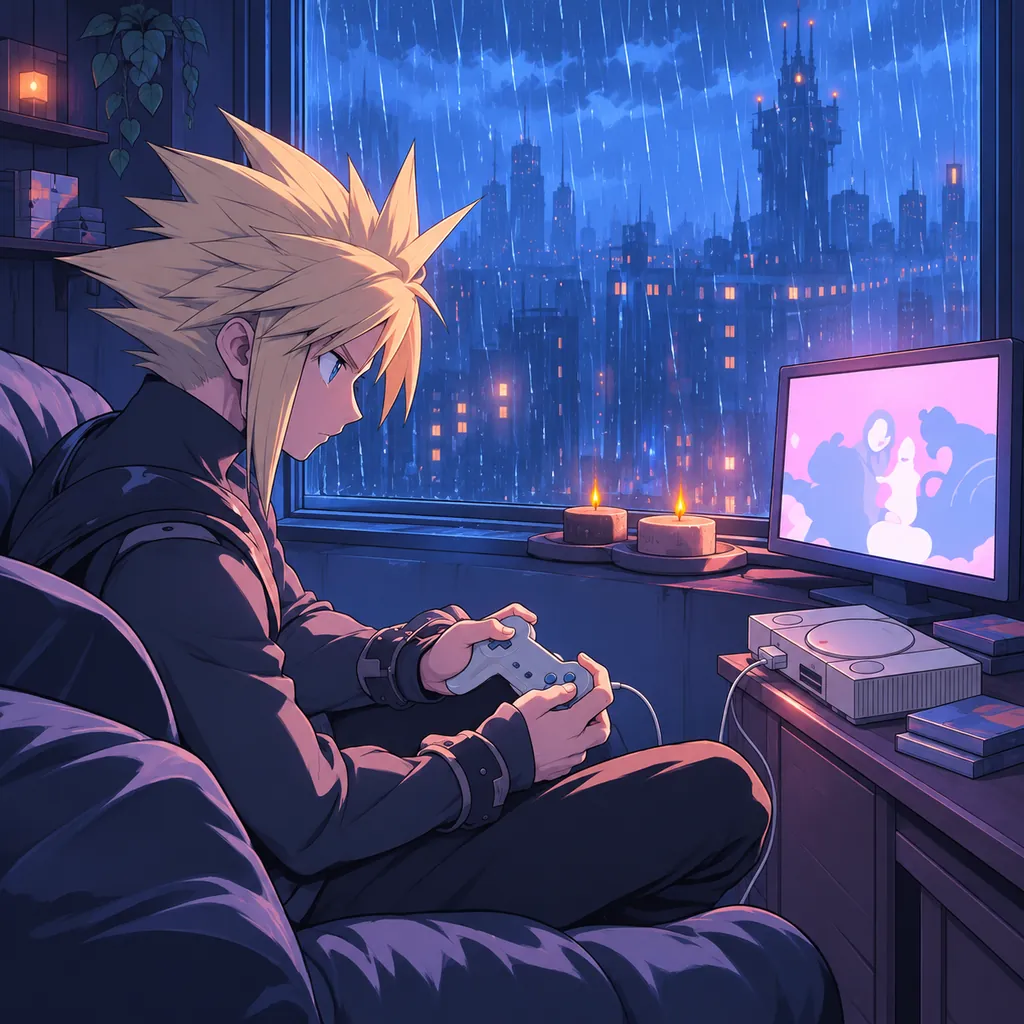
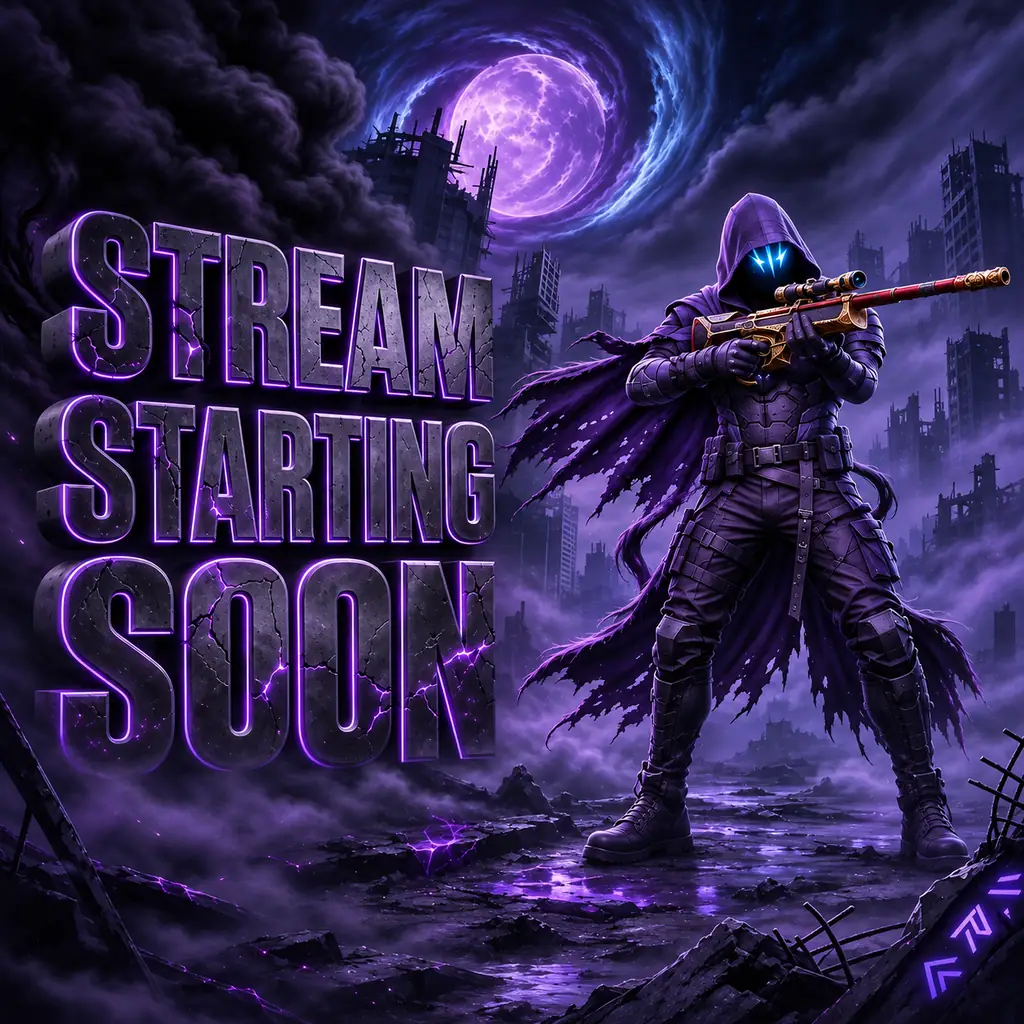
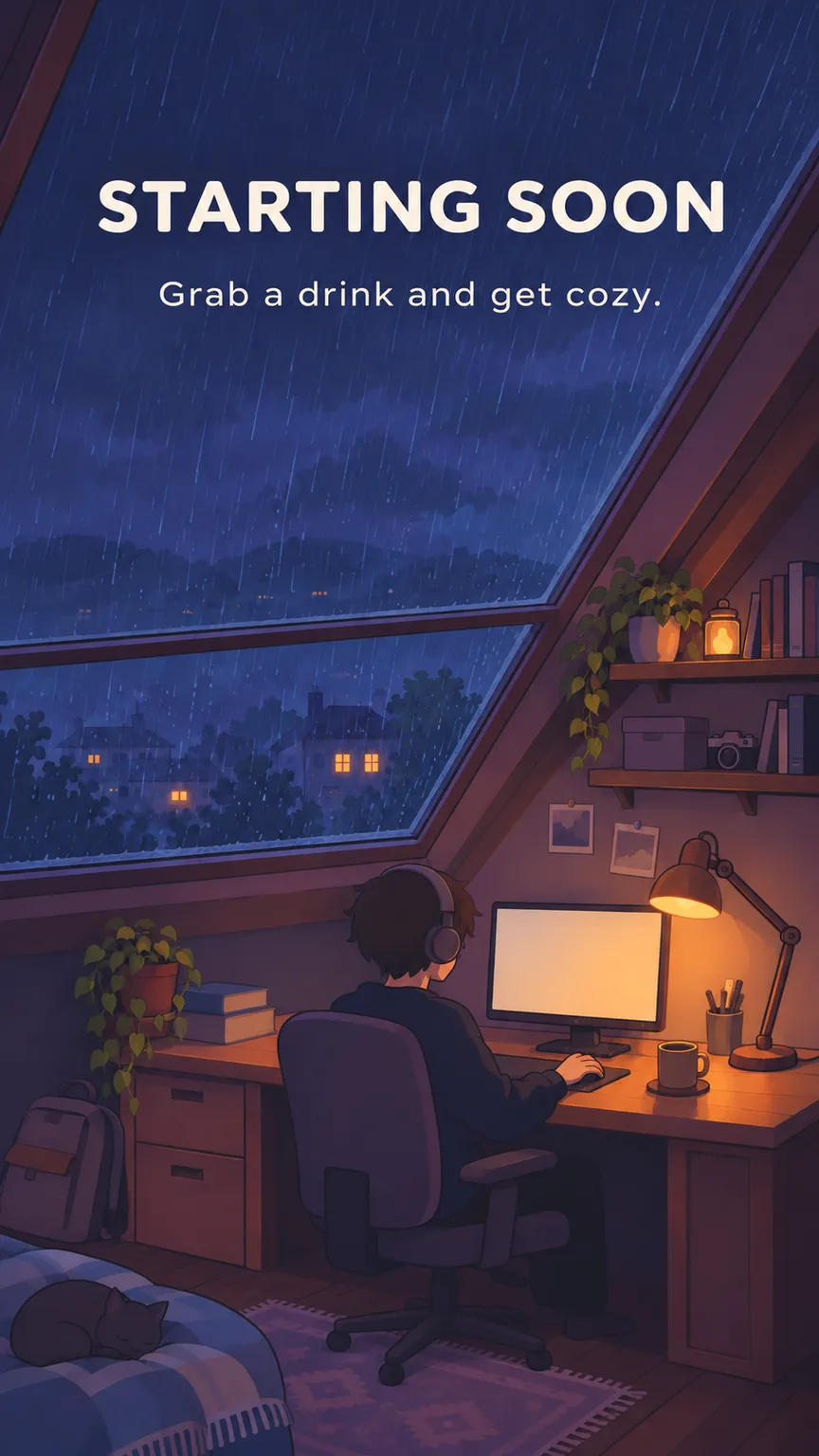
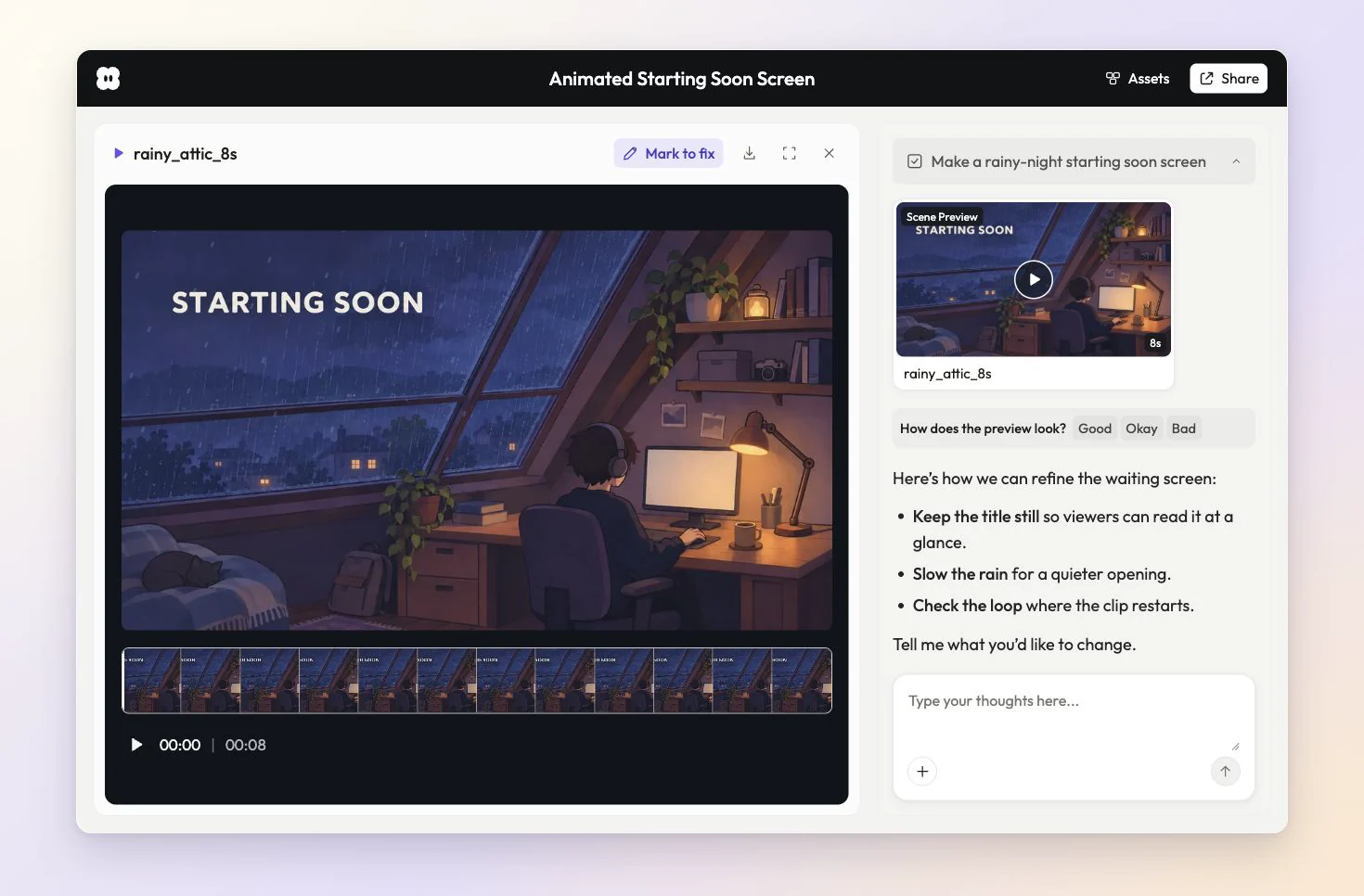
Start with one sentence in Pexo’s animated starting soon screen maker. Try “Show a hand-drawn desk by a rainy window with STARTING SOON on screen.” Preview the clip in chat, then ask for slower rain, a warmer lamp, or a larger title.
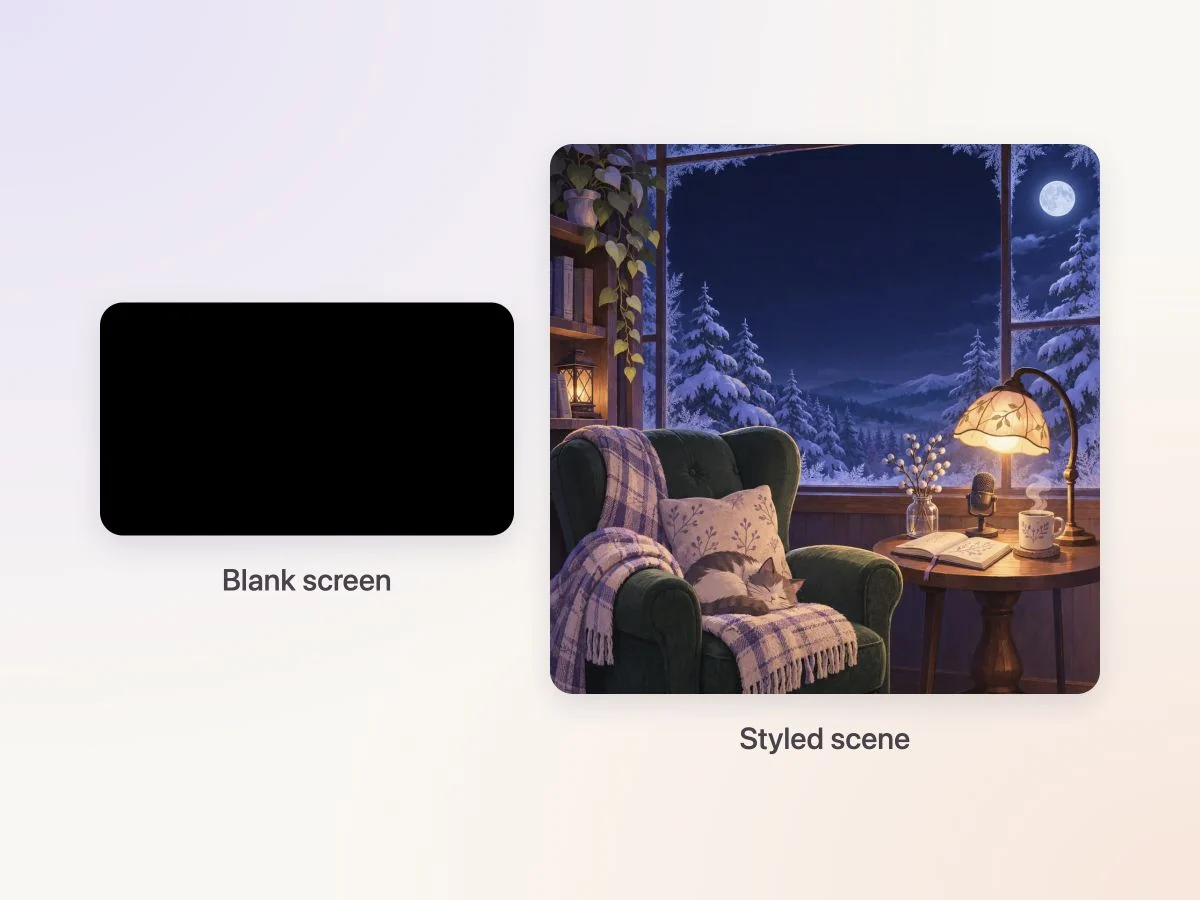
Start with the message on your waiting screen, then describe a look that fits your channel. Try a cozy winter room with a lamp beside a snowy window. Share an illustration and use image to video to bring it to life, then refine the lighting or motion in chat.
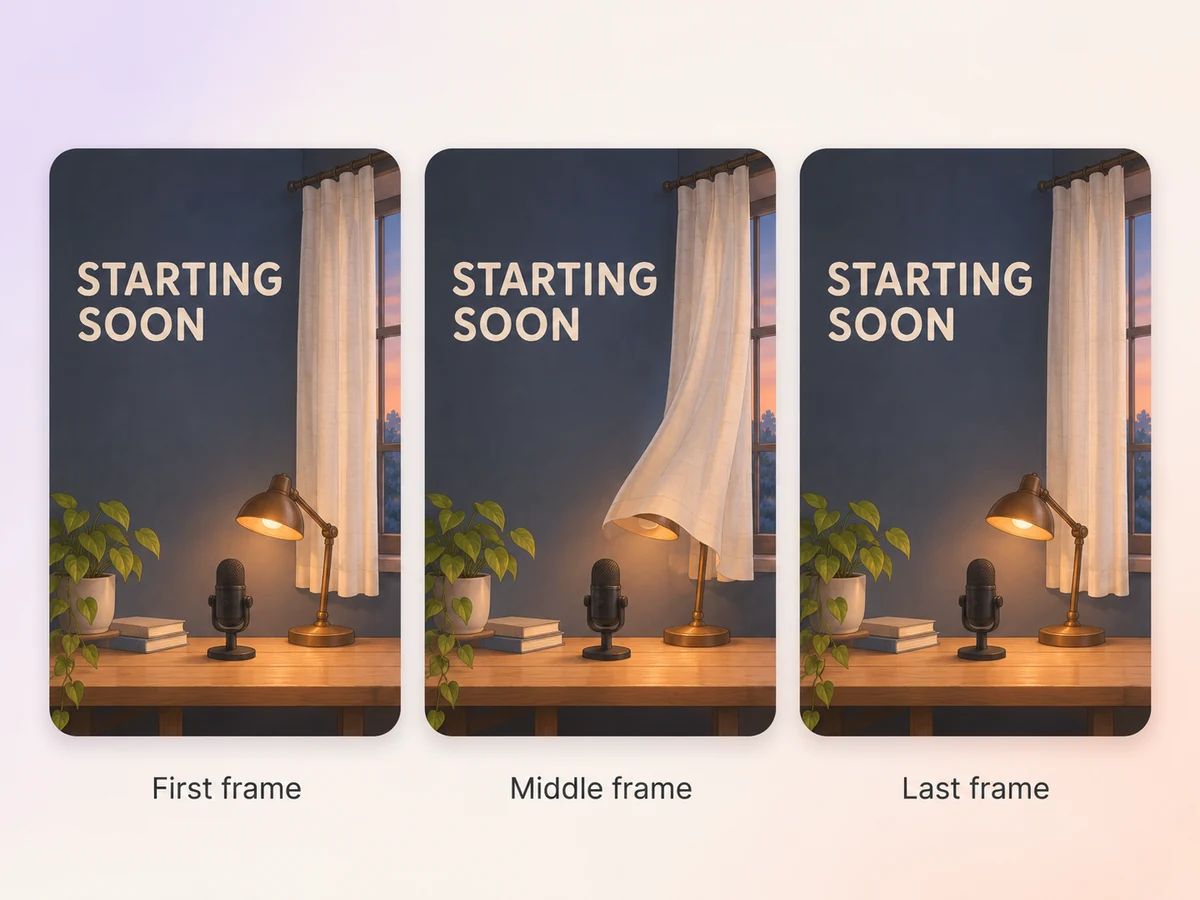
Give the scene one motion that can return to its starting point, such as a curtain swaying back into place. Ask for matching first and last frames and keep the title still. Replay the export a few times to catch any jump at the join.
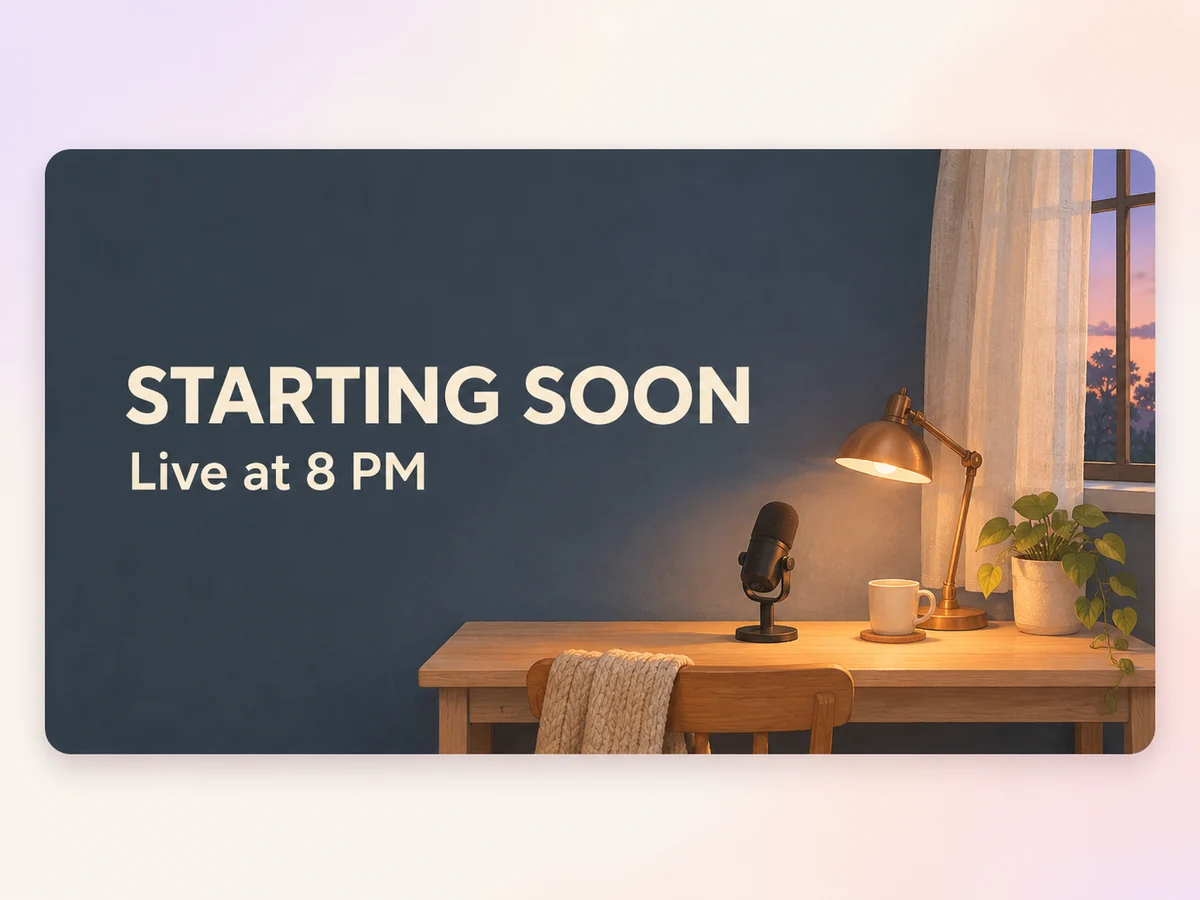
Give STARTING SOON room to breathe against a quiet background. Put a channel name or a line like “Live at 8 PM” underneath. Preview the clip in a small player and check that viewers can read the title without waiting for the motion to settle.
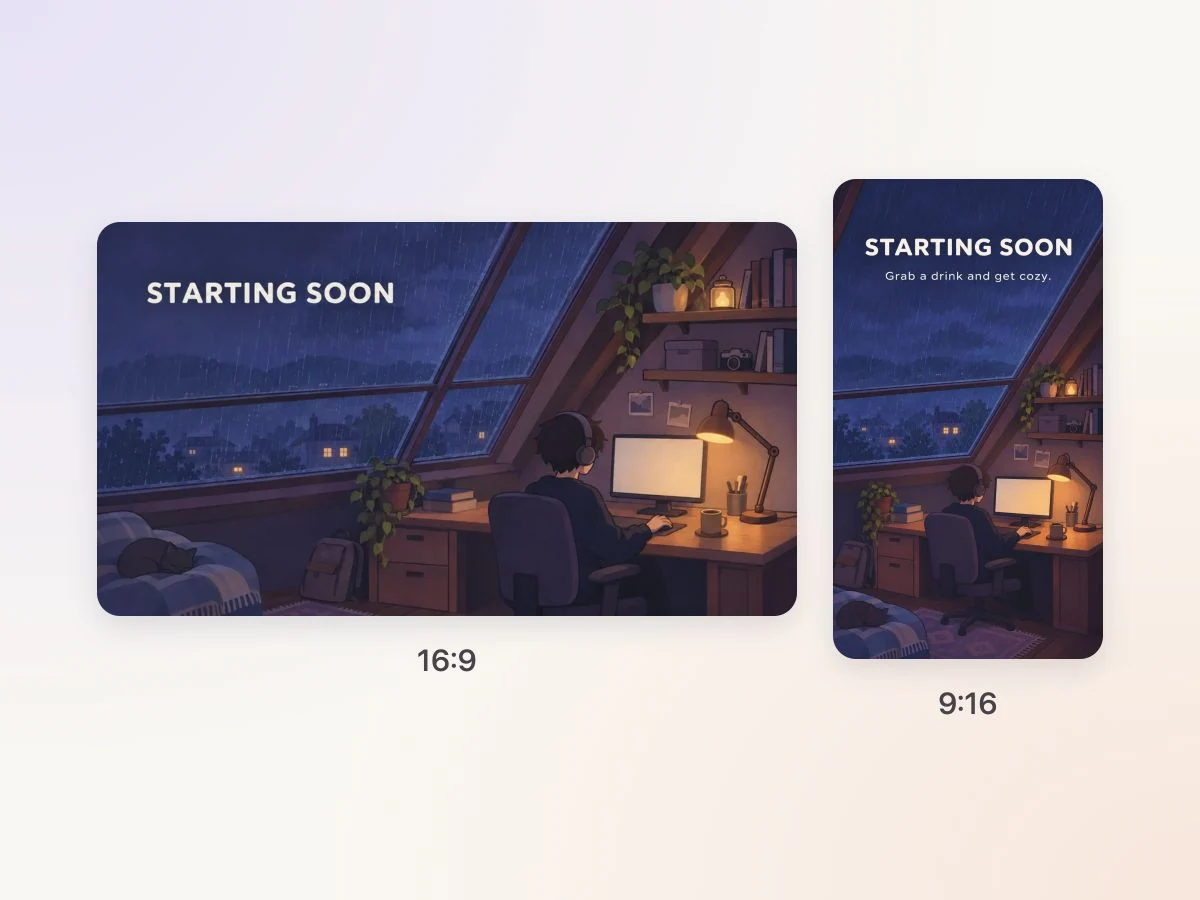
Ask Pexo to frame the waiting screen for your broadcast. Use 16:9 for a widescreen stream or 9:16 for a vertical stream. Preview the title and framing before you export the clip. In OBS Studio, add the clip as a Media Source and enable Loop.
Show your channel name and tonight’s game over a slow animation in your channel colors. Keep the game title and STARTING SOON text steady.

Show the topic and start time over a calm animated background. Add “Drop your questions in chat” so viewers know how to take part before you go live.

Show the session title and instructor’s name as attendees join. Keep those details easy to read while the background moves gently.

An animated starting soon screen is a short scene that plays while viewers wait for a livestream to begin. It usually shows a channel name or a simple message over gentle motion. Many streamers loop the clip while they check their audio and get ready to go live.
Yes. Start with the channel name, one or two colors, and a short message. A simple scene such as a lamp beside a rainy window gives the screen a recognizable look. Preview the result at the size viewers will see it and check the name for spelling.
Choose one repeating movement and describe where it should start and end. A lantern can swing back to center while the title holds still. Ask for similar first and last frames, then replay the exported clip several times. If you see a jump, ask for a smaller change in motion or lighting.
Pexo lets you give the same brief, references, and revision notes in one chat. It can use a model such as Seedance 2.5 to generate the motion for a widescreen 16:9 scene. Preview the title and the loop before adding the result to your broadcast.
A starting soon screen plays in a live broadcast while viewers wait for the host. It often repeats until the show begins. A coming soon video promotes a future launch or event and typically ends with a date, a reveal, or a reminder to come back.
Start with subject + action + camera movement + setting + style. Add the exact title and describe how the loop restarts. Try “Use a fixed 16:9 view of a hand-drawn desk beside a rainy window. Hold STARTING SOON steady while the rain moves. Match the framing and lighting at the start and end.”
Bring your channel colors and a short message. Make a waiting screen that viewers can recognize as soon as they tune in.
Make a wedding video from ceremony clips, photos, and recorded messages. Use Pexo to tell the story of the day and keep the voices that matter.
Make an affirmation video with your own words, an optional voiceover, and time to pause. Review the pacing and readability with Pexo.
Make a graduation video from school photos, ceremony clips, and personal messages. Use Pexo to tell the story from the first day to the final walk.
Make a meditation video with a steady view, gentle movement, and quiet ambience or silence. Use Pexo to shape the scene and its pace.
Create duanju with Pexo. Turn ideas into short drama scenes, develop memorable characters, and add expressive voiceovers and twists that keep viewers watching.
Turn any dish into a recipe video with Pexo. The AI recipe video generator writes the steps, generates the shots, and adds captions with Sora 2, Kling and Veo, up to 4K.
Turn photos into a video slideshow in minutes with Pexo. The AI video slideshow generator arranges your slides, adds music and captions, and renders every scene with Sora 2, Kling and Veo, up to 4K.
Turn any song into a beat synced music video with Pexo. The AI music video generator times every scene to your track and renders with Sora 2, Kling and Veo in minutes.