
Wedding Video
Make a wedding video from ceremony clips, photos, and recorded messages. Use Pexo to tell the story of the day and keep the voices that matter.
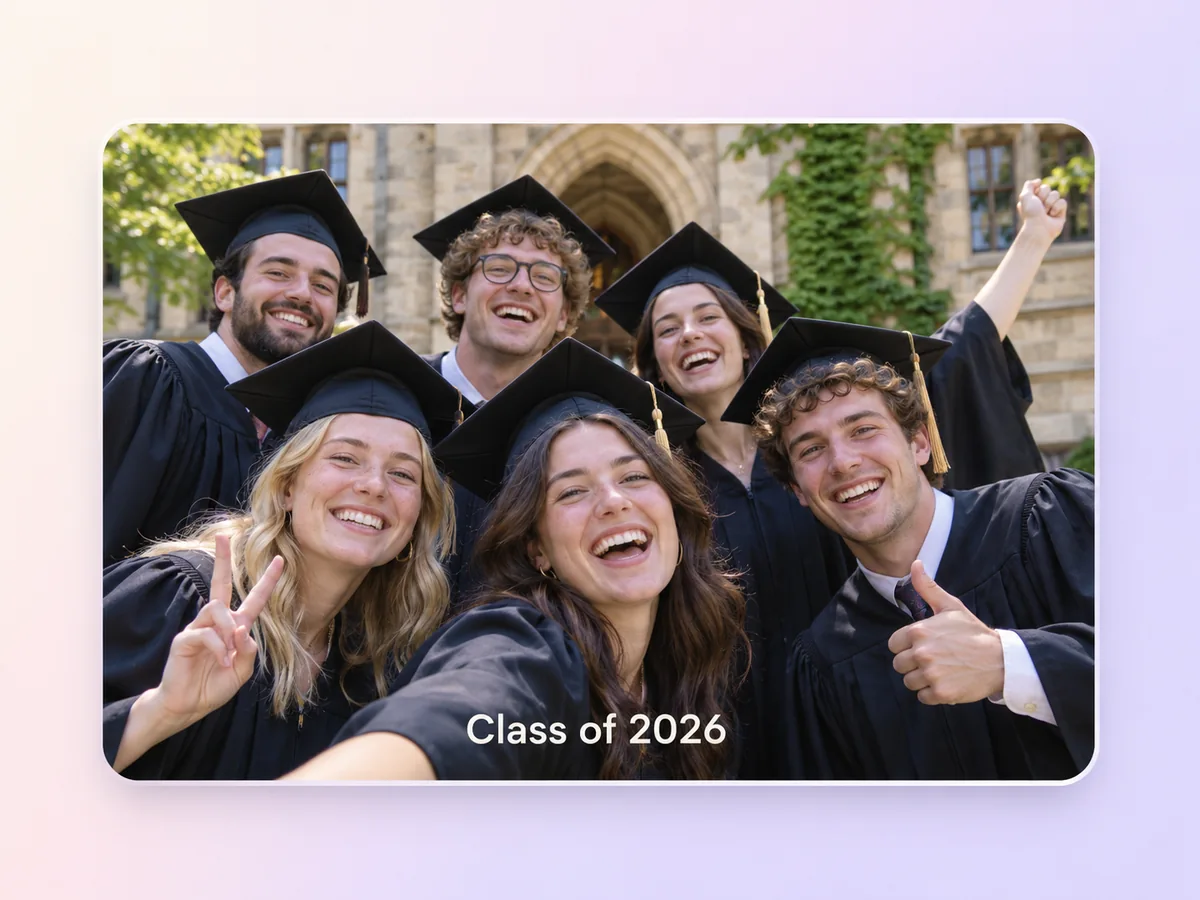
Make an AI graduation video from your school photos, ceremony clips, and messages. Tell Pexo which moments matter, give them a place in the story, and finish with a dedication the graduate can keep.
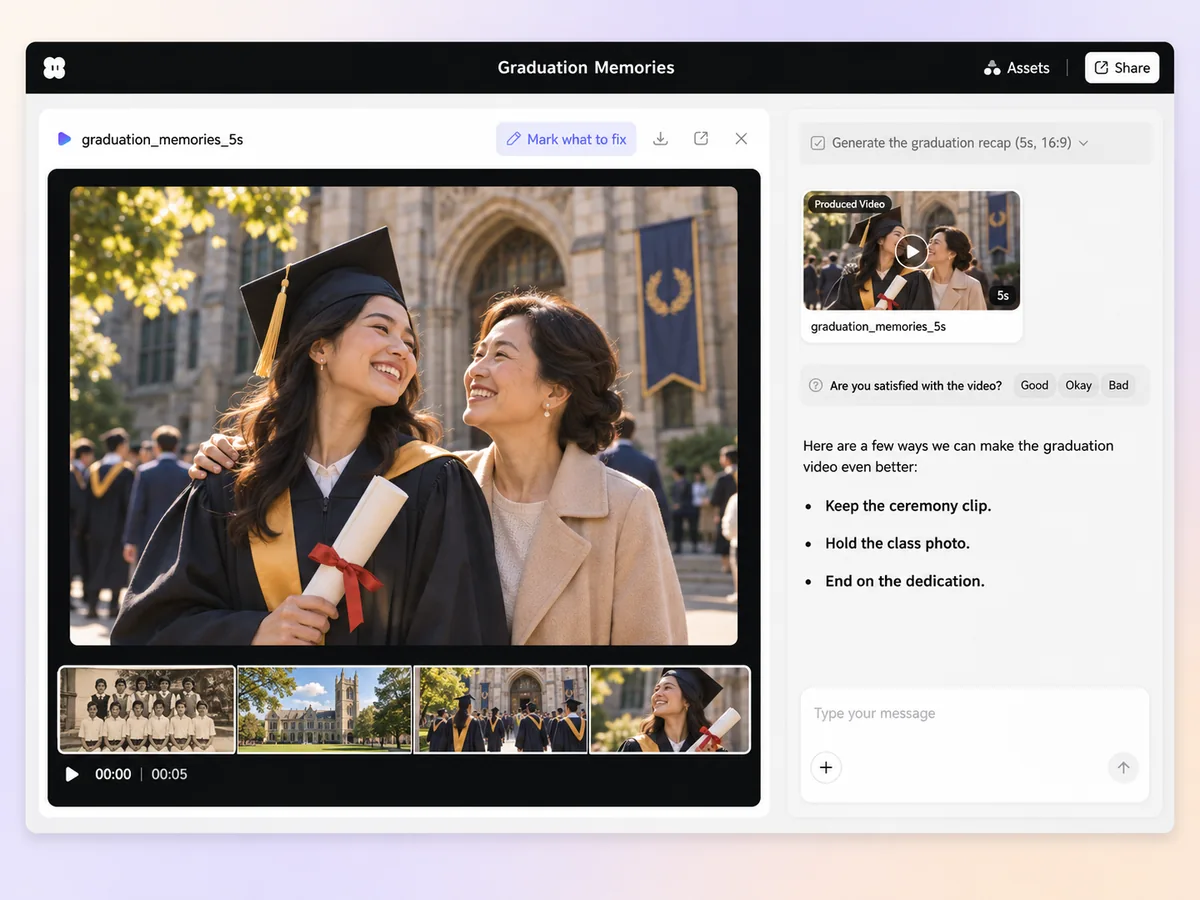
Start with photos and clips in Pexo’s graduation video maker. Label what each one shows, from the first day to the final walk. Ask for an opening, a few chapters, and a closing shot, then review the order in chat.
Flag the moments you want to see in full, such as a name being called, the walk across the stage, or the cap toss. Ask Pexo to give them room in the cut. Preview those moments with sound so the original cheers and voices come through where you want them.
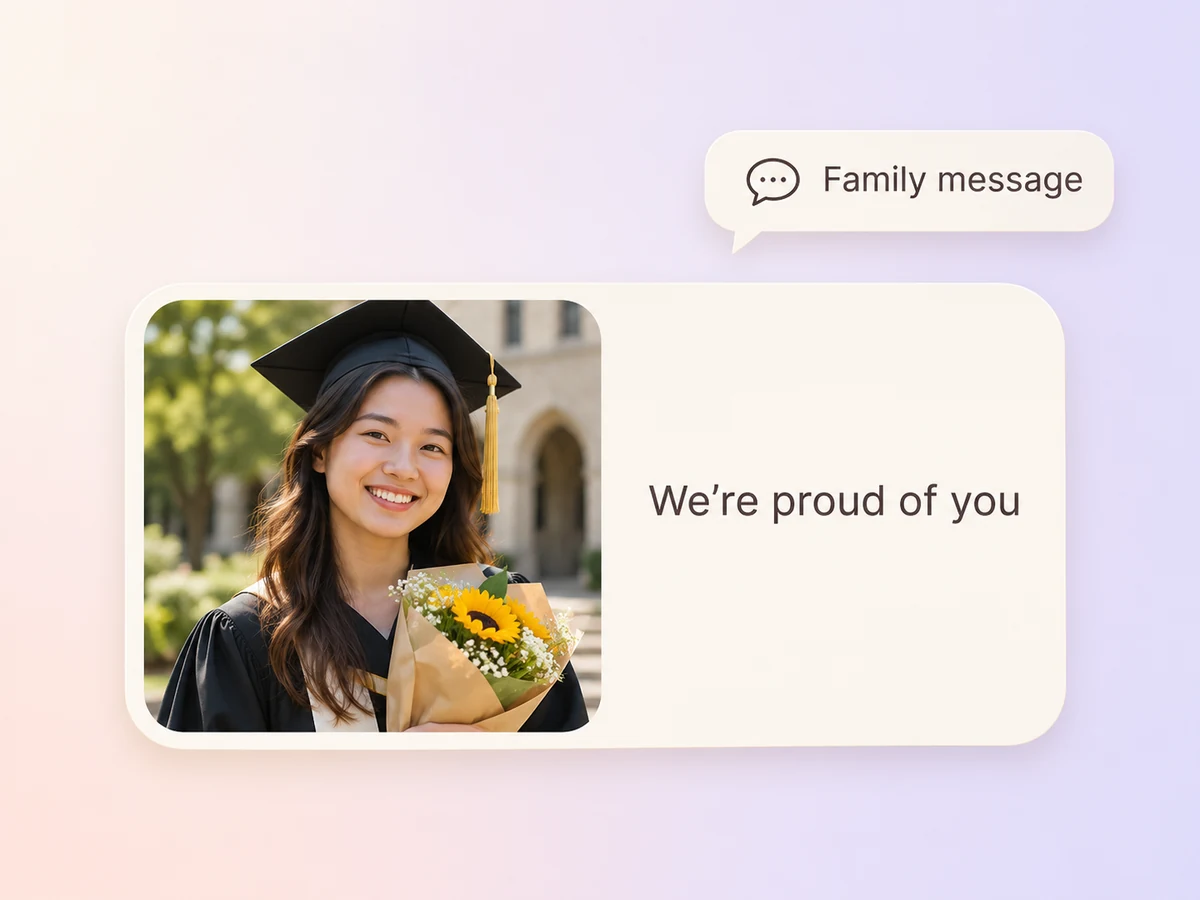
Write a dedication in your own words or share a recorded message. If you have a short script, use script to video to build the sequence around it. Give each line a photo or clip that helps tell the story, then check that the voice is easy to hear.
Supply the spelling of names, the school, and the graduation year. Review the title cards one at a time. Check group photos for people cut off at the edges, especially when you are using a portrait crop for a wide class photo.
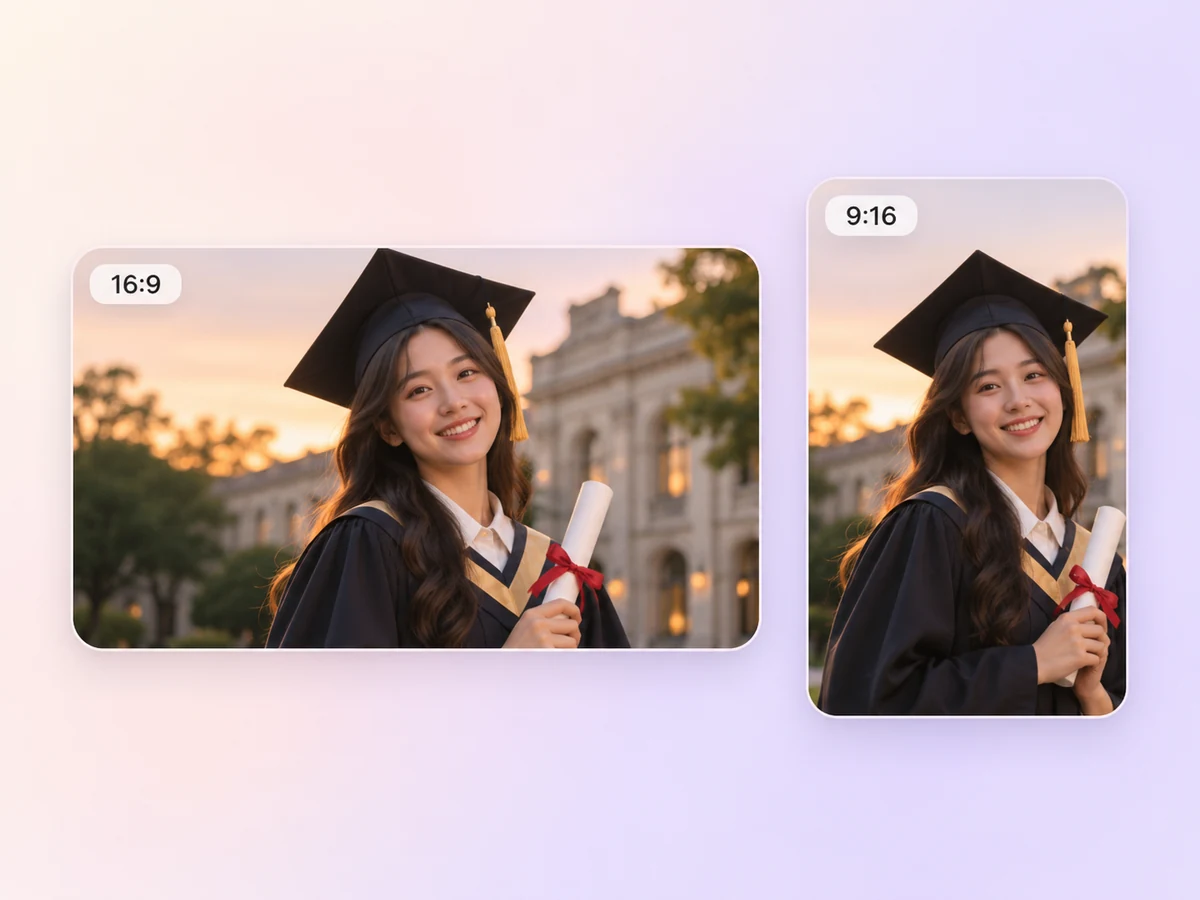
Ask for a 16:9 video to show at the ceremony or a 9:16 recap to share on a phone. For the short cut, choose a few moments that tell the whole story. Hold the final message long enough for people to read it.
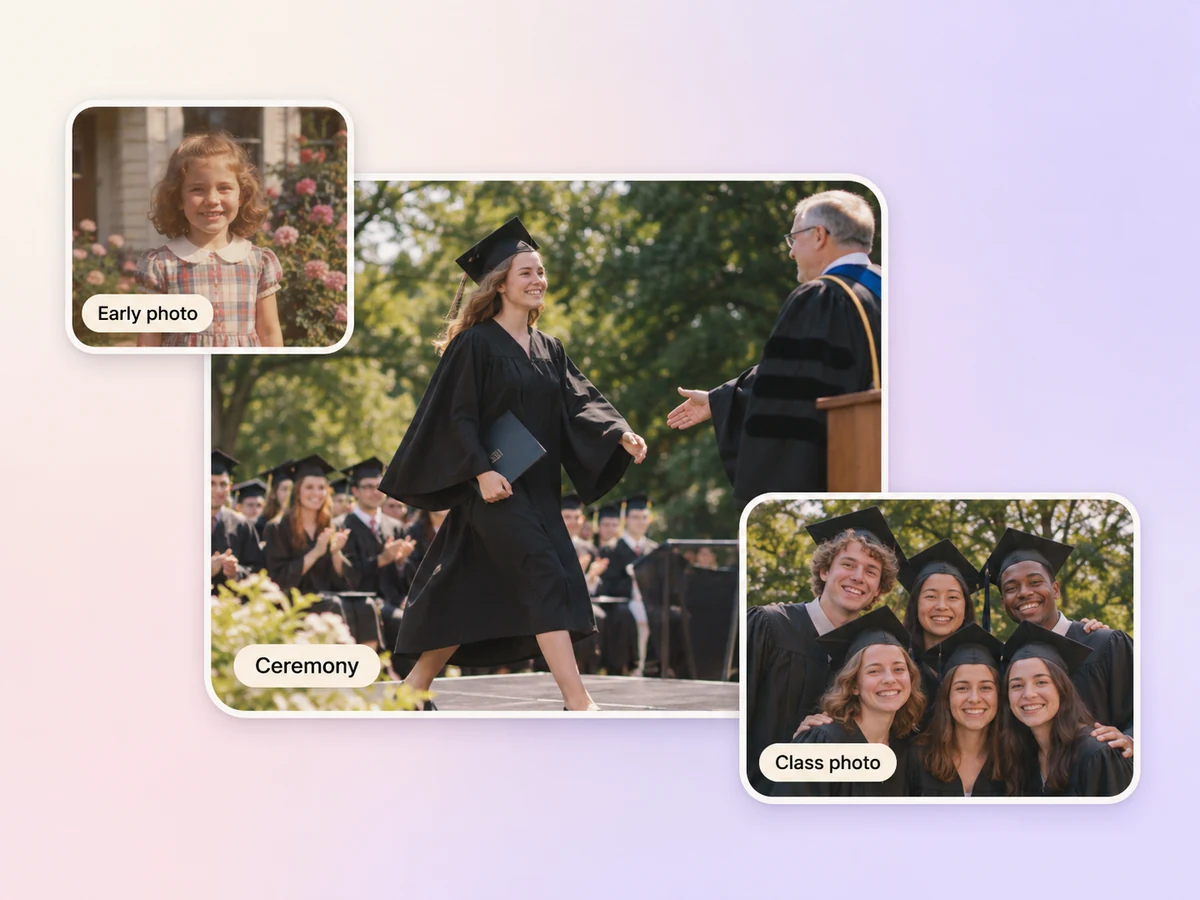
Put an early school photo beside a recent portrait, then use the ceremony clip to finish the story. Add a short message from the family.

Group classroom, club, and ceremony clips into three short chapters. Give wide group photos enough time on screen. Close on the class name and year.

Pair a few favorite photos with one spoken thank-you. Use the words the graduate wants to say. Let the last photo sit through the final line.
A graduation video is a short film that celebrates a graduate or a graduating class. It can bring school photos, ceremony footage, and personal messages into one story. Many graduation videos follow the school years in order and end on the ceremony, a class photo, or a dedication.
Yes. Choose a few photos for each part of the story and tell Pexo the order you want. Add a year or milestone caption when the photo needs context. End with a favorite portrait or class photo and give viewers time to read the final message.
Yes. Upload the clip and the message, then say when each should appear. For example, start with early school photos, play the family message over portraits, and close with the actual walk. Preview the sound so the voice stays clear over music or applause.
Pexo lets you organize your photos, clips, and messages in chat and review them as one story. It can use a model such as Seedance 2.5 for a generated opener or transition. Use your original material for the ceremony and preview the cut in 16:9 for a screening.
A video slideshow presents photos in sequence and can cover any occasion. A graduation video follows the milestones of one graduate or class. It can include the actual ceremony, spoken messages, and a final dedication. A slideshow can form one chapter of the graduation story.
Start with subject + action + camera movement + setting + style, then give the order of your materials. Try “Open on the first-day photo with a slow push-in. Use the classroom and club photos next. Hold the ceremony clip with its original sound. End on a warm class photo and our dedication.”
Bring the photos, clips, and words that tell the graduate’s story. Start with the first memory you want viewers to see.
Make a wedding video from ceremony clips, photos, and recorded messages. Use Pexo to tell the story of the day and keep the voices that matter.
Make an affirmation video with your own words, an optional voiceover, and time to pause. Review the pacing and readability with Pexo.
Make a meditation video with a steady view, gentle movement, and quiet ambience or silence. Use Pexo to shape the scene and its pace.
Make an animated starting soon screen with Pexo. Add your channel colors, logo, and message, then preview a short video to loop before you go live.
Create duanju with Pexo. Turn ideas into short drama scenes, develop memorable characters, and add expressive voiceovers and twists that keep viewers watching.
Turn any dish into a recipe video with Pexo. The AI recipe video generator writes the steps, generates the shots, and adds captions with Sora 2, Kling and Veo, up to 4K.
Turn photos into a video slideshow in minutes with Pexo. The AI video slideshow generator arranges your slides, adds music and captions, and renders every scene with Sora 2, Kling and Veo, up to 4K.
Turn any song into a beat synced music video with Pexo. The AI music video generator times every scene to your track and renders with Sora 2, Kling and Veo in minutes.