
 ChatGPT
 Perplexity
 Claude
 Gemini
 Grok
Grok



Video is the format that travels furthest on X (still Twitter to most of us). It autoplays in the feed, it earns more reach than a plain link, and a good clip can carry a thread that plain text never would. The problem is that no single app does everything a video post needs. One job is grabbing a clip off the platform, another is trimming an hour-long stream into a punchy 40 seconds, another is burning in captions so the 85% who scroll on mute still follow along, and another is building a video from nothing when you do not have footage to start with.
That is why most people who post video on X end up with a small stack of tools rather than one. This guide sorts the field into six that cover the real jobs, from downloading and captioning to generating a finished clip through conversation. Pexo, which builds a video from a plain description through conversation, sits near the top for the from-scratch job, but it is not the right pick for every task on this list, and the comparison below is honest about where each tool wins.
 Pexo turns a plain-language description into a finished, ready to post video, so you can make X content even when you have no footage to start with.
What Counts as a Twitter Video Tool?
"Twitter video tool" is not one product category, it is five overlapping jobs, and the best tool depends on which job you are doing:
- Downloading and saving. Pulling an existing X video to your device (only your own content, or clips you have the rights to reuse).
- Format conversion. Turning a downloaded clip into a clean MP4, or reshaping a wide 16:9 file into a 1:1 or 9:16 crop that fills more of the mobile feed.
- Repurposing long video. Slicing a podcast, livestream, or webinar into short, self-contained moments built for X.
- Captioning. Adding animated, on-brand subtitles so a muted autoplay still lands.
- Generating from scratch. Producing a brand-new clip (a product teaser, an explainer, an announcement) when you have no source footage at all.
The limitation that pushes people to build a stack is that the tool great at one job is usually mediocre at the others. A downloader cannot edit; a clipper cannot generate; a generator cannot pull a rival's video off the timeline. Knowing which job you are actually doing is the whole game, so the table below maps each pick to its strongest one before we go deep on each.
The Best Twitter Video Tools at a Glance
Here is the shortlist side by side, with the free tier and paid starting price for each so you can weigh cost against the job you need done.
| Tool | Best for | Free tier | Paid starts at | Watermark on free |
|---|---|---|---|---|
| OpusClip | Repurposing long video into X clips | Yes, ~60 min/mo | $15/mo (Starter) | Yes |
| Pexo | Generating an X video from scratch | Credit-based, sign up to start | $30/mo (Pro) | No (paid) |
| VEED.io | All-in-one editing, captions, resize | Yes, 720p | $12/mo (Creator, annual) | Yes |
| Kapwing | Cropping and resizing for the feed | Yes, 1-min exports | $16/mo (Pro, annual) | Yes |
| Submagic | Auto-captions for vertical shorts | Yes, 3 videos/mo | $12/mo (Starter, annual) | Yes |
| SSSTwitter | Downloading and saving X videos | Free, no signup | Free (ad-supported) | No |
Pricing verified against each tool's official pricing page on July 30, 2026. Plans and promotions change, so confirm the current number before you buy.
How We Compared
We scored each tool on the job it is actually hired for, not on a generic feature checklist. For every pick we looked at four things: how well it does its primary X-video job, what the free tier realistically lets you ship (watermark, resolution, and length caps matter more than feature lists), the paid entry price against what that unlocks, and one outside credibility signal such as a G2 rating, a traffic figure, or a funding round. Pricing came straight from each official pricing page on July 30, 2026. Where a tool has an existing in-depth review on this site, we link to it so you can go deeper. This is a Pexo blog, so we are upfront that Pexo is one of the picks; it earns its ranking on the from-scratch job, and we say plainly where other tools do their job better.
1. OpusClip: Best for Repurposing Long Video Into X Clips
If you already film long, OpusClip is the fastest way to feed X. It ingests a long recording (a podcast, a livestream, a talking-head upload, or a YouTube URL) and uses AI to find the moments most likely to perform, then cuts them into short vertical clips with animated captions and a virality score attached. The core difference from a manual editor is that it does the selecting for you: instead of scrubbing a 90-minute stream for the good 30 seconds, you get a ranked set of candidate clips to approve.
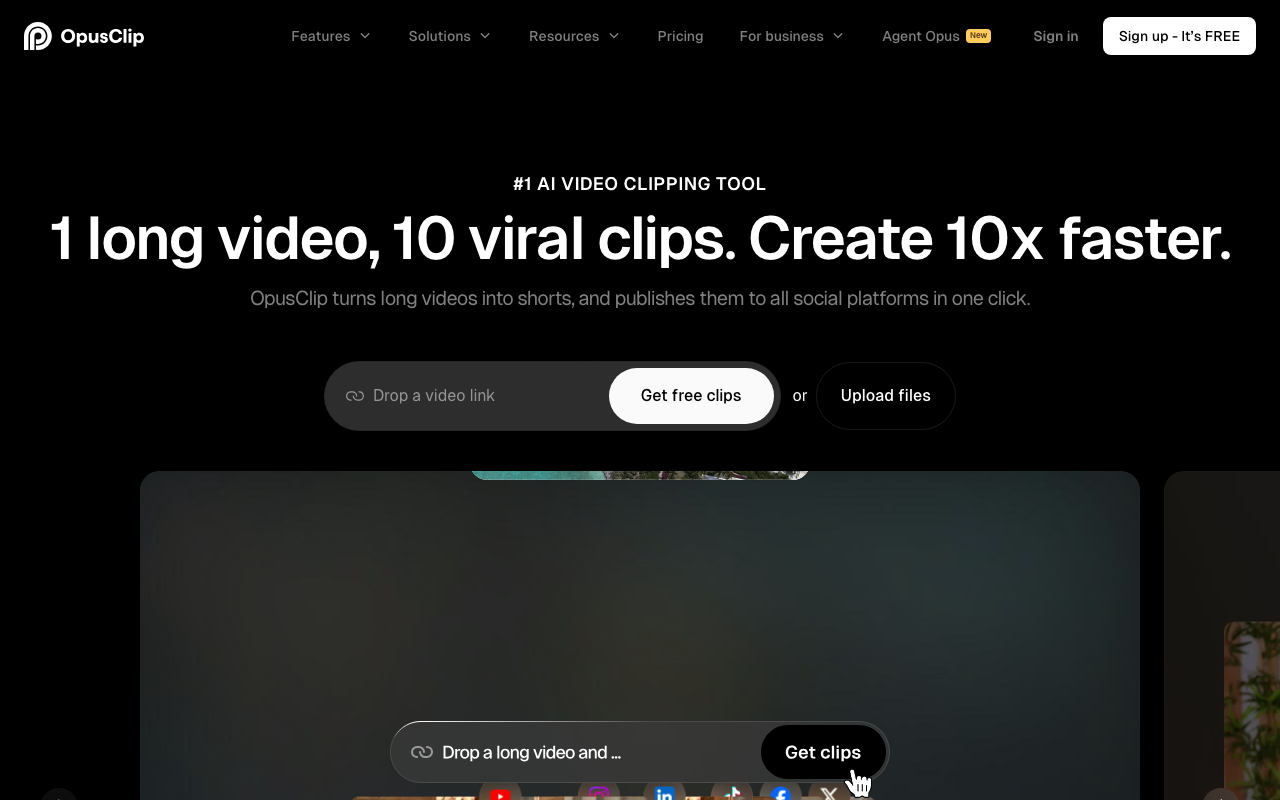 OpusClip ranks candidate clips from a long recording so you approve the best moments instead of scrubbing the whole file.
It is built for creators and B2B teams who produce a steady stream of long content and need daily short posts without a dedicated editor. The clear limitation is that OpusClip only reshapes footage you already have. It cannot generate a clip from an idea, and its auto-selection still needs a human pass because the "best" moment by engagement heuristics is not always the one on-brand. On the free plan, exports carry an OpusClip watermark and projects expire after three days, so it is really a trial rather than a workflow.
- Pricing: Free tier with roughly 60 processing minutes a month, but watermarked. The Starter plan at $15/month removes the watermark and is the real entry point; Pro is $29/month.
- Data point: OpusClip raised a funding round backed by SoftBank's Vision Fund 2 in 2025 and holds a 4.0 out of 5 on Trustpilot across roughly 300 reviews, a signal of both scale and mixed-but-solid user sentiment.
Pros: Best-in-class clip selection; auto-captions and reframing included; YouTube-URL import. Cons: Only works from existing footage; watermark and 3-day expiry on free; auto-picks need review.
For the full field of clippers, see our roundup of the best OpusClip alternatives.
2. Pexo: Best for Generating an X Video From Scratch
The other tools on this list all assume you already have footage. Pexo is the one that does not. It is an AI video agent you talk to: you describe the video you want in plain language, and it plans the shots, generates the visuals, adds voiceover and music, and hands back a finished, ready-to-post clip. There is no timeline to operate and no prompt syntax to learn. You say what you are imagining, review the plan and previews it shows you, and shape the result by describing changes rather than editing tracks. That makes it the natural fit for an X post when you have an idea and a product photo but no video to cut.
It suits marketers, founders, and small teams who need to make an announcement clip, a product teaser, or an explainer video for social media on a schedule that a manual pipeline cannot keep up with. Because it can take text, an image, a URL, or audio as a starting point, a product page or a single photo is enough to begin. The honest limitation: if your job is to pull a clip off X or trim a stream you already recorded, a clipper like OpusClip or a downloader is the right tool, not Pexo. Pexo also does not expose a manual editing timeline, so people who want frame-level hand control will feel the difference.
Under the hood it routes each shot to the model that fits, drawing on Seedance 2.0, Kling AI, and more, so you are not locked to a single generator's strengths and weaknesses. You can point it at a social media video job and get vertical, square, or wide output to match the feed.
- Pricing: Credit-based, not free. The Pro plan is $30/month for 4,800 credits, which the live pricing page maps to roughly two to five minutes of finished video; Elite is $60/month and Max is $100/month. Paid plans export with no watermark.
- Data point: On that $30/month Pro plan, credits cover the full workflow (visuals, audio, captions, and edits) rather than a single render, and every plan smart-matches models like Seedance 2.0 and Kling AI per shot, confirmed on the live pricing page on July 30, 2026.
Pros: Builds a complete video from a description with no footage; no editing skills or prompt syntax; multimodal input (text, image, URL, audio); multi-model routing. Cons: Credit-based, no permanent free tier; not a downloader or a timeline editor; frame-level manual control is intentionally absent.
If your work spans several networks, our guide to the best AI platform to make videos for social media puts this workflow in wider context.
3. VEED.io: Best All-in-One Editor for Captions and Resize
VEED is the do-everything browser editor, and for X that breadth is the point. In one online workspace you can trim a clip, auto-generate and style subtitles, convert a file to a clean MP4, and resize a 16:9 upload into the 1:1 or 9:16 shape that fills more of the mobile timeline. Because it runs in the browser, there is nothing to install, which makes it a common first stop for people who downloaded a clip and now need to caption and reshape it before posting.
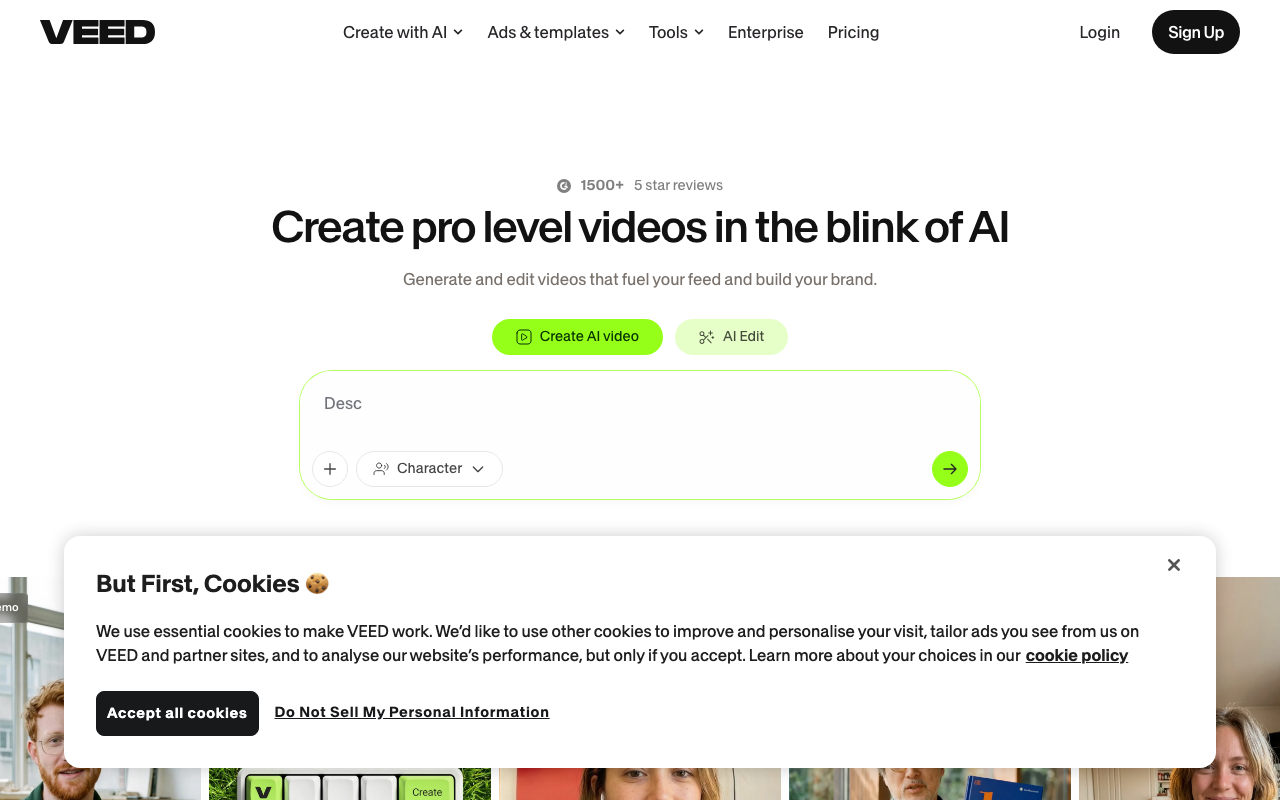 VEED bundles trimming, captions, format conversion, and resize into one browser workspace, so a downloaded clip goes from raw to postable in one place.
It fits solo creators and social teams who want a single, approachable editor rather than a stack of single-purpose apps. The trade-off for that breadth is depth: VEED is not as sharp at any one job as a specialist. Its auto-captions are good but need a proofread on jargon, and heavy projects can feel sluggish in the browser. The free plan watermarks exports and caps output at 720p, so anything you post publicly really needs a paid tier.
- Pricing: Free plan with a "Made with VEED" watermark and a 720p cap. The Creator plan removes the watermark and unlocks 1080p at $12/month billed annually; Pro is $22/month billed annually.
- Data point: VEED raised a $35M Series A led by Sequoia in 2022 and reports roughly 10 million monthly active users, one of the larger user bases among browser-based editors.
Pros: Genuinely all-in-one (caption, convert, resize, trim); no install; strong auto-subtitles. Cons: Jack-of-all-trades depth; 720p and watermark on free; browser can lag on big files.
For technique that applies across editors, our AI video editing tips cover captioning and reframing in more detail, and there is a deeper VEED review if you want the long look.
4. Kapwing: Best for Cropping and Resizing for the Feed
Kapwing overlaps with VEED as a browser editor, but its sweet spot for X is fast, precise reframing and a genuinely collaborative workspace. Its smart-resize tool re-crops a video to any aspect ratio and keeps the subject centered, which is exactly the chore of turning a landscape recording into a feed-friendly square or vertical. Layers, subtitles, and a shared team workspace make it the pick when more than one person touches the post.
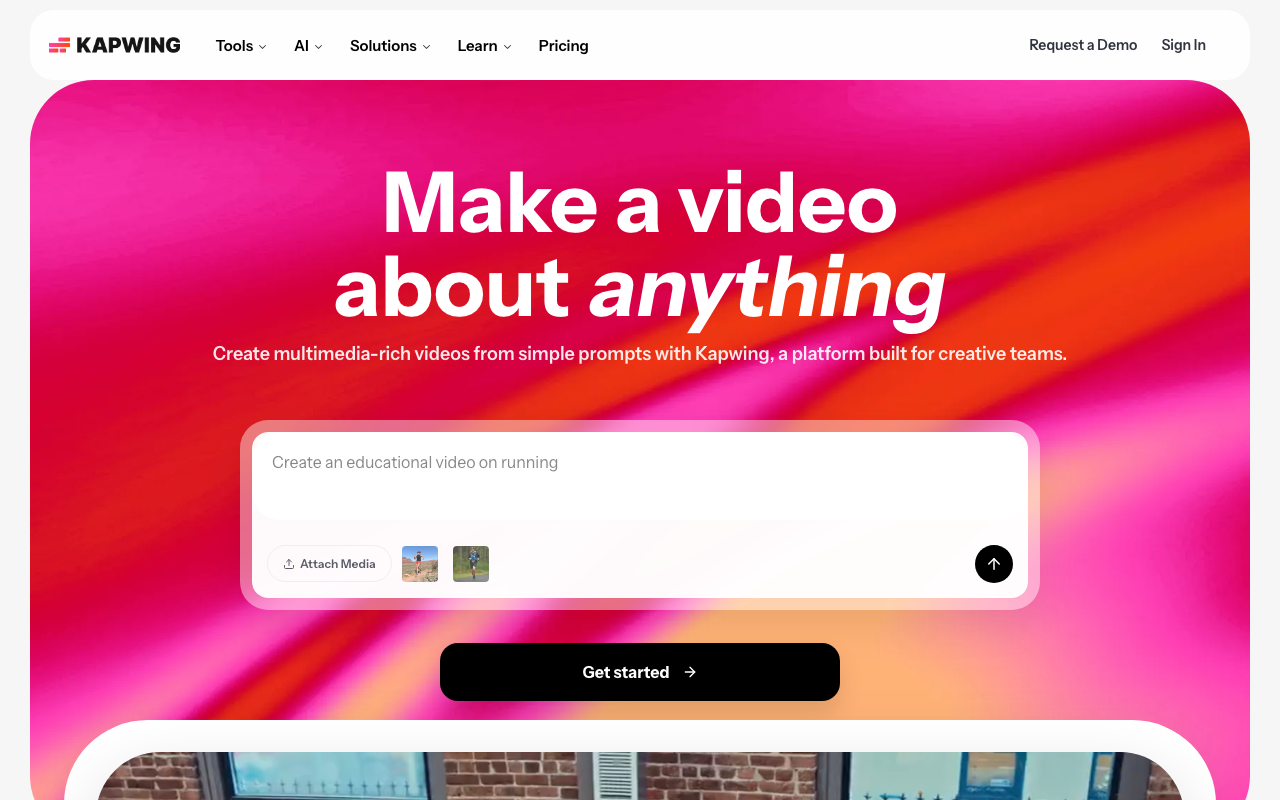 Kapwing's smart-resize re-crops a landscape recording to square or vertical and keeps the subject centered, the core chore of fitting video to the mobile feed.
It is aimed at small marketing teams and social managers who value speed and collaboration over cinematic control. The limitation is that the free tier is tight in a way that matters for real posting: exports are capped at one minute and 720p and carry a watermark, and you get a small monthly credit allowance for the AI features. Serious use means the paid tier quickly.
- Pricing: Free plan with watermarked, 1-minute, 720p exports and 10 monthly credits. Pro is $16/month billed annually (or $24 month-to-month) and unlocks 4K, up to two-hour exports, and 1,000 credits a month.
- Data point: Kapwing carries a 4.1 out of 5 rating on G2 and says more than 30 million videos have been created on the platform since 2017, though its G2 sample is small.
Pros: Excellent smart-resize and reframing; real team collaboration; layer-based editing. Cons: One-minute, 720p, watermarked free exports; small free credit allowance; not a generator.
Kapwing has no in-depth review on this site yet, so head straight to Kapwing's site for the current feature set.
5. Submagic: Best for Auto-Captions on Vertical Shorts
Submagic does one job and does it well: fast, punchy, animated captions for short vertical video. It transcribes your clip, styles the words with the bold, word-by-word "TikTok-style" captions that perform on X shorts, and adds emphasis, emojis, and B-roll suggestions on top. If your posting habit is vertical clips and captions are the thing standing between you and shipping, Submagic is the most focused option here.
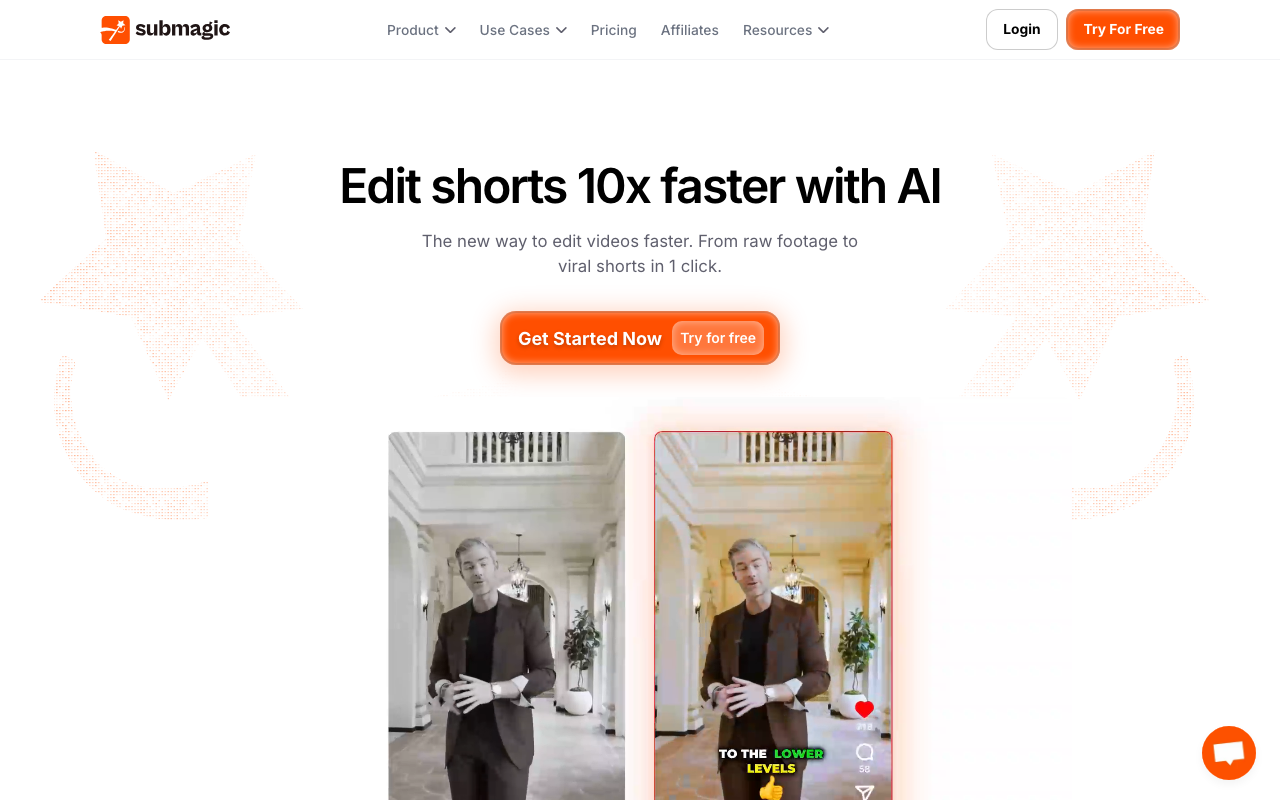 Submagic transcribes a vertical clip and styles bold, word-by-word animated captions in a click, the format that carries muted autoplay on X.
It suits high-frequency short-form creators who caption the same style every day and want a one-click template rather than a full editor. The narrowness is also the limitation: Submagic is not where you generate, download, or do heavy multi-track editing, and the free tier is genuinely small at three videos a month, watermarked, with a 90-second cap. It is a captioning specialist, priced and scoped like one.
- Pricing: Free tier of three watermarked videos a month (90-second cap). Paid removes the watermark starting at the Starter plan, $12/member/month billed annually (or $19 month-to-month); Pro is $23/$39.
- Data point: Submagic holds a 4.7 out of 5 on G2 across roughly 80 reviews and a 4.0 on Trustpilot from 800-plus reviews, among the higher satisfaction scores in this list.
Pros: Fastest path to styled, animated captions; strong templates; emoji and B-roll suggestions. Cons: Captioning only; tiny free tier; not for generating, downloading, or deep edits.
There is no dedicated review on this site yet, so see Submagic's site for the latest templates and caps.
6. SSSTwitter: Best for Downloading and Saving X Videos
Sometimes the tool you need is the simplest one. SSSTwitter is a free, no-signup web downloader: paste the link to an X post, and it pulls the video down in HD to your device. It works from a phone or a desktop browser, there is nothing to install, and there is no account. For the plain job of saving a clip, it is hard to beat on friction.
It fits anyone who needs to archive their own posts or grab a clip they have the rights to reuse. Two limitations are worth stating plainly. First, it only downloads; there is no editing, captioning, or reformatting, so it is the first step of a workflow, not the whole thing. Second, downloading someone else's video raises rights and platform-policy questions, so only save content you own or are licensed to use. For the how-and-legal-to of this specifically, our step-by-step guides on downloading a Twitter video and converting it to MP4 go further than a roundup can.
- Pricing: Free, with no paid tier. It is ad-supported rather than subscription-based.
- Data point: SSSTwitter draws an estimated 3.6 million-plus monthly visits (mid-2026 traffic estimates), which tells you how common the plain download job really is.
Pros: Free and no signup; HD downloads; works on any device. Cons: Download only, no editing; ad-heavy interface; rights and platform-policy responsibility is on you.
Grab it at SSSTwitter's site, and remember it is one step, not a full stack.
How to Choose the Right Twitter Video Tool
Match the tool to the job, not the other way around. If you already film long and need daily short posts, OpusClip does the slicing and captioning in one pass. If you have an idea but no footage, Pexo builds the clip from a description and is the only pick here that generates from scratch. If you just downloaded a clip and need to caption and reshape it, VEED or Kapwing is your editor, with Kapwing edging ahead on fast reframing and team collaboration. If captions are your only bottleneck on vertical shorts, Submagic is the specialist. And if all you need is to save a video off the timeline, SSSTwitter does it free.
Most active posters end up using two: a maker or clipper to produce the video, and an editor or captioner to finish it. Pick the one that matches your most frequent job first, then add a second only when a real gap appears.
Conclusion
There is no single best Twitter video tool, because "twitter video" spans five different jobs. For repurposing long recordings, OpusClip leads. For finishing and reshaping clips you already have, VEED and Kapwing are the browser editors to reach for, with Submagic the fastest route to styled captions and SSSTwitter the frictionless downloader. And when you have an idea but nothing filmed, Pexo is the one that turns a plain description into a finished, ready-to-post video, which is why it ranks near the top for the from-scratch job even though a clipper or a downloader wins the tasks built around existing footage. Start with the tool that fits your most common job, and add the next only when you actually hit its edge.