ChatGPT
 Perplexity
 Claude
 Gemini
 Grok
Grok


Bring one approved claim and the images that can show it to CapCut × Codex. Draft an editable cut, correct it in chat, then check the timeline and export.
What Should You Prepare Before Opening CapCut × Codex?
Prepare product facts and source files first. Your team decides what the video may say.
A Product Brief With Claims You Can Verify
Consider a fictional Tern lunch bag: navy fabric, a yellow zipper, and a front pocket. Approved copy says, “Front pocket for small essentials.” The audience is shoppers comparing lunch bags on a phone. For a 20-second vertical ad, show the pocket, the whole bag, then a packshot with “See bag details.” The goal is to make the pocket easy to notice, not to imply a new product function.
The pocket photo supports that line; it cannot establish insulation. Leave cooling claims out unless separately verified.
Photos, Logo, and Footage You May Use
Collect front and side packshots, a pocket close-up, logo, approved copy, and cleared footage. If the pocket is absent, get a suitable shot first.
Name the pocket image so the editor can identify it without guessing. A team with only still photos can ask for a draft around those images, then verify what the selected connected route actually creates from them. A photo alone does not document how the zipper moves.
Confirm permissions for images, people, and music. Keep originals and approved copy for comparison.
How Do You Draft the Product Video?
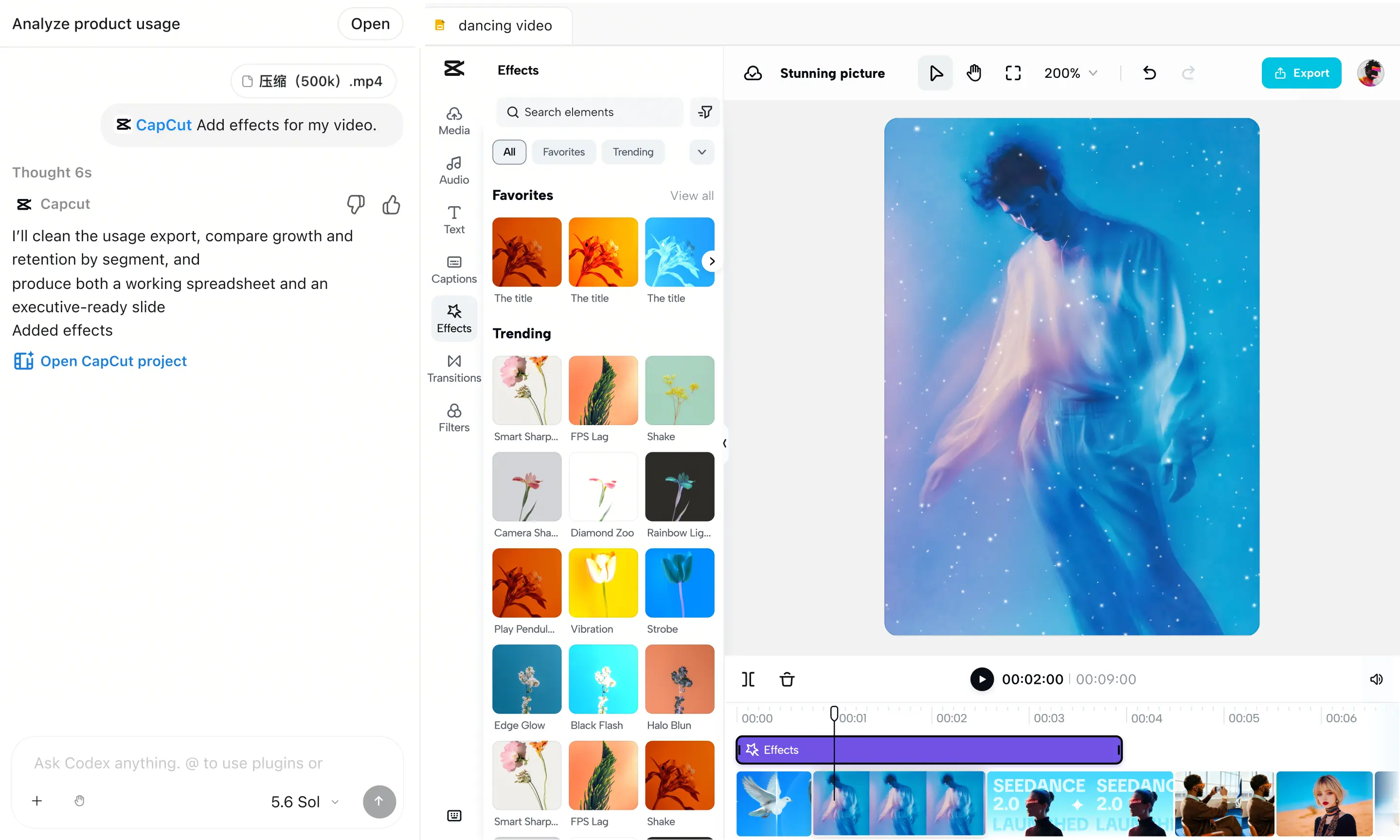
Start a supported desktop task with approved material. CapCut's navigation says CapCut × Codex; its workflow page is headed CapCut × ChatGPT. It describes the official plugin, uploads, chat revisions, and an editable timeline.
Check Access and Start a New Project
As checked October 28, 2026, CapCut specifies the ChatGPT desktop app on PC. Access varies by version, account, and region; the page says U.S. availability is coming soon. Check your account before scheduling production.
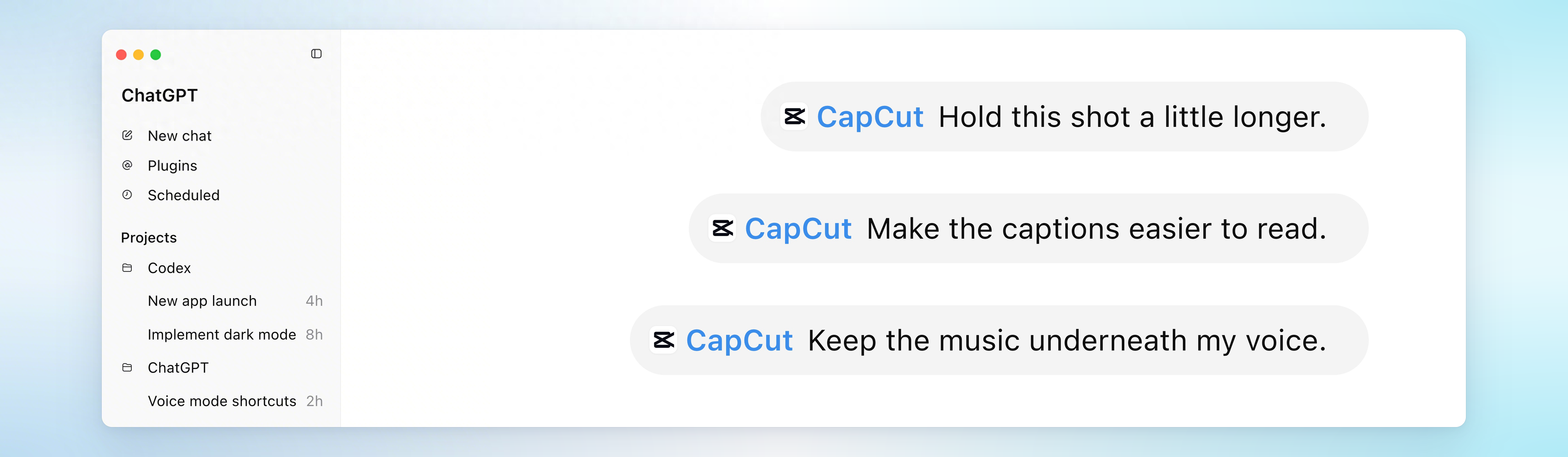
The page provides installation and authorization instructions. Once connected, start a new task for Tern with its approved source pack. The exact prompts depend on your account.
Build a First Cut From the Brief and Assets
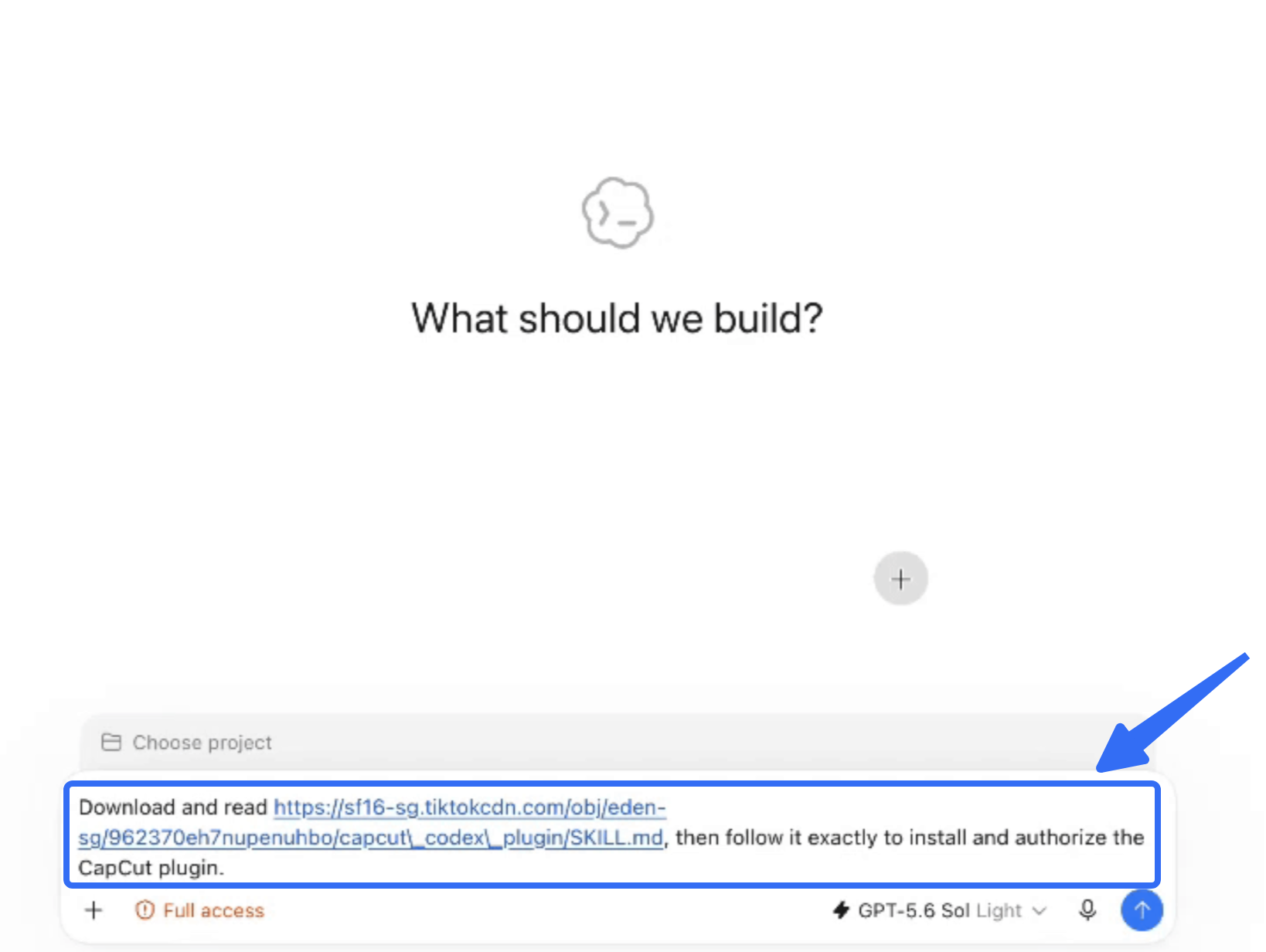
Give the task the audience, claim, assets, sequence, and format:
Draft a 20-second vertical product video for shoppers comparing the fictional Tern lunch bag. Use the approved pocket close-up, front and side packshots, and logo. Open on the pocket, show the full navy bag and yellow zipper, then end on the packshot. Use only “Front pocket for small essentials” as the product claim and “See bag details” as the final action. Keep captions readable over the footage. Show me an editable draft for review.
This illustrative instruction is not a generated result. Adapt the input if needed, then compare the first preview with approved photos.
If the draft uses a newly generated pocket view, compare its seam, zipper position, and color with the source pack. Keep the shot only if it still depicts Tern. The first cut needs an accurate product before its pacing matters.
Revise the Hook, Captions, and Scene Order
If the full-bag shot appears before the pocket, say:
Move the approved pocket close-up to the opening. Keep the same bag, yellow zipper, claim, and final packshot. Make the caption appear while the pocket is visible.
CapCut describes chat requests for scene order, clip length, visual replacement, and caption timing. The revision passes if the pocket leads, the claim remains true, and the bag stays recognizable.
How Do You Finish and Check the Video?
Open the project in CapCut. Review the cut at normal speed and at phone size.
Fine-Tune the Timeline in CapCut
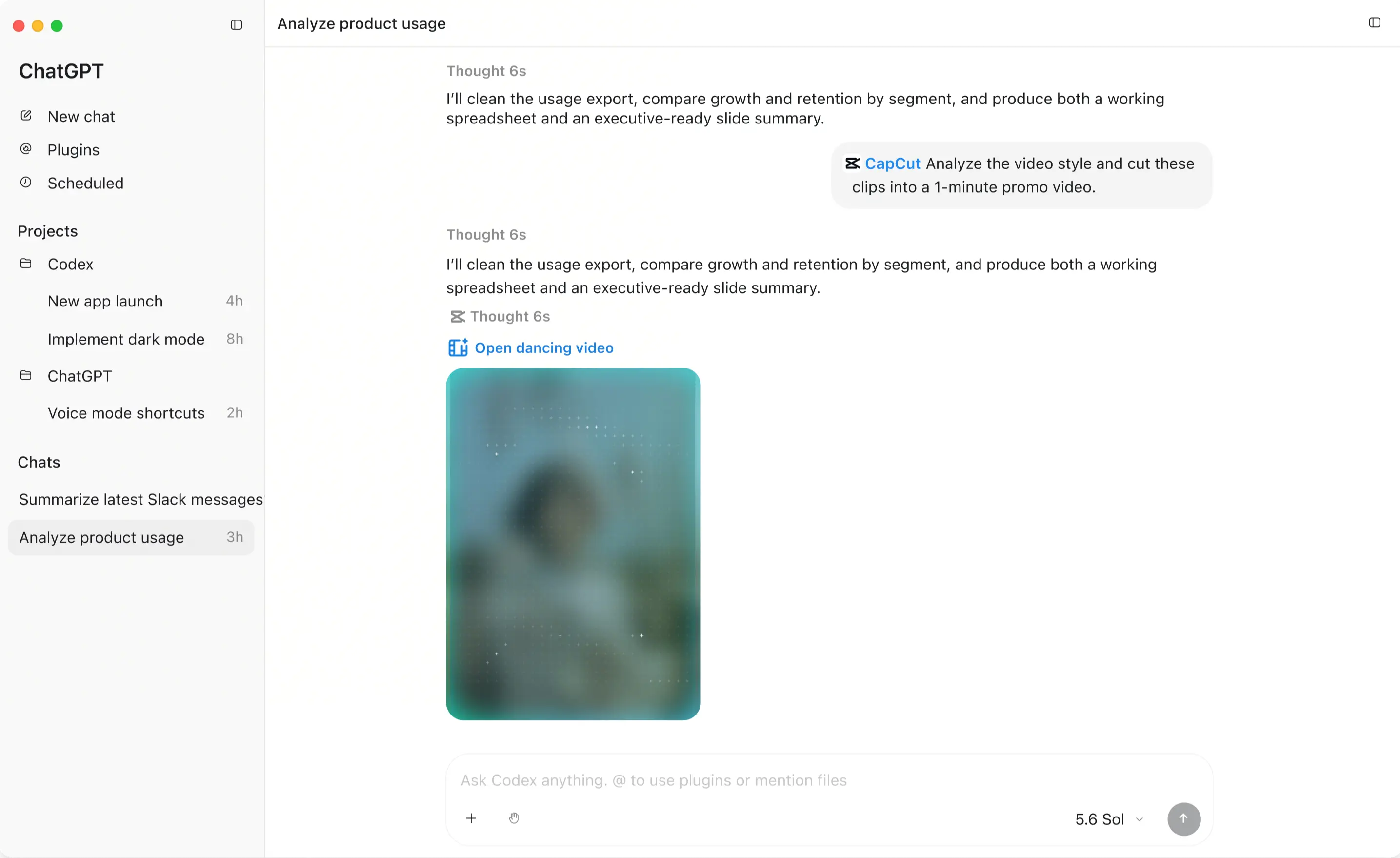
CapCut says you can open its editor from the conversation. Align the pocket caption with the shot, trim a slow transition, and check the logo. Save a review version.
Read every caption rather than trusting the text track label. Play through the transition into the full-bag shot: the zipper and pocket should belong to the same model on both sides of the cut. This is where a plausible individual frame can fail as a sequence.
A correct caption over a hidden pocket still fails the brief. If a shot changes Tern's shape, use approved footage instead.
Check Product Claims, Media Rights, and Export
Compare picture, narration, captions, and logo with approved files. Check muted readability, audio timing, and the exported file in its intended placement.
Confirm rights for images, music, and identifiable people. Check current CapCut and channel rules for commercial use; uploading or selecting an asset grants no wider permission. This article does not provide legal advice.
Conclusion
Tern's draft is ready when the pocket leads, the approved claim appears over that shot, and the export matches the brief. Pexo, which publishes this guide, describes an agent-led production route on its product-video page.