
 ChatGPT
 Perplexity
 Claude
 Gemini
 Grok



Your iPhone editor should suit the person who will make the next change. If you finish and publish from the phone, captions and comfortable timeline controls matter most. If another editor takes over, the project needs to travel with its media and editable text.
For a short brand video, iMovie suits straightforward cuts and titles. CapCut suits social edits built around captions and effects. Premiere offers a documented route into Adobe's desktop workflow, while VN gives creators more say over clip timing and layers.
The best video editing app for iPhone is the one that can carry your actual footage through that last revision.
What Does a Phone-First Editor Need to Do?
It needs to turn your recordings into a clear video, let you correct the words, and deliver a file the next person can use.
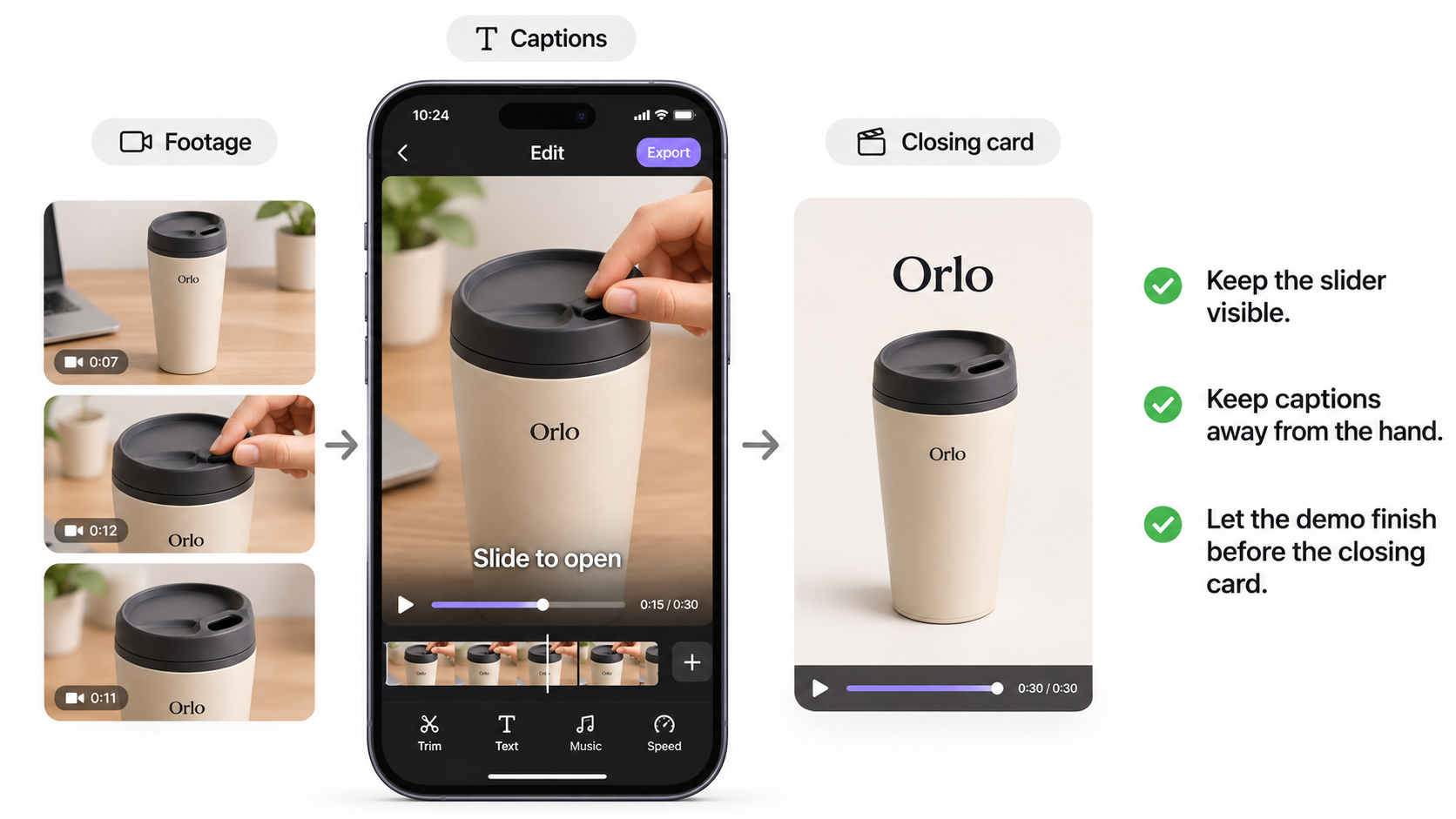
Consider a 30-second social video for Orlo, a fictional travel mug. The available footage shows the mug on a desk, a hand moving its lid slider, and a presenter describing that action. The brief adds approved product-name text, speech captions, and a closing card. It makes no claim about insulation or leak resistance.
The editing job is to keep the slider visible, place captions away from the hand, and let the demonstration finish before the closing card. A dramatic template earns its place only if those details remain understandable.
How the Apps Were Compared
This comparison applies each app's documented controls to that same illustrative brief. It draws on US App Store listings and official help reviewed on November 4, 2026, rather than a hands-on export comparison. The 2027 title frames a buying decision; it does not predict next year's plans.
| App | Current listed minimum iOS | Main reason to consider it |
|---|---|---|
| iMovie | 27.0 | Simple cuts, titles, and Apple project transfer |
| CapCut | 15.0 | Caption-led social editing and layered effects |
| Adobe Premiere | 18.0 | Multitrack mobile editing with a desktop continuation route |
| VN | 16.0 | Manual timing, keyframes, and layered composition |
These requirements describe the current listed builds. Device hardware, individual features, and regional availability need separate checks.
For each app, the useful questions are the same: Can you correct a caption, adjust one layer, export the required version, and continue the next edit? Free download, free export, and included AI generation are separate questions.
1. iMovie for Simple Native Edits
iMovie is a sensible starting point when your footage already tells the story and you mainly need trimming, titles, narration, and music. Apple documents picture-in-picture, split-screen, and green-screen effects, alongside export up to 4K at 60 fps on supported devices.
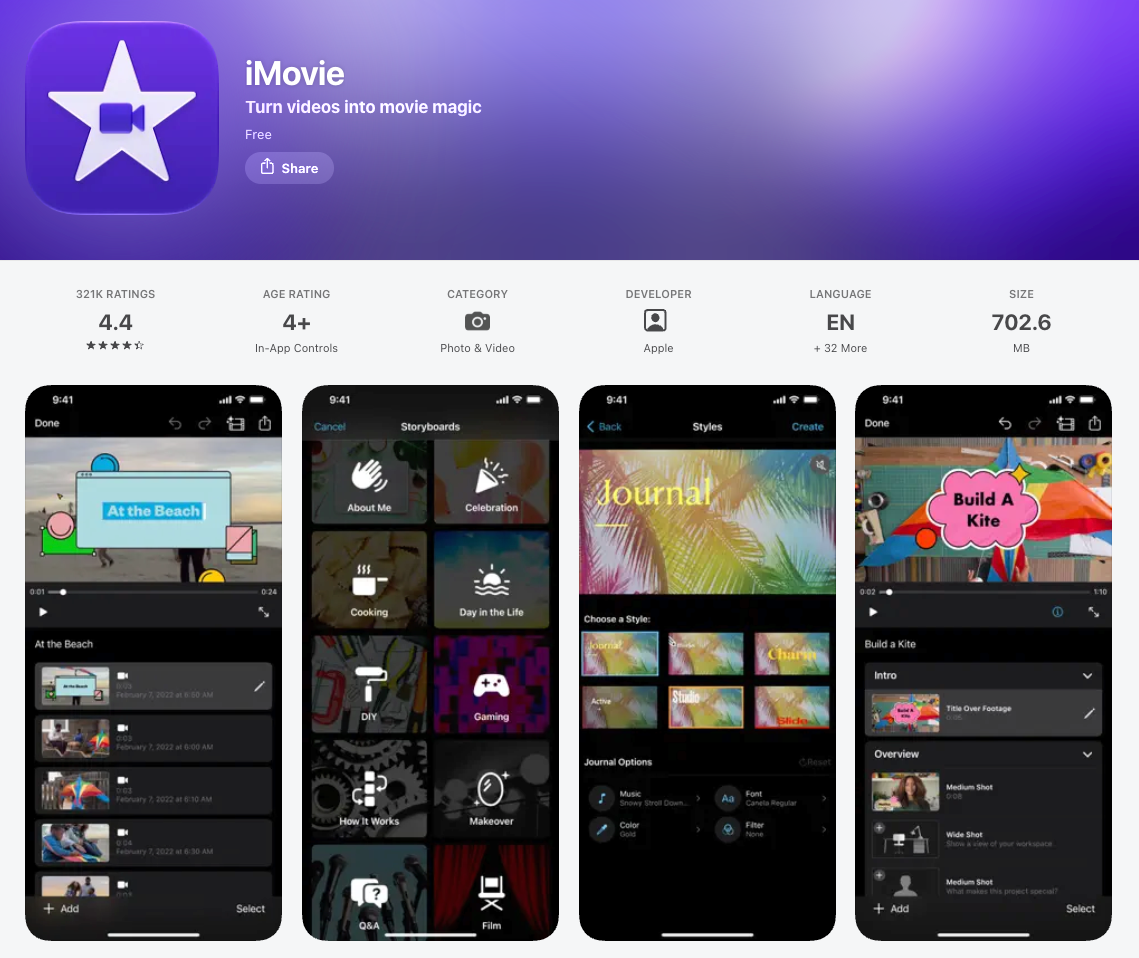
For Orlo, keep the desk shot, cut to the slider action, and add the approved name as a title. There is little reason to introduce generated footage when the original recording already shows the feature clearly.
The caption requirement deserves attention. The reviewed iMovie materials document title editing, but do not establish an automatic speech-caption workflow. A brief product title is manageable; manually timing a full spoken passage creates more work.
Apple also documents sending mobile projects to a Mac for continued editing. Confirm the receiving app and version before relying on that route. Sending a playable movie and sending an editable project are different handoffs.
Choose iMovie for a modest edit you can finish within its title and overlay controls. Caption-heavy recurring work gives you a reason to consider another app.
2. CapCut for Short Social Cuts
CapCut brings automatic captions, text styling, keyframes, speed adjustments, and a multitrack timeline into the social editing workflow. Those controls suit a video where speech and product close-ups need to work together.
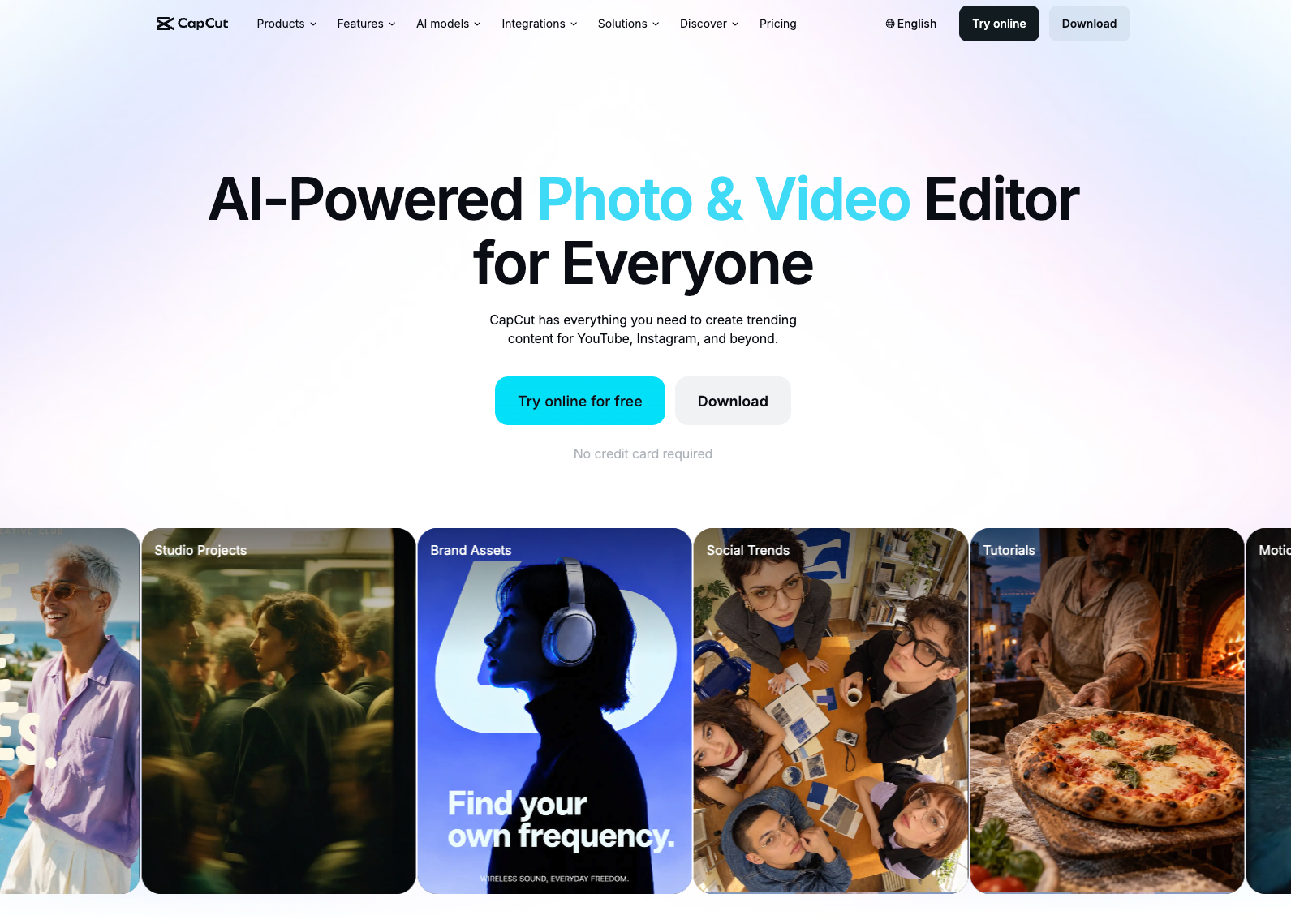
For the mug brief, generate captions from the presenter, correct the product name, and keep the slider close-up on screen long enough to follow. Caption animation should leave the mechanism visible. A preset that covers the hand creates a production problem even if the text looks appealing.
The free download includes access to a product with paid features and assets. Do not assume every caption style, AI operation, or export setting belongs to the free tier. Check the exact combination used in your draft before building a campaign around it.
Desktop continuation also needs preparation. CapCut's help says cross-platform cloud projects must be uploaded to Spaces and accessed with the same account. A local phone draft alone is insufficient. Verify that the recipient can open the project and change the caption before treating the transfer as complete.
3. Adobe Premiere for Mobile Editing
Premiere on iPhone is worth considering when you want a multitrack mobile edit and expect to continue in Premiere on desktop. This is the current Premiere mobile app, separate from older Premiere Rush guidance.
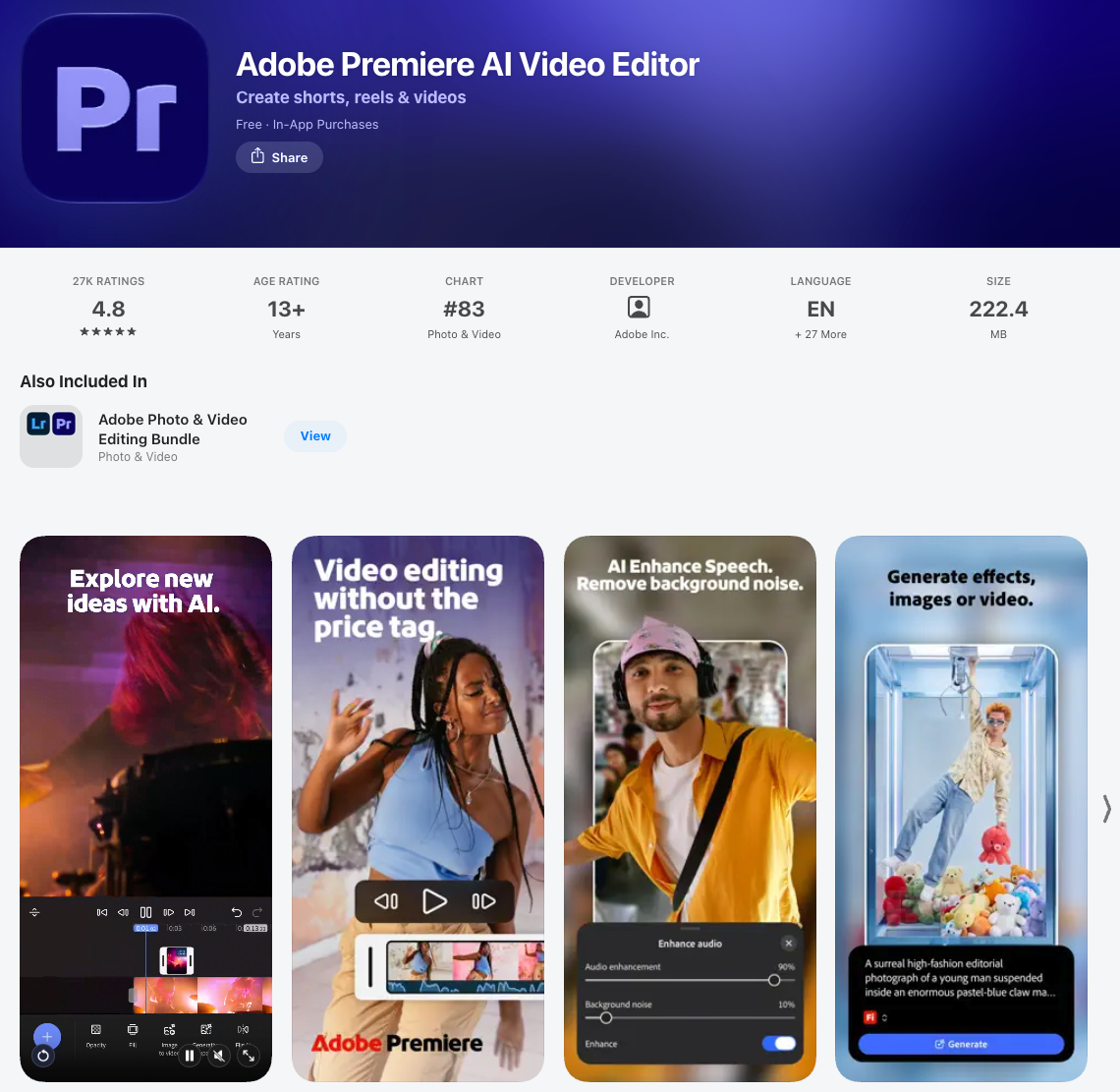
The iPhone app documents automatic captions, overlays, keyframes, voiceover recording, and free watermark-free exports up to 4K. For Orlo, that means you can assemble the original demonstration, correct its captions, and add a closing graphic without making generation part of the assignment.
Adobe's mobile access and account rules distinguish free editing from connected services. Local editing, saving, and video export do not require an Adobe login. Generative features use Firefly credits; sending a project to desktop requires an Adobe account with a Premiere subscription and cloud storage.
Premiere desktop must be signed in to the same Adobe account that sent the project from the phone. If a colleague will continue from a different account, agree on a separate handoff and test it before relying on it. Plan to recreate captions on desktop because Adobe lists them as unsupported in project transfer. Check fonts, media, and audio before retiring the phone version.
4. VN for Manual Timeline Control
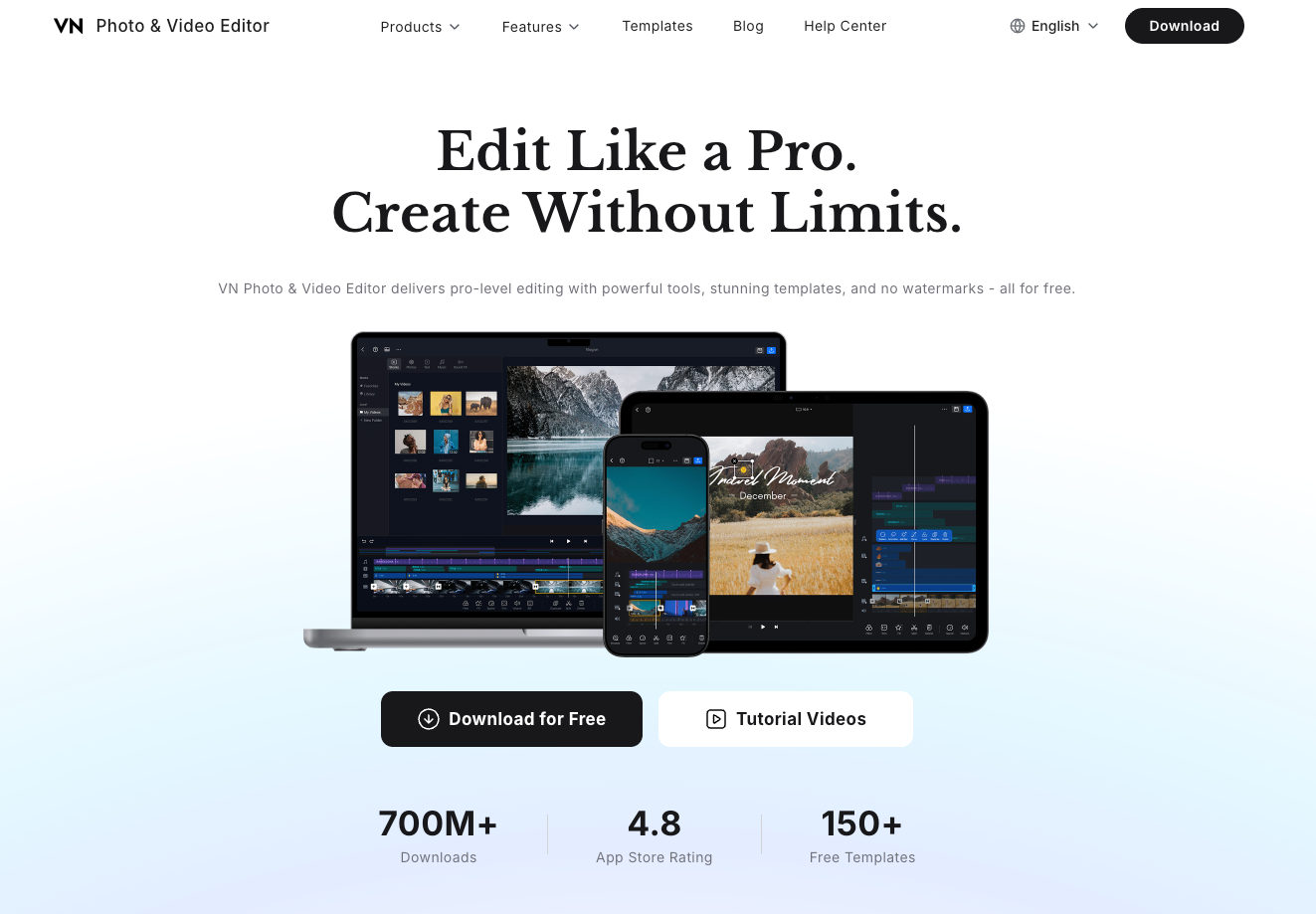
VN suits creators who want to arrange layers and decide precisely how a trim affects surrounding clips. Its current listing documents automatic captions, keyframes, overlays, and custom exports up to 4K at 60 fps. It advertises watermark-free editing while also offering VN Pro and credit purchases.
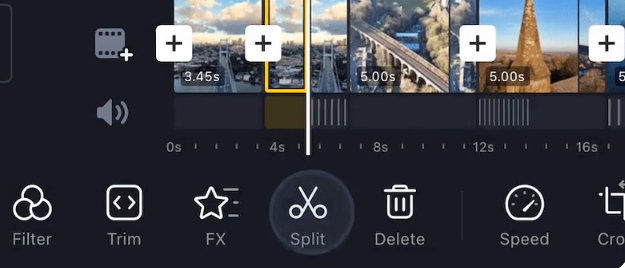
One useful distinction is VN's free Pro Mode, a timeline behavior separate from the paid VN Pro subscription. With Auto-Ripple disabled, subsequent clips keep their positions when an earlier clip changes.
For the Orlo edit, that could help preserve the closing card's timing while shortening a close-up. It also leaves you responsible for any gap. Manual control makes sense when you are willing to inspect the timeline after each change.
VN lists project transfer through AirDrop or iCloud. That does not establish compatibility with every desktop editing application. Its support guidance also says iOS and macOS VN Pro subscriptions are separate. Choose VN for the control you need on the phone, then verify the receiving workflow independently.
Free Export and Paid Feature Checks
Before choosing a free iPhone video editor, export a representative draft using your intended captions, audio, and graphics. A blank test project tells you little about the features your campaign will need.
Record these distinctions:
| App | Free-export position in reviewed materials | Check separately |
|---|---|---|
| iMovie | Free app with video export | Device, source footage, and output settings |
| CapCut | Free download with in-app purchases | Premium assets, caption options, AI use, and the actual export prompt |
| Premiere | Free core editing and watermark-free video export | Firefly credits, storage, and desktop subscription |
| VN | Advertises editing without a watermark | Paid features, generation credits, and destination-platform access |
An AI button is not a reason to budget for generation. If the mug footage already demonstrates the slider, spend the review effort on its visibility and caption accuracy.
Music needs its own decision. CapCut's materials and music license distinguishes personal-use sounds from commercial materials with specific permitted uses. A track available inside an editor may have channel or editing restrictions. A subscription does not establish permission for every brand campaign.
How to Hand a Phone Edit to a Desktop Team
Agree whether the desktop team needs a finished video for assembly or a project with editable cuts and text. A rendered video combines those elements; the recipient cannot assume it contains the original caption or audio layers.
For an editable handoff, send:
-
The project through a supported transfer route, plus its required media.
-
Untouched source footage, with filenames preserved.
-
A reference export showing the approved edit.
-
Exact product text, caption corrections, and remaining revision notes.
-
Font, music, and stock-license records relevant to the recipient's work.
Ask the recipient to open the project, change one caption, and locate one original clip. That small acceptance step checks whether the next revision can actually happen.
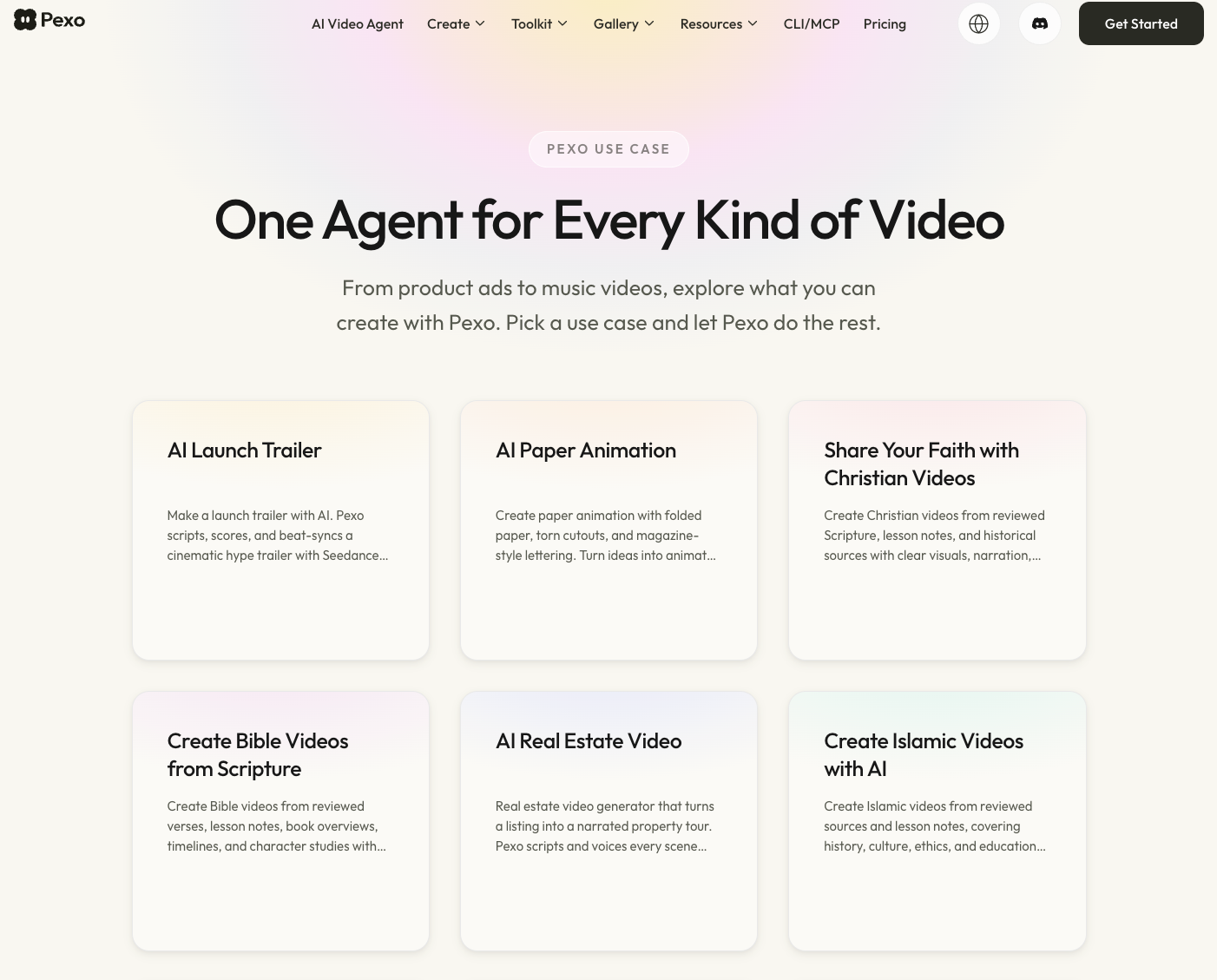
If the next assignment needs a new story built from a brief and approved assets, you can develop that video in Pexo. Its conversational production workflow offers a different way to direct scenes and revisions. Pexo is an AI video agent, outside this shortlist of native iPhone editing apps; do not assume it accepts their project files.
Before uploading footage anywhere, confirm the people and materials can be processed for the intended use. Check music and asset permissions for client delivery and paid placements too. This article does not provide legal advice.
Conclusion
Choose around the revision your team repeats: caption corrections, careful layer timing, simple cuts, or continued desktop editing. Then try that revision on a representative draft and open the result where the next person will work. A dependable handoff is worth more than a feature you never use.