
 ChatGPT
 Perplexity
 Claude
 Gemini
 Grok



Let the viewer hear the instruction before adding a sound to emphasize it. In a product explainer, a small accent can guide attention; placed over the product name, it competes with the explanation.
For ElevenLabs SFX v3 explainer video planning, start with the spoken script and a picture draft. Give each proposed effect a place, a purpose, and a reason to stay.
Which Moments Need a Sound Cue?
Use a cue where sound helps viewers follow an action or recognize a transition. Some scenes need only the voice and the sound already captured with the product.
Consider Alder, a fictional desktop organizer with a removable divider. The planning example assumes approved footage shows the divider lifting out and a wider compartment accepting papers. Its 30-second explainer answers: “How do I make room for larger documents?”
A restrained transition can introduce the demonstration. A paper rustle can accompany placement. Adding a latch click would suggest a mechanism the footage does not establish. Keep recorded handling sound where it matters, and avoid presenting generated effects as evidence of how the product actually sounds.
Map Action to a Simple Cue Timeline
Use the current picture draft as the timing reference. The following cue map covers one illustrative 30-second cut; the time windows total 30 seconds.
| Window | Picture and voice | Cue target | Acceptance check |
|---|---|---|---|
| 00:00–00:04 | Papers crowd the narrow compartment; buyer question | No added effect | Question stays clear |
| 00:04–00:06 | Graphic introduces the divider demo | S01: airy transition at 00:05.2; about 0.5 seconds | Ends before the instruction |
| 00:06–00:17 | Divider lifts; “Lift the divider to open the wider compartment” | Recorded handling only | No invented locking sound |
| 00:17–00:24 | Papers enter the wider compartment | S02: light paper rustle at 00:19.0; about 1 second | Matches contact; stays below speech |
| 00:24–00:30 | Final arrangement and next step | S03: soft accent at 00:25.0; about 0.5 seconds | No overlap with the final spoken invitation |
Copy this row into your own explainer audio brief:
Cue ID | Cut version | Visible action | Target start | Desired length/tail | Nearby words | Audio filename | Reviewer/status
The target start belongs to the video timeline. It is separate from the generated file's length and any silence before its first audible event.
Draft Effects for One Explainer
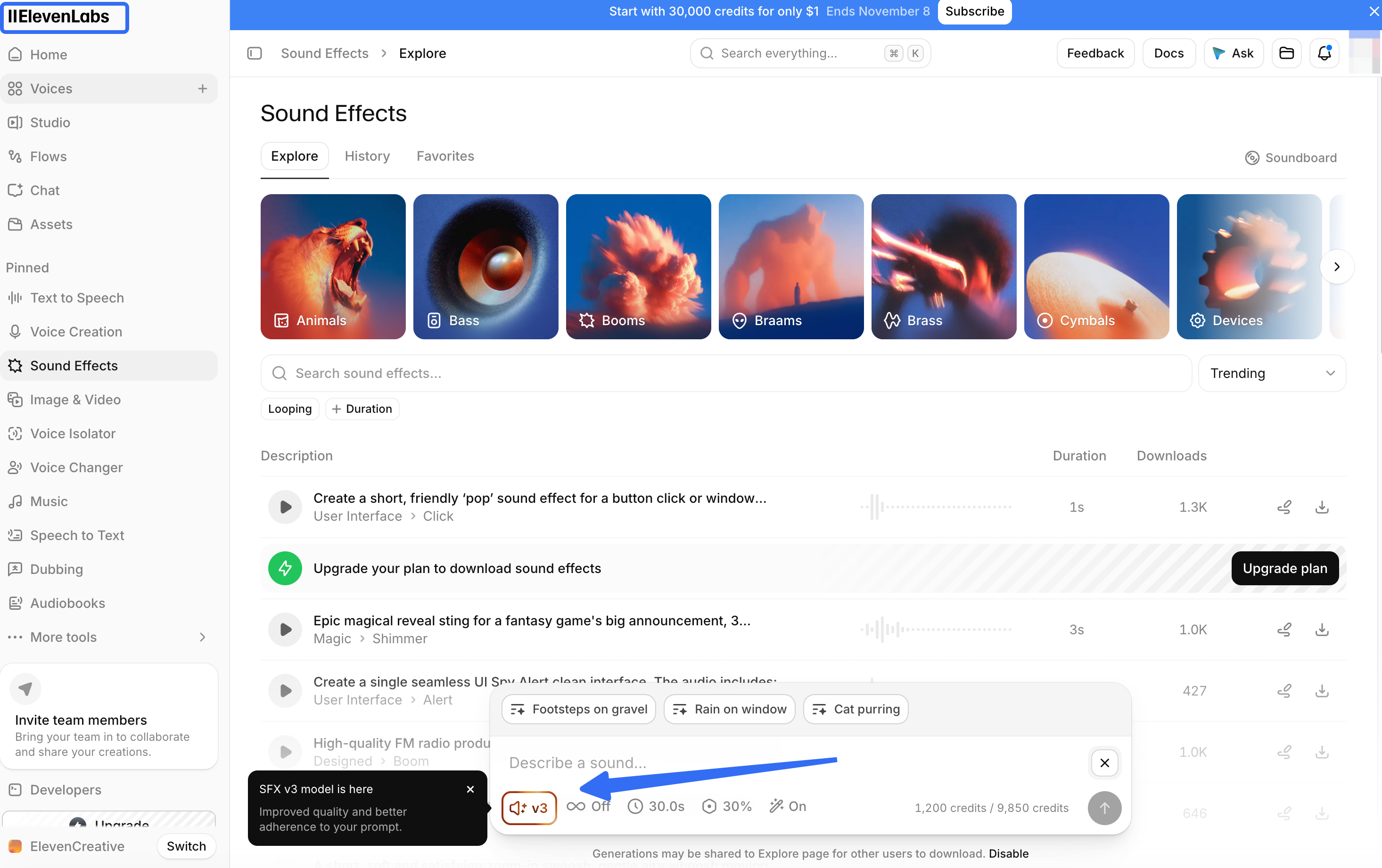
As of November 4, 2026, ElevenLabs describes SFX v3 as supporting multipart prompts and musical or vocal elements. Its sound-effects controls include model choice and generated duration. Select v3 explicitly where a model choice is available.
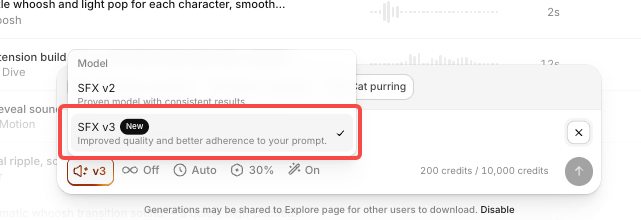
For Alder, draft the effects individually so each can move when the picture changes:
-
S01: “One soft, airy transition, brief and dry, with no impact, music, or voice.”
-
S02: “A small stack of paper gently placed on a desktop tray, light rustle, no mechanical click, no voice.”
-
S03: “One gentle percussive accent with a short decay, no melody and no notification beep.”
These are audition requests, not guarantees. Listen for unwanted voices, extra impacts, long tails, and silence before the useful sound. Save candidates with their cue IDs, prompts, model, settings, and generation dates. Approve the chosen file after hearing it against the scene.
Check Timing Against Voice and On-Screen Action
Start with the narration playing at its intended pace. For Alder, leave “Lift the divider” unobstructed, then check whether the paper sound lands when the papers touch the tray.
Audition each cue alone, with narration, and in the complete mix. A sound that seems gentle alone may still obscure a consonant. Move it, shorten its tail, lower it, or remove it before changing a clear instruction.
When narration timing changes, reposition the affected cues, listen again, and repeat approval. Recheck later scenes too: an extended pause can shift every subsequent action.
If you're developing the full cut through Pexo's product-video workflow, include the cue map with your approved script and footage. A useful revision note is: “Keep the divider instruction clear; bring in the paper rustle only when the stack touches the tray.” Its conversational revision workflow supports pacing and voiceover changes; confirm precise audio placement in the returned preview.
Review Volume, Clarity and Rights
Listen on headphones and a phone speaker at ordinary listening levels. The product explanation should remain understandable without increasing playback volume. Check the final export for abrupt starts, distortion, and effects that continue across an unrelated scene. Match delivery loudness to the destination's current requirements.
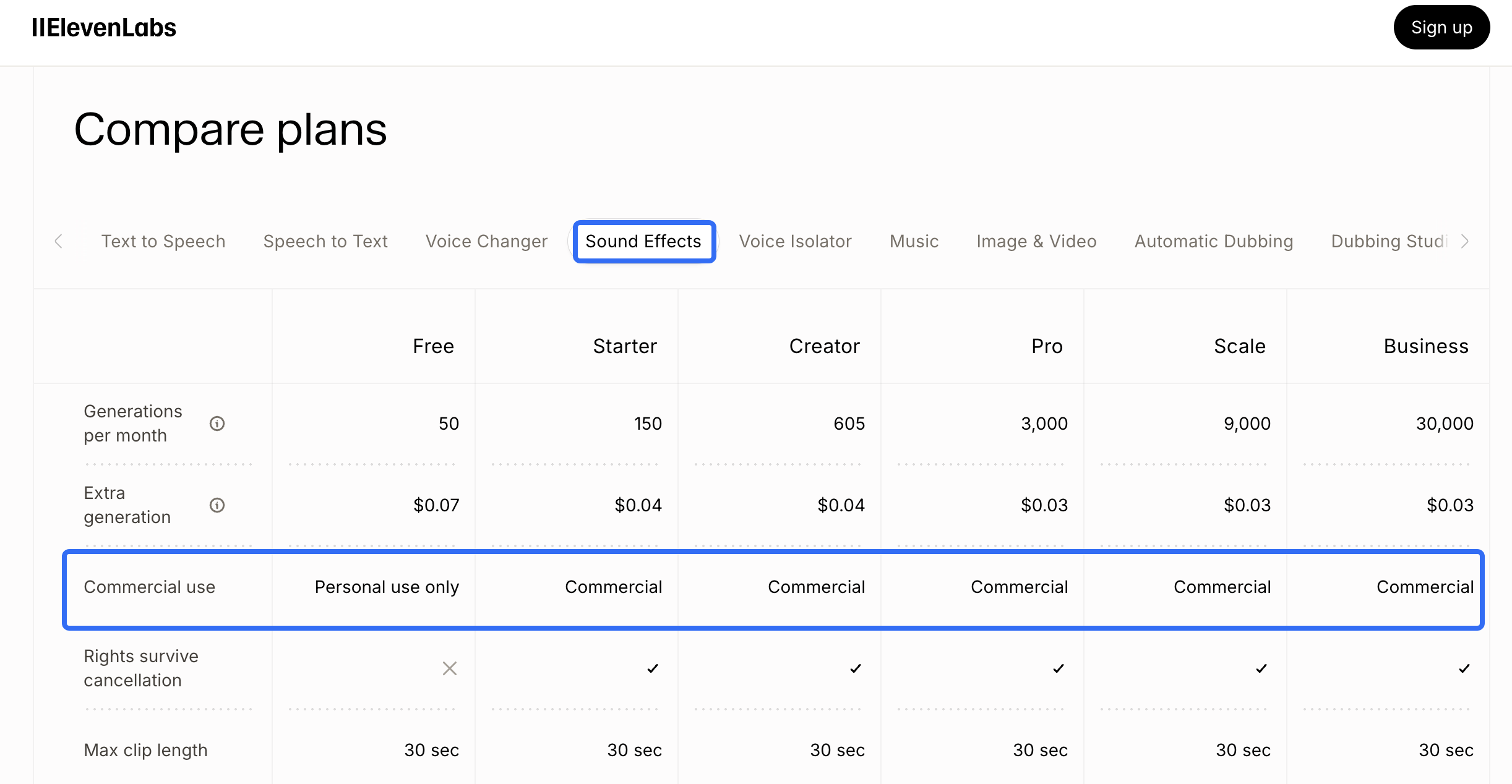
ElevenLabs' commercial-use conditions distinguish paid-plan generation from free-plan output and exclude Beta Services from commercial use. Record the applicable plan and feature status when generating.
Separately verify permissions for original recordings, voices, music, and any reference audio. Before a paid-ad release, check the generated audio's applicable terms and the target platform's current advertising and disclosure policies. If production passes through Pexo, also verify upload permissions and obtain any written consent required for promotional use under Pexo's terms. This article does not provide legal advice.