
 ChatGPT
 Perplexity
 Claude
 Gemini
 Grok




CapCut’s AI video workflow is most useful when the team already knows what the ad must say. Start with approved product wording, a real product image or clip, and a clear delivery ratio. Let CapCut assemble a draft, then use its editor to replace weak scenes, fix captions, and prepare the export.
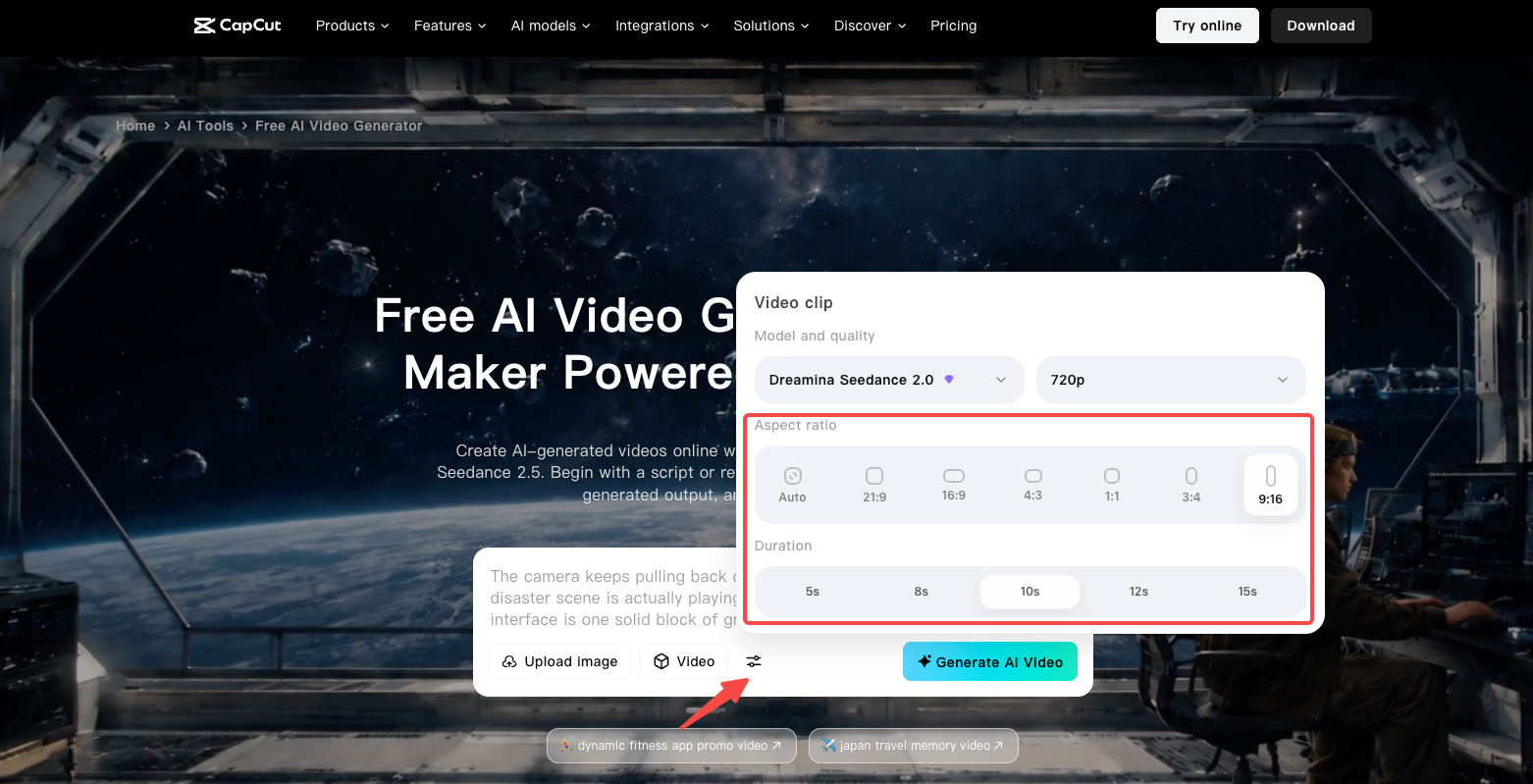
This guide uses Morrow Carry, a fictional travel-accessories brand selling a compression pouch. The team has one packshot, a short demonstration clip, three approved claims, and a 20-second social-ad brief. It wants a 9:16 cut with captions, voiceover, and a final “Shop the pouch” CTA.
What Do You Need Before Opening CapCut AI?
Prepare five items:
-
the approved script or a short scene outline;
-
a product photo or demonstration clip that shows the real item;
-
the exact product name, measurements, and claims allowed in the ad;
-
the destination ratio, duration, language, and caption requirement;
-
a folder for the draft, selected assets, music record, and exported versions.
Keep the product source separate from mood references. A lifestyle image can suggest the setting, but the packshot should control the pouch’s shape, color, zipper, and label. Put the approved claims in a short source note so you can compare the generated script and captions against the same wording.
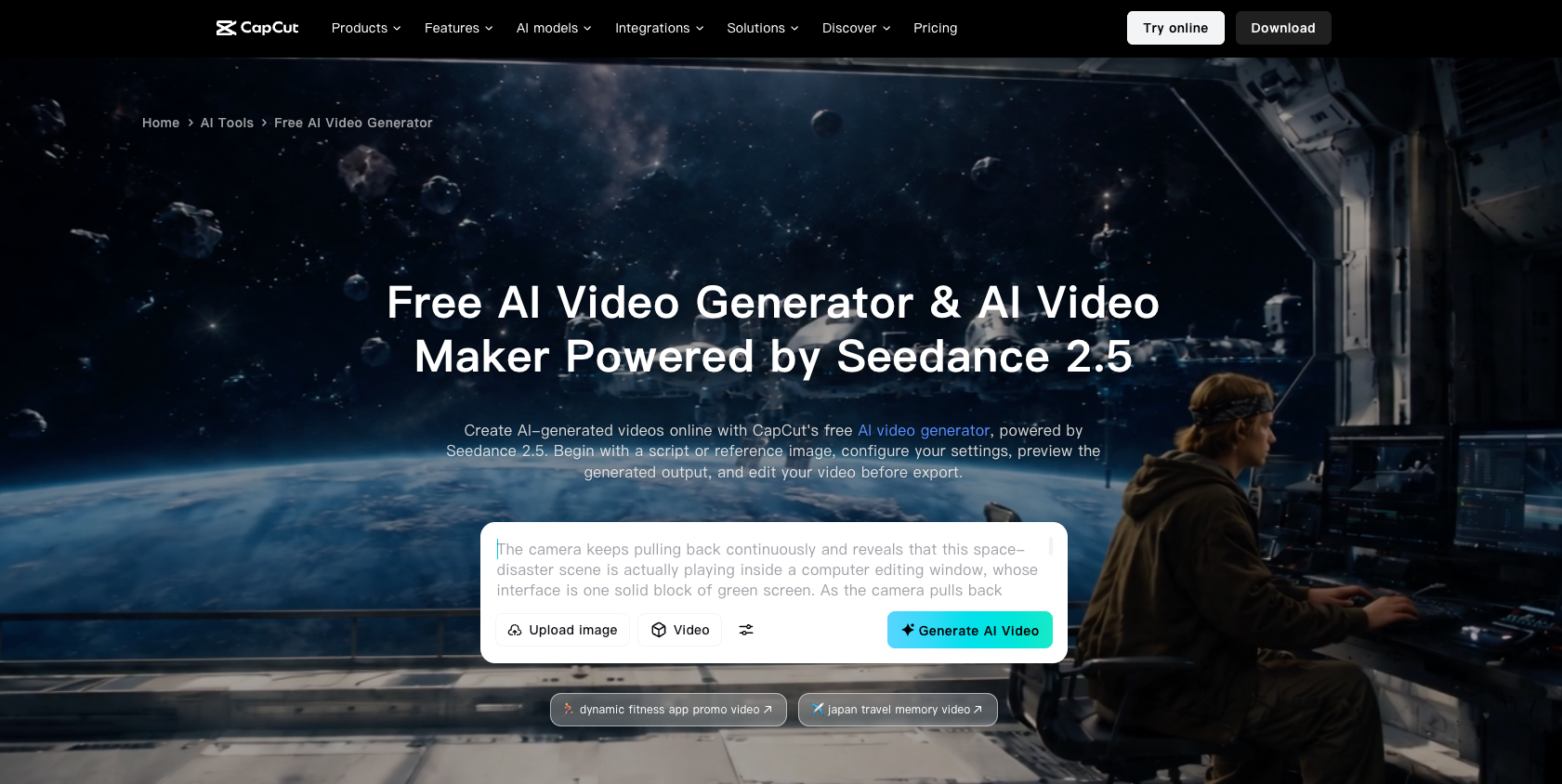
CapCut’s current AI video workflow varies by surface. The web AI video generator uses a script or topic with style, aspect ratio, voiceover, and duration settings. The desktop app exposes an AI video maker and a deeper timeline. On mobile, script-to-video is available through the AI tools area when the feature is enabled for the account and region.
Turn a Product Brief Into a Short Script
Write the script around one product action. For Morrow Carry, the action is compressing a jacket into the pouch. The script can follow this shape:
| Beat | Approved wording or direction |
|---|---|
| Hook<br> | “Pack more without adding another bulky bag.” |
| Demonstration | Show the pouch compressing a jacket. |
| Proof | “The pouch folds flat when the trip is over.” |
| CTA | “Shop the pouch.” |
Keep claims tied to evidence. If the source material shows folding but does not establish a measured size reduction, do not add a precise percentage. If the product page uses one name and the draft uses another, correct the script before generation.
For the web route, open CapCut and choose the AI video maker or Instant AI video entry shown in your account. Paste the approved script, choose the visual style, set 9:16, select the voiceover language, and set the intended duration. For desktop, open the AI video maker and use the script-led creation path. The exact labels can vary by version, device, and region, so follow the entry visible in the current account.
Create the First Video Draft in CapCut
Upload the packshot and demonstration clip when the workflow accepts local materials. If the tool offers stock or generated visuals, use them for setting and transitions while keeping the actual product action anchored to the supplied footage.
Generate the first draft with the product name and CTA already approved. Review the scene list before polishing. Check that the opening shows the pouch quickly, the middle beat contains the demonstration, and the final frame leaves enough time for the CTA.
CapCut’s AI video tools can generate scenes, voiceover, captions, and music around a script or topic. Use the draft to find missing beats and weak phrasing, then edit the timeline.
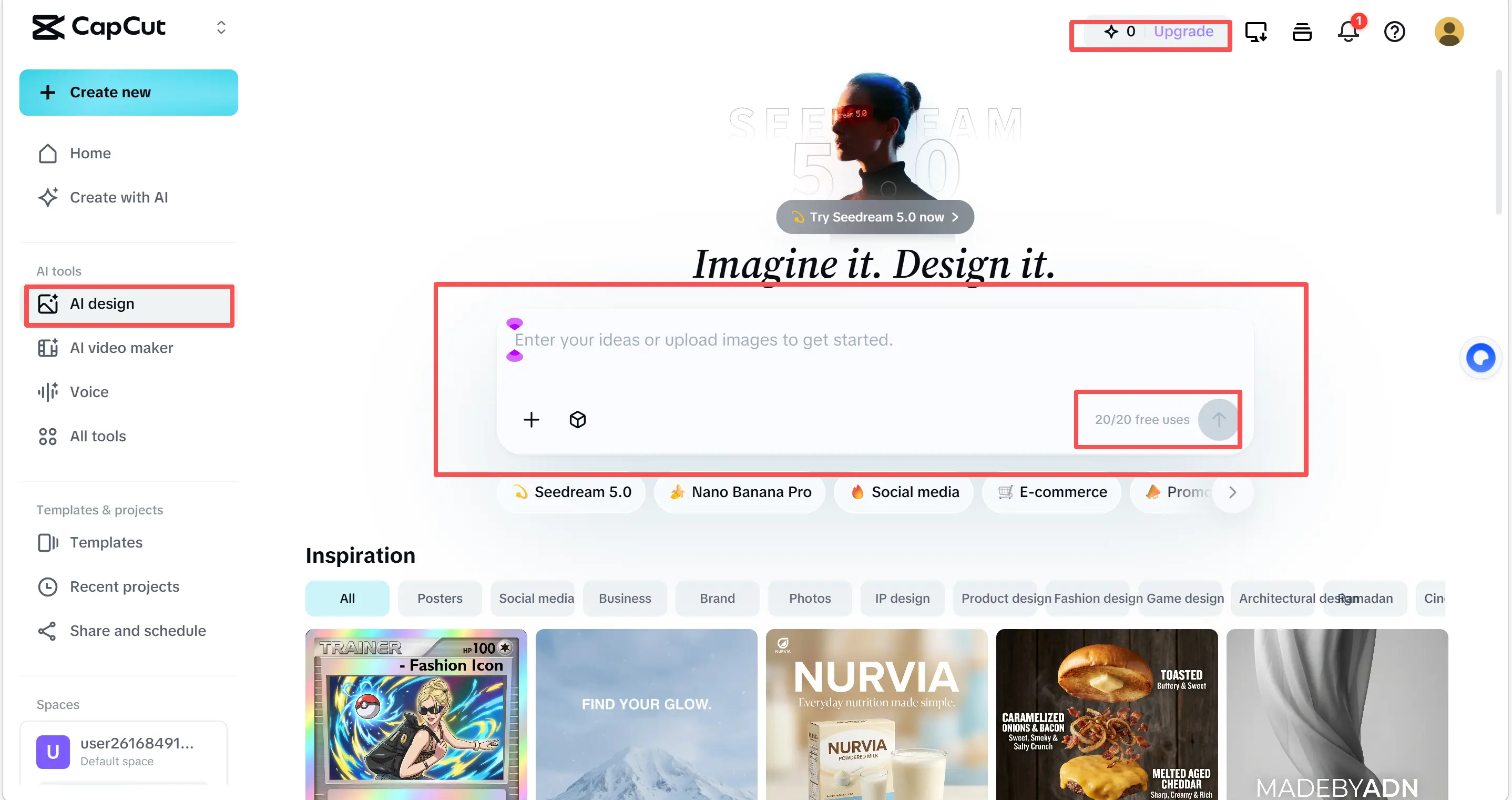
AI actions may use credits. CapCut’s help guidance says credits are deducted when you confirm a credit-based action. Record the action and displayed cost before regenerating a scene or applying an AI voice, caption, or image feature. A new generation is a new budget line.
Replace Weak Scenes With Approved Product Assets
Replace a scene when it changes the product, invents a feature, or hides the evidence. In Morrow Carry’s first draft, imagine that the generated pouch has a red zipper while the supplied packshot has a black one. Replace that shot with the real demonstration clip or a still built from the approved photo.
Use the timeline to make the correction concrete:
-
Select the generated scene that carries the wrong product detail.
-
Remove it or replace its visual with the approved clip or image.
-
Keep the script line only if the replacement visual supports it.
-
Adjust the voiceover and caption timing to match the new shot.
-
Save a new version with the changed scene recorded.
If the opening is weak, change that direction instead of regenerating the entire ad. If the product is correct but the setting is wrong, keep the product shot and replace the background.
Review Claims, Captions, Sound, and CTA
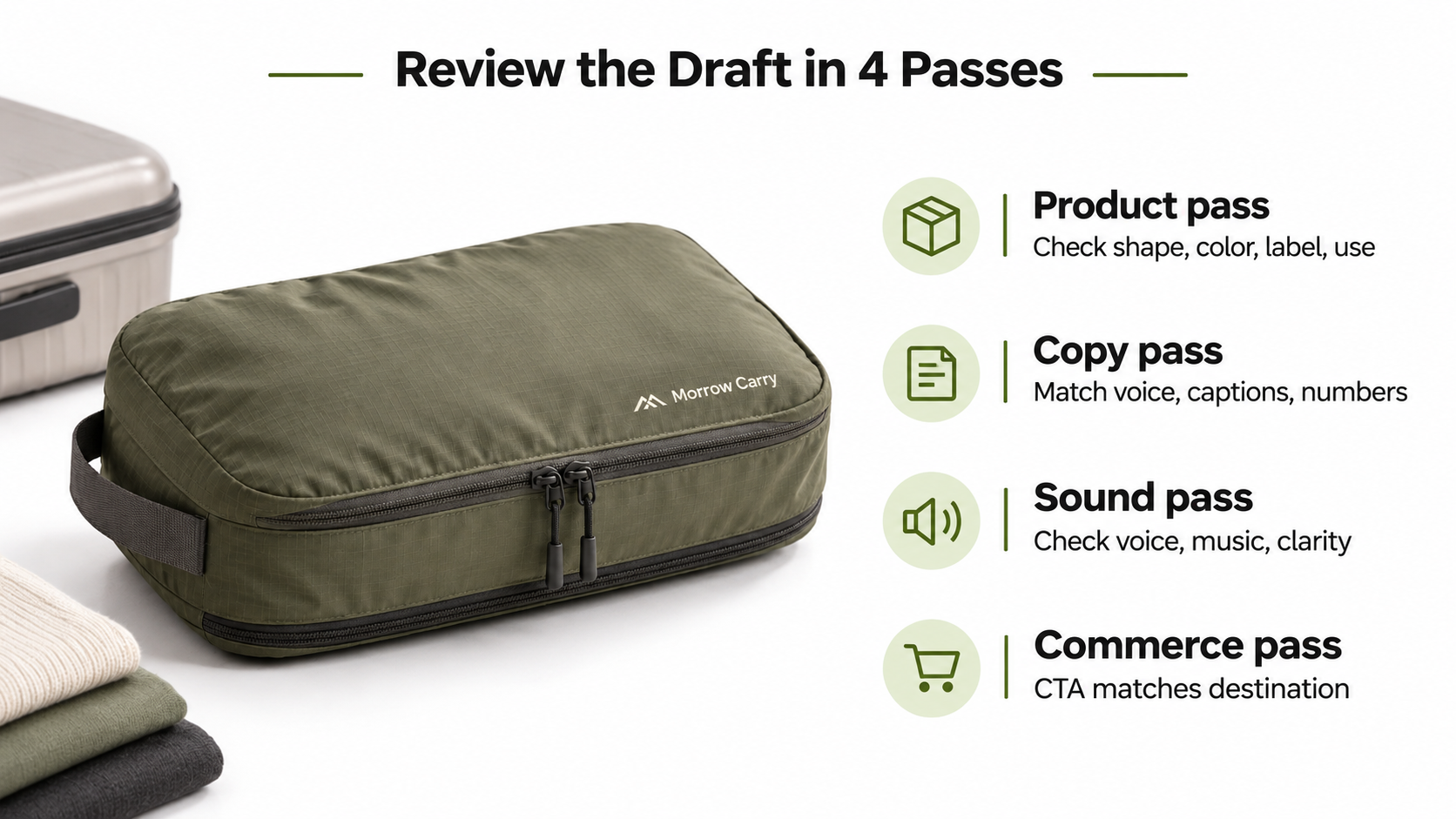
Watch the draft in four passes.
Product pass. Compare the product’s shape, color, packaging, label, and use with the source image and clip.
Copy pass. Match every spoken line, caption, number, and end-card phrase to the approved brief. Correct a caption even when the voiceover is right.
Sound pass. Check voiceover clarity, music level, and any sound effect that masks a product word. Replace an AI voice with the brand’s approved recording when the team needs a specific speaker or pronunciation.
Commerce pass. Confirm the CTA matches the destination. “Shop the pouch” should open the same product or campaign page named in the brief.
CapCut’s standard Sounds and Commercial Sounds do not have the same use terms. Its materials license sets different conditions for personal Sounds and Commercial Sounds. Music selected for personal entertainment should not be carried into a paid product ad without the required rights.
Export a Version for the Intended Ad Placement
Export from the edited project after the final review, not from the first AI draft. Name the file with the campaign, ratio, language, and version, such as morrow-pouch-9x16-en-v03.mp4.
Check the export panel for the available resolution, format, and frame-rate options on the account. CapCut’s public AI guidance lists MP4 and MOV in its export documentation, but the available settings can vary by workflow, device, region, and plan. Open the exported file on a phone before delivery. Check the first frame, caption safe areas, audio, product label, and final CTA.
Keep the editable project, source assets, script, music record, and exported file together. An MP4 does not preserve the CapCut timeline for the next editor.
When Is a More Directed Full-Video Workflow Useful?
CapCut is a good fit when an editor needs to shape a short draft, swap scenes, adjust captions, and export several ad versions from supplied material. A more directed full-video workflow becomes useful when the team wants the story, scene order, voice, and product direction developed from a larger brief before detailed timeline work.
Pexo can serve that downstream route through its create workspace. Its product-ad workflow can start from an approved product photo and direction, while CapCut remains the place for timeline-level edits when the team needs them. Choose the route based on who owns the source material and how much control the final cut requires.
Conclusion
Use CapCut AI to turn an approved product brief into a workable first cut, then let the timeline do the careful work. Keep the real product source in control, replace scenes that weaken the claim, review captions and sound against the brief, and export a named version for the intended placement.
This article does not provide legal advice. Confirm the current CapCut feature, credit, export, music, commercial-use, and destination-platform terms before running the ad.