
 ChatGPT
 Perplexity
 Claude
 Gemini
 Grok



Your product video may be ready to publish, but the shopping experience can still break after a viewer taps the product card. A video showing a green medium container is not much help if the card opens the clear two-piece set, links to an unavailable variant, or sends shoppers to the wrong product page. Making a video shoppable means connecting what viewers see to the correct SKU, product listing, and purchase destination. This guide shows you how to map products to scenes, match tags to the right variants, prepare video assets, and check the shopping experience before publishing.
Consider Rill Home, an invented kitchen brand launching a glass storage set in a 30-second vertical video. The opening shows the two-piece set, the middle scene demonstrates how the lid locks, and the ending directs viewers to the product page. The team offers two sizes and two colors, each with different stock levels. This makes the launch a useful example of how to connect individual product appearances with the correct shopping links.
What Makes a Video Shoppable?
A shoppable video connects a visible product to a selectable commerce object. Depending on the platform, that object may be a product tag, shopping sticker, anchor link, product card, or catalog item. The viewer may stay in the app, open a product detail page, or continue to an external checkout.
The commerce object has its own fields. It needs the right SKU, title, image, variant, price source, availability, destination URL, and merchant or shop relationship. The video has different fields: duration, aspect ratio, captions, safe areas, spoken claims, and the moment when the product appears.
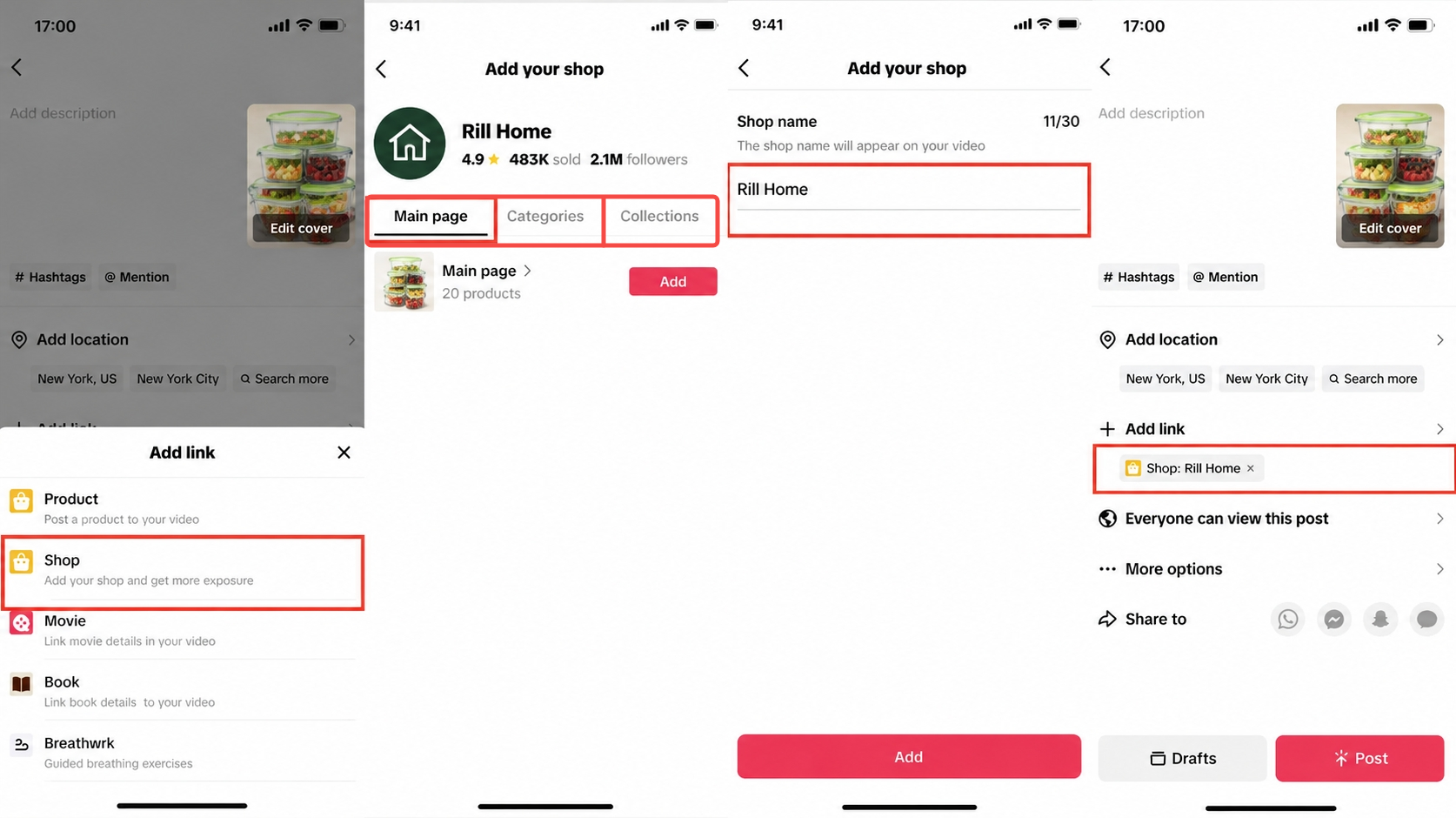
As of November 2026, YouTube’s current guidance says tagged products should be clearly featured and meaningfully related to the content. TikTok Shop’s seller guidance, updated August 27, 2026, describes describes adding a product link before publishing and connecting the video to a product, shop, category, or collection. Treat those as platform examples, not a universal rule set. Eligibility and placement vary by account, market, product category, and platform.
Map Each Scene to a SKU and Product Page
Create the SKU map before editing. Give every product appearance a row, even when the same item returns in a later shot.
| Scene | Product shown | SKU or variant | Source of truth | Product card | Destination | Approval |
|---|---|---|---|---|---|---|
| 01 opening | Two-piece glass set | RILL-SET-03 / clear | Current packshot and catalog | Set card | Set product page | Product manager |
| 02 lid action | Medium container, green lid | RILL-M-02-BL | Approved demo clip | Medium green variant | Variant page | Product manager |
| 03 storage stack | Two containers | RILL-SET-03 / clear | Inventory feed | Set card | Set product page | Ecommerce lead |
| 04 end card | Product set and CTA | RILL-SET-03 / clear | Approved copy sheet | Set card | Checkout or product page | Campaign owner |
Variant, Availability, Price Source, and CTA
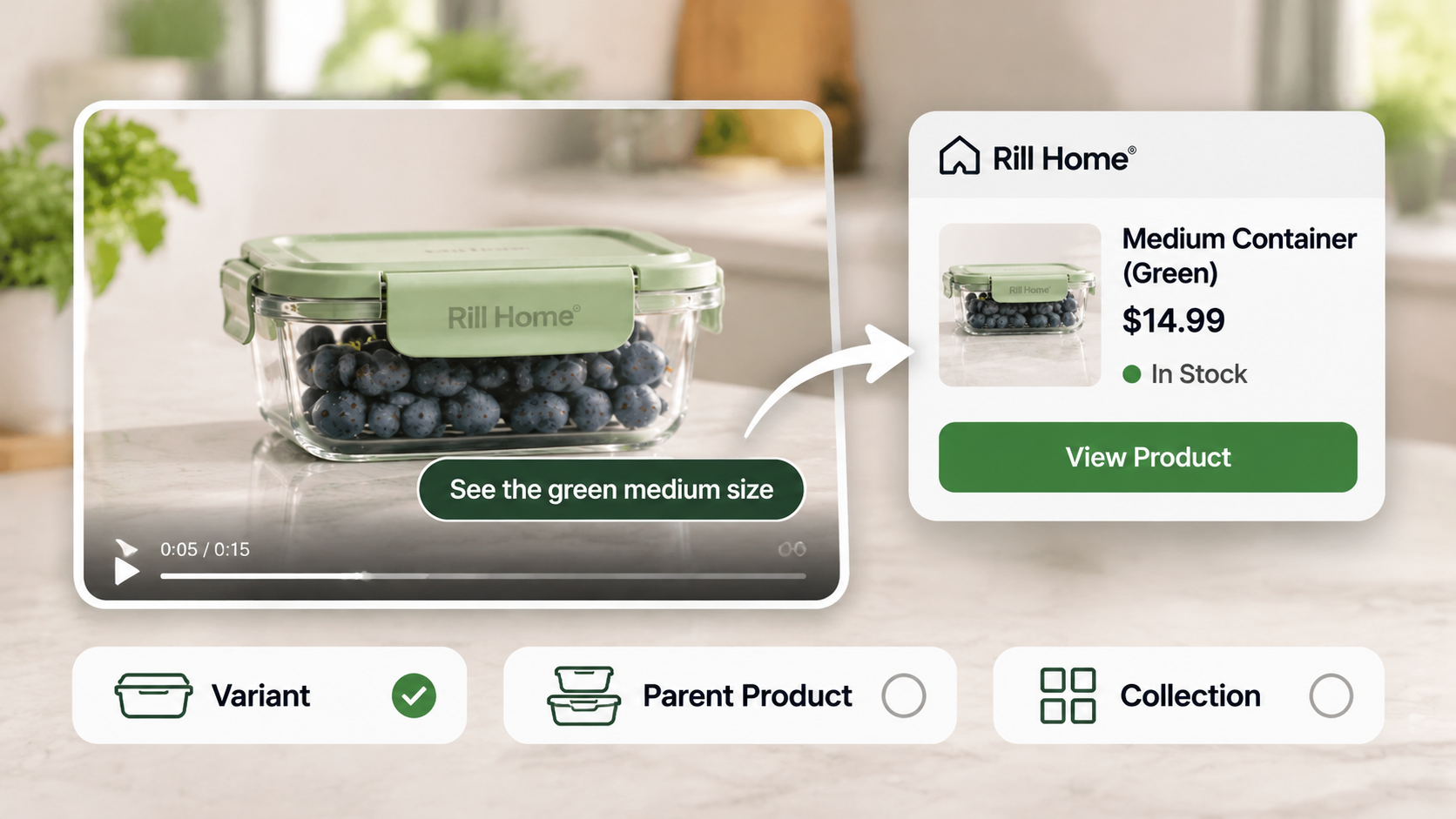
The product card should match what the viewer sees. If the frame shows a green medium container, linking to a clear two-piece set creates a handoff problem even when the products share a parent listing. Record whether the card points to a specific variant, a parent product, or a collection.
Choose one price source and one availability source. A price printed inside the video can become stale while the product page updates. Keep the spoken line broad enough to survive a price change, or schedule a new cut when the offer changes. Use “Shop the set” when the card leads to a set. Use “See the green medium size” when it leads to a variant.
The CTA inside the video and the platform card do different jobs. The end card can tell the viewer what to do. The tag supplies the tap target. Neither one repairs an unavailable SKU or a broken landing page.
Prepare a Video Asset for the Chosen Placement
Build the master around the platform’s delivery shape, then make deliberate versions. A vertical cut may need text above or below a product card overlay. A square cut may need a tighter product demonstration. A product-page embed can give the action more room because the commerce controls sit beside or below the player.
Keep the product large enough to identify. Hold the label, pack size, color, and distinctive mechanism long enough for a viewer to connect the image with the card. Captions should carry the core product fact, but they should not introduce a claim that the product page does not support.
Pexo can turn approved product material and direction into a video asset. Its product-page video guide separates the real product source from stock context and the destination CTA, while the product-ad workflow can turn an approved product photo into a finished ad. These workflows cover video creation. Configure and verify product tags, product-feed connections, and checkout availability separately in the commerce platform where the video will appear.
Add and Check Tags on the Publishing Platform
Tagging usually happens after the video asset is ready. Upload the correct cut, select the shop or catalog, choose the product, and inspect the rendered preview on mobile. If the platform allows multiple tags, order them so the first card matches the product that opens the video.
Compare the published preview with the SKU map. Check the card title, image, variant, price, availability, currency, destination, and merchant identity. Tap through on the device used by the target audience. A desktop browser can hide a mobile-only sticker or show a different checkout path.
Keep the feed and the video version together. When a product goes out of stock, the video may retain its product link while the platform marks the product anchor as unavailable or offers a relinking option. The viewer-facing experience depends on the platform. Decide whether to replace the product, pause the post, route to a collection, or publish a new version. Record who can make that change.
A Fictional Product Launch Worksheet
Use this worksheet for Rill Home or replace it with the campaign’s real values.
| Field | Fictional entry | Your entry |
|---|---|---|
| Platform and market | TikTok Shop US | |
| Video version | 9:16, 30 seconds, captions burned in | |
| Featured SKU | RILL-SET-03 clear set | |
| Variants shown | Medium green in scene 02; clear set elsewhere | |
| Product-card order | RILL-SET-03 first, RILL-M-02-BL second | |
| Product-page owner | Ecommerce team | |
| Availability check | Inventory feed checked before publishing | |
| Price source | Product page, not on-screen copy | |
| CTA | Shop the set | |
| Mobile preview owner | Campaign manager | |
| Change trigger | Variant unavailable or price changes |
The worksheet keeps four records together: the file name, the product object, the page it opens, and the person who approves the connection. If any row changes, create a new version instead of silently replacing the tag.
Where Does the Video Stop and Commerce Software Begin?
The video explains, demonstrates, or creates desire. Commerce software owns the catalog, inventory, pricing, product feed, checkout, taxes, shipping, and order status. A video producer can leave a clean end card and a correctly framed product, but cannot make a disconnected catalog item purchasable.
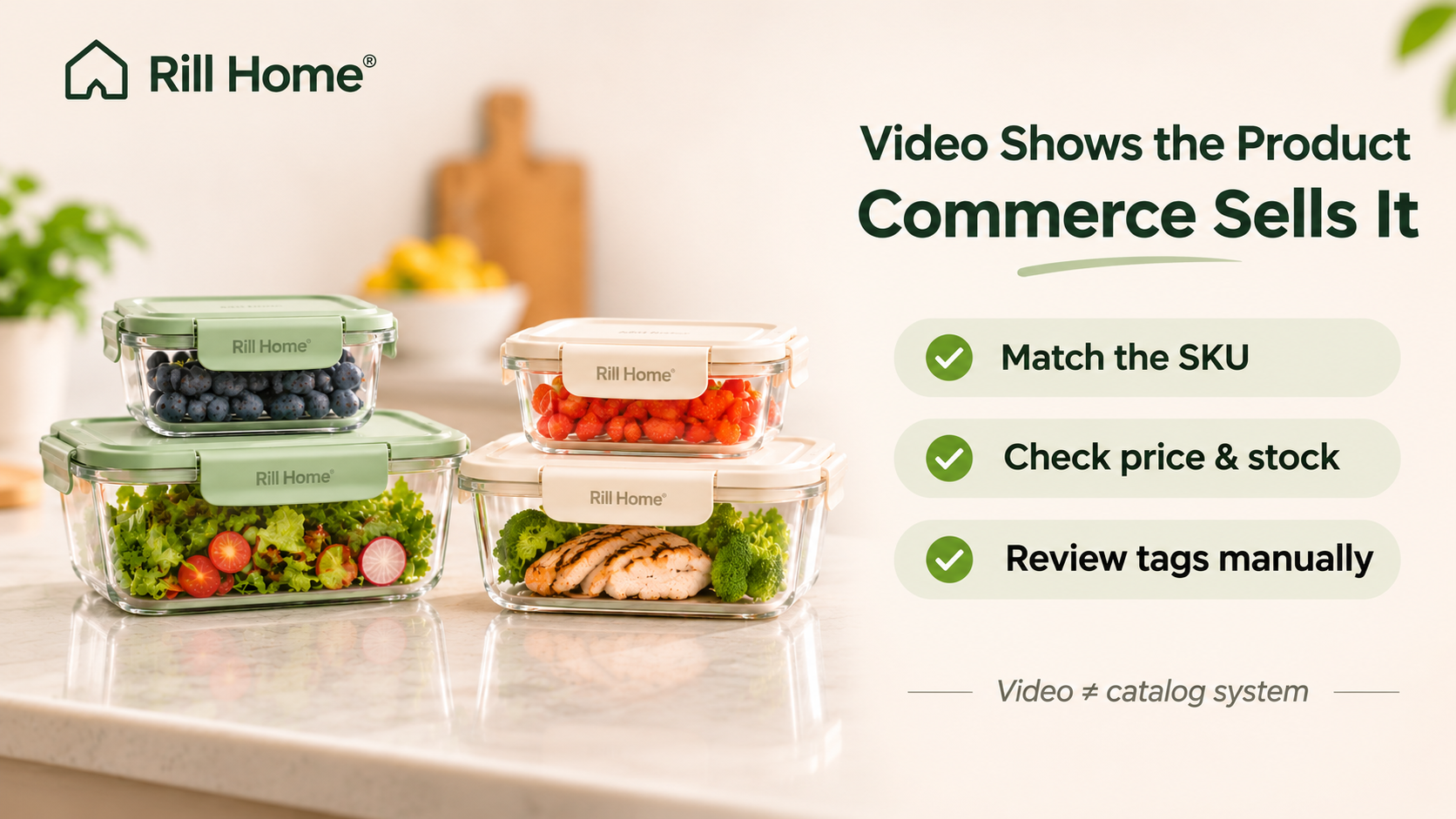
A platform may also create tags through auto-detection. That saves time, but the detected product still needs a human review. The product that appears in a shot may be similar to an item in the catalog without being the same SKU. Keep manual approval for packaging changes, bundles, regulated products, and third-party items.
Conclusion
Plan a shoppable video as a connected record. The scene identifies the SKU, the product card identifies the offer, and the product page handles availability and checkout. Once those links are mapped, produce the right video versions, tag the correct variants, and review the mobile path before publishing.
This article does not provide legal advice. Confirm the target platform’s current eligibility, catalog, inventory, merchant, disclosure, and checkout requirements before launch.