 ChatGPT
 Perplexity
 Claude
 Gemini
 Grok


Prepare the visuals your explainer needs before committing to a generated look. A product photograph, a demonstration and an illustration can each serve the story, but they carry different responsibilities.
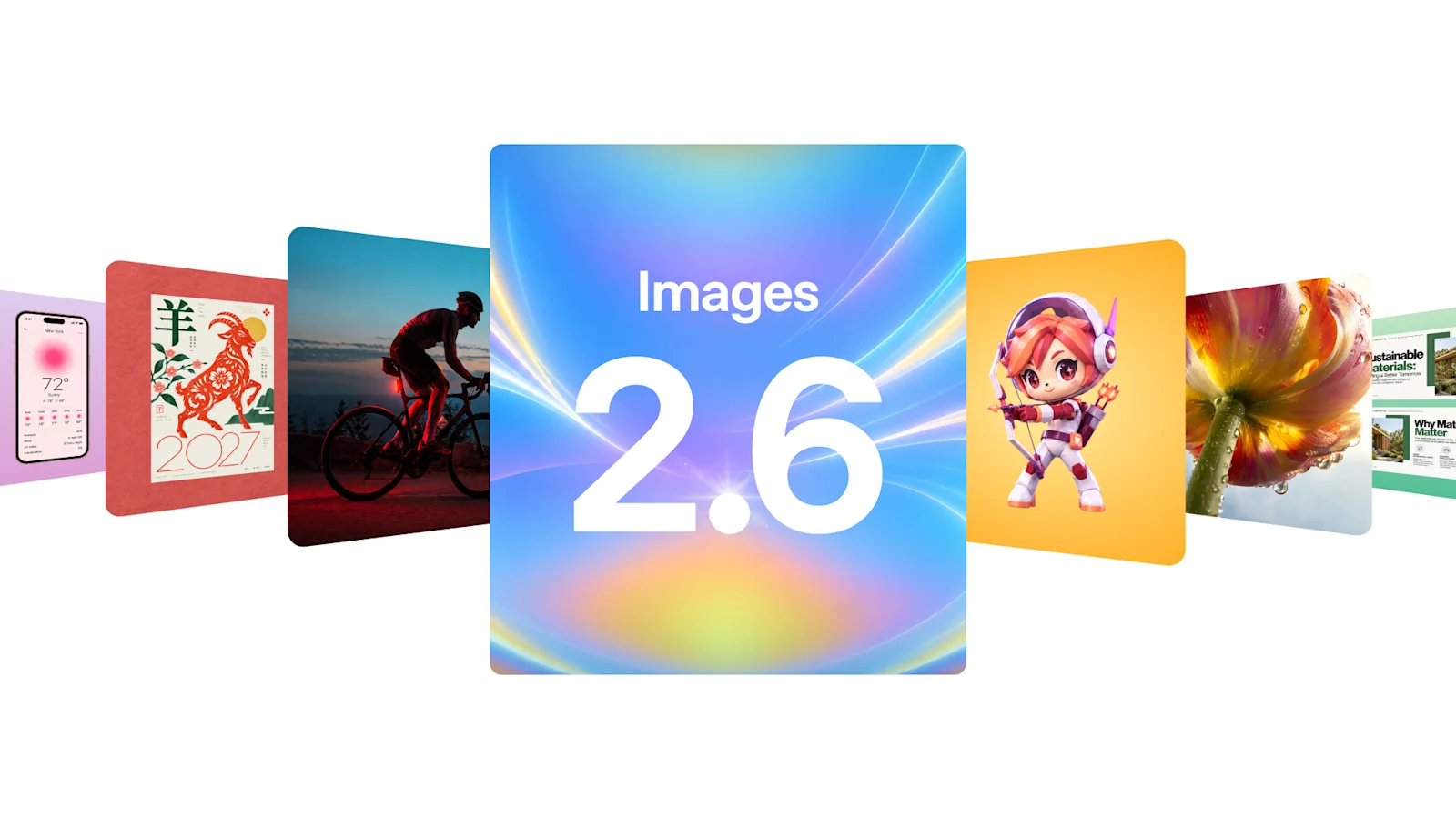
GPT Image 2.6 has already been released: OpenAI's API changelog records Sunburst and Flare on November 4, 2026. You can prepare the scene brief and approved references before your team gains model access, then evaluate the generated visuals before your explainer goes live.
What Is Known About GPT Image 2.6 So Far?
OpenAI documents two variants, GPT Image 2.6 Sunburst and Flare, for image generation and editing. Its current guide also describes complexity controls, markup-guided edits, SVG output and animated GIF output.

These are visual-asset capabilities. The model cards list audio and video modalities as unsupported; a complete explainer still needs scene structure, narration and finished-video review.
For GPT Image 2.6 explainer video planning, treat documented features as options to evaluate against your brief. They do not establish that a generated product label, mechanism or recurring brand detail will be correct.
What Visuals Does Your Explainer Need?
It needs visuals that answer the buyer's question and support the approved explanation. Give each scene a job before deciding whether generation would help.
Consider Etta, a fictional refillable pump dispenser. The illustrative story explains how its lid opens for refilling.
| Scene | Visual job | Source to prepare | Approval condition |
|---|---|---|---|
| Introduction | Identify the dispenser | Current product photograph | Shape, pump and label match the SKU |
| Demonstration | Show opening and refilling | Real footage of the actual mechanism | Action supports the narration |
| Explanation | Identify the removable lid | Annotated product image | Arrow and wording identify the correct part |
| Closing | Return to the product and next step | Approved hero image with copy space | Product remains recognizable; CTA is readable |
A generated setting may help the opening feel coherent. It cannot establish how the lid actually opens. Keep that distinction visible in the asset list.
Prepare Product Images and a Scene Brief
Gather current source photographs, product facts and approved wording in one packet. Include relevant angles and close-ups; do not expect one front view to define an unseen mechanism.
Use these fields for each image:
| Field | Fill in |
|---|---|
| Scene and asset ID | Scene number; file/version; intended use |
| Product references | Original photographs; SKU; fact owner |
| Required content | Product, setting and relationship to narration |
| Allowed changes | Background, lighting or other agreed styling |
| Details to preserve | Shape, color, parts, logo and exact label |
| Layout | Required framing; space for text; crop limits |
| Words and status | Approved copy; placeholder or production candidate |
| Review and rights | Reviewer; source permissions; allowed channels |
For Etta's closing image: “Place the referenced dispenser on a plain bathroom shelf, with space for the approved CTA.” Keep the pump and lid unchanged as review requirements, rather than assuming the instruction guarantees preservation.
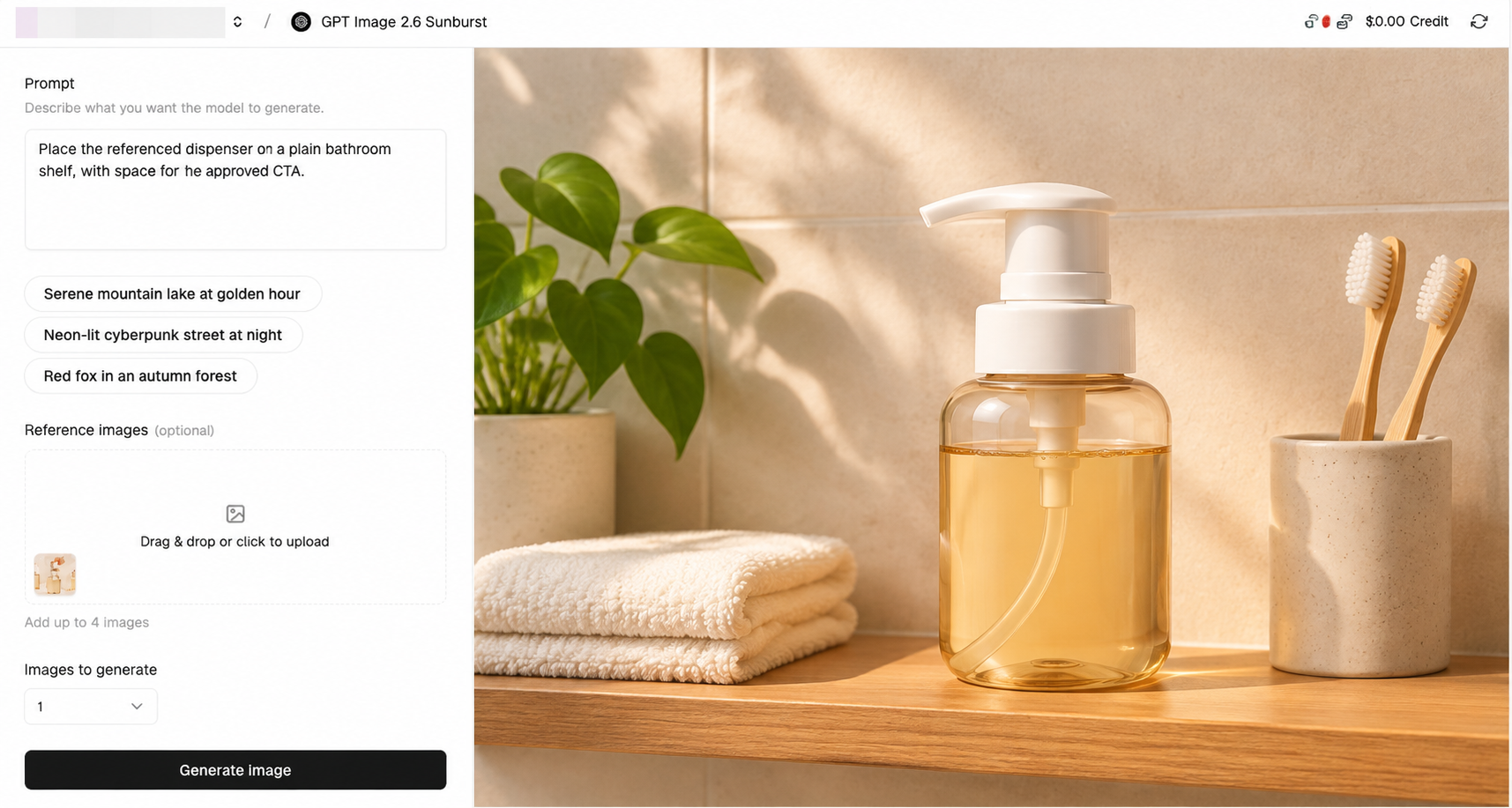
Check source-image rights, permission to transform depicted people, service processing terms and intended publication scope before uploading. Confirm the destination's current policies too. This article does not provide legal advice.
What Should You Check Once Your Team Has Model Access?
Run these checks when your team gains access. Availability in a particular account or third-party service needs confirmation.
-
Confirm the route. Record the exact model, account, supported input types and available output settings. Do not infer third-party integration from an OpenAI announcement.
-
Check one representative asset. Compare the result with the original product references, including label text and small parts. Reject an attractive image that changes the product.
-
Inspect the intended layout. Check the actual file's dimensions, crop, transparency where required, and room for readable copy.
-
Record the work. Save the prompt, model, settings, source versions, result and review notes. Track actual usage and retries against current pricing.
-
Compare the scene set. Check that approved color, packaging and proportions remain consistent across the images you plan to use together.
OpenAI's image generation guide notes remaining limitations in text rendering, recurring visual consistency and precise composition. Keep labels and claims in the human review, even when an image looks convincing at first glance.
How Will Approved Visuals Enter the Video Story?
Hand production the accepted files with scene IDs, approved words and instructions about what each image may explain.
For Etta, preserve the real refill demonstration between the introduction and closing image. A camera move across a still can add emphasis, but it should not imply that viewers have seen the lid operate.
You can bring this approved packet and script to Pexo's video production workflow. As an AI video agent, Pexo develops the story and accepts revision directions through conversation. Review the preview for scene order, product accuracy and the relationship between narration and pictures.
Confirm compatible inputs and Pexo's processing and promotional-use terms, including applicable written-consent requirements. This workflow does not establish that Pexo has integrated GPT Image 2.6.
Update note — November 6, 2026: GPT Image 2.6's API release is documented. Check current model availability, capabilities, pricing and terms before production.