ChatGPT
 Perplexity
 Claude
 Gemini
 Grok
Grok



Would your team want to take over the timeline after asking an agent for the first cut? That choice matters when the story depends on showing a real product move correctly.
InVideo combines agent-directed production with manual editing. For a team with approved footage and a script, its appeal is the chance to develop the sequence through conversation, then adjust the cut directly. The work still needs someone who can recognize an incorrect product detail and decide how to fix it.
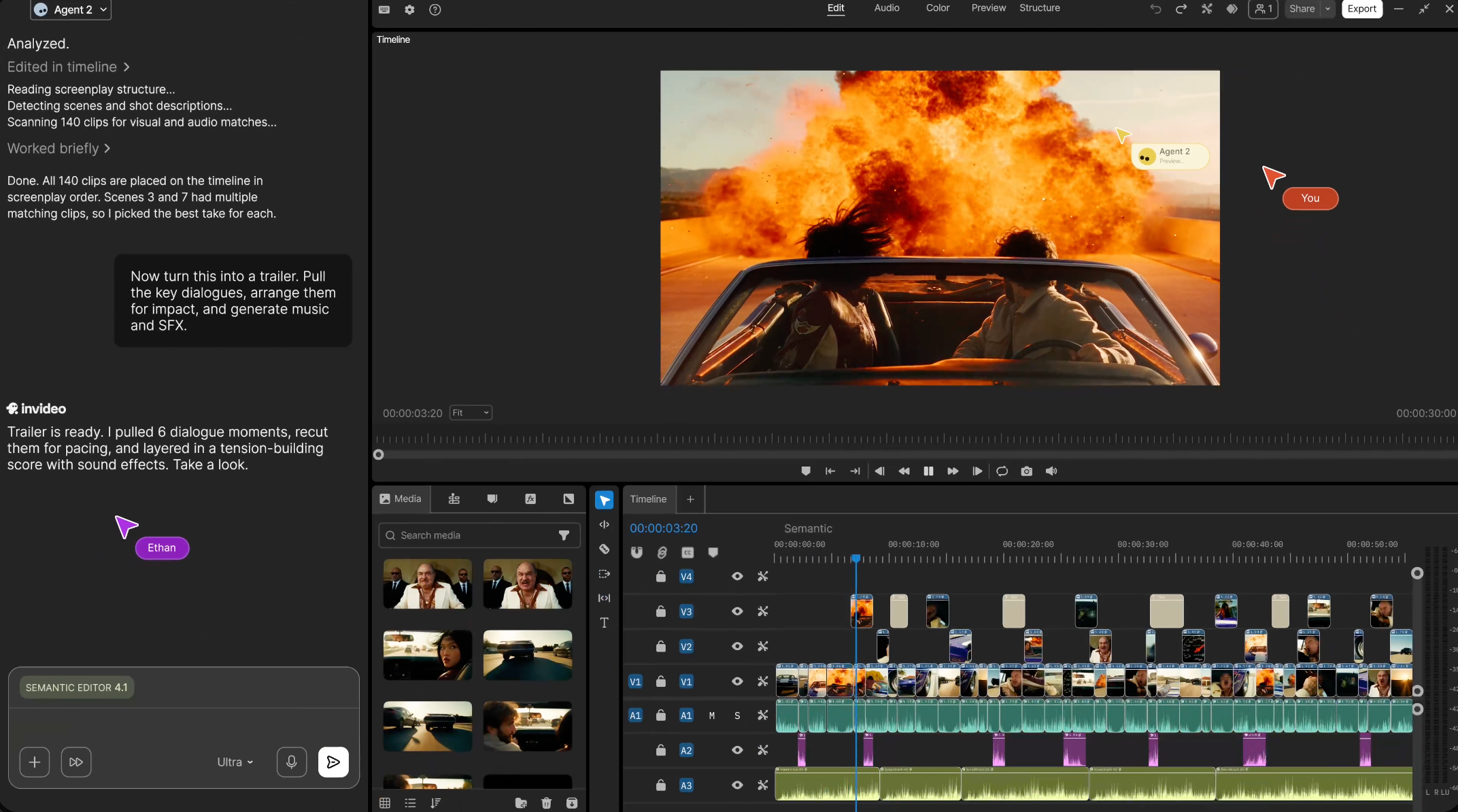
This InVideo AI review follows that decision through one fictional product brief, using the current public workflow to assess what a team should check before subscribing.
What Product-Story Task Does InVideo AI Address?
InVideo addresses planning, generating, and assembling videos from a creative brief, with tools for revising the result. Its current product extends beyond matching a script to stock footage: it includes generated media and an editable multitrack timeline.
As checked on October 29, 2026, its public pages describe script writing, storyboarding, uploaded video, images, and audio. Agents can work on the sequence while a person retains manual editing controls. Those capabilities make it a candidate for a product story video that combines existing footage with new supporting scenes.
For this task, distinguish a proposed storyboard, individual generated shots, and the assembled video. Each is useful at a different point. Subscription value depends on reaching the deliverable your team needs, including review and finishing work.
If every necessary product shot already exists, begin with assembly. Generating a replacement for an accurate demonstration adds another product-fidelity check without necessarily improving the story.
Turn a Product Brief Into a Video Draft
Consider Tovin, a fictional folding laptop stand. For this exercise, the team has approved footage of the stand folded, a hand opening its supports, and a laptop resting on it. The approved line is “Fold flat for packing. Open for your desk.”
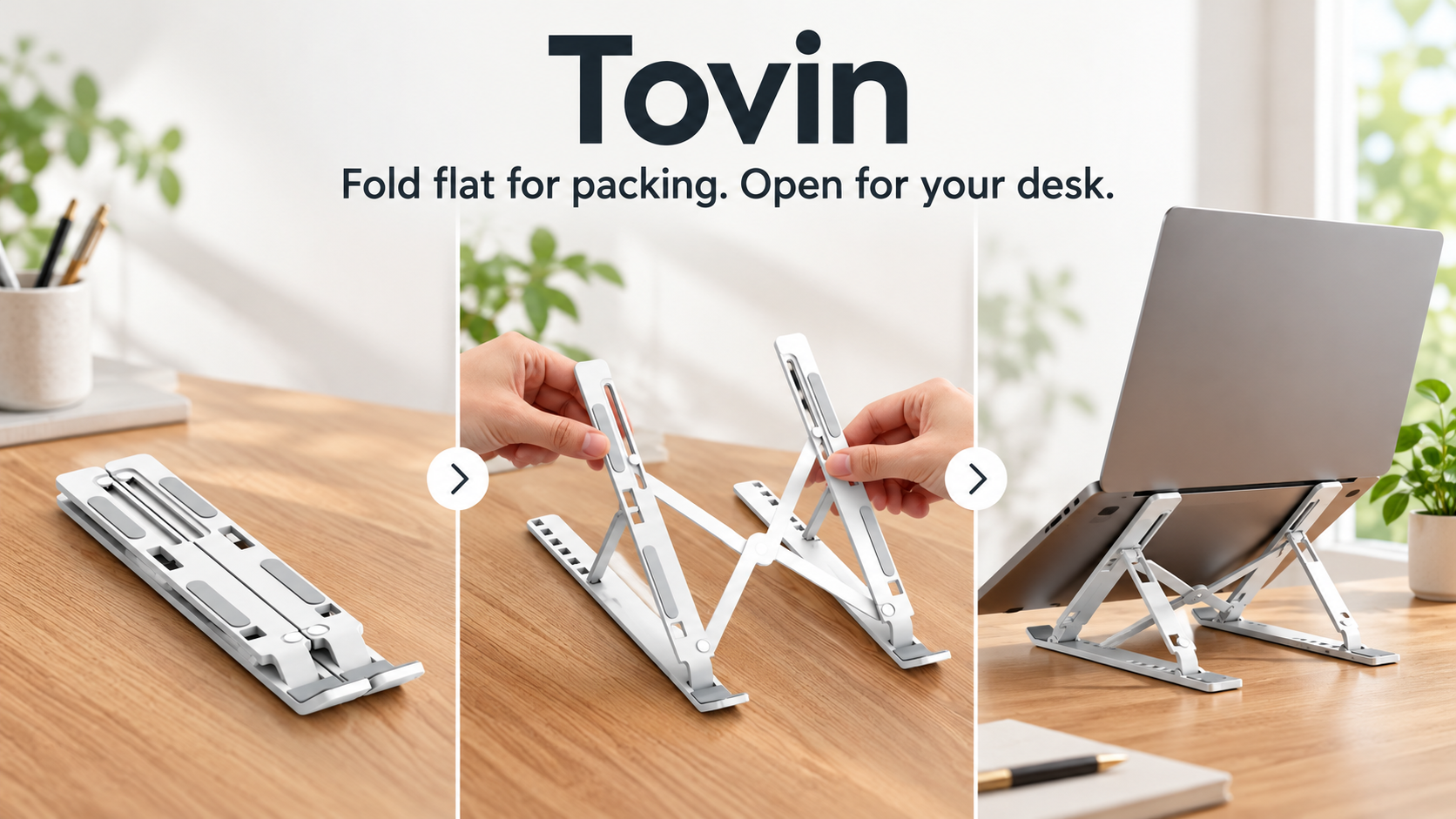
The story follows a change of setting: packing up, arriving at a desk, and opening the stand for use. It makes no claim about posture, load capacity, or universal laptop compatibility.
Give the project a brief that makes those boundaries visible:
-
Viewer question: How does this stand move from a packed bag to a desk setup?
-
Deliverable: One complete marketing video with the approved line, readable product name, and a closing product-page invitation.
-
Product sources: Current packshot; folded-state clip; opening-action clip; supported-laptop clip; approved script and logo.
-
Supporting imagery: A desk or packing scene may establish context. It must not introduce another stand or demonstrate an unsupported feature.
-
Required sequence: Show the folded product before the opening action, then the desk setup. Keep the hand's role in opening it clear.
-
Review owner: A product marketer who can compare the cut with the actual stand and approve the wording.
InVideo's Media panel accepts video, images, and audio, with folders for organizing the source set. Keep approved product footage apart from exploratory material. Tell the agent which clips show the actual SKU and which references supply only the setting or visual style.
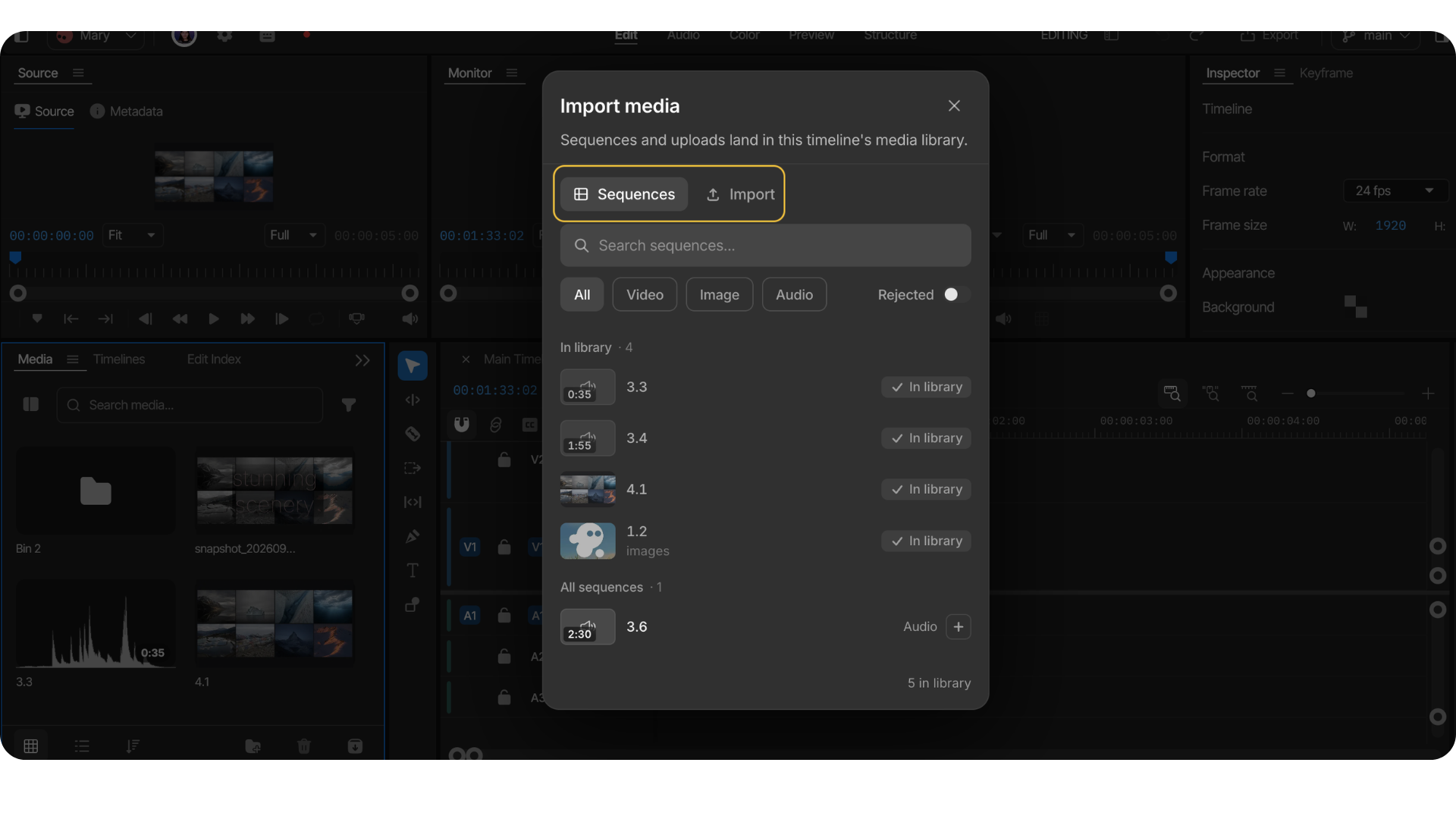
Ask for the proposed scene plan before commissioning missing media. For Tovin, the first useful decision is whether the transition from bag to desk needs another shot. A change of location does not require the product itself to transform on camera.
Before uploading unpublished or customer-owned material, check the processing permissions your company can grant. InVideo's current privacy policy and Terms of Service both permit the use of User Data for AI model training, subject to any applicable separate written agreement; check the applicable agreement and data-processing terms before uploading sensitive material. Use cleared materials for the trial; a brand's permission to publish a clip may not cover that processing.
Check Scene Logic, Sources, and Claims
Watch once for the story, then again beside the approved footage. The buyer should understand how the stand reaches its usable position. A missing opening action could make an ordinary manual setup look automatic.
| Story moment | Source to compare | What the reviewer should inspect |
|---|---|---|
| Stand enters the bag | Folded-state clip and packshot | The product is actually folded; its dimensions and shape have not changed to fit the bag. |
| Stand opens on the desk | Approved opening-action clip | The supports move as demonstrated. A hand or cut does not hide an invented hinge or self-opening action. |
| Laptop rests on the stand | Approved use footage | Support positions and visible contact match. The scene does not imply a tested weight rating or wider compatibility. |
| Closing product frame | Packshot and exact-copy script | The correct product, name, and approved line appear together without an added performance promise. |
The source matters as much as the shot's appearance. An uploaded demonstration can support a product action when it is authentic and approved. A generated approximation may help explain a concept, but cannot establish that the stand behaves that way.
Stock can supply a desk, a room, or a packing context. A stock shot of another stand would need replacement even if its colors matched the campaign. Keep asset identifiers and applicable license records with the project, including music and any recognizable people.
Listen to the script separately too. “Open for your desk” does not mean “opens instantly” or “improves your posture.” If the draft adds either idea, remove it before spending time making the corresponding scene more convincing.
What Can Be Revised Without Starting Over?
An existing sequence can be revised through agent instructions or manual timeline edits. InVideo's timeline revision workflow lets a team specify relevant footage, the section to change, and details to preserve, then review the result.
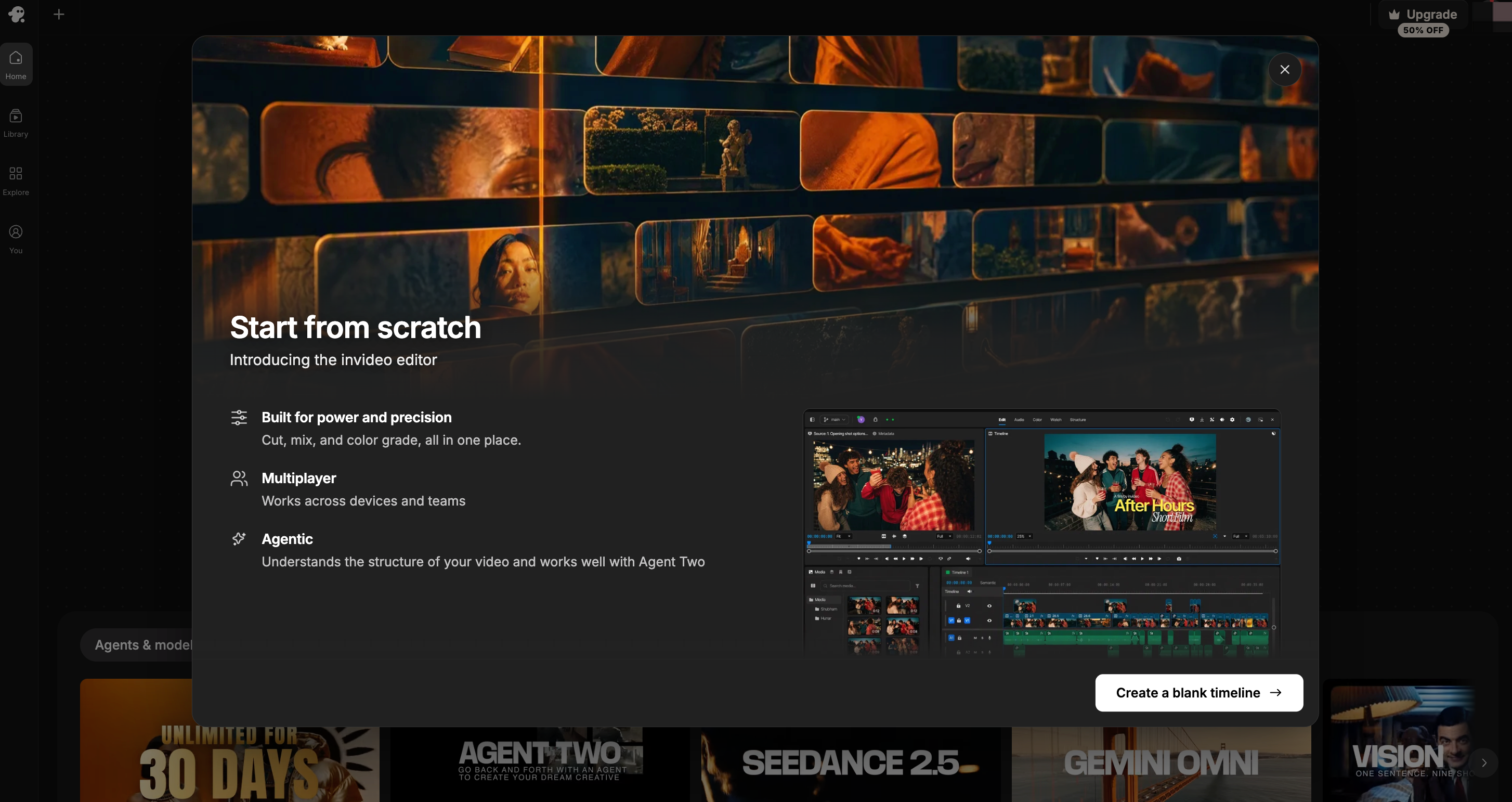
For Tovin, assess two different corrections:
Revision one: restore the real opening action. Ask: “Replace the opening shot with our approved opening-action clip. Keep the folded-product introduction and the final desk setup. Do not add a claim about automatic opening.”
The next preview should show the supports opening correctly and connect naturally with both neighboring scenes. If the source recording lacks the needed action, the task returns to footage preparation. Another generated variation cannot verify the missing mechanism.
Revision two: give the closing line more room. Ask: “Hold the final product frame long enough to read the approved line. Keep the wording and voiceover unchanged.”
The editor also supports manual trimming, splitting, and rearranging clips. Where extending the available closing image solves the problem, there may be no reason to generate more product footage. Review the audio timing after any adjustment.
InVideo documents branches for alternative cuts and version history for returning to an earlier timeline state. Preserve a version you like before exploring another opening. Restoring an older state can also remove later improvements, so check the whole restored sequence.
Manual timeline edits use no AI credits under the current help guidance. Agent work and media generation can consume credits, including processing beyond the finished clips. The two corrections therefore need separate usage records; neither has a universal per-revision price.
Strengths, Limits, and Best-Fit Teams
InVideo is worth considering when a team wants agent assistance and someone is willing to finish on a timeline. Uploaded media, generated assets, and direct editing can serve different parts of the same story. The documented version tools also give a producer a way to explore an alternative while retaining the established cut.
Those are workflow strengths. They do not establish how accurately a particular product will survive generation or how many corrections a team will need. Tovin's hinge, support positions, and closing text remain acceptance checks in every version.
A team with no capacity to inspect footage or refine an edit should be cautious. The available controls are useful only when someone can judge the result. For a highly specific mechanism, current real footage may contribute more than another generated treatment.
For the same Tovin story, you could ask Pexo, this guide's publisher, to build around the approved clips and discuss changes to the preview. Its public workflow accepts image and video material and develops the script and sequence through conversation. A useful direction is to keep the real unfolding action between packing and desk use.
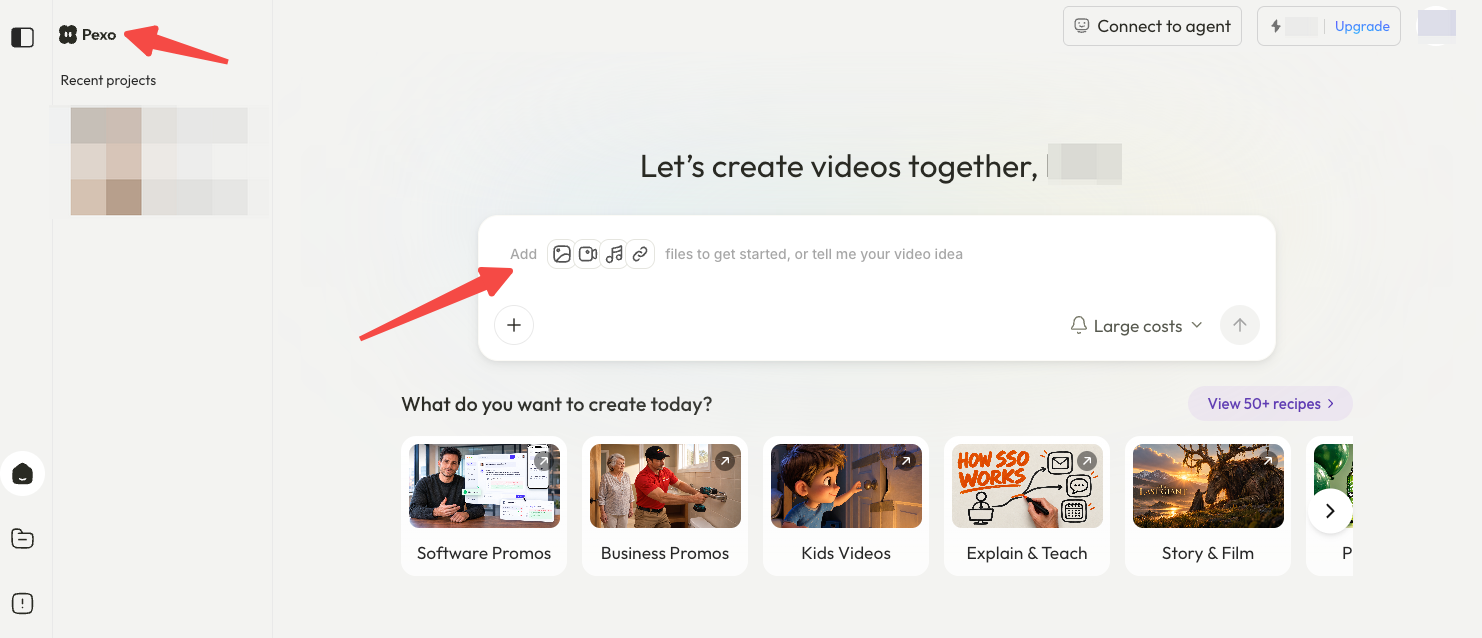
InVideo also supports conversational revisions; the decision is whether its manual timeline belongs in your team's finishing process. With either route, compare the accepted cut and the review work required. For Pexo, confirm upload permissions and any written consent required for promotional use under its current terms.
A Product-Story Trial Before Subscription
Use the Tovin brief, or an equally narrow real task, to assess one complete story and the two corrections above. First confirm what your current account can access. A trial may require credits or a paid feature; do not assume production work will be refundable.
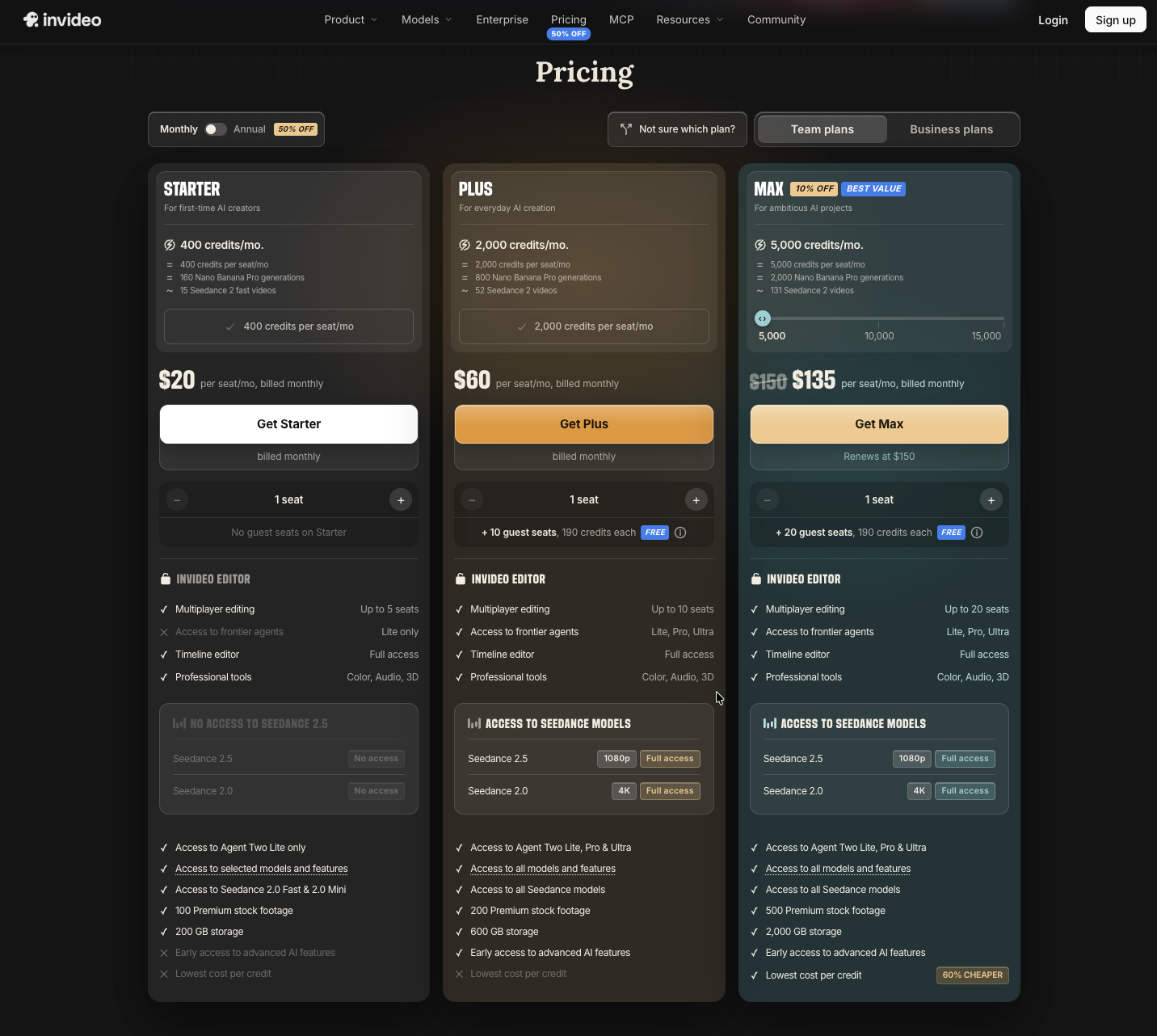
Your signup record should identify the plan, billing terms, agent mode, available credits, and required export conditions. Current public pricing views can differ, so use the offer attached to your purchase. This review does not calculate a fixed cost per finished video.
The trial record should distinguish a storyboard, separate shots, and an assembled cut. For each correction, note which approved sources appear, what changes, and whether the surrounding scenes remain acceptable.
Finish with a file you can inspect in its intended placement. Check product detail, text, narration, music, and the next action. The purchase decision should reflect whether your team can repeat that complete job within its review capacity.