ChatGPT
 Perplexity
 Claude
 Gemini
 Grok
Grok


You have an approved product still and a first video cut, but a product detail in the cut is wrong. Open both files side by side: did the mistake enter with the still or appear when the shot moved?
This Krea 3 video workflow uses a fictional Briar portable speaker with a copper dial on its right side. The example shows which asset to correct and what the next preview must show.
Is the Error in the Source Image or the Video?
The error belongs to the earliest asset where it appears. Check the approved product reference, edited still, and clip at the same angle. If the dial is already silver in the still, correct the still. If it is copper there but turns silver halfway through the clip, revise the video. If both files are wrong, repair and approve the still before asking for a new moving shot.
Use the current packshot and approved copy as references. Point to the first wrong frame; “feels off” will not locate the work.
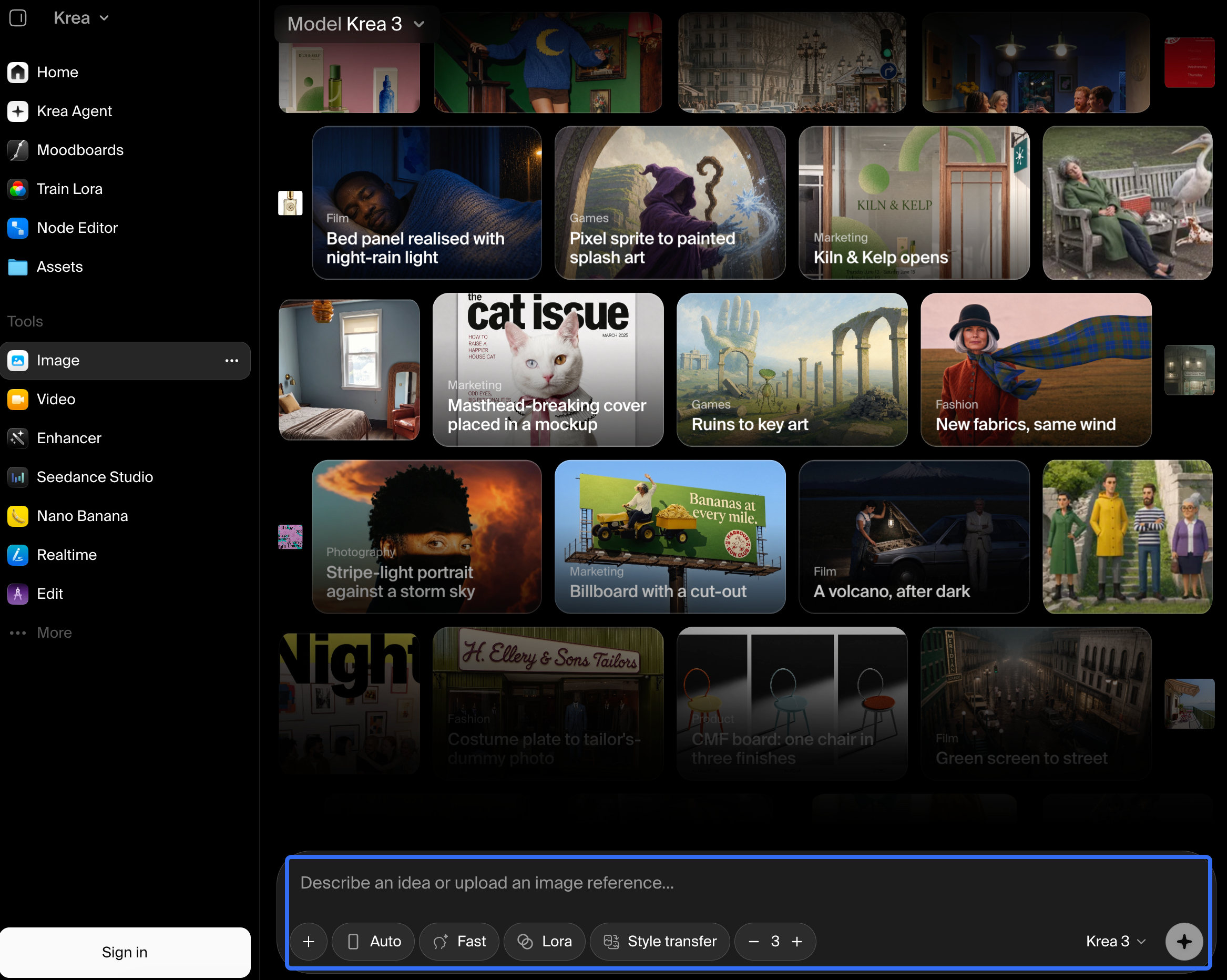
Krea's October 15, 2026 announcement calls Krea 3 an image editing model. Its examples include changing a product's setting while aiming to preserve recognizable details. Krea 3 can correct a still; the clip's motion and sequence belong to video production.
When Should You Edit the Still in Krea 3?
Edit the still when the wrong detail is visible before motion begins. A silver dial or outdated model name gives the video producer a bad reference.
Send a narrow image brief: “Change the dial to the approved copper finish. Keep its right-side position, speaker grille, camera angle, and desk light.” Compare the returned image with the packshot and approved artwork before replacing the old still. Krea's preservation claim does not remove that check.
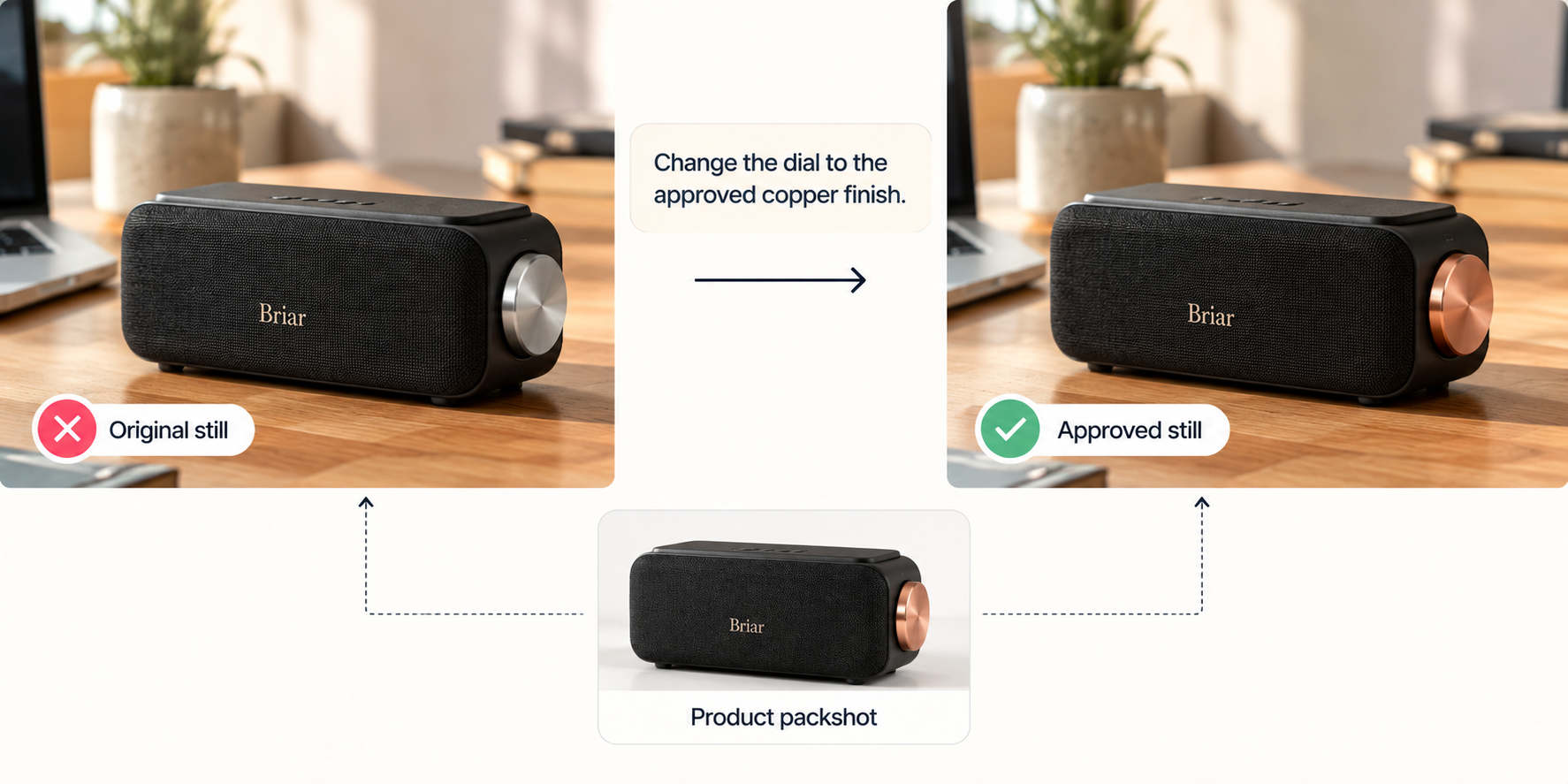
Keep the original and approved still under different names. Mark scenes that used the old version; they may need new footage.
If a reference is licensed only for viewing, check permission before editing or uploading it.
When Should You Revise the Video Instead?
Revise the video when the still is accurate and the error appears in movement, timing, sound, or final message. A dial that jumps left during a hand movement is a clip problem.
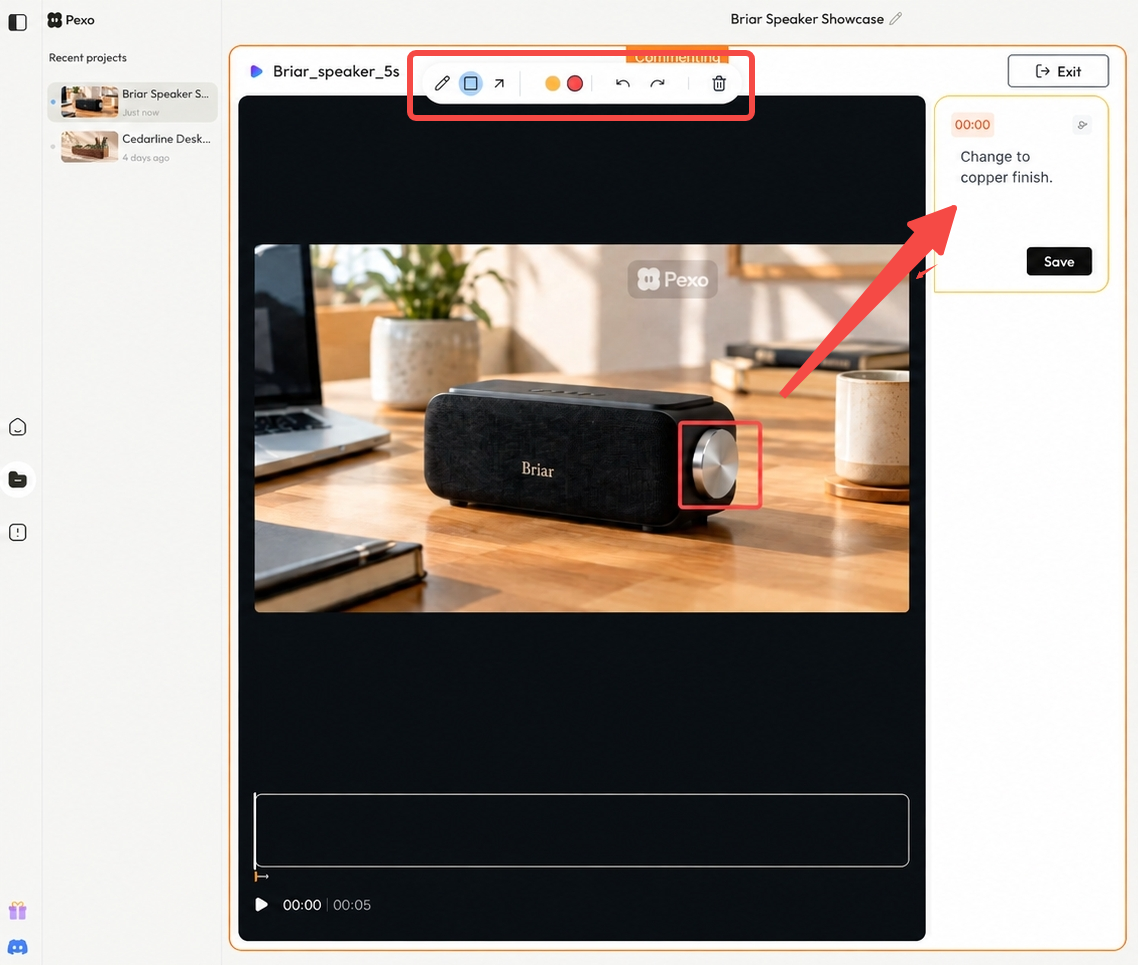
Write feedback around the failed moment and the parts worth keeping: “In the hand shot, the dial moves to the left side. Keep the desk setting and opening pace. Show the copper dial on the right throughout the turn.” Then compare the next preview with the source still and the previous cut. A targeted request is a direction, not a guarantee that every other frame will stay unchanged.
Pexo publishes this guide. Its revision guide describes conversational changes and frame-specific Mark to fix feedback. It does not establish Krea 3 integration, a fixed price for this request, or a guarantee that only the marked area will change. Check the current credit rules and actual preview before accepting a revision.
Compare the Two Fixes on One Product Scene
The correction follows where the first bad version appears.
| Symptom in the first cut | Asset to change first | Accept the revision when… |
|---|---|---|
| Silver dial is visible in both the still and clip | Edited still, then affected clip | The approved still shows copper; every reused shot matches it |
| Copper dial is correct in the still but shifts sides during the turn | Moving shot | The dial stays on the right through the action |
| “Briar Mini” is misspelled in the still | Still or supplied logo artwork, then affected clip | Exact approved name is readable in both |
| Product view is accurate, but the final message flashes past | Video timing or end card | A viewer can read the approved message at the target size |
Product identity and label accuracy
Use the packshot and artwork as the product check. Fix a wrong dial or label in the still first. If only moving frames distort the correct source, send the clip back. One approved frame does not clear the whole shot.
Motion, pacing, and final message
Keep the still when its details are right. A slower turn or longer hold belongs in the video brief. Remove an unapproved spoken “waterproof” claim; a prettier image cannot make it true.
Next Step: Send One Targeted Revision
Circle the first place Briar's dial goes wrong. Approve a corrected still if the error starts there; otherwise name the failed moment in the cut and what must remain. If a conversational video revision fits the task, send that specific note to Pexo and review the next version against both the packshot and first cut. The finished shot earns approval only when the dial stays copper and on the right.