
 ChatGPT
 Perplexity
 Claude
 Gemini
 Grok


Read the product name in the subtitles as if you were going to search for it. The spelling should lead to the exact product shown, including its model suffix.
A review of video-use subtitles follows that name from the approved brief through transcription, the edited sequence, and the rendered picture. Correct wording at one stage does not establish that the delivered video is correct.
Which Product Names Must Match the Source Brief?
Check the brand, full product name, model suffix, and any spoken SKU or accessory name. Include capitalization, digits, and hyphens where they distinguish the approved product.
Consider Brin, a fictional brand whose ArcTray S2 desk tray has SKU AT-S2. The names and possible transcription errors below are illustrative.
“ArcTray S2” and “ArcTray S3” would identify different models in this brief. A caption reviewer needs the current product record to resolve that difference. A plausible spelling from the recording alone is insufficient.
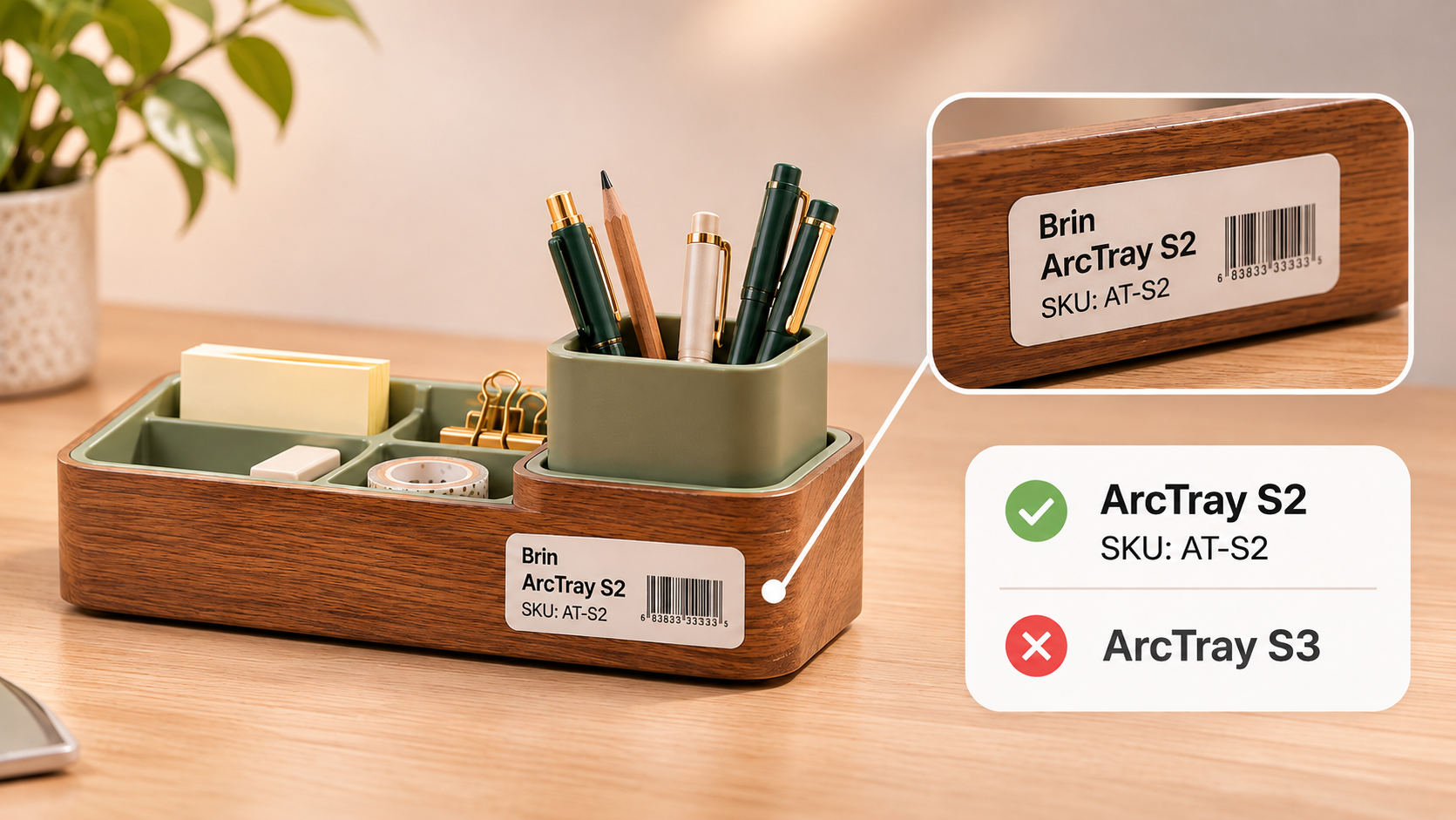
If the SKU is not spoken, use a separately approved product callout when needed. Do not insert it into captions as though the presenter said it.
Build a Name List Before Transcription
Copy the exact terms from the approved brief and current product record. Add the source version and the person who can resolve a mismatch.
Use this table as a working review sheet. Replace the fictional entries with your own names and record the result at each stage.
| Approved brief | Source transcript | After-cut subtitles | Rendered picture |
|---|---|---|---|
| Brand: Brin | Check a possible “Brynn” against the brief and speech | Correct every retained mention | Confirm spelling and approved case |
| Product: ArcTray S2 | Check a possible “Arc Tray S two” | Keep the correct model suffix with the name | Check wrapping, case, and visibility |
| SKU: AT-S2 | Check only if spoken | Verify digits and hyphens | Compare with the visible product callout |
| Your term: ___ | Finding: ___ | Correction/version: ___ | Reviewer/status: ___ |
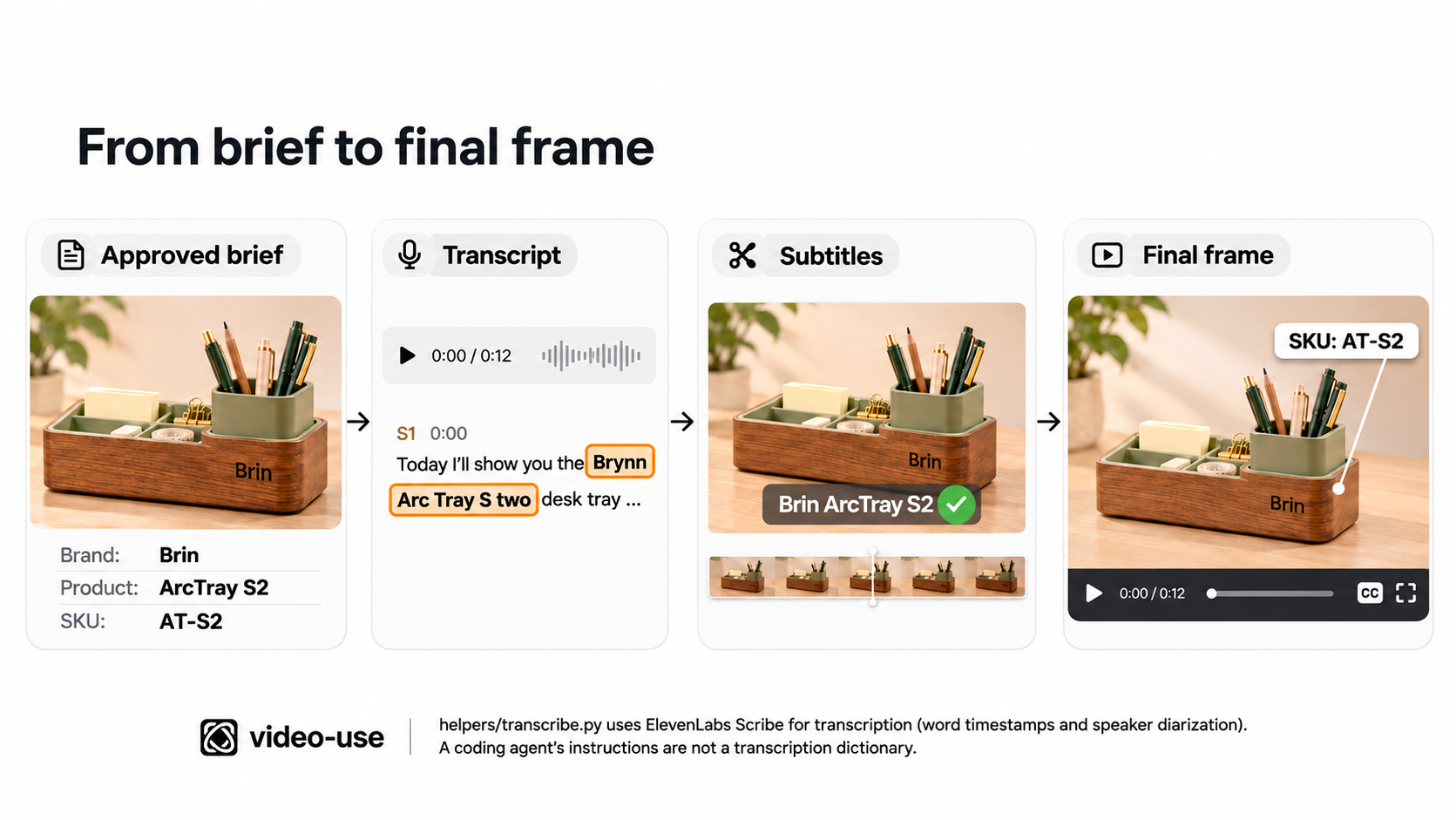
This list is a review reference, not a guarantee of recognition. As checked on November 4, 2026, the transcription helper requests ElevenLabs Scribe with word timestamps and speaker diarization. Do not assume an instruction to the coding agent automatically becomes a transcription dictionary.
Before processing customer or presenter material, verify the actual permissions and consent. The helper uploads extracted audio to ElevenLabs; review the applicable data policy, contract, and retention settings. This article does not provide legal advice.
Review Captions Against Speech and Claims
Listen to each retained product mention and compare it with the approved term. Separate a recognition error from a mistake in the spoken recording.
If the presenter says the right model and the transcript spells it incorrectly, correct the working caption source. Preserve the original transcript for reference. If the presenter says the wrong model, return the passage for an approved recording or editing decision. Changing only the subtitle would leave viewers hearing and reading different claims.
Also check qualifiers beside the name: “only,” “not,” quantities, and accessory compatibility. Do not let a spelling pass approve an unsupported product statement.
The current caption builder reads word entries from source transcript JSON. Editing only takes_packed.md, the agent's readable transcript, will not update those entries. Confirm which corrected file the next subtitle build will use.
Check Timing After Cuts and Overlays
Review captions on the edited timeline. Removing an introduction changes where later words appear, even when their source timestamps remain the same.
The current subtitle-building code calculates output times from source-word timing and selected clip ranges. It also uppercases generated subtitle text. If mixed-case product spelling matters, request that treatment explicitly; the shipped behavior will need adjustment.
For ArcTray S2, inspect the whole phrase around each cut. The model suffix should remain readable with the name. Avoid a fleeting final “S2” cue that disappears before a viewer can connect it to the product.
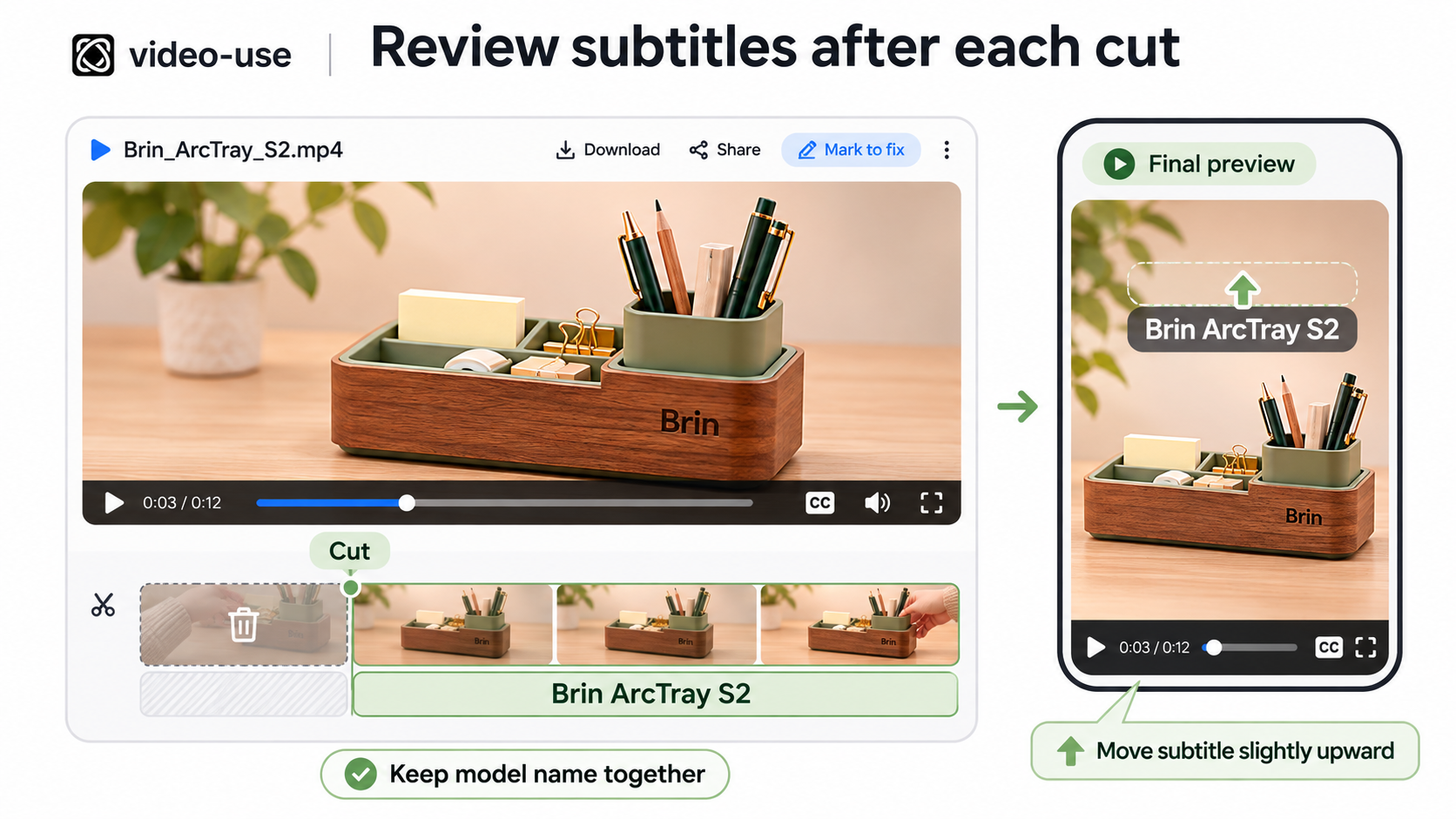
The renderer applies subtitles after overlays, but they can still cover a product label or hand movement. Check the composition, including the longest name and every lower-third graphic.
Inspect the Rendered Video Before Export
Play the actual rendered file from beginning to end. A clean text file cannot show a clipped letter, an unreadable line break, or captions missing from one segment.
Check once with sound for wording and synchronization, then without sound for readability. Inspect cut boundaries, the first product introduction, and the closing frame. Confirm that the visible label, spoken model, and captions identify the same item.
Record the approved source, subtitle, and render versions together. After a correction, rebuild and review the affected passage in context. Recheck the full video if cuts or timing changed.
If the review uncovers a problem with the explanation itself, carry the approved vocabulary into your product-explainer brief. Teams continuing production through Pexo's explainer workflow can provide that brief with approved footage. Review names again in the new output.