 ChatGPT
 Perplexity
 Claude
 Gemini
 Grok


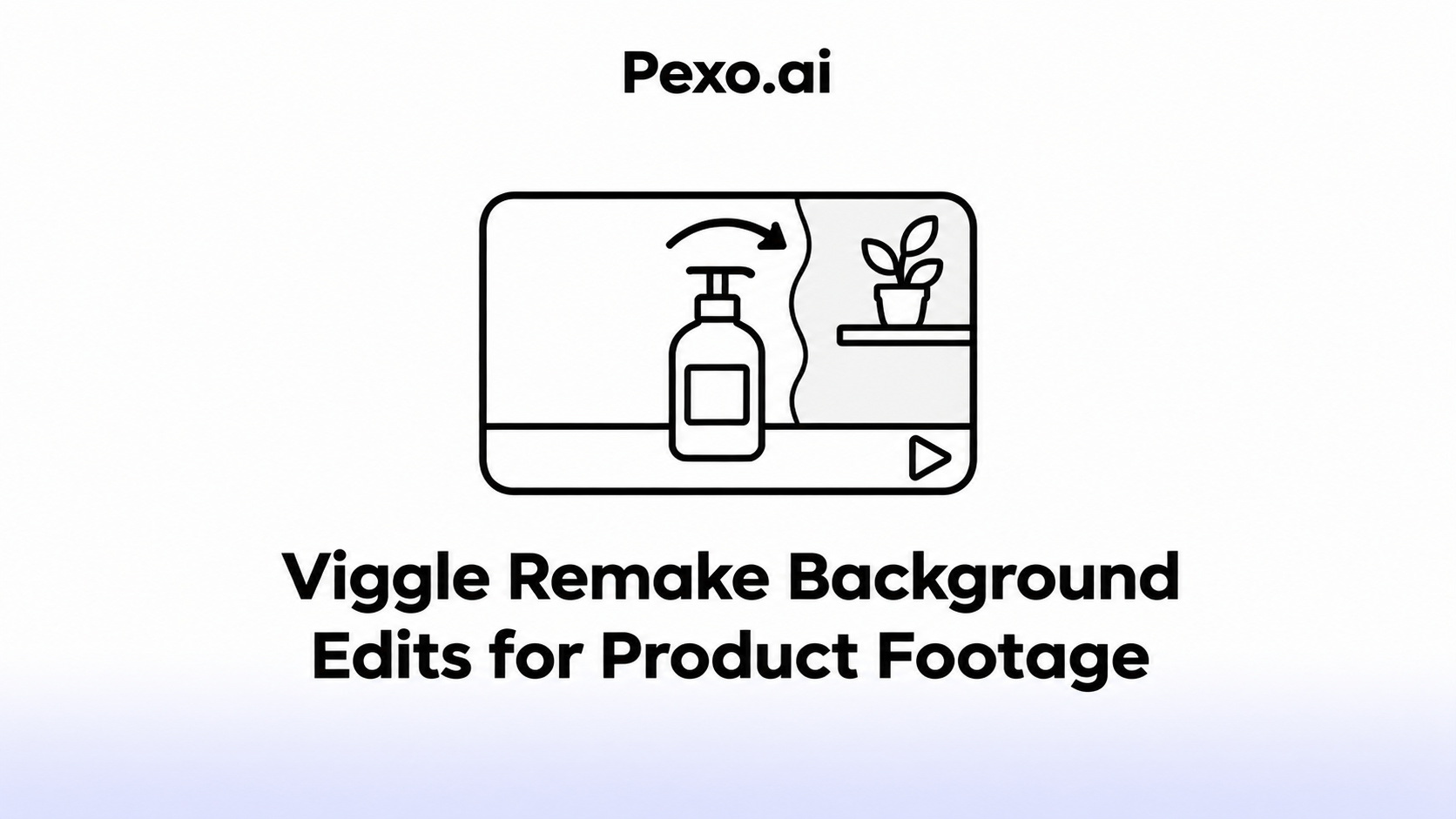

A replacement setting should make a filmed product easier to read. Before requesting one, identify the details viewers need to see: the packaging, the hand operating it and the action supporting the message.
Start a Viggle Remake background edit with those details protected in the brief. The example below changes one wall behind a product demonstration, then checks whether the same product and action remain credible throughout.
What Must Stay Unchanged in the Product Shot?
The product's identity and demonstrated action must remain accurate. A more attractive setting is useful only if viewers can still recognize what is being sold and how it works.
Consider Kelo, a fictional hand-soap bottle, in an illustrative eight-second clip. It has amber glass, a white label and a metal pump. A hand presses the pump while the bottle rests on a counter. Patterned tiles fill the background.
The task is to replace those tiles with a plain wall. Before editing, record the bottle's shape, label wording, pump position, hand movement and contact with the counter. Keep approved product photographs alongside the untouched footage.
The clip's product task is to show soap dispensing from the pump. Preserve the visible connection between the finger pressing down and the dispenser responding.
Choose a Replacement Background for the Existing Clip
Choose a setting that works with the camera position and light already recorded. For Kelo, a matte warm-gray wall gives the amber bottle and white label room to stand out.
Check what the replacement would imply. A bright window might call for highlights absent from the original bottle; a deep room introduces perspective behind a close countertop view. A simpler wall leaves fewer new relationships to reconcile.
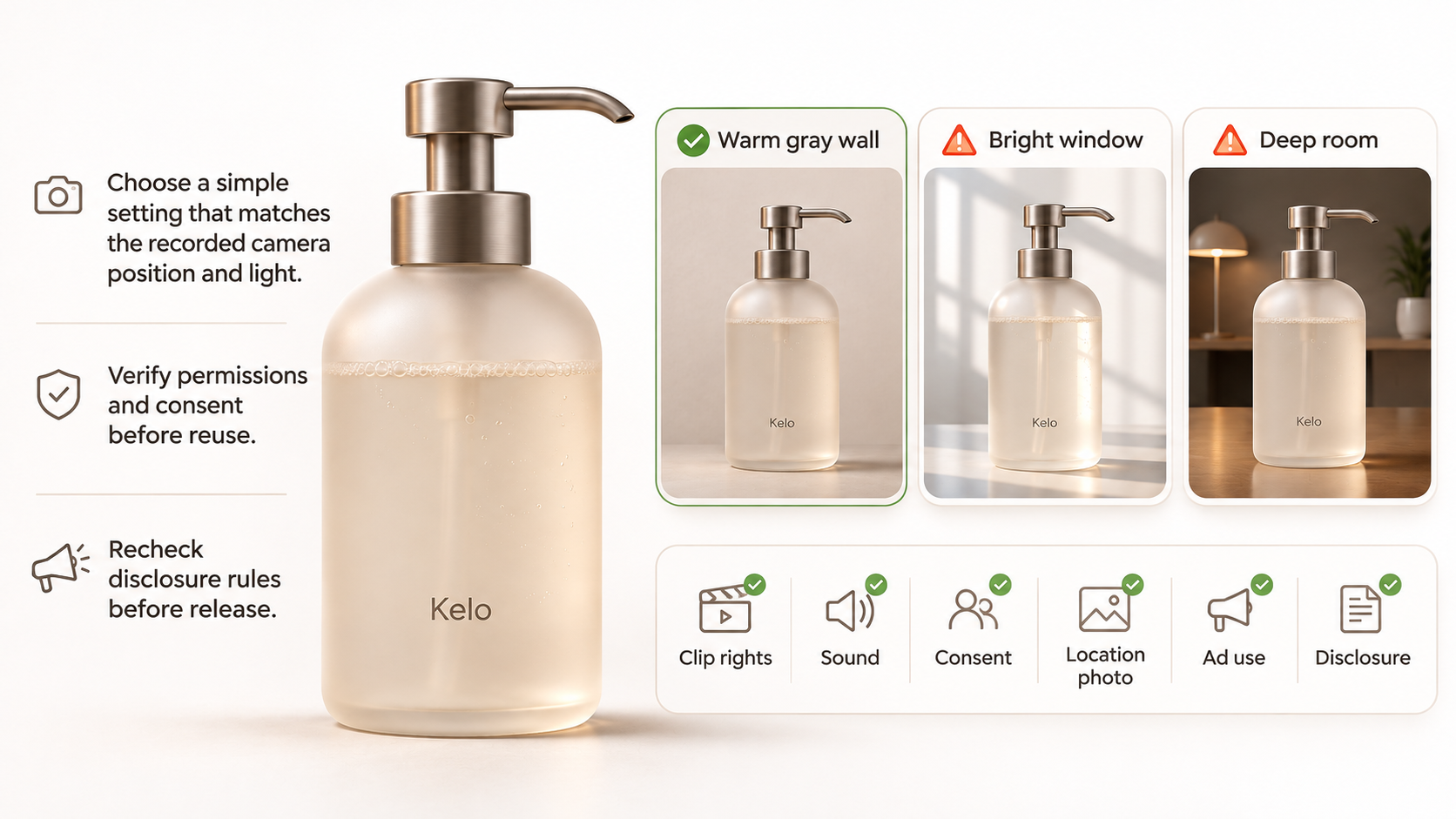
If you supply a location photo, check its upload and reuse permissions before adding it. Also confirm rights to the original clip and recorded sound, plus the filmed person's consent to the proposed alteration and advertising use.
Keep the intended placements with that permission record. For TikTok ads, distinguish minor background adjustments from significant AI changes when checking disclosure requirements. Recheck the target channel's current policy before release. This article does not provide legal advice.
Describe the Edit in Viggle Remake
Use the Remake background-editing workflow to specify the replacement and what must stay as filmed. Viggle documents reviewing a plan before rendering and requesting revisions in the same conversation.
As checked on November 9, 2026, the hosted product page lists 5–60-second input clips and 720p output at 24 fps. Confirm the current account's requirements before uploading.
For the fictional Kelo clip, a starting request is:
Replace only the patterned wall tiles behind the bottle with a plain matte warm-gray wall. Keep the counter, amber bottle, white label, metal pump and hand as filmed. Preserve the pump action and camera movement. Match the existing light direction. Do not add props or text.
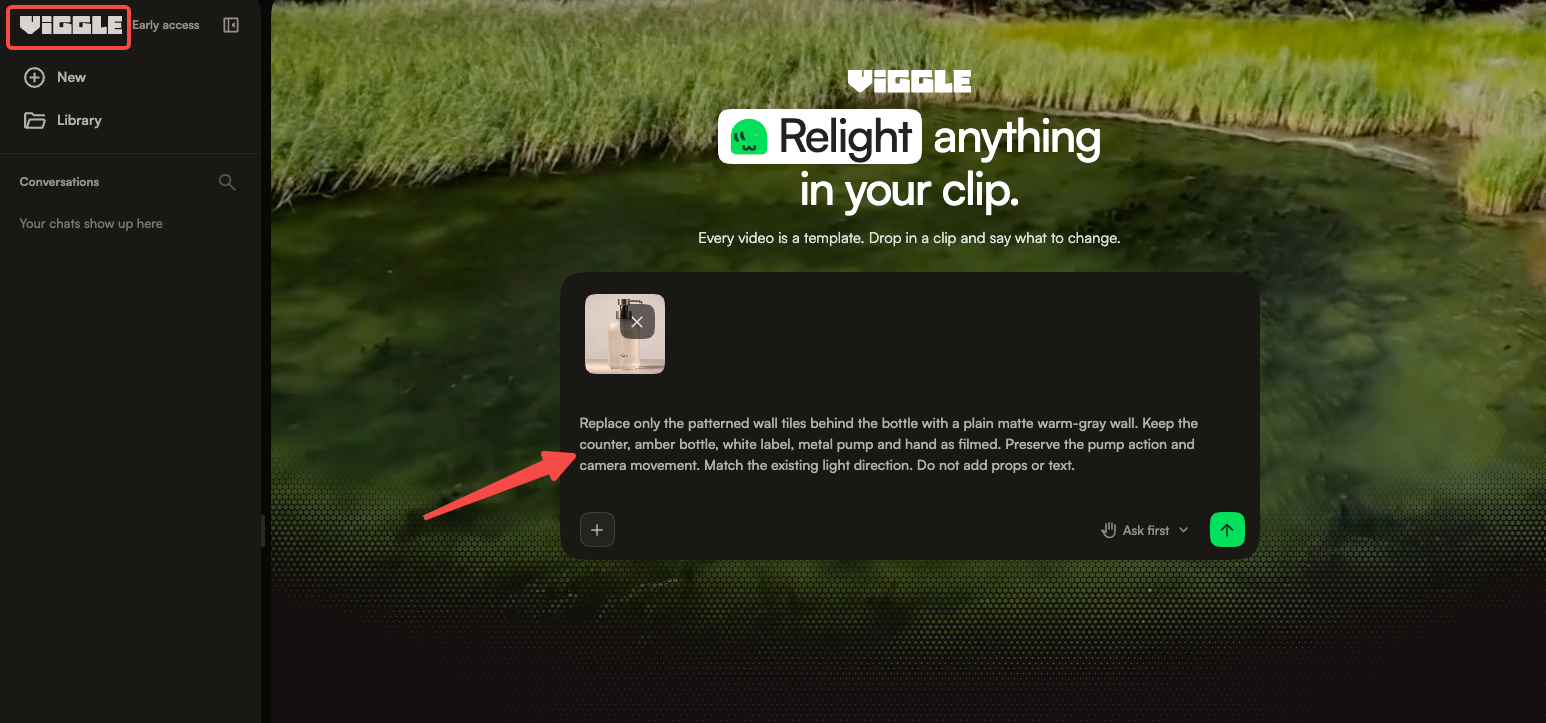
Review the proposed scope before starting. If it includes changing the bottle or countertop, narrow the request. Preservation instructions express your acceptance criteria; the returned clip still needs inspection.
Check Product Visibility Across the Edited Clip
Watch the full result at normal speed, then compare it with the source at the moments when the hand touches or crosses the product. A clear opening frame cannot establish that the entire action survived.
Use a player that permits close frame inspection. Check every shot and any cut boundary present in the submitted clip.
| Check | Compare with the source | Return for revision when… |
|---|---|---|
| Bottle silhouette | Shoulder, neck and base | The outline bends or changes during movement |
| Hand contact | Finger placement and pump travel | Fingers merge with the dispenser or the press becomes ambiguous |
| Glass appearance | Amber color and visible contents | The bottle appears to change material or fill level |
| Label | Logo, wording and placement | Characters change, drift or become misleading |
| Counter contact | Base position and shadow | The bottle floats, slides or loses its contact shadow |
Edges, Reflections, and Packaging Text
Pay particular attention to the bottle's thin edges and shiny pump. Viggle warns that chrome, glass and small text on new objects have limitations. Even a background-only request deserves checks on adjacent product details.
Look for a bright outline where the old tiles met the glass, or reflections that suggest a different room. Pause before, during and after the hand passes the label. Compare visible lettering with the approved photograph; do not judge spelling from a thumbnail.
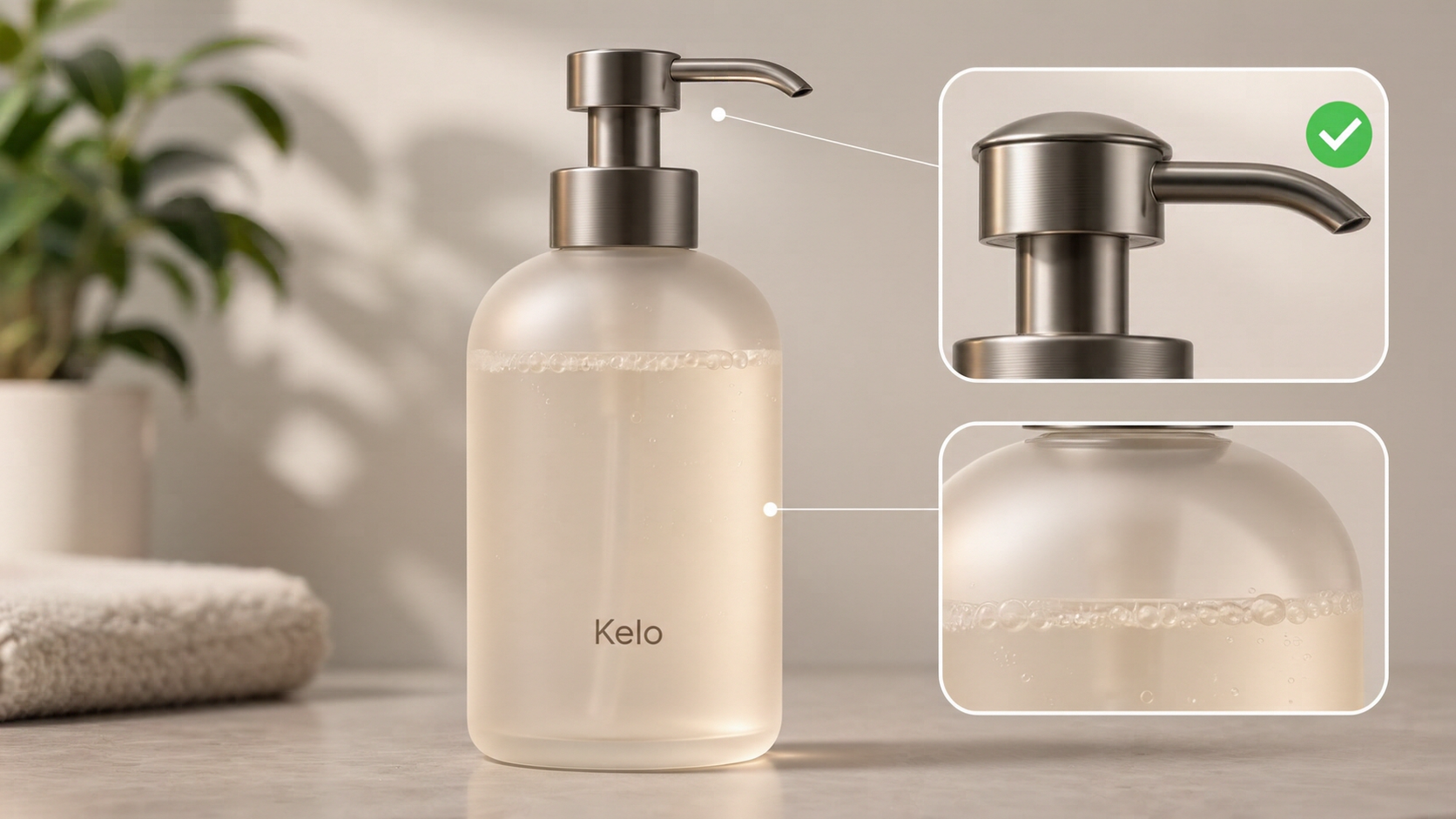
If the original label was already unreadable, the edit cannot serve as evidence that its wording is correct. Use a clearer original view or reshoot when that information matters.
When Should You Keep the Original Footage?
Keep it when the replacement makes the product less trustworthy or leaves a defect the team cannot resolve. A busy wall is preferable to a pump action that now depicts the product incorrectly.
Make the next revision specific: “Keep the wall from this version; restore the pump shape during the press.” Review that moment again and watch the whole clip for new changes.
If another pass still alters the demonstration, stop using that result. Retain the original or reshoot against a simpler setting. Save the source, selected export and approval note together, identifying the exact version reviewed.