
AI Animated Music Video
Make an animated music video with Pexo. Use one visual motif that follows the music to tell a clear story. Organize your material and review the finished video.
Make an AI animated story video for kids. Tell a simple illustrated story through one clear change. Use your own source material and review one original character and a small challenge in the finished cut.
Bring a short original story, a character reference, and the ending the audience should understand. In Pexo’s animated story video for kids maker, give the opening just enough space to identify one original character and a small challenge, then make the character’s choice the center of the first cut. Use Image to Video with your brief, then review one original character and a small challenge.
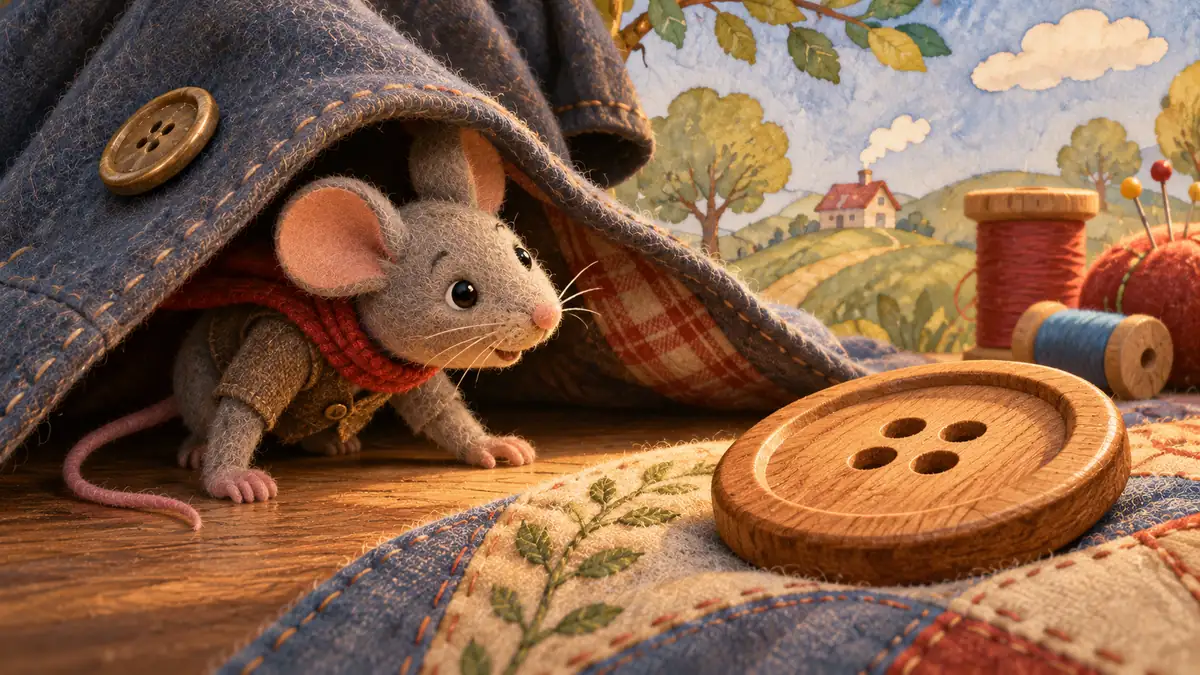
The result preview focuses on one original character and a small challenge. Review each of the checks before shaping the complete cut.
What to review
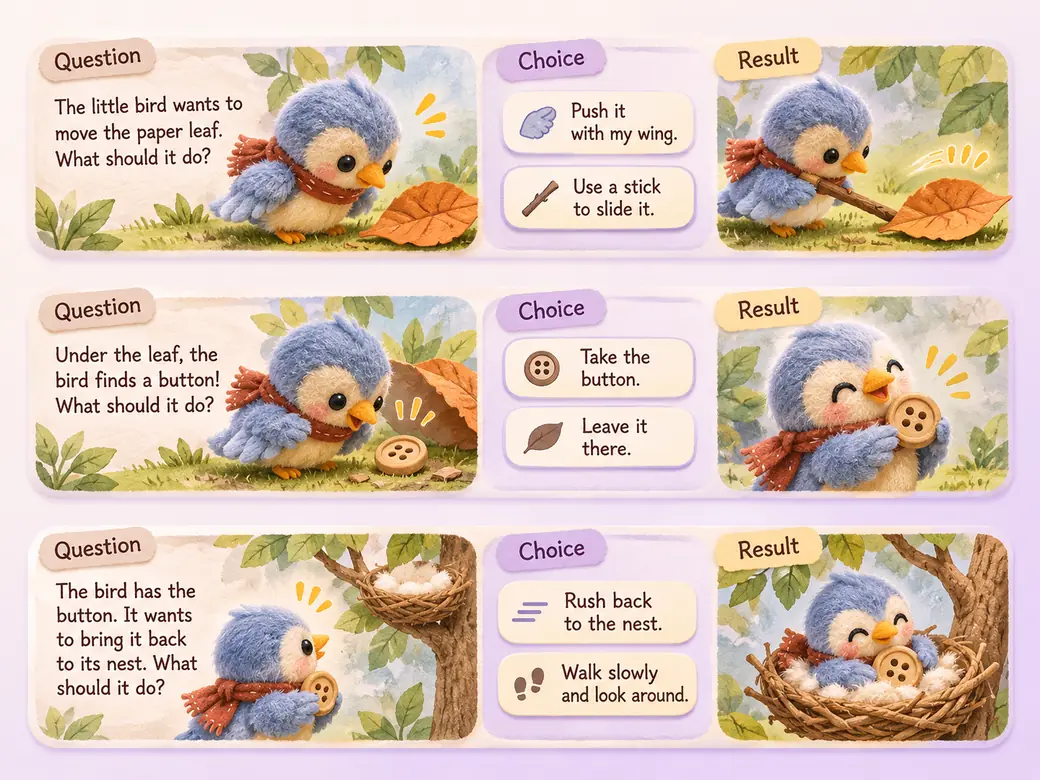
Introduce the character in a familiar place and give them one small thing to solve. Show the choice they make and what changes because of it. Let the ending feel connected to the very first image.
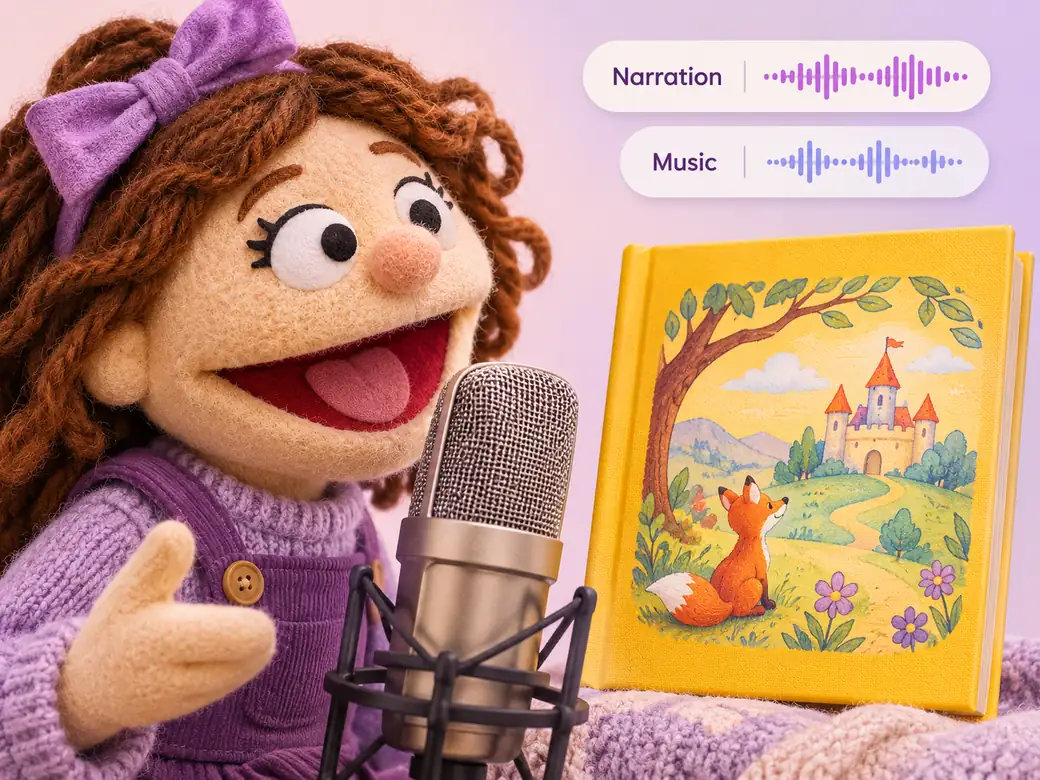
Choose a warm adult narrator or an original character voice with clear words. Pause around changes and reactions so the pictures can tell part of the story. Keep the music underneath the line that explains the result. Use Music Generation to try the treatment and listen against the actual pictures.
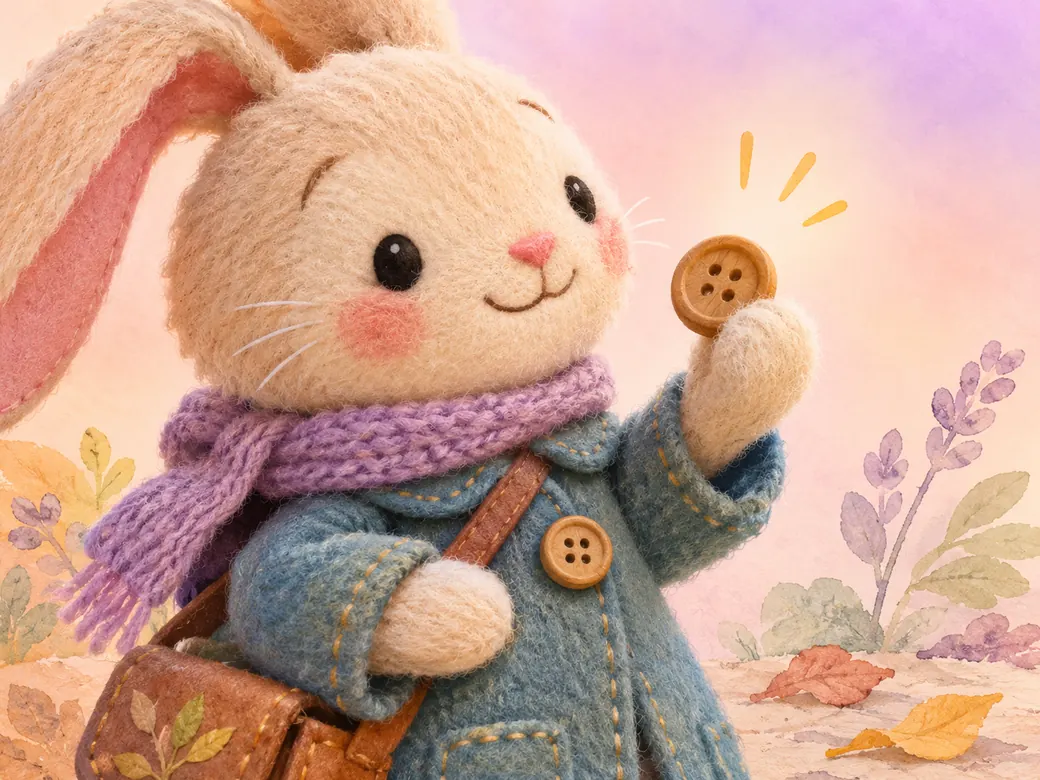
Use approved character references and check the costume, colors, and expressions across the main shots. Keep the resolution simple and give viewers a moment to see what the character found or learned.
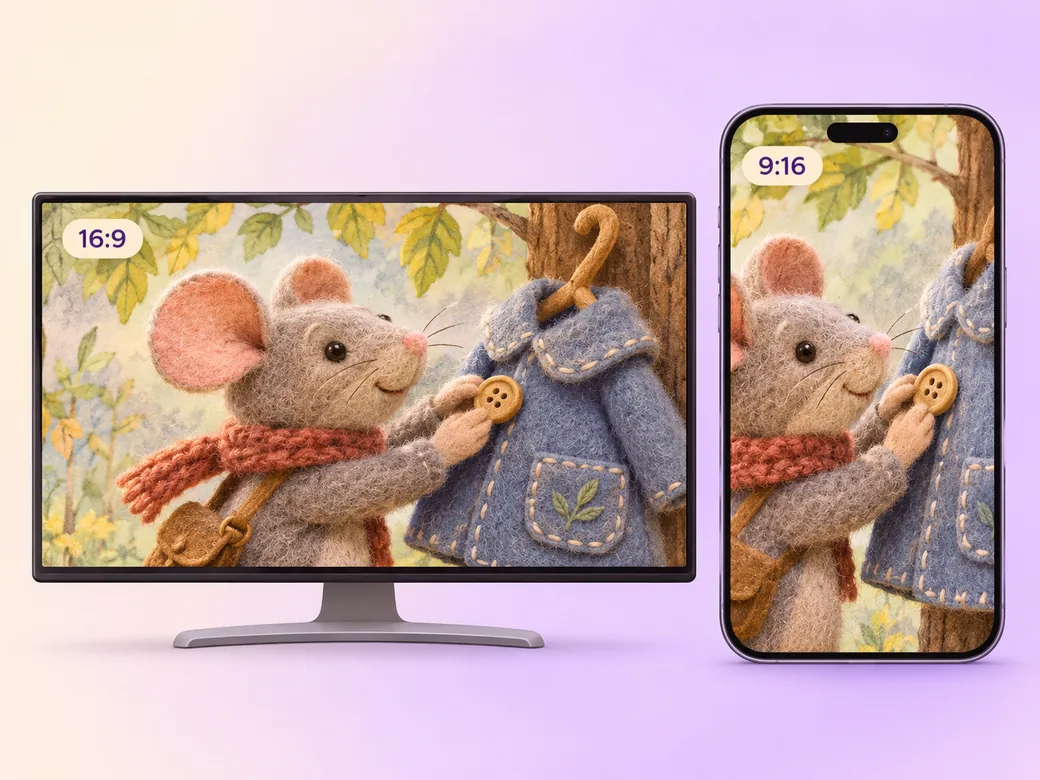
Keep a wide cut for a classroom story moment, family viewing, or a children’s channel. For a 9:16 excerpt, retain one original character and a small challenge and review how it fits on a phone. Check the start and the last frame at the intended size and give any text enough time to read.
“In Pexo, I check that the character’s goal is visible early. One small challenge gives the ending a clear meaning.”

“I leave space for a character’s reaction. Children can notice the picture before the next line.”

“I compare the character to the approved art. The same shape and colors help viewers recognize it across scenes.”

An animated story video for kids is a finished edit that helps you tell a simple illustrated story through one clear change. It can be prepared for a classroom story moment, family viewing, or a children’s channel, with enough context for the viewer to follow one original character and a small challenge. Choose a few moments that improve the final result and give each one time to read before the next cut.
Bring a short original story, a character reference, and the ending the audience should understand. Give each source a short name that describes where it belongs, and include any exact wording that should appear. Tell Pexo which part matters most and how you plan to show it. That gives you a clear first version to review.
Choose a familiar situation and a conflict the intended audience can follow. Check vocabulary, imagery, and sound levels with a parent, educator, or reviewer who knows the audience. Use original or licensed characters and show the ending clearly so each change is easy to follow.
Pexo helps organize your material and revise the framing, pacing, and sound after you review the result. Use the source that documents your actual subject for one original character and a small challenge. For a separate illustrative insert or visual opening, Kling AI 3.0 can animate an approved reference image.
An animated story video for kids uses simple actions, clearly stated goals, and paced narration suited to a younger audience. An animated story video can tell a complex or more mature story. Choose the kids’ version when a small visible challenge and a direct ending are the strongest way to keep the story understandable.
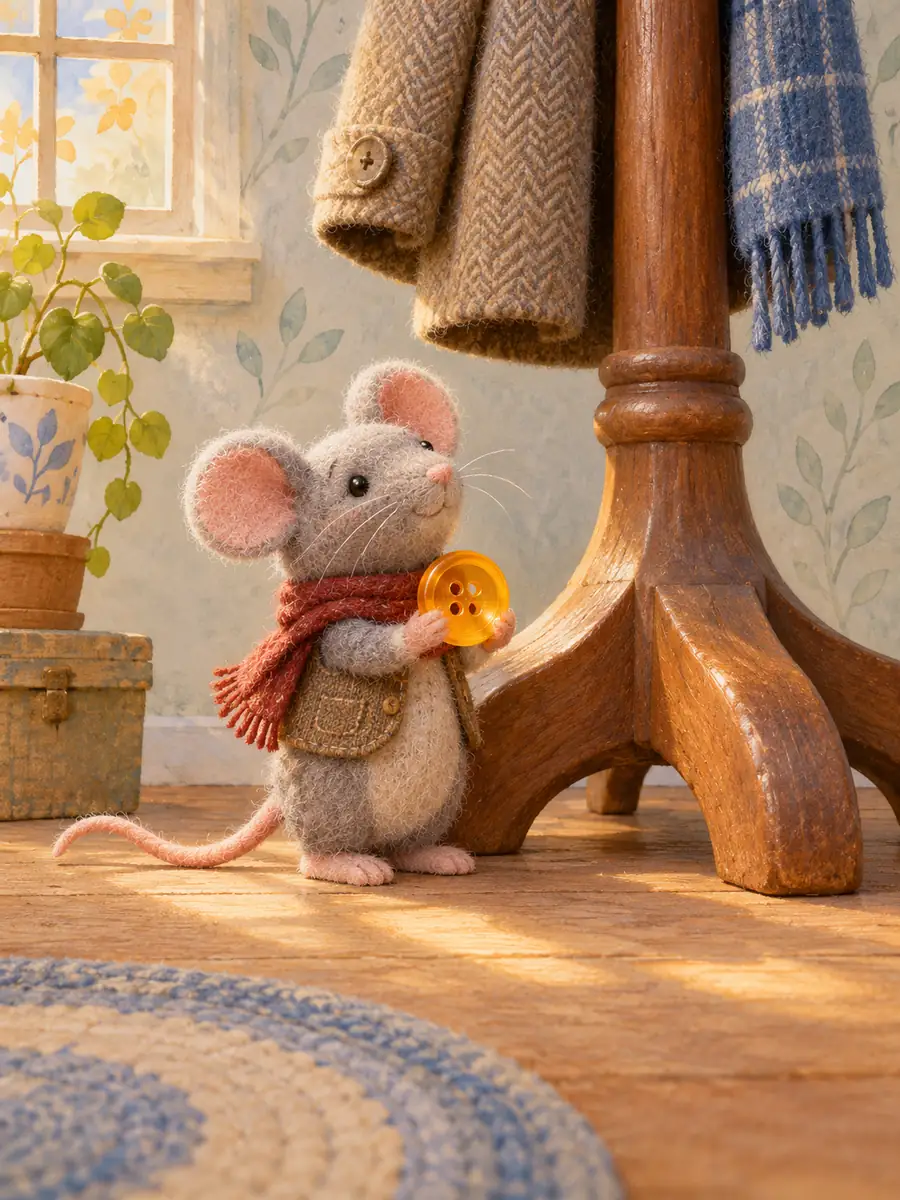
Use subject + action + camera movement + setting + style. Try ‘Use approved references for one original character and a small challenge. Show the mouse finding the lost button. Start wide and move closer when the main action begins. Keep the original texture and colors in the scene. Hold on the character’s final reaction.’
Bring a short original story, a character reference, and the ending the audience should understand. Start with one original character and a small challenge and review the first cut at the intended size.
Make an animated music video with Pexo. Use one visual motif that follows the music to tell a clear story. Organize your material and review the finished video.
Make a corporate mini-documentary with Pexo. Organize your own material and edit a focused review cut. Check the details before you share it.
Make an animated nursery rhyme video with Pexo. Organize your own material and edit a focused review cut. Check the details before you share it.
Make an opening title sequence with Pexo. Use the image that introduces your film to tell a clear story. Organize your material and review the finished video.
Make an educational animated video for kids with Pexo. Organize your own material and edit a focused review cut. Check the details before you share it.
Make an illustrated animated explainer video with Pexo. Use a paper-cut water cycle to tell a clear story. Organize your material and review the finished video.
Make a gameplay cinematic video with Pexo. Make a short scene from recorded gameplay with a clear setting, one character choice, and a memorable ending.
Make a virtual streaming avatar intro video with Pexo. Bring your character art, choose a voice and opening line, and create a short channel introduction.