

AI Virtual Streaming Avatar Intro Video
Make a virtual streaming avatar intro video with Pexo. Bring your character art, choose a voice and opening line, and create a short channel introduction.
Make an AI gameplay cinematic video. Use footage from your game to establish the world, follow a character’s choice, and end on a memorable image. Prepare a cinematic scene for your channel or portfolio.
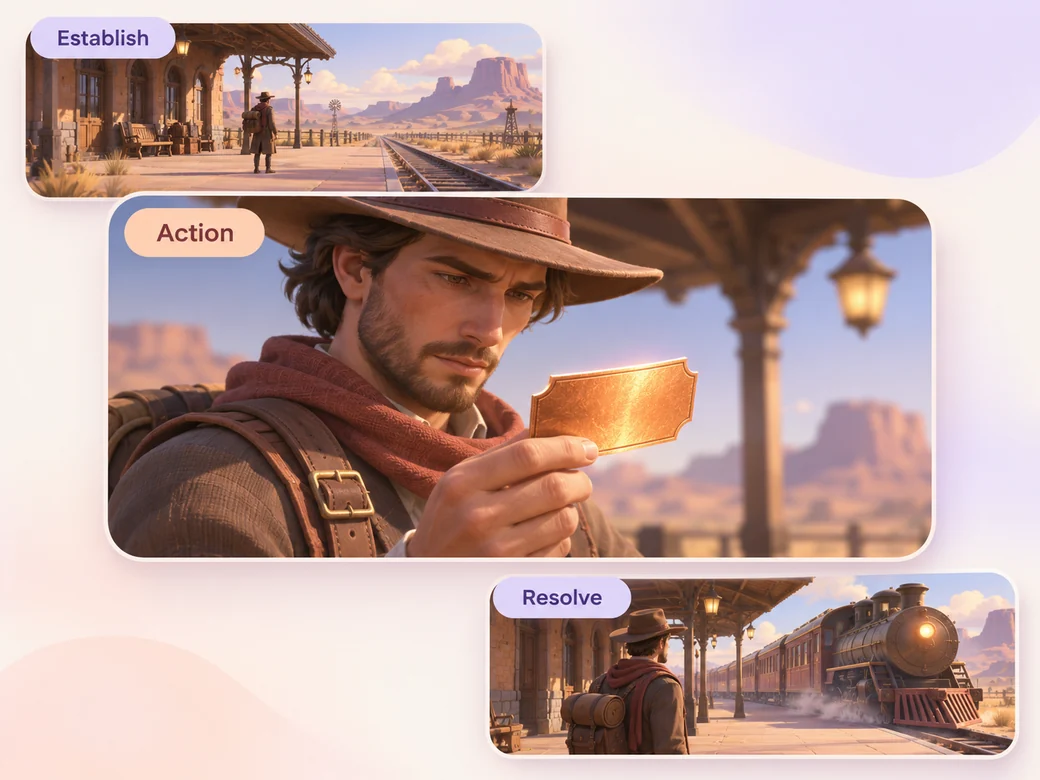
Bring captures that show the scenery and one character action. In Pexo’s gameplay cinematic video maker, establish the world before the character makes a choice, then hold on the view that explains the result. Use Merge Videos to see the full sequence before working on transitions or sound.
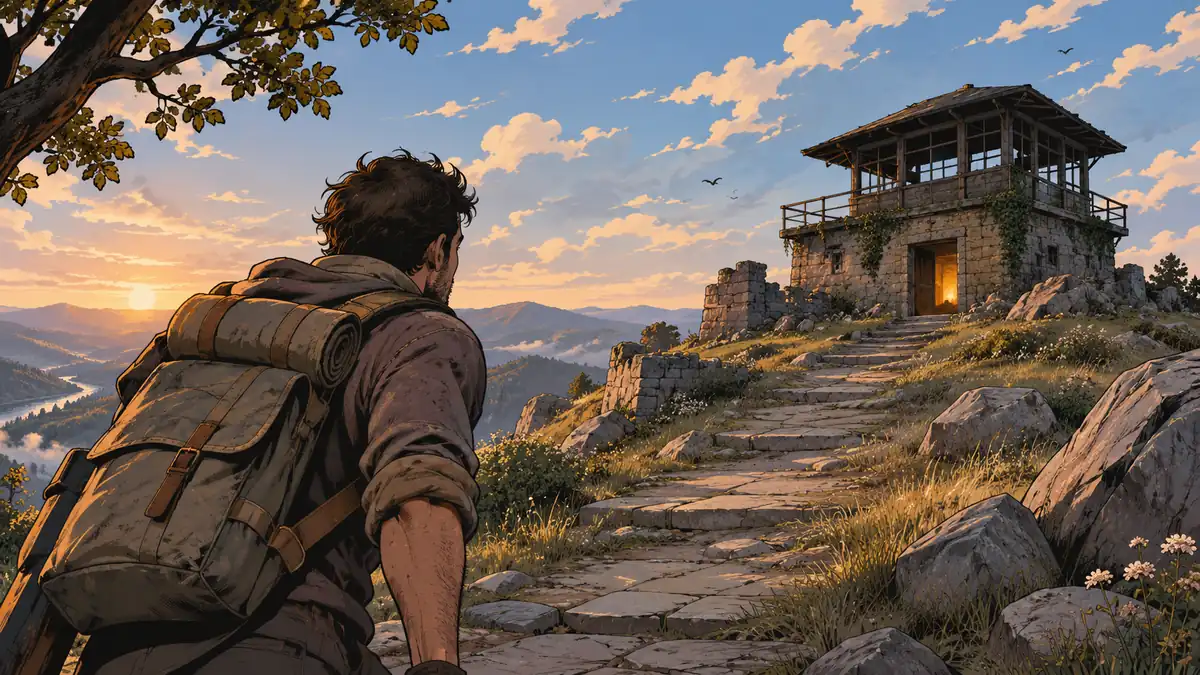
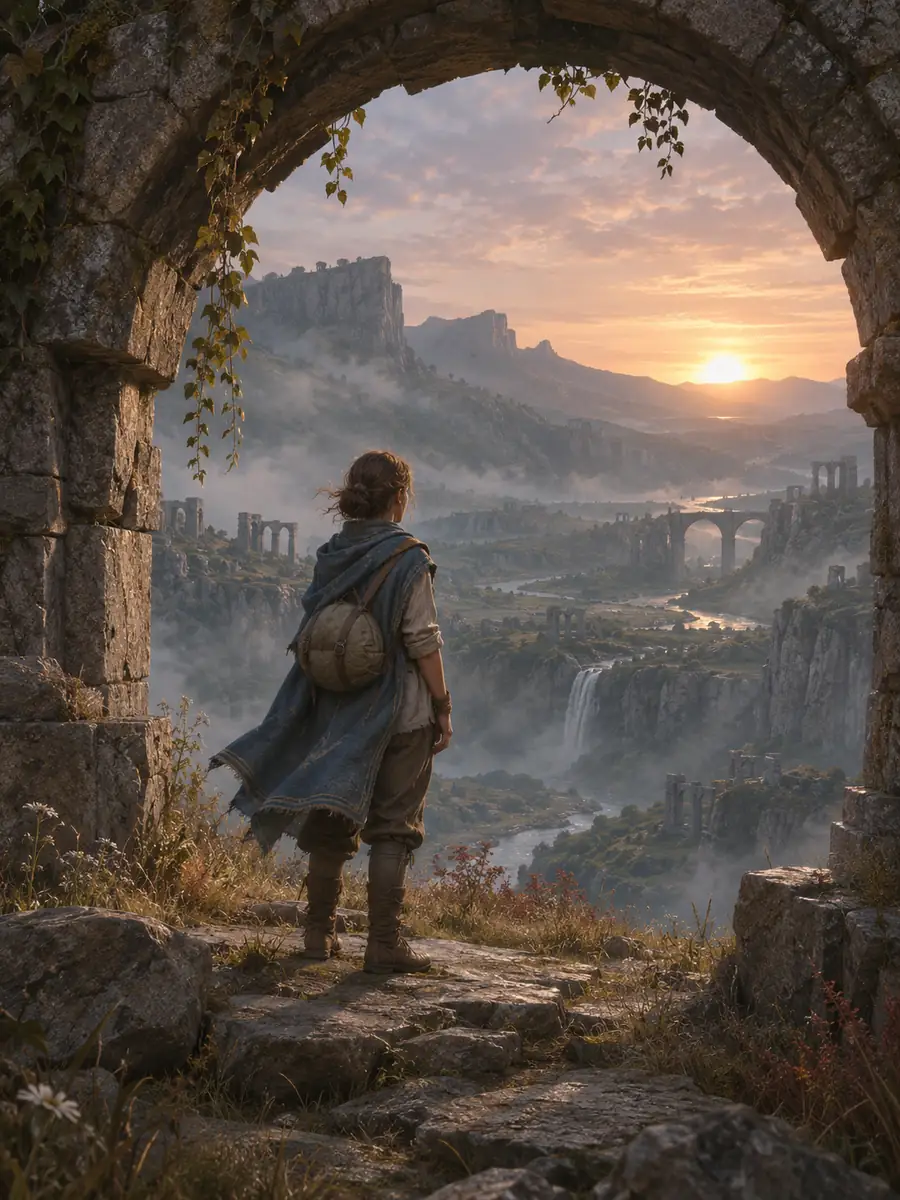
The camera follows the traveler toward the lookout. Review the change from wide landscape to a closer action.
What to review
Use an establishing shot for the route or location. Change distance when a gesture, object, or change of direction becomes important. Return to a wider frame if the final image needs to show where the choice takes the character.
Use the footsteps, distant wind, or room sound that belongs to your footage. Try Music Generation for a restrained theme that lifts at one specific moment. Review it with the action and keep it underneath any line of dialogue that needs to read.
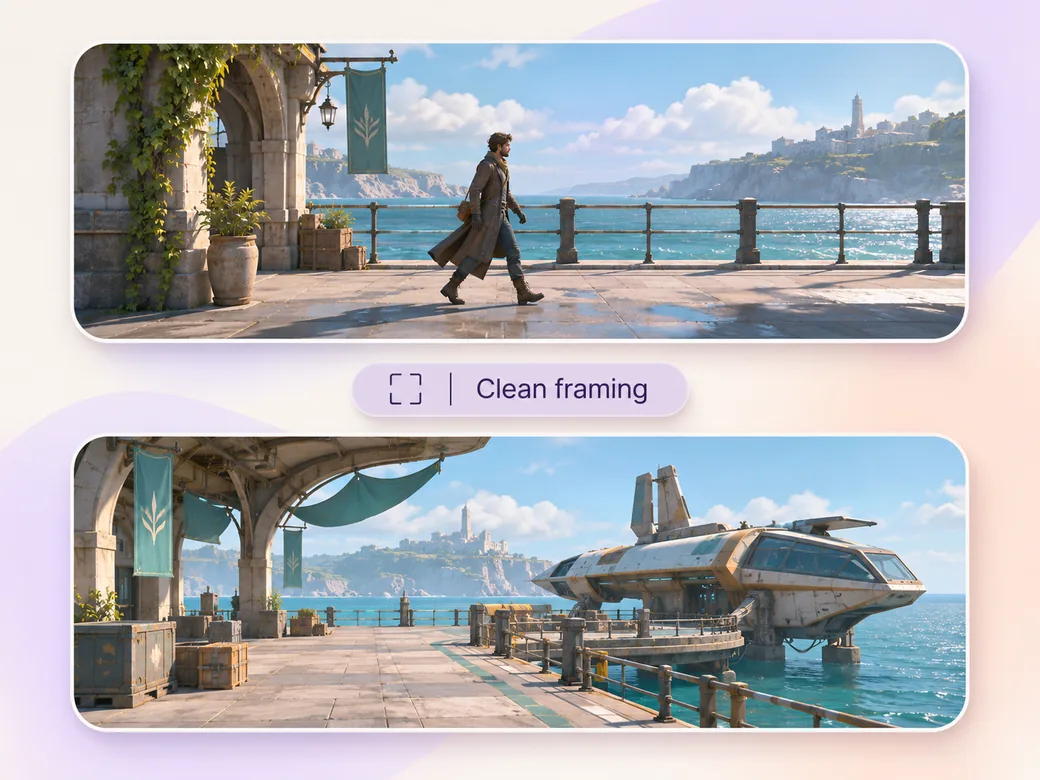
Select clean captures where interface overlays and menu text leave room for the character and the setting. If the source includes a HUD, consider approved alternative captures or a tighter reframe. Check the shot changes with the sound off to see whether the sequence still follows.
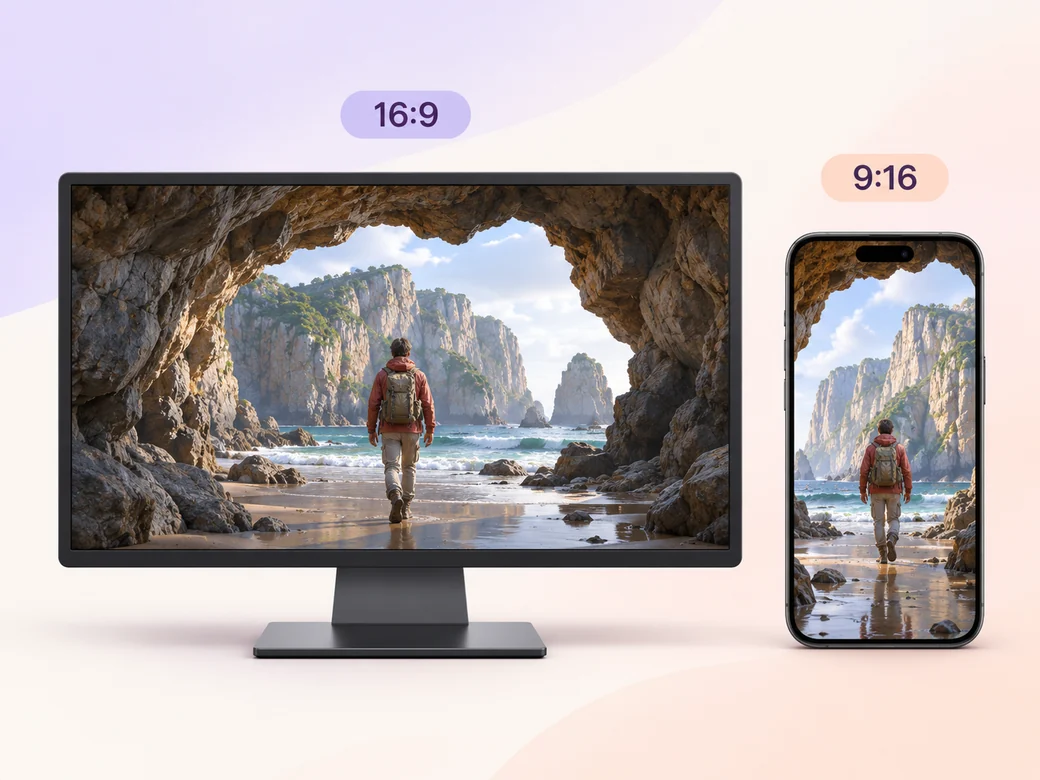
In 16:9, use the background to show the scale of the world. For a shorter 9:16 preview, choose one moment where the figure and path fit together. Watch both versions so the portrait crop keeps the story beat the wide cut establishes.
“In Pexo, I look for a frame where the setting has a shape and the character has somewhere to go. Those details do the first part of the storytelling.”

“I want to understand the character’s decision from the cut. One close detail is enough if it changes the direction of the scene.”

“I listen for what belongs to the room or landscape. A soft score works when I can still hear the movement inside the world.”

A gameplay cinematic video is a story-led edit using captured game imagery. It uses camera views, pacing, character movement, and sound to make a scene feel complete. It can live on a creator’s channel or in a game production portfolio and usually focuses on one small change in the story.
Bring footage you have permission to publish, with a wide view of the location, a readable character action, and a shot that shows how the moment ends. Include the original game audio if you want to keep it. Short notes about the character and the setting help you organize the first cut.
Yes, when the overlay is part of the story or still leaves the important action readable. For a film-like scene, a clean capture or an alternate angle often gives the character more room on screen. Test the action in the final crop as well as on a wide monitor before you share it.
Pexo can organize recorded game captures around a specific story moment and revise the sequence, crop, or score after review. Use your authentic game footage for scenes meant to represent the game. Kling AI 3.0 can animate separate original concept art for an illustrative cutaway or a title background if you need one.
A gameplay cinematic follows a self-contained moment inside the game world. A game trailer introduces the game, often showing several features or situations to draw in potential players. Make a cinematic when you want the viewer to spend time with a character or location and follow what happens there.
Use subject + action + camera movement + setting + style. Try ‘Use the captured lookout footage from our game. Start wide on the valley, follow the traveler up the stone path, and pause when the lookout lights up. Keep the view grounded in the existing capture, with one sparse music cue and a brief hold on the final landscape.’
Bring footage of a location and one meaningful character action. Shape the scene from those captured views.
Make a virtual streaming avatar intro video with Pexo. Bring your character art, choose a voice and opening line, and create a short channel introduction.
Make a visual novel video with AI. Pexo casts anime characters, voices every line, and renders dialogue scenes with Seedance 2.5 and Kling AI 3.0.
Turn any script into an animated story video with AI. Pexo picks the best animation model per scene, adds narration and captions, and delivers a finished story.
Make a fairy tale video with AI. Pexo writes the story, paints the scenes, narrates it, and renders it with Seedance 2.5, Kling AI 3.0 and MiniMax H3.
Spoof any trailer, ad, or song. The Pexo AI parody video maker writes the bit, builds every scene on Seedance 2.5 and Kling AI 3.0, and syncs the lips.
Describe the tale and Pexo turns it into a calm bedtime story video with soft narration and music, on Seedance 2.5, Kling AI 3.0 and MiniMax H3.
Make comic videos with AI. Pexo turns a script or your panels into animated comic scenes with Seedance 2.5 and Kling AI 3.0, voiceover, captions, up to 4K.
Make a fan film, no camera or crew. Pexo's AI fan film generator writes and shoots every scene, then renders in 4K with MiniMax H3, Seedance 2.5 and Kling.