

 ChatGPT
 Perplexity
 Claude
 Gemini
 Grok
Grok



How to Make an Interactive Explainer Video
UPDATED: 2026-08-06 By Lan He, Senior Video Producer at Pexo
Making an interactive explainer video takes six steps: find the decision that justifies branching, design a structure that stays maintainable, script segments that stand alone, produce the extra footage, choose a platform, then track which paths get taken. An interactive explainer takes about 30 minutes of production per path.
Quick Version: How to Make an Interactive Explainer Video
- Find the decision that makes branching worth the cost.
- Design two choice points at most, with two or three options each.
- Script every segment to stand alone.
- Produce the extra footage branching demands.
- Choose a platform that matches where it will live.
- Track which paths get chosen and retire the ones that do not.
How to Make an Interactive Explainer Video Step by Step
Step 1: Find the decision worth branching on
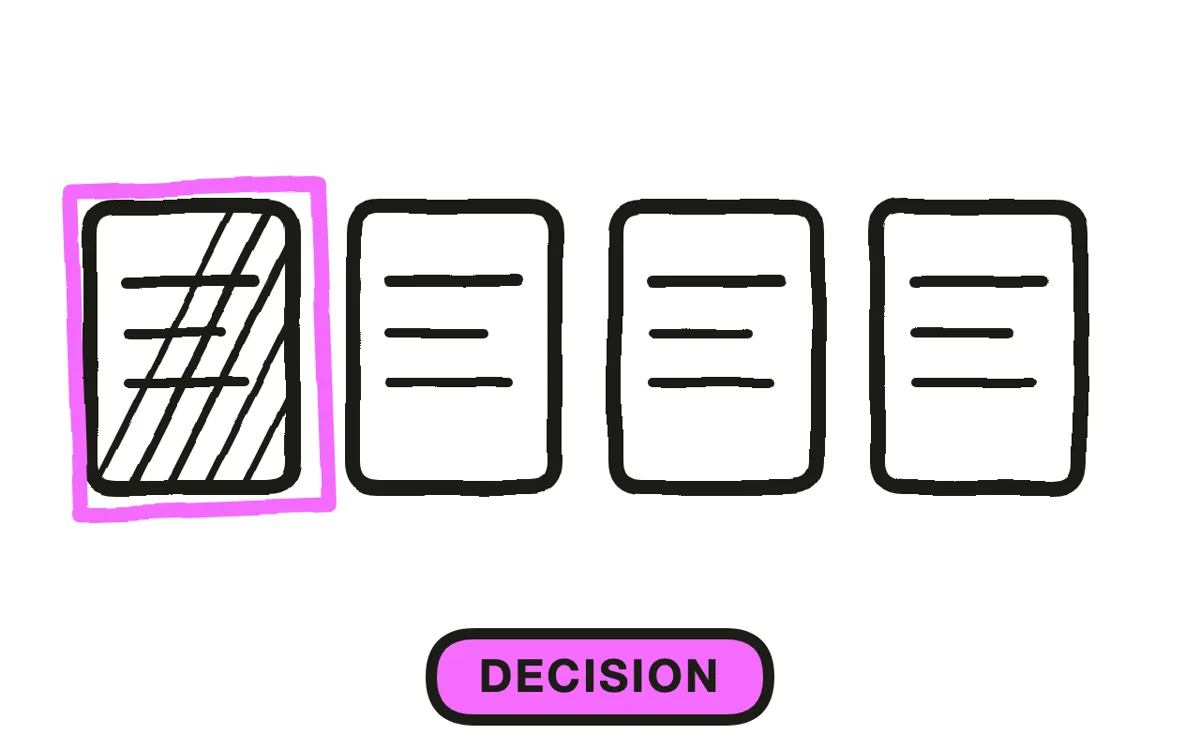
Interactivity earns its cost in two situations. First, when viewers arrive with genuinely different needs, such as three buyer types who each care about a different outcome. Second, when the learning comes from making a choice and seeing the consequence, which is what makes branching scenarios effective in training.
It does not earn its cost when added for engagement. A well-targeted linear video beats an interactive one that branches into three mediocre paths, and it costs a third as much to maintain. Ask what the viewer would actually choose between before deciding to build choices.
Step 2: Design the branch structure
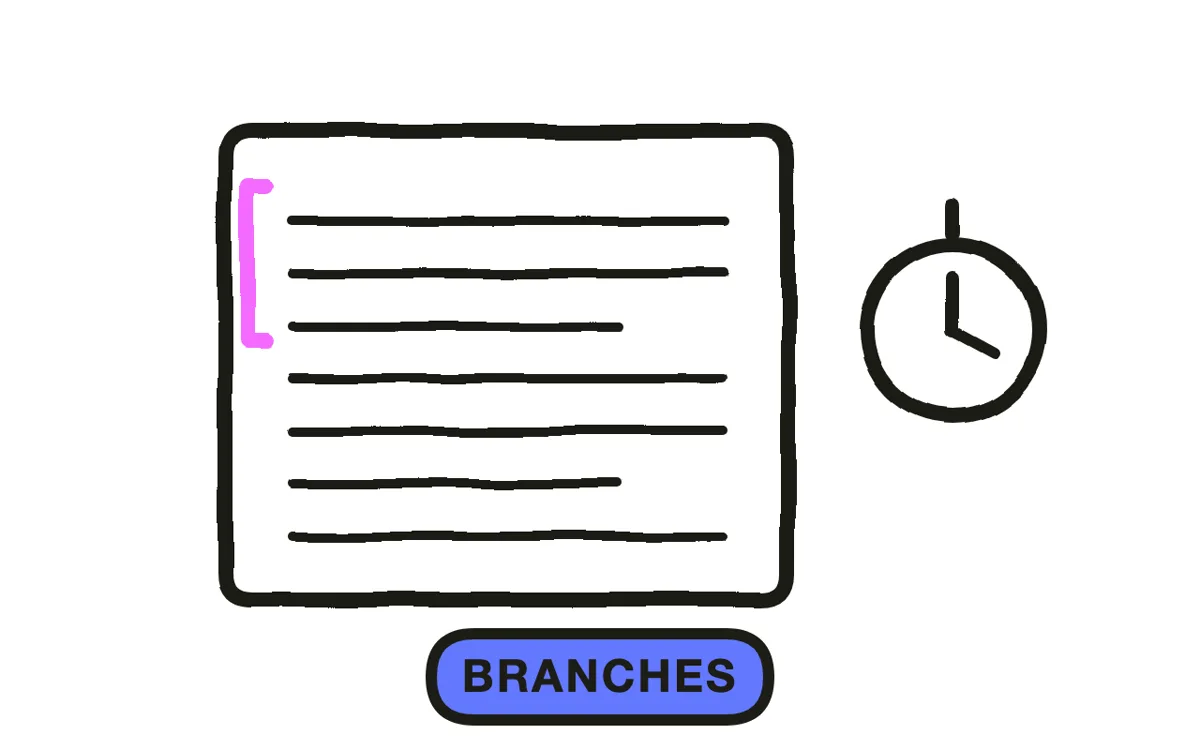
Draw the structure before writing anything: a shared opening, one or two choice points, and a shared close. Two choice points with two or three options each is the practical ceiling, because footage and testing both multiply with every branch.
Converge the paths back together. A structure that branches and never rejoins means every path needs its own ending, which multiplies the work again and makes any later change touch every route. Shared open, divergent middle, shared close is the shape that stays maintainable.
Step 3: Script segments that stand alone
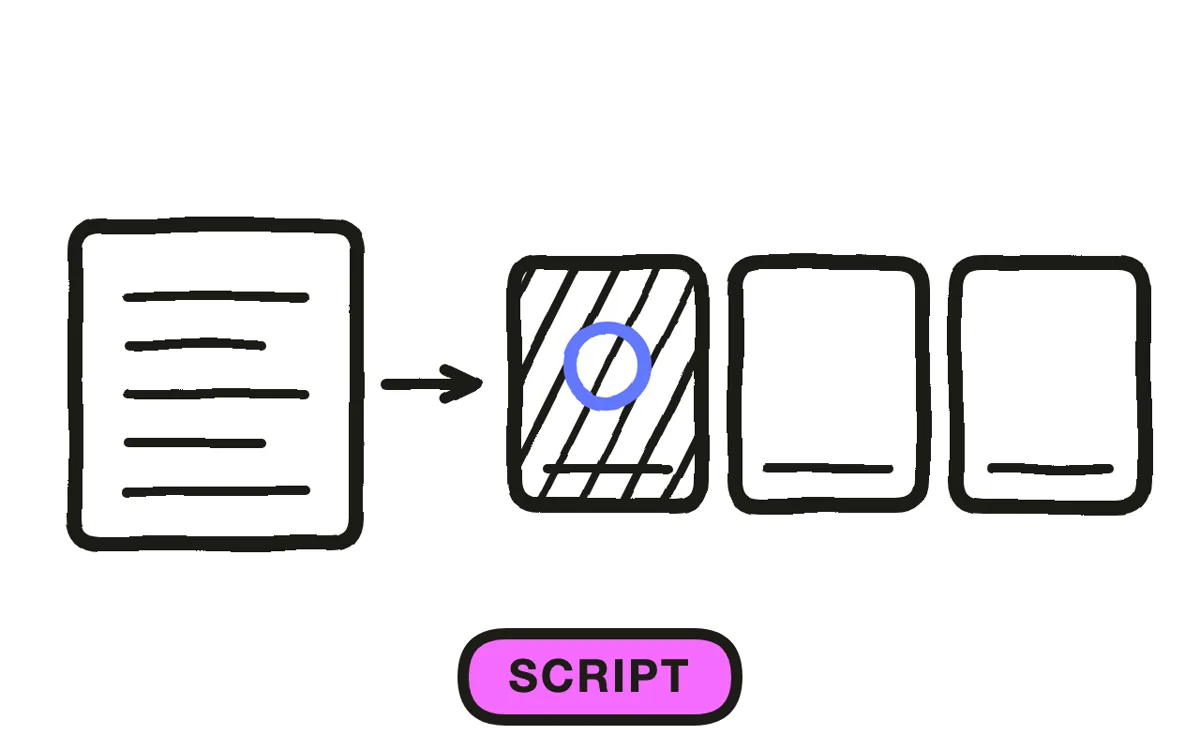
Write each segment so it assumes nothing except the choice immediately preceding it. A segment that references something from an earlier branch breaks for any viewer who arrived by another route, and that failure is silent: nobody reports it, they just stop watching.
Write the choice prompts as the viewer's own question rather than as a menu of topics. "I need to convince my finance team" works better than "Finance", because the viewer is picking a situation rather than categorising themselves.
Step 4: Produce the extra footage
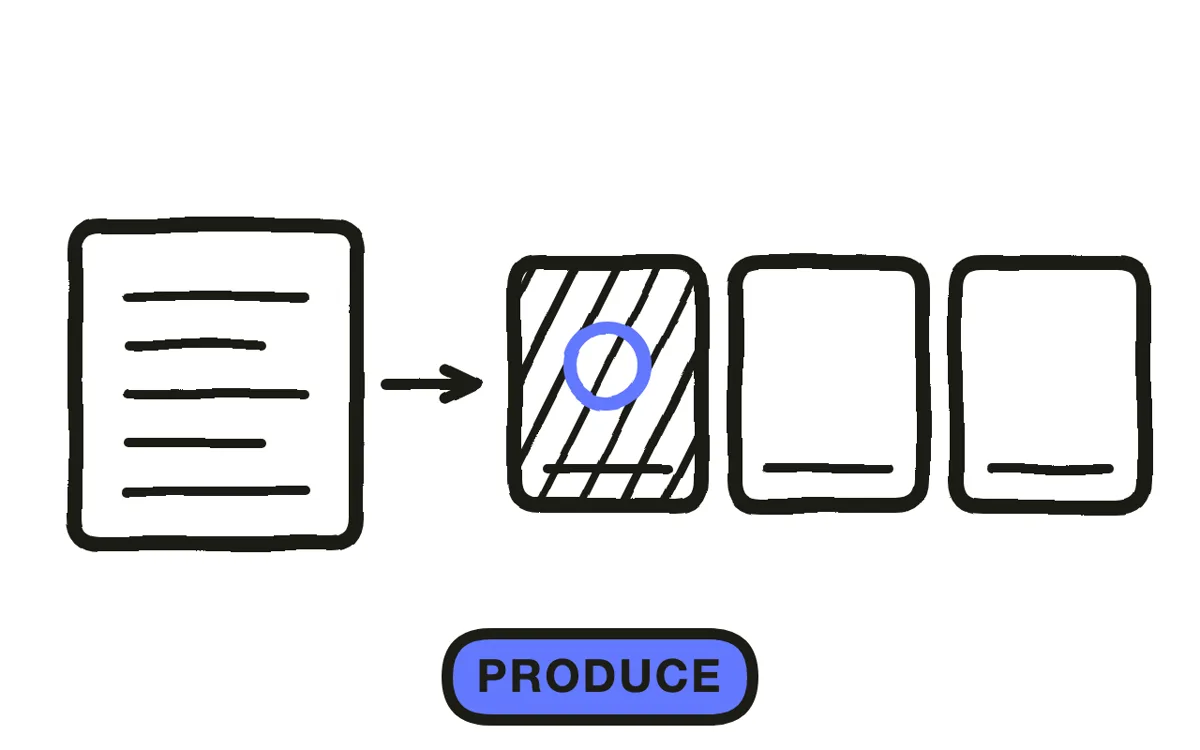
Branching multiplies finished minutes. A two-by-three structure can mean two to three times the footage of a linear video, which is why interactive projects are so often scoped optimistically and delivered late or reduced.
Pexo's script-to-video workflow generates each segment from its script, which is what makes the multiplier manageable. Hyperframe holds the presenter, style, and setting identical across every branch, so a viewer switching paths does not see the video change character. Consistency across parallel segments is harder to maintain by hand than the segments themselves.
Step 5: Choose the platform
Match the platform to where it lives. Hosted tools such as Wirewax, Eko, and Vimeo Interactive suit a website or campaign. Authoring tools such as Storyline and Captivate suit an LMS, where xAPI can record which path a learner took.
Test every path on a phone before release. Interactive video fails most often at the choice moment: buttons too small to tap accurately, a prompt that appears and disappears before it can be read, or a choice that requires reading while the video keeps playing. Hold each prompt and pause the playback under it.
Step 6: Track which paths get taken
Record which options get chosen, where viewers drop out, and whether path choice correlates with the outcome you care about. This is the whole return on building interactivity: linear video cannot tell you which of three concerns a viewer actually had.
Retire branches nobody chooses. A path selected by two percent of viewers is footage you are maintaining for nobody, and cutting it makes every future change cheaper. Export 16:9 at 1080p, plus 9:16 where the piece runs on mobile. Pexo exports both from one project.
How to Make an Interactive Explainer Video with Pexo
The six steps above work with any interactive platform. Pexo handles step 4 in a single conversation, which is where the branching multiplier actually bites.
Open the explainer video page and describe each segment: "A 40-second segment for the finance-team path of an interactive explainer, same presenter and office setting as the other branches, focused on cost recovery timelines, calm professional narration." Pexo generates each branch with the presenter and style held identical, then you assemble them in your interactive tool.

Adjust any branch by describing the change in the chat, and Pexo regenerates that segment alone without disturbing the others.
For related formats, the product explainer video page covers the linear alternative and training video covers branching scenarios for learning.
5 Mistakes That Make Interactive Video Cost More Than It Returns
1. Branching for engagement rather than for a real choice. A targeted linear video beats three mediocre paths and costs a third as much to maintain.
2. Paths that never rejoin. Every path needing its own ending multiplies the work and makes every later change touch every route.
3. Segments that reference earlier branches. They break silently for anyone who arrived another way, and nobody reports it.
4. Choice prompts as a topic menu. Viewers pick situations they recognise, not categories they belong to.
5. Keeping a branch nobody chooses. Two percent of viewers is footage maintained for nobody. Retire it and everything downstream gets cheaper.
Related Tutorials
- How to make a product explainer video for the linear alternative
- How to make an eLearning video for LMS-delivered courses
- How to make a compliance training video for branching scenario training
- How to make a 2D explainer video for the general animated format