ChatGPT
 Perplexity
 Claude
 Gemini
 Grok
Grok


A buyer asking about access to the lower bin needs to see the door open with the stack still in place. That movement gives the follow-up email a clear purpose.
In video email marketing, the preview should lead directly to that answer. The page it opens should show the promised demonstration, and the next message should help with whatever remains unresolved. Here's how to connect those decisions using an existing product video.
What Job Should the Video Do in This Email?
It should answer one buying question that becomes clearer when the product moves. Choose the scene that lets the buyer inspect the action they asked about.
Consider Rowan, a fictional stacking storage bin. The team has an approved demonstration of its lower front door opening while another bin remains above it. In this example, a buyer has asked whether they can reach the lower bin without dismantling the stack.
Keep both bins visible as the door opens. A cutaway during that movement would leave the buyer guessing about clearance. Any approved conditions for the stacking arrangement belong beside the demonstration, where viewers can read them.
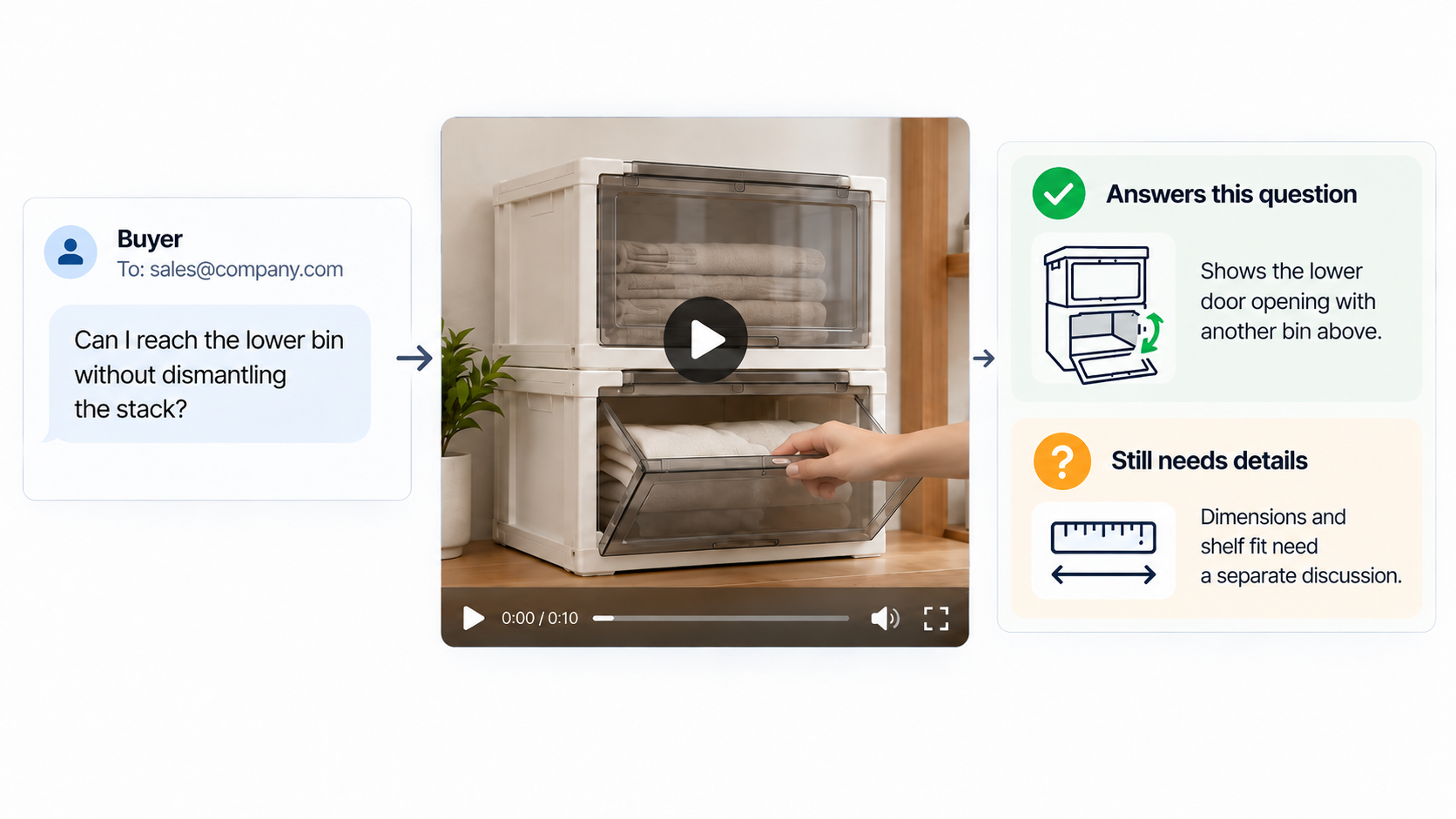
The clip answers the access question. It may still leave the buyer needing dimensions to check shelf fit. That is a useful next conversation, provided the video hasn't implied that every shelf or load arrangement will work.
Choose a Clickable Thumbnail With an Honest Preview
Start with a linked still that opens the video on a web page. Most email clients cannot display embedded video, so the email needs to work as a preview even when playback happens elsewhere.
For Rowan, a frame with the lower door partly open and the upper bin visible shows what the buyer will learn. Keep the play icon away from the hinge and opening. The image should come from the approved cut and represent the product version being discussed.
Give the email video thumbnail enough live text to make sense on its own:
Subject: See the lower bin open while stacked
You asked about reaching the lower bin. This demo shows its front door opening with another bin above it.
Text link: Watch the stacked-bin access demo
Checking shelf fit next? Reply with your available space.
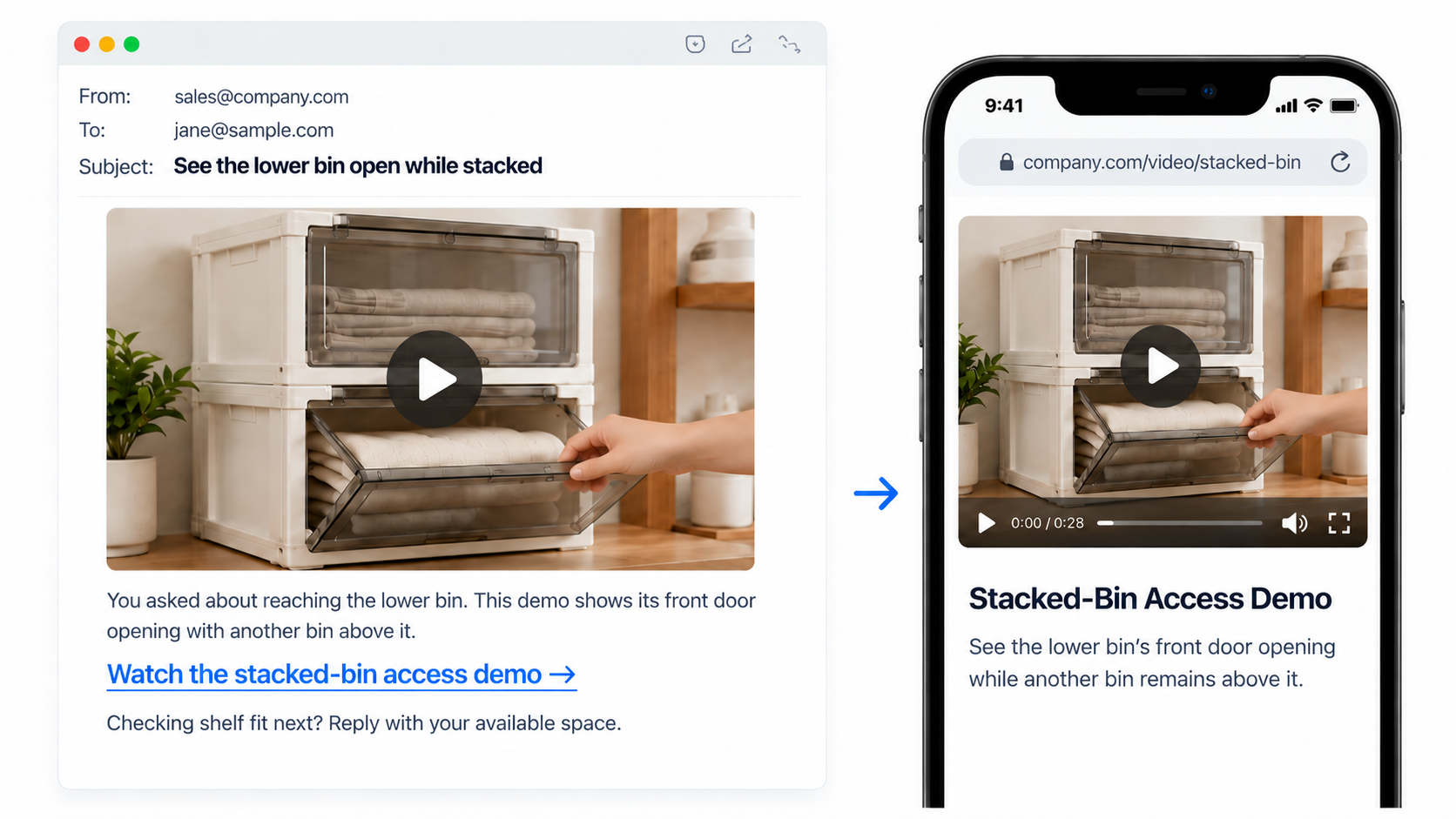
In this product video email, the thumbnail and text link should open the same destination. Mention a running time only when it matches the actual clip. Send a test through your email service, then inspect the delivered message on a phone and in the clients your audience uses.
Match the Destination Page to the Email Promise
The video landing page should make the promised demonstration easy to find. Someone following Rowan's access demo should arrive at that product and action.
A suitable page heading is “See Rowan's lower door open while stacked.” Follow it with the matching video, a written answer, relevant stacking conditions, and current dimensions. Keep the product version consistent across the email, poster image, and player.
The next click can help the buyer check fit: “Check shelf measurements.” Place that link near the answer. Asking for a newsletter signup at this point would interrupt the question the email brought them there to resolve.
Follow the link from the delivered email while signed out. Check that the page loads, playback works, and the door movement is visible on a phone. A review link that opens for your team may still require a buyer to sign in.
If the existing cut hides the action, revise it before sending. Pexo, this guide's publisher, offers a conversational video-production route. You can use its video gallery to discuss a visual reference, then give Pexo the approved material and a specific revision request. For Rowan: “Keep both bins visible while the lower door opens, with the stacking condition readable.” Review the new cut against the product evidence before replacing the hosted video.
Write a Follow-Up Based on the Viewer Action
Let the available signal guide the next message, while leaving room for what you cannot observe. A recorded link click doesn't tell you whether the video played or the buyer's question was answered.
For a sales follow-up video, use the distinction below to keep the conversation relevant:
| Available signal | What remains unknown | Useful next message |
|---|---|---|
| No recorded click | Whether the buyer read the written answer or had images blocked | If another message is appropriate, include the answer in text and leave the demo optional |
| Video-link click | Whether the destination loaded or playback began | Offer current measurements without saying “I saw you watched” |
| Verified playback event | Whether the action resolved the buyer's question | Ask whether access or shelf fit still needs clarification |
| Reply with shelf measurements | Whether the product fits that space | Check the approved dimensions and answer directly |
A second message might read: “The demo shows front access. If you're checking shelf fit next, here are Rowan's current dimensions.” This gives the buyer something useful without assuming a viewing history.
Build follow-ups only around the permissions, privacy notices, and service rules that apply to your actual send. For example, Mailchimp requires permission for marketing email. A click doesn't subscribe someone to a new sequence. Honor opt-outs and pause scheduled messages when the conversation has moved on.
Measure Clicks and Downstream Product Questions
Report email clicks, playback, and buyer questions separately. Each tells you something different about the path from the inbox to a product decision. Keep these separate from other placements when the same video runs across a campaign.
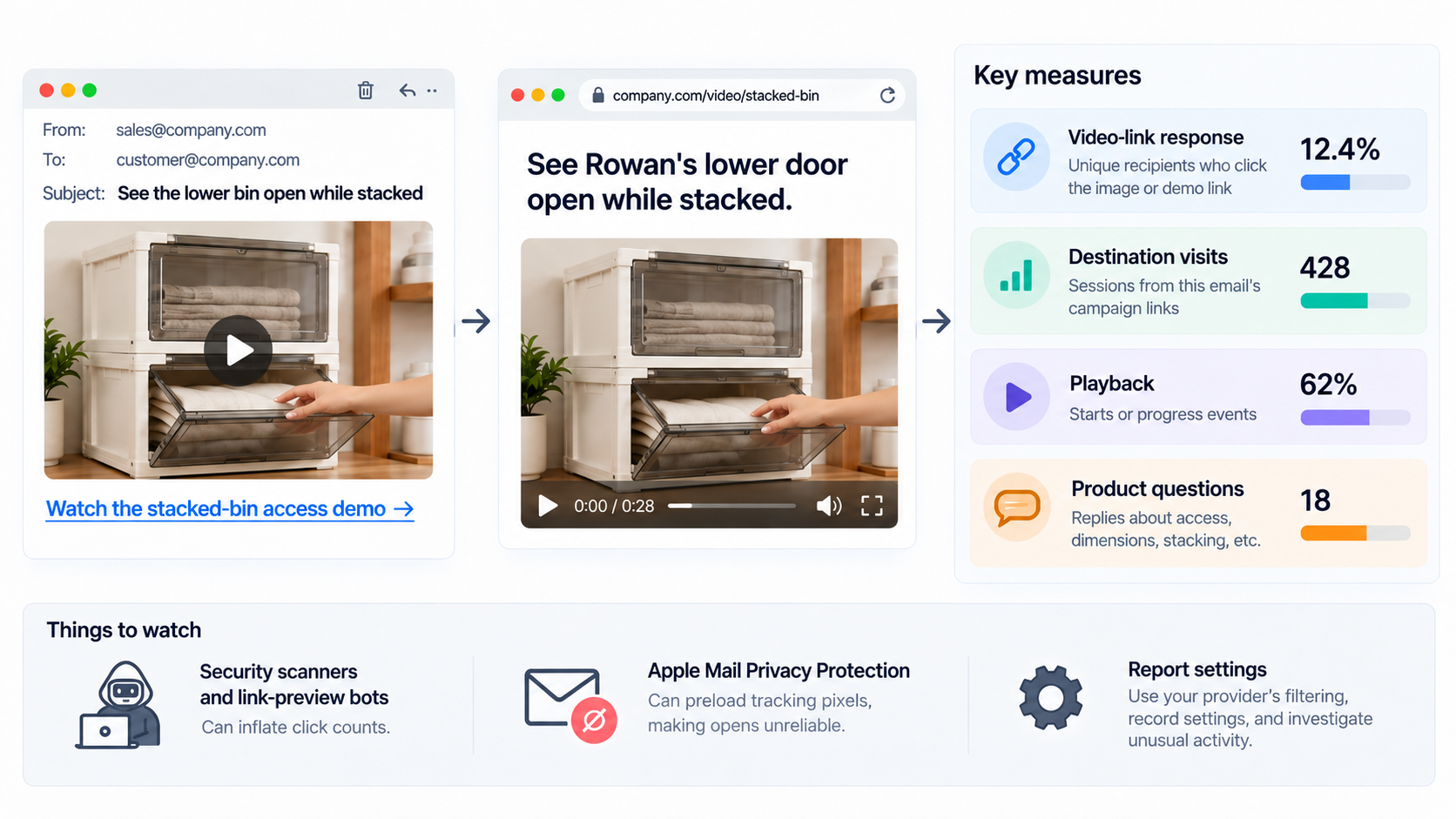
Mailchimp defines click rate using delivered emails, counting those that registered at least one click. That campaign measure can include links other than the demo. For this particular follow-up, keep a small set of clearly labeled measures:
-
Video-link response: Unique recipients clicking the image or demo text link, deduplicated across both, divided by delivered emails. Treat this as your defined measure. If your report can't deduplicate those links, label its available counts instead.
-
Destination visits: Sessions attributed to the email's campaign links. These won't necessarily equal unique email clickers.
-
Playback: Starts or progress events, when the player and analytics setup collect them. Record what each event actually means.
-
Product questions: Replies about access, dimensions, stacking conditions, or another obstacle. Keep the question category alongside the reply count.
Security scanners and link-preview bots can inflate click counts. Use your provider's filtering where available, record the reporting settings, and investigate unusual activity before acting on it. Apple Mail Privacy Protection can also preload tracking pixels, making an open an unreliable sign that someone read the message.
If visitors keep asking how the door opens, inspect the video and nearby explanation. The key movement may be hard to see, or the conditions may be unclear. Those are possibilities to check. Purchases after a click remain associated outcomes; estimating extra sales caused by the video requires a suitable comparison.
When Should an Email Use a Static Image Instead?
Use a static image when it can settle the question within the email. A dimension drawing may answer shelf-fit questions more directly than asking the buyer to watch a door open.
For Rowan, motion helps explain front access while stacked. Current photographs and written options may be enough for a color question. Choose the format around what the buyer still needs to judge.
Hold an outdated video if it shows old packaging, an unsupported arrangement, or a claim the team can no longer approve. Correct the material before the next send; an existing asset is useful only while it tells the current product story accurately.