 ChatGPT
 Perplexity
 Claude
 Gemini
 Grok



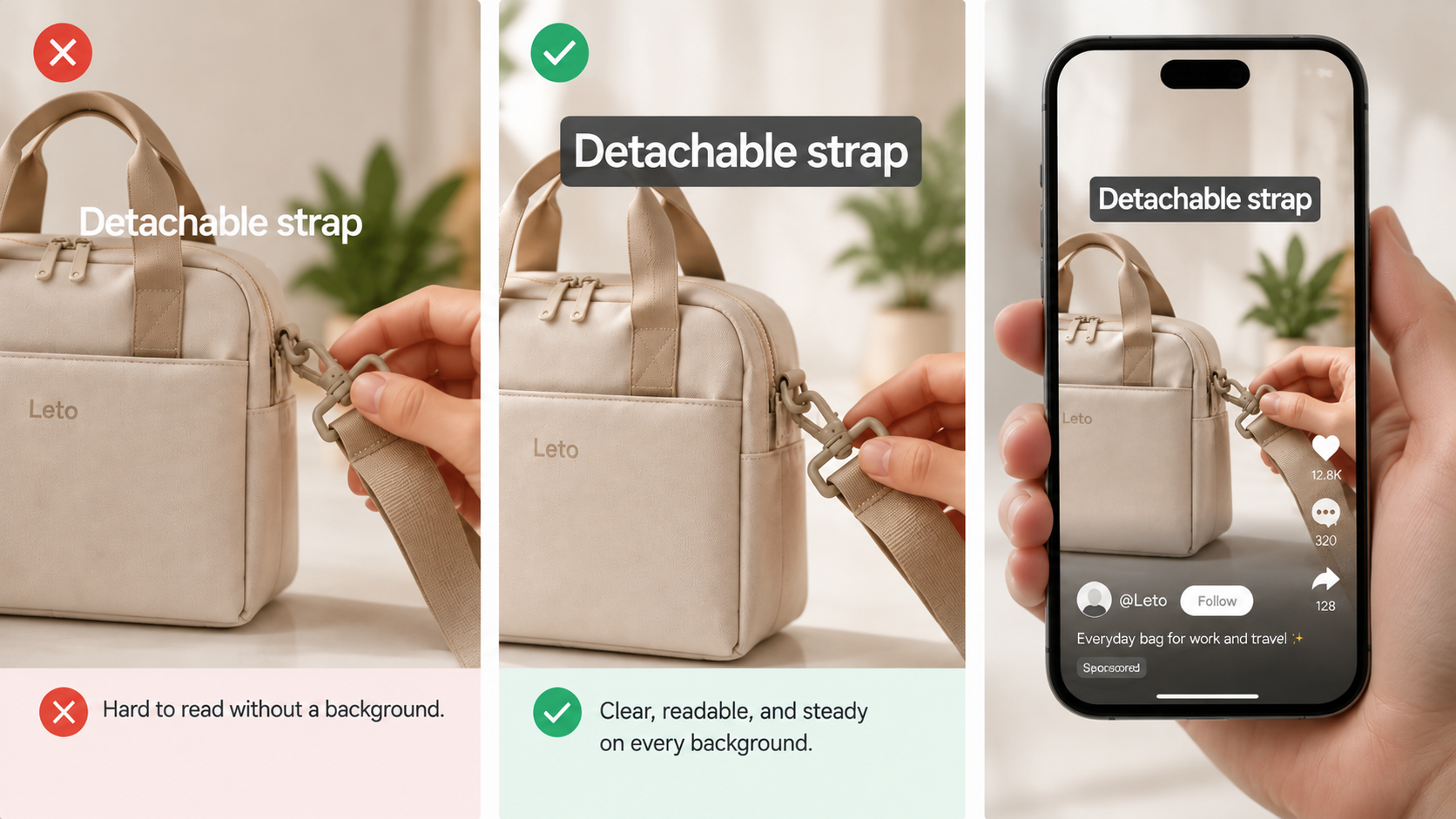
For a mobile ad about a detachable bag strap, the clip and the words need room at the same moment. A title across the fastener can make the feature harder to inspect.
Here's how to add text to a video when the product action, captions, and advertising interface all need space. Start with approved wording, time it to the scene, and check the exported file on a phone.
The example uses Leto, a fictional lunch bag. Its sample claim, “Detachable strap,” is a planning assumption to replace with a verified fact about your own product.
Choose the One Message Viewers Must Read
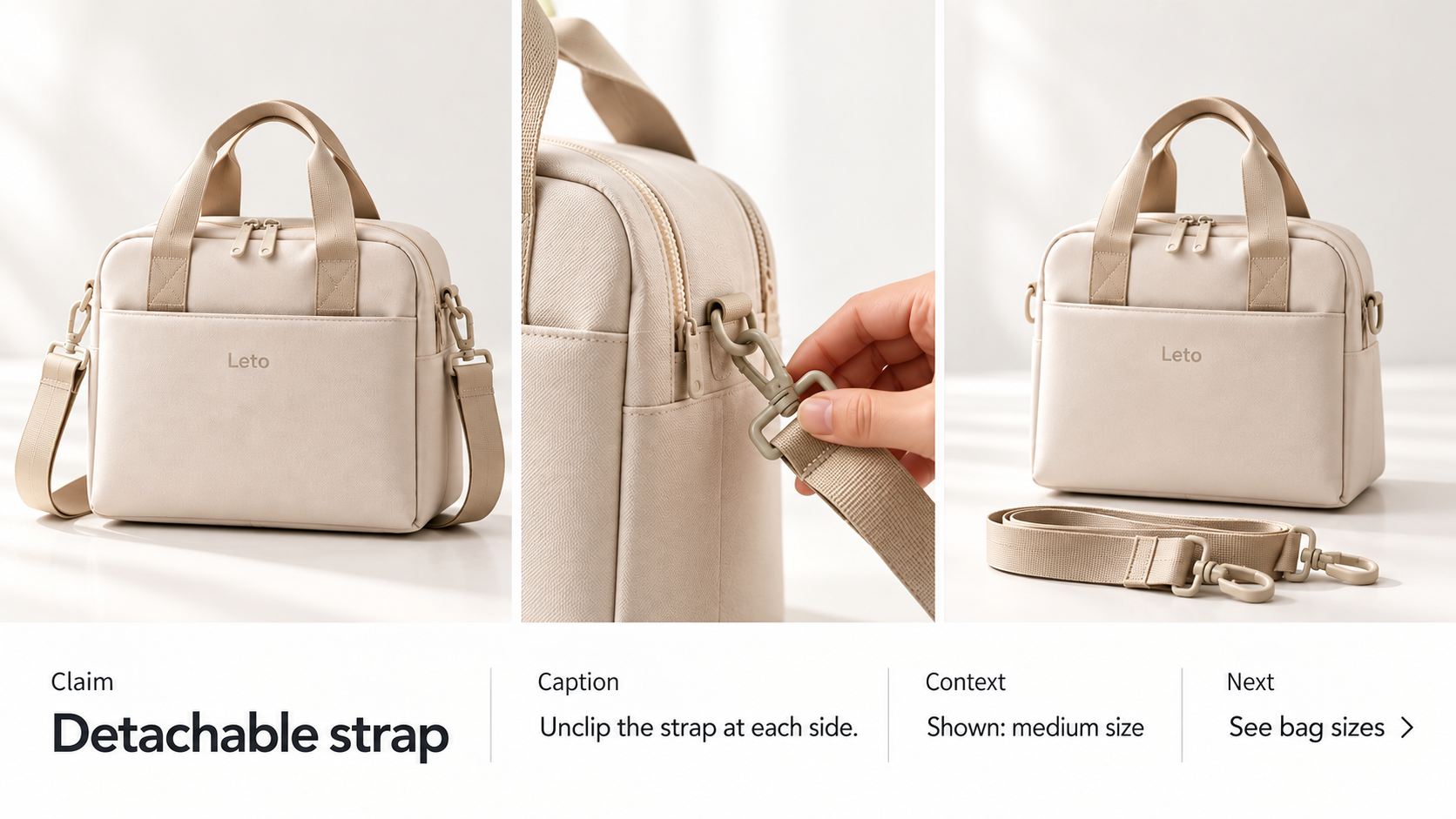
Choose the product fact the scene can actually show. Leto's approved demonstration, in this example, shows a hand unclipping the strap at each side. “Detachable strap” gives that action a short, readable name.
Separate that main line from the other words the video needs:
| Text role | Leto example | What it must do |
|---|---|---|
| Product claim | “Detachable strap” | Name the verified feature beside its demonstration |
| Speech captions | “Unclip the strap at each side.” | Accurately convey the narration, without adding a claim |
| Product context | “Shown: medium size” | Identify the version demonstrated where needed |
| Next action | “See bag sizes” | Lead to the matching product information |
Required disclosures need their own approved treatment. They are not decorative copy to remove when the layout gets busy.
In an editor with text layers, begin with these actions:
-
Import the approved video and retain a clean source copy.
-
Add a text or title layer over the relevant scene.
-
Paste the approved line, choose a plain readable style, and keep the text editable while you work.
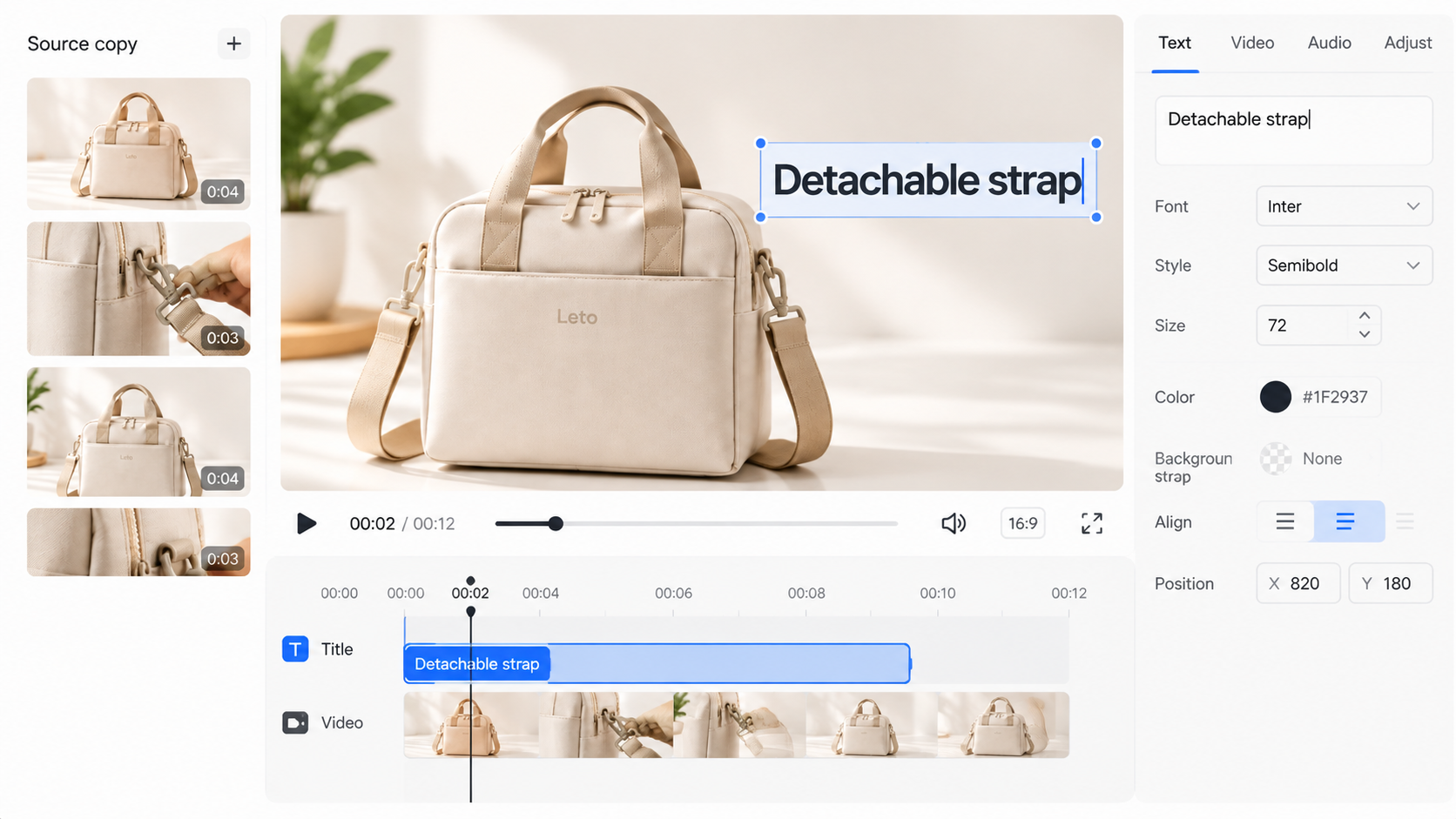
If the file already has text permanently rendered into it, return to the editable project or clean master where possible. Placing new words over the old line can leave fragments visible. Adding another caption track can also produce two competing versions of the speech.
Place Text Without Covering the Product
Reserve the space the product action needs across the whole shot. For Leto, that includes the fastener, the hand approaching it, and the strap moving away. An empty corner at the opening may be occupied later.
A video text overlay also has to clear the placement's interface. Account names, ad captions, and buttons can cover a line that leaves the bag untouched. TikTok's current In-Feed safe-zone guidance says the usable area depends on dimensions, caption length, and additional formats. Its preview may also differ slightly from the live display.
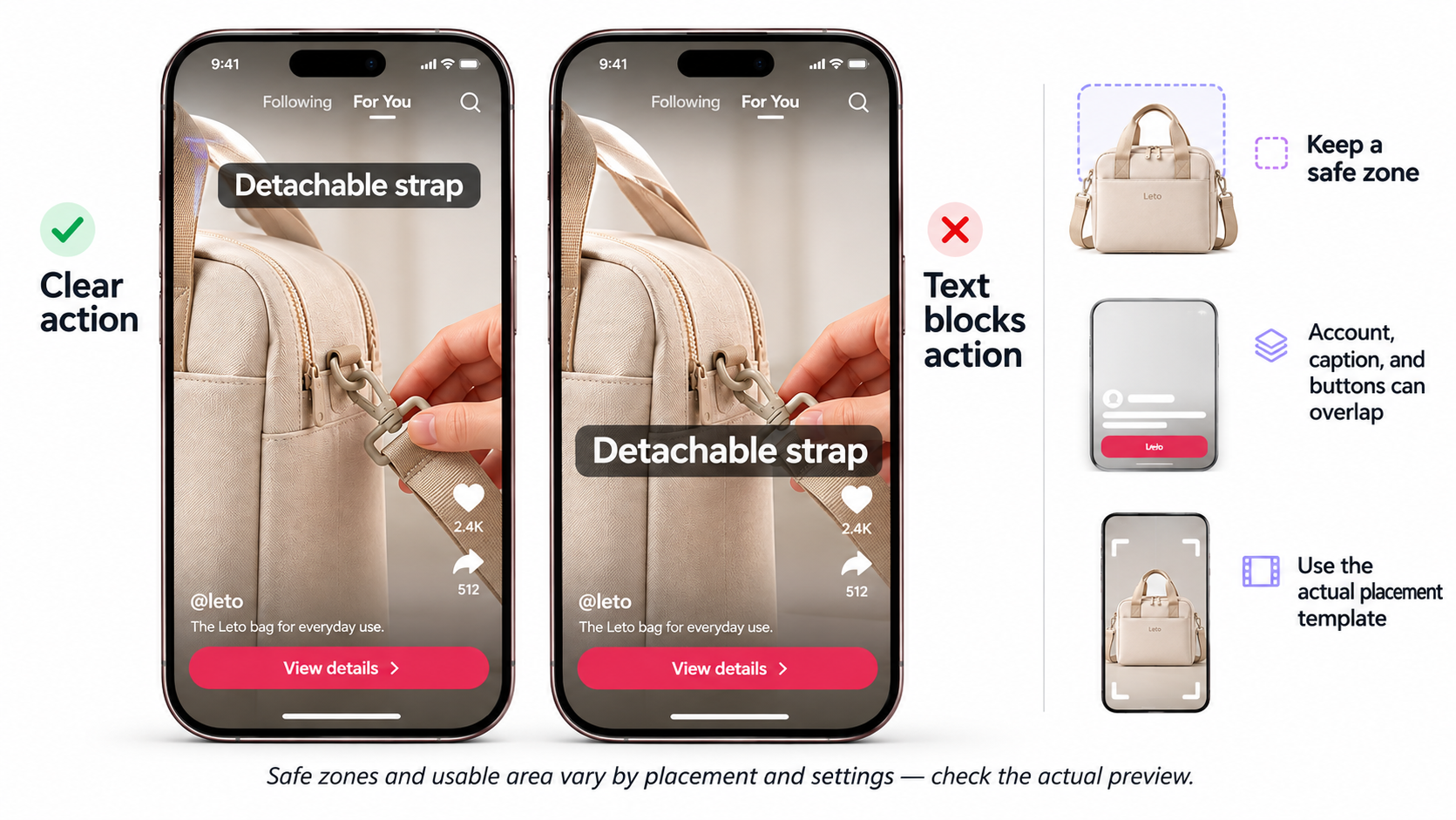
Use the current template for the actual placement, with the intended ad settings. There is no single margin to borrow for every mobile ad. If the line has nowhere readable to sit, try a shorter approved phrase or a separate text card. Keep necessary conditions intact.
The underlying footage still needs to show the feature. Reframing or replacing a shot is a separate decision from moving the text.
Time Each Line to the Scene
Set each text layer's start and end around the moment it explains. On a timeline, adjust the layer boundaries and replay the scene at normal speed. Include time to notice the words, read them, and inspect the product.
For Leto, use this sequence rather than leaving every line on screen throughout:
| Scene | Text treatment | Timing check |
|---|---|---|
| Introduce the bag | Product name; size context if needed | Let viewers recognize the item before the next message arrives. |
| Show the strap removal | “Detachable strap,” plus accurate speech captions if voiced | Keep the full claim readable while the unclipping action remains visible. |
| Close on the product | “See bag sizes” | Allow a normal-speed read before the video ends. |
A letter-by-letter entrance uses part of the display time before the complete phrase is readable. Review the settled line as well as the animation. If reading and following the hand compete, simplify the entrance or let the text appear before the action begins.
If you're developing the cut in Pexo, this guide's publisher, you can give that direction through conversation. Its Motion guide, describes specifying exact text, position, and appearance timing in plain language.
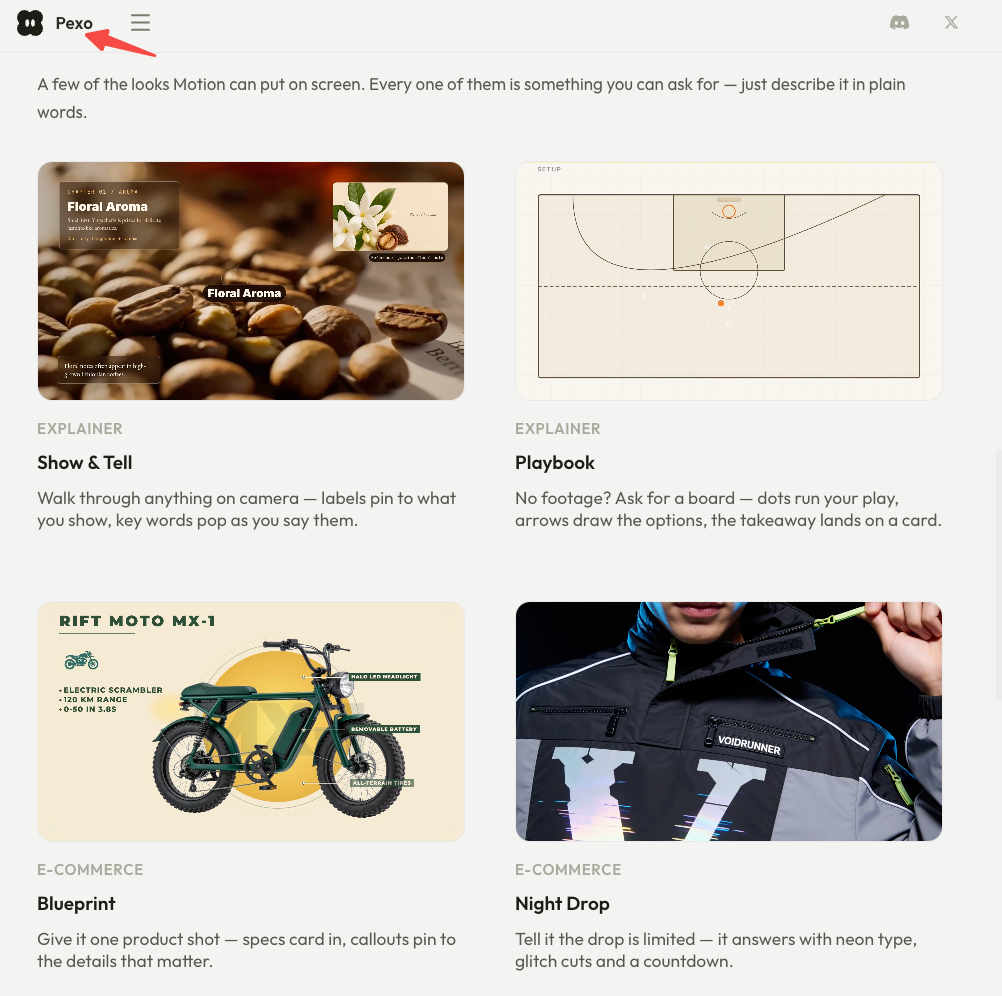
For Leto: “Show ‘Detachable strap’ above the bag before the hand reaches the clip. Keep the fastener visible, and leave the complete line steady through the action.” Check the preview against both the words and the footage. Motion guidance does not guarantee error-free text or frame-by-frame control.
Check Contrast and Mobile Readability
Check the line against every background it crosses. White lettering may read over the bag's dark fabric and disappear when the hand moves behind it. A solid or sufficiently opaque backing can give the words a steadier background.
Readable product text also needs a usable size and weight. Avoid thin strokes, crowded spacing, or decorative lettering that makes the product name difficult to recognize. If a necessary sentence is too long, give it more room or time. Shrinking it until it fits solves the layout at the buyer's expense.
Play the export on a phone at its normal viewing size, without zooming. Ask someone unfamiliar with the script to read the key line after one uninterrupted play. If they miss a word, inspect its size, contrast, movement, and duration before adding more animation.
This is a practical review, not proof that the video meets every accessibility need. Captions, visual information, audio, and player behavior need their own consideration.
Review the Export Before Delivery
Open the actual exported file, then preview it in the intended placement. An editor's paused canvas cannot show whether the delivered words survive compression, motion, and interface overlays.
| Check | Accept when | Revise when |
|---|---|---|
| Exact copy | Product names, numbers, units, and qualifiers match the approved copy | A missing word or symbol changes the meaning |
| Product visibility | The fastener and removal remain inspectable | Text or its backing hides the feature |
| Timing | Each complete line can be read at normal speed | An entrance, cut, or ending removes reading time |
| Captions | Words match the speech and remain readable | Duplicate tracks collide or an automatic caption changes a product term |
| Placement | Current interface elements leave essential text visible | A button, caption, or crop obscures a necessary line |
| Destination | The CTA and any offer match the linked page | The video promises a different product, price, or condition |
The approval record should identify the wording, export version, placement, and reviewer. A useful correction is “The hand covers ‘strap’ during the unclipping action,” rather than “Make the text clearer.” Recheck the whole export after the fix.
Before uploading footage for production, verify permissions for the material and any people, voices, or music. For Pexo, confirm the written consent required for advertising under its current terms. These are general production checks, not legal advice.