 ChatGPT
 Perplexity
 Claude
 Gemini
 Grok
Grok
I wanted a short product clip for a side project, so I spent a week pushing MiniMax (Hailuo AI) through every setting it has, then rebuilt the exact same shot in Pexo, the AI video partner, just by describing it out loud. This guide is the full MiniMax walkthrough I wish I had on day one: sign-up, credits, text-to-video, image-to-video, camera commands, and export. At each step I also show the one-conversation version in Pexo, so you can see both routes and pick the one that fits how you actually work.
By the end you will know how to make your first AI video in MiniMax without burning credits on mistakes, and you will know exactly when reaching for Pexo instead saves you the prompt-tweaking entirely.
What Is MiniMax (Hailuo AI)?
MiniMax is a Chinese AI company; Hailuo is its consumer-facing video brand, and most people use the two names interchangeably. The product takes a text prompt or a still image and returns a short clip, usually 6 to 10 seconds, at up to 1080p. As of June 2026 the current flagships are Hailuo 02, tuned for cinematic motion and physics, and Hailuo 2.3, tuned for realistic movement. It runs entirely in the browser at hailuoai.video, and it ranks among the top video models globally for visual quality and subject consistency. If you want the deeper dive, we wrote a full Hailuo AI walkthrough that goes model by model.
The thing to understand before you start: MiniMax is a generator you operate. You write a structured prompt, choose a model, set resolution, and manage a credit balance. That control is real, and it is also the learning curve. Pexo takes the opposite shape. It is an AI video partner you talk to, so instead of operating a panel you describe what you want and it handles the production. Same job, different driving experience. The rest of this tutorial teaches MiniMax properly, and flags where the conversational route is simply faster.
What You Need Before You Start
MiniMax asks for a little setup before your first render. Have these ready:
- A MiniMax (Hailuo) account, created with an email at hailuoai.video. New accounts get roughly 200 one-time welcome credits plus a small daily bonus.
- A clear idea written as a prompt, or a high-resolution still image if you are doing image-to-video.
- A sense of your credit budget. A 1080p clip costs about 80 credits, and failed generations still spend credits, so the free tier covers only a handful of test clips.
With Pexo the checklist is shorter, because there is nothing to configure. You need a sentence describing your idea and, optionally, a photo. That is the whole setup. You can start a video in Pexo in the time it takes to read this sentence, and shape the result by talking to it. Keep both tabs open as you follow along.
How to Use MiniMax to Make a Video, Step by Step
Here is the complete MiniMax workflow, from a cold account to a downloaded clip. I have noted the one-conversation equivalent in Pexo at each step so the comparison stays concrete rather than abstract.
Step 1: Create Your Account and Claim Free Credits
Go to hailuoai.video, sign up with an email, and confirm. Your dashboard opens with your welcome credits already loaded and a daily bonus that refreshes a small amount each day, enough for two or three short clips. Note the catch before you rely on it: free credits expire after about three days, free renders come out at 720p with a watermark, and they carry no commercial-use rights. In Pexo the equivalent is just opening the app and describing your idea; there is no credit puzzle to solve before you create your first clip.
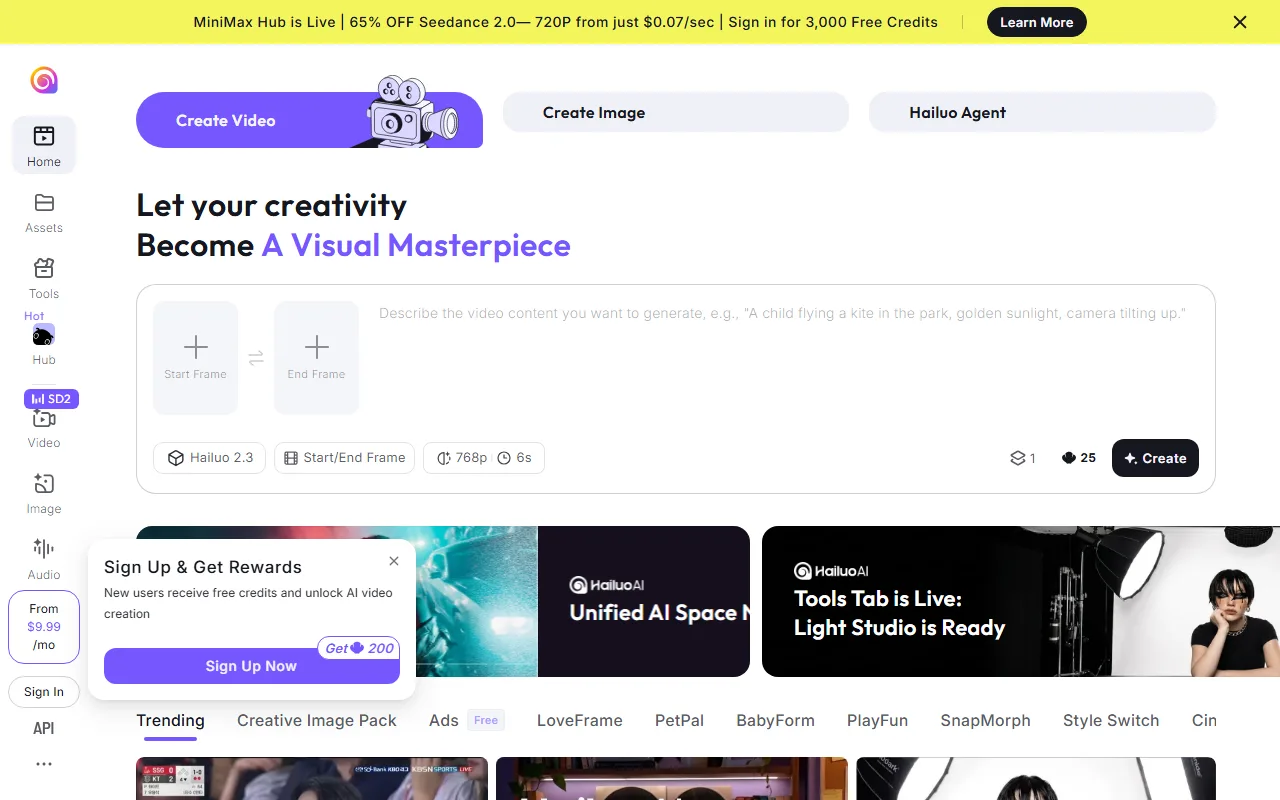 The MiniMax create dashboard. New accounts claim free welcome credits through the Sign Up and Get Rewards panel, and the generation panel exposes the model, resolution, duration, and the per clip credit cost before you spend.
Step 2: Choose Text-to-Video or Image-to-Video
MiniMax splits into two modes. Text-to-video builds a clip from a written description alone, which is great for scenes you do not have footage or stills for. Image-to-video animates a still you upload, which is the better choice for product shots and character consistency. Pick the mode that matches your starting material.
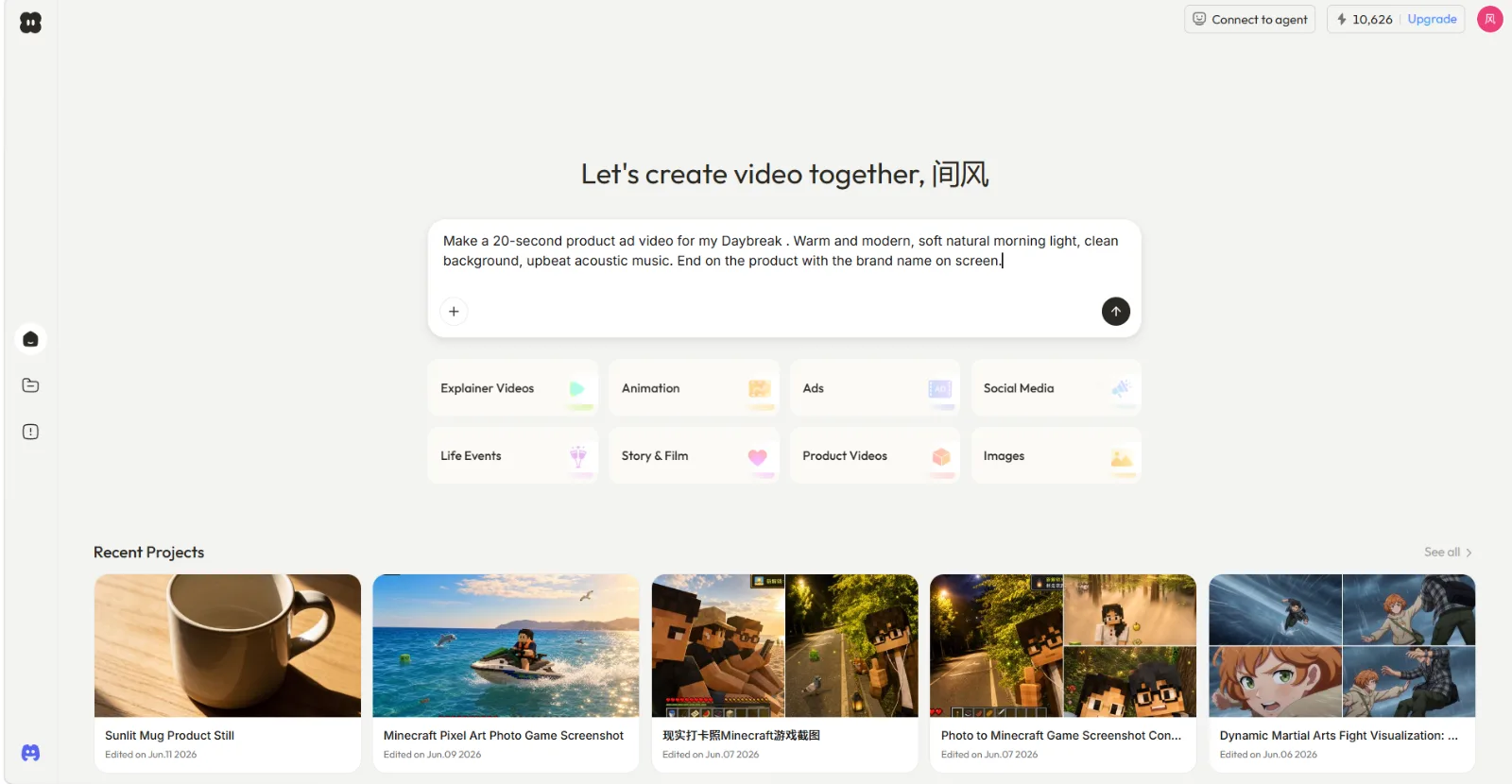 In Pexo you skip the mode question: you describe the video in plain language and it routes the work for you, whether you start from text or a photo.
This is the first place the routes diverge. In Pexo there is no text-versus-image fork to choose, and no model to select. You just describe what you want in one box, attach a photo if you have one, and it figures out the rest. If you need the still image first, Pexo can generate that image inside the app too, so an image-to-video project never sends you out to a separate tool.
Step 3: Write Your Prompt and Add Camera Commands
This is the craft of MiniMax. Describe the subject, the lighting, the mood, and the motion, then steer the virtual camera with bracket commands typed directly into the prompt. Commands like [Pan left], [Zoom in on subject], and [Dolly forward] are actually followed rather than ignored, which is one of Hailuo's real strengths. Expect to iterate: small prompt wording changes produce noticeably different clips, and each attempt costs credits.
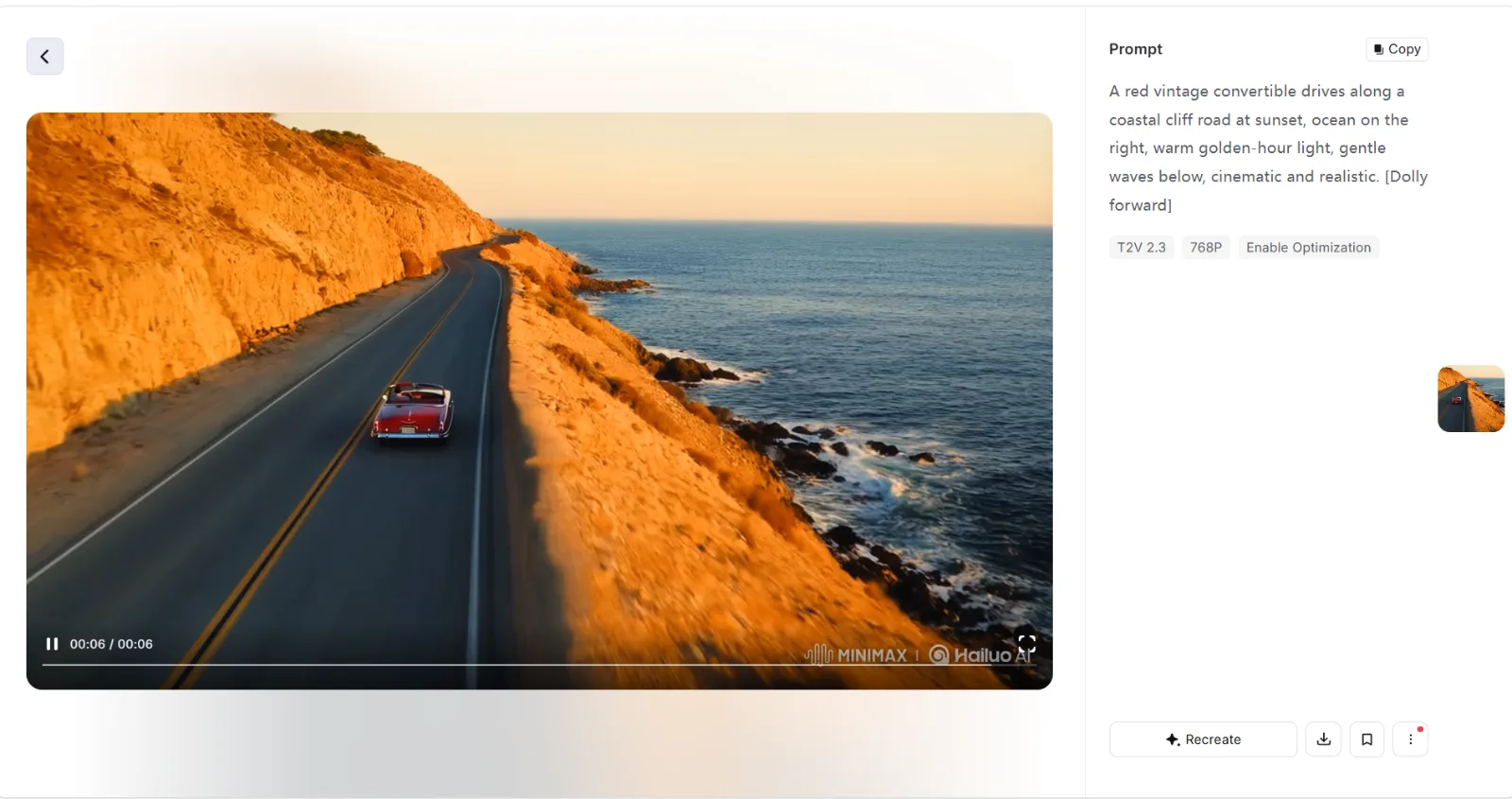 A real MiniMax prompt: the description carries a bracket camera command ([Dolly forward]), and the model (T2V 2.3) and resolution (768P) are set on the right before you spend credits.
Here is where "no prompts, just talk" earns its keep. Instead of learning camera syntax, you tell Pexo "slow push-in on the bottle, warm morning light," and it interprets the intent. It also brings ideas back, asking a clarifying question or suggesting a direction you had not considered, which is the difference between operating a tool and directing a partner. If MiniMax's prompt grammar is slowing you down, that is the signal to switch routes.
Step 4: Generate, Then Manage Your Credits
Hit generate and MiniMax queues the render. A standard 768p clip is the cheapest output; pushing to 1080p or longer durations burns credits faster, at roughly 80 credits per 1080p clip. The hard rule to internalize: a failed or disappointing generation still costs you, so write the prompt carefully before spending. Monthly credits on paid plans reset and unused credits expire, so there is no banking them. Pexo's pricing is credit-based as well, but because it shows you a plan and quick preview before the full render, you are redirecting rather than re-rolling from scratch.
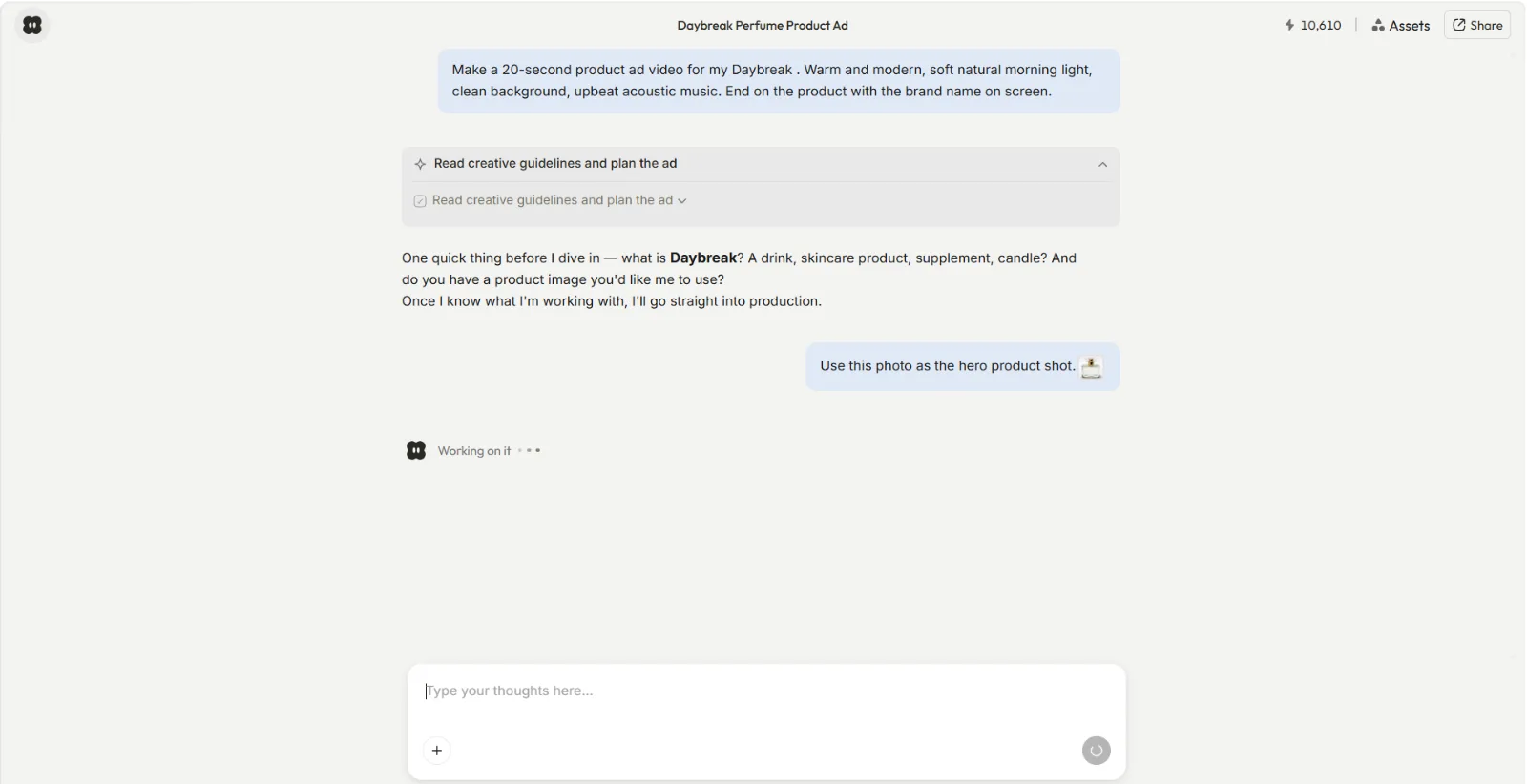 The one conversation equivalent: instead of watching a credit meter, you hand Pexo the photo, it asks the right question, then produces the clip, showing its plan before it commits.
Step 5: Download and Export Your Clip
When the render finishes, preview it and download. On the free tier your file arrives at 720p with the MINIMAX | Hailuo AI watermark baked in and no commercial license, so anything client-facing needs a paid plan. Stitch several 6-to-10-second clips together in an editor if you need a longer piece, since MiniMax thinks in short shots. With Pexo the output is a finished piece with pacing and soundtrack already handled, which removes the stitch-and-assemble step for short-form work.
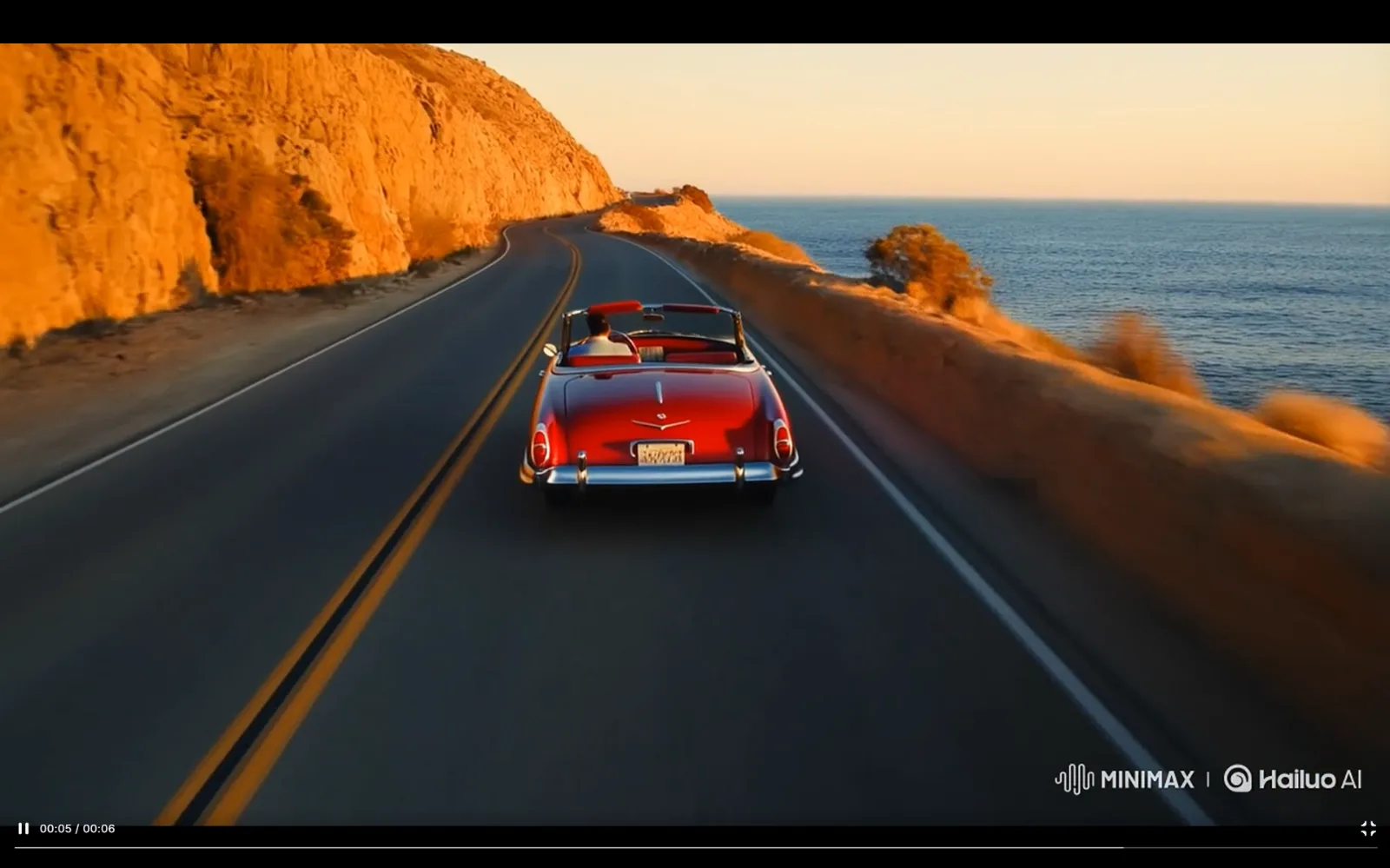 A finished MiniMax clip on the free tier. The exported file carries the MINIMAX and Hailuo AI watermark in the lower right, which only a paid plan removes.
Common Mistakes to Avoid
Most wasted credits come from a handful of avoidable errors. Watch for these:
- Treating free output as usable. Free clips are 720p, watermarked, and not licensed for commercial use. Plan to upgrade before you make anything for a client.
- Forgetting that failed renders cost credits. Refine your prompt in a notes doc first; do not iterate live on a thin balance.
- Expecting one long clip. MiniMax outputs 6-to-10-second shots. Build longer videos shot by shot, or use a partner that returns a finished cut.
- Skipping camera commands. A prompt with no [Pan left] or [Zoom in] leaves the camera static and the clip flat.
The credit-and-watermark anxiety is the single biggest friction point new users hit. It is also exactly what the conversational route sidesteps: when you can preview a plan before committing the full render, you stop paying for guesses. If that friction is the part you want gone, make your first clip in Pexo and compare the feel directly.
Pro Tips for Better Results
Once the basics click, these push your output further:
- Match the model to the shot. Use Hailuo 02 for cinematic, physics-heavy scenes and Hailuo 2.3 for realistic everyday motion. Picking wrong wastes a render.
- Feed a strong reference image. Image-to-video holds character and product consistency far better than text-to-video alone.
- Build in beats. Plan your story as a sequence of short shots rather than fighting for one long take.
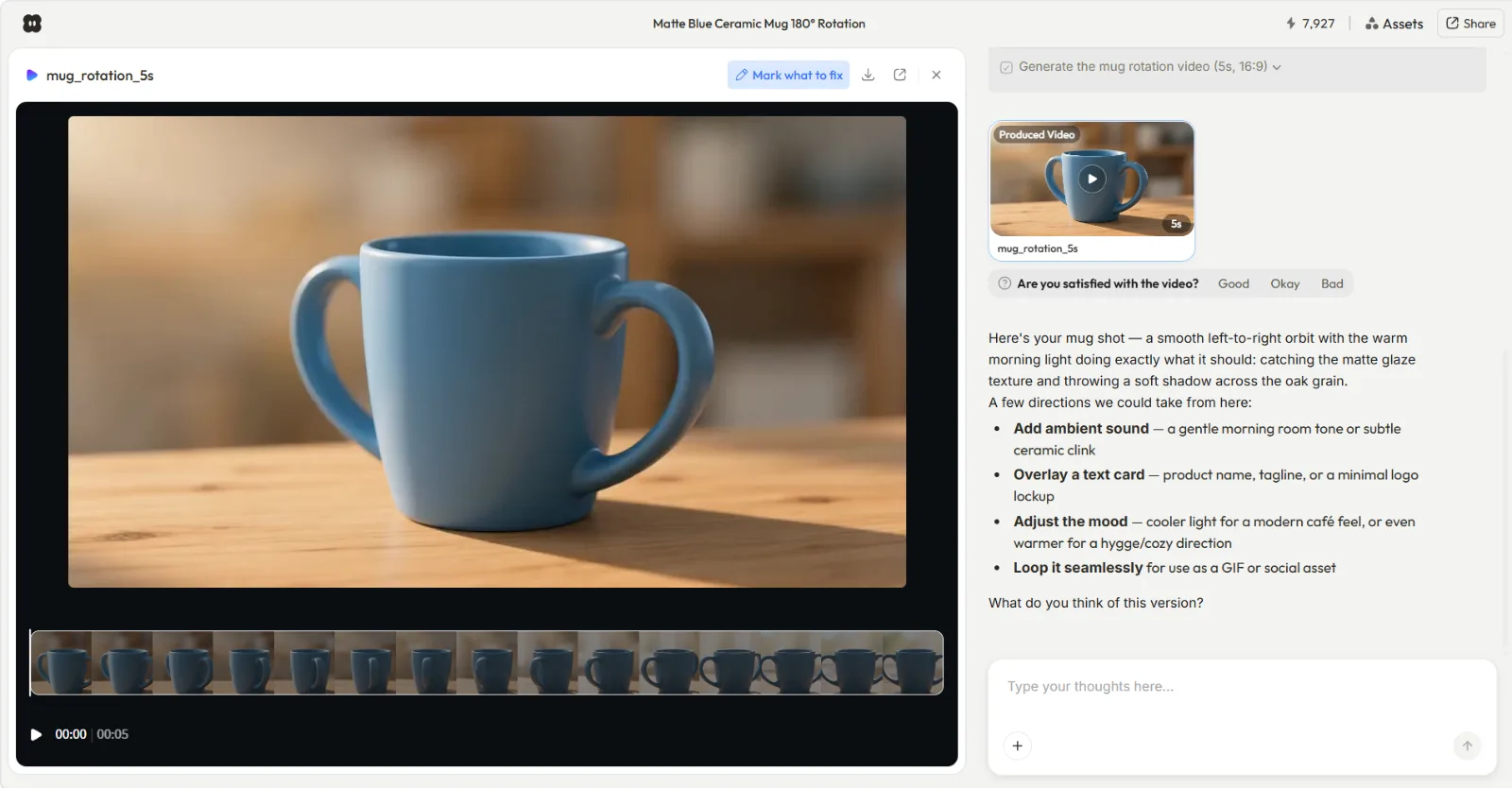 Pexo iterating on a finished clip: instead of re-rolling a prompt, you ask for the next change in plain language and it refines the existing version.
The model-picking tip is worth a second look, because it is a chore Pexo removes outright. Rather than choosing between Hailuo 02 and 2.3 yourself, Pexo works with Seedance, Sora, Kling, and more and routes to the right one for your scene automatically. No prompts, no model menu, just the best one each time. For a beginner that is one fewer decision standing between an idea and a finished clip.
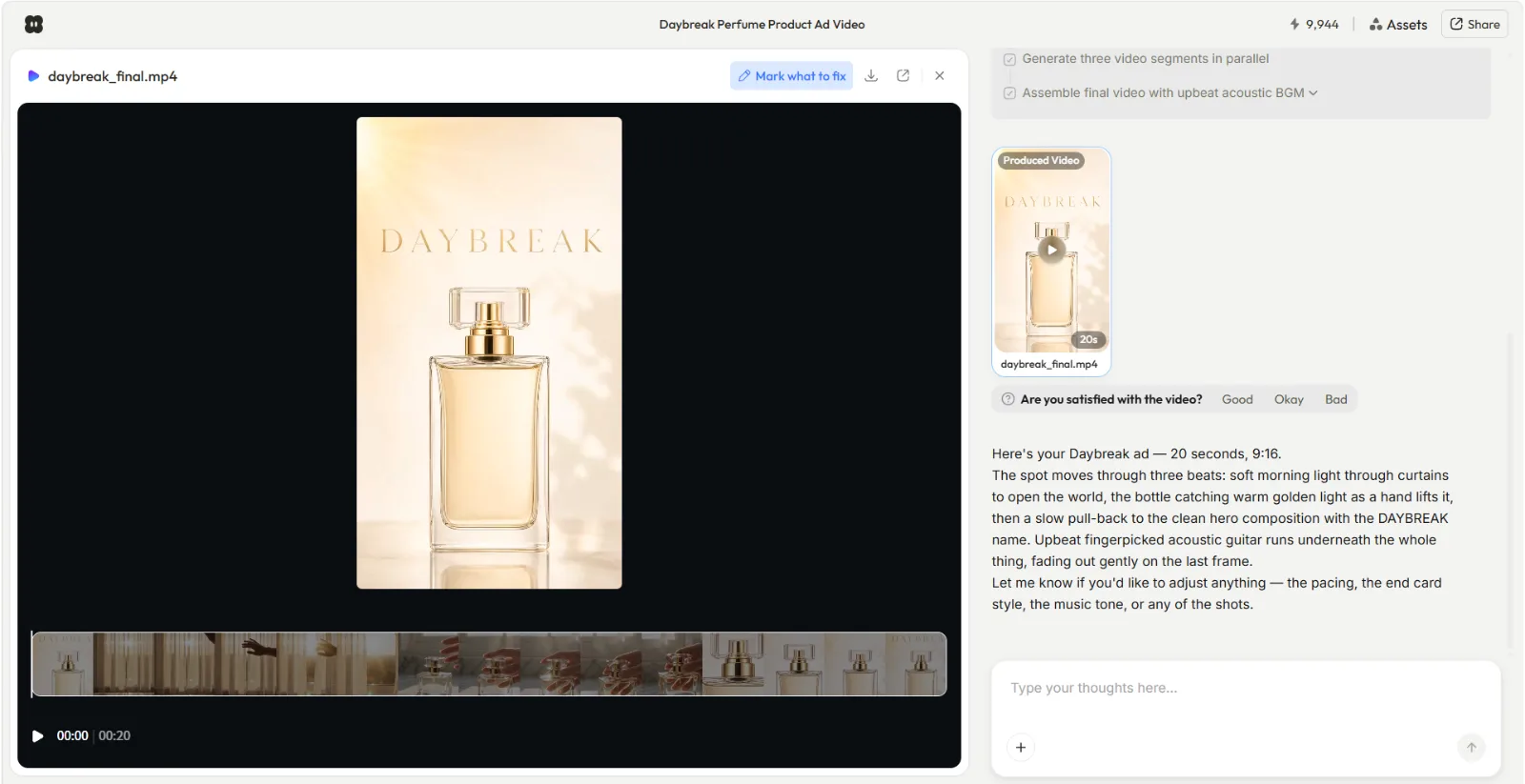 A finished Pexo ad: 20 seconds, vertical 9:16, soundtrack and pacing handled, produced from one described request and a product photo.
When NOT to Use AI Video Generation
Honesty matters more than a sales pitch here, and this applies to MiniMax, Pexo, and every tool in the category. AI video generation is the wrong call when you need genuine live-action authenticity, like a real founder speaking on camera, where a phone recording beats any generated clip. It struggles with long-form narrative, since both tools think in short shots rather than five-minute stories. It is risky when you need pixel-exact brand frame control, because generation introduces variation a strict brand guideline may reject. And it is the wrong tool for regulated claims, such as medical or financial promises, where every frame needs legal sign-off that generated content complicates. If your project lives in one of those buckets, no AI generator is your answer, and that is fine to know up front.
What Else Can You Use
MiniMax is not the only route to an AI video. A few honest alternatives, depending on your job:
- Pexo. The conversational AI video partner this guide keeps returning to. Best when you want to describe an idea and get a finished, ready-to-post clip without prompt syntax or model-picking. Start here.
- Kling AI. A strong generator known for motion quality, a fair comparison point if you are weighing pure model output. See the Kling model overview.
- Other MiniMax options. If you have decided MiniMax is not your fit, we keep a current list of the best MiniMax alternatives with the trade-offs spelled out.
For most marketers and creators making short-form social and product video, the deciding factor is not raw model specs, it is how fast you get from idea to a finished clip you can post. That is the case for trying the partner route.
Conclusion
MiniMax (Hailuo AI) is a capable generator, and now you can run it end to end: claim credits, pick a mode, write a prompt with camera commands, manage your balance, and export. The learning curve is real but climbable, and the camera control is genuinely good. The honest summary is that MiniMax rewards people who enjoy operating the controls, while the conversational route rewards people who would rather just describe the video and get it back finished. If that second description is you, make your first video in Pexo and skip the prompt grammar entirely. Either way, you now know how to get a clip out the door.