



AI Narrated PowerPoint Lesson Video
Make a narrated powerpoint lesson video with Pexo. Use your exported slide sequence to tell a clear story. Organize your material and review the finished video.
Make an AI animated gif showcase video. Show a set of exported loops in one short reel. Keep a complete pass of each animation and choose an order that makes the changes easy to see.
Bring your animations as standard video exports with the start and end of each loop visible. In Pexo’s animated gif showcase video maker, order the examples by theme or movement and start with one a new viewer can read quickly. Use Merge Videos with your brief, then review each loop as it settles.

The result preview focuses on each loop as it settles. Review each of the checks before shaping the complete cut.
What to review
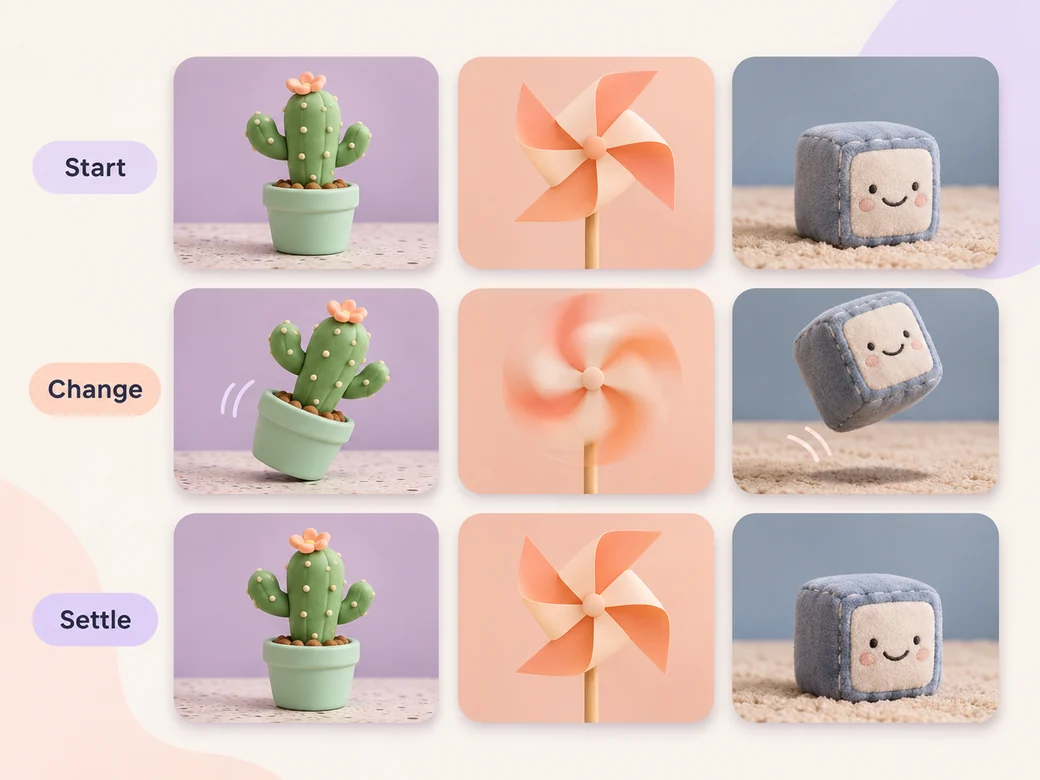
Hold long enough for the viewer to see a small action return to its starting position. Use a shorter spot when the animation repeats many times. Leave enough room between examples for their different materials or gestures to register.
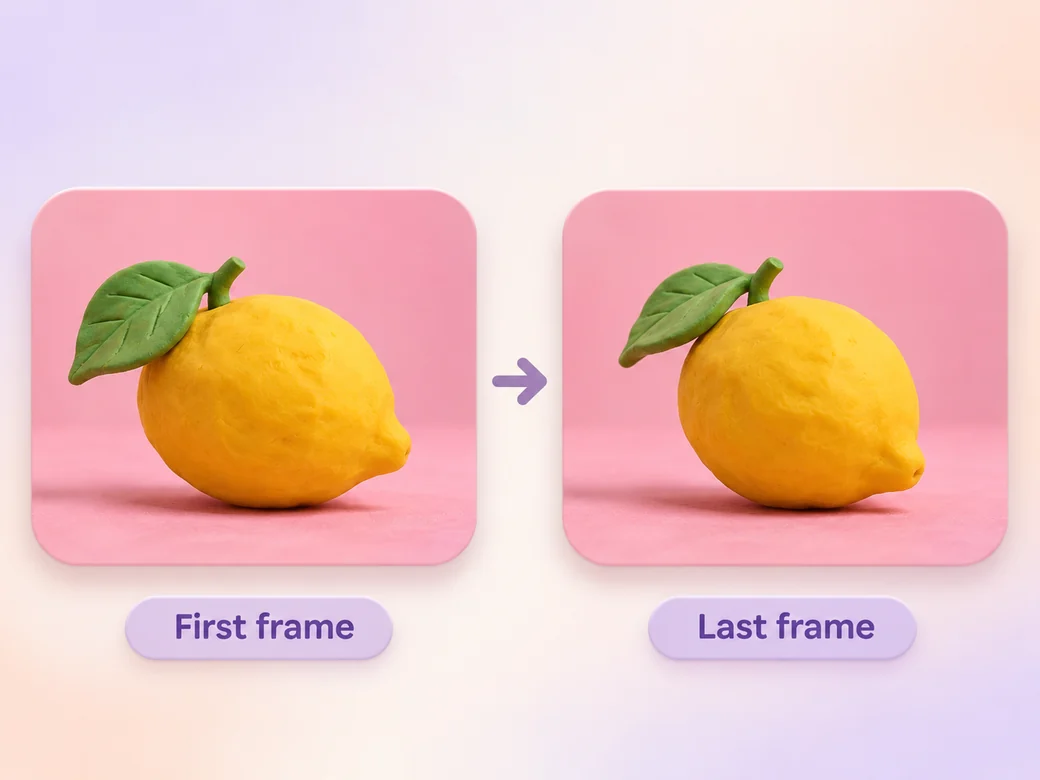
Compare the first and last resting positions, including color and placement. Watch the loop twice. When a jump is part of the look, keep it visible and join the next example on an intentional beat.
Start by watching the images with the sound off. If a musical line helps connect the themes, use Music Generation to try a sparse instrumental. Give the simplest loops enough space to keep their own rhythm.
Keep a wide cut for a portfolio, client preview, or collection post. For a 9:16 excerpt, retain each loop as it settles and review how it fits on a phone. Check the start and the last frame at the intended size and give any text enough time to read.
“In Pexo, I check that each animation gets time to finish a cycle. One full pass usually says more than several quick repeats.”

“I put a different material or gesture in the next example. That makes the range easier to see.”

“I watch it on my phone with sound off first. A music choice can support what the motion already shows.”

An animated gif showcase video is a finished edit that helps you show a group of short looping animations as one reel. It can be prepared for a portfolio, client preview, or collection post, with enough context for the viewer to follow each loop as it settles. Choose a few moments that improve the final result and give each one time to read before the next cut.
Bring your animations as standard video exports with the start and end of each loop visible. Give each source a short name that describes where it belongs, and include any exact wording that should appear. Tell Pexo which part matters most and how you plan to show it. That gives you a clear first version to review.
The showcase is a finished video assembled from your exported loops. Keep the original GIFs for uses that specifically expect an animated image. If a source is only available as GIF, prepare a standard video export and check that the whole animation was preserved before building the showcase.
Pexo helps organize your material and revise the framing, pacing, and sound after you review the result. Use the source that documents your actual subject for each loop as it settles. For a separate illustrative insert or visual opening, Kling AI 3.0 can animate an approved reference image.
An animated GIF showcase video collects a group of looped examples so viewers can see the range and repeat behavior in one watch. A motion graphics video can be a new animation with its own story or graphic purpose. Use the showcase when the short repeated examples are already available as footage.
Use subject + action + camera movement + setting + style. Try ‘Use the exported clay cactus, paper windmill, and rotating knit toy clips. Keep a steady camera close to each subject, show one full movement, then cut to the next texture. Finish with the quietest loop and let it return to the start. Keep the sound light and optional.’
Bring your animations as standard video exports with the start and end of each loop visible. Start with each loop as it settles and review the first cut at the intended size.
Make a narrated powerpoint lesson video with Pexo. Use your exported slide sequence to tell a clear story. Organize your material and review the finished video.
Make a 2d logo reveal video with Pexo. Organize your own material and edit a focused review cut. Check the details before you share it.
Make a wedding highlight film with Pexo. Shape recorded vows, gestures, and reactions into a short wedding film. Give the voice and music their own space.
Make a wedding and event recap video with Pexo. Arrange arrival, ceremony, and reception footage into an easy-to-follow recap. Keep a few lines of live sound.
Make a lottie website animation showcase video with Pexo. Turn exported motion and screen recordings into a web animation reel with before and after states.
Make a visual effects showreel with Pexo. Compare matched plates and final shots, show the important effect passes, and label your contribution.
Make a corporate highlight video with Pexo. Use approved company footage to show the event, the most useful moment, and the result in a short recap.
Make a b-roll showcase video with Pexo. Group recorded B-roll by setting, action, and detail. Show how your footage can support a story.