
AI Narrated PowerPoint Lesson Video
Make a narrated powerpoint lesson video with Pexo. Use your exported slide sequence to tell a clear story. Organize your material and review the finished video.
Make an AI wedding and event recap video. Put the recorded arrivals, main event, and closing moment in an order guests can follow. Keep a clear line of the live sound where it belongs.
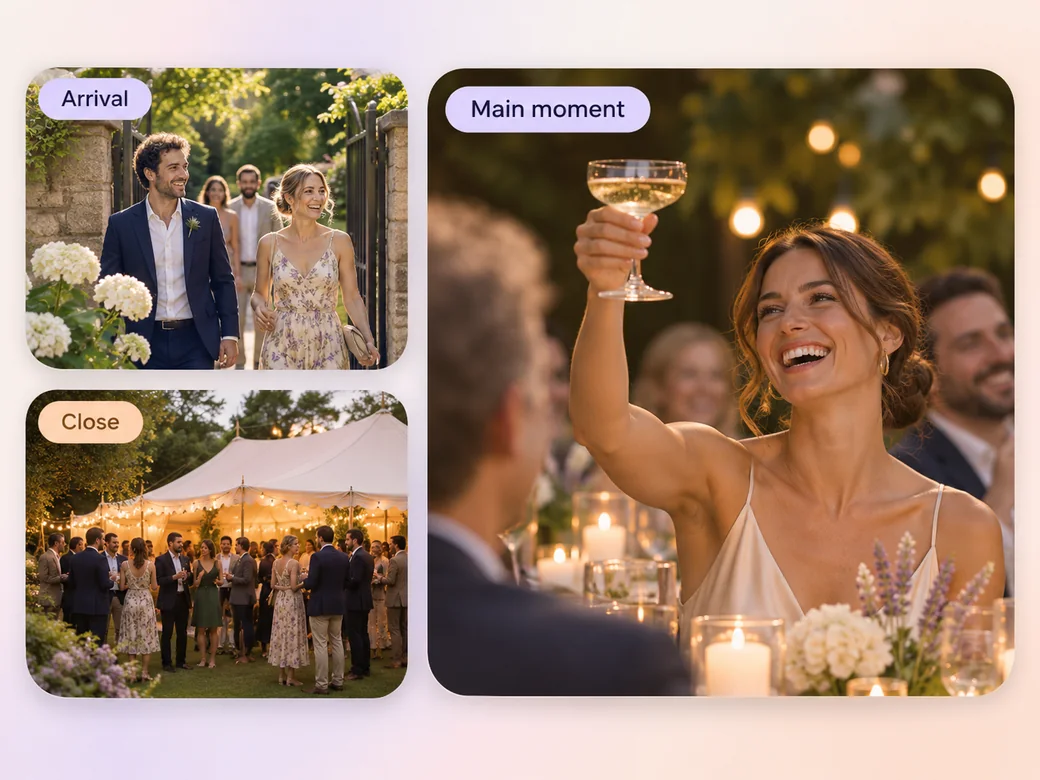
Bring original ceremony or event footage, a rough running order, and any approved photos or recorded remarks. In Pexo’s wedding and event recap video maker, group the footage by chapter and give each part one strong moment. Use Merge Videos with your brief, then review the transition from arrival to the toast.
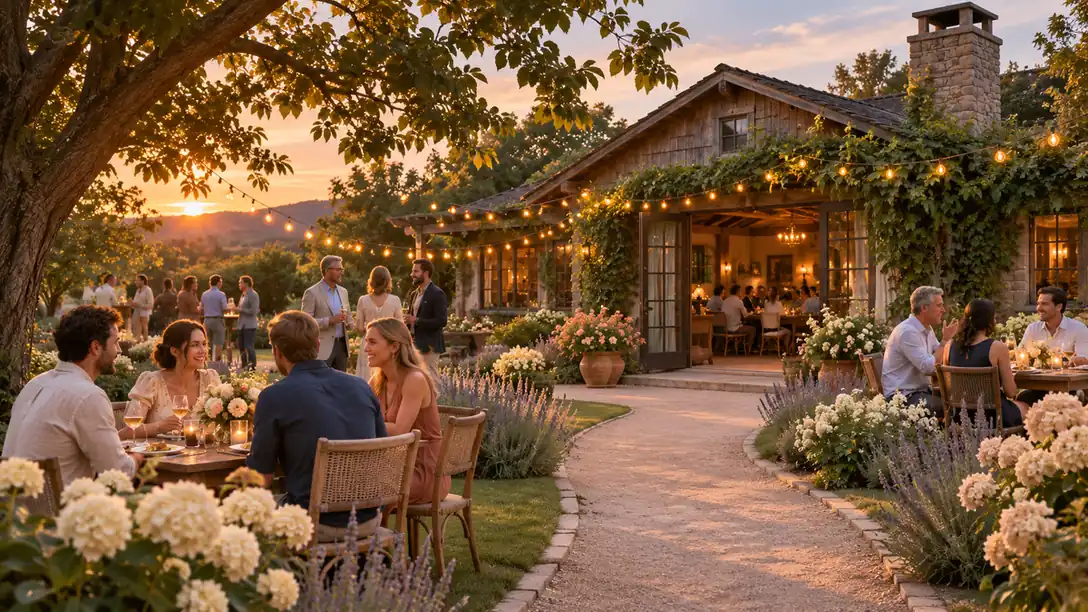
The result preview focuses on the transition from arrival to the toast. Review each of the checks before shaping the complete cut.
What to review
Use the arrival or venue to establish the place. Give the main toast, ceremony, or presentation time to play before showing the next group of shots. Leave one recognizable end image so the audience can see how the gathering finished.
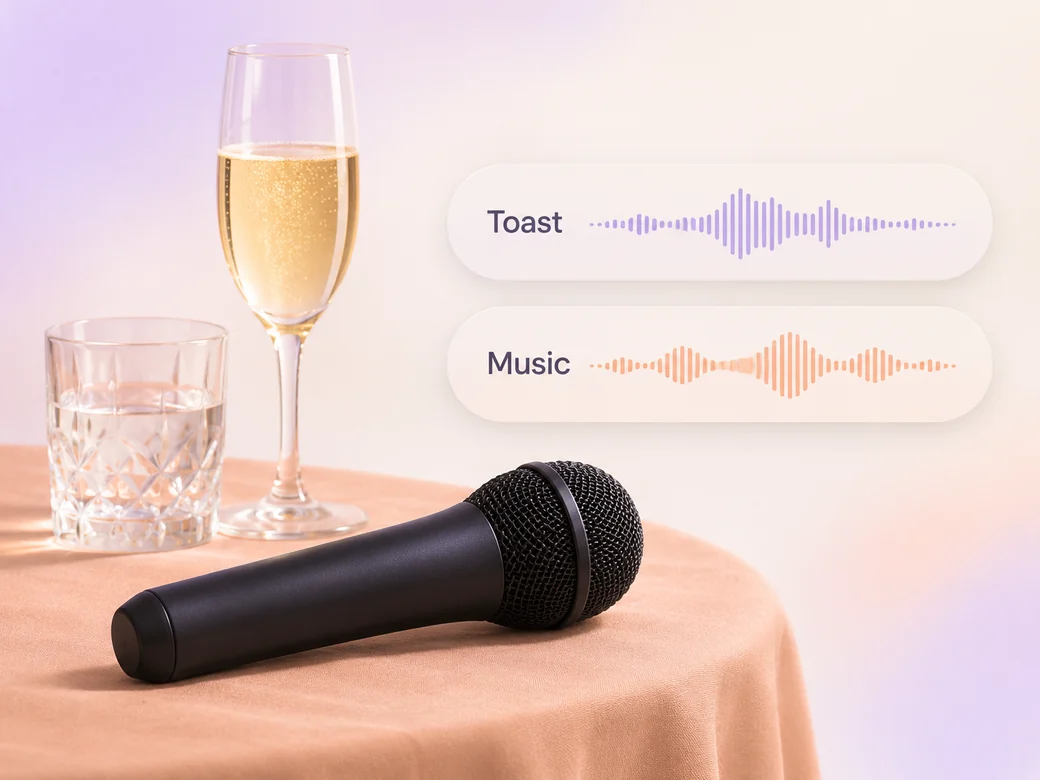
Keep an approved spoken line and a little reaction when they tell you something about the day. Place music lower underneath them. Test the handoff from the live recording into the score so it sounds like part of the same recap. Use Music Generation to try the treatment and listen against the actual pictures.
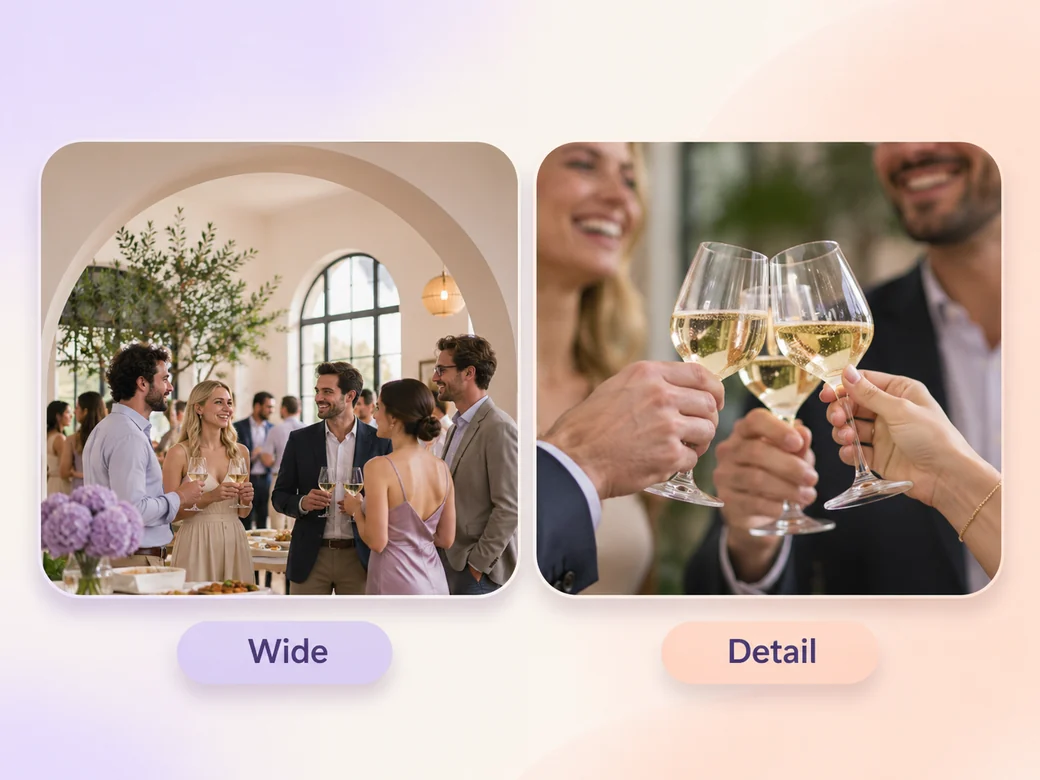
Let a wide view connect the people with the setting. Find a nearby detail such as a hand raising a glass or guests meeting at the entrance. Use short event labels only when they add something a viewer cannot see.
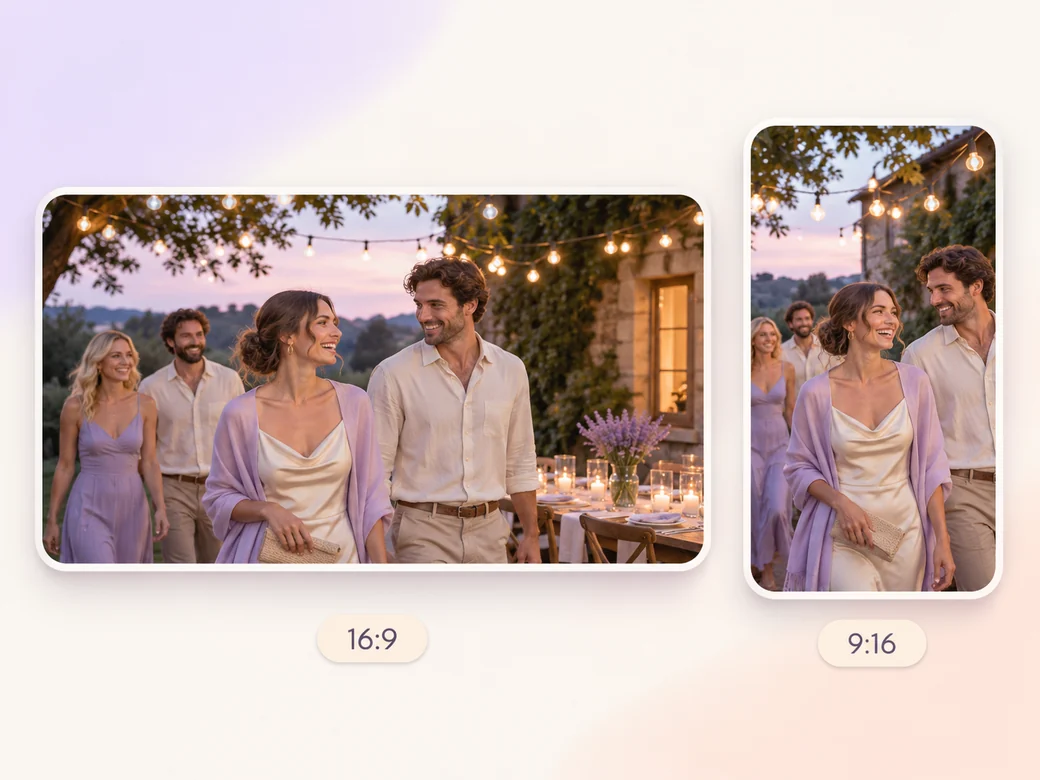
Keep a wide cut for a keepsake, guest link, or event recap. For a 9:16 excerpt, retain the transition from arrival to the toast and review how it fits on a phone. Check the start and the last frame at the intended size and give any text enough time to read.
“In Pexo, I want guests to be able to tell how the event unfolded. One useful scene can mark each part of the day.”

“I keep a wide view of the room before the details. Then a close-up can remind people of something they saw in person.”

“I check the people’s names and the original toast. The live voice is often what makes the recap feel personal.”

A wedding and event recap video is a finished edit that helps you take viewers through the highlights of a wedding or event in order. It can be prepared for a keepsake, guest link, or event recap, with enough context for the viewer to follow the transition from arrival to the toast. Choose a few moments that improve the final result and give each one time to read before the next cut.
Bring original ceremony or event footage, a rough running order, and any approved photos or recorded remarks. Give each source a short name that describes where it belongs, and include any exact wording that should appear. Tell Pexo which part matters most and how you plan to show it. That gives you a clear first version to review.
Yes. Group the clips by the moment they show, and pick an angle with a clear view for each one. Include good original sound if someone recorded a toast or speech. Preview the clips together and reframe them where needed so guests and important actions remain visible in the finished format.
Pexo helps organize your material and revise the framing, pacing, and sound after you review the result. Use the source that documents your actual subject for the transition from arrival to the toast. For a separate illustrative insert or visual opening, Kling AI 3.0 can animate an approved reference image.
A wedding and event recap follows the important moments people already recorded, in a sequence that helps guests remember the day. A wedding video can also tell the couple’s story across different times. Use a recap when the schedule and the sequence of the event matter more than a separate story from before it.
Use subject + action + camera movement + setting + style. Try ‘Start with the recorded garden arrivals, then move indoors to the toast and the guests’ reaction. Keep the fixed wide angle long enough to show the room. Cut in close for the raised glass and hold on the evening crowd. Use the natural toast audio with a low score under it.’
Bring original ceremony or event footage, a rough running order, and any approved photos or recorded remarks. Start with the transition from arrival to the toast and review the first cut at the intended size.
Make a narrated powerpoint lesson video with Pexo. Use your exported slide sequence to tell a clear story. Organize your material and review the finished video.
Make a 2d logo reveal video with Pexo. Organize your own material and edit a focused review cut. Check the details before you share it.
Make an animated gif showcase video with Pexo. Arrange exported loops into a short showcase. Play each movement all the way through before moving to the next.
Make a wedding highlight film with Pexo. Shape recorded vows, gestures, and reactions into a short wedding film. Give the voice and music their own space.
Make a lottie website animation showcase video with Pexo. Turn exported motion and screen recordings into a web animation reel with before and after states.
Make a visual effects showreel with Pexo. Compare matched plates and final shots, show the important effect passes, and label your contribution.
Make a corporate highlight video with Pexo. Use approved company footage to show the event, the most useful moment, and the result in a short recap.
Make a b-roll showcase video with Pexo. Group recorded B-roll by setting, action, and detail. Show how your footage can support a story.