
AI Video Montage
Make a video montage with Pexo. Arrange clips and photos around one theme, pace the cuts to music, and turn separate moments into a finished montage.
Make an AI b-roll showcase video. Build a short sample reel from the footage you already captured. Organize wide context, hands-at-work shots, and fine details so viewers can see how the clips support a story.
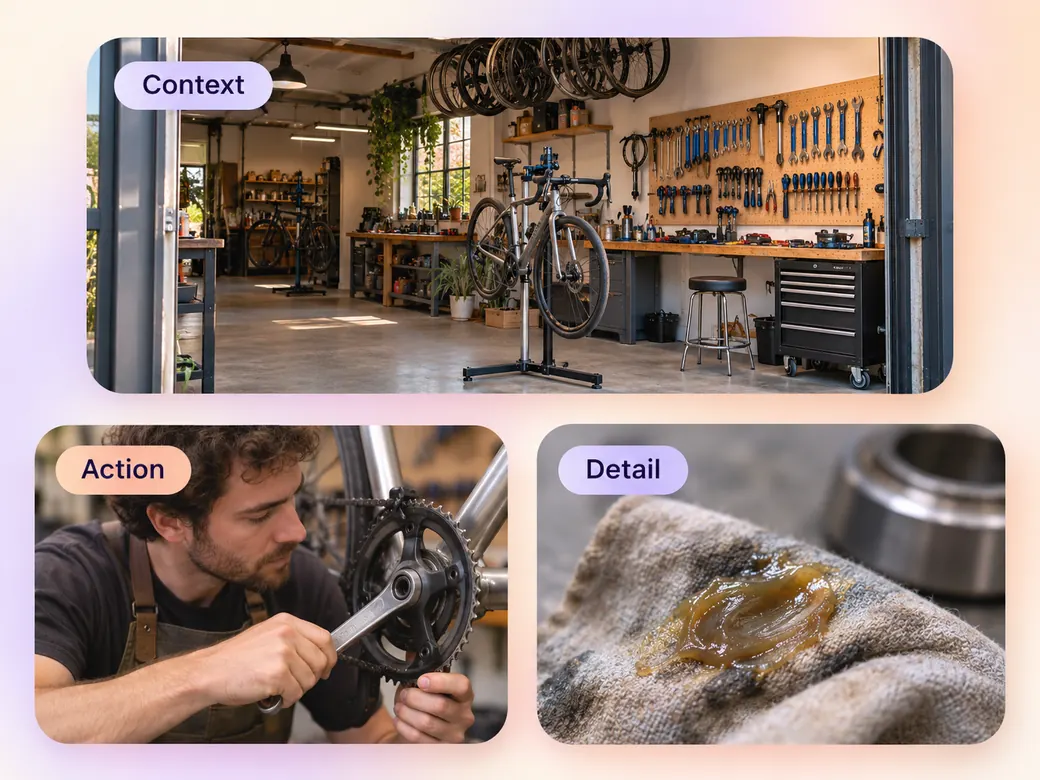
Bring a group of supporting shots from the same subject or well-defined project. In Pexo’s b-roll showcase video maker, arrange a wide view, one clear action, and a close detail from the same situation. Preview your shot sequence with Merge Videos and keep the clips that help a viewer understand what was happening.
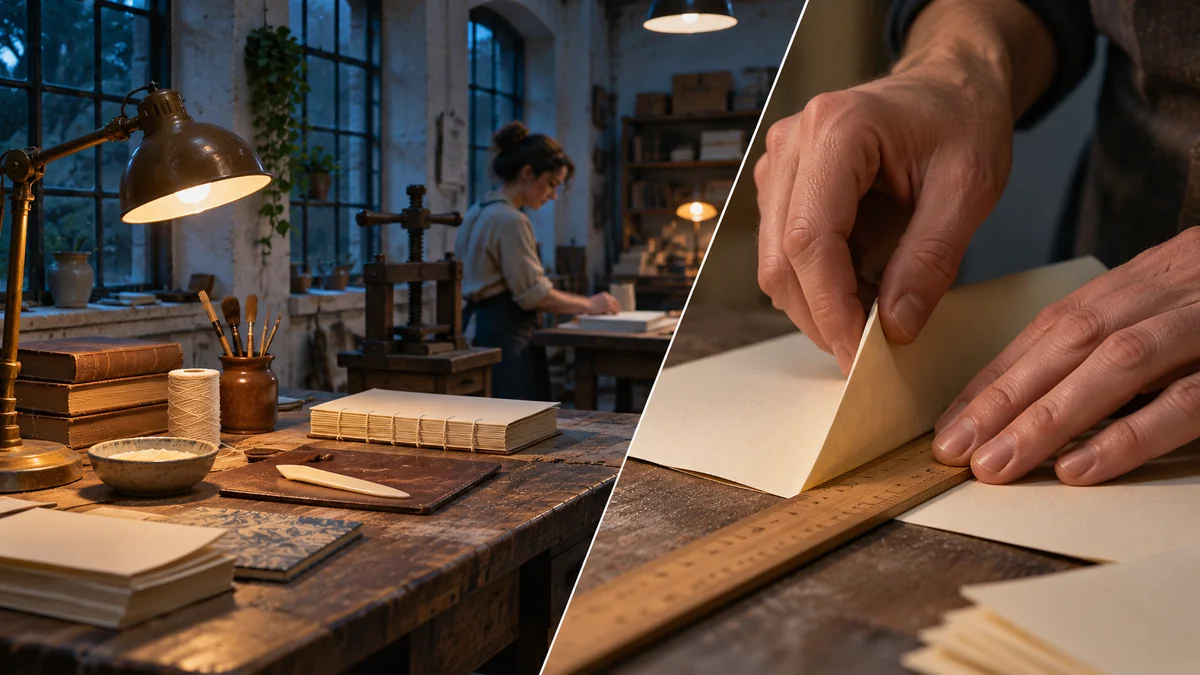
The preview shows the workshop and one specific process detail. Review how the close shot supports the wide view.
What to review
Give each group a wide view that situates the subject, a tighter shot of something happening, and one detail that could work as a cutaway. Keep the cuts long enough to consider as separate assets. If two frames offer the same information, choose the cleaner example.
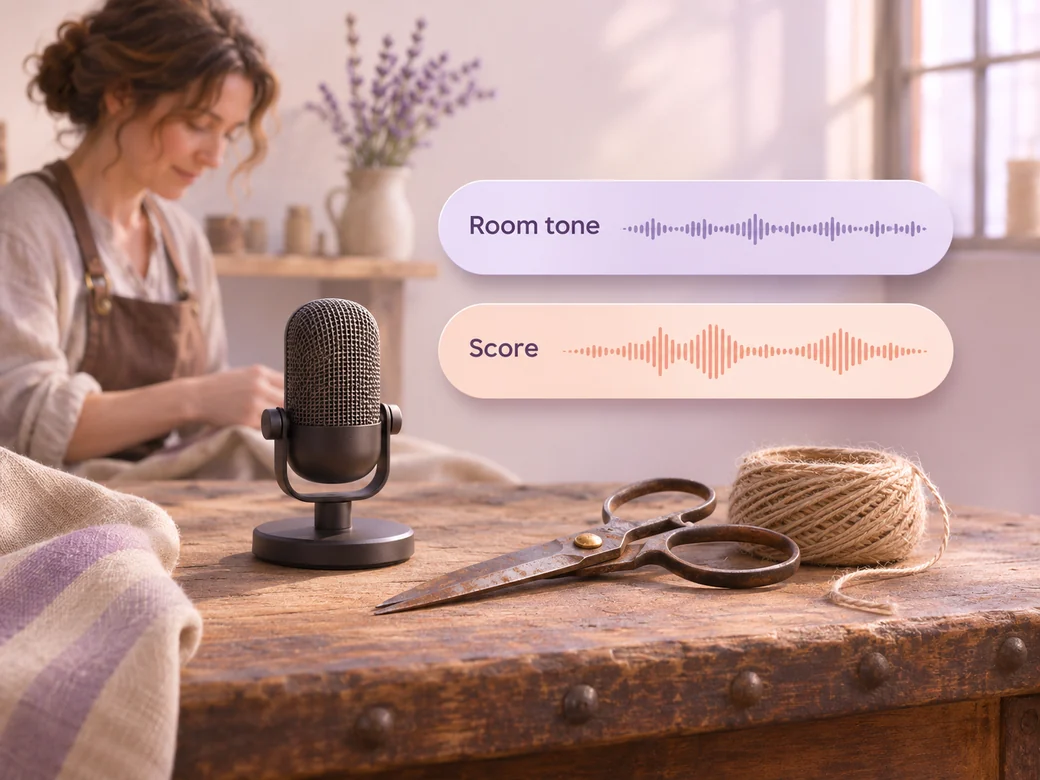
Keep a short stretch of real room tone if the setting has a recognizable sound, such as paper folding or a tool returning to a workbench. A quiet instrumental can connect the examples. Keep both lower when the footage illustrates a spoken line.
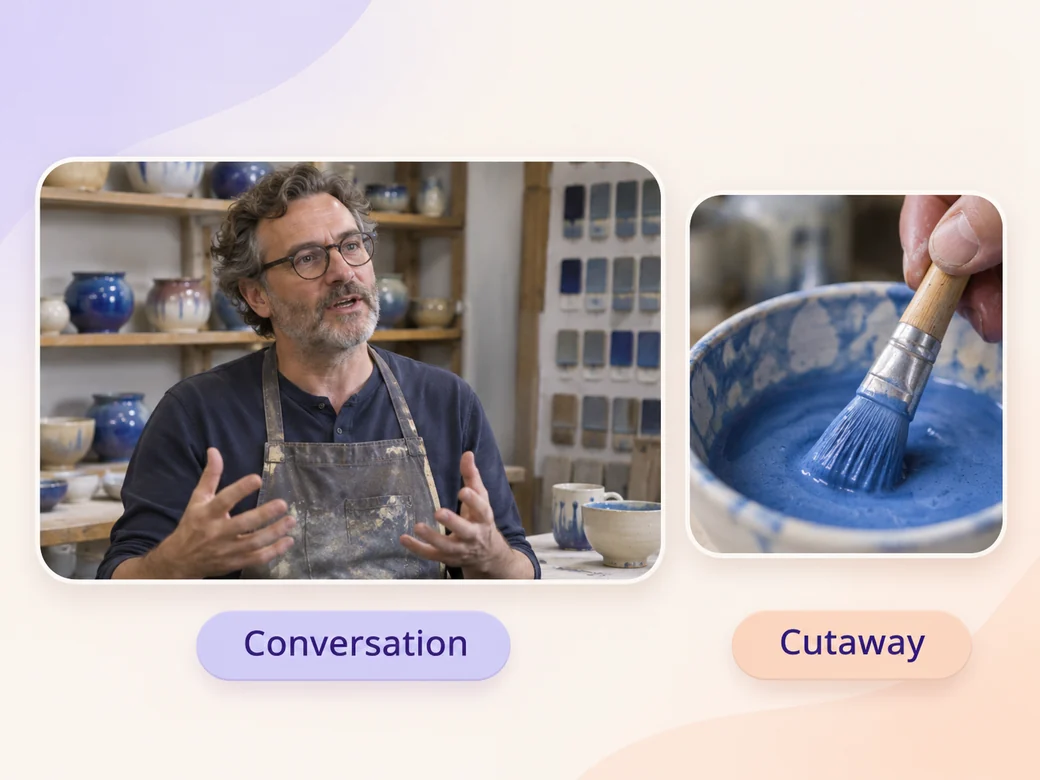
Pair one relevant detail shot with an interview or primary view, such as a glazing brush that illustrates what the artist is explaining. Give the main shot enough room to establish why it matters, then show the close work. Use Add Text to Video to give chapters a short label if the reel covers multiple subjects.
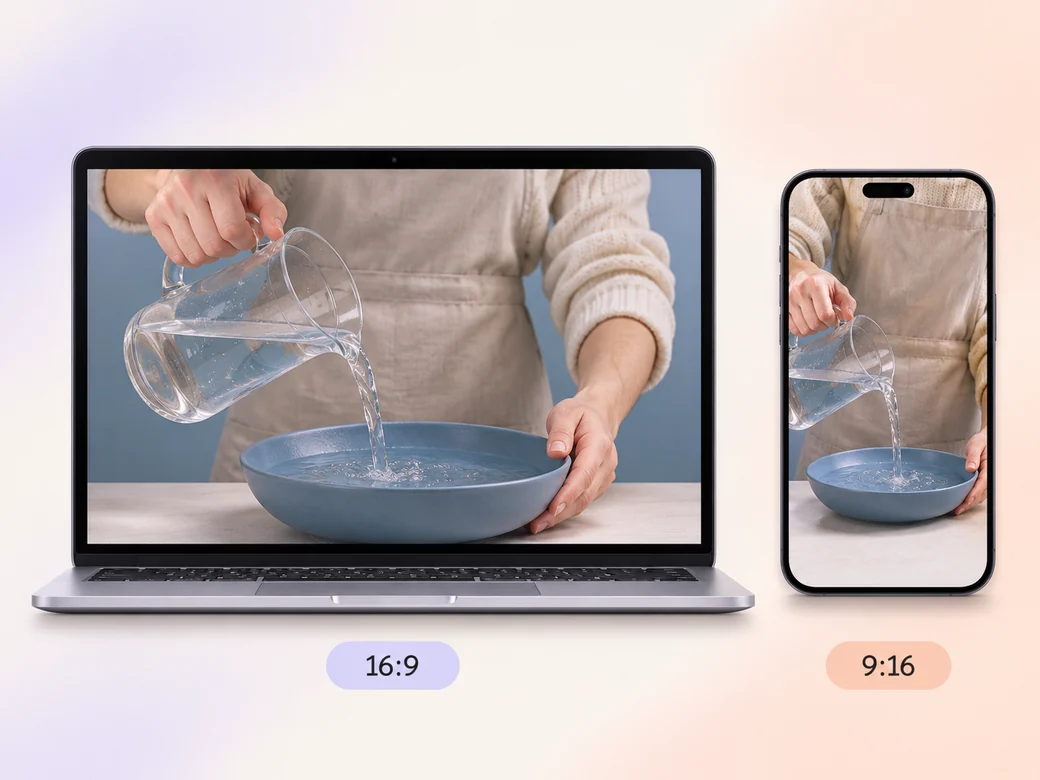
In 16:9, give context shots room to show the working space. In a 9:16 excerpt, choose a deliberate detail where the main action stays within the crop. Check hands and tools in both versions before you share the reel.
“In Pexo, I want a detail I can place over a whole thought. A close shot needs enough time to show what the hands are doing.”
“I look for a wide context and a tighter action. Seeing both helps me plan the interview or scene that will go with them.”

“I listen for a stretch of room sound I can use between cuts. It helps the close work feel connected to the space.”

A B-roll showcase video is a reel of supporting shots. It presents examples of places, actions, and details that can add context to a story or cover part of an interview. In a useful showcase, each image has a clear subject and the sequence shows how shots at different distances work together.
Collect supporting footage that you have permission to show and organize it by scene or topic. Choose a wide angle, one action, and a visible detail for each. Bring notes for the source clips and optional recorded sound so you can find the shot again after selecting it for the reel.
Find a shot that explains or shows the subject the speaker is describing. Keep the original interview sound, and choose where the audience needs to see the supporting shot. Leave enough room to understand the action, then return to the speaker when their expression or the next thought matters.
Pexo helps sort your recorded examples and prepare a reel that retains each shot’s purpose. You can revise the sequence or add a short chapter label after watching it. Kling AI 3.0 can create a separate illustrative insert from a reference photo if the brief also needs an example you label as generated.
A B-roll showcase presents supporting footage so someone else can see and evaluate the shots. A short documentary organizes interviews, scenes, and evidence into a story for viewers. A B-roll reel can become one of the source collections for a documentary when each cutaway connects to a specific subject.
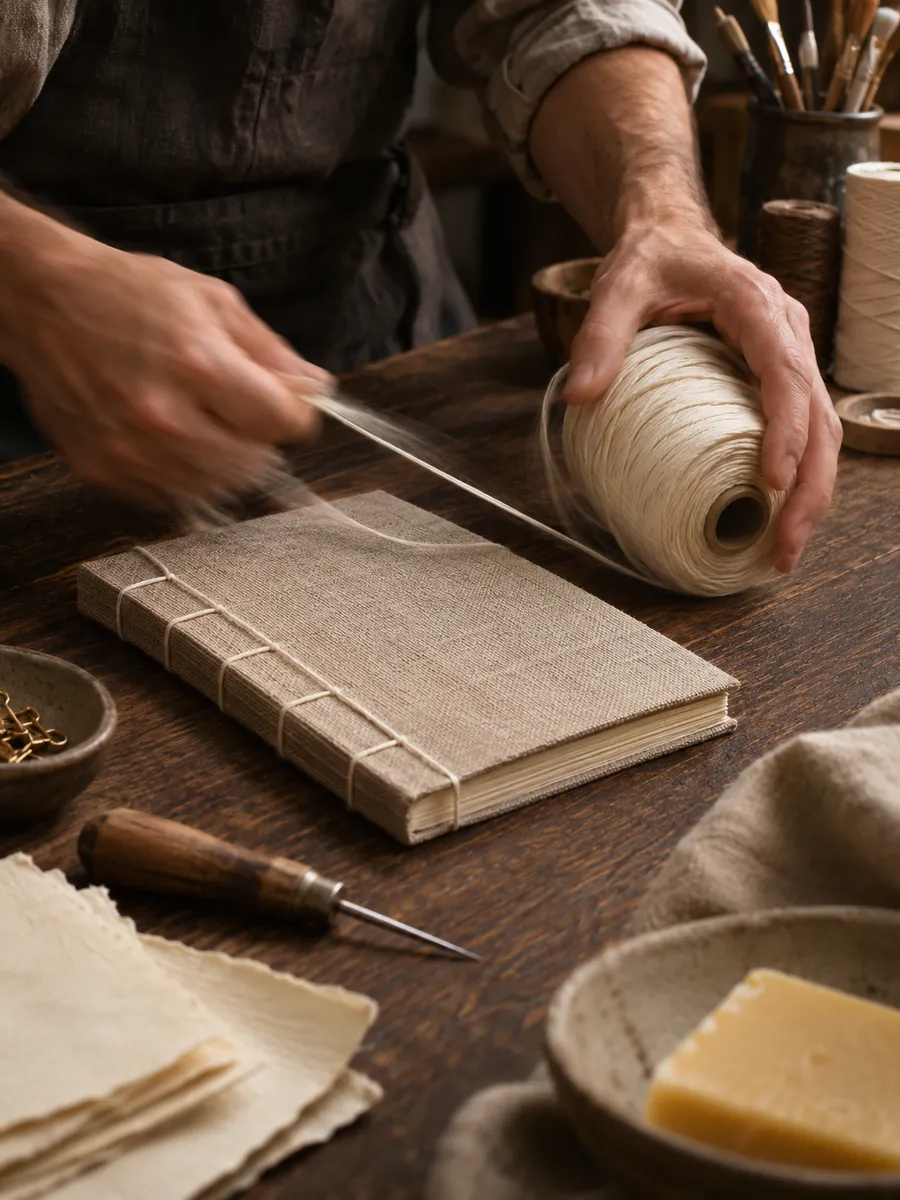
Use subject + action + camera movement + setting + style. Try ‘Use the recorded workbench clips. Open with the wide bookbinding studio, then move to a close view of hands folding paper and a still composition of the thread. Keep the original room sound for the fold, use natural side light from the source footage, and leave each insert time to read.’
Bring the wide shot, the action, and the detail. See them together before you select the final reel.
Make a video montage with Pexo. Arrange clips and photos around one theme, pace the cuts to music, and turn separate moments into a finished montage.
Make a Steadicam tracking shot showcase video with Pexo. Arrange recorded follow and lateral takes into a reel that shows how each move starts and lands.
Make a cinema drone aerial showcase video with Pexo. Arrange your recorded wide, top-down, and reveal shots into a reel with consistent color and sound.
Make an FPV drone flythrough video with Pexo. Organize recorded passes into one clear route, choose the sound, and prepare a wide reel or vertical cut.
Make a wedding video from ceremony clips, photos, and recorded messages. Use Pexo to tell the story of the day and keep the voices that matter.
Make an affirmation video with your own words, an optional voiceover, and time to pause. Review the pacing and readability with Pexo.
Make a graduation video from school photos, ceremony clips, and personal messages. Use Pexo to tell the story from the first day to the final walk.
Make a meditation video with a steady view, gentle movement, and quiet ambience or silence. Use Pexo to shape the scene and its pace.