



AI Narrated PowerPoint Lesson Video
Make a narrated powerpoint lesson video with Pexo. Use your exported slide sequence to tell a clear story. Organize your material and review the finished video.
Make an AI corporate highlight video. Use approved company footage to give viewers the event, the most useful moment, and the result in a short recap.
Bring an approved event recording, relevant work footage, and the one outcome you want viewers to remember. In Pexo’s corporate highlight video maker, open with the event or project, then pick the demonstration, employee moment, or result that makes the recap worth watching. Use Merge Videos with your brief, then review the event’s main moment.

The result preview focuses on the event’s main moment. Review each of the checks before shaping the complete cut.
What to review
Establish where the event took place and who was there, then switch to someone doing or explaining the work. Use a close shot of the demo to make the wide view specific, and keep a real reaction where it helps tell the story.
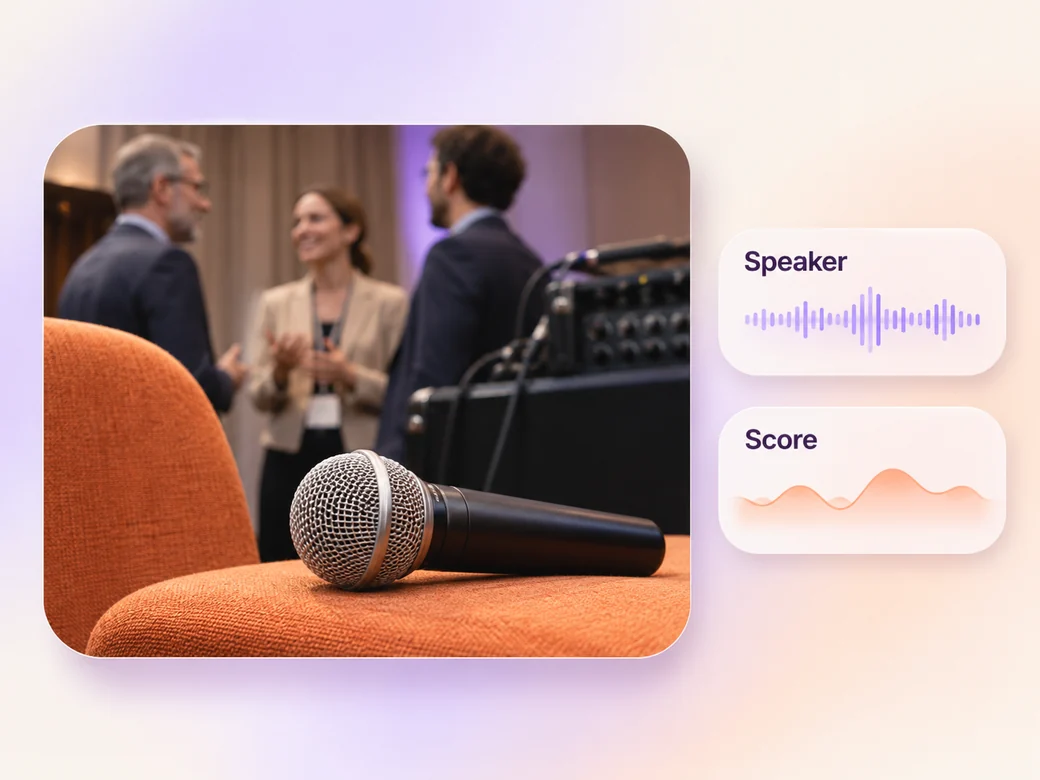
Use the original line that describes the outcome. Keep music low under names and explanations and let it rise between speakers. Listen to the key quote once without looking at the video. Use Music Generation to try the treatment and listen against the actual pictures.
Use Add Text to Video to summarize the result or point to the next update. Check names, facts, and partner logos against the approved brief. Hold the closing frame long enough to read during a meeting or on a shared link.
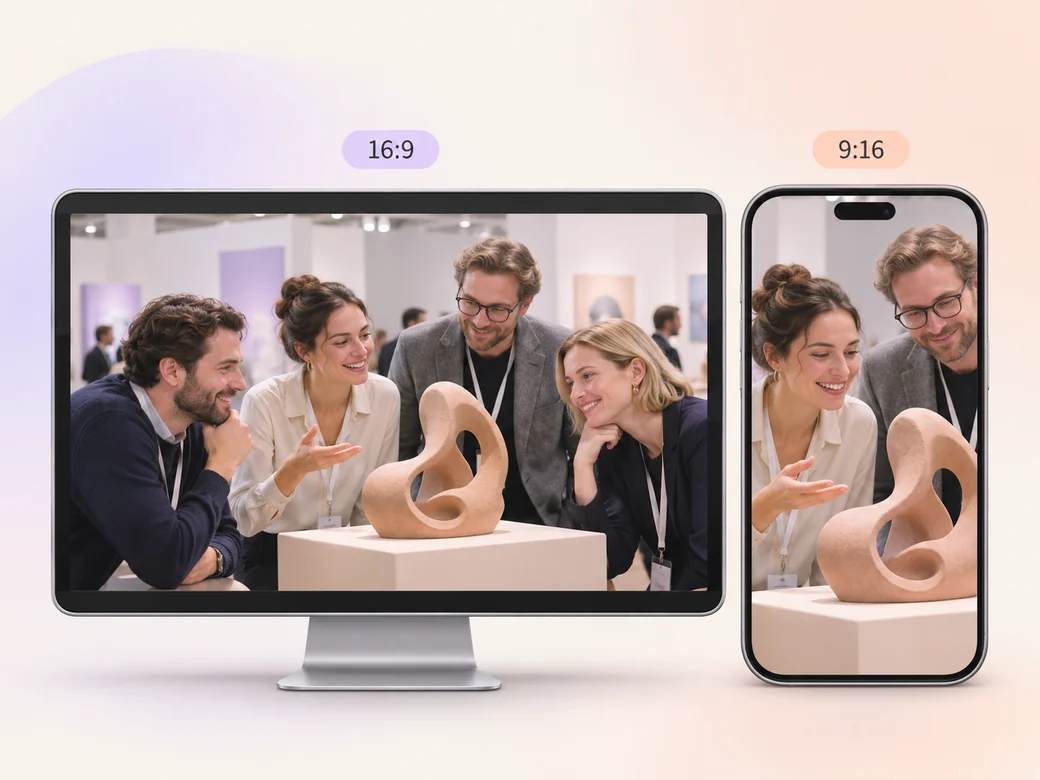
Keep a wide cut for a company recap, an internal update, or an event follow-up. For a 9:16 excerpt, retain the event’s main moment and review how it fits on a phone. Check the start and the last frame at the intended size and give any text enough time to read.
“In Pexo, I look for the demo or exchange that justifies a recap. I keep the room view long enough to see where it happened.”

“I check the names and wording on the last frame. One specific, confirmed detail is enough.”

“I listen before I send the clip out. The person describing the result should come through clearly over the score.”

A corporate highlight video is a finished edit that helps you show the outcome of a company event or work milestone. It can be prepared for a company recap, an internal update, or an event follow-up, with enough context for the viewer to follow the event’s main moment. Choose a few moments that improve the final result and give each one time to read before the next cut.
Bring an approved event recording, relevant work footage, and the one outcome you want viewers to remember. Give each source a short name that describes where it belongs, and include any exact wording that should appear. Tell Pexo which part matters most and how you plan to show it. That gives you a clear first version to review.
Yes. Choose photos that show the main outcome, people, and the place, then let one approved remark tie them together. Give each image time to read and use a short on-screen line to identify the project if needed. Watch the finished cut to make sure the quote still fits the footage.
Pexo helps organize your material and revise the framing, pacing, and sound after you review the result. Use the source that documents your actual subject for the event’s main moment. For a separate illustrative insert or visual opening, Kling AI 3.0 can animate an approved reference image.
A corporate highlight video gives viewers the main outcome and selected moments from an event or project. A short documentary can go deeper into the people, choices, and events behind it. Use a highlight when the audience needs a concise record of what happened and one clear detail to take away.
Use subject + action + camera movement + setting + style. Try ‘Use our approved footage of the company demo. Establish the room with the wide camera, move closer when the prototype starts working, then hold on the presenter’s explanation. Keep the original voice and mild warm light from the recording. Finish with the approved team update.’
Bring an approved event recording, relevant work footage, and the one outcome you want viewers to remember. Start with the event’s main moment and review the first cut at the intended size.
Make a narrated powerpoint lesson video with Pexo. Use your exported slide sequence to tell a clear story. Organize your material and review the finished video.
Make a 2d logo reveal video with Pexo. Organize your own material and edit a focused review cut. Check the details before you share it.
Make an animated gif showcase video with Pexo. Arrange exported loops into a short showcase. Play each movement all the way through before moving to the next.
Make a wedding highlight film with Pexo. Shape recorded vows, gestures, and reactions into a short wedding film. Give the voice and music their own space.
Make a wedding and event recap video with Pexo. Arrange arrival, ceremony, and reception footage into an easy-to-follow recap. Keep a few lines of live sound.
Make a lottie website animation showcase video with Pexo. Turn exported motion and screen recordings into a web animation reel with before and after states.
Make a visual effects showreel with Pexo. Compare matched plates and final shots, show the important effect passes, and label your contribution.
Make a b-roll showcase video with Pexo. Group recorded B-roll by setting, action, and detail. Show how your footage can support a story.