


AI 2D Logo Reveal Video
Make a 2d logo reveal video with Pexo. Organize your own material and edit a focused review cut. Check the details before you share it.
Make an AI narrated powerpoint lesson video. Turn a PowerPoint lesson into a video learners can follow at their own pace. Use your own source material and review your exported slide sequence in the finished cut.
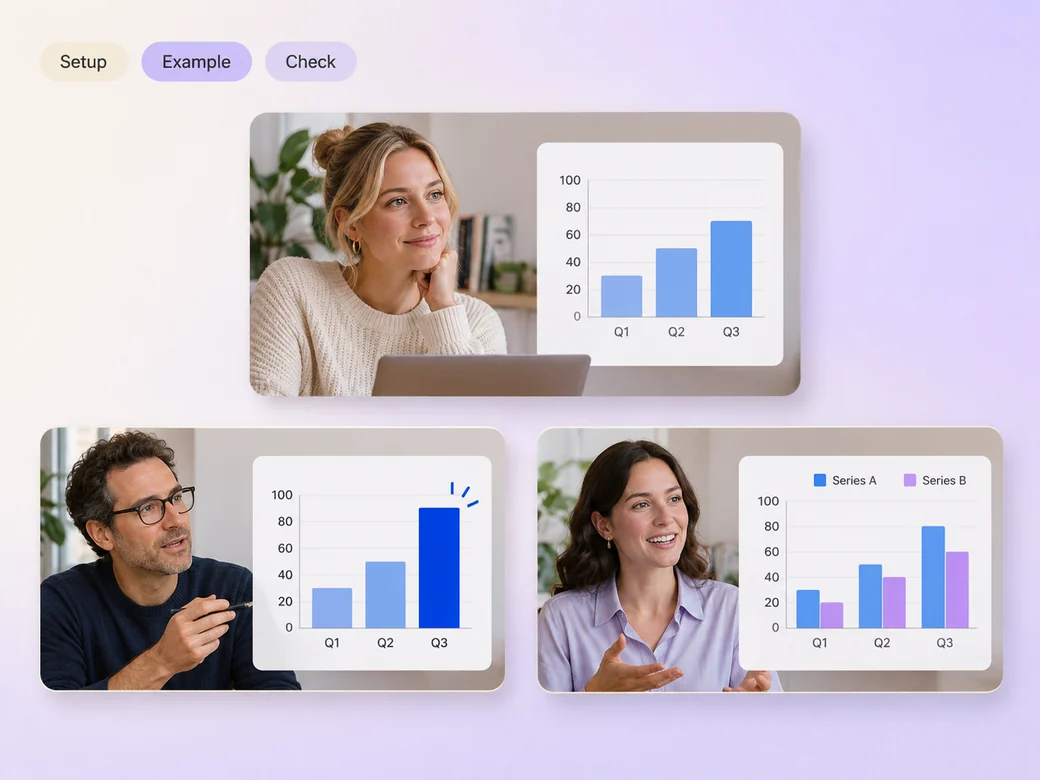
Bring exported slides or a recorded slide deck, the spoken script, and an approved example. In Pexo’s narrated powerpoint lesson video maker, give the opening just enough space to identify your exported slide sequence, then make the example chart the center of the first cut. Use Merge Videos with your brief, then review your exported slide sequence.
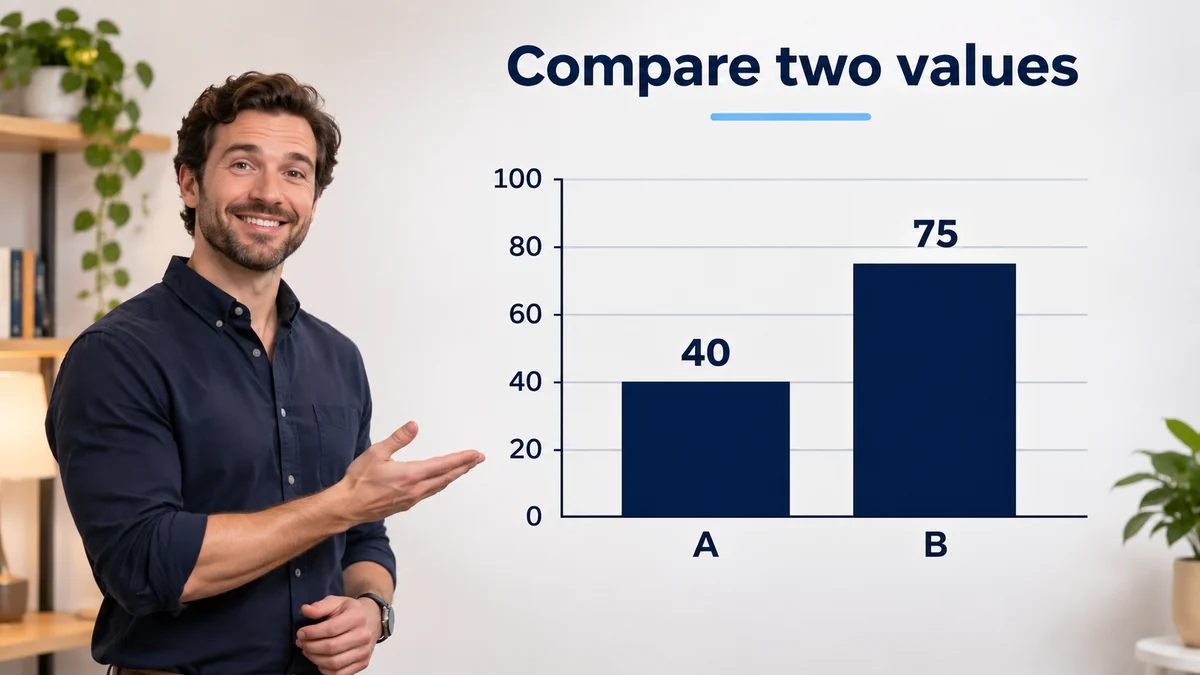
The result preview focuses on your exported slide sequence. Review each of the checks before shaping the complete cut.
What to review
Organize the exported slides in the order you teach them. Hold on a chart while you explain the axes, and crop a complicated diagram only when there is still enough surrounding context to read it.
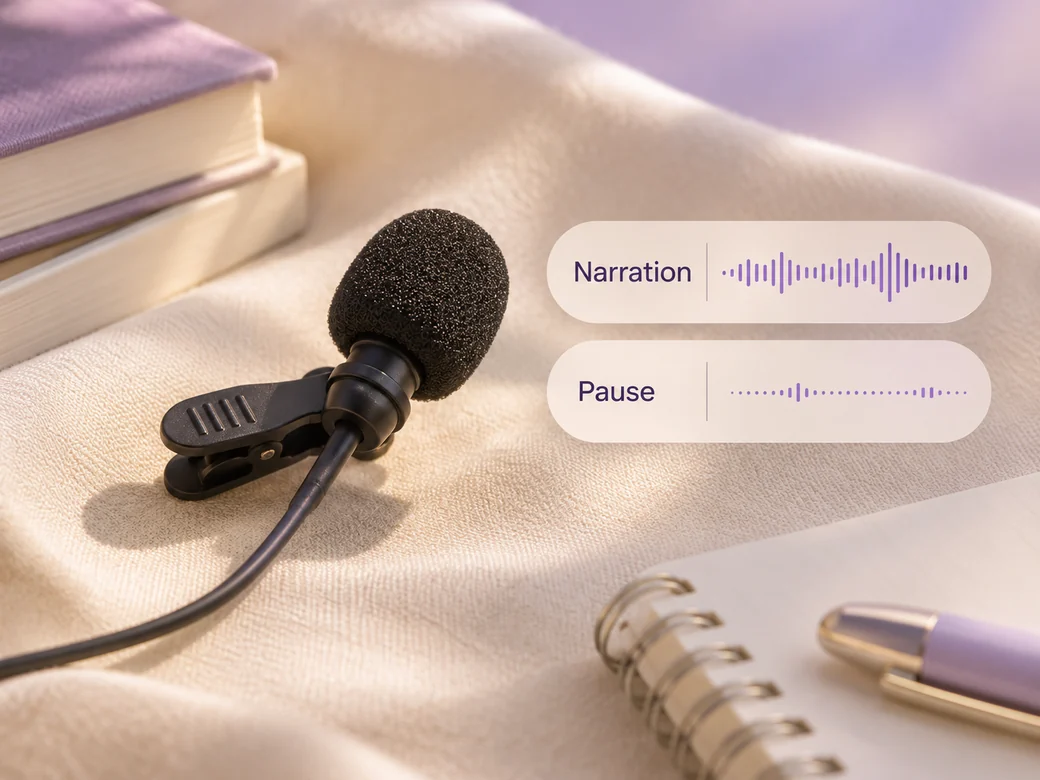
Use a measured teacher’s voice and leave pauses before new slides. Check technical names while listening to the original script. Keep the audio clear through transitions and leave enough time to read the highlighted part of the slide.
Preview the lesson at the expected screen size. Ask for a title or subtitle only where it helps a learner identify the topic. Export your approved slides as images or video when they need to be edited as media.
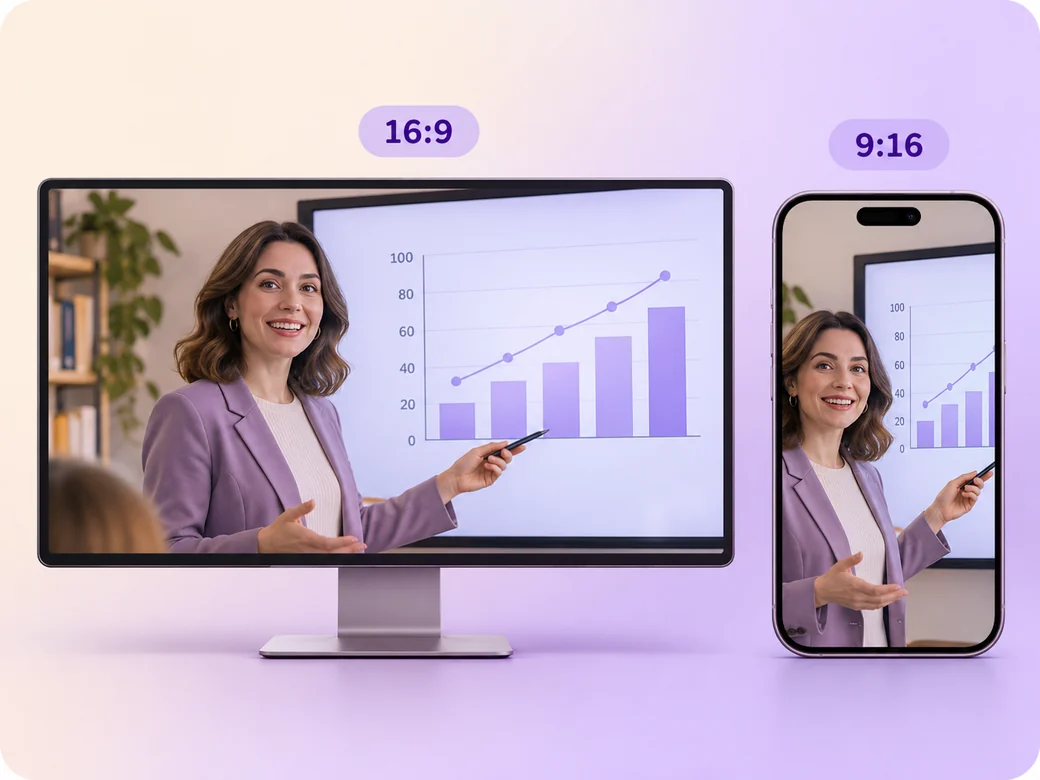
Keep a wide cut for a learning portal or a lesson sent to a class. For a 9:16 excerpt, retain your exported slide sequence and review how it fits on a phone. Check the start and the last frame at the intended size and give any text enough time to read.
“In Pexo, I compare the moment a chart arrives with the word that names it. Students should see the example while hearing why it matters.”

“I listen for a pause before the next slide. Learners need a moment to read a chart and hear the explanation.”

“I preview the deck in a narrow browser. The lesson needs to stay legible on the screen people use.”

A narrated powerpoint lesson video is a finished edit that helps you turn a PowerPoint lesson into a video learners can follow at their own pace. It can be prepared for a learning portal or a lesson sent to a class, with enough context for the viewer to follow your exported slide sequence. Choose a few moments that improve the final result and give each one time to read before the next cut.
Bring exported slides or a recorded slide deck, the spoken script, and an approved example. Give each source a short name that describes where it belongs, and include any exact wording that should appear. Tell Pexo which part matters most and how you plan to show it. That gives you a clear first version to review.
Use a recorded or exported video from PowerPoint when a slide animation or timed narration matters. A static slide image reproduces one state. Bring the source narration or notes separately when you want to record it again, and review the edit around each transition before sharing the lesson.
Pexo helps organize your material and revise the framing, pacing, and sound after you review the result. Use the source that documents your actual subject for your exported slide sequence. For a separate illustrative insert or visual opening, Kling AI 3.0 can animate an approved reference image.
A narrated PowerPoint lesson video teaches from an existing deck and gives the spoken explanation time to carry each slide. A video presentation can report progress or present an idea with slides and little instruction. Choose the lesson when learners should be able to follow an example without attending the original presentation.
Use subject + action + camera movement + setting + style. Try ‘Use the footage or approved visual references for your exported slide sequence. Show one chart while the narrator explains it. Start with a clear establishing frame, move closer when the main action begins, and keep the original colors and texture. Organize the exported slides in the order you teach them. Give the learner time to read the chart.’
Bring exported slides or a recorded slide deck, the spoken script, and an approved example. Start with your exported slide sequence and review the first cut at the intended size.
Make a 2d logo reveal video with Pexo. Organize your own material and edit a focused review cut. Check the details before you share it.
Make an animated gif showcase video with Pexo. Arrange exported loops into a short showcase. Play each movement all the way through before moving to the next.
Make a wedding highlight film with Pexo. Shape recorded vows, gestures, and reactions into a short wedding film. Give the voice and music their own space.
Make a wedding and event recap video with Pexo. Arrange arrival, ceremony, and reception footage into an easy-to-follow recap. Keep a few lines of live sound.
Make a lottie website animation showcase video with Pexo. Turn exported motion and screen recordings into a web animation reel with before and after states.
Make a visual effects showreel with Pexo. Compare matched plates and final shots, show the important effect passes, and label your contribution.
Make a corporate highlight video with Pexo. Use approved company footage to show the event, the most useful moment, and the result in a short recap.
Make a b-roll showcase video with Pexo. Group recorded B-roll by setting, action, and detail. Show how your footage can support a story.