


Pinterest Video
Make a Pinterest video in Pexo that opens on the result and shows readable steps for a video Pin.
Use Pexo to make an AI channel trailer from your best clips and a short introduction. Show new viewers what the channel covers and why they might want to subscribe.
Tell the channel trailer maker who the channel is for and what viewers will get from it. For a cycling channel, lead with one useful workshop moment and say how often the channel covers repairs or rides if your schedule is established. Give the opening a visible example rather than a long introduction.

This illustrated preview shows how the brief can be reviewed in Pexo.
What to review
Choose brief scenes already representative of the channel. A workshop task and an outdoor ride can show two regular kinds of content. Provide approved footage and tell Pexo which moments it can use. Let each clip finish a small action so a first-time viewer can understand why it matters. Use the script to video workflow to map an approved read to the shots.
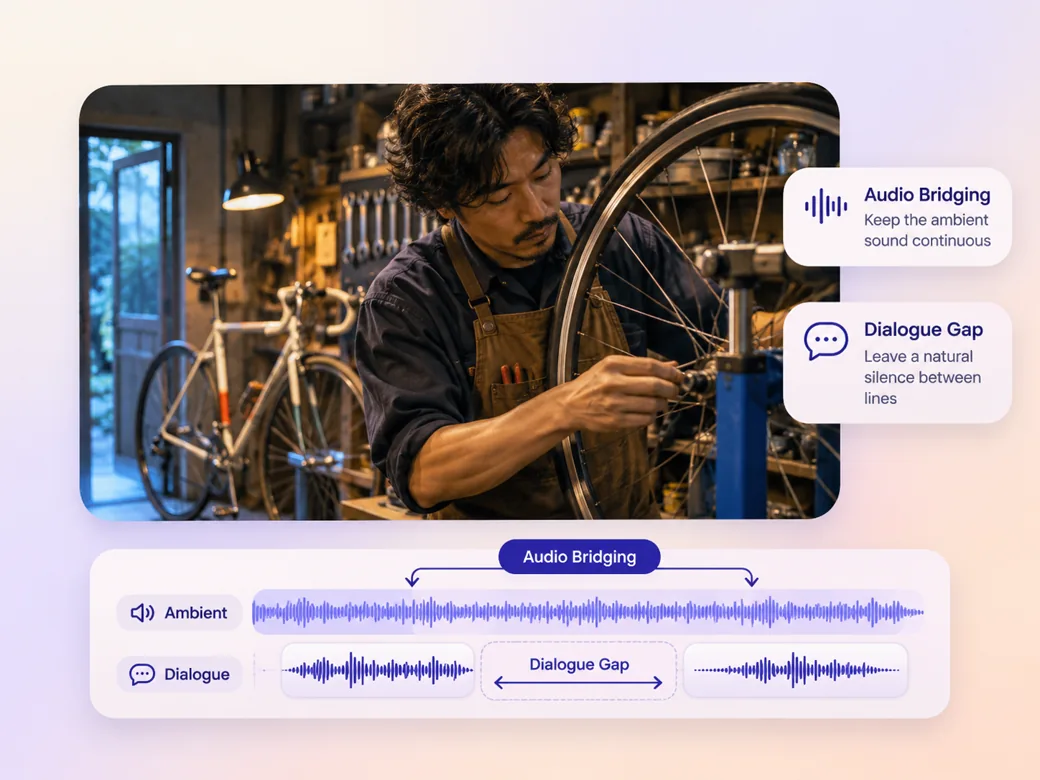
Use a short introduction and ask the channel trailer generator to leave breathing room between lines. If you use music, set its mood and keep it below the spoken voice. Check the transitions against the pace of the source clips so the message stays easy to follow. Use music generation to try a track that suits the pace of your introduction.
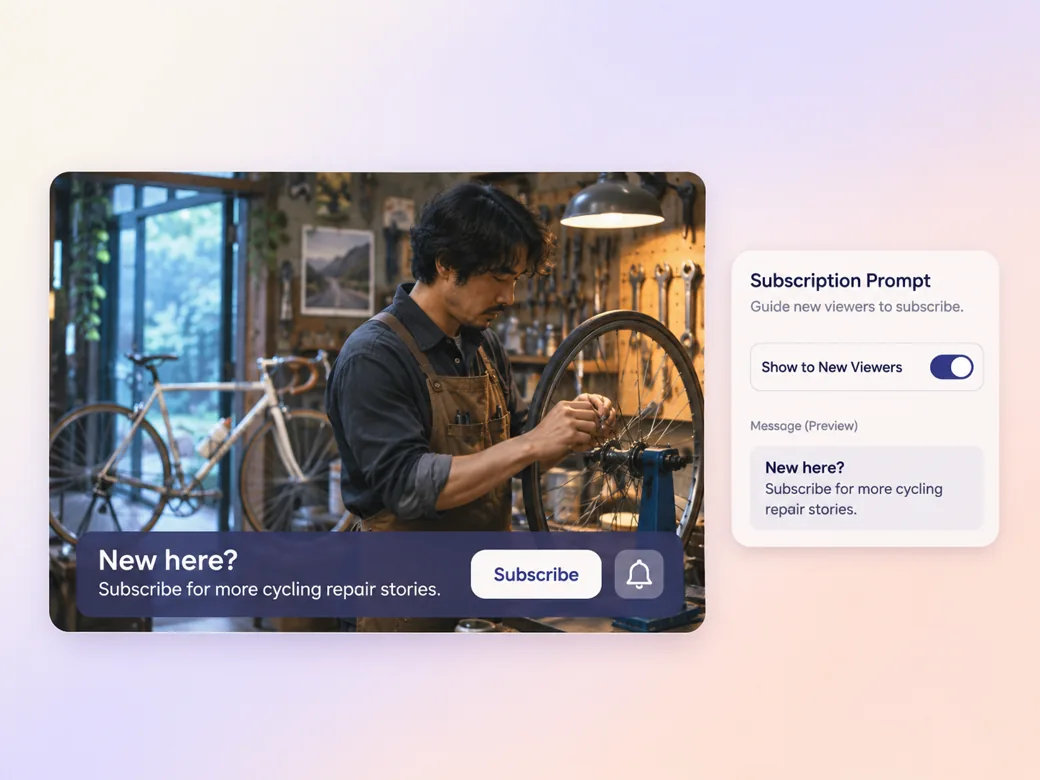
Use the closing frame to give new viewers a natural next step, such as subscribing for the regular series. Hold the channel name and action long enough to read on desktop and phone. Review the cut as someone who has never seen the channel before, then choose it in YouTube Studio.
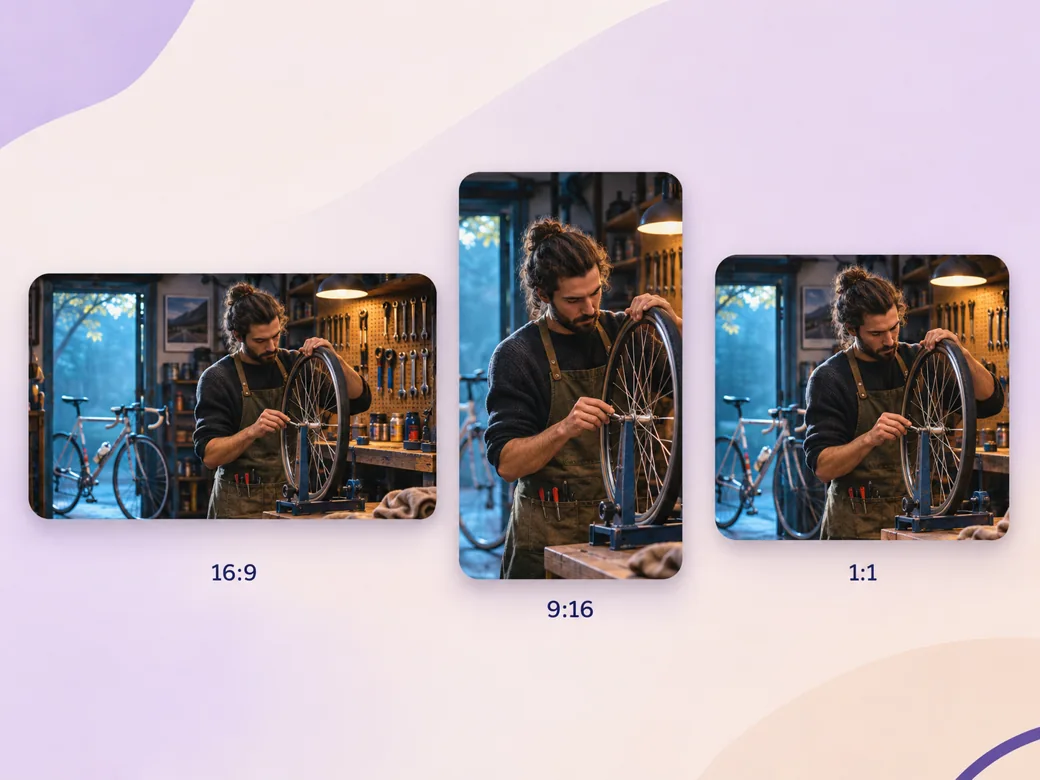
Give the workshop and road views space in 16:9 for the channel. If you make a portrait teaser, focus on one action and keep the channel statement central. Check the two versions with their actual Home-tab or feed placement.
The opening gives new viewers the subject quickly. The two clips show the kind of episodes they can look for. Start with a real moment from the channel.
Pexo can line up the clips with a short read. The voice has space to introduce the difference between the two series. Keep the music under the introduction.
The end lets a viewer read the channel name and the next action at a normal pace. Test it in the Home-tab layout.
A channel trailer is a video that introduces a YouTube channel to new viewers and gives them a sense of the regular content. On a channel’s Home tab, YouTube allows the creator to choose a trailer for people who have not subscribed. A good introduction shows representative clips and a reason to return.
Yes. Choose clips you have permission to use, then tell Pexo which ones represent the channel. Give each clip a purpose in the introduction and leave enough time for someone seeing it for the first time. Review quotes, music rights and any visible guest information before sharing the finished cut.
Create and review the file, then upload it to YouTube. In YouTube Studio, open channel customization and find the Home tab. Select the channel trailer section and choose the video you want to feature for viewers who have not subscribed. Check the current options in Studio as you publish the layout.
Pexo is a channel trailer maker for organizing representative clips, a short introduction, captions and music direction around a clear channel promise. MiniMax H3 can create an illustrative transition where useful. Use real footage from your regular episodes to show viewers the content they can expect on your channel.
A channel trailer introduces the whole channel and gives potential subscribers examples of its regular programming. A YouTube intro video appears at the opening of an individual upload and helps establish its identity. Use a trailer for the Home tab and a shorter intro for a repeatable episode opening. See YouTube intro video for that format.
Use subject + action + camera movement + setting + style. Try this brief. Open on a bike mechanic tightening a wheel in a warm workshop, cut to a short road ride and return to a workbench close-up. Use documentary camera motion, a quiet score under the spoken introduction and a readable invitation at the end. Review the result against the assets and instructions you supplied.
Choose representative clips and tell new viewers why they might come back.
Make a Pinterest video in Pexo that opens on the result and shows readable steps for a video Pin.
Create a LinkedIn video in Pexo from one practical idea, supporting footage and captions that read in the feed.
Create a product review video in Pexo with real testing footage, clear conditions and honest observations.
Make an Amazon product video with Pexo from your product photos and demo footage. Show the item, its scale and how it works.
Create a spokesperson video with Pexo from an approved script, presenter direction and supporting product shots.
Make a case study video in Pexo that pairs an approved customer story with real footage and measurable results.
Animate your exact words in a kinetic typography video. Use Pexo to plan text movement, timing and a readable final frame.
Use Pexo to make a process video that sequences work stages, shows the key materials and marks the checks that matter.