

Pinterest Video
Make a Pinterest video in Pexo that opens on the result and shows readable steps for a video Pin.
Make an AI product review video in Pexo from a real test, your footage and a short script. Show the conditions, what you observed and who might use the product.
Give the product review video maker the product version and what your test is meant to show. For a reading lamp, identify the distance to the page and the lighting in the room. Provide your own demonstration footage. Keep the setup visible so a viewer can see what your observation covers.

This illustrated preview shows how the brief can be reviewed in Pexo.
What to review
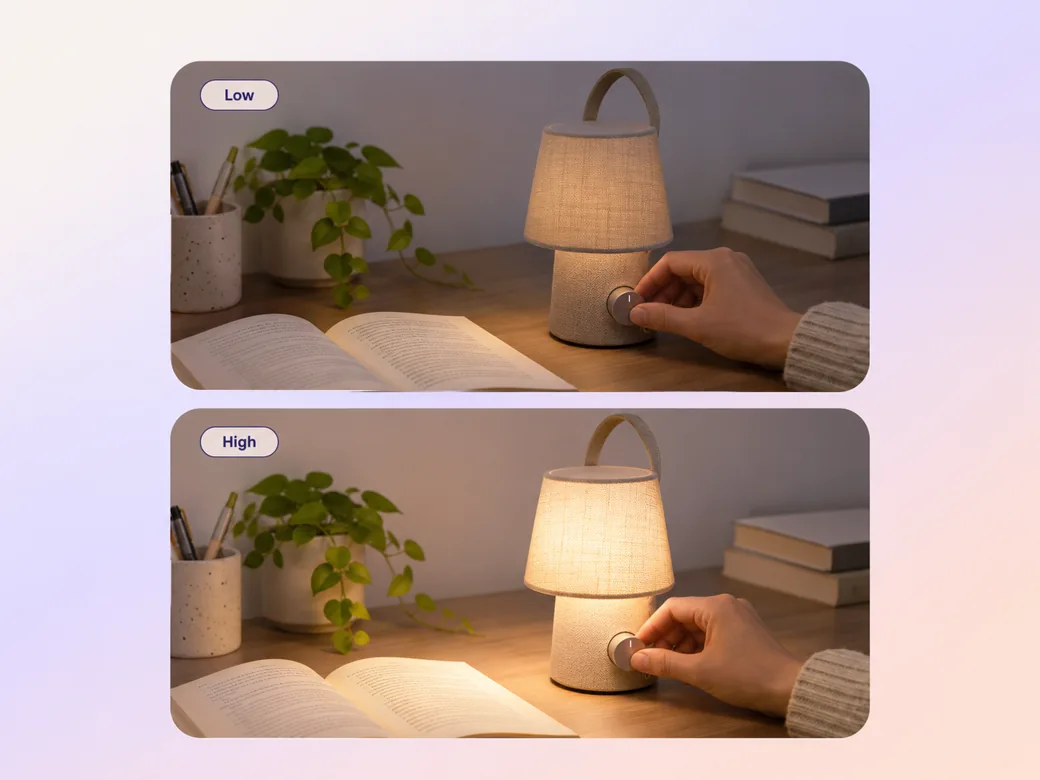
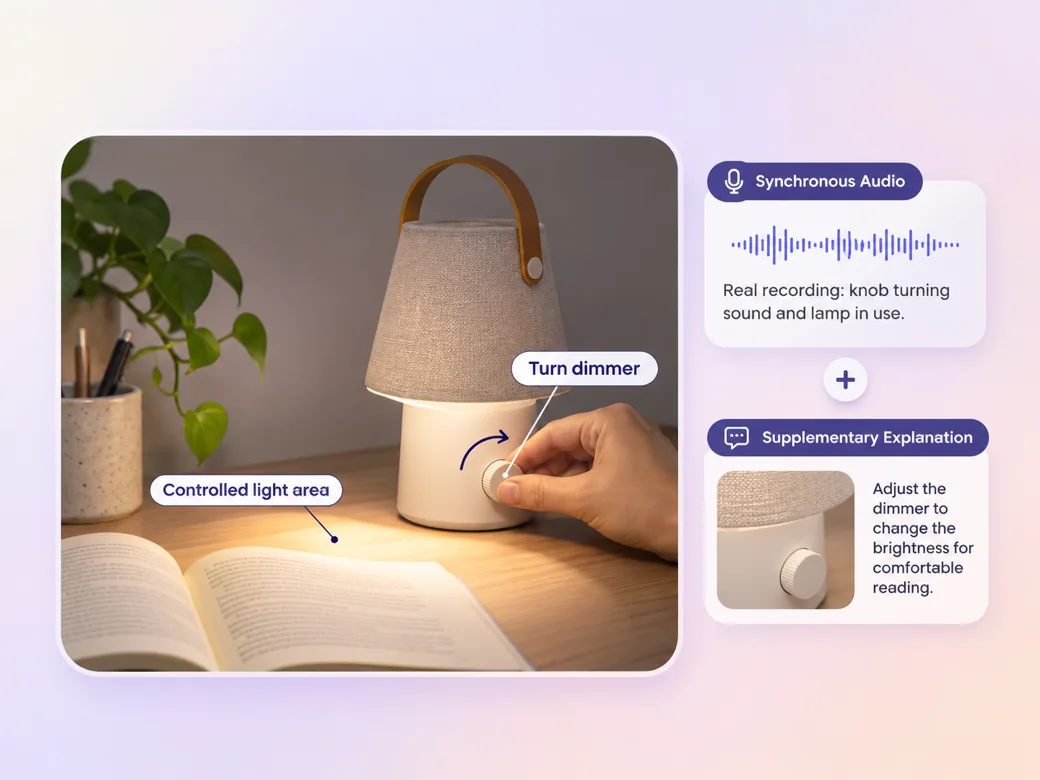
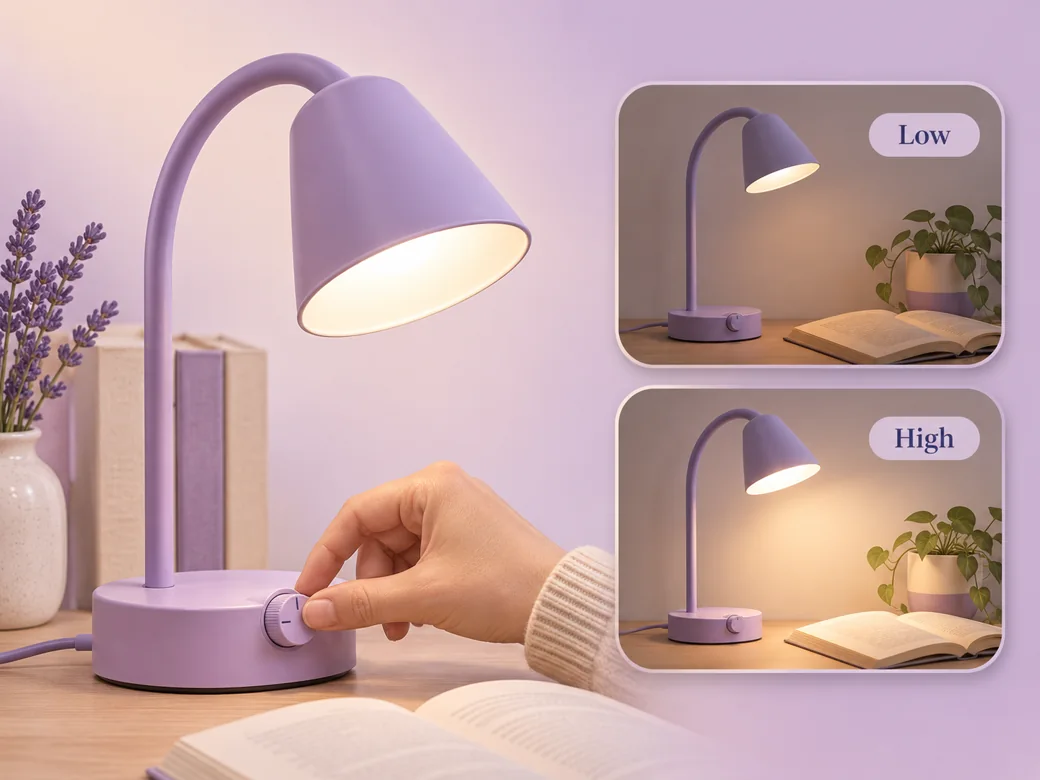
Use matching close-ups for two settings when you want to show the difference. Keep camera exposure stable when brightness is part of the point and supply the images from the actual test. Ask Pexo to show the control, action and visible result in that order. Use the image to video workflow when your source is a still image.
Provide the talking points in your own words and tell Pexo which lines need an on-screen example. Ask the product review video generator for simple labels around the details a buyer would compare. Record changes in conditions and keep your judgment tied to what the footage shows. Use the script to video workflow to map an approved read to the shots.
State where the product worked well and which limits you observed in your setup. Include any needed relationship or sponsorship information in a visible place. Before exporting, check cuts for extreme zoom, exposure changes or overlays that could change how the product appears to a viewer.
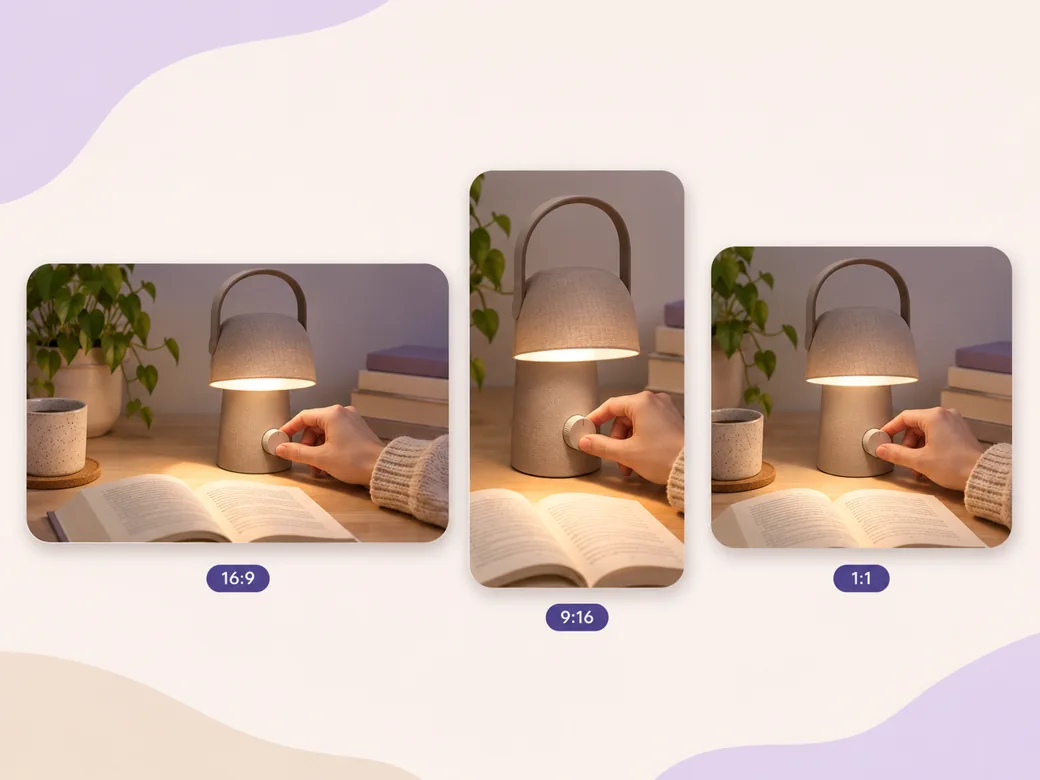
Use a wide frame for a side-by-side comparison and dedicate a separate close-up to each switch or result in a phone version. Keep camera and test conditions clear in each version. Check important labels and the closing observation at playback size.
The lamp change is easy to see because the camera stays steady. A viewer can compare the settings under the same conditions. Use the real test clip.
Pexo can line up the observation and the relevant shot. The test applies to the setup described in the video. Leave the condition next to the result.
The ending gives the viewer a specific use case and a limit to consider before making a decision. Give important disclosures enough time to read.
A product review video evaluates an item and shows the observations that support the reviewer's assessment. It can include a demonstration, a comparison and specific conditions. A useful review explains what was tested and gives the viewer enough context to judge how the product may fit their own situation.
Yes. Provide notes from a test you actually ran and give Pexo the clips or photos for each observation. Use the draft to organize the review and prepare captions. Review measurements, limitations and relationship disclosures with the underlying material before you share the video with an audience.
Give both items or settings the same conditions where they affect the result. Use matched camera angles and record relevant differences in the brief. Consider the sample, version and conditions when stating what you observed. Check that the edit and captions preserve the context the viewer needs.
Pexo is a product review video maker for arranging real demonstration footage, a script and captions around your observations. Seedance 2.5 can add illustrative context when it is clearly identified. Give the review its evidence from your own test, and compare the final cut with that source material.
A product review video evaluates the item and supports its observations with a defined test or demonstration. An unboxing video shows what arrives and the first steps of opening it. A review can include an unboxing moment, then move on to using the product in a specific condition. See unboxing video for that format.
Use subject + action + camera movement + setting + style. Try this brief. Show a portable reading lamp over a paperback at a desk. Keep a fixed camera while the reviewer changes two real settings, pause on the resulting page light, and include the verified test condition. Use quiet natural textures and short text. Review the result against the assets and instructions you supplied.
Bring your test footage and the observations you want viewers to evaluate.
Make a Pinterest video in Pexo that opens on the result and shows readable steps for a video Pin.
Create a LinkedIn video in Pexo from one practical idea, supporting footage and captions that read in the feed.
Make an Amazon product video with Pexo from your product photos and demo footage. Show the item, its scale and how it works.
Create a spokesperson video with Pexo from an approved script, presenter direction and supporting product shots.
Make a case study video in Pexo that pairs an approved customer story with real footage and measurable results.
Animate your exact words in a kinetic typography video. Use Pexo to plan text movement, timing and a readable final frame.
Use Pexo to make a process video that sequences work stages, shows the key materials and marks the checks that matter.
Make a screencast video in Pexo with your screen recording, a short voiceover and readable callouts for each step.