


Pinterest Video
Make a Pinterest video in Pexo that opens on the result and shows readable steps for a video Pin.
Make an AI case study video in Pexo from approved footage, quotes and results. Show the original problem, the change that was made and the evidence viewers can evaluate.
Give the case study video maker the customer's goal, original conditions and source footage. For a packing workflow, show where work waited and how that affected the team. Include dates or production conditions where they change the story, and review any customer name or clip against the approval you have.

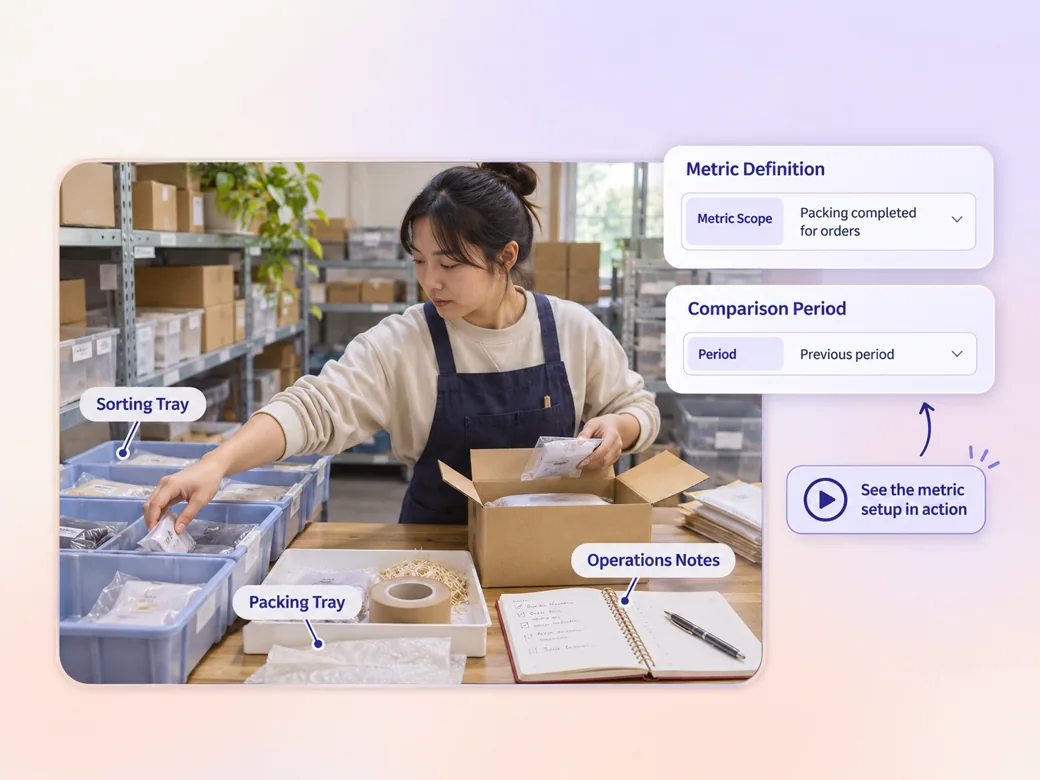
This illustrated preview shows how the brief can be reviewed in Pexo.
What to review
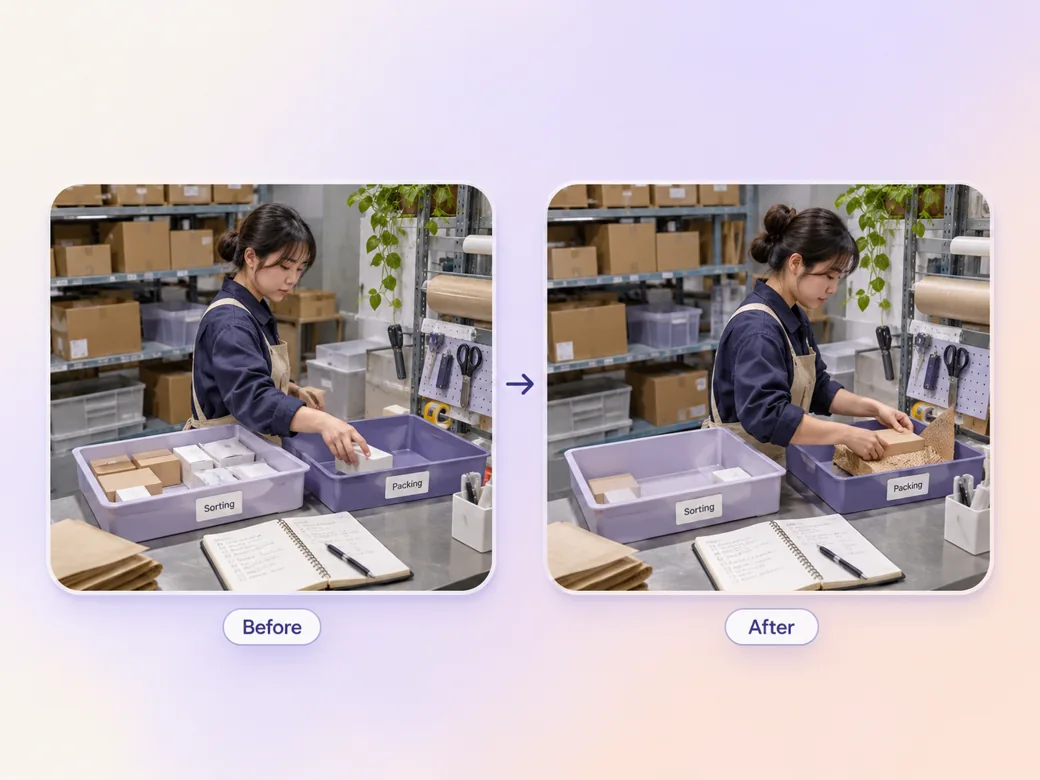
Plan one view of the original workflow and a corresponding view after the change. Keep the action or camera angle consistent when that helps the comparison. Ask Pexo to arrange close-ups and brief labels around the operation that changed. Mark reenactments clearly if you use them. See the Pexo Motion examples for short on-screen cues.
Write the measure, the reference period and the source beside the result you want to use. The case study video generator can turn those inputs into a compact visual for review. Check the labels with the project owner and keep the supporting data where your team can retrieve it.
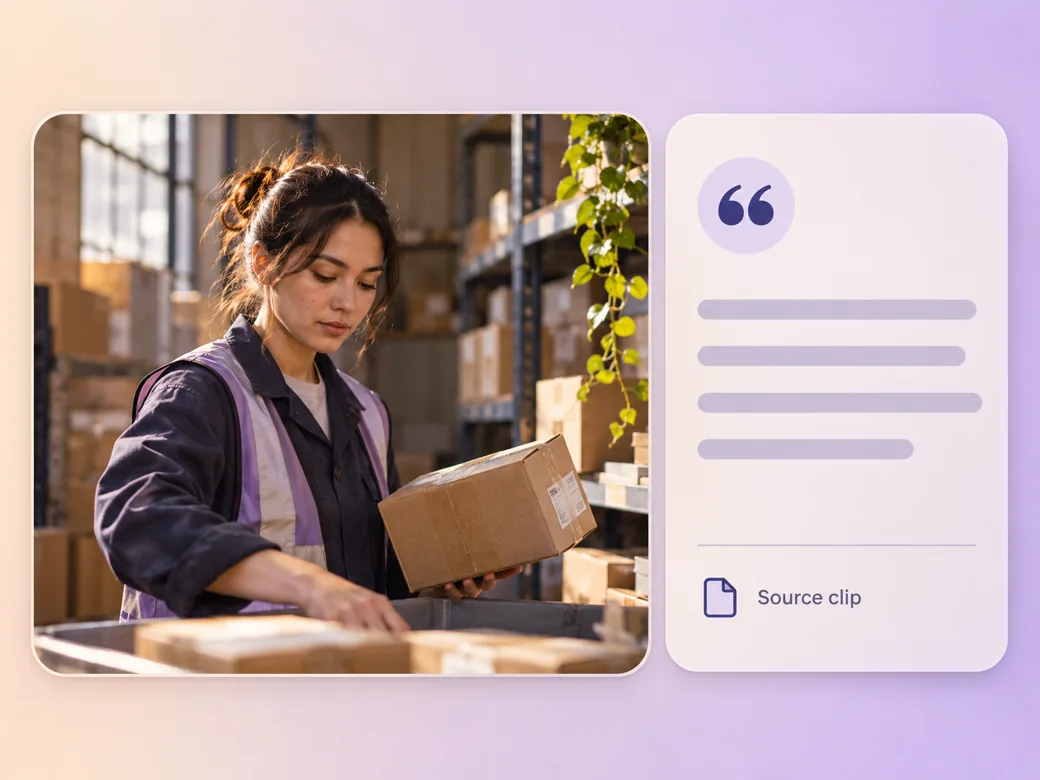
Use the customer’s exact approved excerpt and enough surrounding context to preserve its meaning. Ask Pexo to time captions so viewers can follow the words and see the corresponding scene. Put your call to action after the result and make the next conversation easy to start. Bring a finished voice track into the audio to video workflow.
Use a wide version for the detailed comparison and a compact version for follow-up. Keep the same claim and its qualifying context in both. Watch each clip with sound off and make sure the outcome can still be read.
The original constraint and the actual change are visible in the same setting. A new customer can understand what was done. Keep the example grounded in the project.
Pexo can place the measure next to the result. The viewer needs the reference period and conditions to interpret the comparison. Keep the source with the metric.
The ending gives the team a result to discuss and enough time to read the claim. Ask for a relevant next conversation.
A case study video explains a real project by showing the initial challenge, the action taken and the evidence of the outcome. It can include customer interviews, footage and measured results. Sales teams use it when a viewer needs details about how a specific result was achieved and what conditions applied.
An interview can add context, and other verified materials can tell the story. Use a project brief, permission-cleared photos, measured results and approved written statements when appropriate. Give Pexo the sequence and check that every claim is supported by the underlying material before you circulate the cut.
Use the same metric definition for both periods. Name the period, source and relevant conditions, then choose a visual that makes the comparison readable. If the periods or audiences differ, show that context next to the measure. Have the project owner check the figures and labels before you distribute it.
Pexo is a case study video maker for assembling a verified story, visuals, narration and captions from a structured brief. Use authentic clips and source data as evidence. A model such as MiniMax H3 can provide an illustrative background shot when it is clearly separate from the evidence your viewer evaluates.
A case study video explains the project and supports a result with details or measurements. A testimonial video focuses on the customer's account of their experience. A case study can include a testimonial excerpt when it helps establish what changed and the customer has approved its use. See testimonial video for that format.
Use subject + action + camera movement + setting + style. Try this brief. Follow a warehouse worker from the original packing station to the revised setup, using matching camera angles. Pause on the verified result card and then show the next question for prospects. Use an understated documentary style and approved metrics. Review the result against the assets and instructions you supplied.
Bring a verified project story and build a cut your team can share.
Make a Pinterest video in Pexo that opens on the result and shows readable steps for a video Pin.
Create a LinkedIn video in Pexo from one practical idea, supporting footage and captions that read in the feed.
Create a product review video in Pexo with real testing footage, clear conditions and honest observations.
Make an Amazon product video with Pexo from your product photos and demo footage. Show the item, its scale and how it works.
Create a spokesperson video with Pexo from an approved script, presenter direction and supporting product shots.
Animate your exact words in a kinetic typography video. Use Pexo to plan text movement, timing and a readable final frame.
Use Pexo to make a process video that sequences work stages, shows the key materials and marks the checks that matter.
Make a screencast video in Pexo with your screen recording, a short voiceover and readable callouts for each step.