

Pinterest Video
Make a Pinterest video in Pexo that opens on the result and shows readable steps for a video Pin.
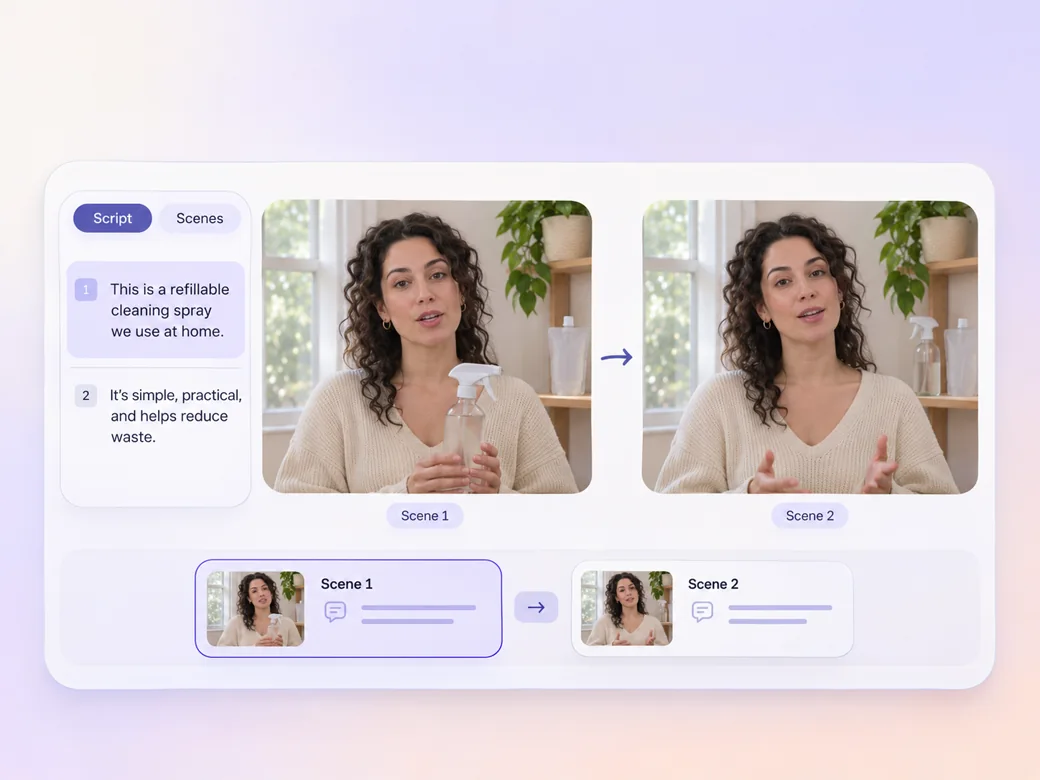
Make an AI spokesperson video in Pexo from the script you want delivered. Set the audience, the voice direction and the visuals the presenter needs to show.
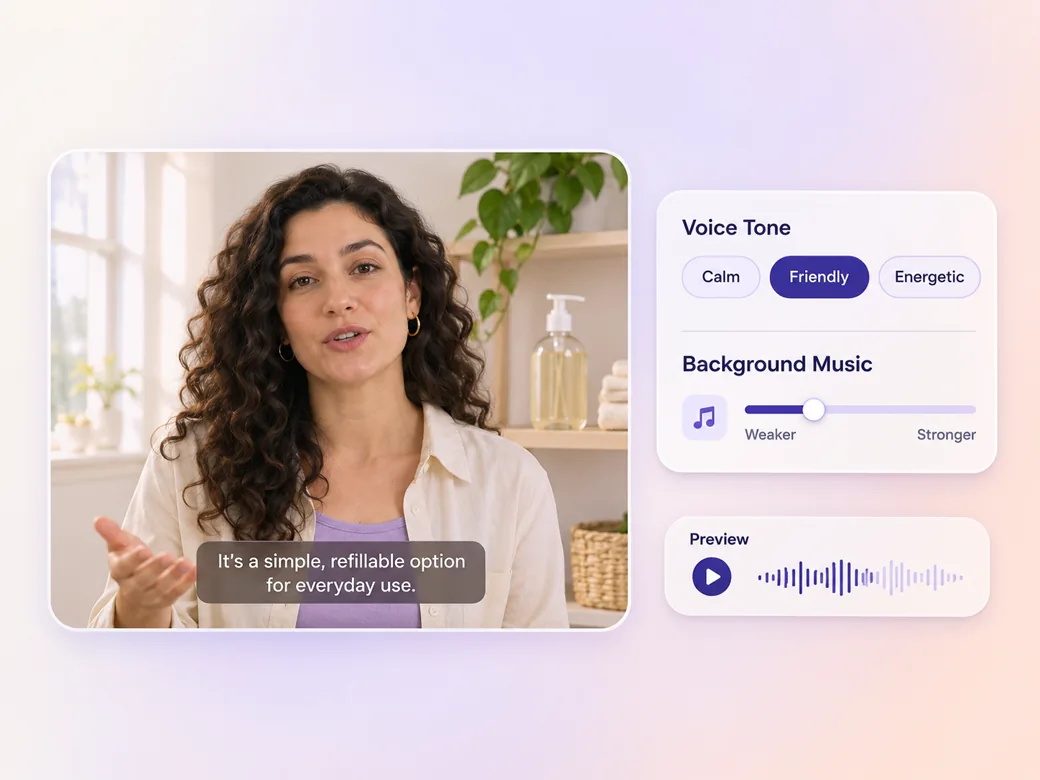
Paste your approved copy and include the viewer, speaking tone and words that need emphasis. With the spokesperson video maker, guide the presenter to look at the camera and pause at important points. Ask Pexo to preview a short section so you can check the read before continuing. Explore the AI avatar workflow for the presenter setup.

This illustrated preview shows how the brief can be reviewed in Pexo.
What to review
Give Pexo the approved product images, details or recordings to pair with the line. Ask for the view that best proves what the speaker is saying. If the point is how a refill opens, pause on a usable close-up and return to the speaker at the next sentence.
Provide a readable spelling or reference for any product name or technical term. Ask the spokesperson video generator to leave space around key phrases and keep background sound low when clarity matters. Listen through the preview once without looking to check that the spoken message works on its own. Review the lip sync pass against the original read.
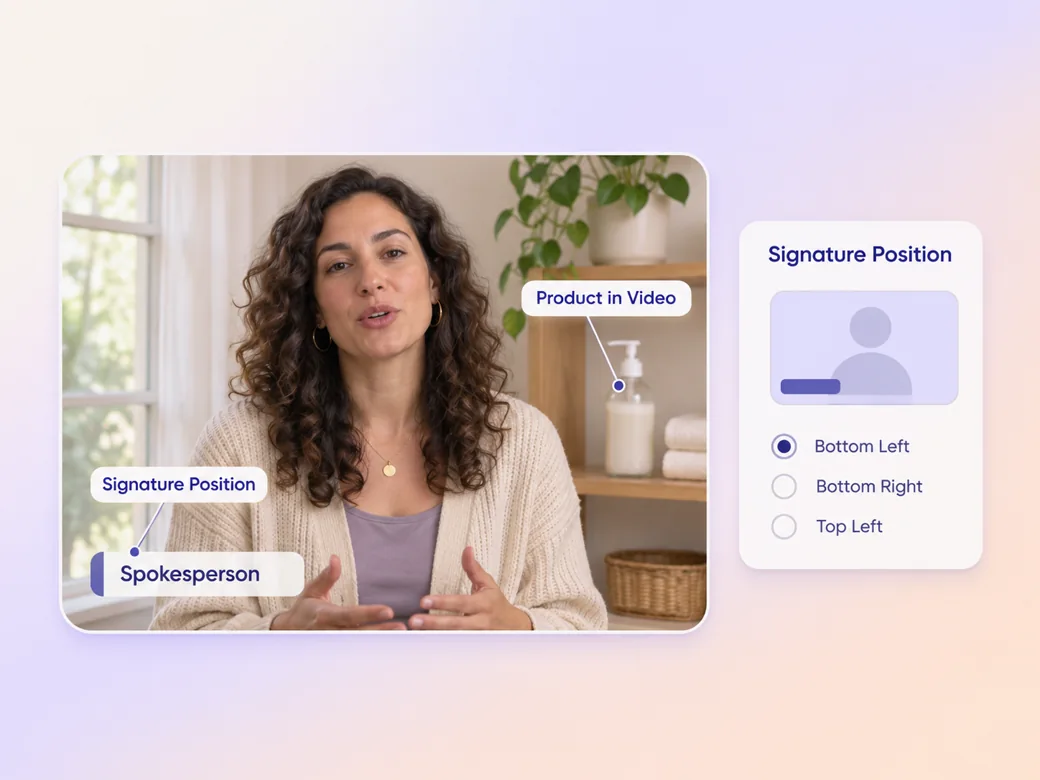
Use footage, a voice track or an avatar you are authorized to use. Confirm names, sponsorship language and claims on the final preview. Ask for readable captions and check the frame for items that cover the face, the product or the on-screen identification.
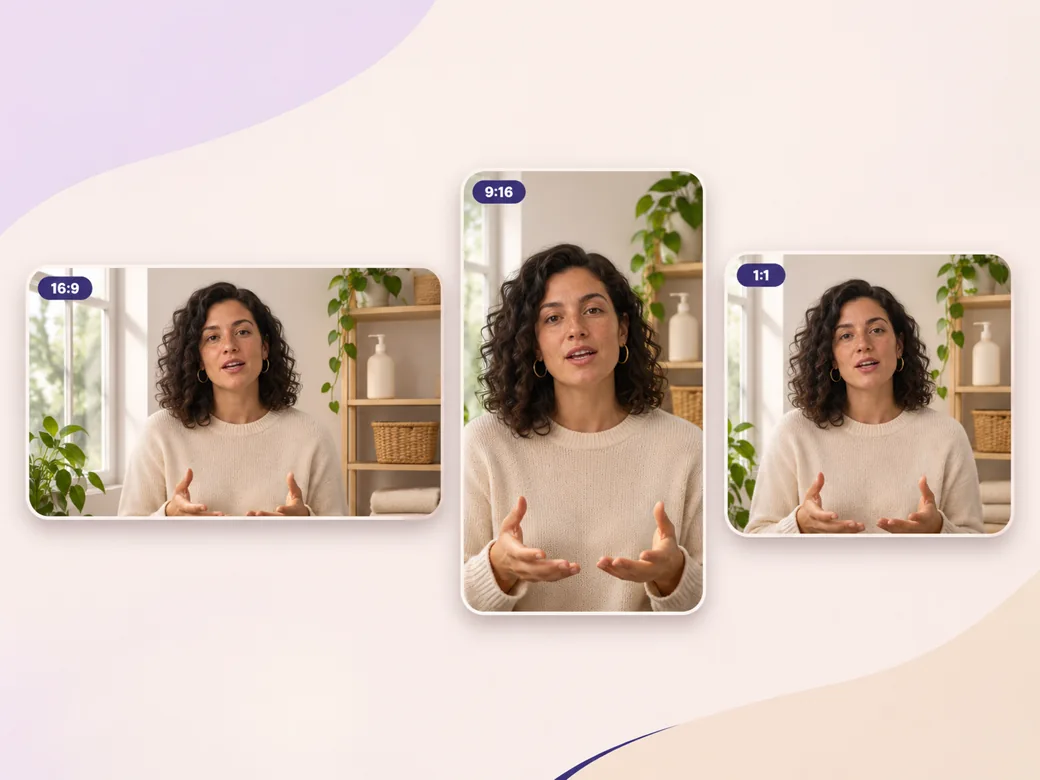
A wide version gives captions and product visuals more room. For a portrait or square cut, move the important product detail into a dedicated frame and give captions space below the speaker. Read every caption and check the face framing.
The speaker gives the product name enough room to be understood. The cutaway shows the feature as it is described. Listen directly for any pronunciation issues.
Pexo can show the read and the product close-up together. The product reference is important when the name and packaging must match. Check the approved image against the preview.
The pauses make the explanation easy to follow at normal speed. Quiet background sound leaves the words audible. Listen at the volume a viewer normally uses.
A spokesperson video presents an approved message through a presenter speaking to the audience. It can introduce a product, explain a process or deliver an announcement. A team typically prepares a script, chooses a delivery style, and supplies relevant visuals or captions so the audience can follow the message.
Yes. Provide the approved material and tell Pexo how you want it used. Give pronunciation, tone and pacing notes. If you use a person's likeness or voice in a new output, confirm the scope of their permission and review the resulting message with the team responsible for it.
Put only the key phrase or caption in the frame and leave room for both the presenter and the product. Have Pexo give a close-up its own moment if an important detail is too small. Check the result at phone width and respect the screen’s edge controls.
Pexo is a spokesperson video maker for combining an approved script, presenter direction, captions and product visuals. It supports avatar workflows, and models such as MiniMax H3 can add illustrative shots. Use your authorized materials for recognizable people, product details and claims, and review the combined cut.
A spokesperson video delivers a message on behalf of a brand, project or team and usually follows an approved script. A talking head video describes the framing of a person speaking on camera, such as a host or educator. A spokesperson video can use that framing while keeping the review focused on the script and the speaker. See talking head video for that format.
Use subject + action + camera movement + setting + style. Try this brief. Show an authorized studio presenter delivering a brief product introduction. Start in a steady medium shot, move to a close-up when the refill is shown, and return to the presenter for the final line. Use warm natural light and short captions. Review the result against the assets and instructions you supplied.
Start with the approved words and give Pexo a clear delivery direction.
Make a Pinterest video in Pexo that opens on the result and shows readable steps for a video Pin.
Create a LinkedIn video in Pexo from one practical idea, supporting footage and captions that read in the feed.
Create a product review video in Pexo with real testing footage, clear conditions and honest observations.
Make an Amazon product video with Pexo from your product photos and demo footage. Show the item, its scale and how it works.
Make a case study video in Pexo that pairs an approved customer story with real footage and measurable results.
Animate your exact words in a kinetic typography video. Use Pexo to plan text movement, timing and a readable final frame.
Use Pexo to make a process video that sequences work stages, shows the key materials and marks the checks that matter.
Make a screencast video in Pexo with your screen recording, a short voiceover and readable callouts for each step.