
AI Claymation and Puppet Animation Short
Make a claymation and puppet animation short with Pexo. Organize your own material and edit a focused review cut. Check the details before you share it.
Make an AI game intro video. Make a game opening that introduces the setting before the player starts. Use your own source material and review the first playable world in the finished cut.
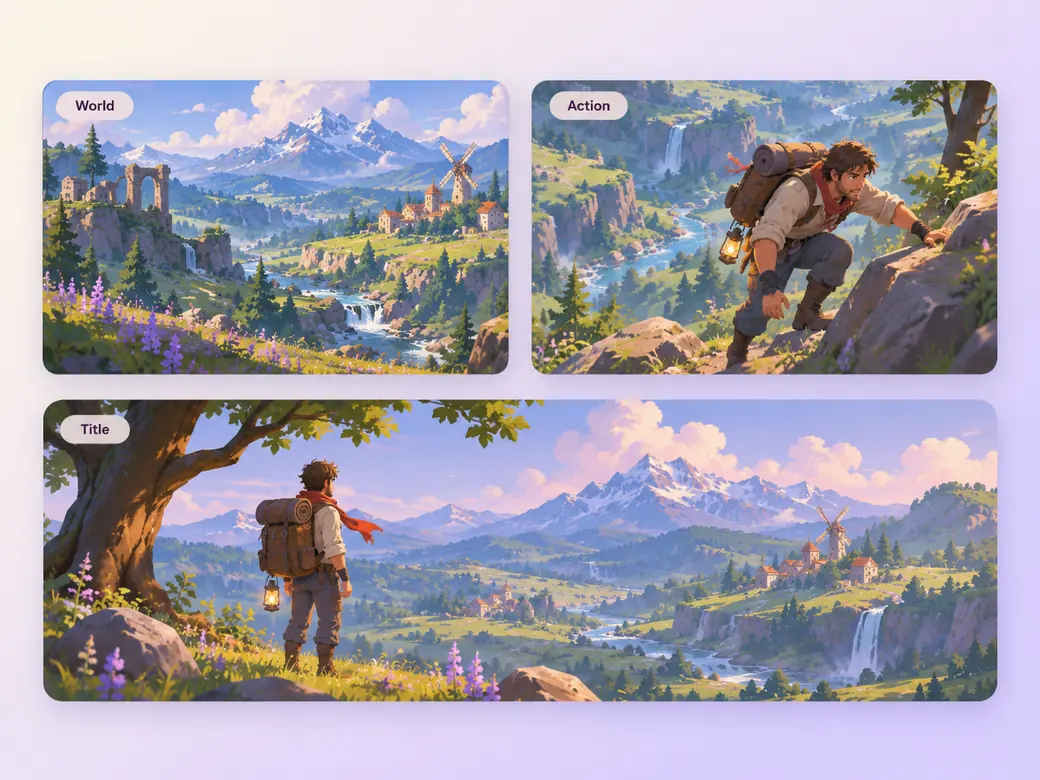
Bring approved game captures, your title artwork, and notes for the first screen. In Pexo’s game intro video maker, give the opening just enough space to identify the first playable world, then make the first world cue the center of the first cut. Use Merge Videos with your brief, then review the first playable world.
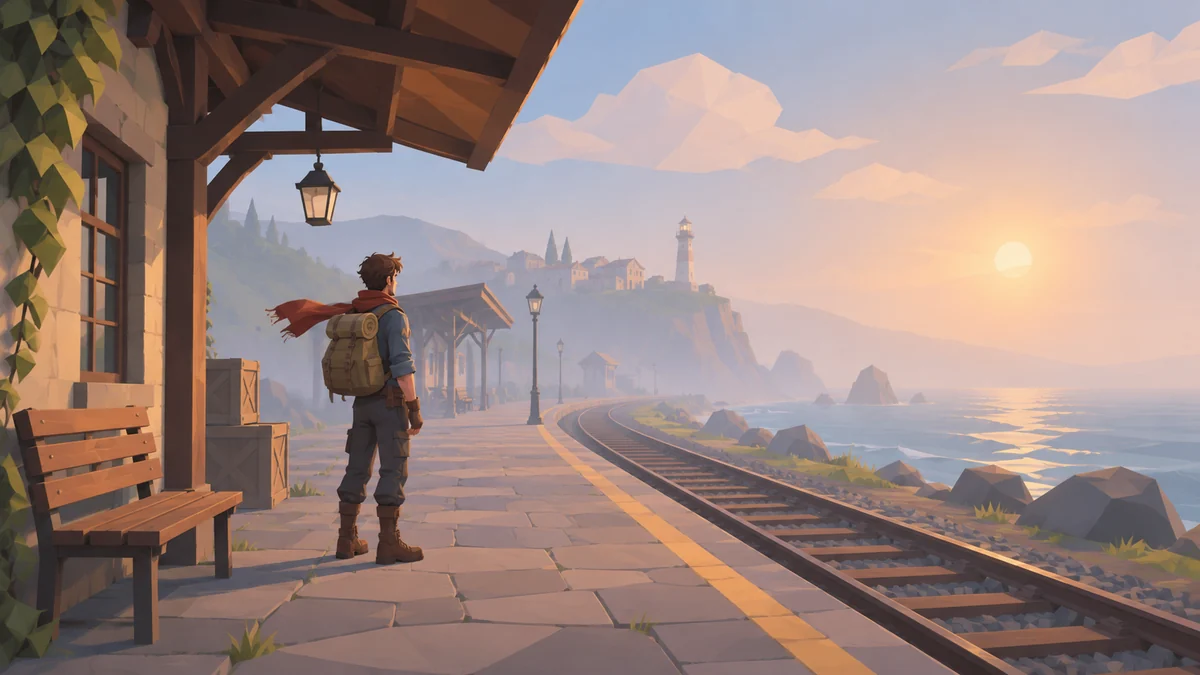
The result preview focuses on the first playable world. Review each of the checks before shaping the complete cut.
What to review
Give the player a place to begin with, then introduce one important image or movement. Keep the world art and framing close to the game. Hold the game title at the end and give it a clear transition into the first screen.
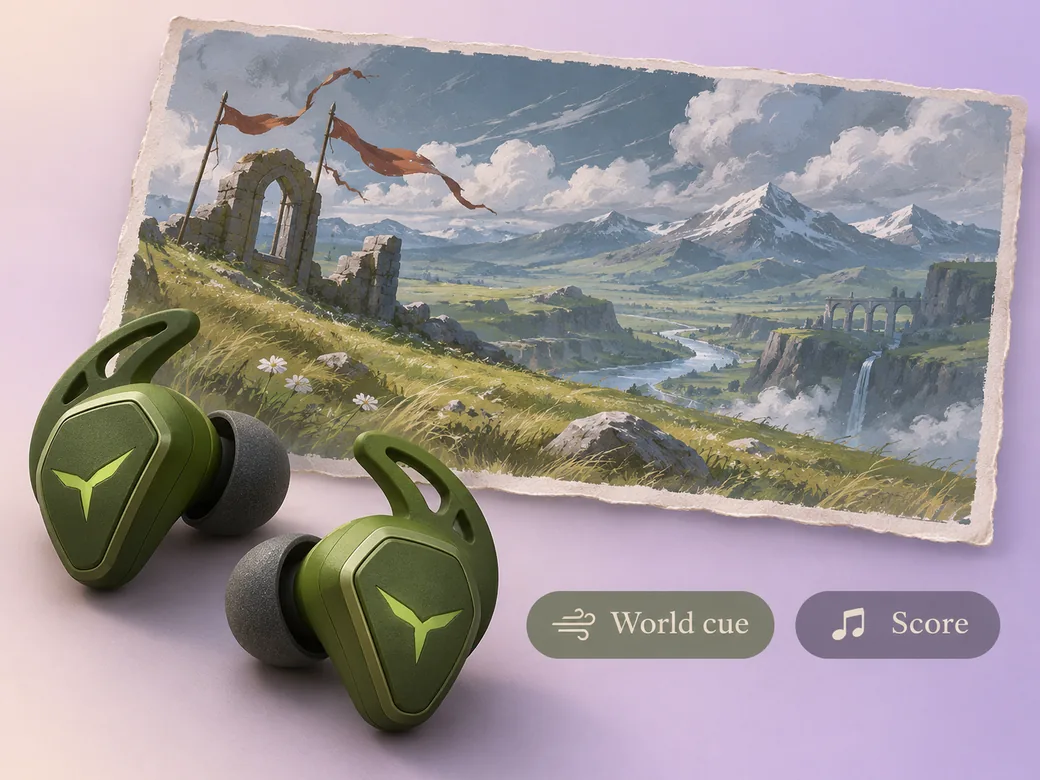
Start with an opening cue that matches the world. Leave room for the audio from the first scene after the title. Listen to the cut as the player will hear it and fade the intro where that sound starts. Use Music Generation to try the treatment and listen against the actual pictures.
Use the approved game name and avoid overlaying it on a moving detail that people need to see. Review the intro with the actual start screen. Integrate the video in your game’s normal startup workflow.
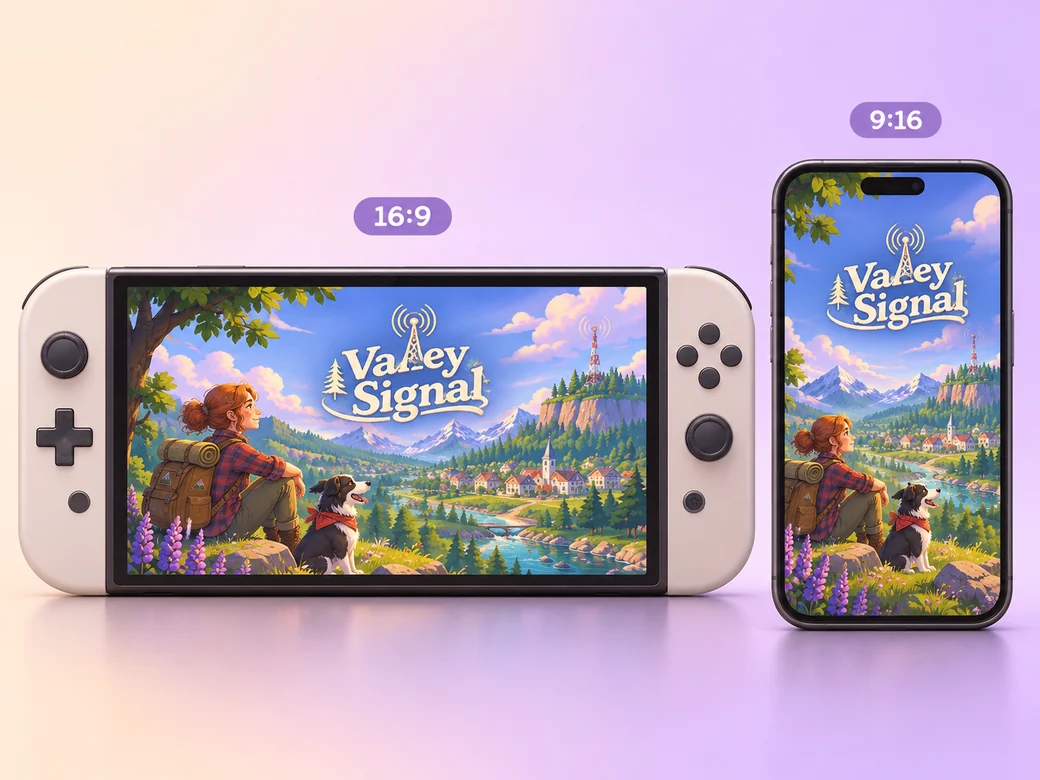
Keep a wide cut for a game start screen or a standalone launch preview. For a 9:16 excerpt, retain the first playable world and review how it fits on a phone. Check the start and the last frame at the intended size and give any text enough time to read.
“In Pexo, I watch the intro and then open the first screen. The handoff should use the same visual language.”

“I look for one view that belongs to the game. The first location should be recognizable.”

“I listen for the transition to the game’s original sound. A short cue can finish before the player begins.”

A game intro video is a finished edit that helps you make a game opening that introduces the setting before the player starts. It can be prepared for a game start screen or a standalone launch preview, with enough context for the viewer to follow the first playable world. Choose a few moments that improve the final result and give each one time to read before the next cut.
Bring approved game captures, your title artwork, and notes for the first screen. Give each source a short name that describes where it belongs, and include any exact wording that should appear. Tell Pexo which part matters most and how you plan to show it. That gives you a clear first version to review.
The result is a rendered opening video you can preview and share. Connect it to the game’s start sequence in the tools you use to build the game. Confirm the video format and sound with that workflow and test how the intro hands off to the first screen.
Pexo helps organize your material and revise the framing, pacing, and sound after you review the result. Use the source that documents your actual subject for the first playable world. For a separate illustrative insert or visual opening, Kling AI 3.0 can animate an approved reference image.
A game intro video sets up the world at the beginning of a play session and gives the player a clear handoff into the game. A game trailer promotes the game through selected moments from across it. Choose the intro when the title and the first setting need to make sense together.
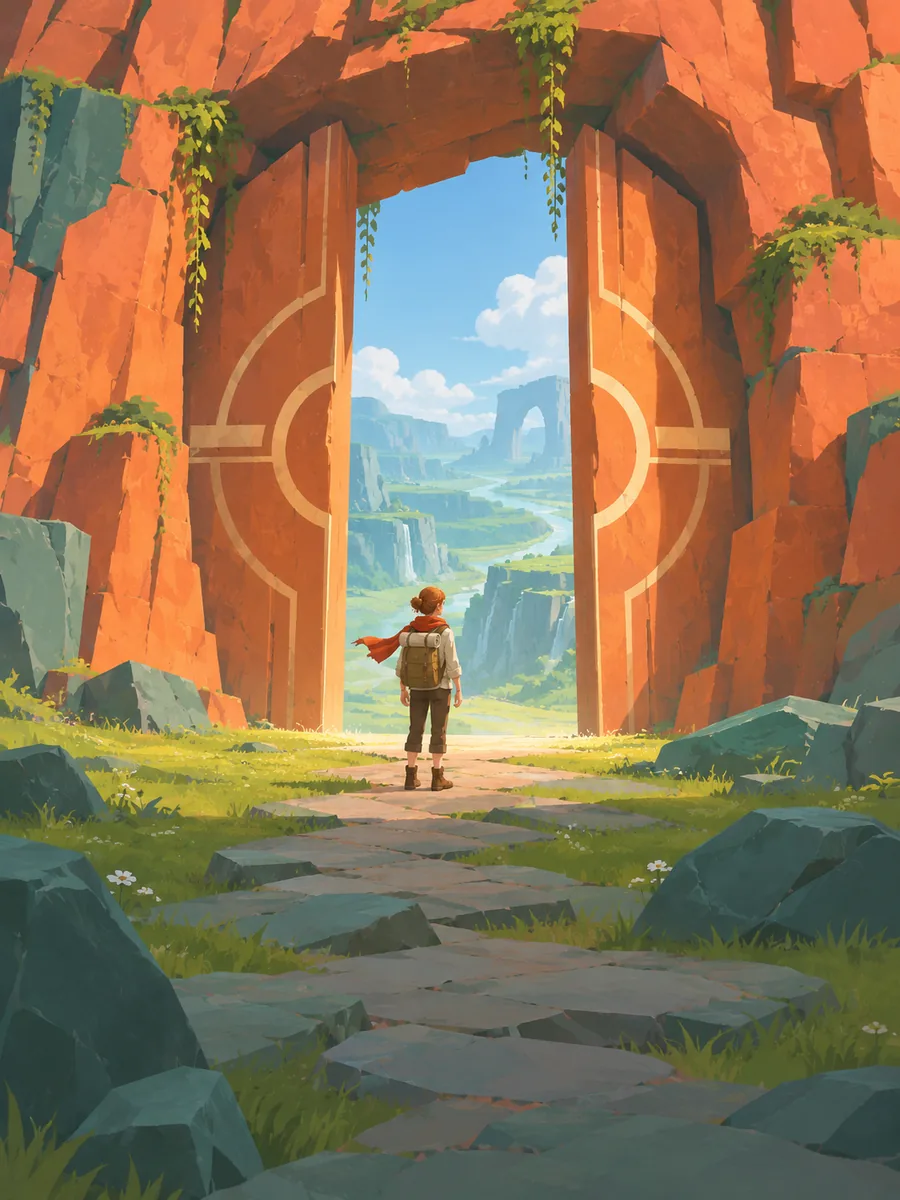
Use subject + action + camera movement + setting + style. Try ‘Use approved references for the first playable world. Start with the valley and reveal the game title. Start wide and move closer when the main action begins. Keep the original texture and colors in the scene. Hold the approved game title at rest.’
Bring approved game captures, your title artwork, and notes for the first screen. Start with the first playable world and review the first cut at the intended size.
Make a claymation and puppet animation short with Pexo. Organize your own material and edit a focused review cut. Check the details before you share it.
Make an animated music video with Pexo. Use one visual motif that follows the music to tell a clear story. Organize your material and review the finished video.
Make a corporate mini-documentary with Pexo. Organize your own material and edit a focused review cut. Check the details before you share it.
Make an animated story video for kids with Pexo. Organize your own material and edit a focused review cut. Check the details before you share it.
Make an animated nursery rhyme video with Pexo. Organize your own material and edit a focused review cut. Check the details before you share it.
Make an opening title sequence with Pexo. Use the image that introduces your film to tell a clear story. Organize your material and review the finished video.
Make an educational animated video for kids with Pexo. Organize your own material and edit a focused review cut. Check the details before you share it.
Make an illustrated animated explainer video with Pexo. Use a paper-cut water cycle to tell a clear story. Organize your material and review the finished video.