

Real Estate Explainer Video
Create a real estate explainer video that shows each step of booking a viewing or preparing an application with Pexo.
Make an AI insurance explainer video in Pexo with your approved copy. Walk viewers through one process, show the documents they need and leave room for clear conditions and contact details.
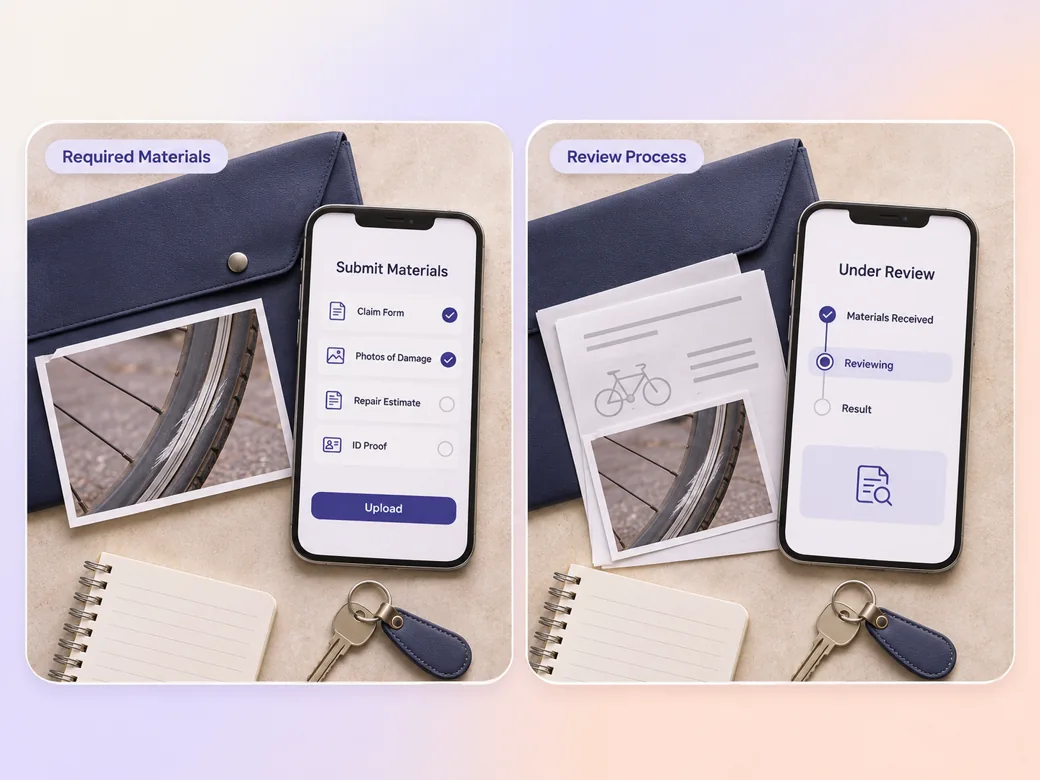
Brief the insurance explainer video maker with the audience, approved description and one process to explain. For a claim intake video, give viewers a checklist based on your organization's actual instructions. Number the actions in their correct order and include how to reach the team for case-specific questions.
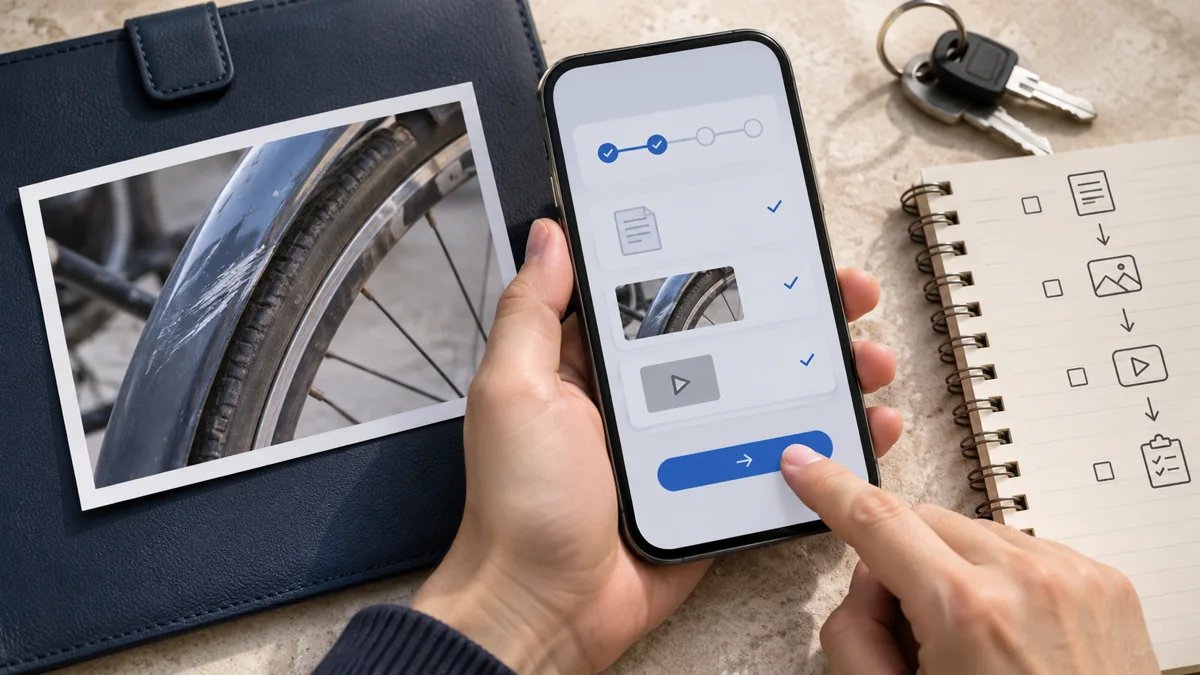
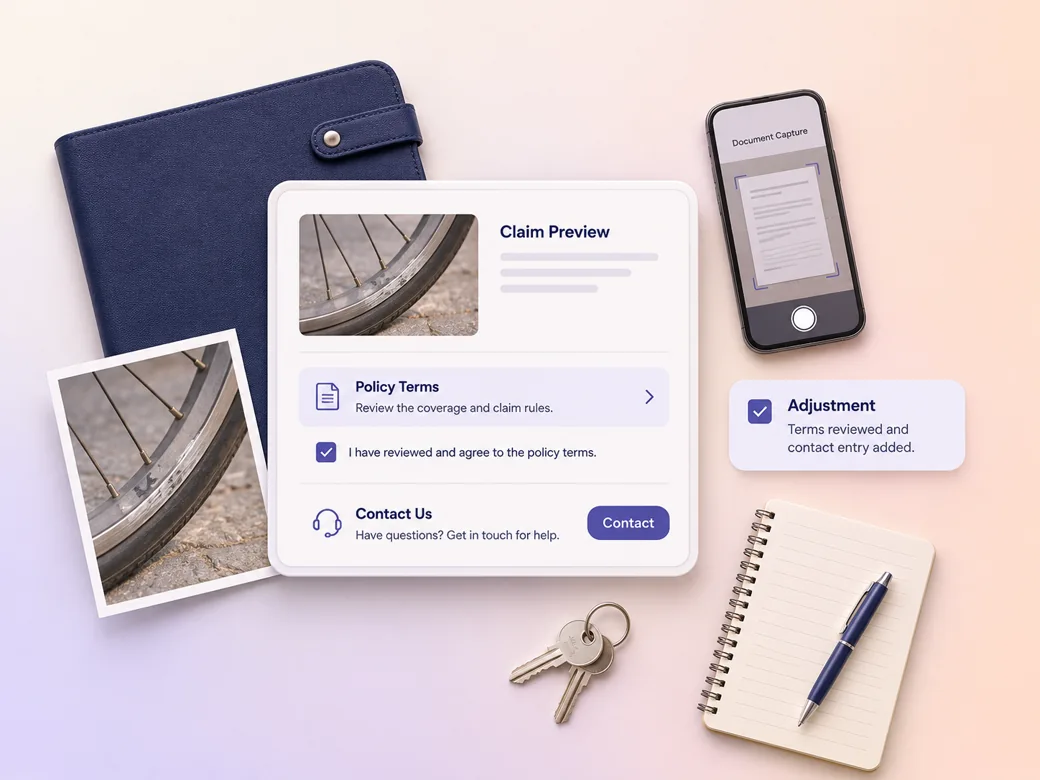
This illustrated preview shows how the brief can be reviewed in Pexo.
What to review
Show generic document examples next to their labels. Use fictional data in the examples and a clear visual cue for items the viewer needs to gather. Supply your own approved form captures if viewers must recognize a particular screen. Check that the cut never exposes private records or contact information. Use the script to video workflow to map an approved read to the shots.
Include the conditions that change how a statement applies. Tell Pexo where the conditions should appear next to the main message and how long readers need. Preview captions and labels aloud, then run the insurance explainer video generator output through your organization's review process before distribution. See the Pexo Motion examples for short on-screen cues.
Use the final frame to show the verified portal, phone number or contact channel you want viewers to use. Test it on the page or device where the video will appear. Confirm that the action and its qualifications are readable when the player is muted or small.
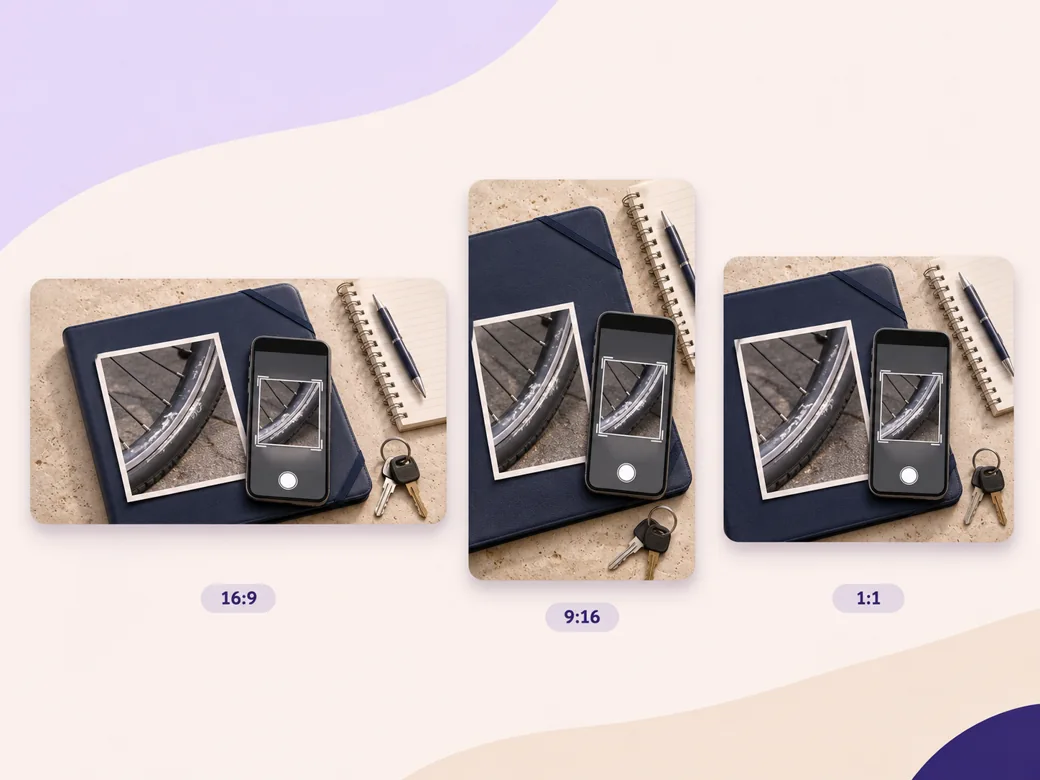
Use a wide format for a help article with documents side by side. On a narrow screen, show one item and its label at a time. Review key conditions and contact details in every version before sharing.
The qualification sits with the relevant claim, which gives a reviewer enough context to compare it with the approved copy. Read both elements at the same speed.
Pexo can show what a generic document looks like before the handoff. The examples help a viewer recognize what to prepare. Use examples with fictional data.
The close-up leaves time for the short document labels, and the contact option remains visible at the end. Watch the muted version on a phone.
An insurance explainer video explains a policy concept, quote step or claims process in language a defined audience can understand. It often pairs approved wording with a document example, a short sequence and a contact option. The organization can review each statement against the product information and process it actually provides.
Yes. Use the wording approved for the policy or market and show the condition close to the statement it qualifies. Give viewers enough time to read it. Ask the responsible reviewer to check the draft against the current policy, the final visual layout and the placement where it will be shown.
Yes. Use fictional examples or approved images that protect personal details. Show the parts viewers need to recognize, such as where to find a reference number. Direct them to your official instructions for what to submit. Test the video at phone width and review all visible text before distributing it.
Pexo is an insurance explainer video maker for organizing approved copy, demonstration images, narration and captions into one cut for review. MiniMax H3 can create illustrative background scenes if useful. Use your verified documents and policy wording for the visible details, and route the draft through the responsible review team.
An insurance explainer video may show an actual quote, claim or policy process with approved terms and contact steps. A how-it-works video can explain a general mechanism without its audience needing those specific conditions. Use an insurance-focused cut when the wording and next action depend on the offer or process. See how-it-works video for that format.
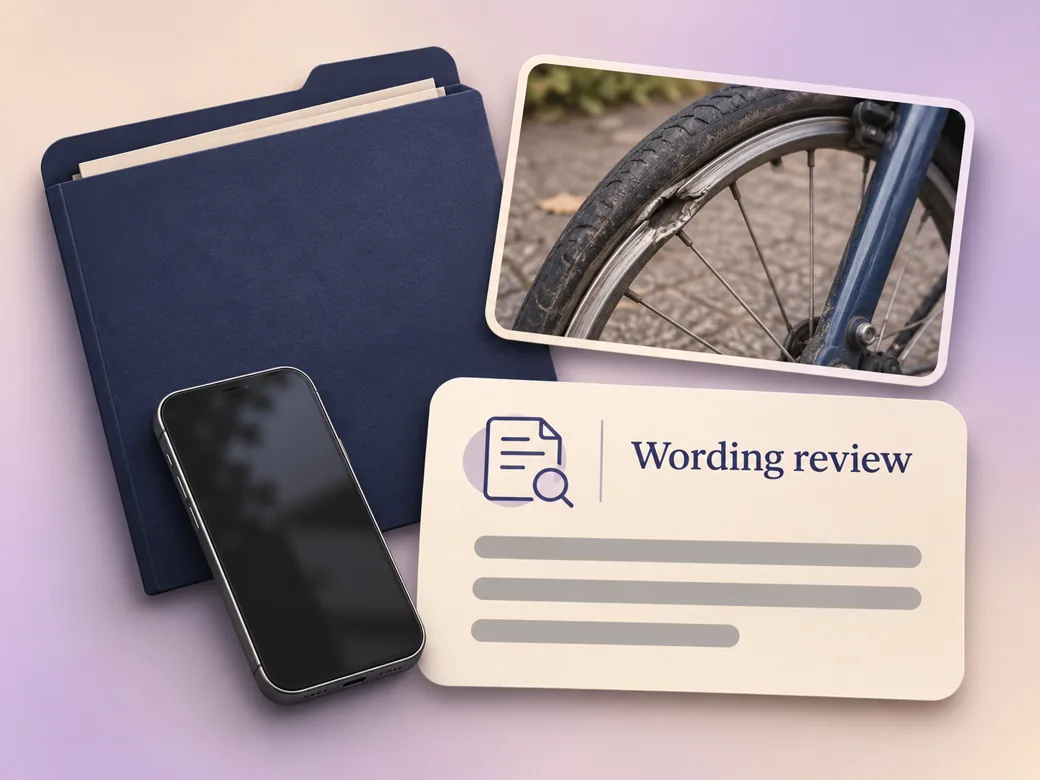
Use subject + action + camera movement + setting + style. Try this brief. Show a generic document folder, a sample photo and a phone at a bright desk. Move gently between each item as it is identified and finish on an approved contact instruction. Use a neutral documentary style with readable captions. Review the result against the assets and instructions you supplied.
Start with a reviewed script and make the instructions easy to follow.
Create a real estate explainer video that shows each step of booking a viewing or preparing an application with Pexo.
Use Pexo to make a B2B explainer video that explains one buyer workflow and gives the buying team a clear next step.
Create an app explainer video in Pexo from current screenshots, a short script and a visible completion state.
Make a corporate explainer video from your internal brief. Show roles, handoffs and next steps with Pexo.
Make an article-based explainer video with Pexo. Turn the main point, evidence, and examples into a short video that stands on its own.
Create Bible videos from reviewed verses, lesson notes, book overviews, timelines, and character studies with clear scenes, narration, captions, and human review.
Create Islamic videos from reviewed sources and lesson notes, covering history, culture, ethics, and education with respectful visuals and narration.
Create Christian videos from reviewed Scripture, lesson notes, and historical sources with clear visuals, narration, captions, and human review.