

Real Estate Explainer Video
Create a real estate explainer video that shows each step of booking a viewing or preparing an application with Pexo.
Make an AI B2B explainer video with Pexo from a product brief and one buyer workflow. Show the problem, who acts at each handoff and what the buyer can ask for next.
Choose the buyer role and one friction point, such as a procurement request waiting for approval. Give the B2B explainer video maker an approved example and the state that counts as a successful result. Start on the team's real situation so the buying group can place your offer in their own process.

This illustrated preview shows how the brief can be reviewed in Pexo.
What to review
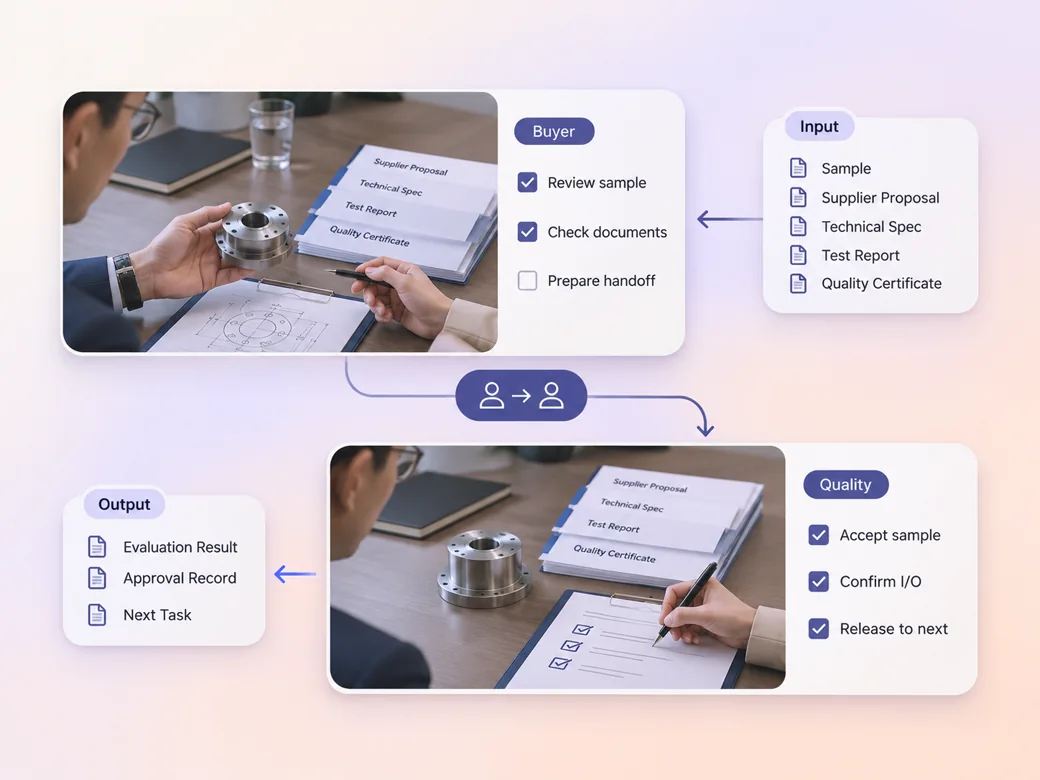
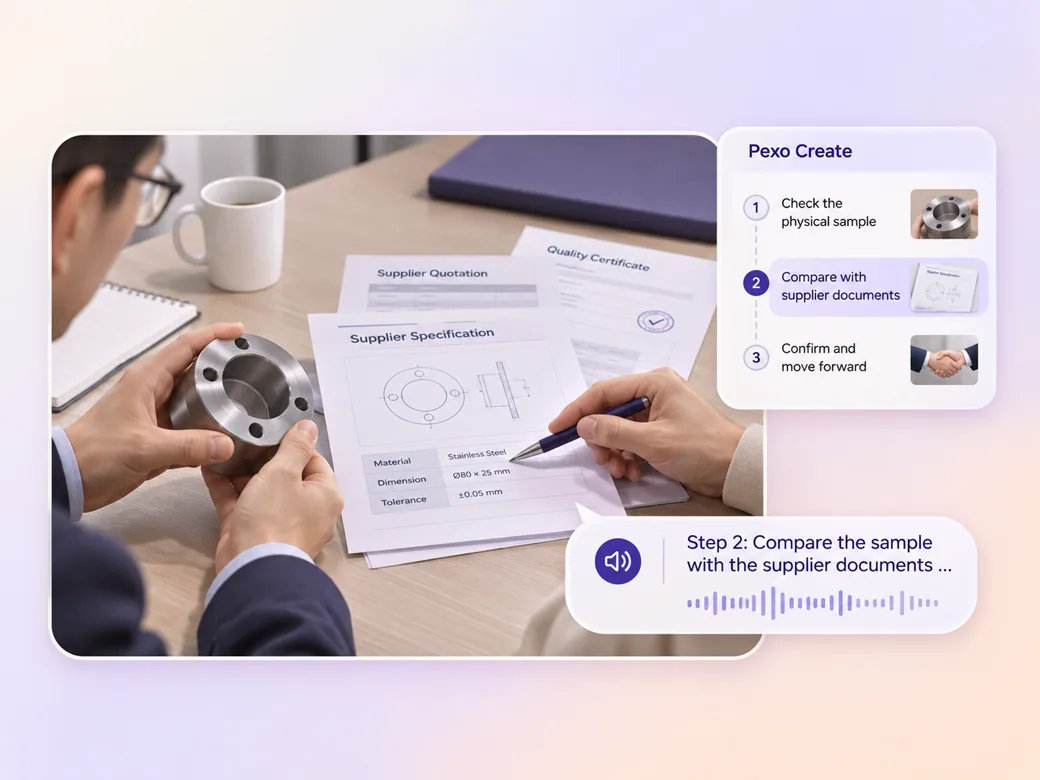
Break the example into the request, the review and the outcome. Use a short label to show what each person sends and receives. When a product screen is part of the sequence, give Pexo approved screenshots and keep permission requirements and feature names in the language your team uses. Use the script to video workflow to map an approved read to the shots.
Provide a voiceover script that names the task, action and result. Ask for visual breathing room around unfamiliar terms. Use one line of narration to orient a viewer before a diagram appears, then leave it on screen long enough for someone to see which team acts next. See the Pexo Motion examples for short on-screen cues.
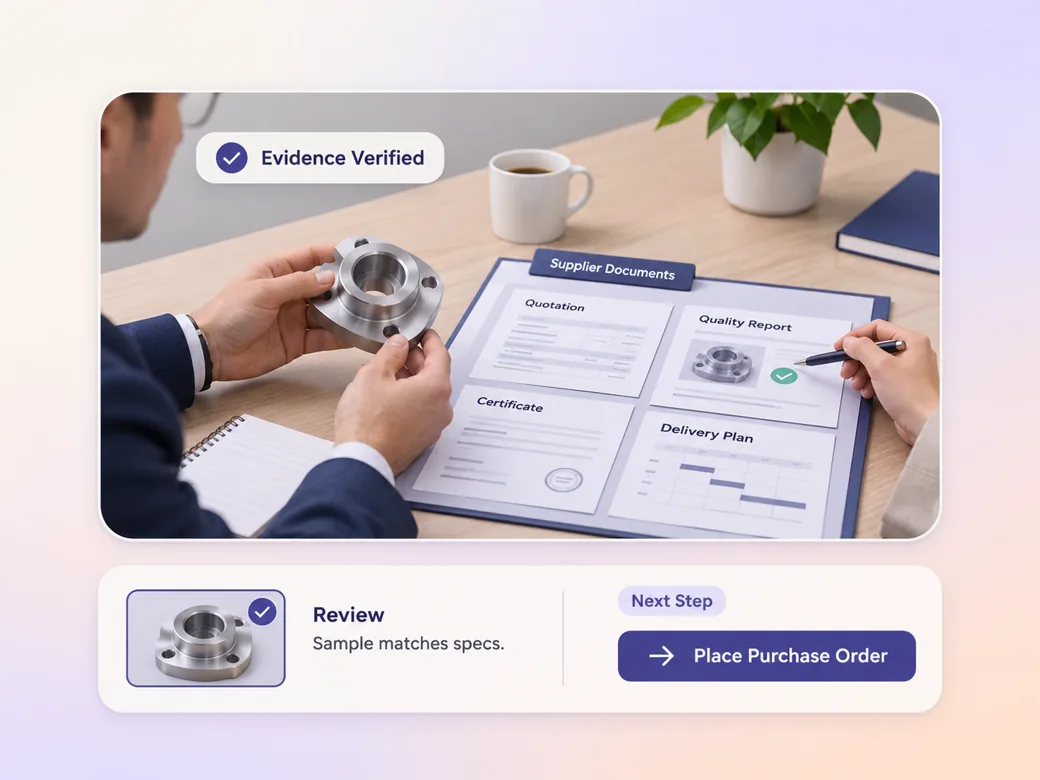
Tell the B2B explainer video generator to show one approved result and where its evidence comes from. Check any number, customer name and quote against the authorized source. End on an actionable request for the intended audience, such as bringing an example approval path to a demo.
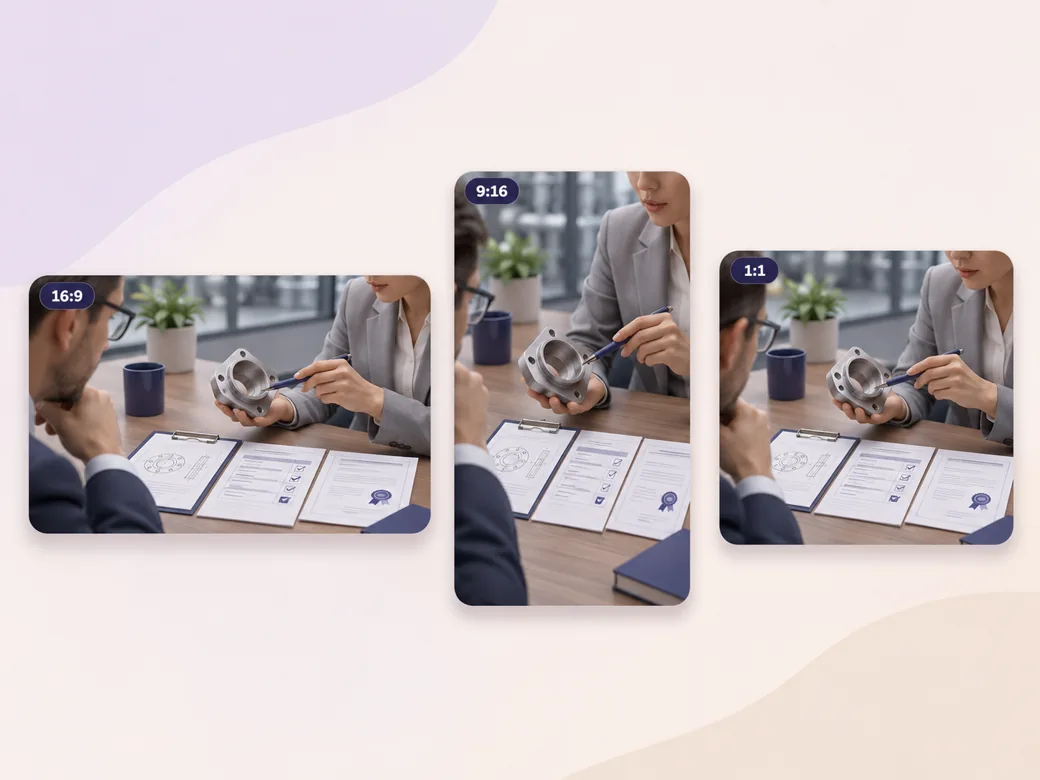
Keep roles and the result readable in 16:9 for a sales call. For a square or portrait teaser, show fewer roles at once and keep the handoff visible across consecutive scenes. Check the action card in each preview.
The reviewer can see the request move from the buyer to the approver. That makes it clear where to enter a live demo. Show the actual handoff.
Pexo can bring an approved comparison into a clear sequence. The result card should keep the conditions that explain what the claim covers. Keep the source handy for sales.
The final action asks for an actual approval path. I can tell what the sales team needs before the next meeting. Give each viewer one next step.
A B2B explainer video helps a company evaluate a product or service by showing what problem it solves, how it fits a workflow and what result buyers can expect under stated conditions. It is often used in sales enablement, prospect education or an evaluation meeting with multiple decision makers.
Bring a brief with the audience, the problem, an approved workflow and the next step. Add screenshots or diagrams for details that must match the actual product. Supply any results with the sample, time period and source notes so reviewers can confirm the claims in the final cut.
Yes. Start with the same buyer story, then adjust the ending for each placement. A landing-page cut might end with a prompt to request a demo. A sales version can pause on a detail the team can discuss. Compare captions and screen readability at both playback sizes.
Pexo is a B2B explainer video maker for combining an approved product brief, visual stages, captions and narration. Keep real screenshots and measured results attached to the brief. MiniMax H3 can illustrate a workplace scene where needed, while the supplied product references provide the evidence for a demo.
A B2B explainer video shows how an offer fits work across a buying team, which could involve a service, product or software. A SaaS explainer concentrates on how people use a software product. Choose the B2B route when roles, handoffs and evaluation questions matter as much as the interface. See SaaS explainer video for that format.
Use subject + action + camera movement + setting + style. Try this brief. Show a buyer submitting a vendor request and an approver reviewing it at a procurement desk. Move from the request to a close-up of the approval state, then hold on the next step. Use calm office lighting and concise labels. Review the result against the assets and instructions you supplied.
Start with one buyer problem, one real workflow and a next action.
Create a real estate explainer video that shows each step of booking a viewing or preparing an application with Pexo.
Create an insurance explainer video with Pexo. Use approved policy wording and make each step and contact option visible.
Create an app explainer video in Pexo from current screenshots, a short script and a visible completion state.
Make a corporate explainer video from your internal brief. Show roles, handoffs and next steps with Pexo.
Make an article-based explainer video with Pexo. Turn the main point, evidence, and examples into a short video that stands on its own.
Create Bible videos from reviewed verses, lesson notes, book overviews, timelines, and character studies with clear scenes, narration, captions, and human review.
Create Islamic videos from reviewed sources and lesson notes, covering history, culture, ethics, and education with respectful visuals and narration.
Create Christian videos from reviewed Scripture, lesson notes, and historical sources with clear visuals, narration, captions, and human review.