
Real Estate Explainer Video
Create a real estate explainer video that shows each step of booking a viewing or preparing an application with Pexo.
Use Pexo to make an AI app explainer video with current screenshots and a short script. Show where to tap, what changes and how a successful action looks.
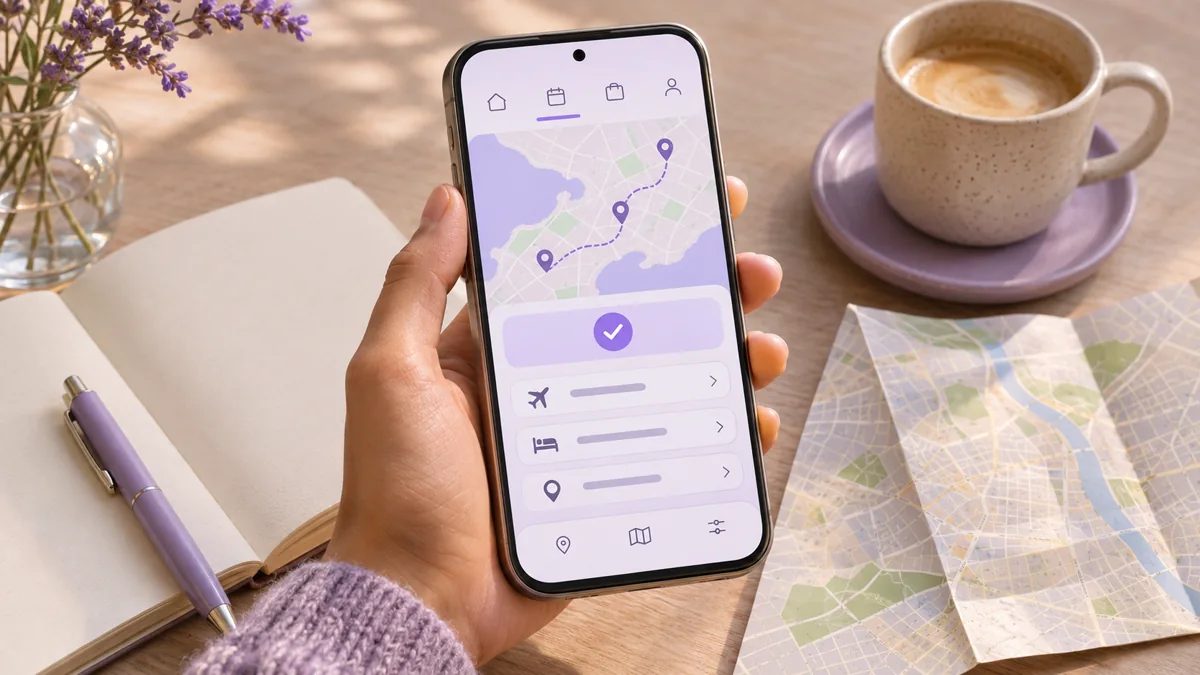
Provide a screen capture or current screenshots from a demonstration account. Show one flow, such as choosing a trip date and saving an itinerary. Use Pexo as an app explainer video maker to plan the order, then check the button and success state in the first preview.
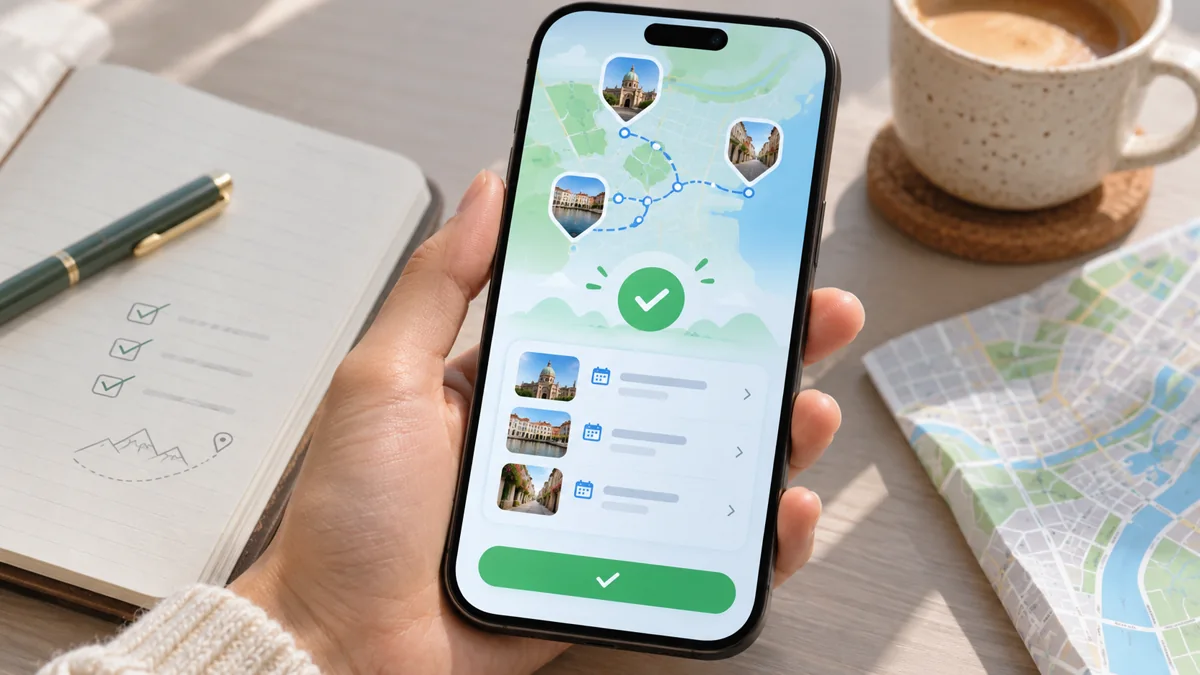
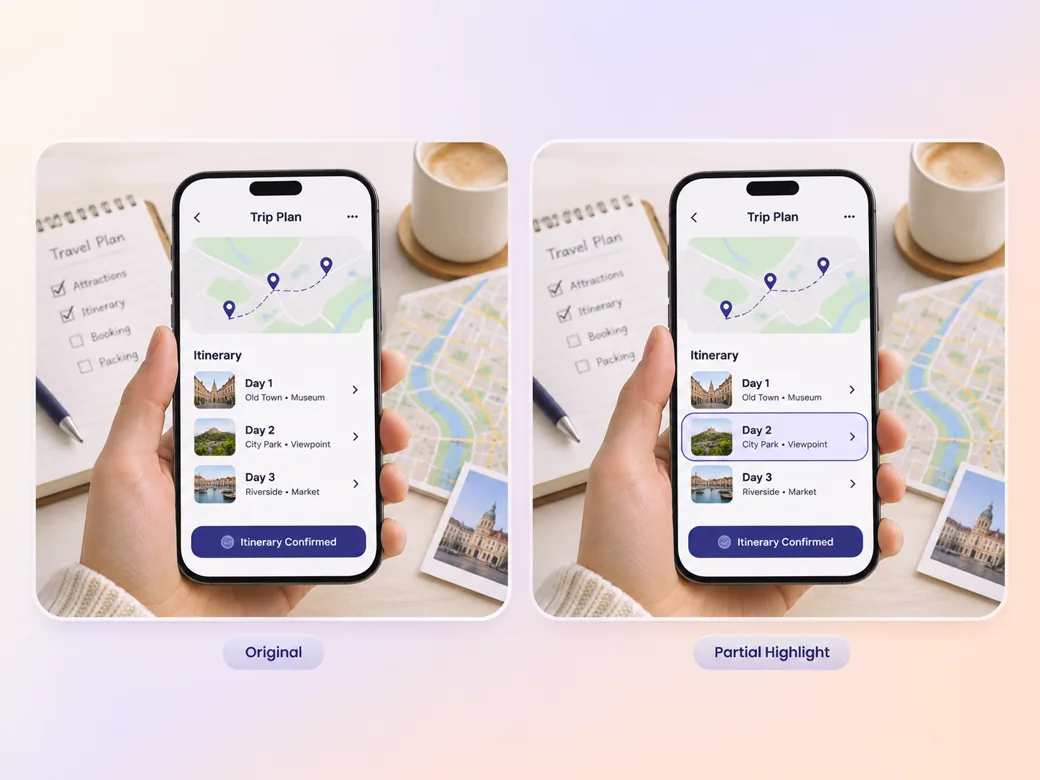
This illustrated preview shows how the brief can be reviewed in Pexo.
What to review
Give Pexo the names of the controls exactly as they appear in your app. Ask for a short highlight before the tap, then show the next screen long enough to confirm what changed. Keep captions outside the controls so viewers can compare the video with their own device. See the Pexo Motion examples for short on-screen cues.
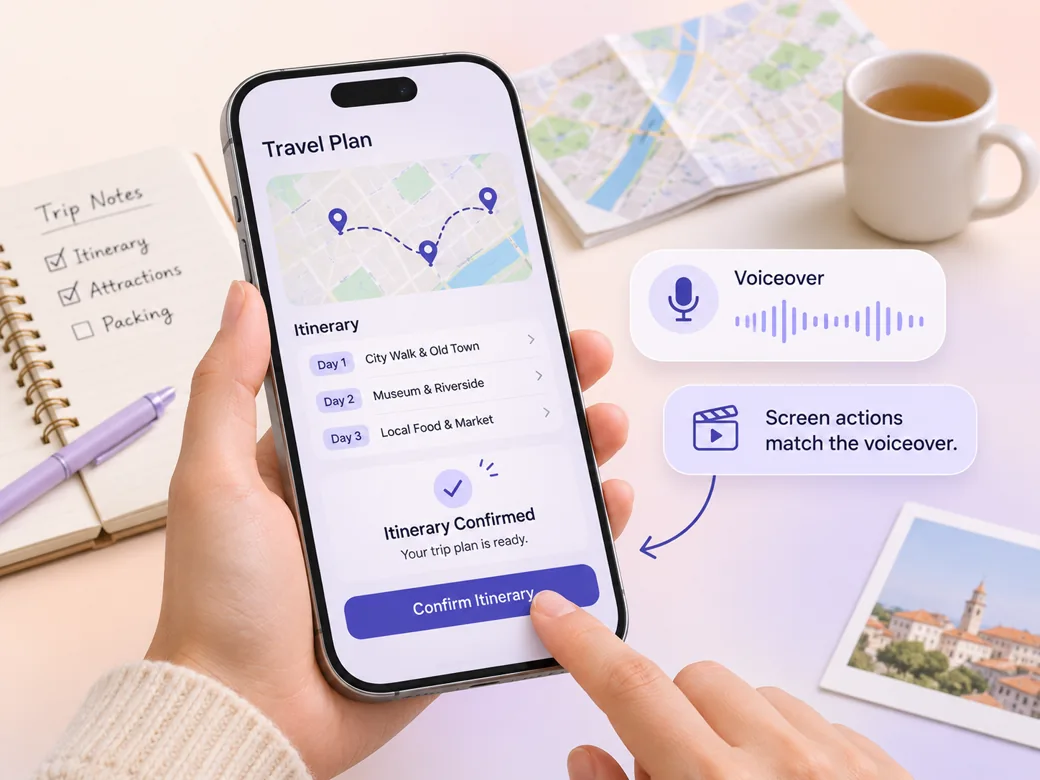
Provide a short read that says one action at a time. Leave a pause for the resulting state before describing the next screen, especially if a banner disappears quickly. If you add a voice track, check that the wording matches the interface copy and times with the visible action. Bring a finished voice track into the audio to video workflow.
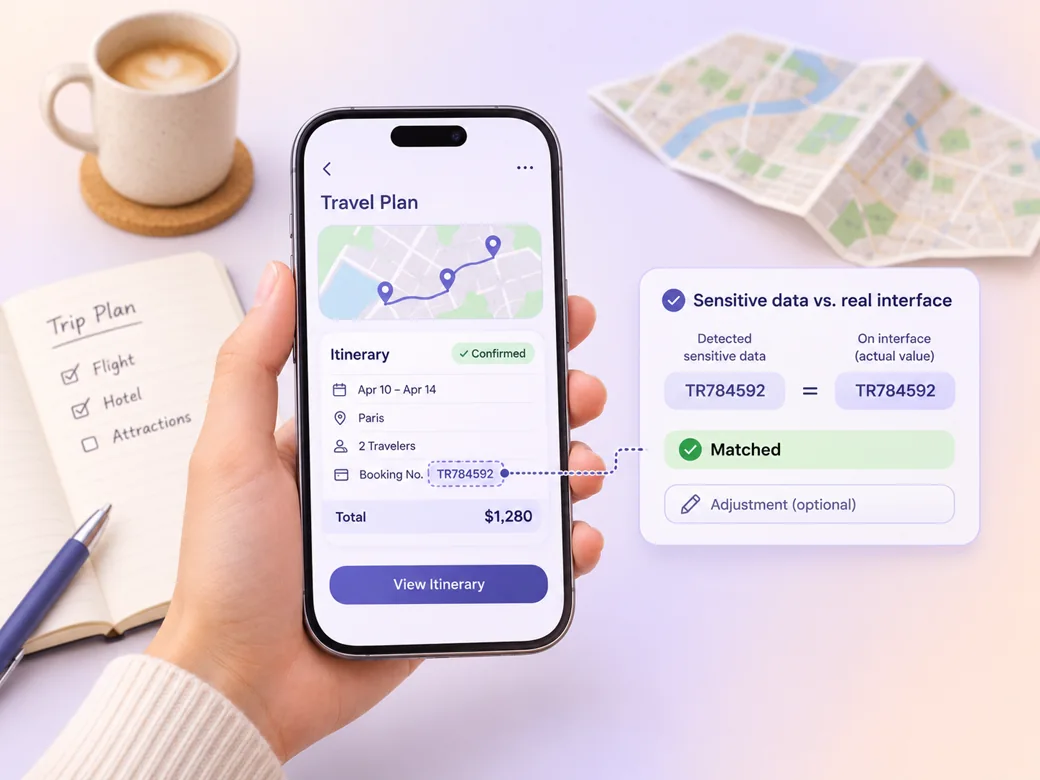
Run the app explainer video generator preview beside the shipping build. Check the demo data, menu positions and confirmation text. For an onboarding embed, test a narrow version that still shows the relevant control and a wide version for a help-center embed when more context matters.
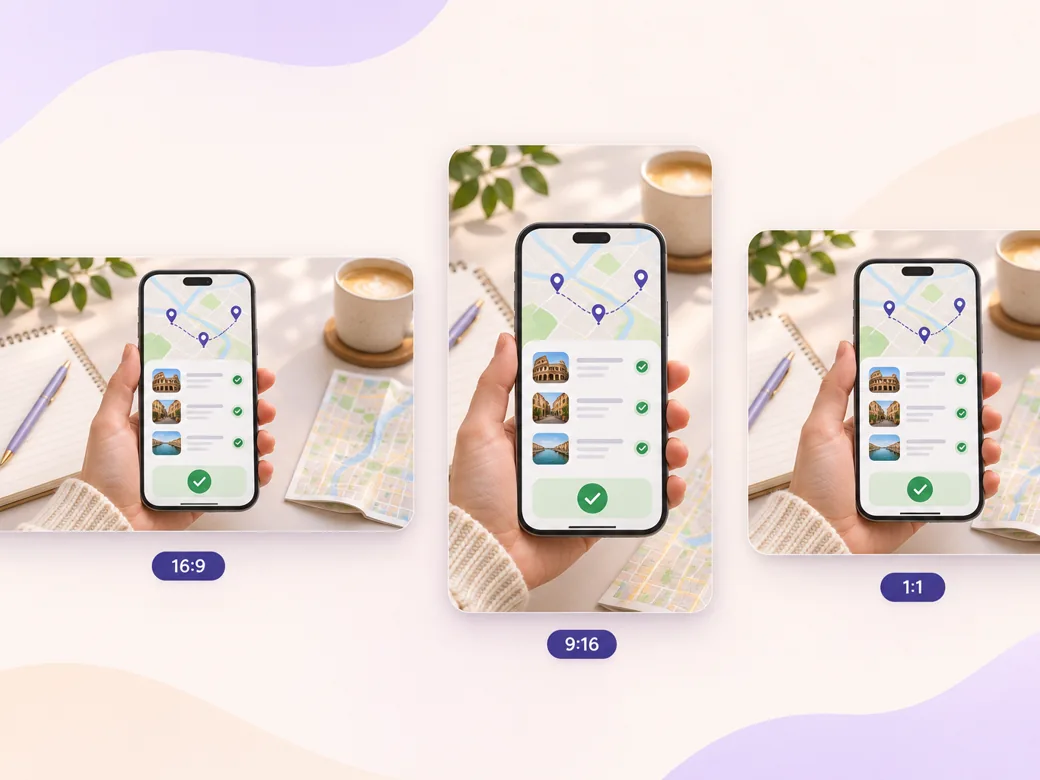
In a portrait cut, let the active screen occupy most of the image. In a wide cut, show the relevant screen and one short instruction side by side. Test the output at the size of the real support embed.
The save button and the confirmation are both visible. A reviewer can compare them directly with the current build. Use a current, approved screen capture.
Pexo can pair the real screen with a short instruction. The explanatory text should leave room for the tap. Check the sound-off view on a phone.
The video makes it clear what a saved itinerary looks like, so a new user can recognize the result. End at the actual success state.
An app explainer video shows how a person completes a task in a mobile app. It usually starts from a recognizable screen, highlights the controls that matter and ends with a visible result. Teams use it in support, onboarding and product education when viewers need to repeat the action themselves.
Yes. Record the task in a test account or supply screenshots taken from the current build. Give Pexo the intended order and tell it which control and completion state viewers need to read. Review the result alongside the app, checking interface wording and demonstration data before sharing.
Start with a portrait cut when the phone interface fills the frame. Remove unrelated screens and give each important tap its own beat. Place captions away from touch targets. For a widescreen article or support page, show one or two screen states at a size readers can still use.
Pexo is an app explainer video maker for turning a current screen capture and a short script into a walkthrough with captions and narration. It can use MiniMax H3 for an optional intro or illustrative context shot. Keep the real app screens as the source for any interface viewers need to follow.
An app explainer video demonstrates how to complete a task, with enough screen detail for people to repeat it. A mobile app preview introduces the app and its main experience before someone installs it. Choose a guided walkthrough for support or onboarding and a concise overview for a store listing. See mobile app preview video for that format.
Use subject + action + camera movement + setting + style. Try this brief. Show a phone displaying a test travel itinerary. Tap the save control, pause as the saved state appears, and finish with the itinerary in view. Use a stable close-up in bright light and a short caption beneath the screen action. Review the result against the assets and instructions you supplied.
Bring the current screens and show viewers one task they can repeat.
Create a real estate explainer video that shows each step of booking a viewing or preparing an application with Pexo.
Create an insurance explainer video with Pexo. Use approved policy wording and make each step and contact option visible.
Use Pexo to make a B2B explainer video that explains one buyer workflow and gives the buying team a clear next step.
Make a corporate explainer video from your internal brief. Show roles, handoffs and next steps with Pexo.
Make an article-based explainer video with Pexo. Turn the main point, evidence, and examples into a short video that stands on its own.
Create Bible videos from reviewed verses, lesson notes, book overviews, timelines, and character studies with clear scenes, narration, captions, and human review.
Create Islamic videos from reviewed sources and lesson notes, covering history, culture, ethics, and education with respectful visuals and narration.
Create Christian videos from reviewed Scripture, lesson notes, and historical sources with clear visuals, narration, captions, and human review.