

Insurance Explainer Video
Create an insurance explainer video with Pexo. Use approved policy wording and make each step and contact option visible.
Make an AI real estate explainer video in Pexo from an approved script, property references and a checklist. Show what happens before a viewing and what the viewer can do afterward.
Give the real estate explainer video maker an audience and one purpose. For a viewing request, show the inquiry, the appointment and the confirmation. Ask Pexo to introduce a floor plan or property shot only where it helps someone understand the next step. Use the actual booking workflow as the source.

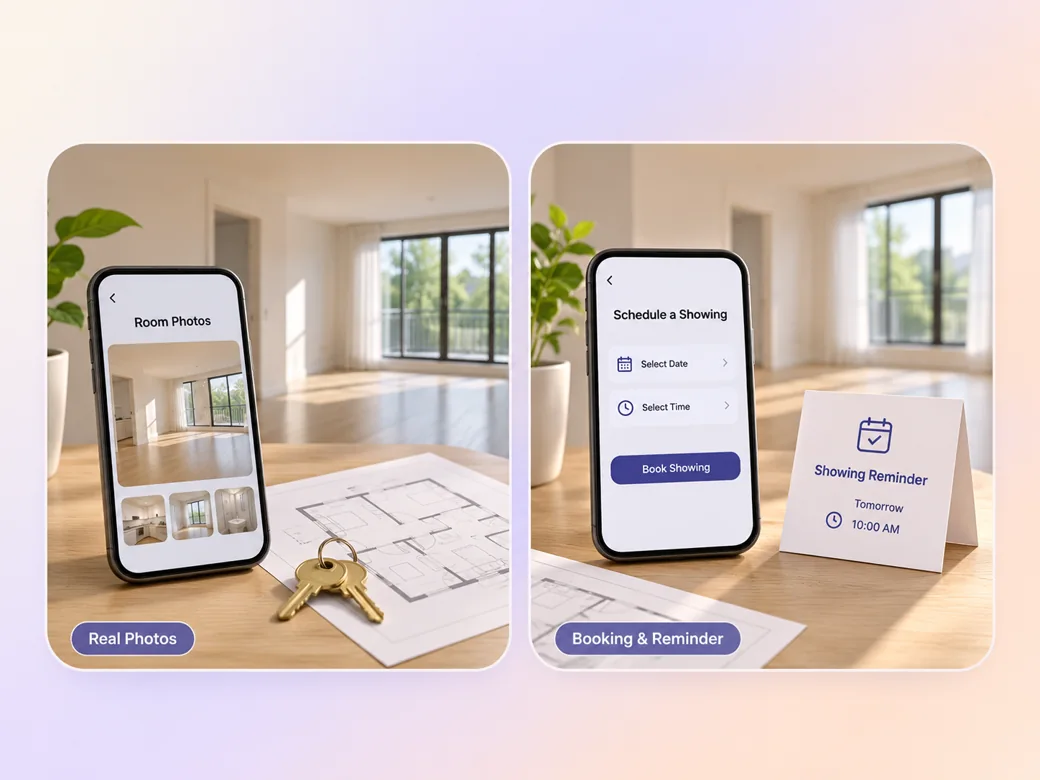
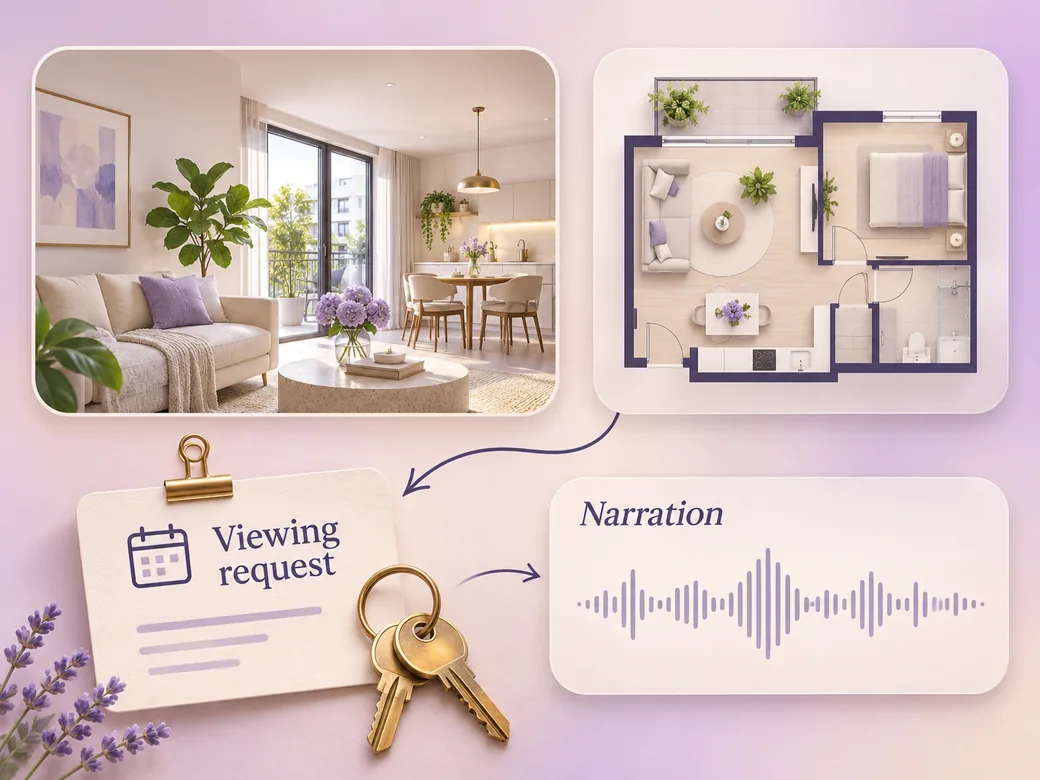
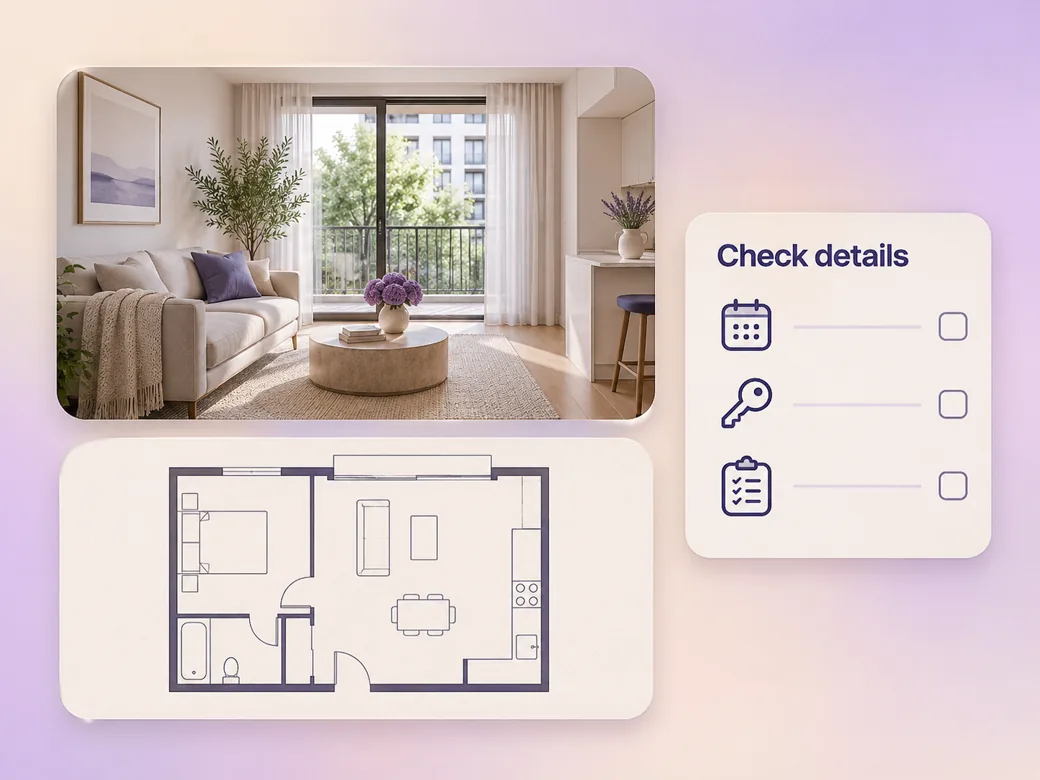
This illustrated preview shows how the brief can be reviewed in Pexo.
What to review
Use a real floor plan or approved photos when the description depends on the property. Keep the picture tied to the instruction, such as checking the location before booking a viewing. Include only information your team can confirm, and review the route and dates before exporting the cut. Use the image to video workflow when your source is a still image.
Use one short narration beat for each decision, such as confirming the showing time or asking where to apply. Share the exact terms for the location or service the video covers. Use clear captions near the relevant picture and allow the viewer to stop and return to the video. Use the script to video workflow to map an approved read to the shots.
Review the real estate explainer video generator cut before showing it to prospects. Confirm that the form, contact path and any stated conditions match the listing or approved page. Test the final action from a phone and hold the frame long enough for a viewer to find it.
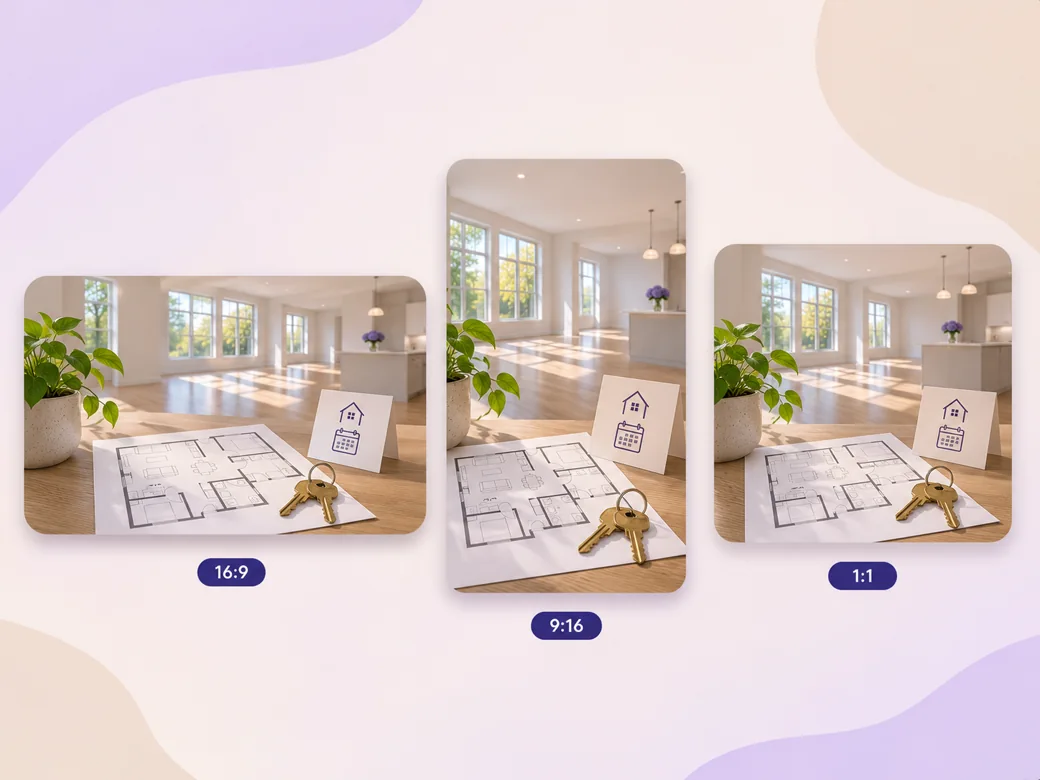
In a wide cut, show the property reference and next action side by side. For a phone, move between a close-up of the plan and a single readable instruction. Test the final contact frame within each placement.
The example moves from inquiry to confirmation in the same order a renter will encounter it. Check the appointment instructions against the actual form.
Pexo can arrange a property image and a short instruction in one cut. Use a current floor plan so the visual is useful to the viewer. Review the property details before sharing.
The final action is readable after the property scene ends, so the viewer has a moment to decide. Give the contact route a visible hold.
A real estate explainer video walks a viewer through a property-related process such as requesting a showing or preparing an inquiry. It pairs useful property references with ordered actions and a contact option. Teams use it on listings, in follow-up messages and on pages that answer repeat questions.
Yes. Provide current photos, a floor plan or a real capture you have permission to use. Explain which detail matters at each step. Keep changes and labels tied to the approved references, then compare the preview with the listing and review the contact path before sharing.
Yes. Use the exact process your property team has approved. Give each action its own scene and link viewers to the current application instructions or contact page. Display conditions that affect the viewer and have the relevant reviewer verify the terms for the property and market.
Pexo is a real estate explainer video maker for shaping your verified listing references into a short walkthrough with narration and captions. Seedance 2.5 can add illustrative backgrounds when appropriate. For actual room layouts, documents and property details, give the reviewer the original sources alongside the finished preview.
A real estate explainer video walks a prospective viewer through an action such as asking for a showing. A general real estate video can be a listing tour that focuses on the rooms and property features. A listing can use the tour for discovery and the explainer for the next step. See real estate video for that format.
Use subject + action + camera movement + setting + style. Try this brief. Show an apartment floor plan and a set of keys on a sunny table. Pan from the plan to a simple booking form, then pause on a confirmed viewing. Use a quiet documentary style, approved address details and a short final instruction. Review the result against the assets and instructions you supplied.
Bring your approved details and one action viewers need to understand.
Create an insurance explainer video with Pexo. Use approved policy wording and make each step and contact option visible.
Use Pexo to make a B2B explainer video that explains one buyer workflow and gives the buying team a clear next step.
Create an app explainer video in Pexo from current screenshots, a short script and a visible completion state.
Make a corporate explainer video from your internal brief. Show roles, handoffs and next steps with Pexo.
Make an article-based explainer video with Pexo. Turn the main point, evidence, and examples into a short video that stands on its own.
Create Bible videos from reviewed verses, lesson notes, book overviews, timelines, and character studies with clear scenes, narration, captions, and human review.
Create Islamic videos from reviewed sources and lesson notes, covering history, culture, ethics, and education with respectful visuals and narration.
Create Christian videos from reviewed Scripture, lesson notes, and historical sources with clear visuals, narration, captions, and human review.