 ChatGPT
 Perplexity
 Claude
 Gemini
 Grok




Which images can the video team use this week, and who can approve a change? Put those answers beside the files. A shared link alone leaves the producer to guess whether a picture is current, provisional, or meant only to guide the look.
A packet of Canva Craft brand assets should make those decisions easy to find. Keep the approved visuals, their sources, and the campaign's limits together so the next person can continue the work without reconstructing past conversations.
What Belongs in a Brand Asset Packet for Video?
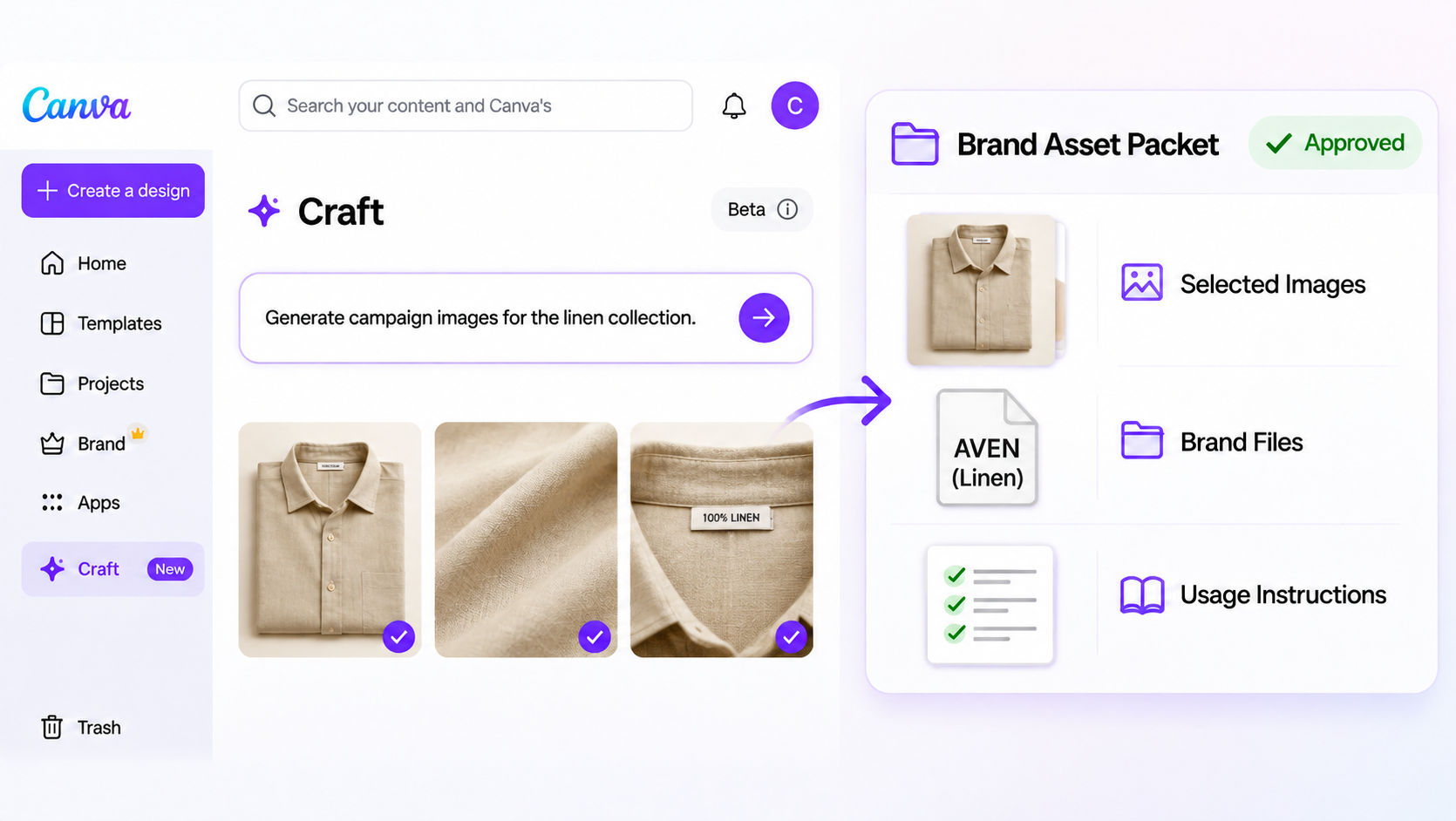
Include the selected images, original brand files, and instructions that explain their permitted use. Craft generates images; selecting and approving a campaign packet remains the team's job.
Approved Visuals, Logo, and Brand Rules
Separate pictures production may use from pictures supplied only as visual references. A Craft lifestyle image might guide the setting, while a genuine product photograph supplies the product appearance.
For a hypothetical linen campaign, the packet could contain two approved lifestyle images and one genuine product photograph. Add the original logo, color values, and approved type choices separately. A logo rendered inside an image should not become the source for future closing cards.
Give visual rules a practical purpose: which logo works on a dark background, how much space surrounds it, and which colors belong in titles.
Source Files, Owners, and Version Labels
Keep each approved export beside its source design link and original references. If the image is flat, say so; production should not discover halfway through a revision that the headline cannot be edited separately.
Use a filename such as linen_spring_table_v03_APPROVED.png, with the responsible person's name in the file list. Store alternatives separately and mark replaced versions clearly. Keep the generation prompt and later editing notes where they help explain the selected result.
How Do You Mark a Canva Craft Image as Approved?
Approve a specific file for a specific use, with a named reviewer. “Looks good” in a conversation is difficult to apply when several similar exports arrive later.
Match the Brand System and Product Facts
The brand reviewer checks whether the image belongs with the campaign's other assets. The product reviewer confirms that visible products and claims still match the current offer.
Record unresolved points before handing off the packet. For the linen example, a setting may be approved while the pictured bundle still needs confirmation. Keep that file out of the usable selection until the question is settled.
Record Usage Scope and Review Owner
State the approved channels, markets, and any end date or restriction. Keep the actual permissions for supplied photographs, logos, and people with their source records. Approval for one organic post should not be assumed to cover paid advertising or another client's campaign.
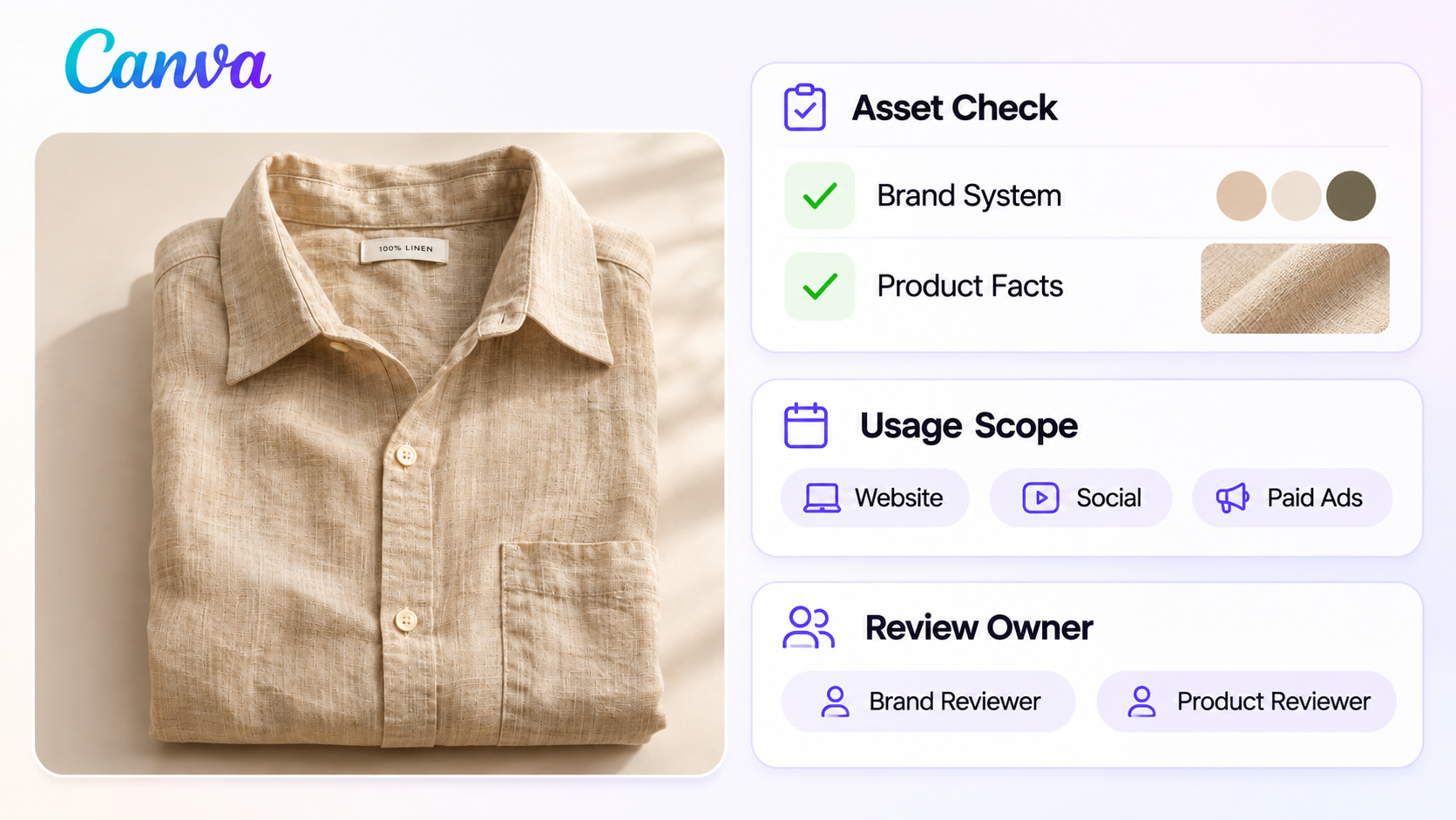
Identify who can approve a changed claim and who accepts the final video. Check the applicable Canva terms alongside the original material's permissions. This article does not provide legal advice.
How Should the Video Team Use the Packet?
The producer should confirm the packet version before starting, use the selected assets for their stated roles, and return changes for approval. Keep the approved source selection available while work continues in a separate production copy.
A Fillable Handoff Checklist for One Campaign
Copy this into the campaign note and complete it before sending:
| Handoff item | Fill in for this campaign |
|---|---|
| Campaign and packet | Name, version, issue date |
| Usable images | Exact filenames and approved roles |
| Reference-only material | Filenames and what each illustrates |
| Brand sources | Logo, colors, fonts, guidelines |
| Product and copy | Current product references and exact approved wording |
| Origin | Source designs, supplied references, prompt/edit notes |
| Usage | Channels, markets, restrictions, permission records |
| Decisions | Brand reviewer, product reviewer, final approver |
| Return request | Preview, changed-file list, unresolved questions |
If the campaign continues in Pexo, include the packet version in the next request. Before relying on Creative Memory between campaigns, confirm what your account retains and who can access it. Keep the approved packet available when a product, offer, or brand rule changes.

What to Return When the Campaign Changes
Return the revised preview with a short list of replaced images, changed copy, and new questions. Name the packet it used so the reviewer can compare the right versions.
When a new offer replaces the old one, identify the affected files and ask recipients to stop using them. Changing a shared folder does not update downloads already held by another team. Issue a new packet version and ask the producer to confirm the replacement before continuing.
Conclusion
Send the packet when the recipient can identify the usable images, their permitted roles, and the person who can approve a change. Keep the working alternatives elsewhere.
For the next campaign, issue the new selection with a clear replacement note. The producer should be able to see what changed without reopening every earlier conversation.