
 ChatGPT
 Perplexity
 Claude
 Gemini
 Grok


You upload the video and open the watch page on your phone. The thumbnail cuts off the product name, captions misspell it, and the link in the description leads to an old page. The file is uploaded. The launch isn't ready. If you're publishing a brand video on YouTube, this guide takes you through YouTube Studio, from file checks and upload settings to captions, visibility, and final playback.
This guide covers YouTube Studio on a computer. It assumes the brand already owns the video, music, logos, product claims, and any footage shown in the file.
What should you check before uploading a brand video?
Check the final file, aspect ratio and on-screen text
Open the exact export that will go to YouTube. Watch it from start to finish and check the first frame, product details, spoken claims, captions, logo, end card, audio, and final call to action.
For a standard brand-channel upload, a horizontal 16:9 file usually fits the intended viewing context. Keep the ratio consistent with the approved brief.
Check the filename and version before upload. A useful format includes the product, channel, language, ratio, and version, such as 'alder-lunch-demo-en-16x9-v04.mp4'.
If the video came from an earlier production workflow, keep the source record nearby. Pexo’s YouTube video creator can help prepare a YouTube-ready cut from a brief and approved references. The upload, channel permissions, captions, and publication settings still belong in YouTube Studio.
Prepare the title, description and thumbnail
Write the title for the viewer’s question. A product demo title might name the product and the problem it solves. Keep the approved product claim in the description rather than adding a stronger promise during upload.
Prepare the description in a separate document so the team can review it before pasting. Include the product page, required disclosures, relevant chapters, and any attribution required for music or outside footage.
Choose a thumbnail that shows the product clearly at a small size. Check the logo, headline, contrast, and crop on a phone screen. Keep the thumbnail aligned with the actual video. A frame that promises a feature the video never shows creates review and trust problems.
If you need a visual planning reference before preparing a new video, the Storyboard Software comparison covers review records and handoff decisions for marketing-video boards. It does not replace YouTube’s upload controls.
Upload the video in YouTube Studio
Select the file and review the basic details
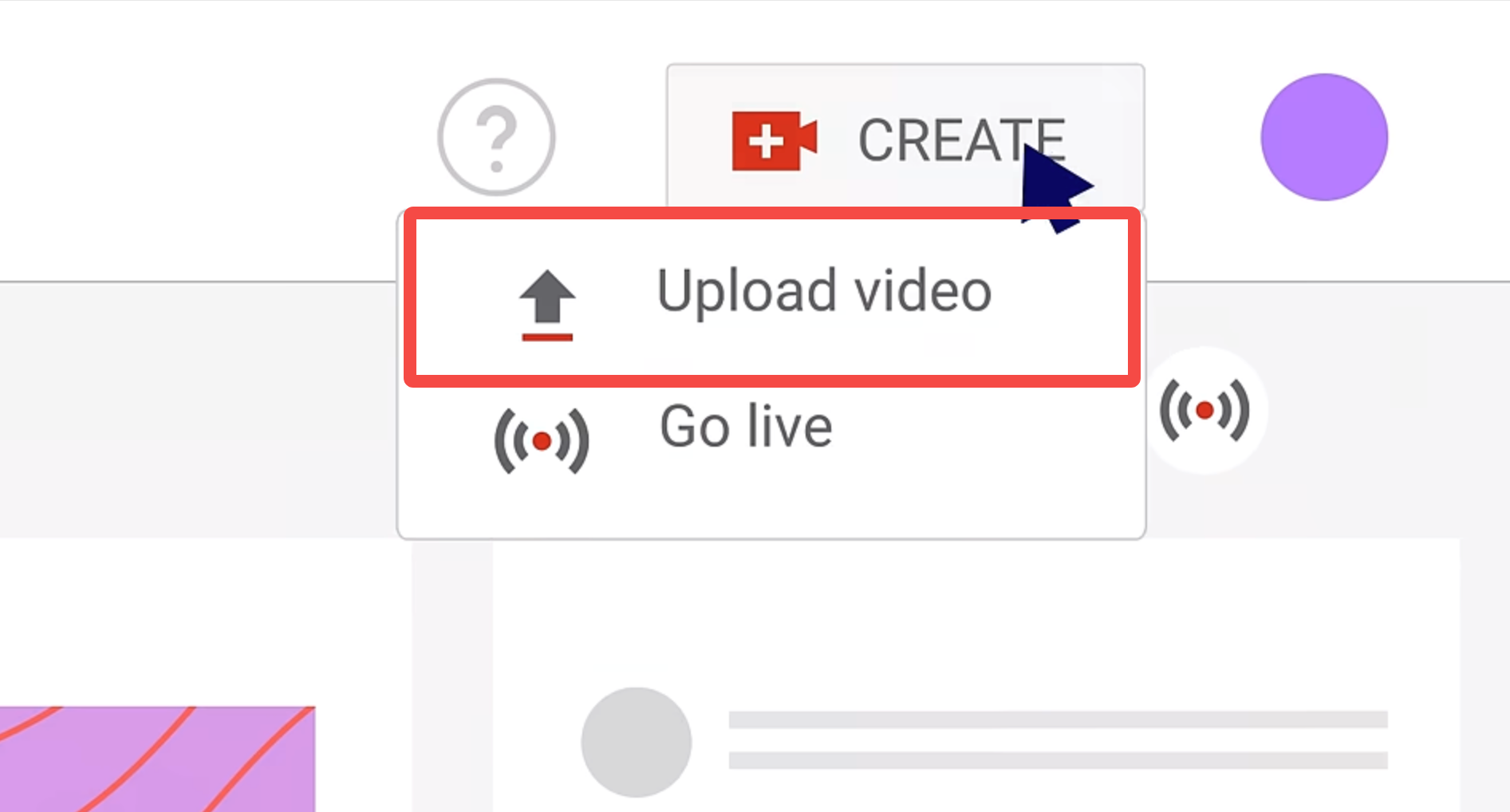
Sign in to the Google account that manages the brand channel. Confirm the channel name and avatar before selecting Create, then Upload videos in YouTube Studio.
The YouTube Studio upload instructions allow multiple uploads in one session. For a single campaign video, select the approved file and wait for the details screen to load. Do not close the upload window before choosing visibility. YouTube may save an unfinished upload as private if the window closes early.
Add the title, description, thumbnail, playlist, and audience setting. YouTube requires the channel owner to state whether the video is made for kids. Choose the answer that matches the actual content and audience.
Review the video preview while YouTube processes it. Processing can take longer for HD and 4K files, and the higher-resolution version may appear after the standard version. Wait for processing to finish or report an error.
Set audience, visibility and publishing options
Choose the visibility that matches the review stage:
-
Private keeps the video visible only to the account and selected users.
-
Unlisted lets people with the link watch it without placing it on the public channel.
-
Public makes the video available according to the channel and YouTube settings.
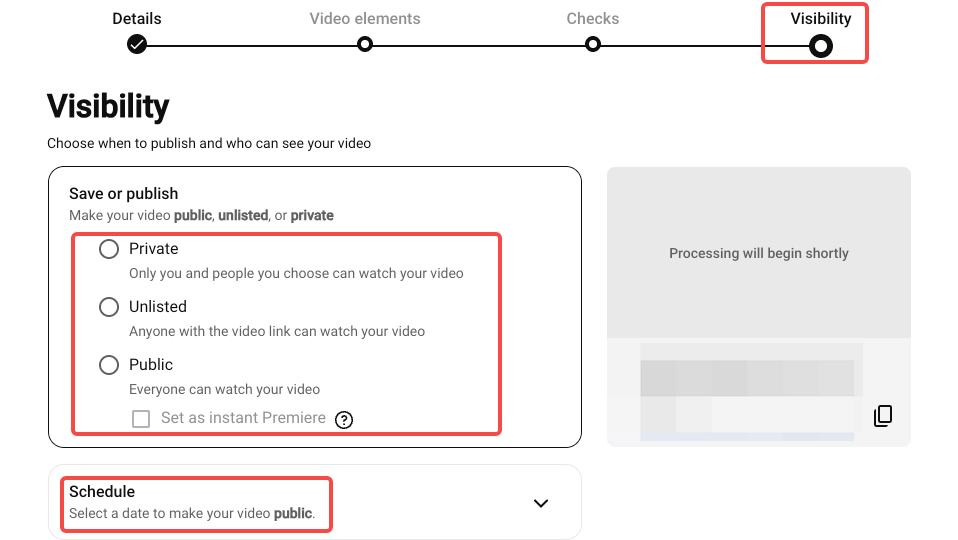
- Schedule sets a future publication time.
Use Private or Unlisted for client review. Confirm that every reviewer’s Google account has the access required for a private share. If the team needs a simple link that external reviewers can open, Unlisted may fit better, subject to the brand’s confidentiality policy.
Set the publishing date and time only after the final playback review. If the video includes paid promotion or branded content, complete the relevant disclosure and altered-content fields shown in the Studio flow.
Add subtitles and captions before publication when the audience needs them. Upload the approved caption file or review YouTube’s automatic captions against the script. Automatic captions can misread product names, numbers, and brand terms.
Review the processed video before it goes live
Check playback, captions, links and the thumbnail
Open the watch page from the same visibility state that reviewers will use. Watch it on desktop and a phone. Check the opening, the first product appearance, voice clarity, captions, end card, and the link in the description.
Click every URL in the description. Check that the destination loads on a mobile device and matches the claim in the video. Remove temporary review links before publication.
Turn captions on and read them at normal speed. Fix names, measurements, product terms, and punctuation. If the video has chapters, check that each timestamp lands on the intended section. YouTube can also generate chapters when eligible, but manually entered chapters should match the approved structure.
Review the thumbnail after processing. YouTube may display it differently in search, on the channel page, and in embedded playback. Check the crop and text at each size.
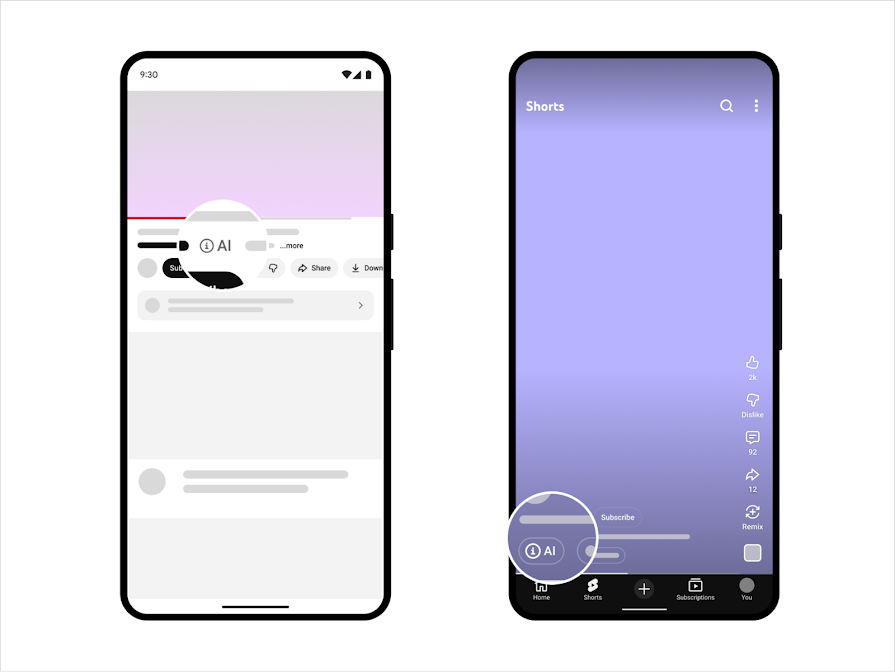
If the video includes synthetic or altered content that appears realistic, review YouTube’s current disclosure requirements before publishing. The upload settings can include an altered-content declaration, and the correct answer depends on what the video shows and how it was made.
What can go wrong between upload and publication?
A private upload can remain private because someone closed the upload window before selecting visibility. A video can finish processing in one resolution while higher-quality processing is still running. Captions can be present in Studio but contain incorrect product names. A thumbnail can be approved in the design file and become unreadable after YouTube crops it.
Use a small handoff record:
| Field | Entry |
|---|---|
| Channel | Brand channel name and owner |
| File | Filename, version, ratio, resolution |
| Upload date | Date and time |
| Visibility | Private, Unlisted, Public, or Scheduled |
| Reviewers | Accounts or link recipients |
| Captions | File name and approval status |
| Thumbnail | Filename and approval status |
| Description links | Tested URLs |
| Final reviewer | Name and decision |
| Publication time | Actual or scheduled time |
Keep the record with the approved export. If the video needs a correction later, the team can see which version was uploaded and who approved the title, thumbnail, captions, and links.
Final publication checklist
-
The correct brand channel is open.
-
The approved file and version are selected.
-
The title and description match the approved copy.
-
The thumbnail shows the product clearly.
-
The audience setting is correct.
-
Branded-content and altered-content fields are reviewed.
-
Captions are uploaded and checked.
-
Visibility and schedule are correct.
-
Description links open on mobile.
-
Playback, audio, captions, chapters, and thumbnail are approved.
-
The final reviewer and publication time are recorded.